How to Create Reels for Social Media Using My Podcast Episode
This guide shows an easy way to turn podcast episodes into short, eye-catching video clips for social media. With simple steps and helpful AI tools, you can quickly create high-quality, branded videos to share on Instagram, Facebook, and more—perfect for growing your audience.
1. Navigate to https://app.podup.com/home
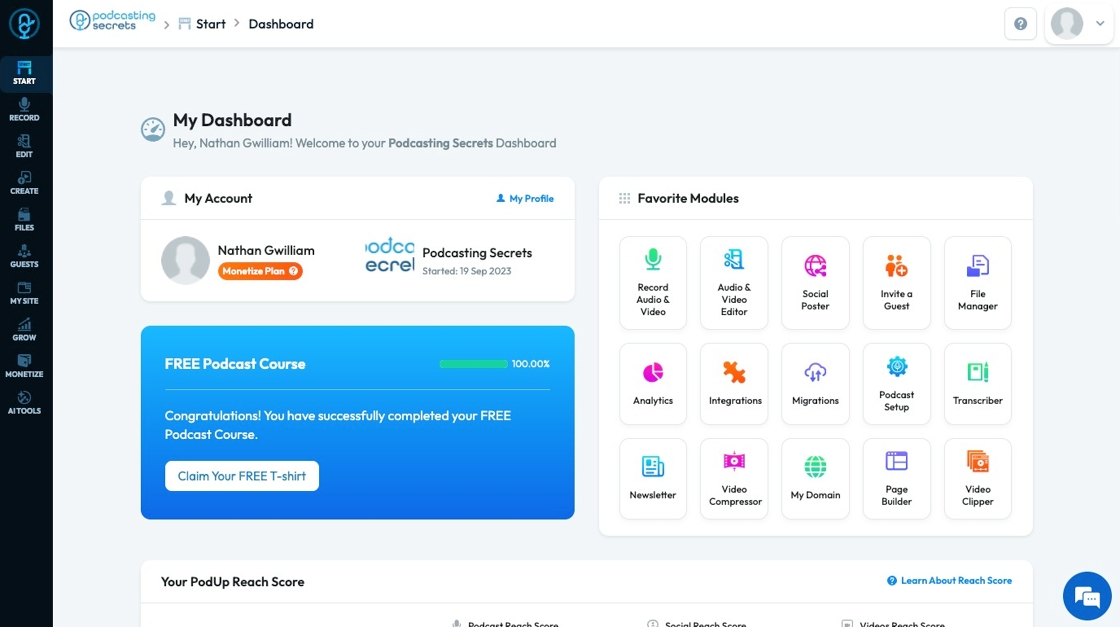
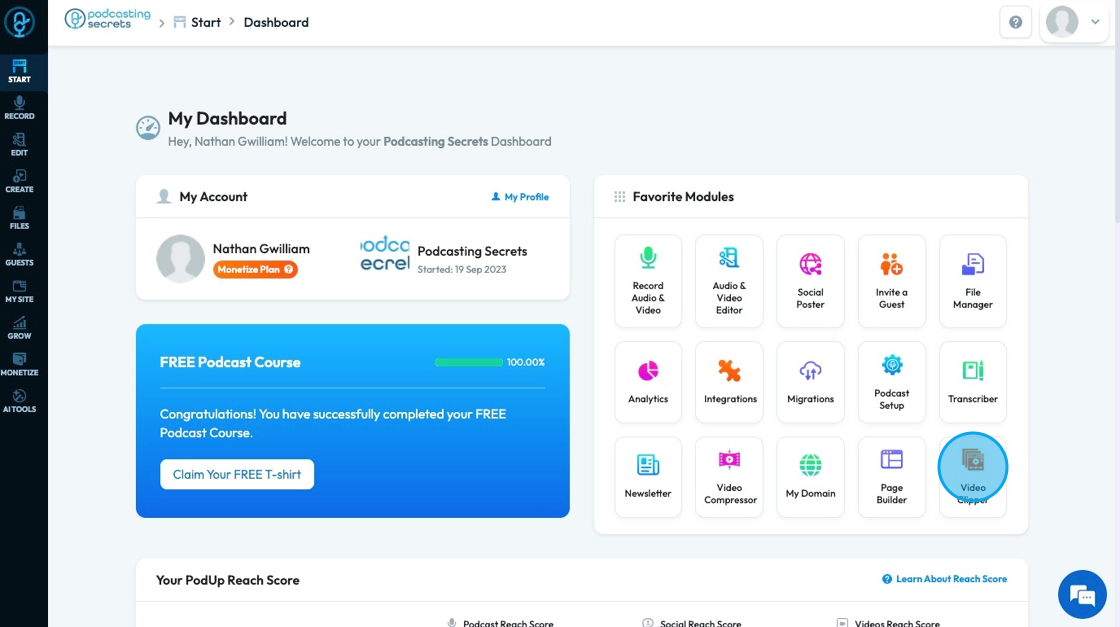
2. Click "Video Clipper" icon in "Favorite Modules" on the Dashboard
3. Click "Create New Clips"

4. Click the "Title" field to add a title

5. Click "Video" to select a video from PodUp
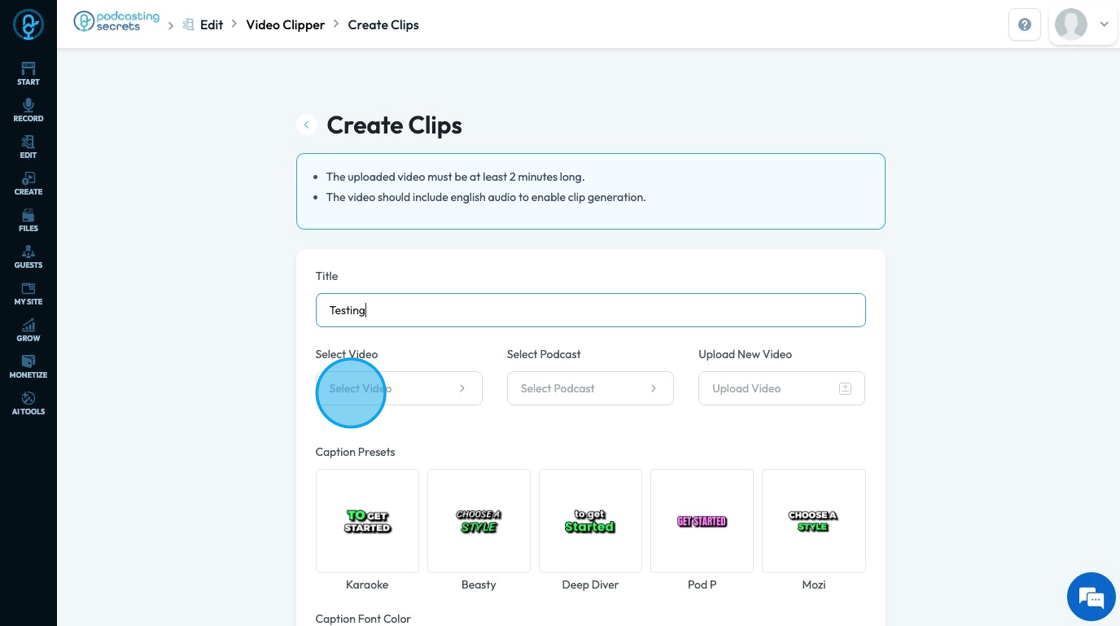
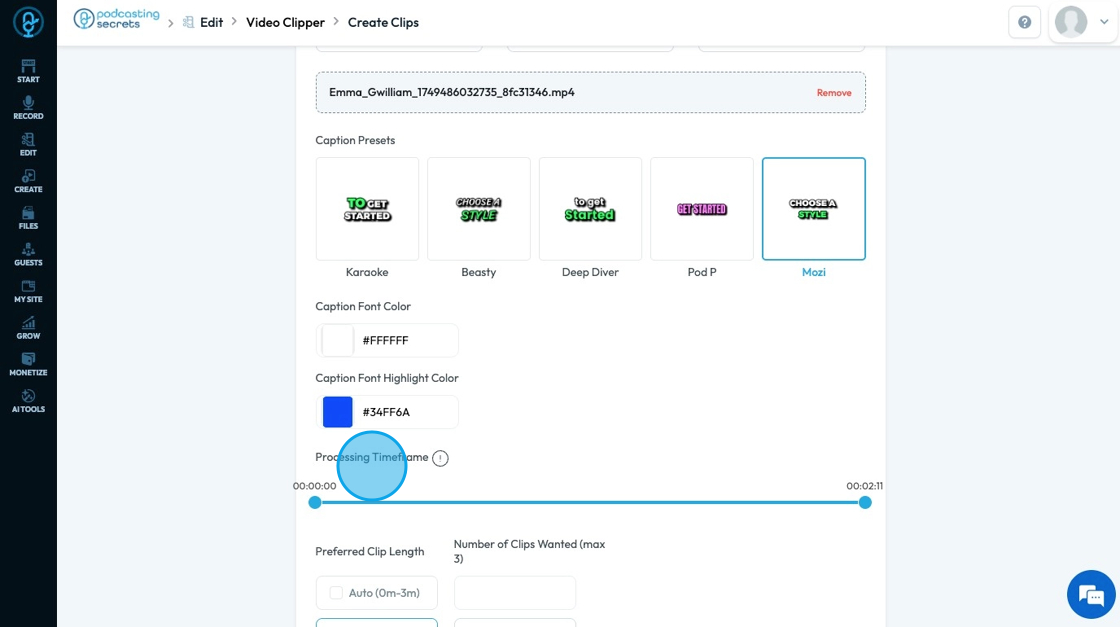
6. Select 1 of 5 caption styles

7. Pick the Font Color and the Highlight Color for your captions

8. "Processing Timeframe" indicates what timeline you want the clip to be pulled from
9. "Preferred Clip Length" tells AI how long to make the clips. You can select multiple different options for clip length. The time length will be within these options
- You can only generate a total of 3 clips per generation

10. For a reel, choose the middle option "9:16" which is the standard size for social media like Facebook and Instagram
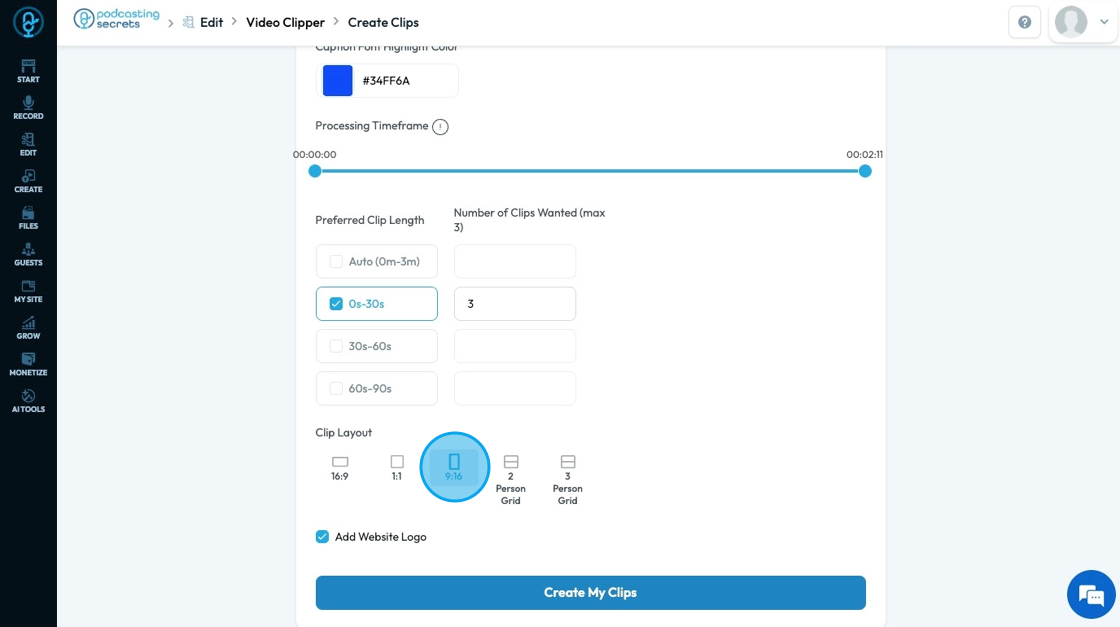
11. Click "Add Website Logo" to simply add your website logo to the video to brand the video

12. Click "Create My Clips" to start AI generating your clips
- Note - This could take 3-4 minutes due to the fact that the AI needs to scan the whole file to select the most important parts and create the

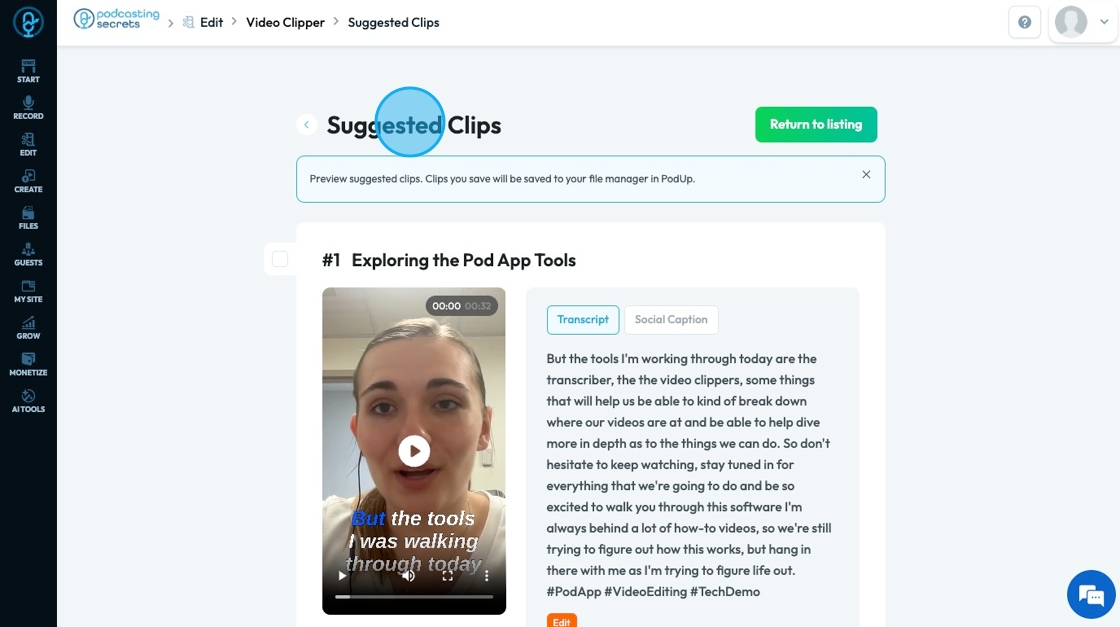
13. "Suggested Clips" will appear with your AI-generated reels
- You must keep the video to save your clips otherwise you will lose them
- You can download them and edit the caption from here
Related Articles
How To Navigate Social Media Poster (Detailed)
This guide provides a straightforward method for creating and scheduling social media posts using the Podup platform. It offers step-by-step instructions, ensuring users can easily navigate through the process of adding content, selecting social ...How To Navigate Podcast Episode (Detailed)
This guide offers a step-by-step approach to creating and publishing a podcast episode on Podup, making it accessible even for beginners. It emphasizes the importance of SEO and categorization to enhance discoverability and engagement. By following ...How to Publish a Social Media Post?
Easily publish and schedule social posts with PodUp to grow your presence across platforms 1. Navigate to https://app.podup.com/home 2. Click "Create" 3. Select "Social Poster" 4. You will be directed to the "Social Poster" page 5. Click "Create New ...How can I schedule a social media post for later?
Use this guide to schedule social media posts for better timing and engagement. 1. Navigate to https://app.podup.com/home 2. Click "Create" 3. Select "Social Poster" 4. Click "Create new post" 5. You will be directed to the Publish Content page 6. ...How to Create Terms and Conditions for Your Podcast Website using PodUp Legal Docs
By following this guide, you can create customized Terms and Conditions for your podcast website to ensure legal compliance and build trust. Alert: Alert! LLC is a show technology company that makes creating, producing and monetizing shows simpler ...