How to Change the Font for All the Text on My Website
This guide shows you how to change the font for all text on your website. Follow the steps to pick a font that improves your site’s look and matches your brand.
1. Navigate to https://app.podup.com/home

2. Click "My Site"

3. Click "Site Themes"

4. Click "Font

5. Click "All Font Families"

6. Select the font that you want for all your text
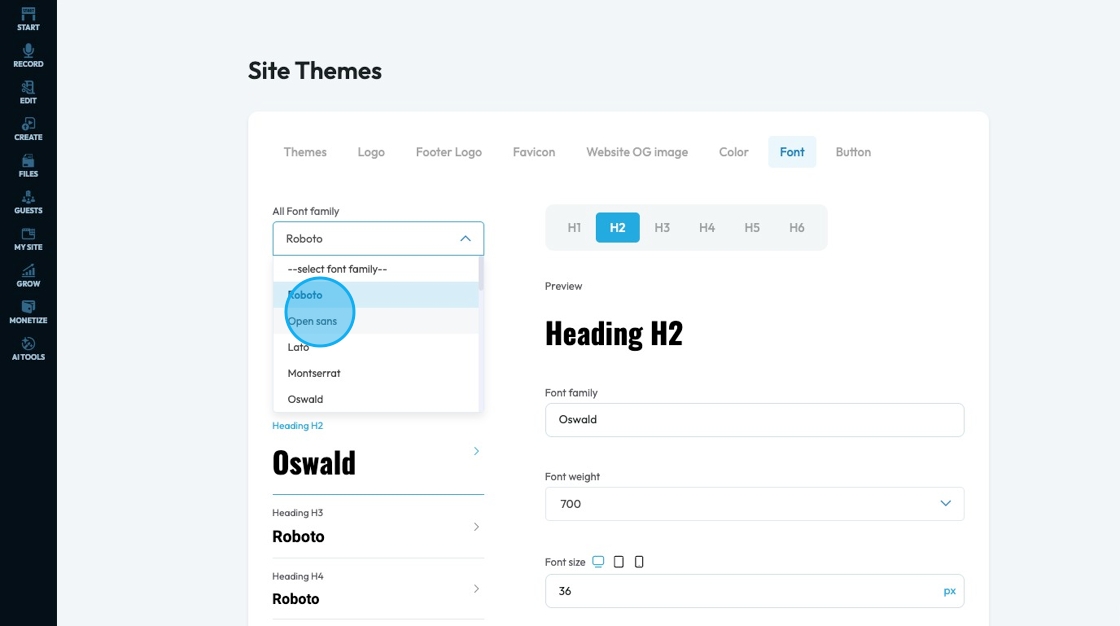
7. The selected font will then be applied to all formats
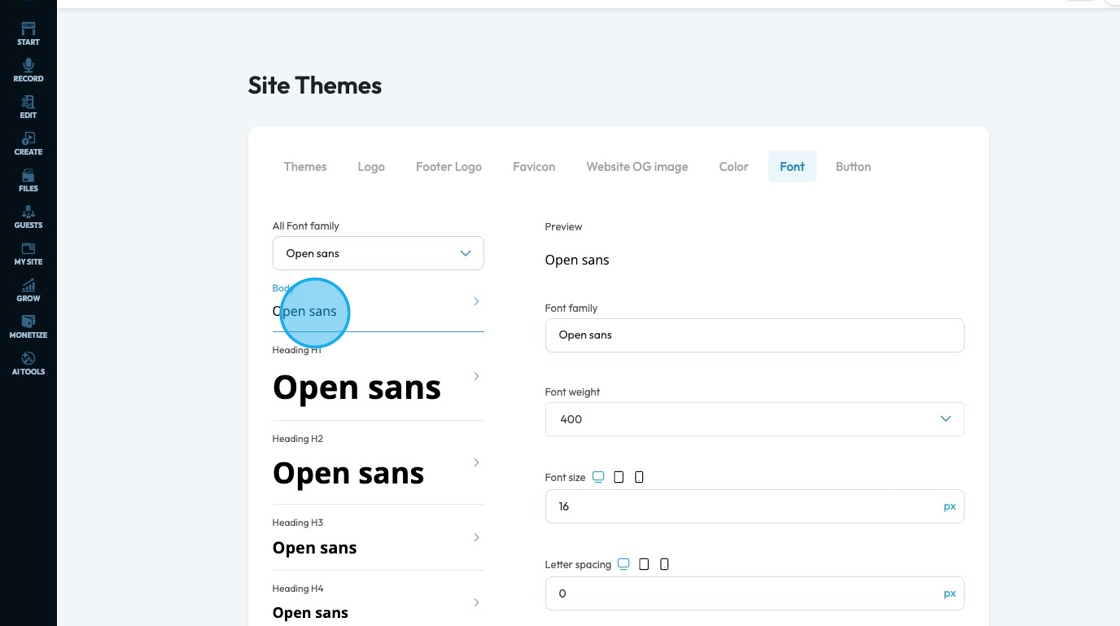
8. The changes will be reflected on your website

Related Articles
How To Change the Body Text of My Website?
This guide offers a straightforward approach to customizing your website's body text, enhancing its visual appeal and readability. By following the simple steps outlined, you can easily select and change the font style to suit your brand or personal ...How do I adjust the font style
This guide shows you how to create and customize fonts for your website to match your brand. It covers font family, size, weight, color, and advanced options like spacing and text shadows to help you create a clean, visually appealing design. 1. ...How To Format Text and Adding Links in PodUp Text Boxes (Detailed)
This guide provides essential tips for effectively writing text, helping users enhance their copy with various formatting options, links, and multimedia elements. By mastering text styling, table creation, and embedding features, readers can ...How to Change Your Site Theme on PodUp
By following this guide, you can easily change your PodUp site theme to match your brand and enhance user experience. 1. Navigate to https://app.podup.com/home 2. Click "My Site" 3. Select "Site Themes" 4. The ‘Site Themes’ page will load 5. The ...How To Add A Theme to My Website
This guide shows you how to add a nice-looking theme to your website using PodUp. It walks you through picking a template, changing colors and fonts, and making your site match your brand. It also helps you avoid common mistakes, like losing your ...