How do I adjust the font style
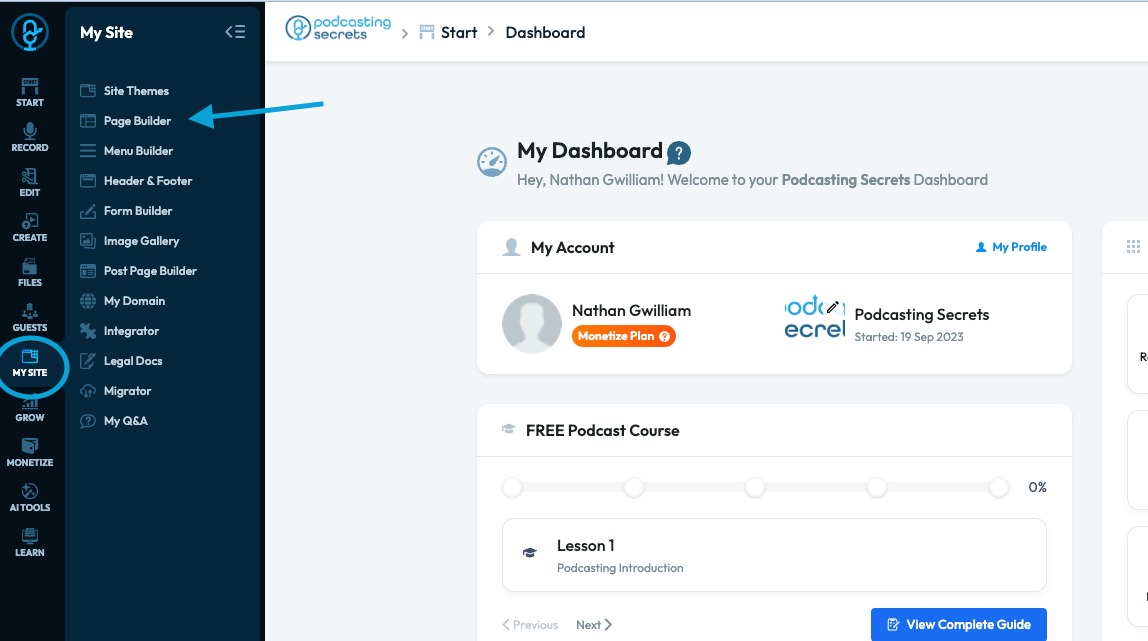
2. Upload a page to customize the text
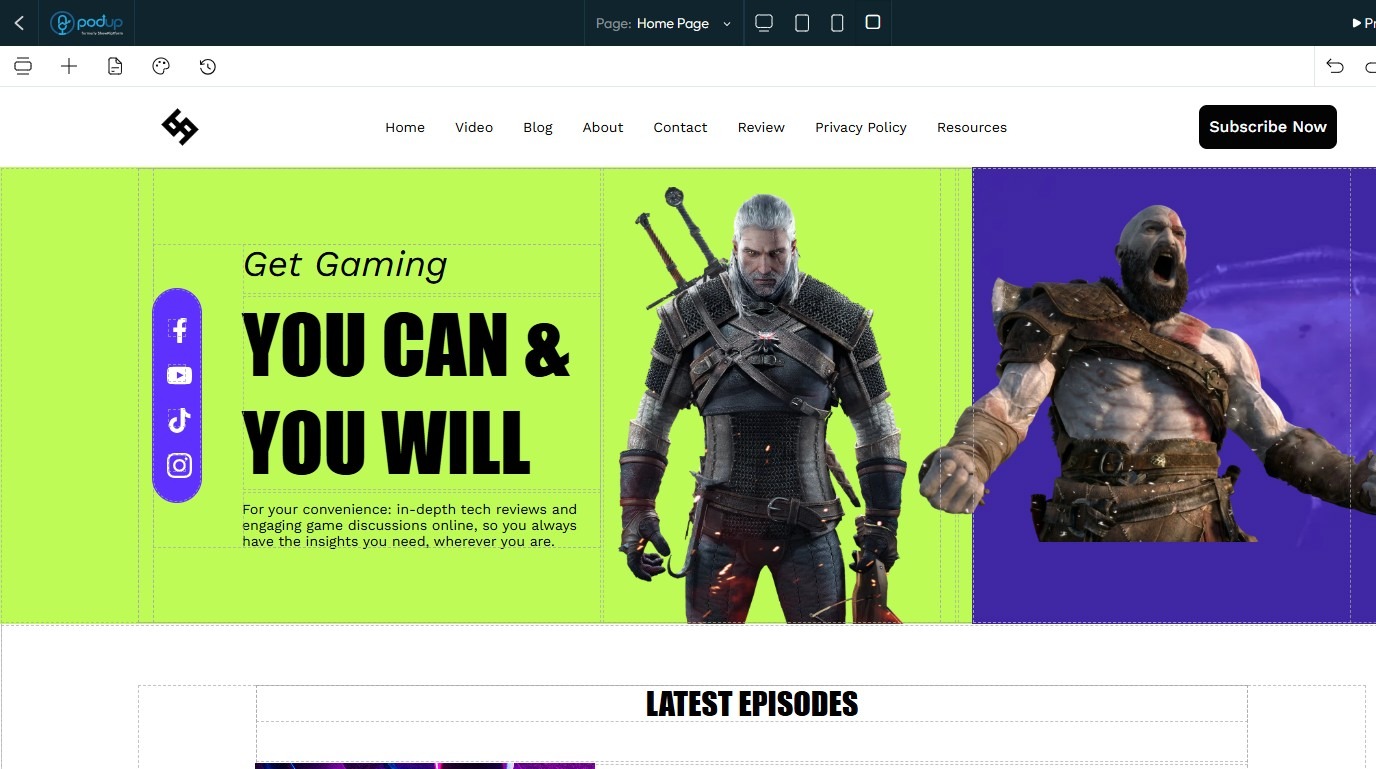
3. Click on the "Text" section you want to customize.
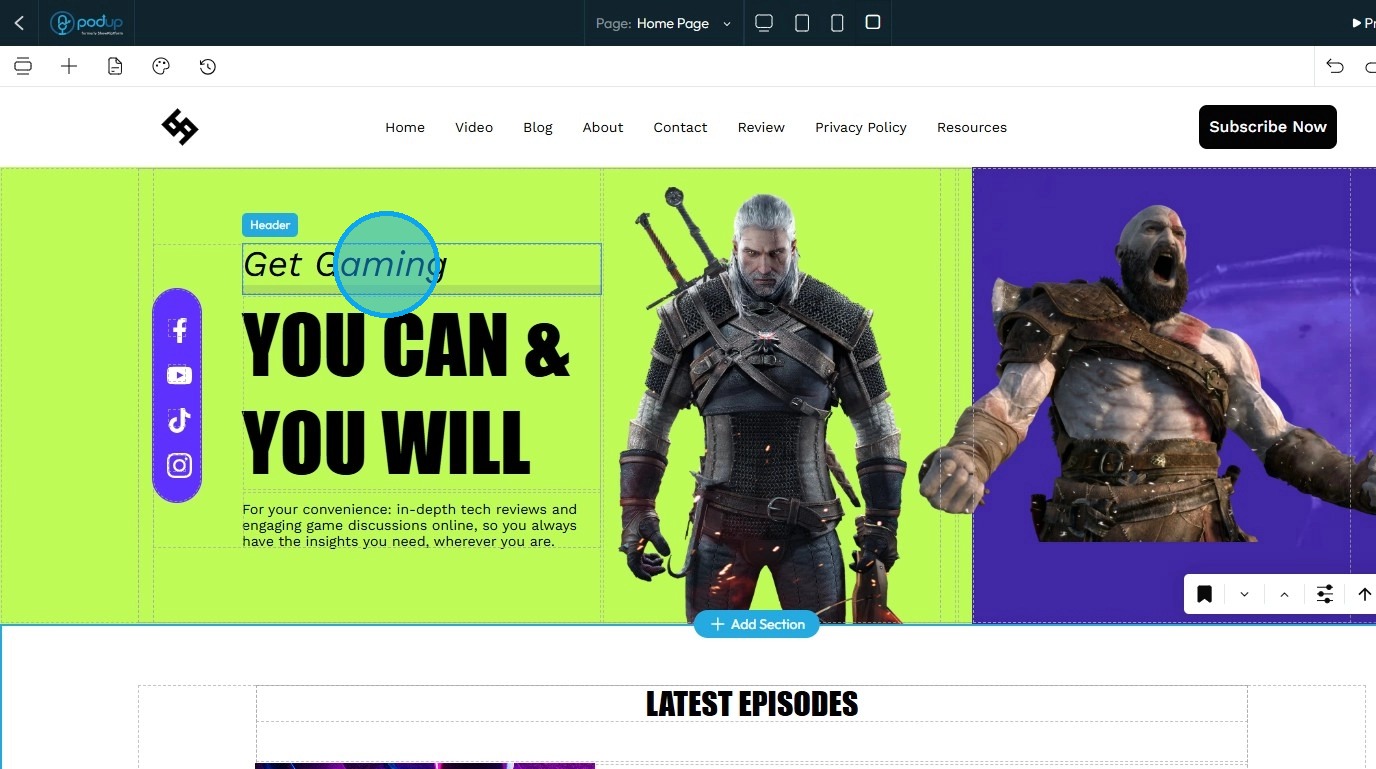
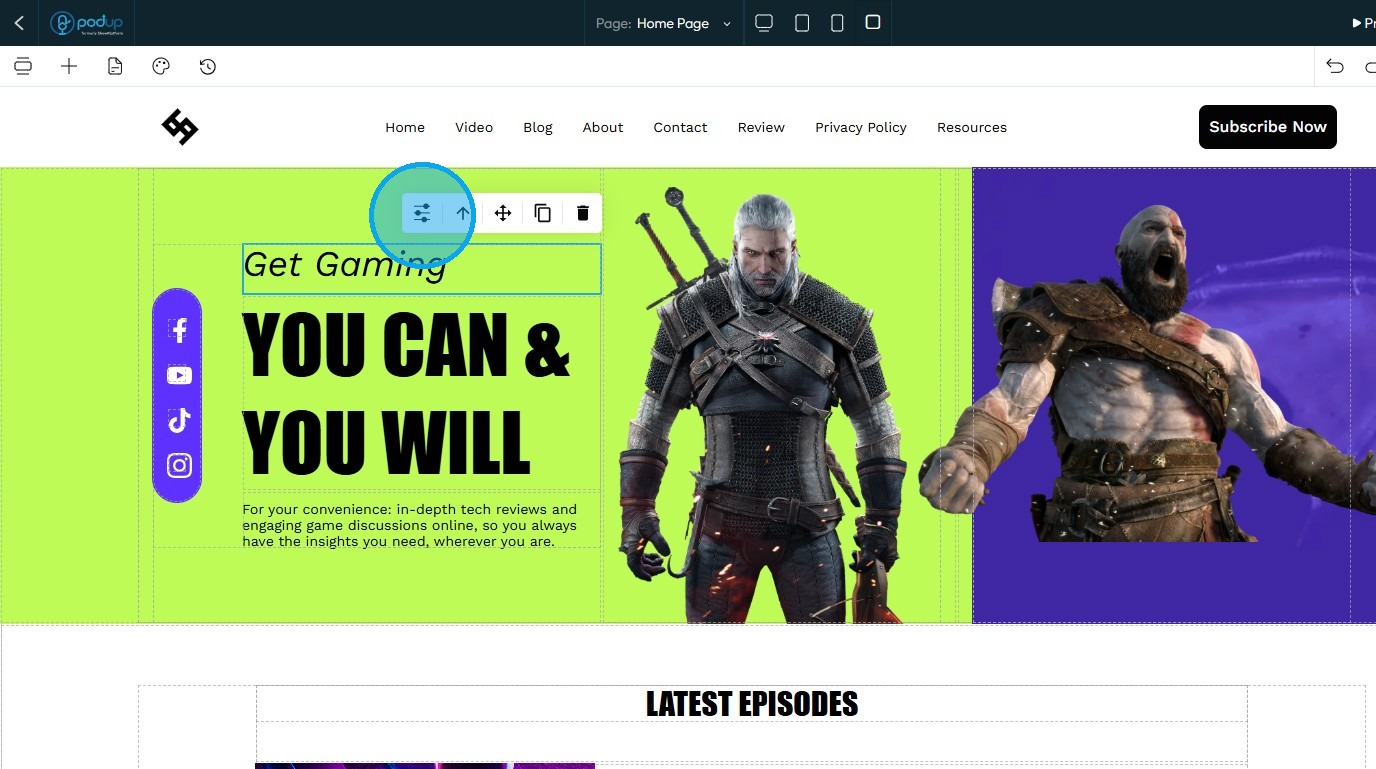
4. Once the block is selected, click on the "Customize" icon
5. Click "Design"
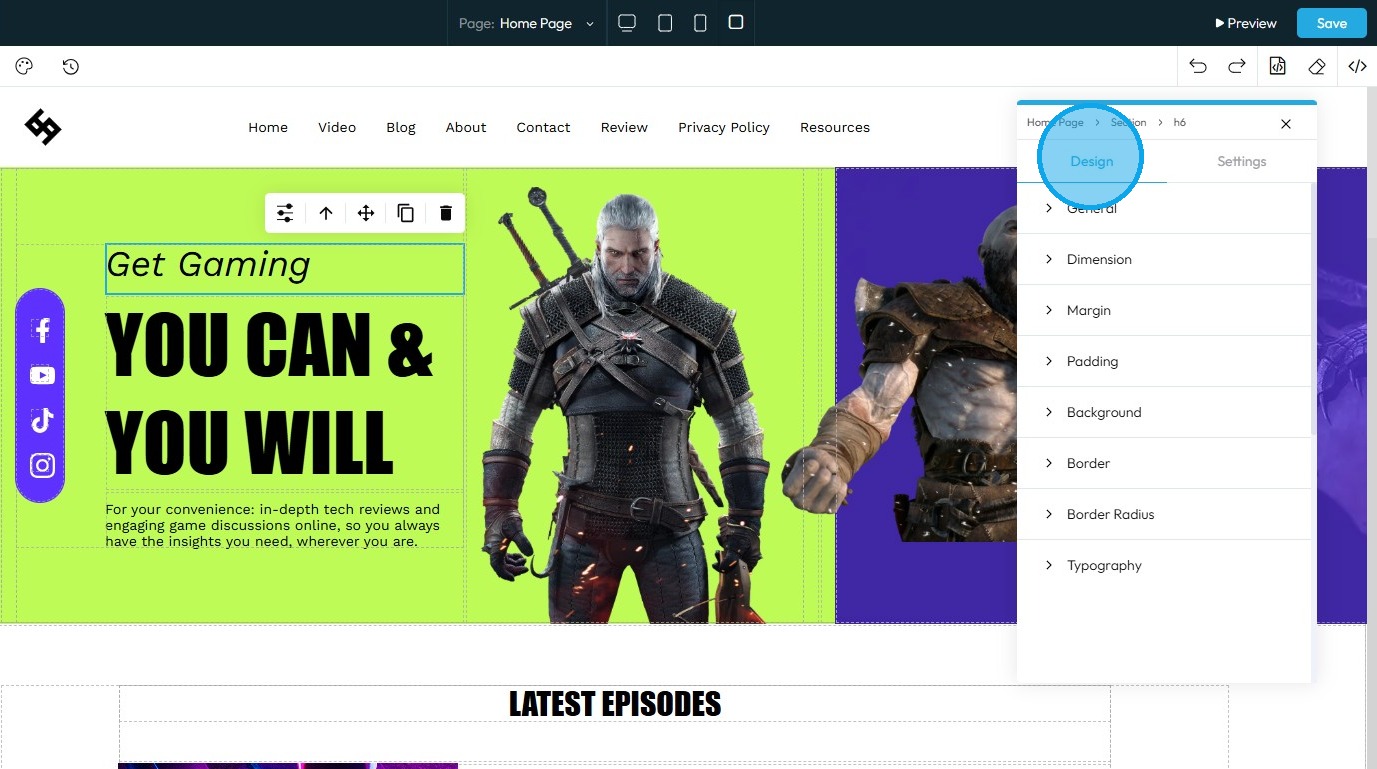
6. And click on "Typography"

7. Under "Typography" you can choose:
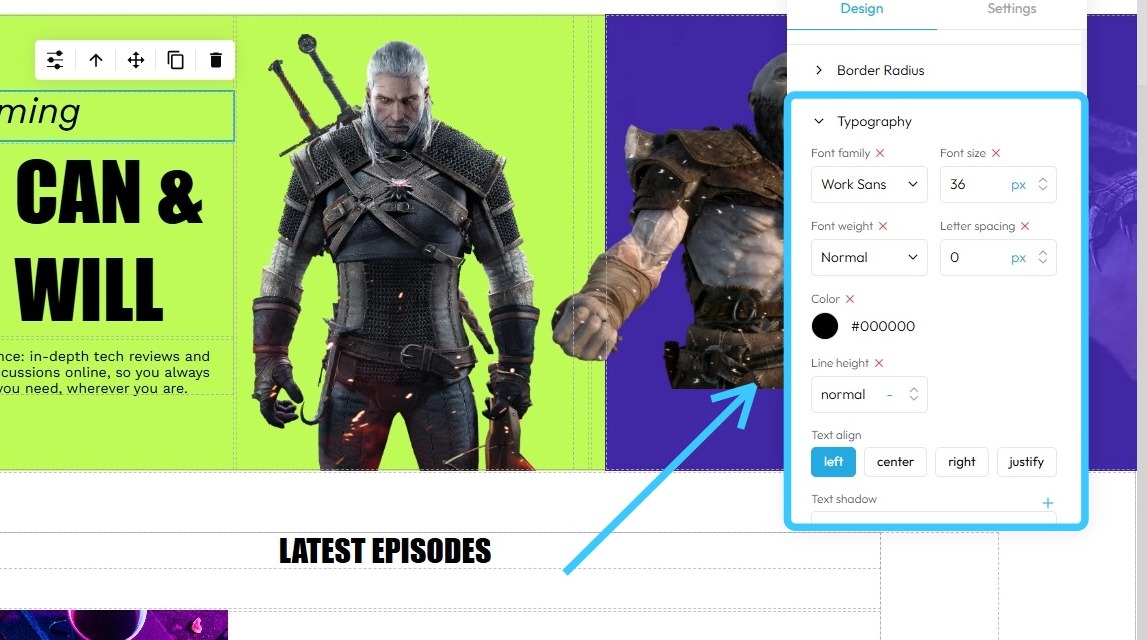
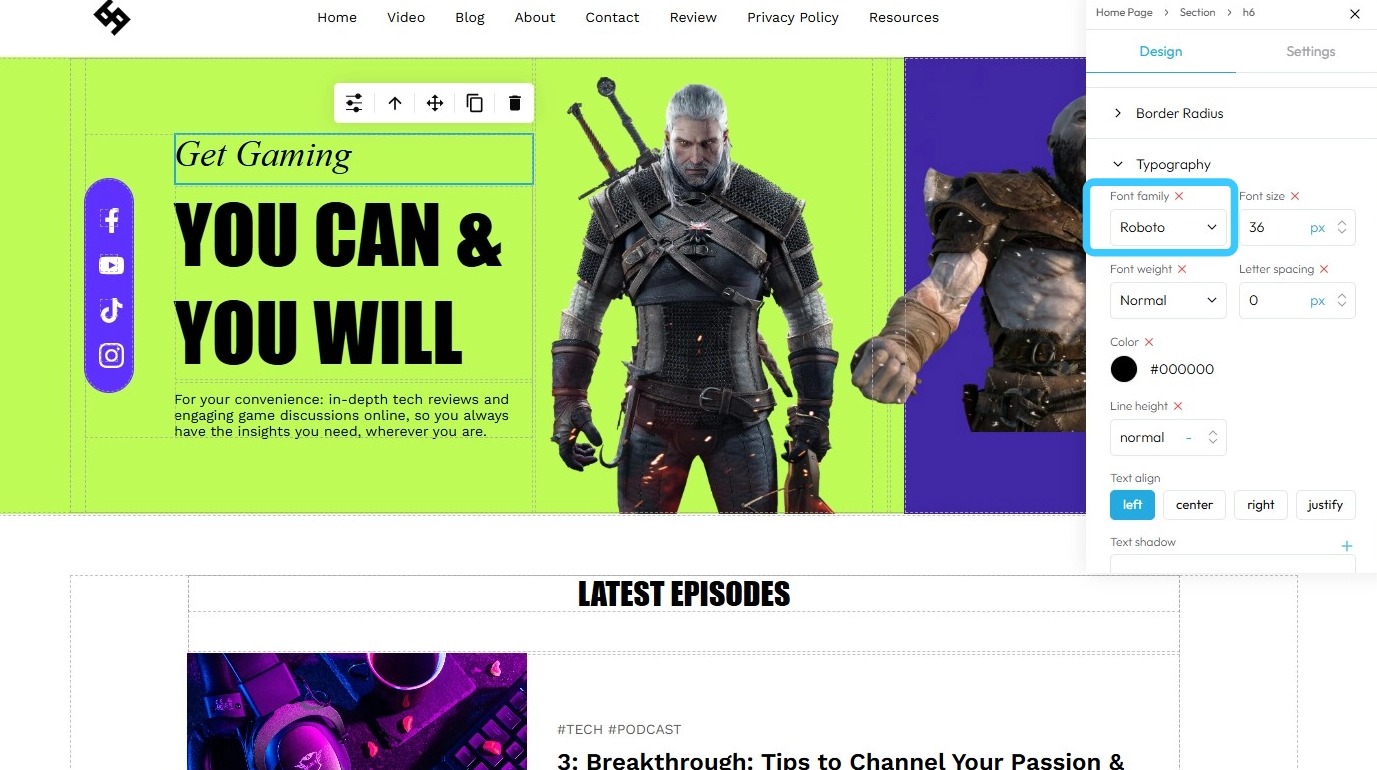
8. - Font Family: Select the typeface or style of the text (e.g., Arial, Times New Roman, Roboto)
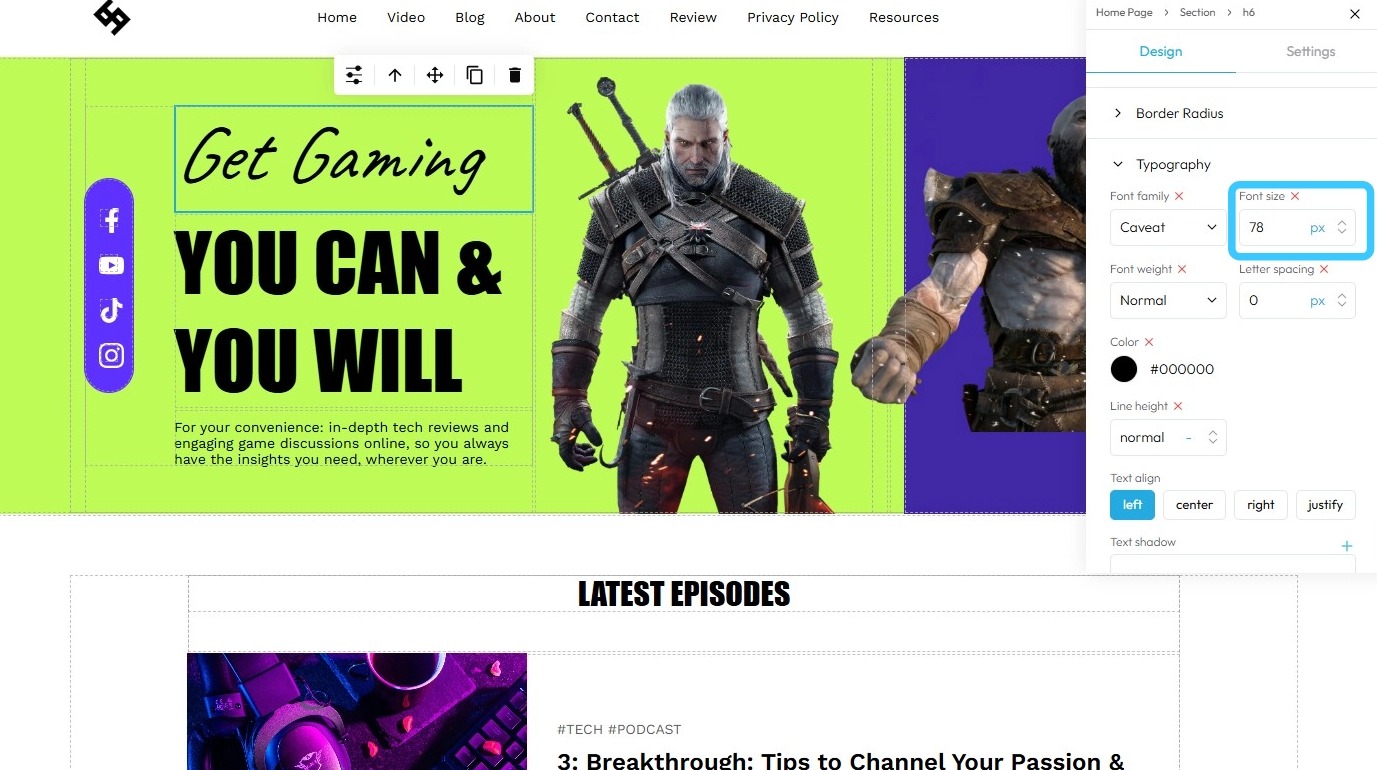
9. - Font Size: Set the size of the text, usually in units like pixels (px), ems, or points (pt)
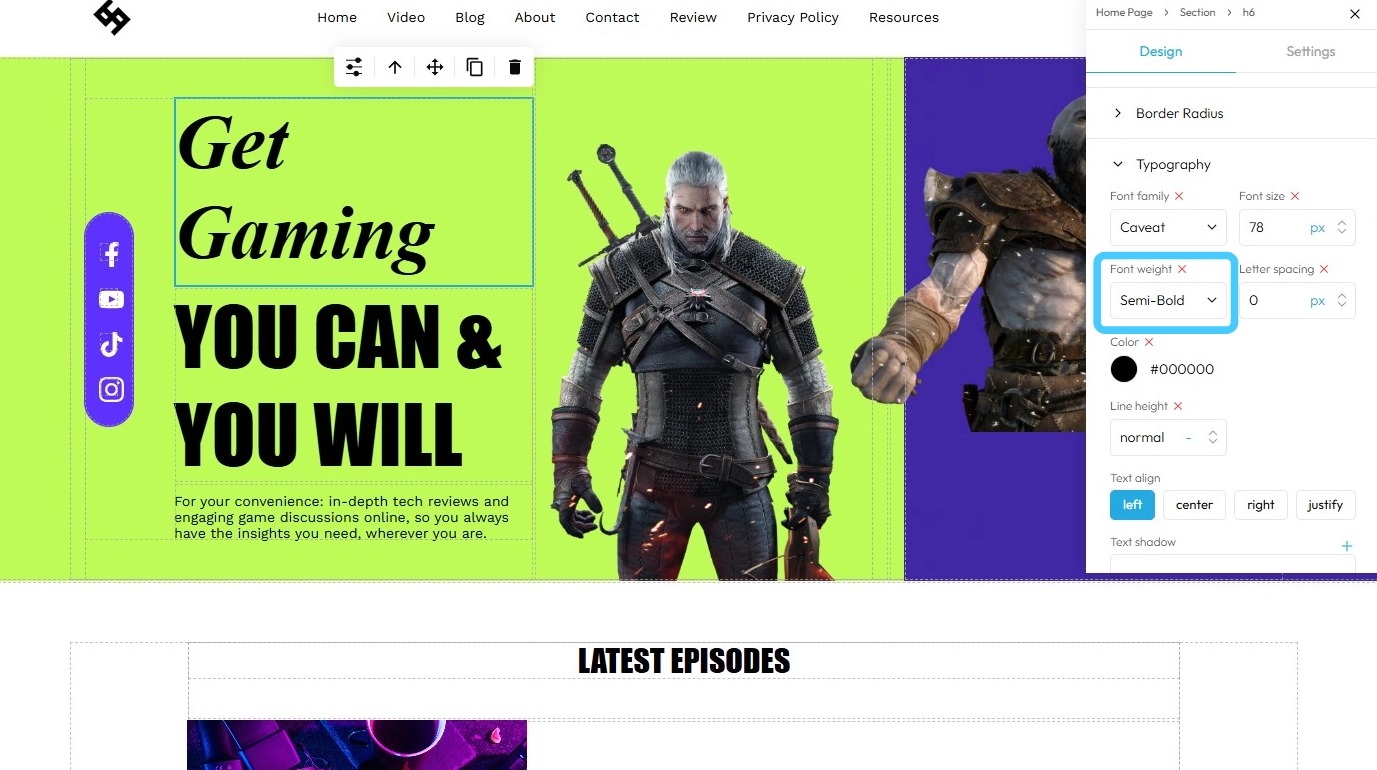
10. - Font Weight: Control the thickness of the characters (e.g., normal, bold, light, etc.)
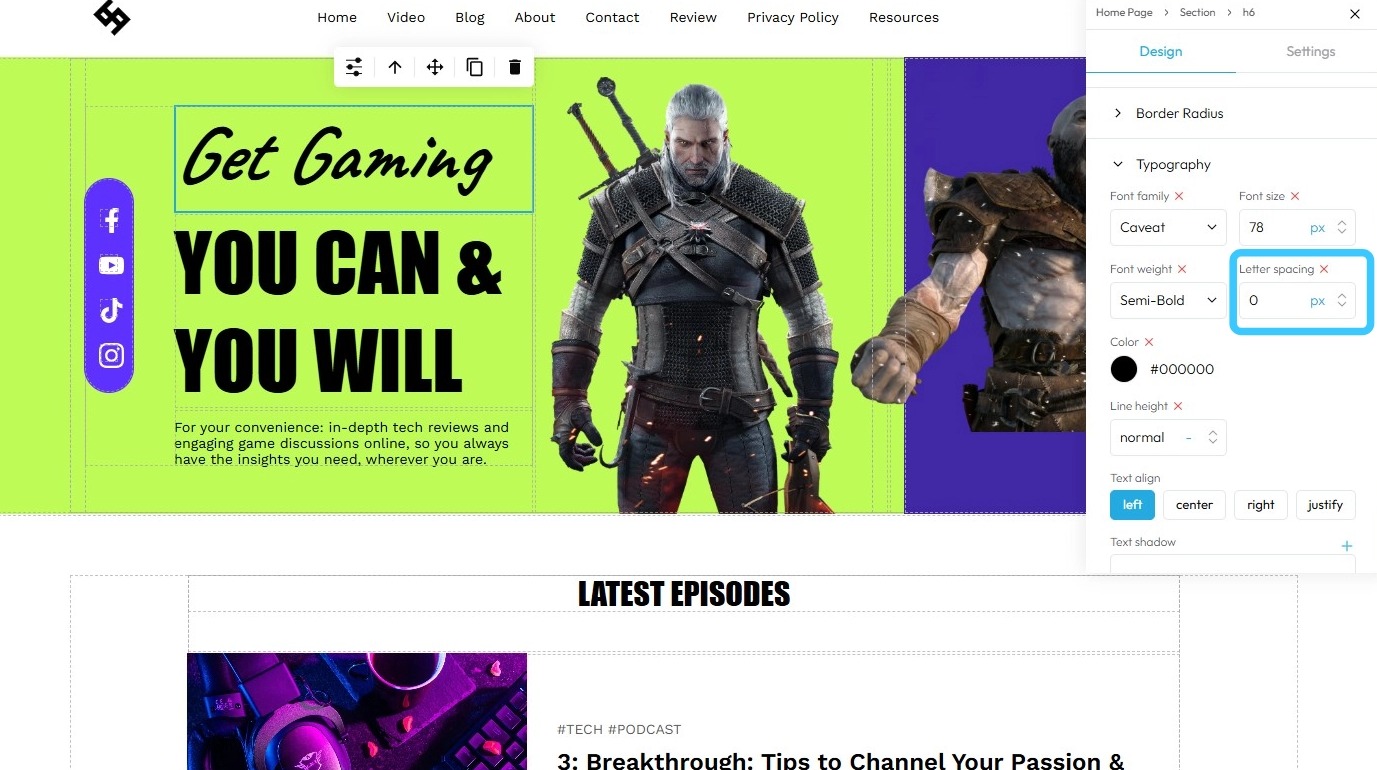
11. - Letter Spacing: Adjust the space between individual characters (also called tracking)
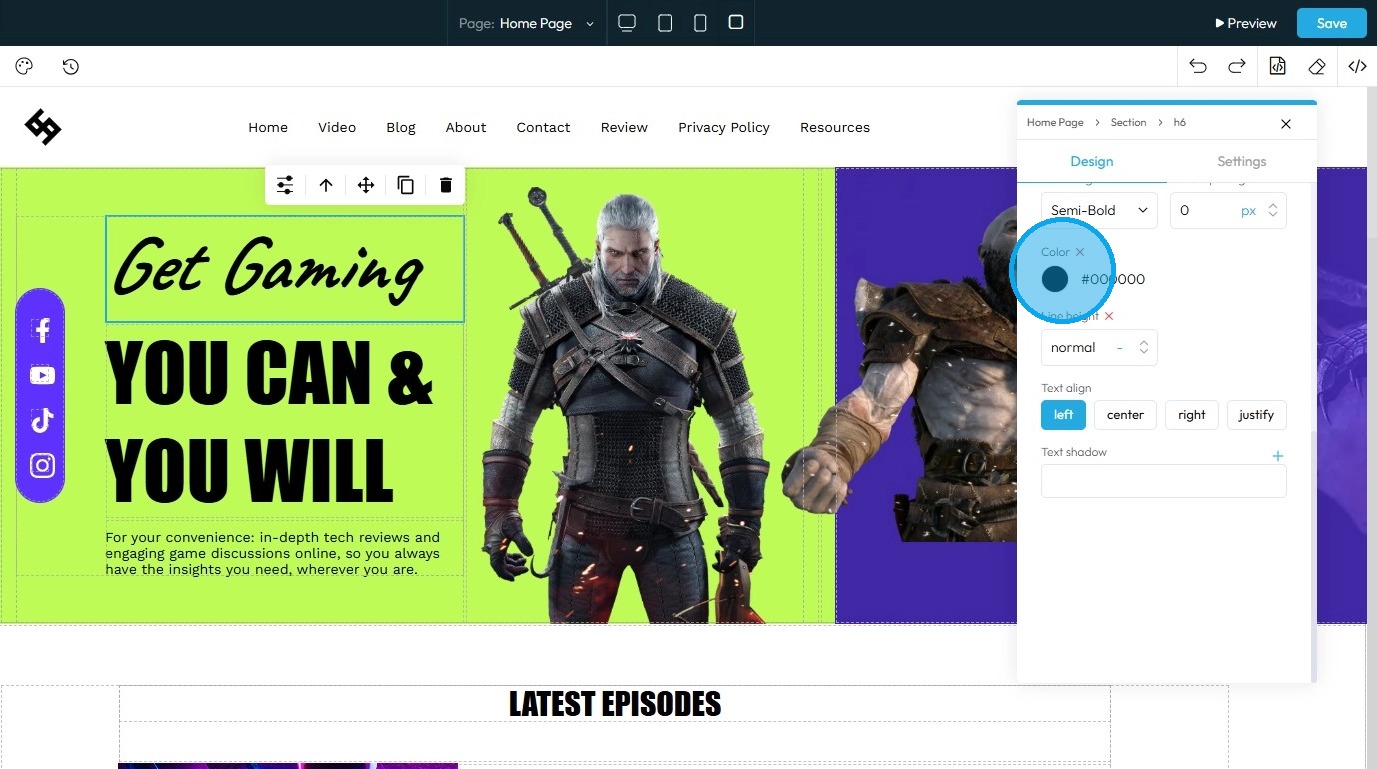
12. - Color: Choose the color of the text, often represented by color codes or pickers
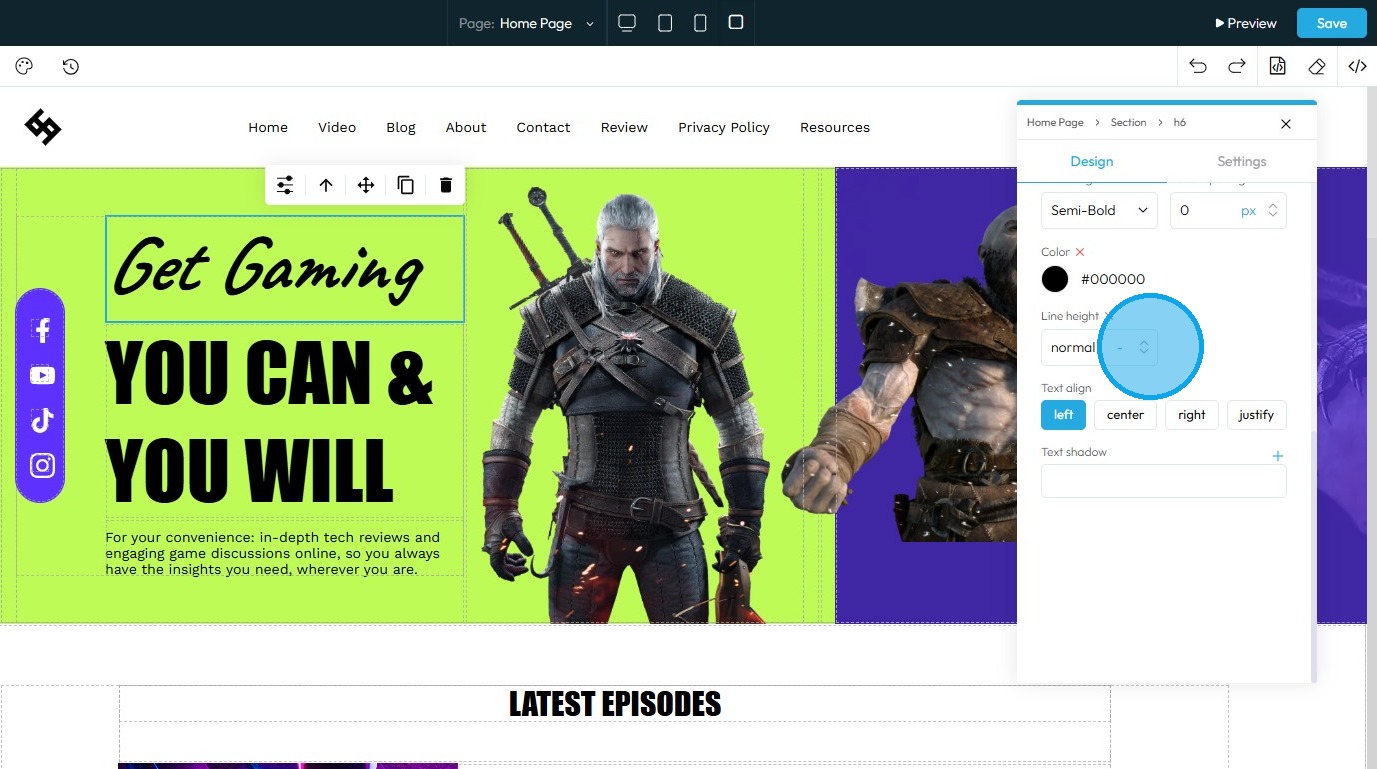
13. - Line Weight: This commonly refers to line height or line spacing, determining the vertical space between lines of text
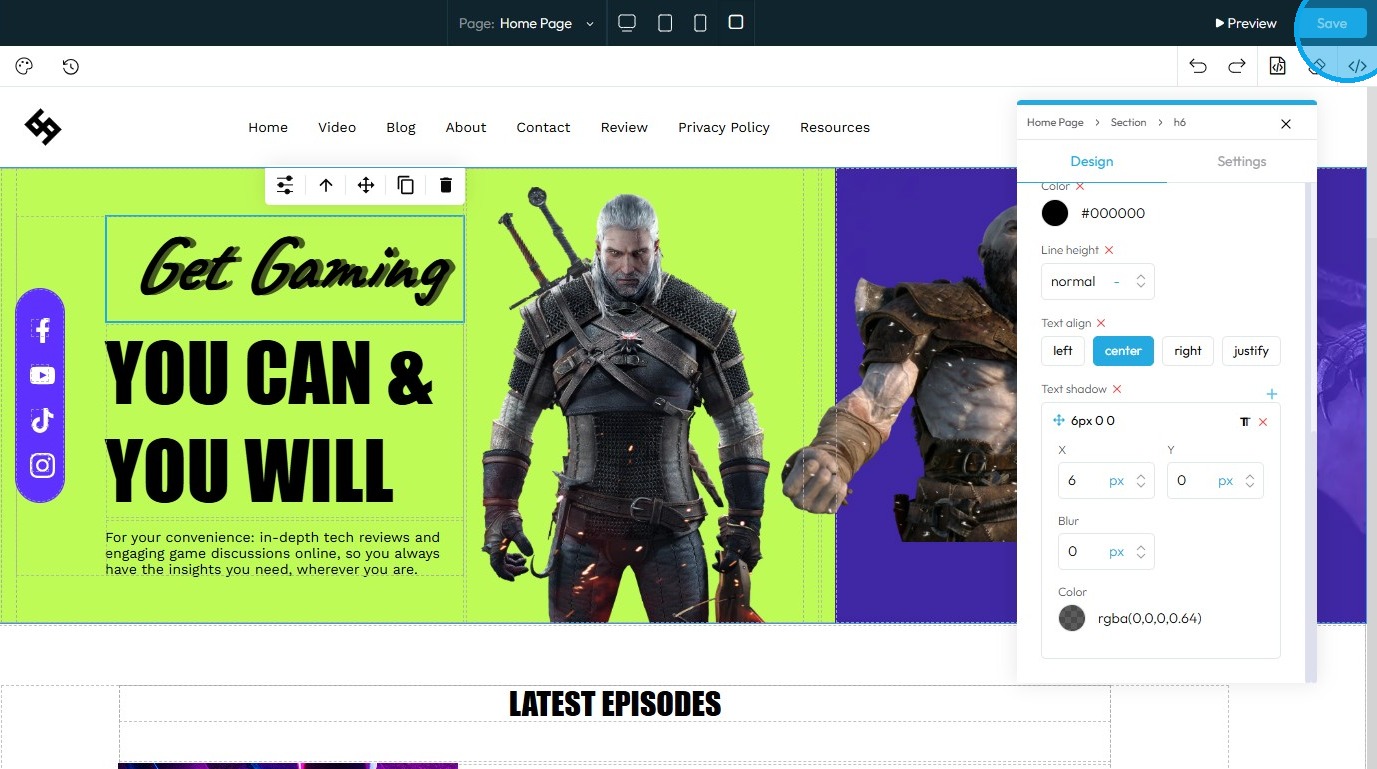
14. - Text Align: The alignment of the text block (e.g., left, center, right, justified)
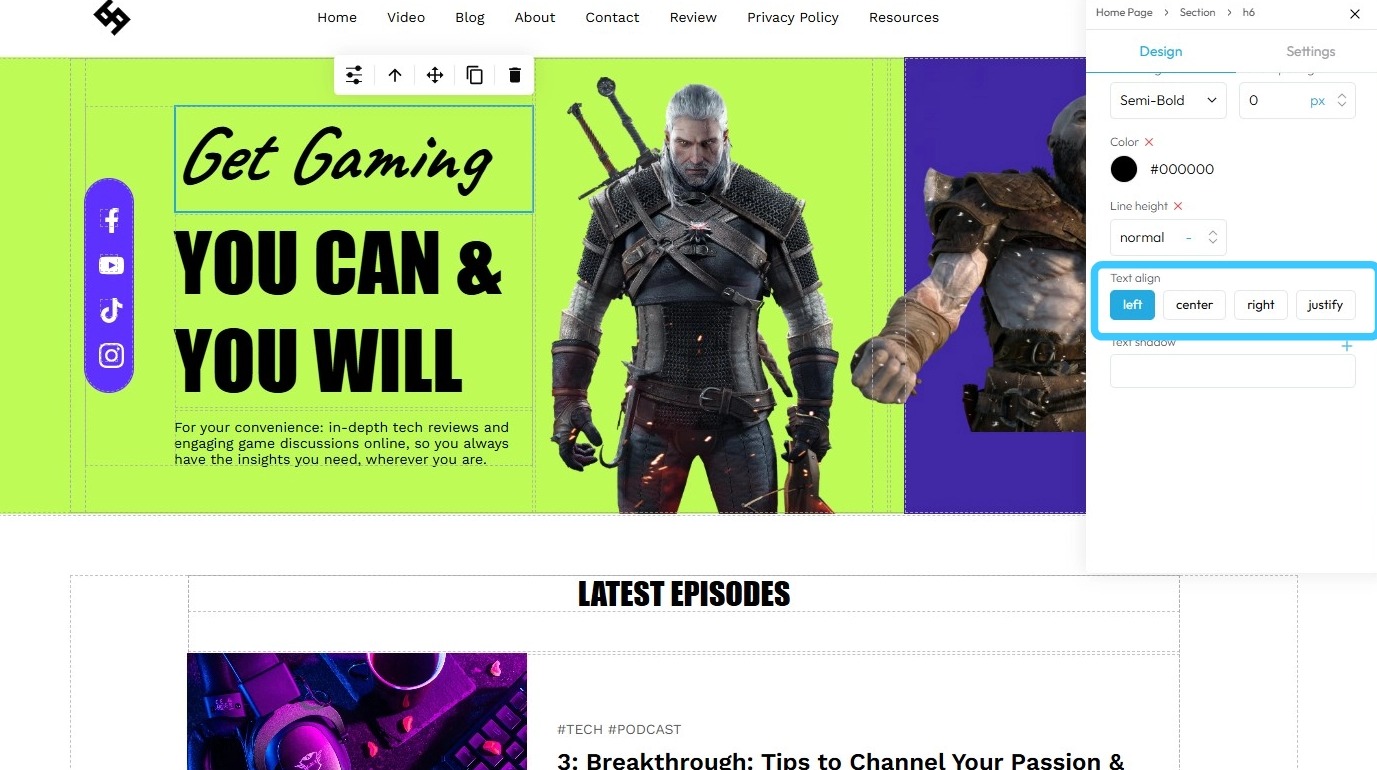
15. - Text Shadow: Add shadow effects to the text, including parameters like shadow color, blur, and offset. Click on the "+" to add the shadow
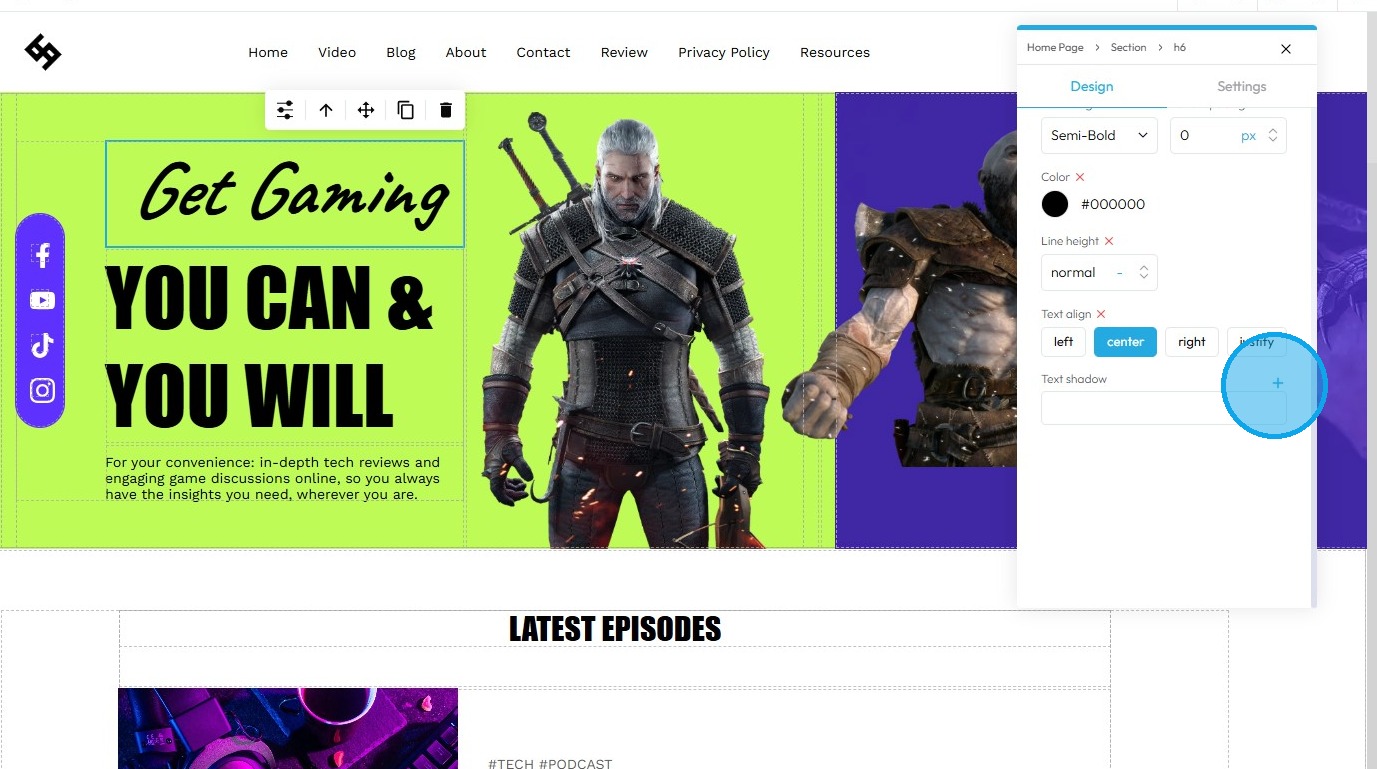
16. Click "0 0 0" to load up shadow options
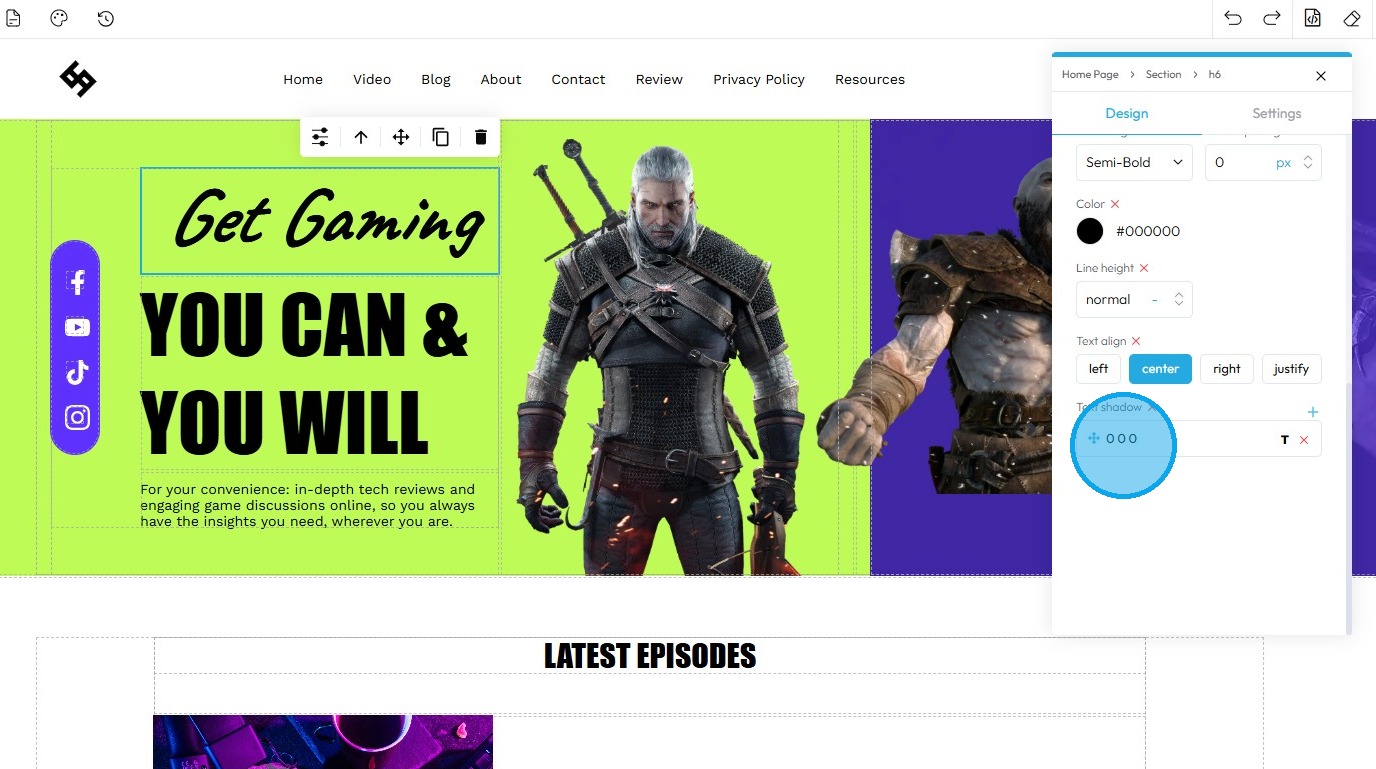
17. - X value: Controls the shadow's horizontal displacement. A positive value moves the shadow to the right; a negative value moves it to the left.
- Y value: Controls the shadow's vertical displacement. A positive value moves the shadow down; a negative value moves it up.
- Blur: Sets the strength or softness of the shadow's edges. A higher blur value makes the shadow more diffused and less sharp; a blur value of zero creates a hard-edged shadow.
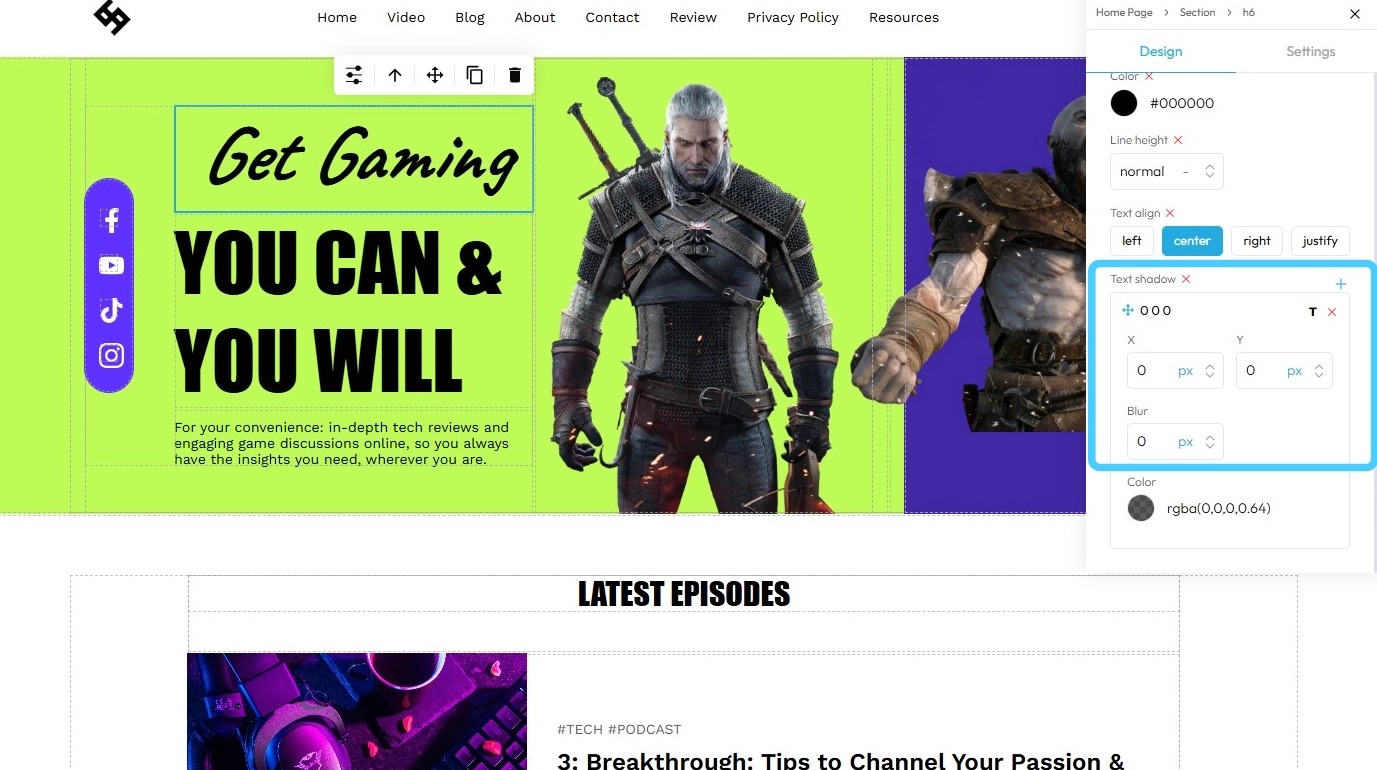
18. Click "Color" to set a custom color for the shadow

19. Select the color of your choice

20. You can change the "Opacity" of the shadow by adjusting the slider

21. Click "Ok" to keep the changes

22. Click "Save" to keep the changes saved on the website
Related Articles
How to Change the Font for All the Text on My Website
This guide shows you how to change the font for all text on your website. Follow the steps to pick a font that improves your site’s look and matches your brand. 1. Navigate to https://app.podup.com/home 2. Click "My Site" 3. Click "Site Themes" 4. ...How Do I Add Text to My Video?
This guide shows how to add text to videos in PodUp, with simple steps for uploading, editing, and customizing text. Great for making your message clear and videos more engaging. 1. Navigate to https://app.podup.com/home 2. Click on "Audio & Video ...How Create a Newsletter in PodUp
This guide shows you how to create a professional newsletter in PodUp using 40+ templates and easy design tools. You'll learn how to customize layout, text, and components for a clean look on any device. It’s a simple way to create and share engaging ...How To Navigate Site Themes (Detailed)
This guide offers a comprehensive step-by-step approach to customizing your website's theme and logo using PodUp, providing valuable insights on design elements such as templates, colors, fonts, and logos. It empowers users to create a visually ...Can't edit / site breaks
can't edit, site is broken, editor not working, page crashes, can't save changes, editor won't load, site down This guide is essential for anyone looking to effectively edit audio and video using Podup's Editor. It provides a comprehensive overview ...