How To Use The Repurposer On Podup
This guide offers a straightforward approach to create videos clips using AI on Podup, making it an invaluable resource for content creators looking to enhance their multimedia output.
1. Navigate to https://app.podup.com/home
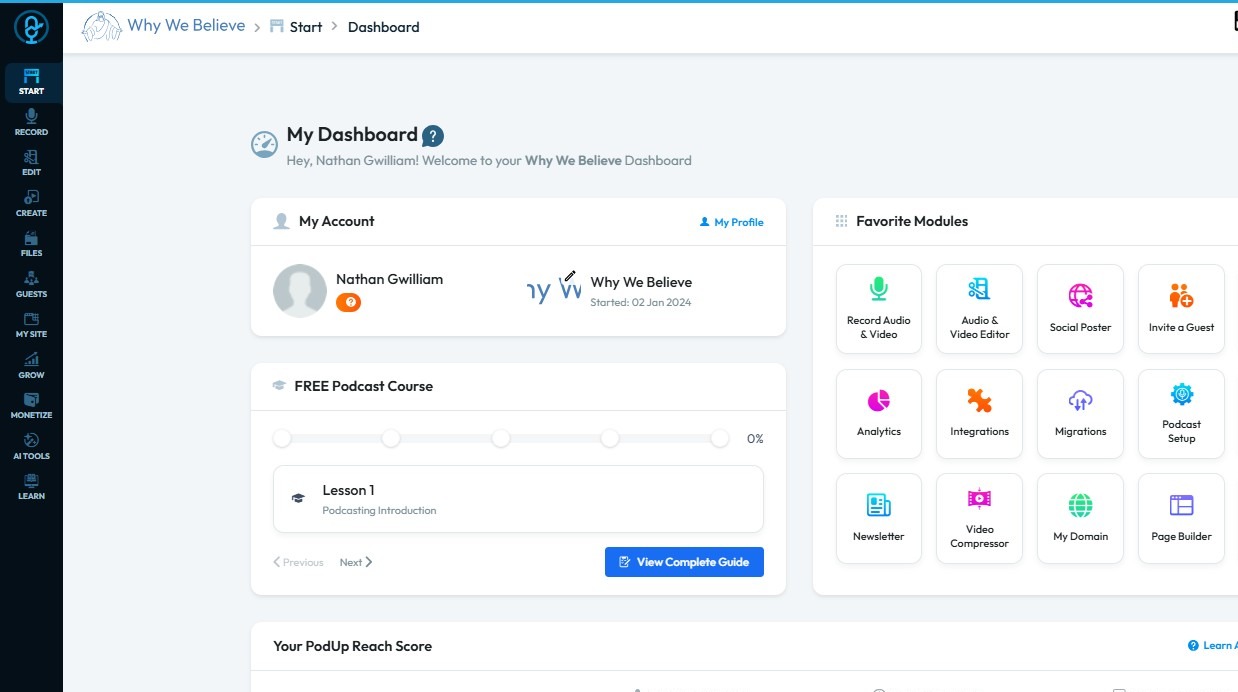
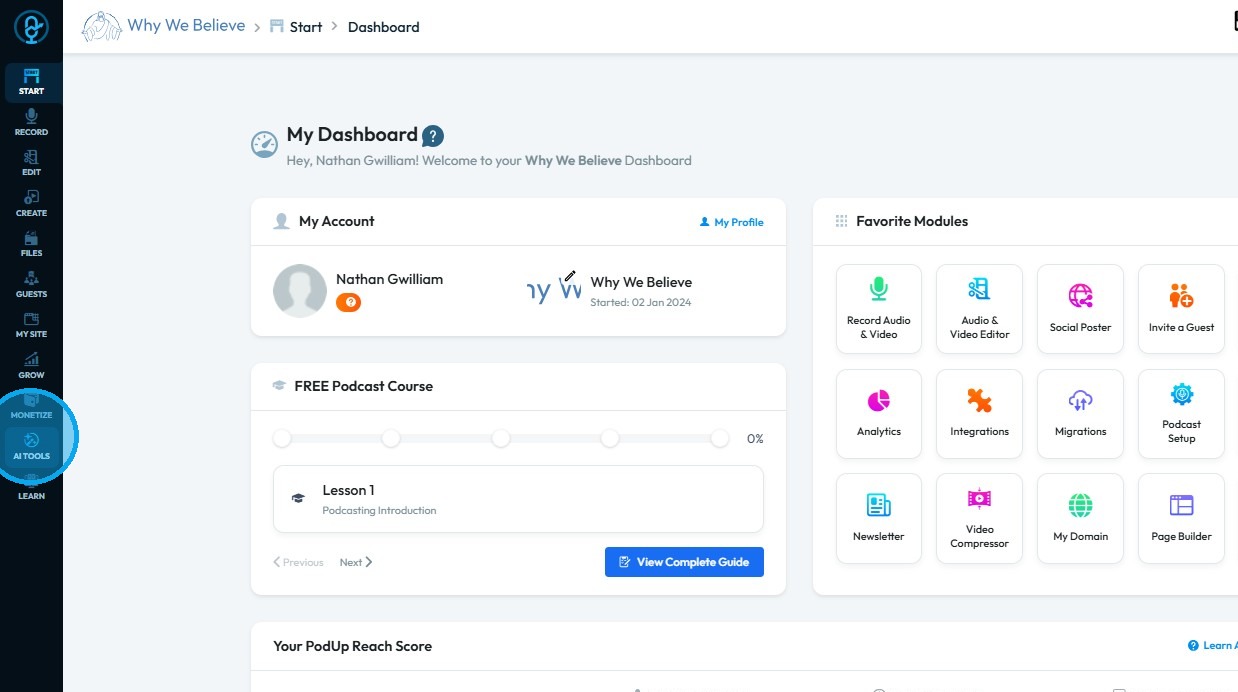
2. Click "AI TOOLS"
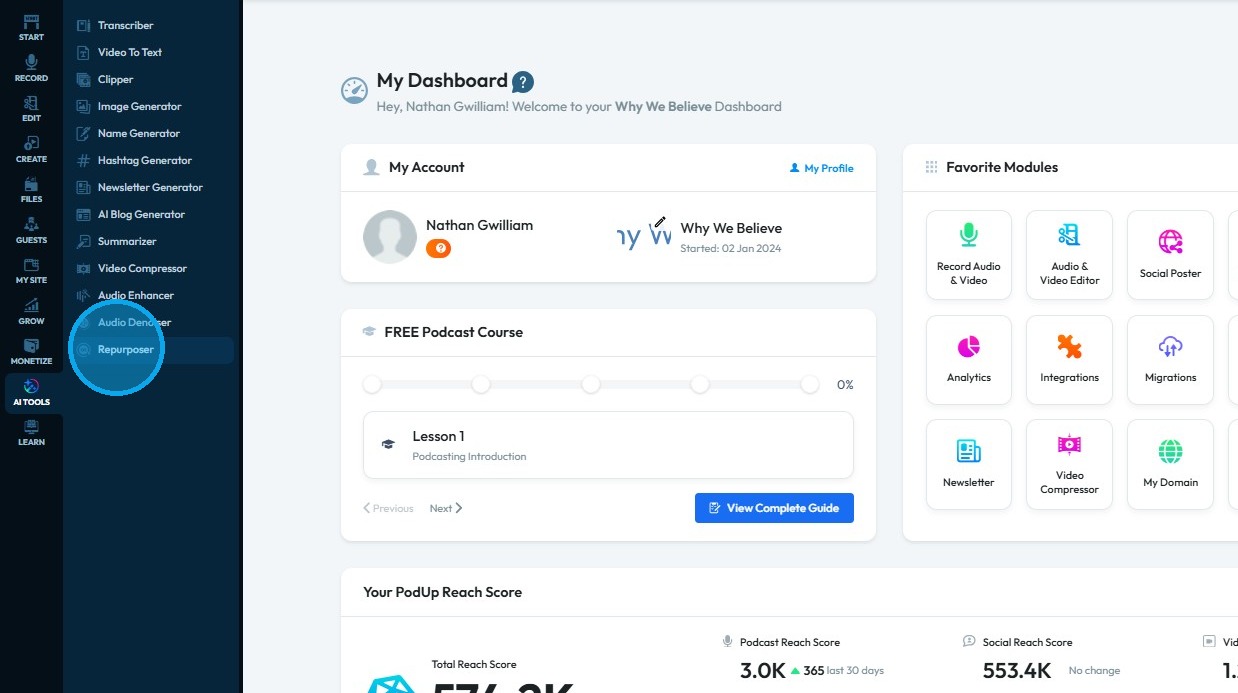
3. Click "Repurposer"
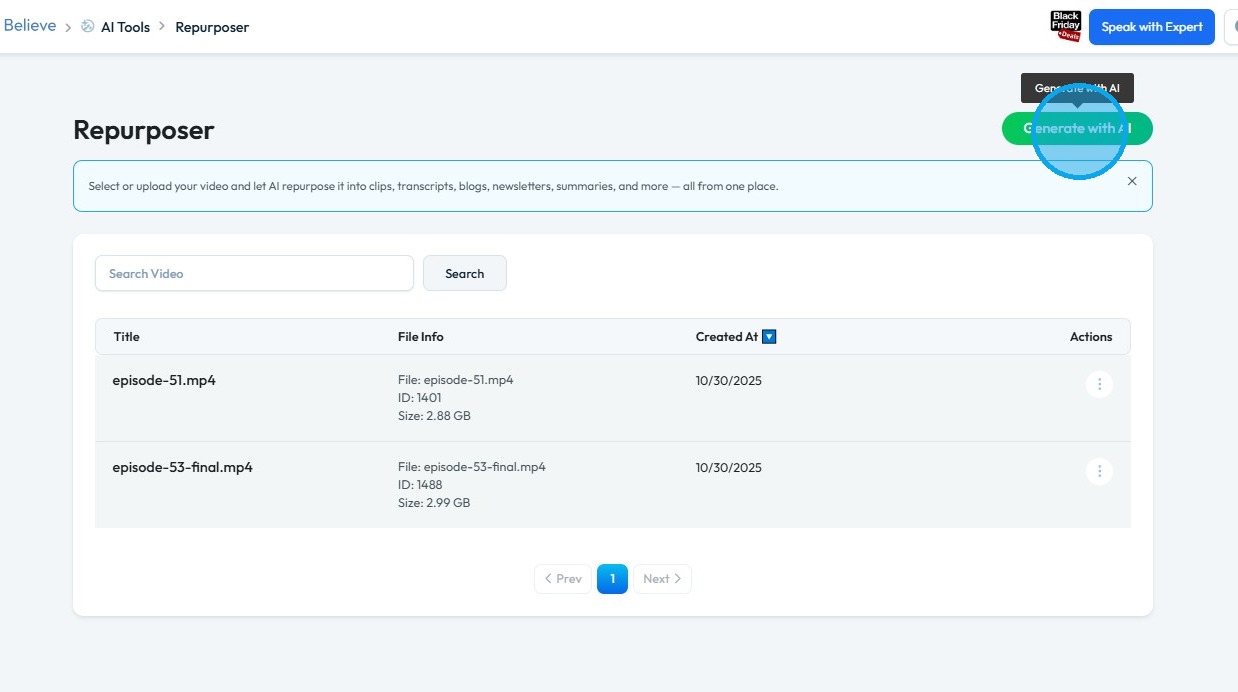
4. Click "Generate with AI"
5. Click "Select Video"
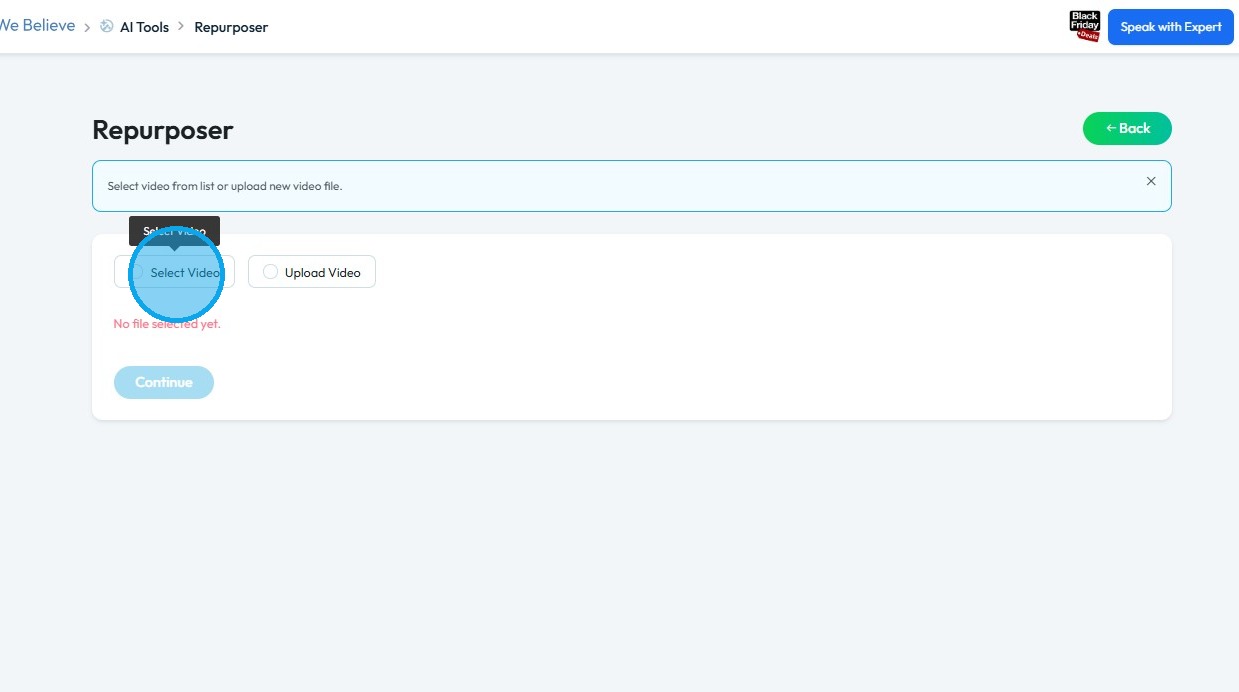
6. PodUp File manager opens up
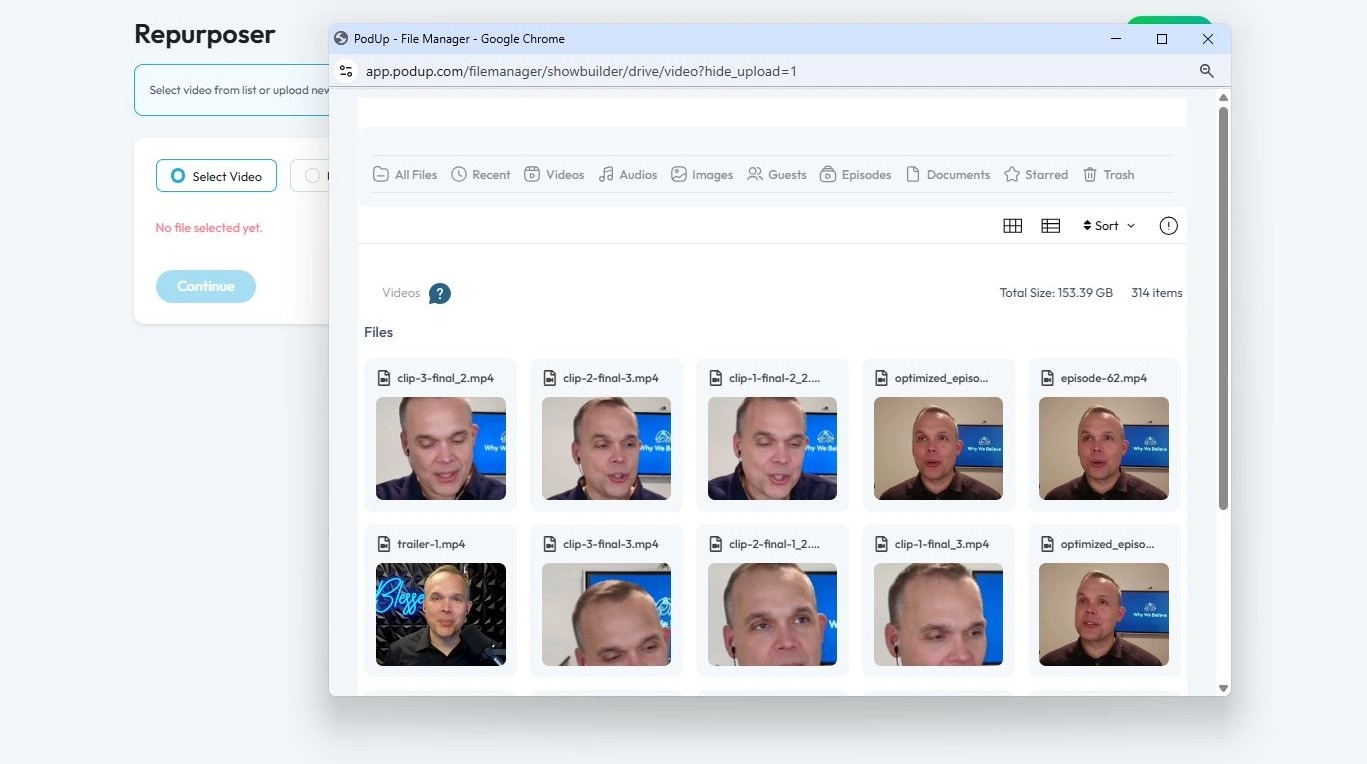
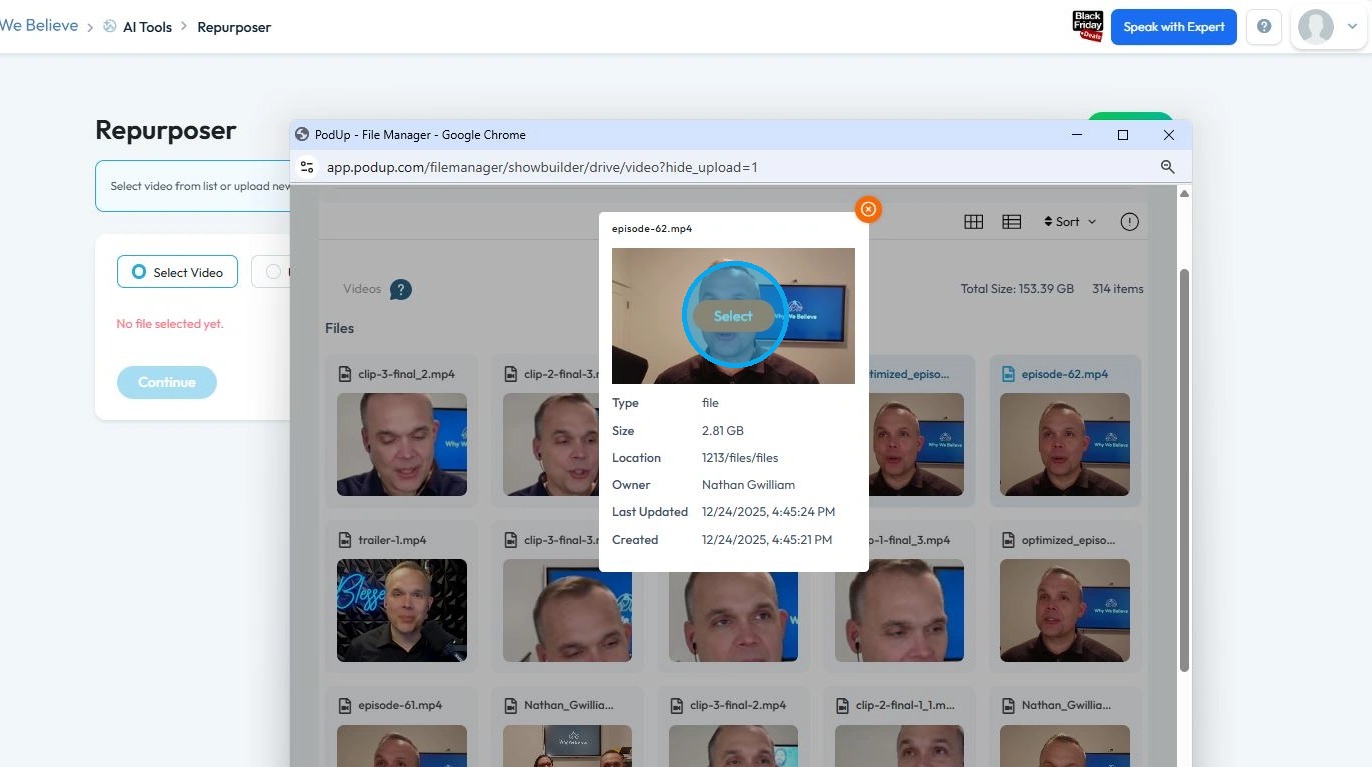
7. Click on the video you wish to access
Click "Select"
8. Click "Continue"
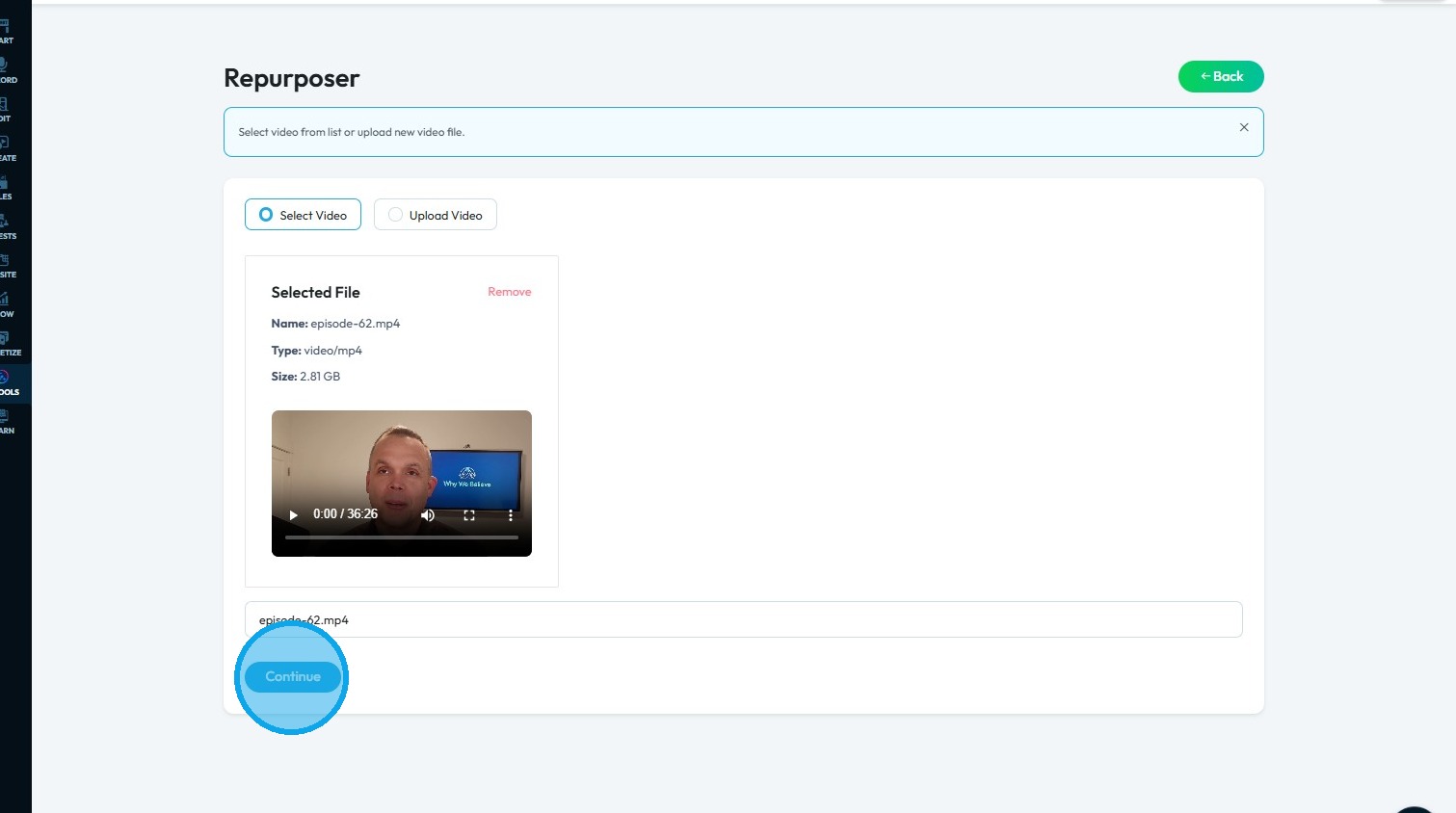
9. Wait for the Repurposer tool to complete it's process
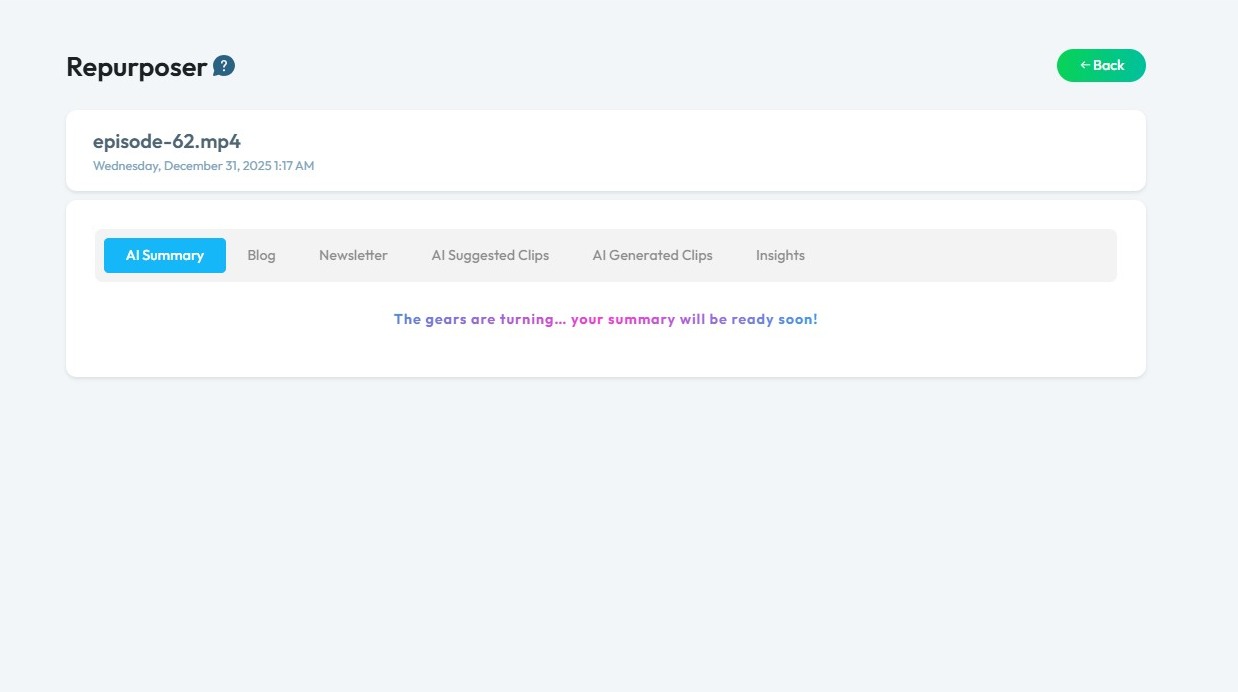
10. 'AI Summary' section provides essential content assets ranging from Show Notes, SEO Tags, and Chapter Markers to Social Media Teasers, Suggested Titles, and Sound Bites.
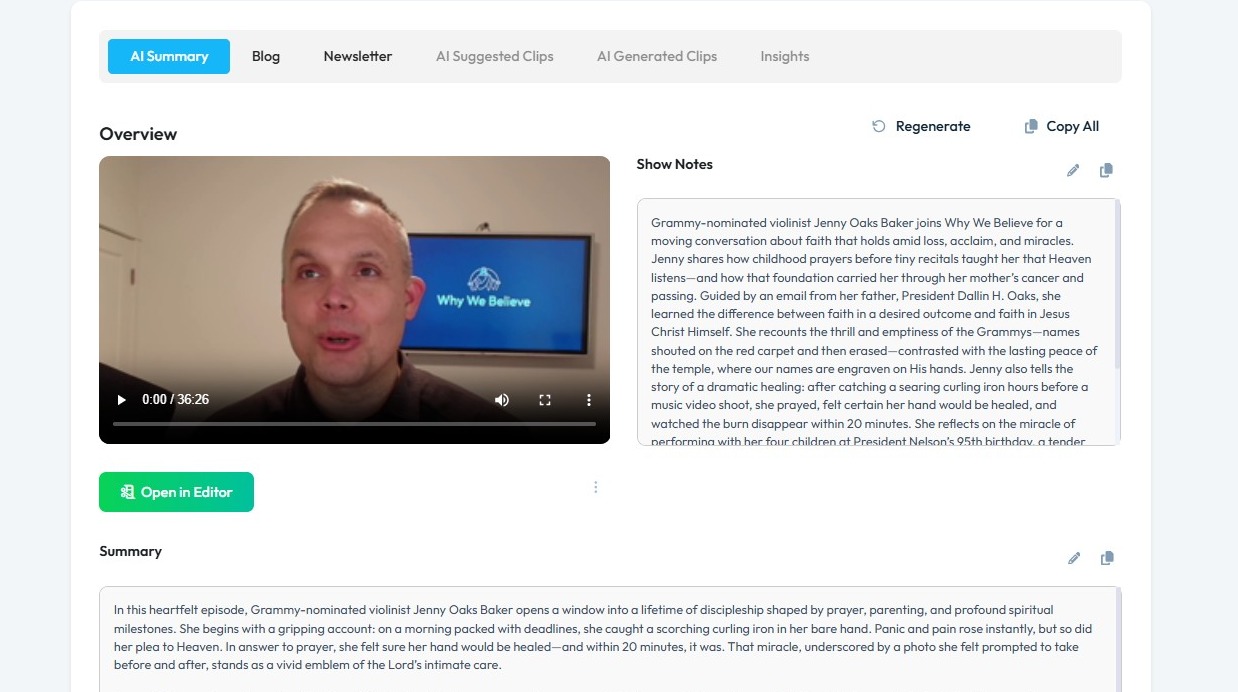
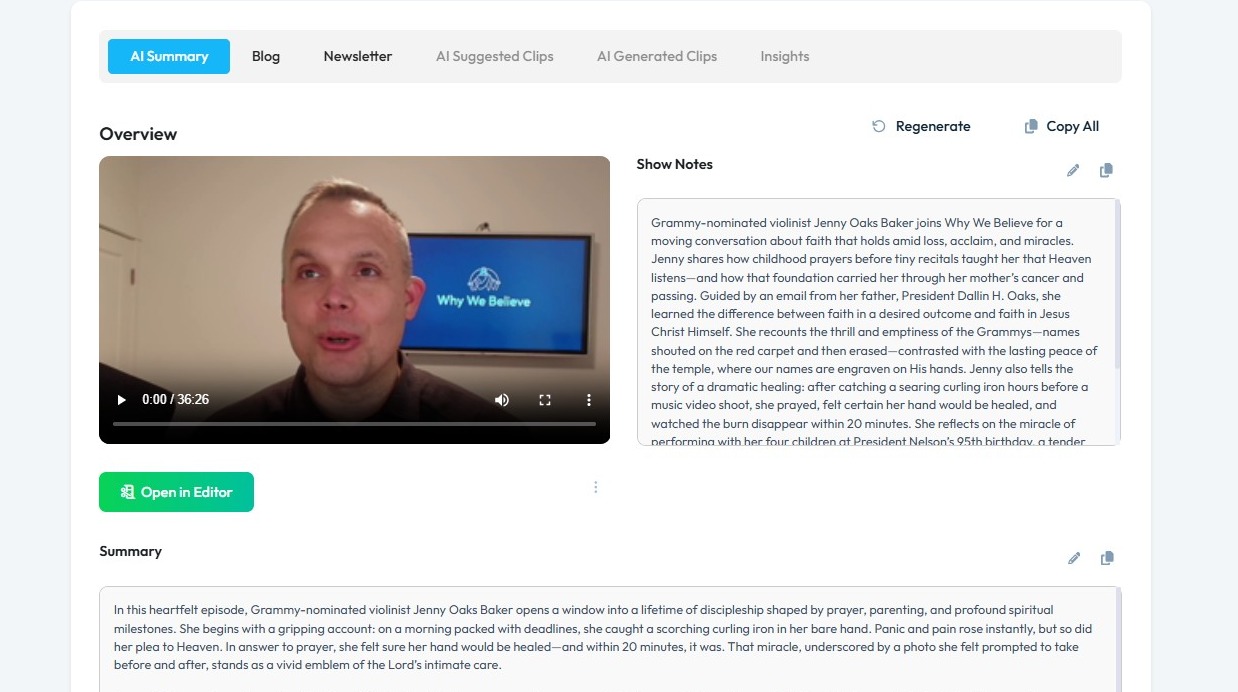
11. Overview shows you the video file that has been run through the denoiser (which removes background noise) and filler word remover which can then be opened in the editor.
Show notes are detailed, structured notes — like an organized breakdown of the content, often in a format that supports further use.
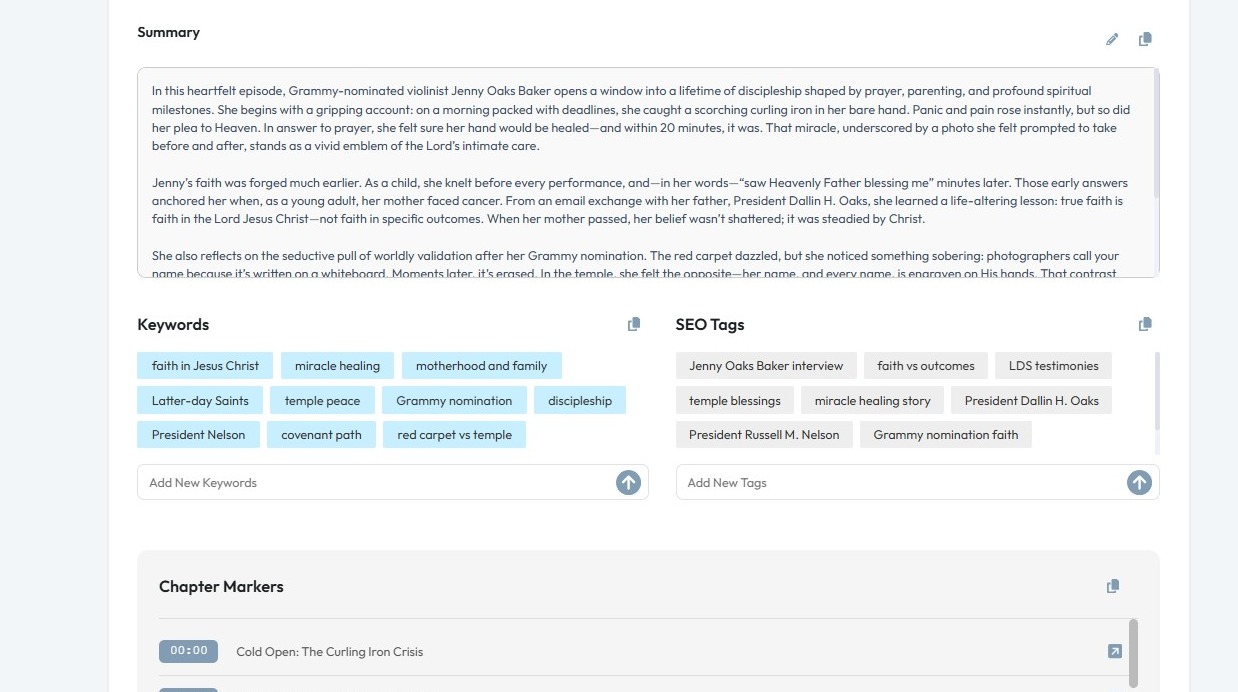
12. Customize the Summary, Keywords and SEO Tags to fit your brand tone and goals
Summary is a high-level recap of the episode or content.
Keywords are search terms people type into search engines like Google and YouTube
SEO tags are the technical signals that tell platforms what your content is about.
13. Repurposer tools also provide Chapter Markers and Social Media Teasers.
Chapter markers are structured time-based sections of your episode or video.
Social Teasers are one-line designed to hook your audience's attention.
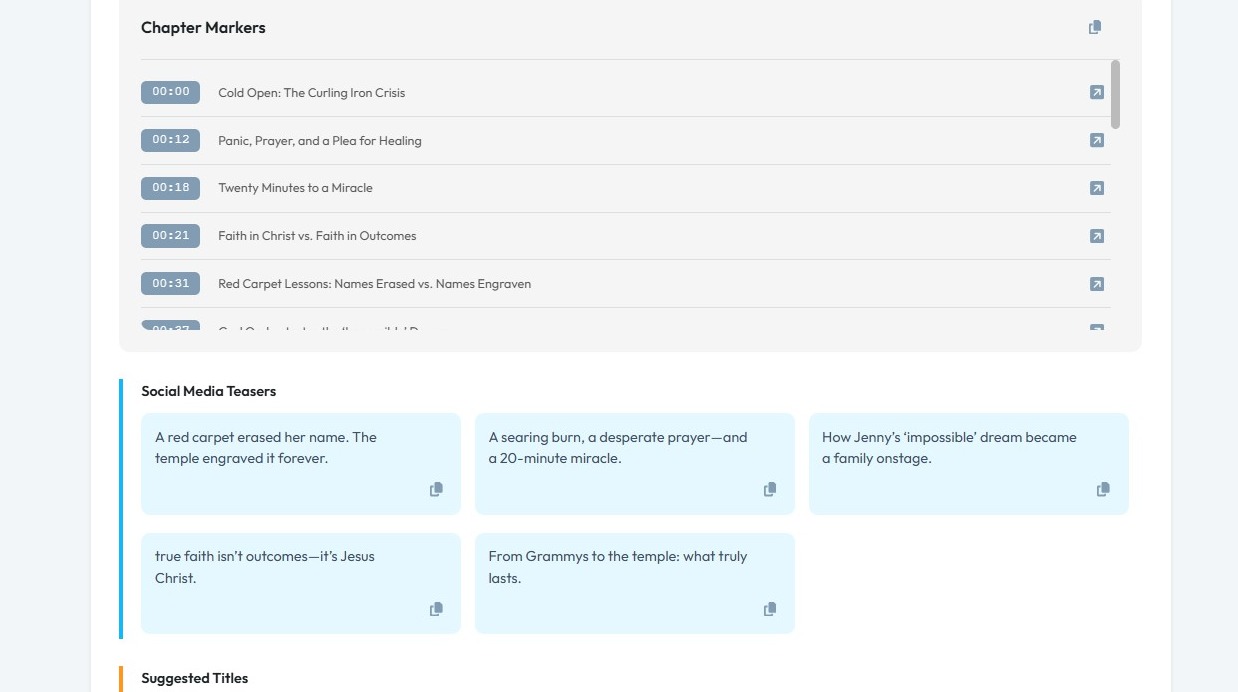
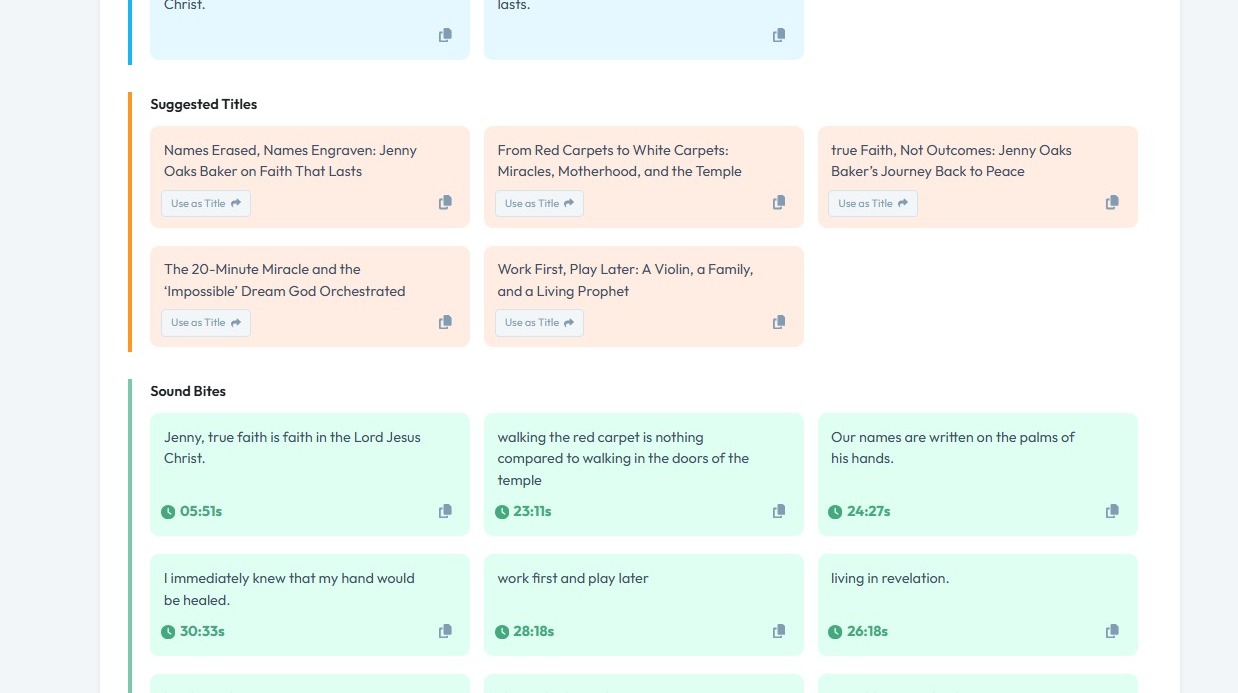
14. Repurposer Tool also provides Suggested Titles and Sound Bites
Suggested Titles are possible titles for your podcast episode and blog.
Sound bites are short, self-contained audio (or video) moments pulled from a longer episode that can stand on their own and be compelling.
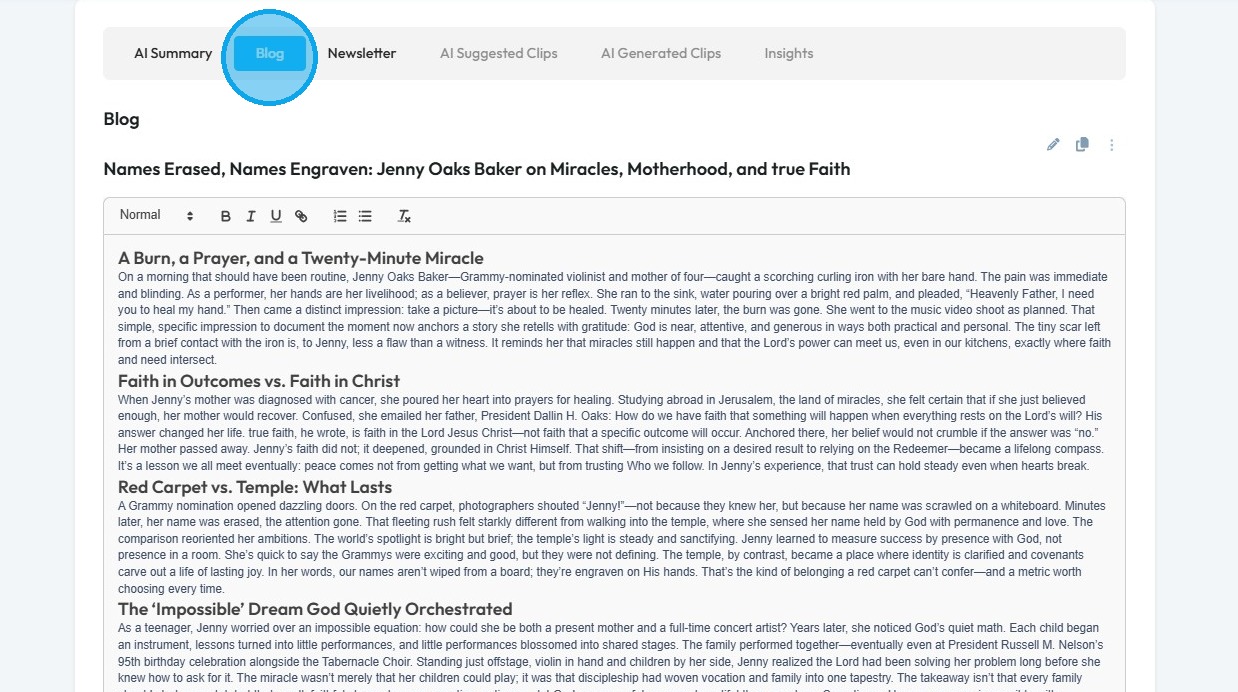
15. Click "Blog" to access the blog generated with AI. This can be edited to make it exactly how you want.
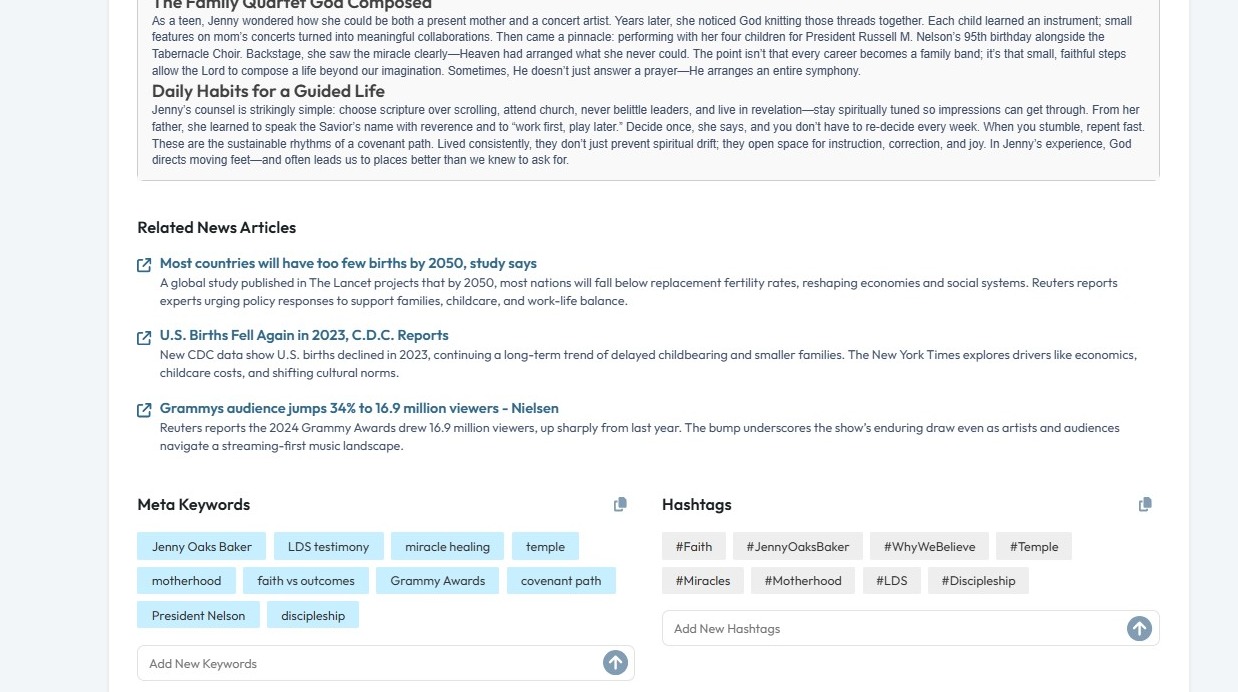
16. Along with the blog the Repurposer tool provides Related News Articles from external platforms, Meta Keywords, Hashtags and Meta Description
Meta keywords are hidden SEO tags in the backend of a page that used to tell search engines what a piece of content was about.
Hashtags are clickable labels used on social platforms to categorize content, help people discover posts, and signal what a post is about
A meta description is a short summary of your content that appear under your title in Google search results, in some podcast directories, and when your episode or blog link is shared
17. Click "Newsletter" to access the blog generated with AI. This can also be edited and copied to go in the newsletter.
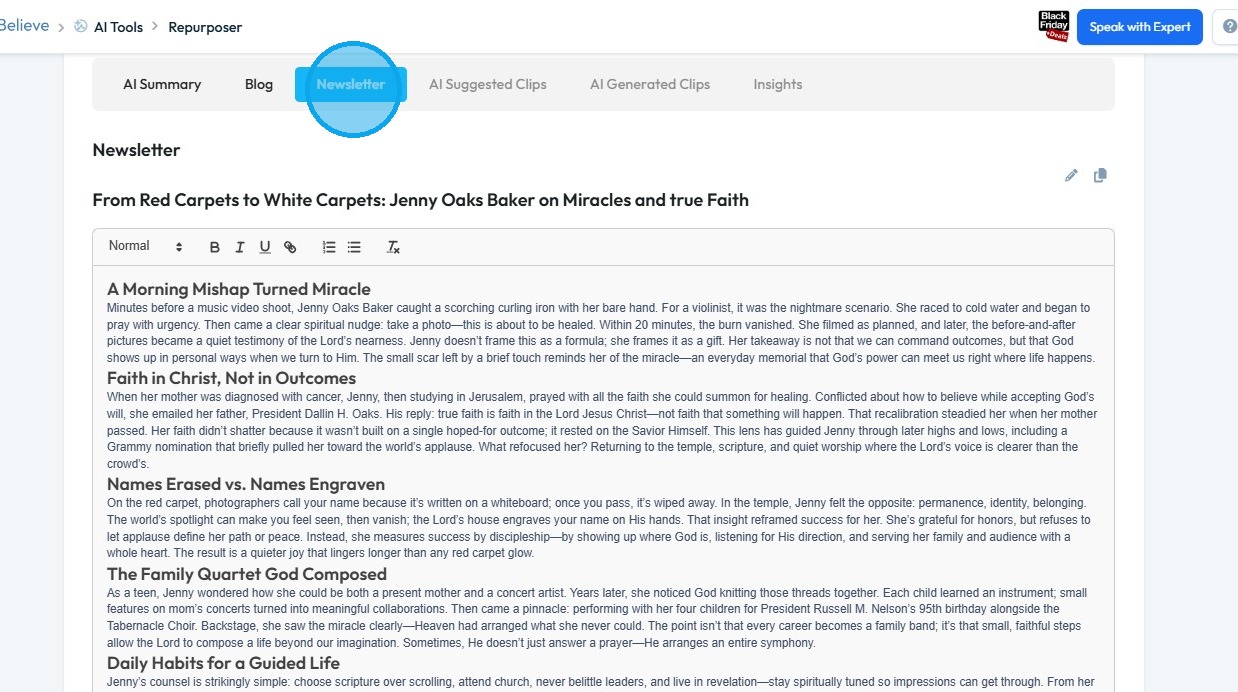
18. Click "AI Suggested Clips"
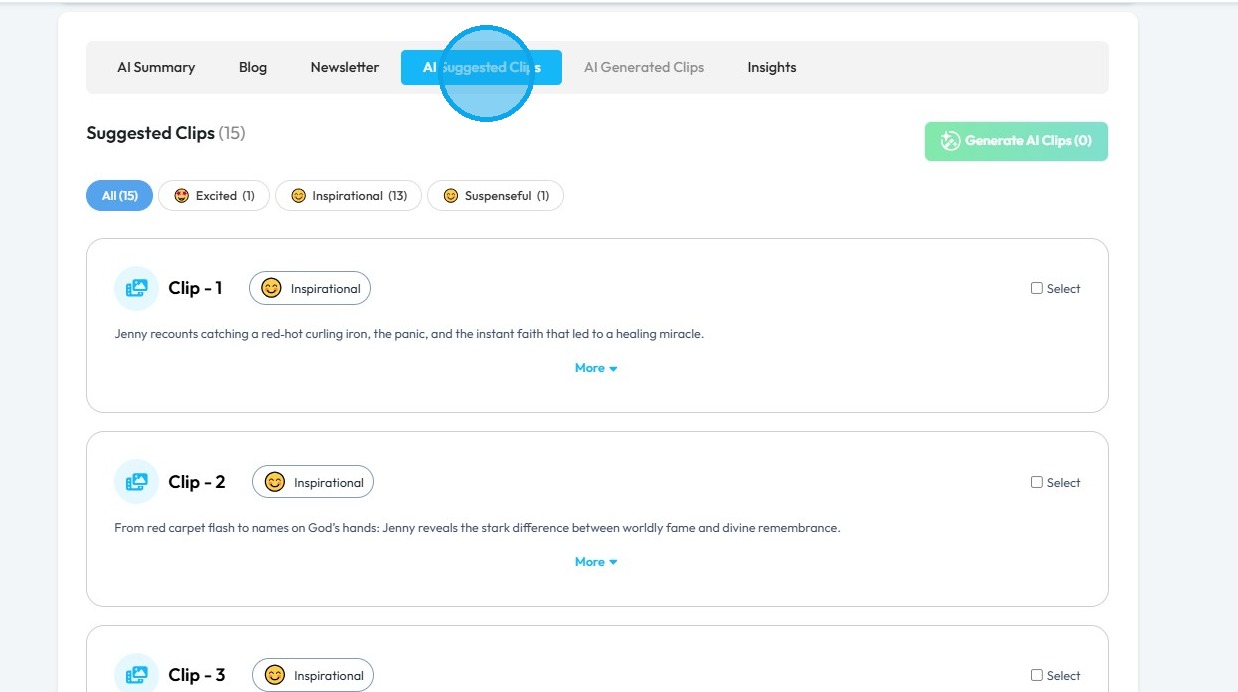
19. You can review and choose from 12-15 'AI Suggested Clips' provided by the tool.. These are labeled, numbered, and categorized based on tone.
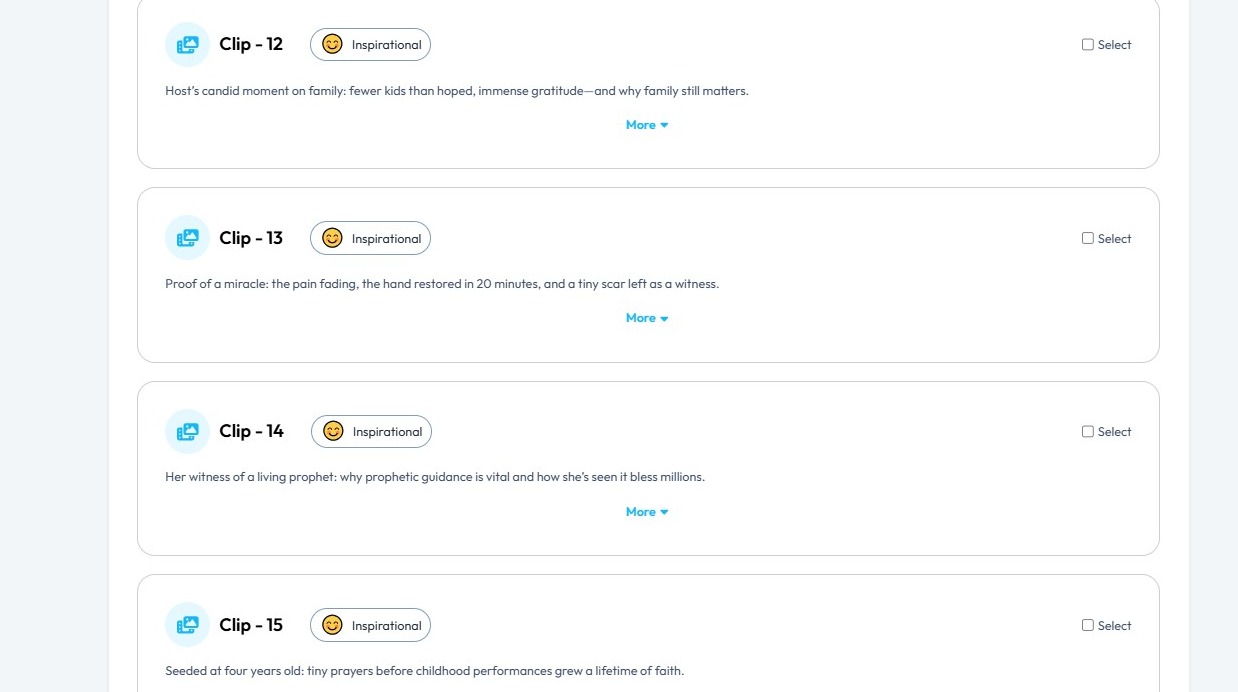
20. Select the desired clips from the list by clicking the check box in the right had corner of the clip. You can select multiple clips.
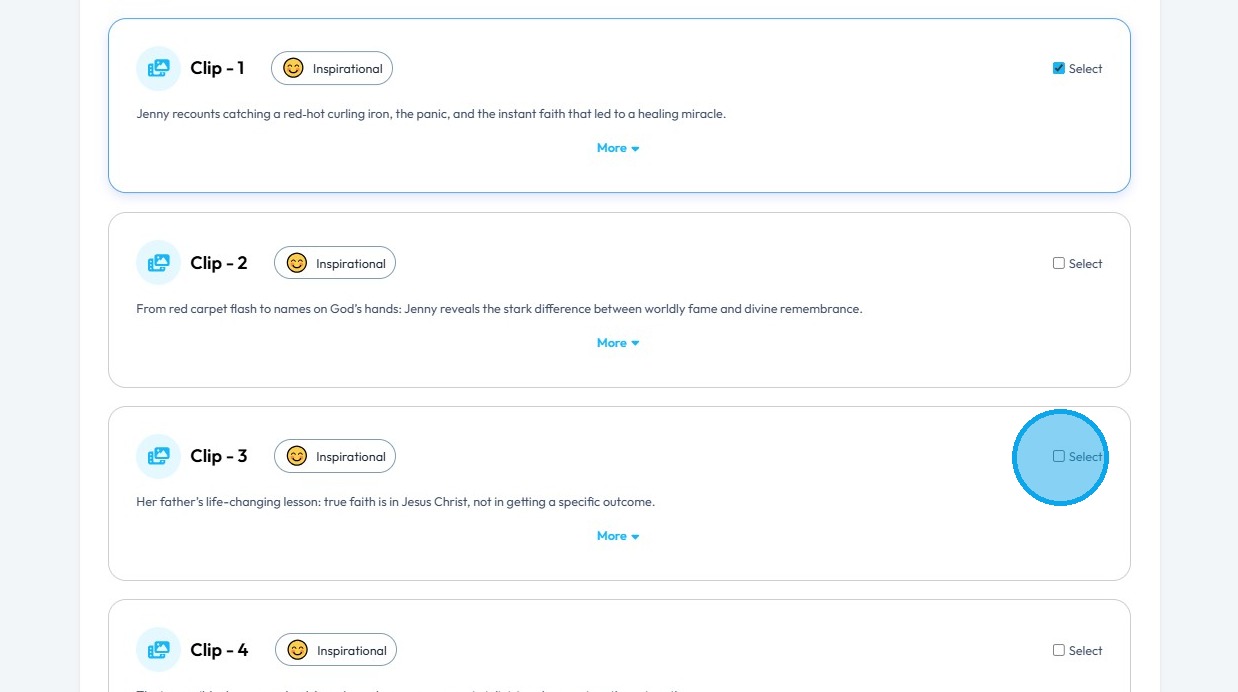
21. Click "Generate AI Clips"
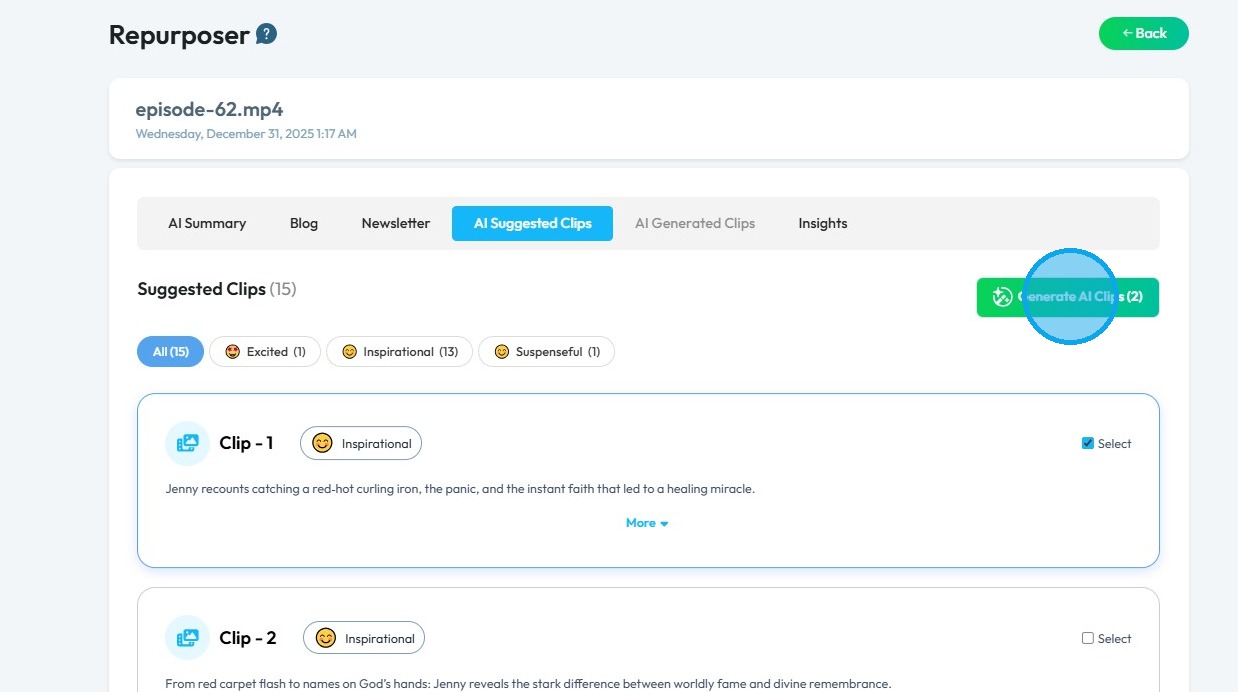
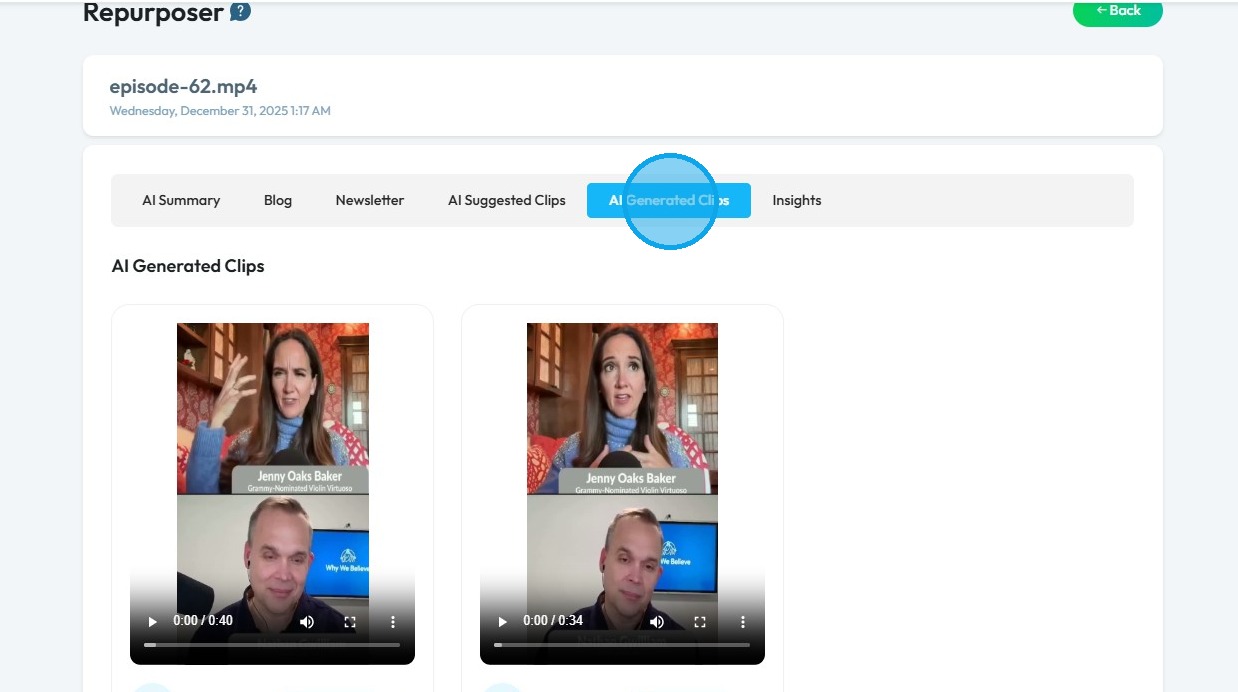
22. Click "AI Generated Clips" to acess the clips
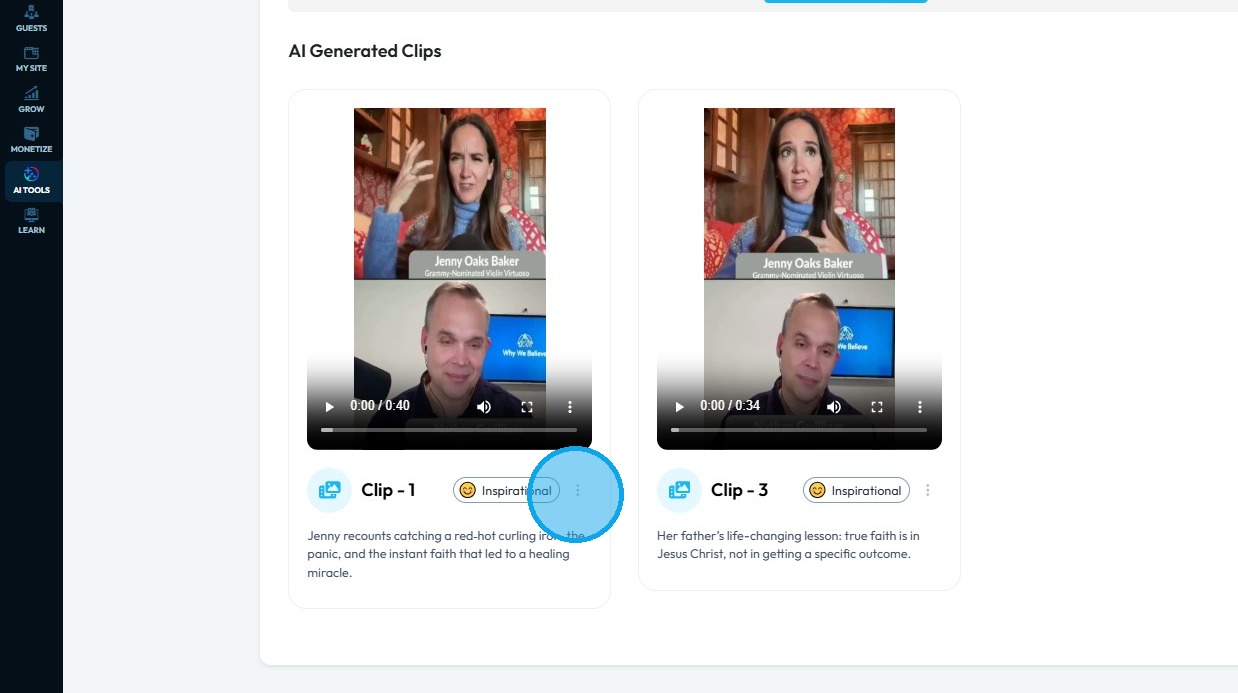
23. Click on the 3 dots Icon to open in the editor and to download
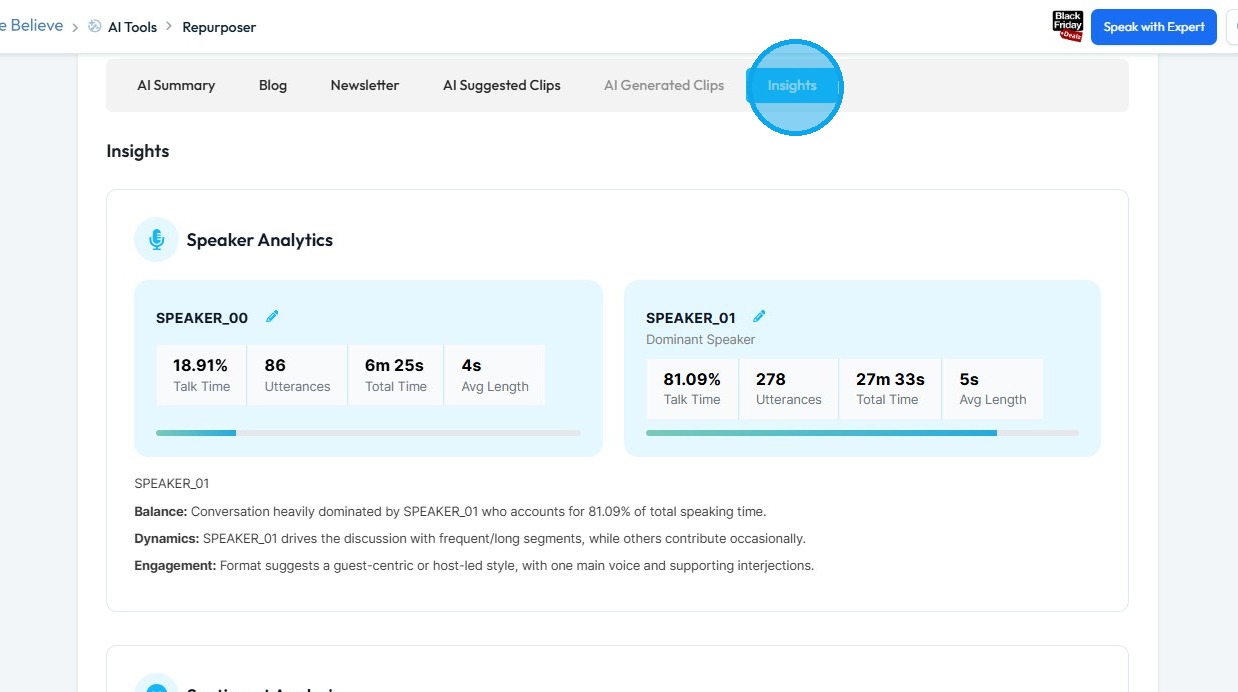
24. Click "Insights" to access Speaker Analytics which tell you how long each speaker talked for, how times they spoke, and how long they spoke for.
It also gives a written analysis to explain the podcast episode.
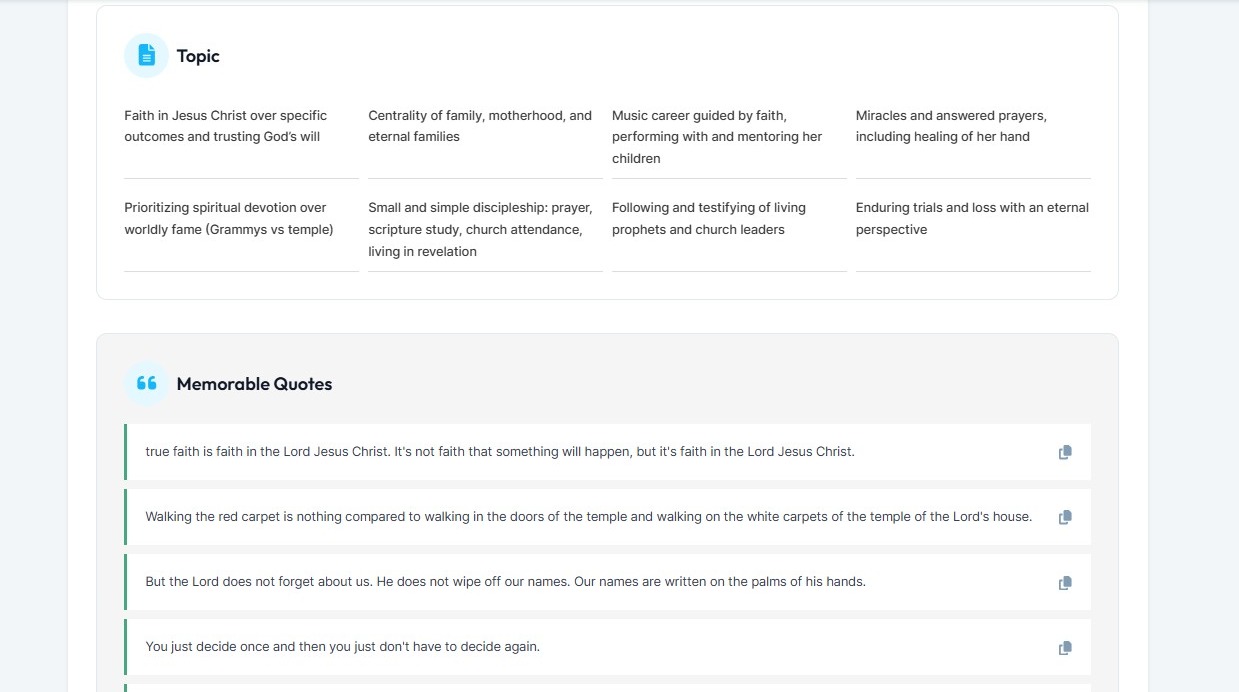
25. Scrool down to access topics covered in the episode and memorable quotes from the episode
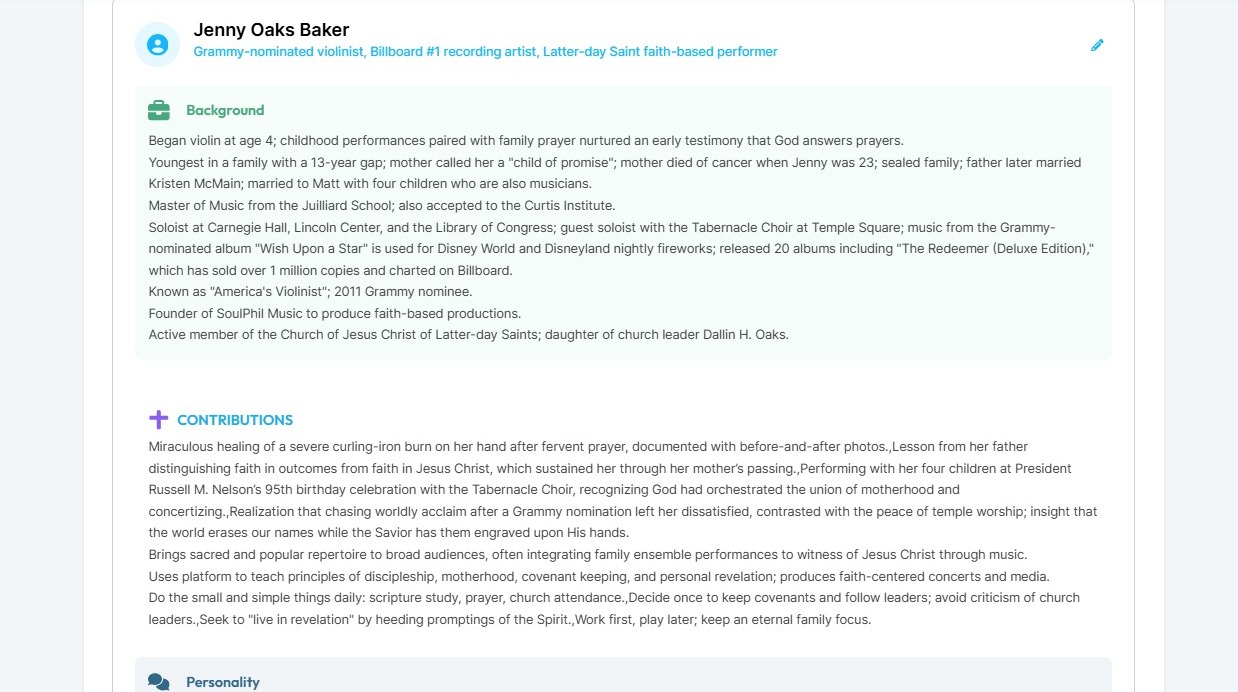
26. A guest background will be created from content discussed in the episode.
Related Articles
Not intuitive / hard to use
hard to use, confusing interface, not user friendly, too complicated, don't understand how to use this This guide gives you clear steps to record and manage a podcast studio. It covers setup, adding guests, recording, and editing. With this ...How To Use Integrations (Detailed)
This guide shows you how to connect your podcast and social media to PodUp to boost your reach. It walks through each step—from adding your podcast info to linking social accounts and analytics—so you can easily manage and promote your show across ...How To Use Integrations (Detailed)
This guide shows you how to connect your podcast and social media to PodUp to boost your reach. It walks through each step—from adding your podcast info to linking social accounts and analytics—so you can easily manage and promote your show across ...How to Use Blade Tool for Editing My Video in PodUp Editor?
This guide shows how to use the Blade tool in PodUp to quickly cut and remove unwanted video sections. It’s an easy way to improve your content and edit like a pro. Tip: Tip! Blade: Anything inside the red lines will be removed 1. Navigate to ...Why does PodUp optimize my files
Optimized audio and video files make everything work better - both for your visitors and for search engines. They help your site load faster, rank better, and look more polished—without sacrificing quality. Optimized files on PodUp save storage and ...