How do I upload my videos to my website
This guide shows you how to easily upload and manage video episodes on your website to boost your online presence
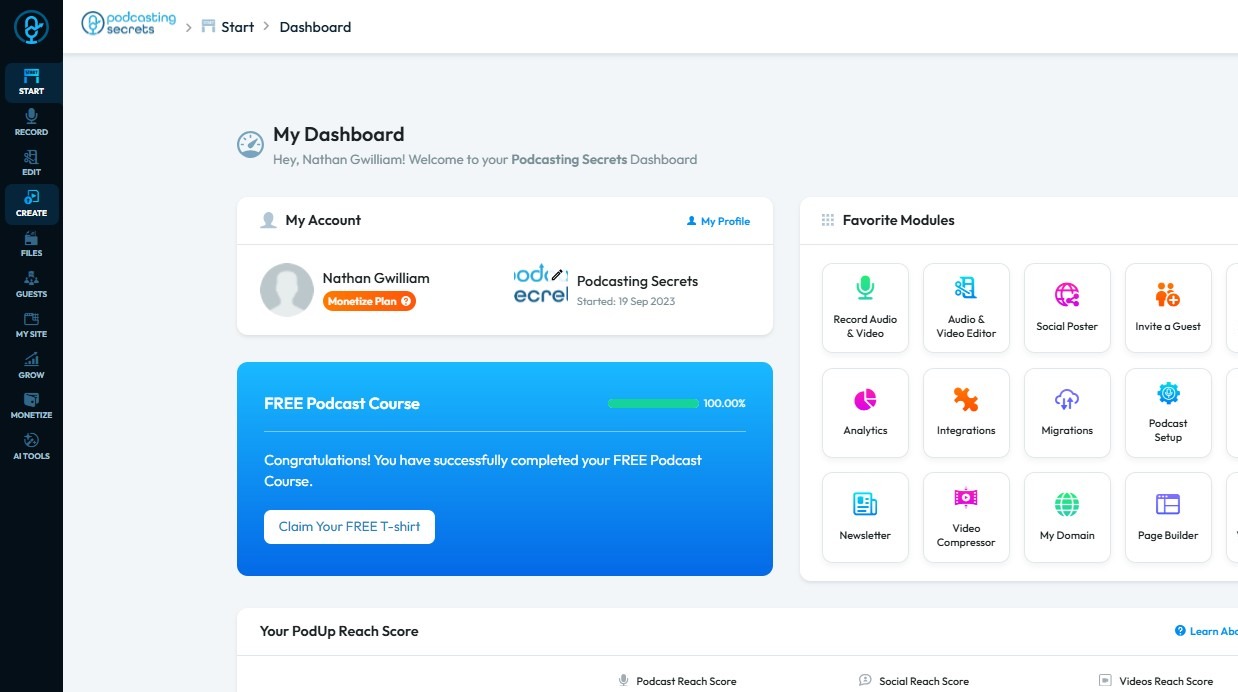
1. Navigate to https://app.podup.com/home
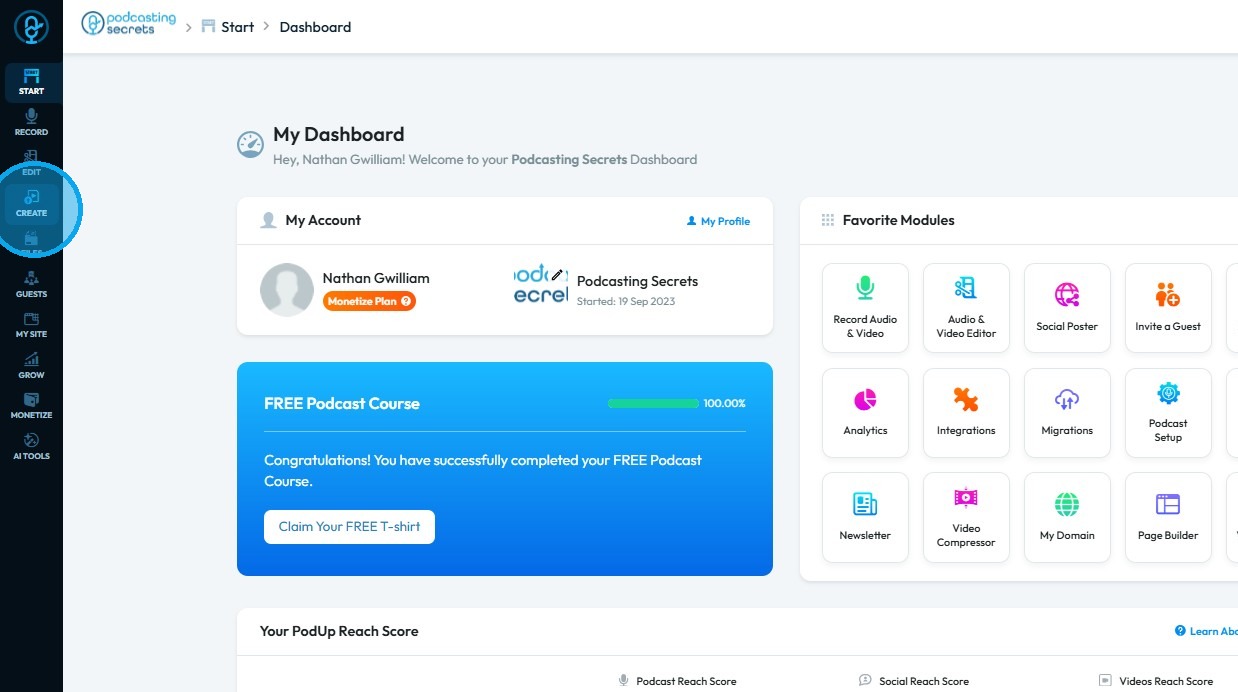
2. Click "Create"
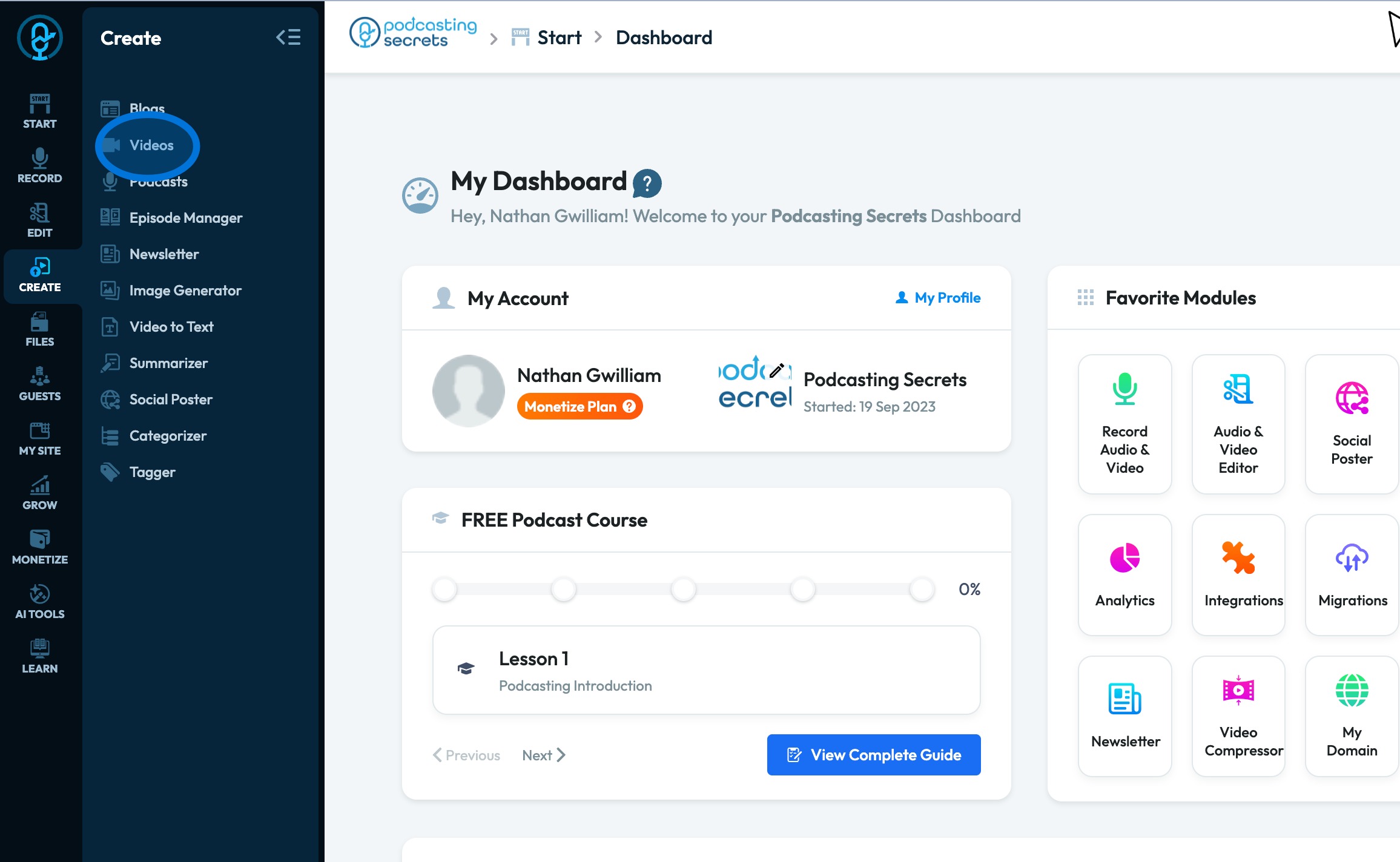
3. Select "Videos"
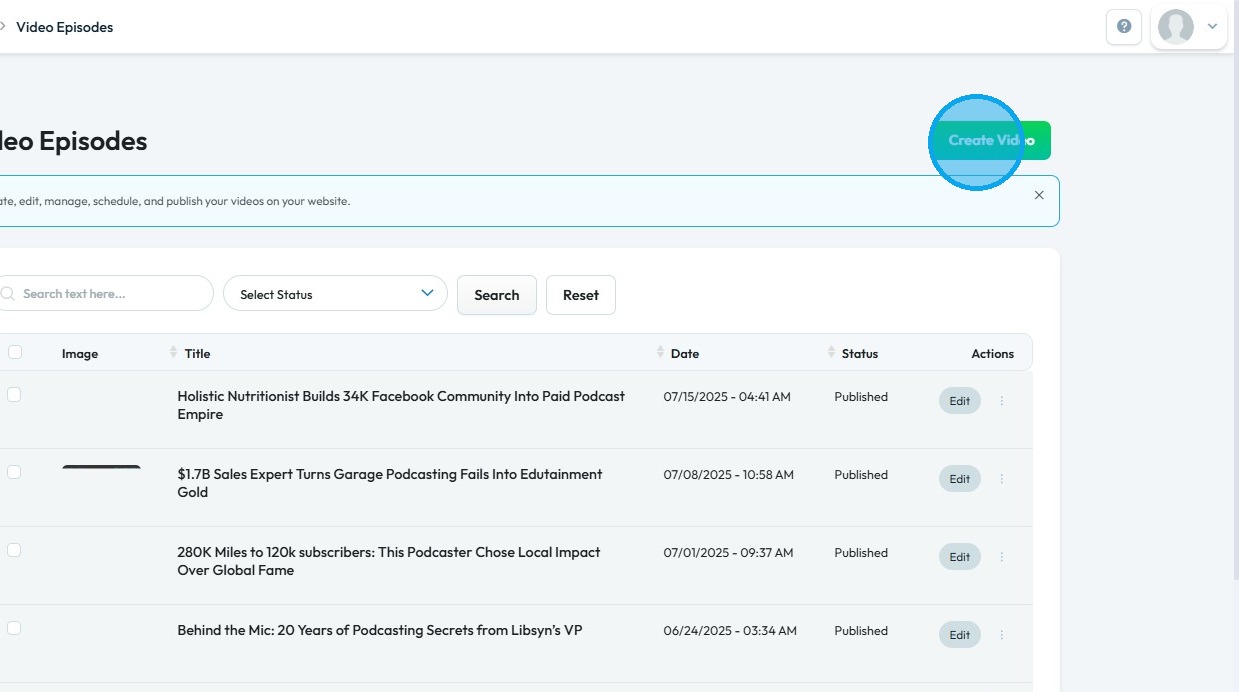
4. Click "Create Video"
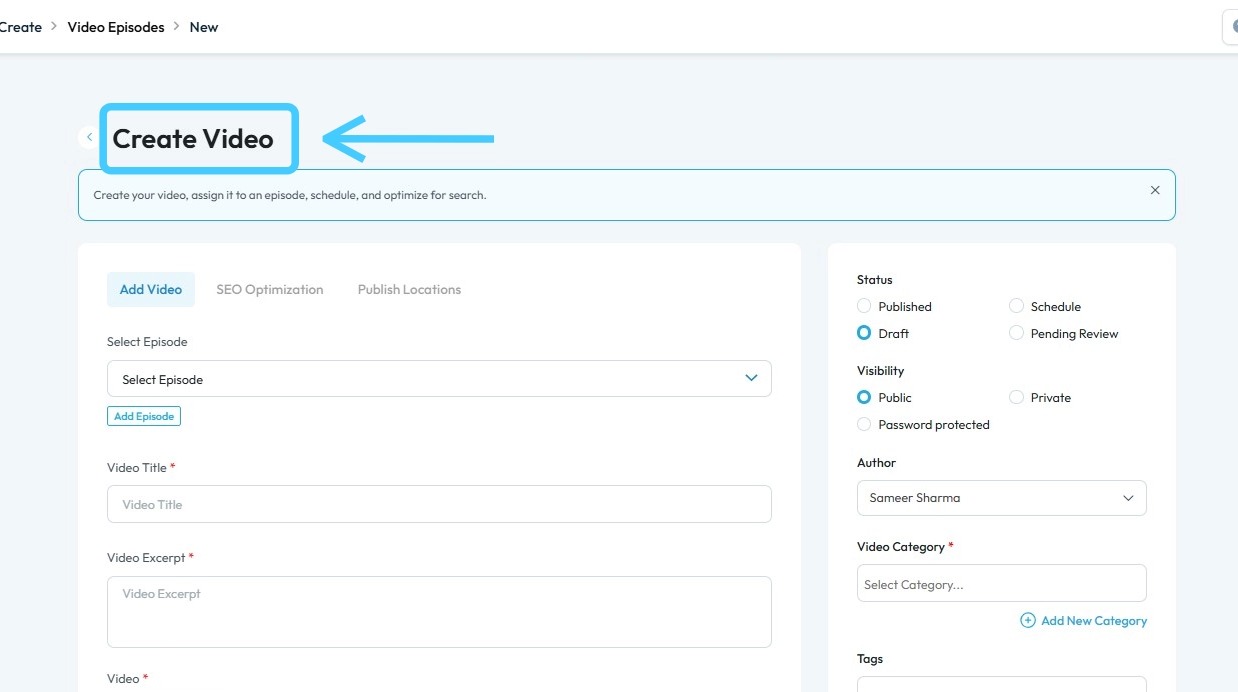
5. The "Create Video" page will open - Fill in the boxes
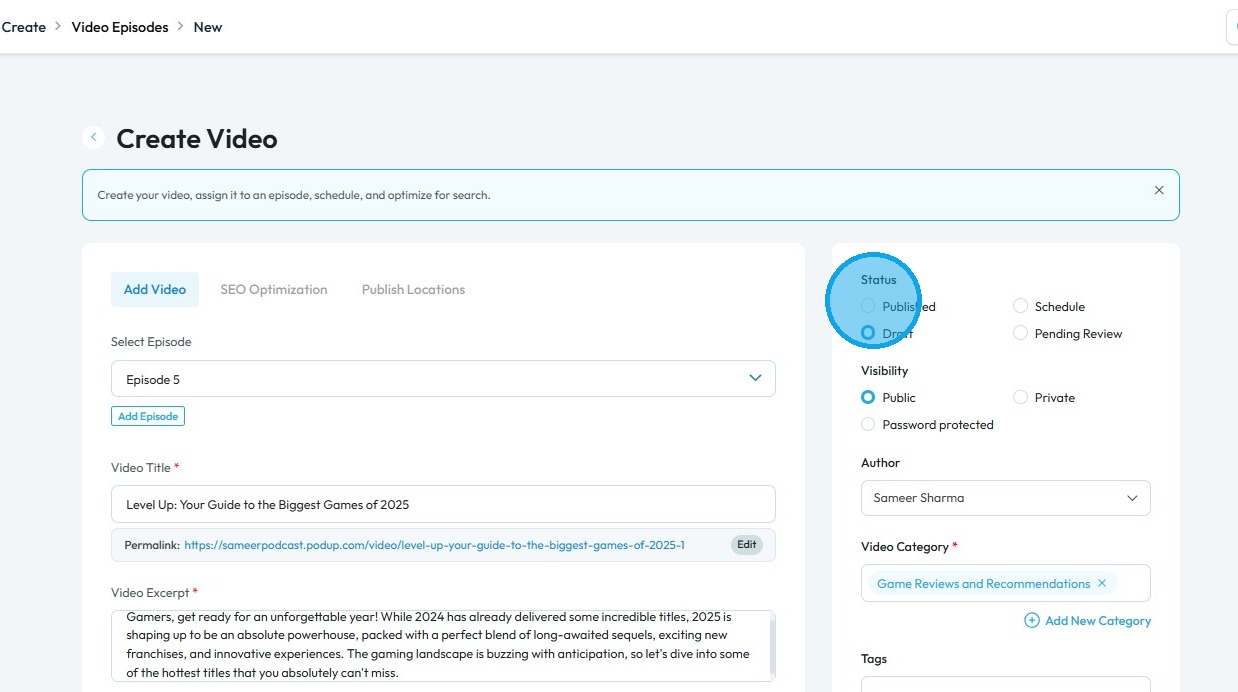
6. Once all details are completed, select "Published" in the Status section
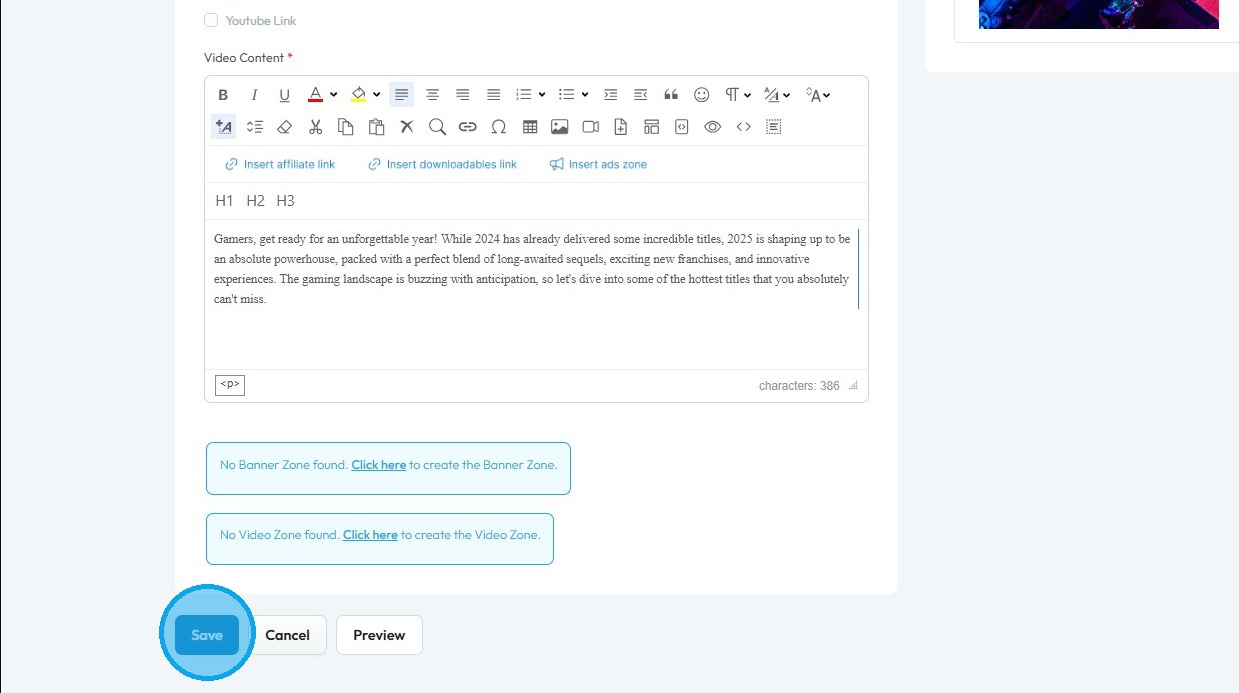
7. Scroll down and click "Save" to confirm your changes
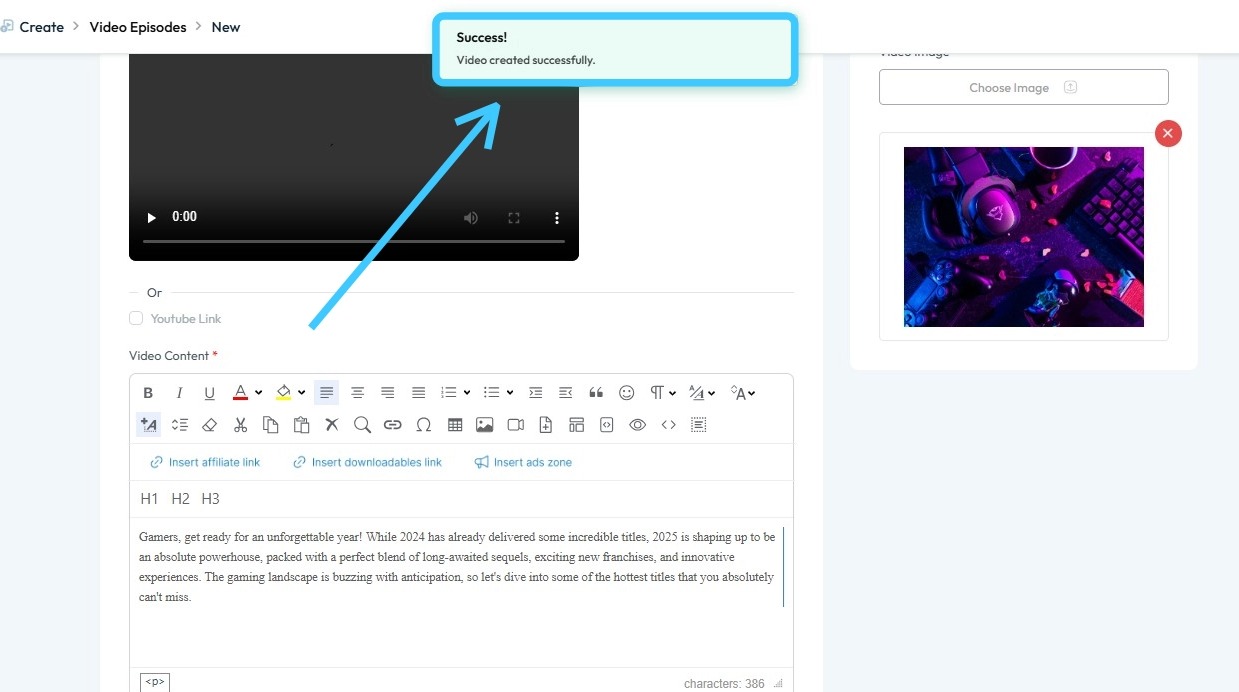
8. A "Success!" message will appear, confirming that your video has been successfully published on your website
Related Articles
How do I upload my videos to my website
This guide shows you how to easily upload and manage video episodes on your website to boost your online presence 1. Navigate to https://app.podup.com/home 2. Click "Create" 3. Select "Videos" 4. Click "Create Video" 5. The "Create Video" page will ...How to Add A Video to My Website using Quick Add (Detailed)
This guide shows you how to quickly add videos to your website using the Quick Add feature. It walks you through choosing a video source and customizing how it looks and works. Follow the steps to make your site more engaging and professional with ...Upload / processing time
upload taking long, processing stuck, how long does upload take, video stuck processing, slow upload By following this guide, users can troubleshoot recording delays on PodUp and optimize playback by understanding and addressing factors like internet ...How To Upload Files in File Manager
By following this guide, you can efficiently upload files using the PodUp File Manager. 1. Navigate to https://app.podup.com/home 2. Click "File Manager" 3. Select "Upload" 4. Select the file you wish to upload and click "Open" 5. The file will be ...How do I Upload Audio Files?
Follow this guide to easily navigate the software and upload your audio files. 1. Navigate to https://app.podup.com/home 2. Click "Files" 3. Select "Audios" 4. The Audio File Manager will open 5. Click "Upload" 6. Select the audio file you wish to ...