How to Navigate Video to Text (Detailed)
This guide provides a comprehensive walkthrough for utilizing Podup's Video to Text feature, making it ideal for anyone needing accurate transcriptions of audio or video content. Users will learn how to efficiently convert files, customize speaker names, and export transcriptions in various formats. By following this guide, you can streamline your transcription process and enhance your productivity. It's a valuable resource for content creators, educators, and researchers alike.
1. Navigate to https://app.podup.com/home

2. Click here.
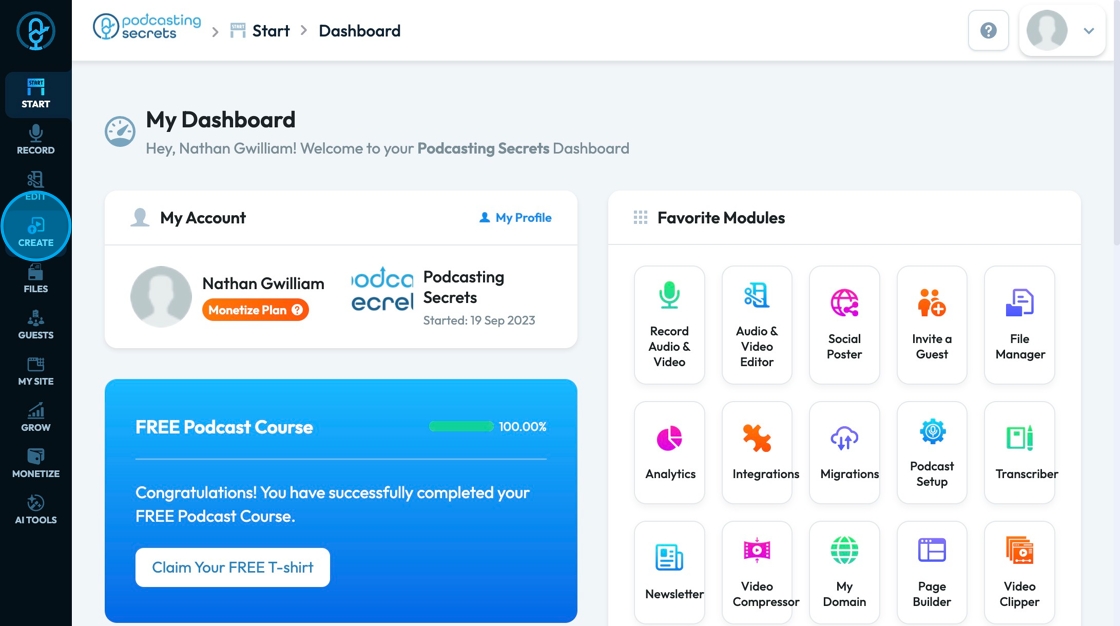
3. Click "Video to Text"
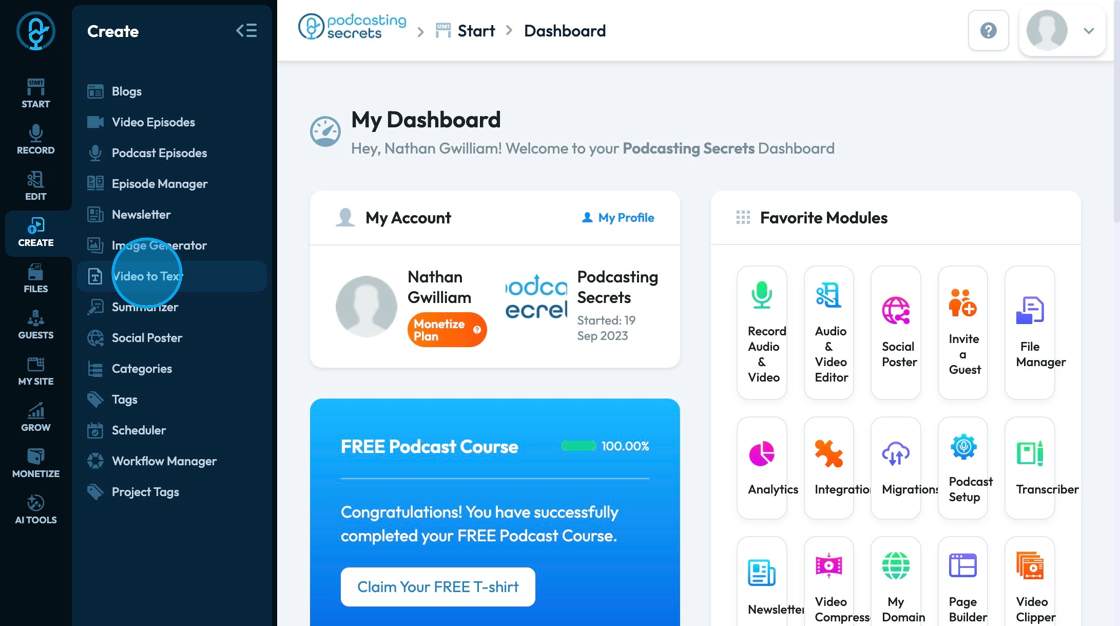
4. Click "Convert Video/Audio To Text"
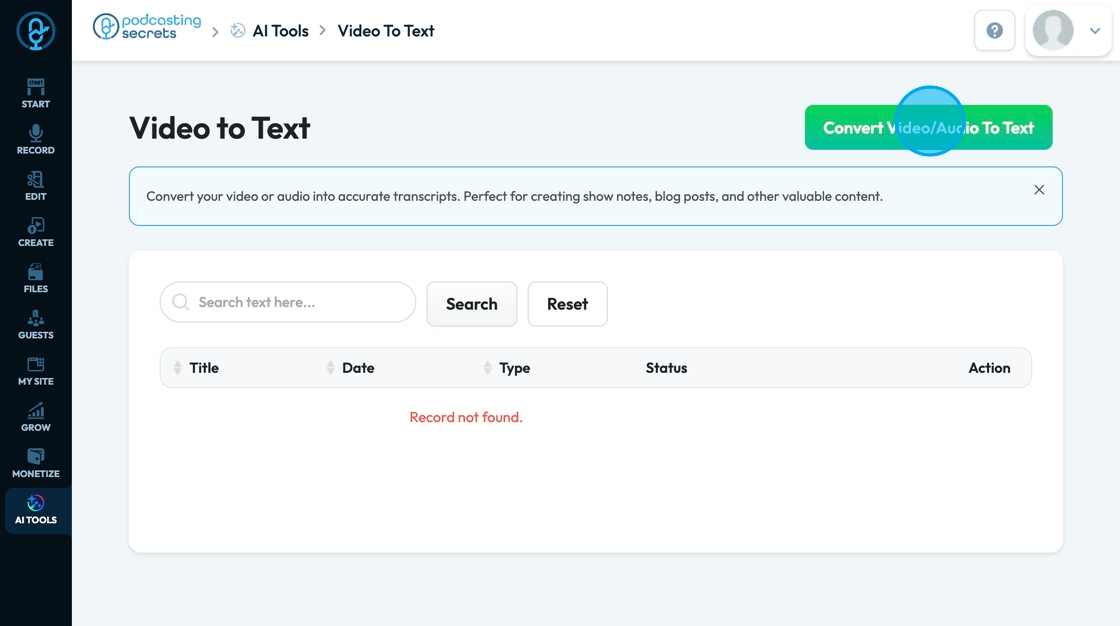
5. Click the "Summary title" field to add a title to the transcription
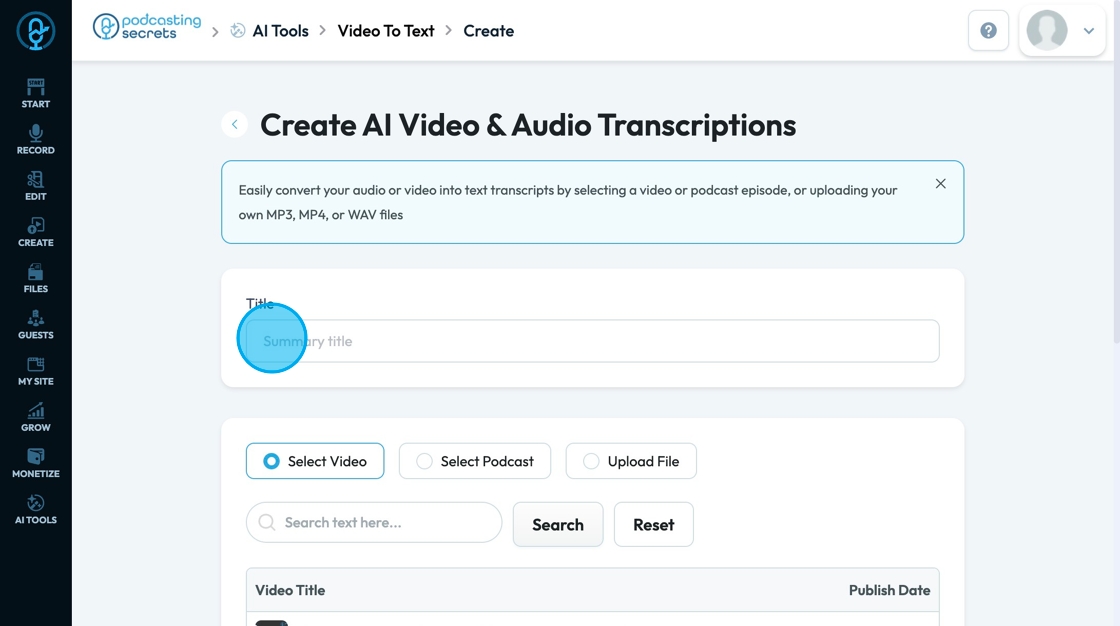
6. Click "Select Video"
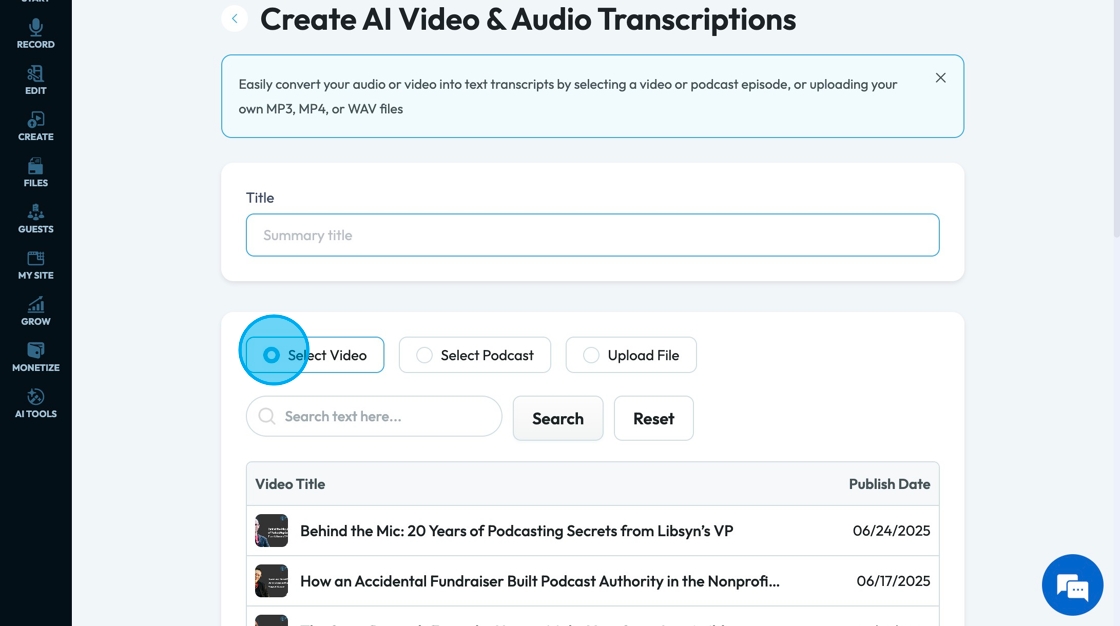
7. Click the "Search text here" field and type in the title or publication date to find a specific video

8. Click "Search" to run the search and collect a list of all the videos that contain the text you are searching for
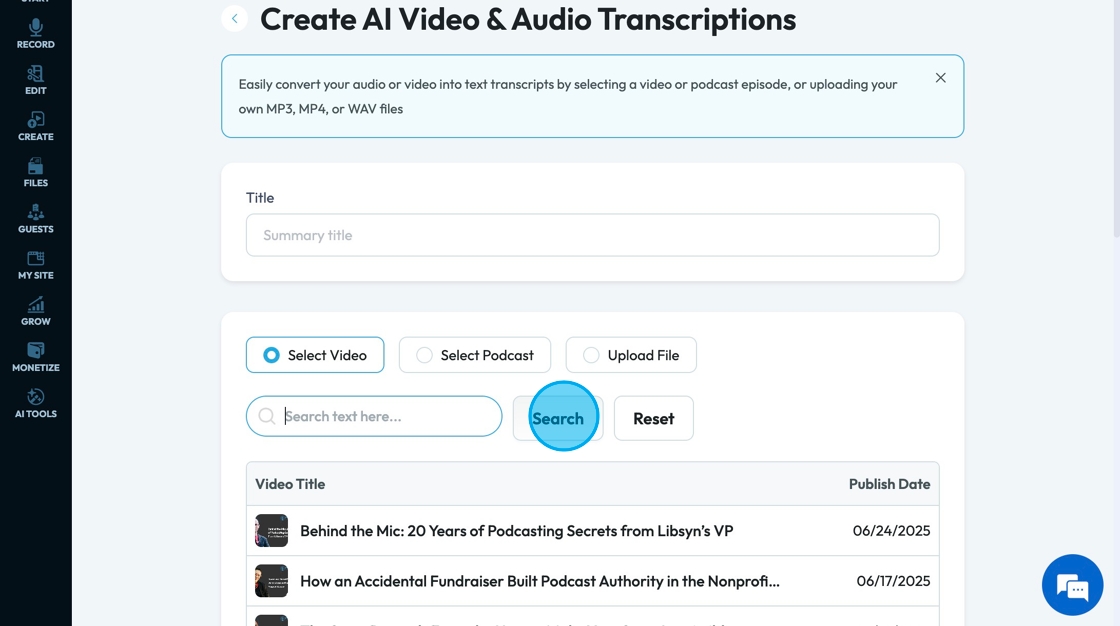
9. Click "Reset" to reset the search results to the original display

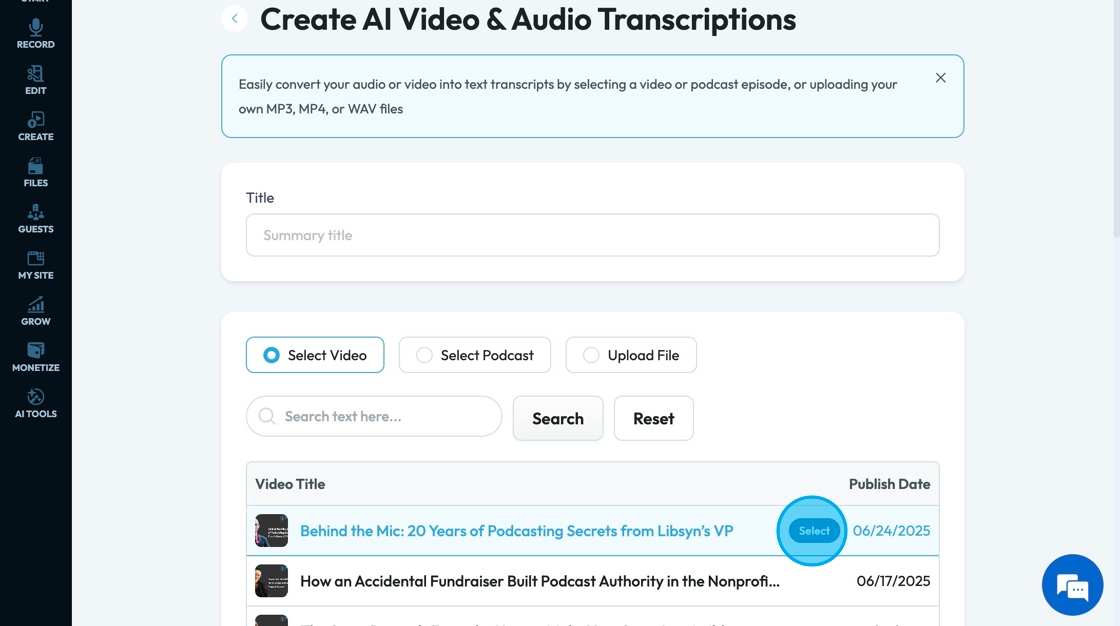
10. Hover over the desired video and click "Select"
- You can only select one at a time
11. Click "Select Podcast"

12. Click the "Search text here" field and type in the title or publication date to find a specific podcast
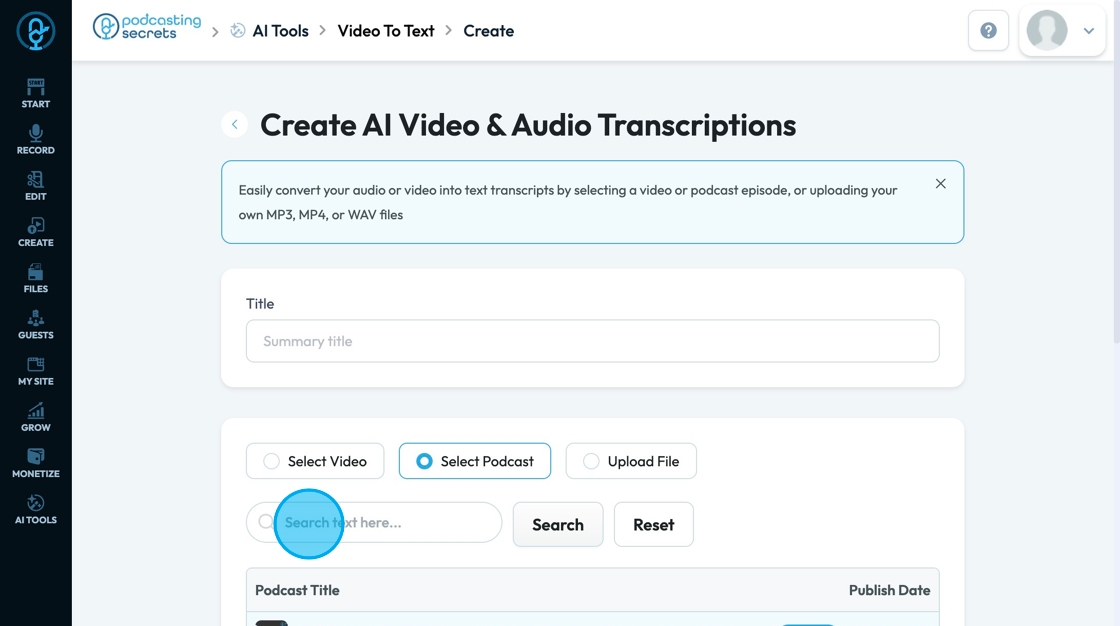
13. Click "Search" to run the search and collect a list of all the podcasst that contain the text you are searching for
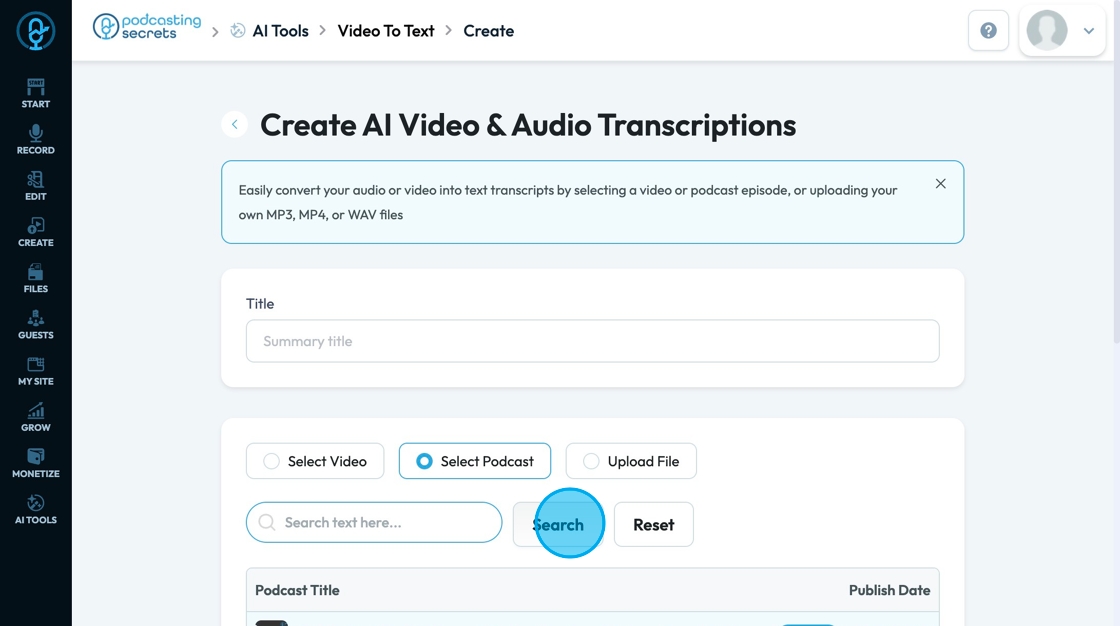
14. Click "Reset" to reset the search results to the original display
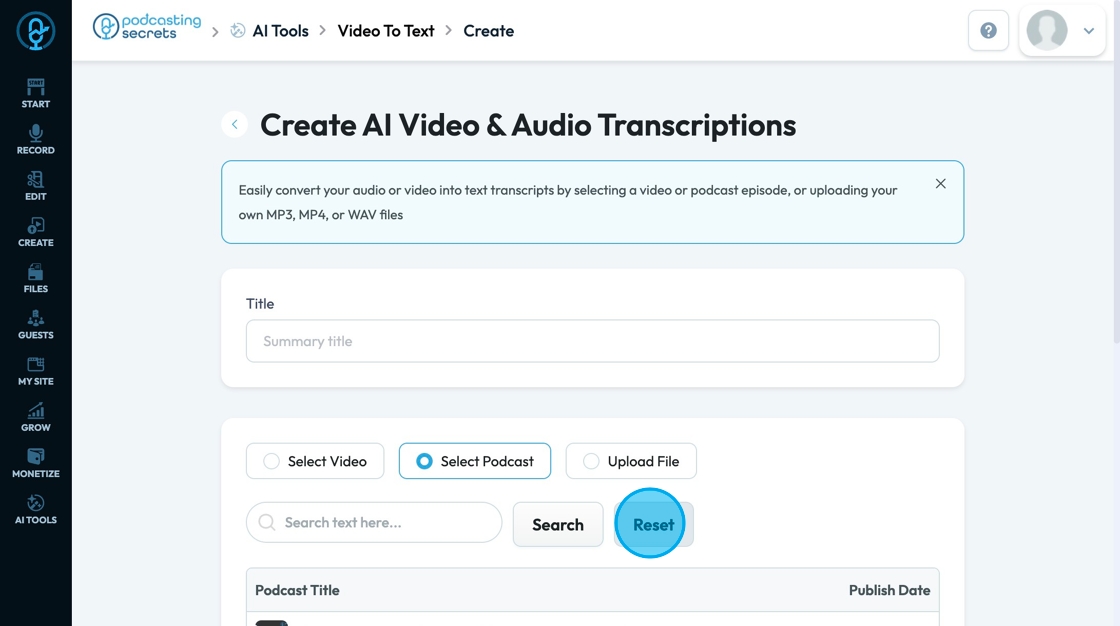
15. Hover over the desired podcast and click "Select"
- You can only select one at a time
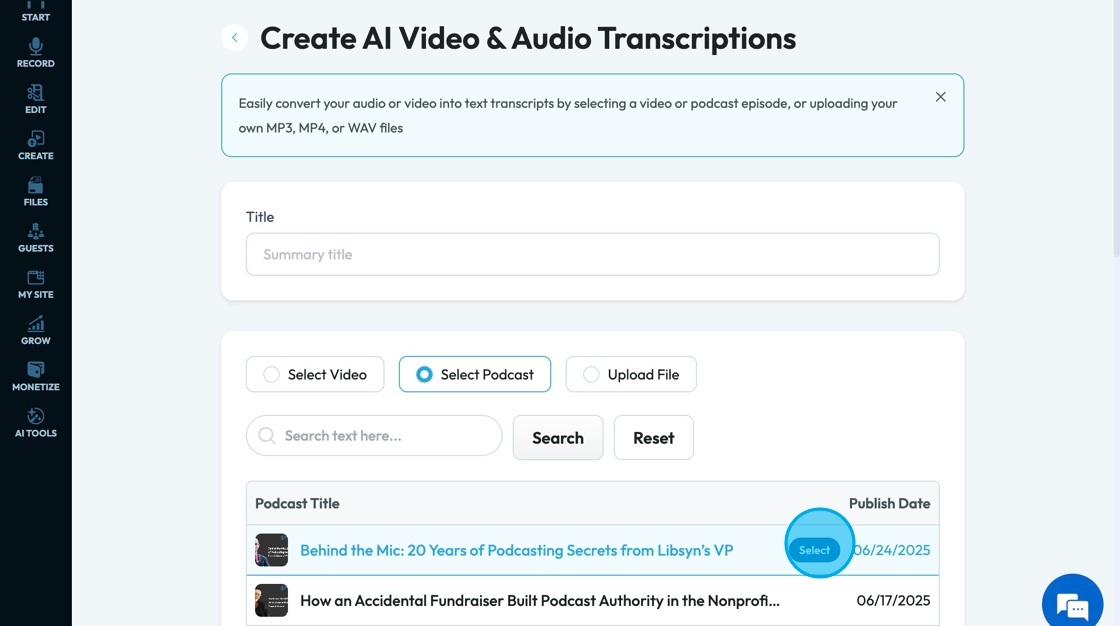
16. Click "Upload File"
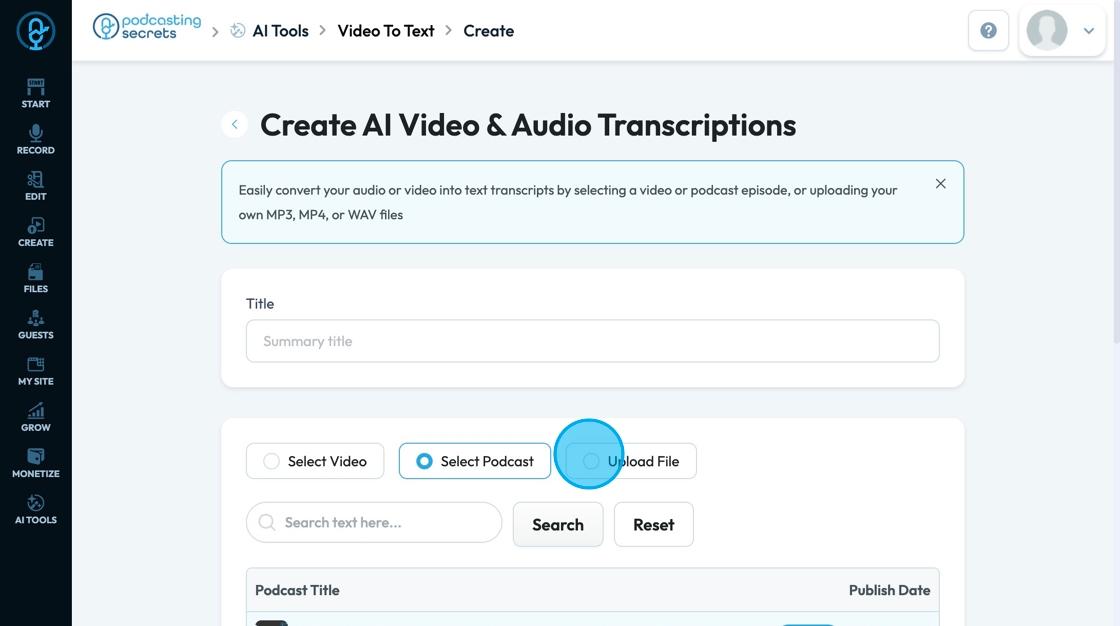
17. Click "Choose file" to select a custom file

18. Select a file already in PodUp or upload a new file from your computer by selecting the blue "Upload" button

19. Click "Convert to text" to submit the file
- You must have both a title and a file to run the transcription
- Note: The bigger the file (ex. long videos) is the longer it takes to get the transcription
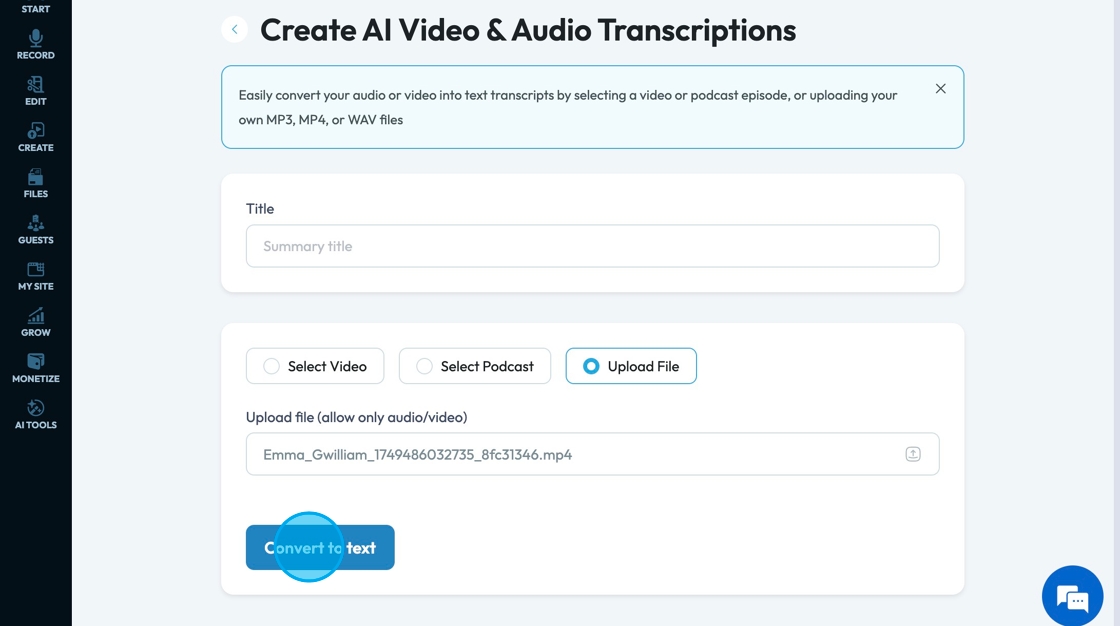
20. A link to the file that the transcription comes from can be found at the top under "This Transcriptions is generated using custom:) so you can reference the file while reviewing the transcription

21. Click "SPEAKER_00" to adjust which speaker name you want to edit. Select the desired speaker from a drop down list of all the speakers in the video
- This video only has 1 speaker, so there is only one option listed. If you have multiple speaks you will have multiple options to choose from

22. Click this text field to insert the name of that speaker
- You can decide what you want to put in for their name.
- First name like Nathan
- Last Name like Gwilliam
- Title like Mr.
- Nickname like Nate
- Full name like Nathan Gwilliam
- Ect
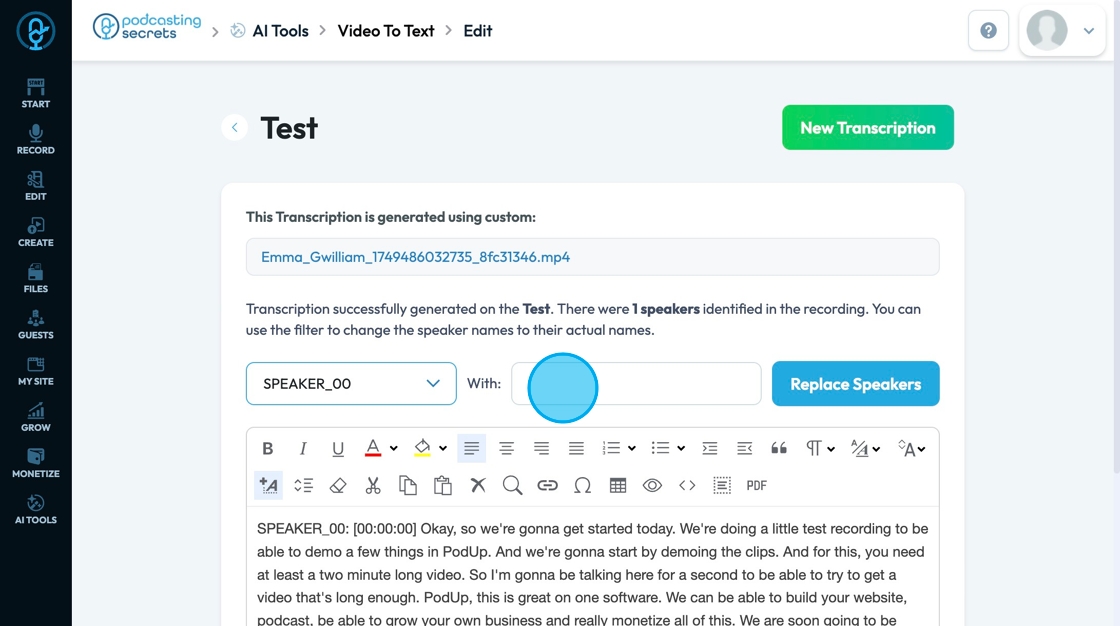
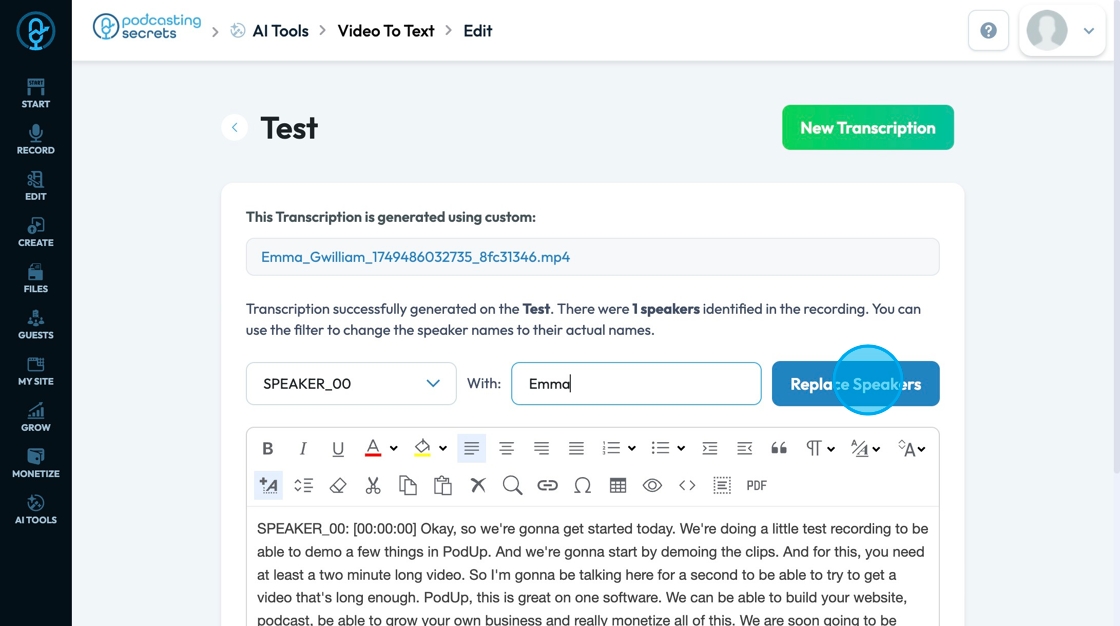
23. Click "Replace Speakers" to replace the selected speaker with the name that you inserted
24. Edit the text using the edit features
- This text box adds an extra feature to "Create PDF"
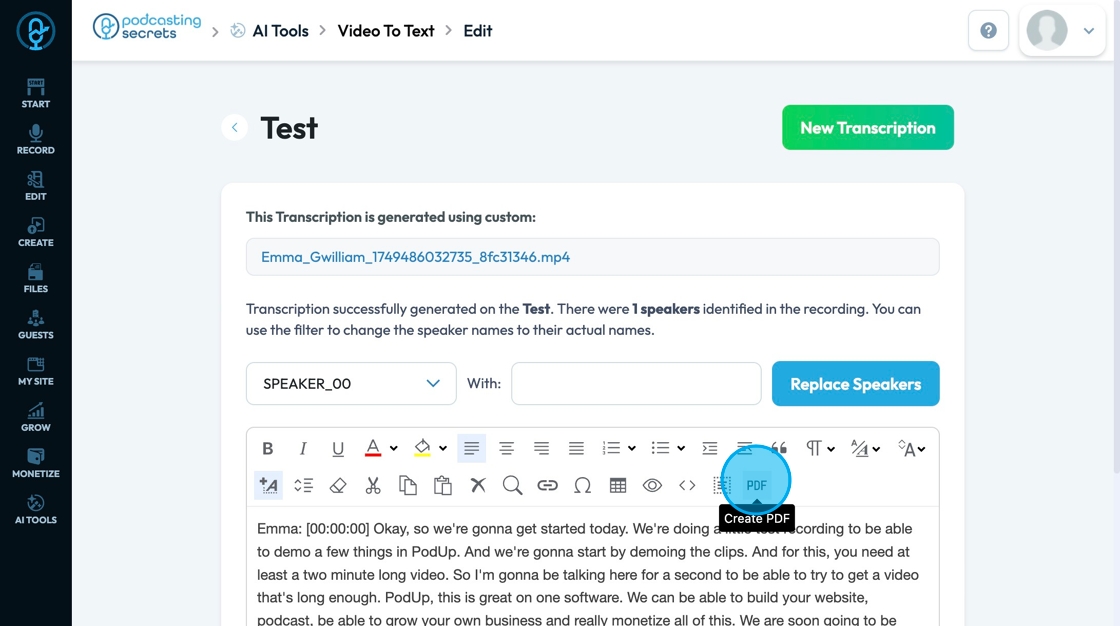
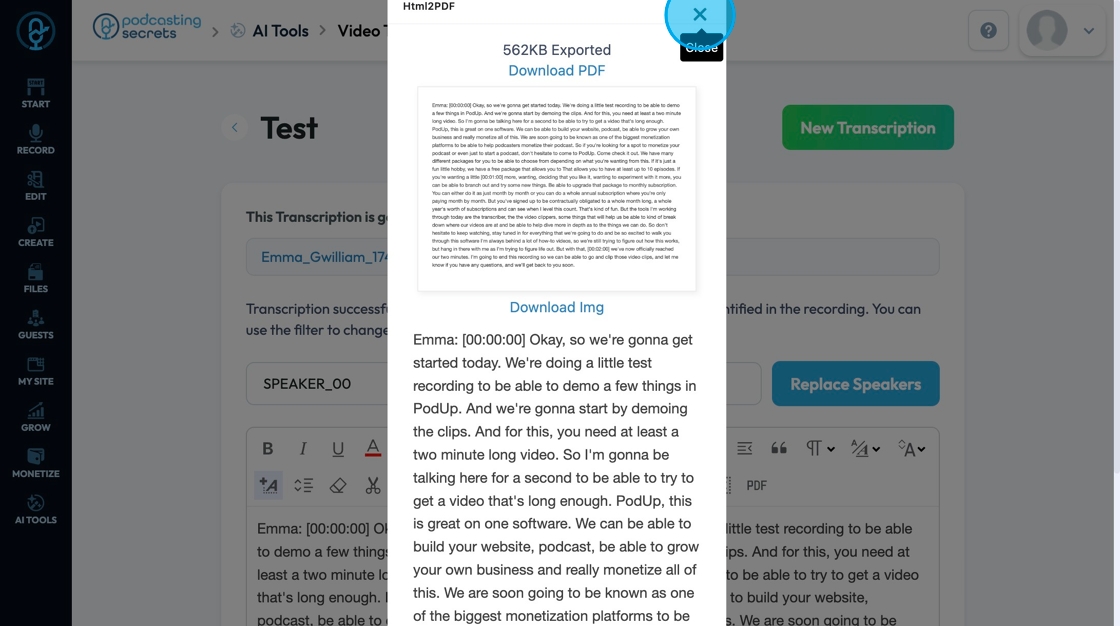
25. A preview of the PDF will appear as a popup where you can download the PDF or the image of the PDF
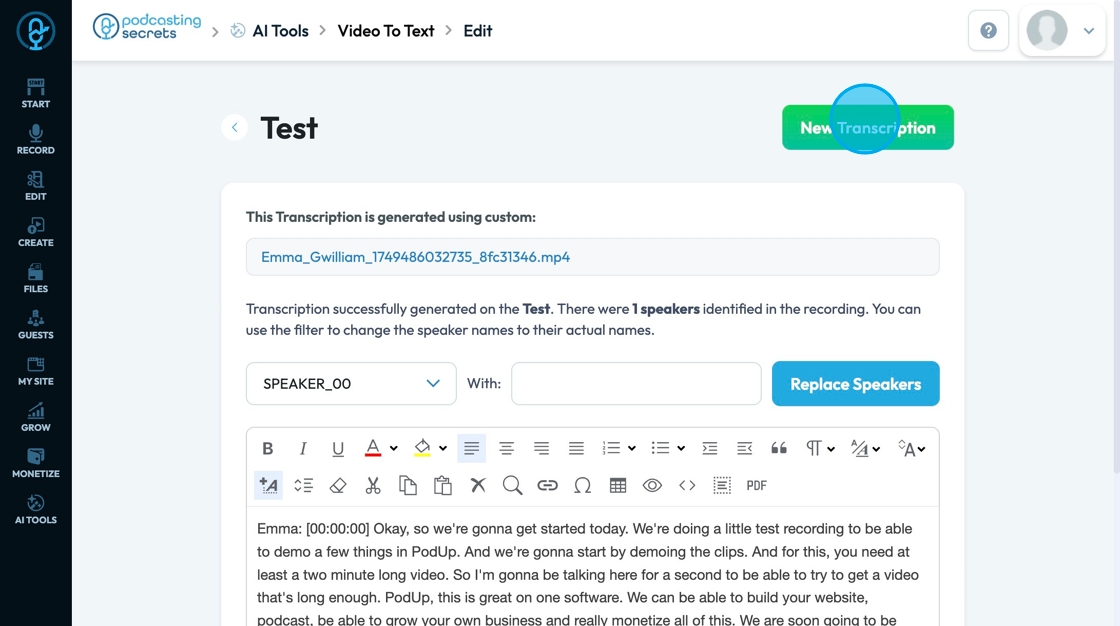
26. Click "New Transcription" to generate a new transcript
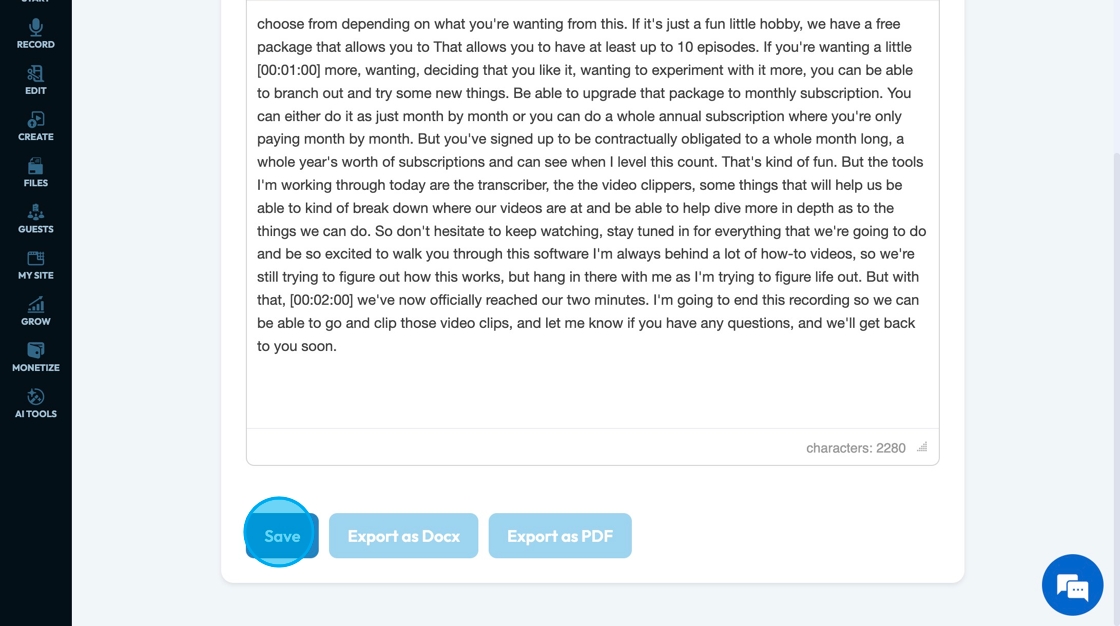
27. Click "Save" to save the transcription
Once you have saved the transcription you can export the transcription as a Docx- an editable document or a pdf
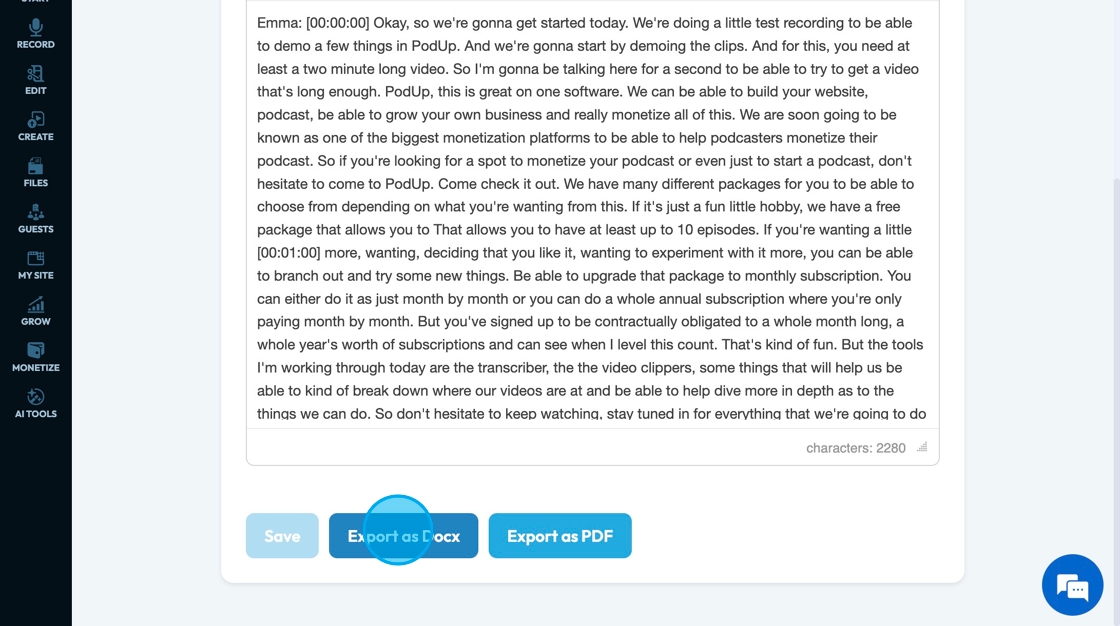
28. Click "Export as Docx" to download the transcription in a Docx format
Docx Format: This format is useful when you want to edit or collaborate on a document. It's commonly used for scripts, outlines, notes, and planning documents. It allows for comments, tracked changes, formatting, and live collaboration in tools like Word or Google Docs.
29. Click "Export as PDF" to download the transcription as a PDF
PDF: This format is best when you want to share a finished, uneditable version of a document. It looks the same on any device, which makes it great for final drafts, contracts, release forms, or presentation materials.

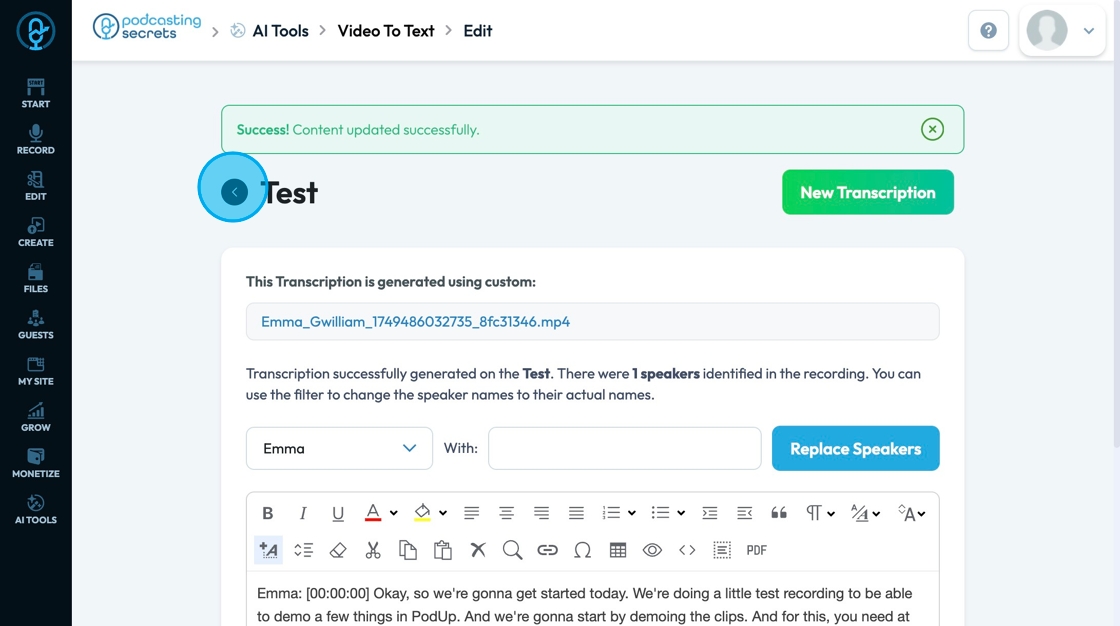
30. Click the back arrow to return to the listing of all the Video to Text Transcriptions
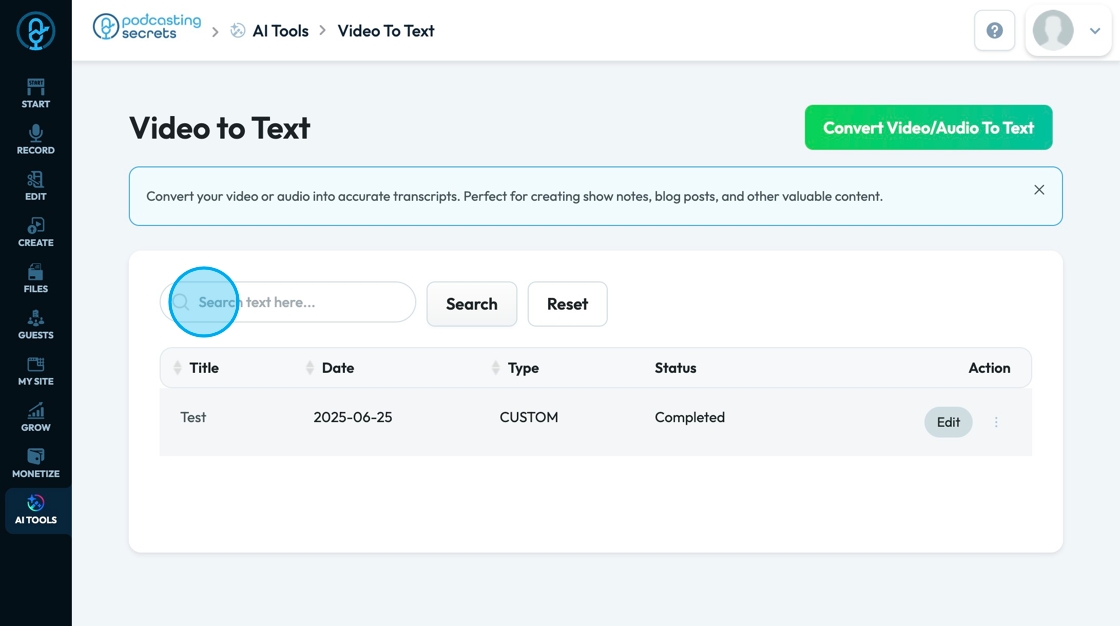
31. Click the "Search text here" field and type the title, date, type, or status to find a specific file
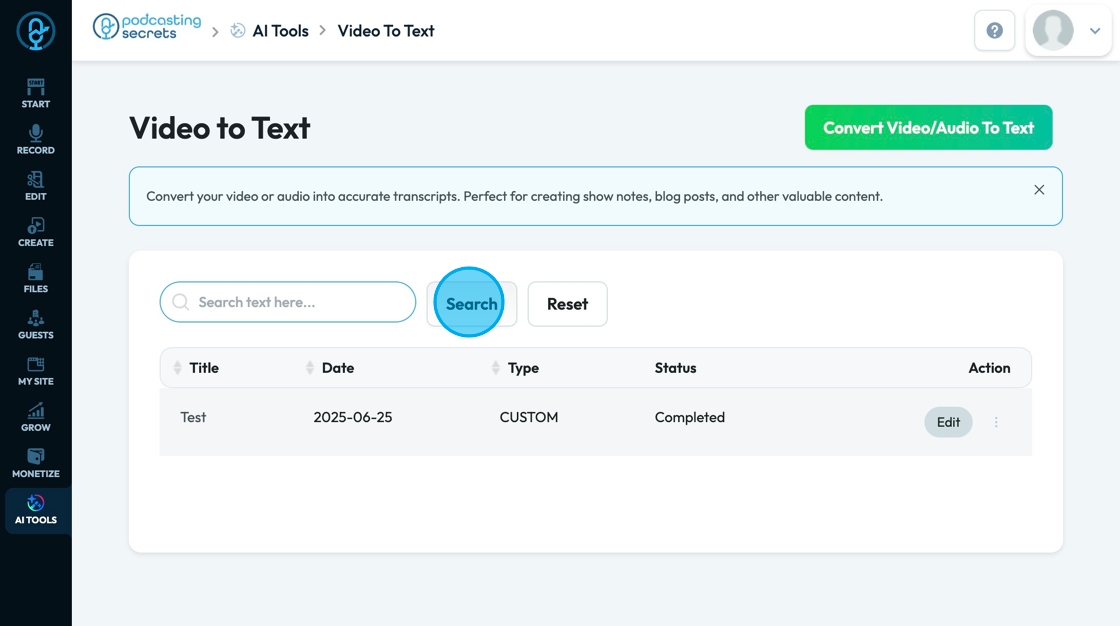
32. Click "Search" to run the search and collect a list of all the videos that contain the text you are searching for
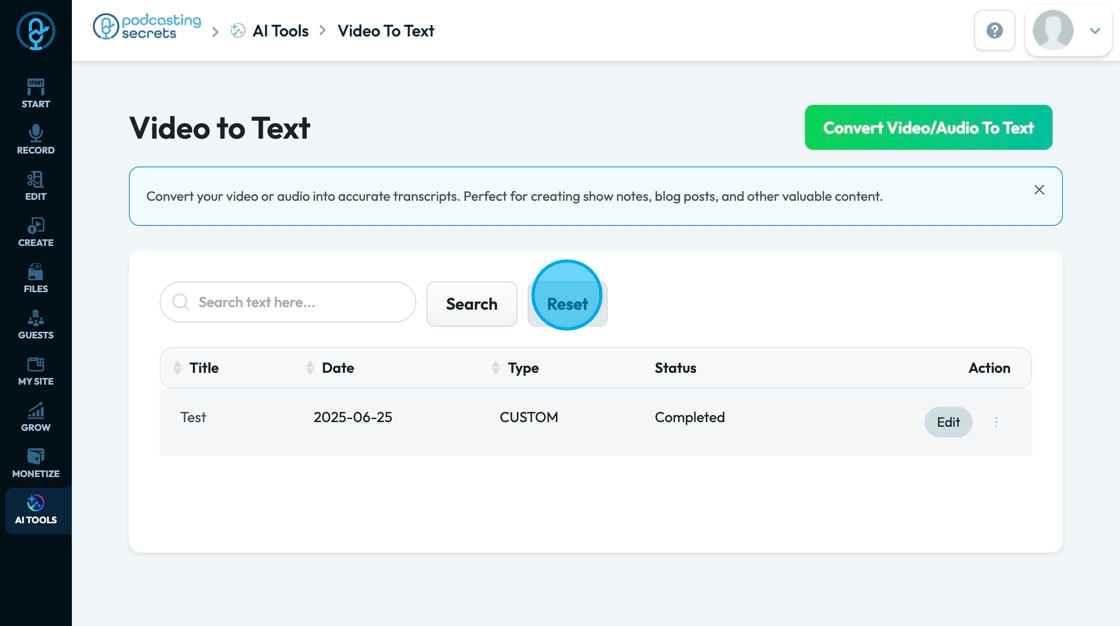
33. Click "Reset" to reset the search results to the original display
34. Click "Edit" to reopen the transcript
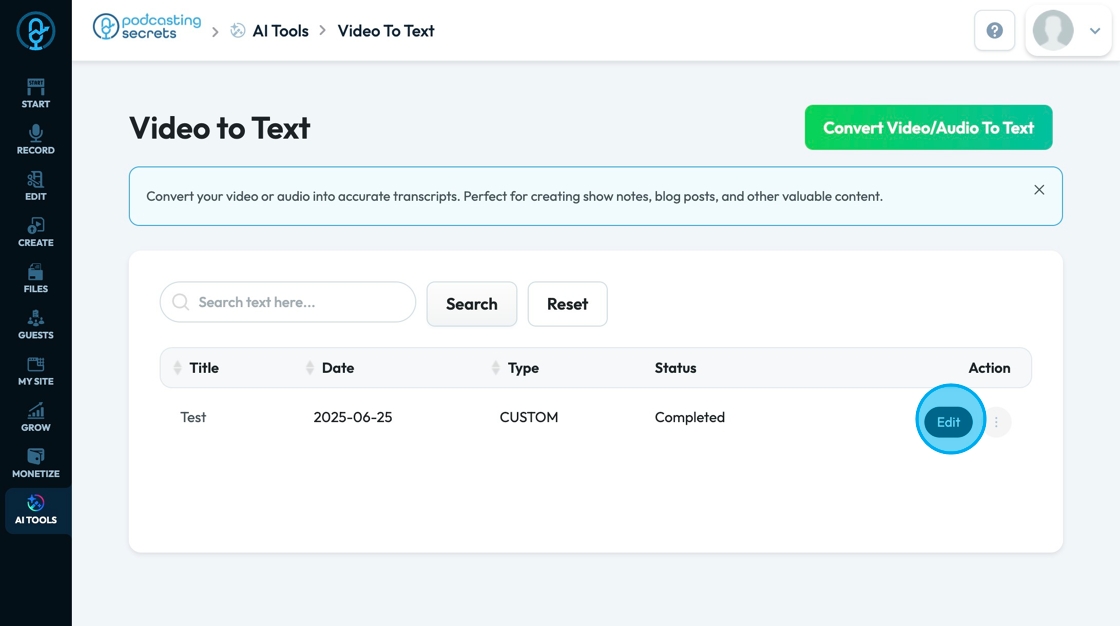
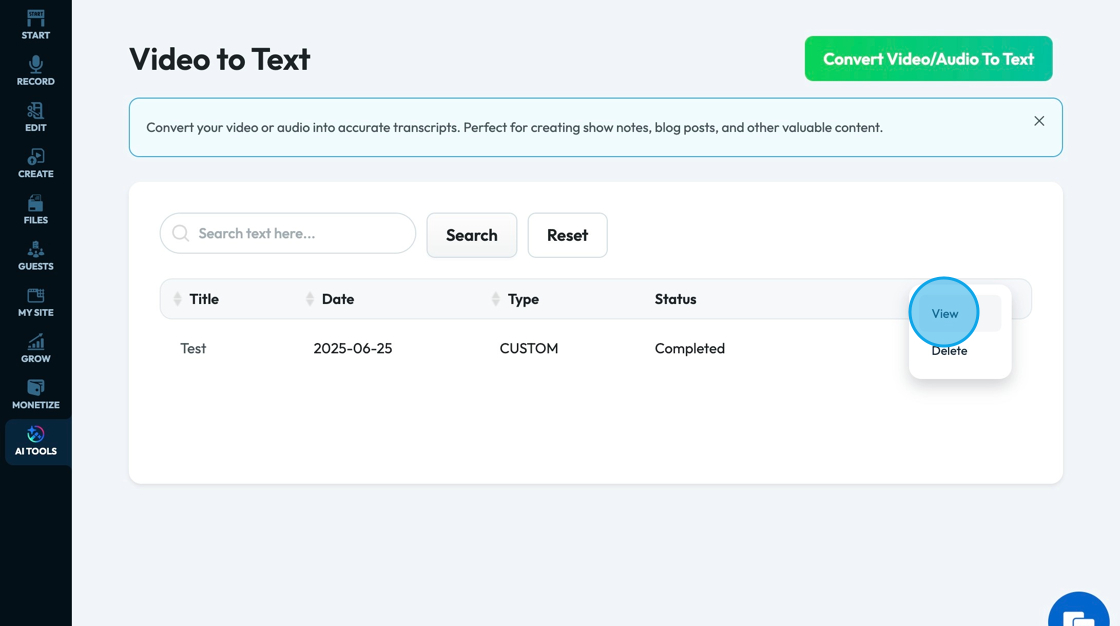
35. Click the 3 dots to open the more details of the file

36. Click "View" to reopen the file
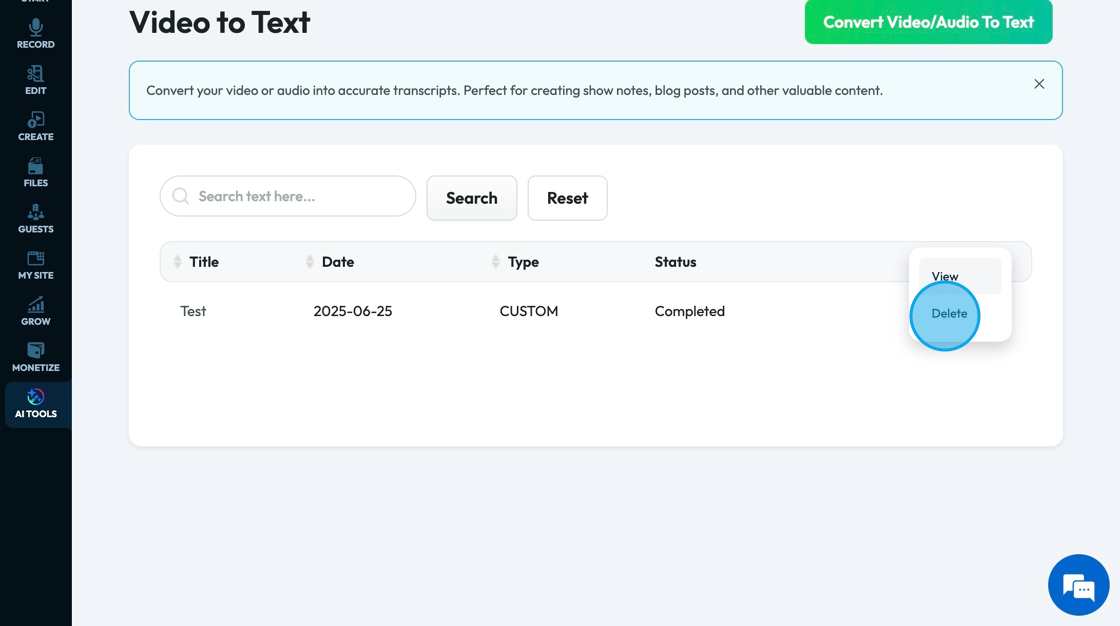
37. Click "Delete" to delete the file
- A popup will appear to confirm that you want the file deleted
Related Articles
How to Navigate Video to Text (Detailed)
This guide provides a comprehensive walkthrough for utilizing Podup's Video to Text feature, making it ideal for anyone needing accurate transcriptions of audio or video content. Users will learn how to efficiently convert files, customize speaker ...How To Navigate Video Compressor (Detailed)
This guide provides a straightforward process for compressing videos using PodUp, making it easy for users to reduce file sizes for easy sharing. It offers clear step-by-step instructions that simplify the video compression process, ideal for anyone ...How To Navigate Video Compressor (Detailed)
This guide provides a straightforward process for compressing videos using PodUp, making it easy for users to reduce file sizes for easy sharing. It offers clear step-by-step instructions that simplify the video compression process, ideal for anyone ...How To Navigate Video Clipper (Detailed)
This guide offers a comprehensive walkthrough for creating engaging video clips using Podup Video Clipper, making it invaluable for content creators. It simplifies the process by detailing steps for uploading videos, selecting captions, and ...How To Navigate Video Clipper (Detailed)
This guide offers a comprehensive walkthrough for creating engaging video clips using Podup Video Clipper, making it invaluable for content creators. It simplifies the process by detailing steps for uploading videos, selecting captions, and ...