How to Change the Category of my Blog Post
This guide provides a straightforward process for changing the category of your blog post on PodUp, ensuring accurate categorization for better visibility and engagement. By following this guide, you can easily update your blog's organization, making it more appealing to your audience.
1. Navigate to https://app.podup.com/home
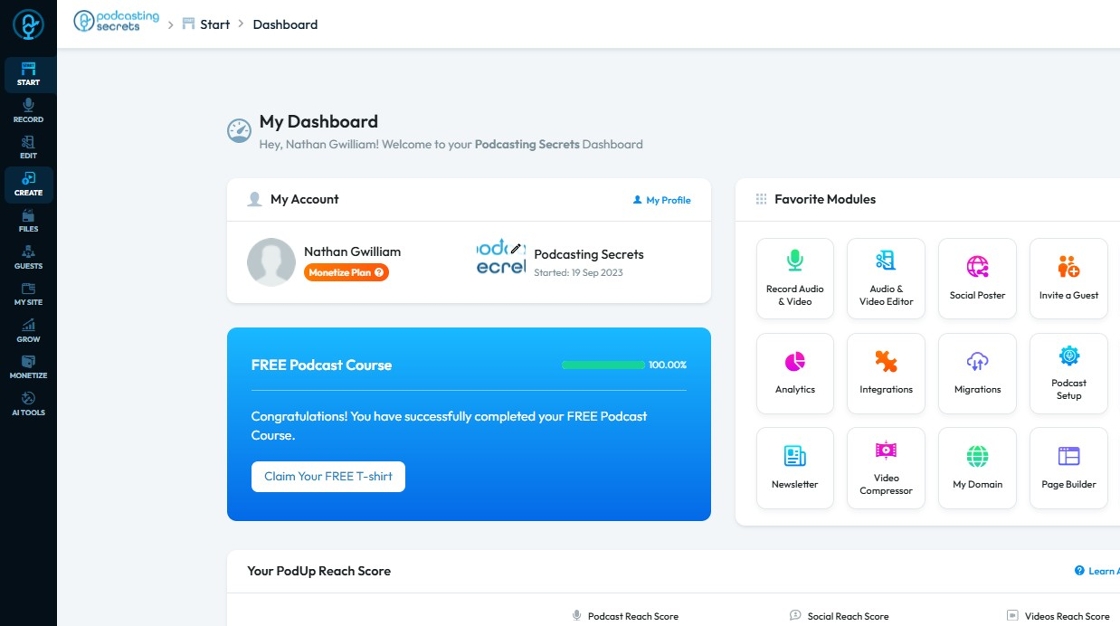
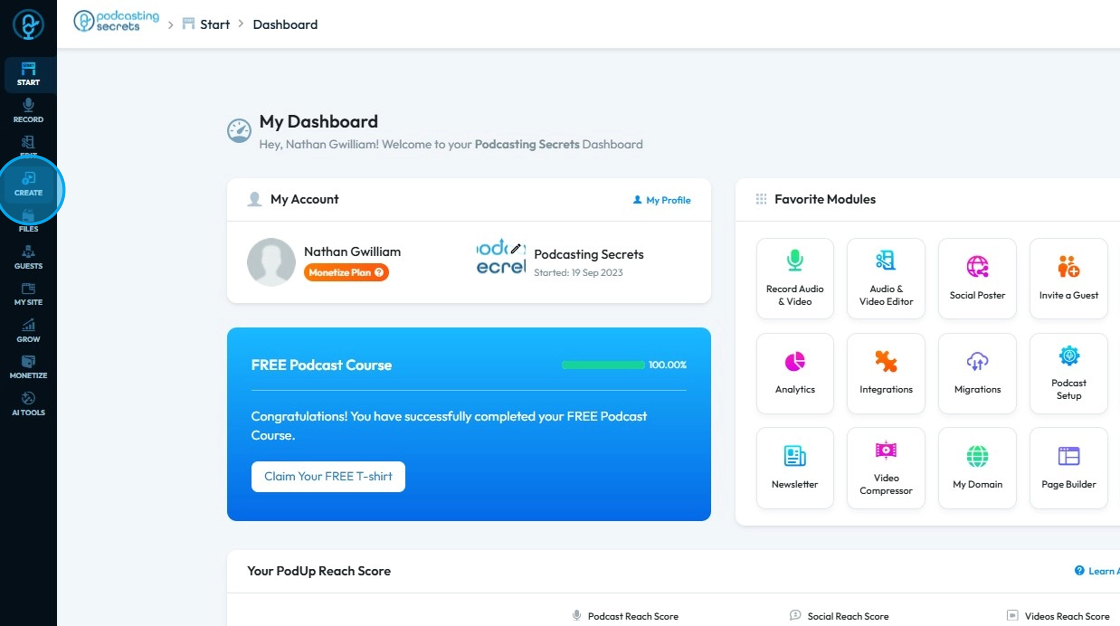
2. Click "Create"
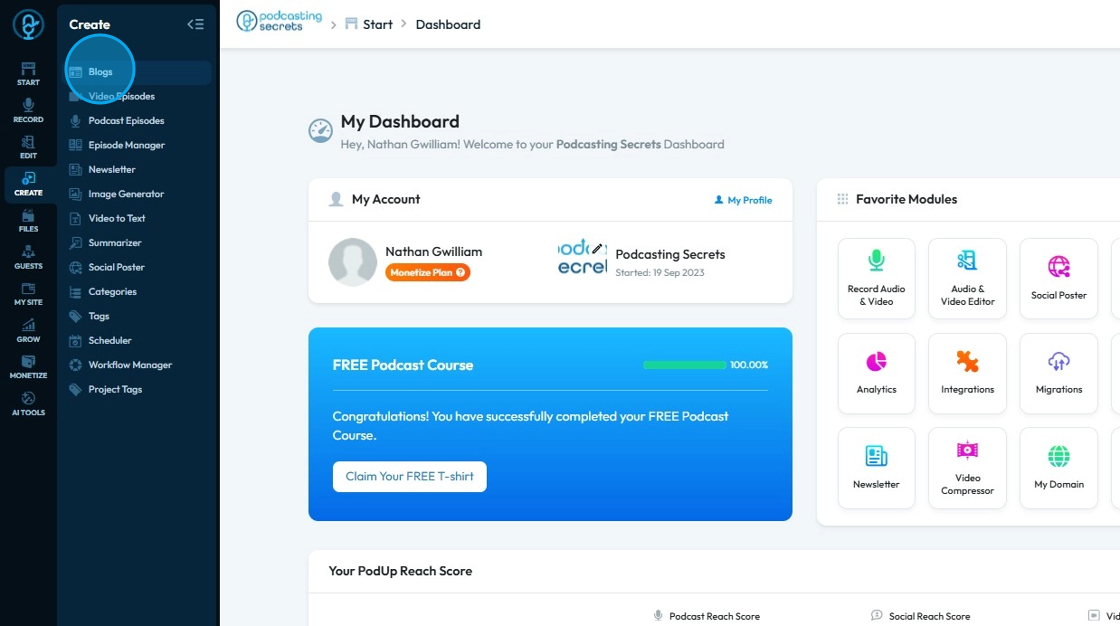
3. Click "Blogs"
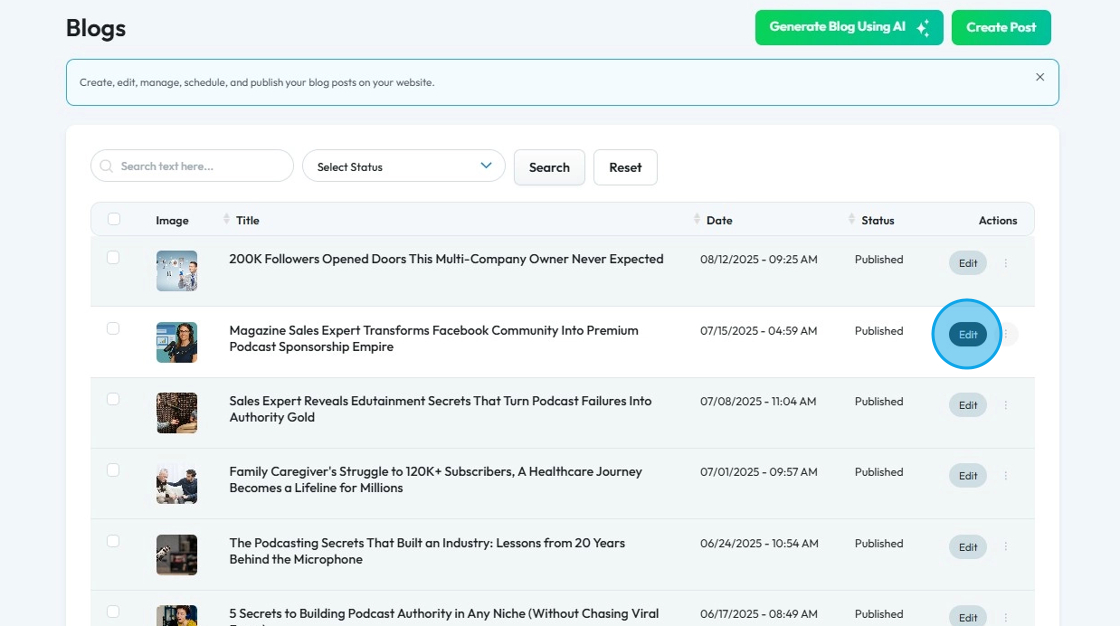
4. Click “Edit” on the blog post you wish to change the category for
5. Click "X" to remove the previous category
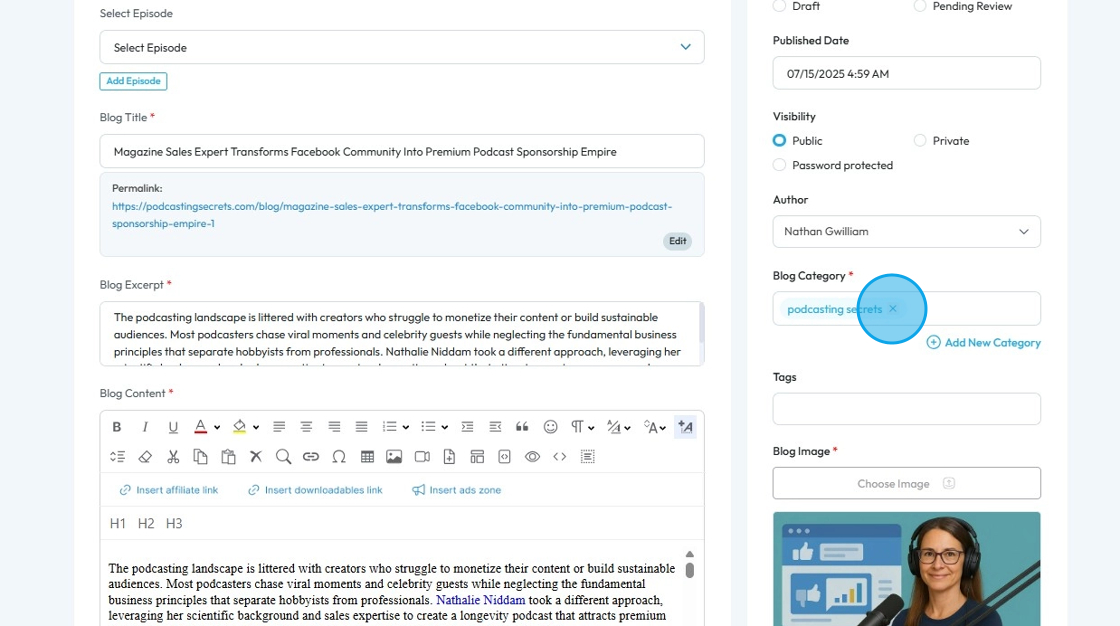
6. Select the category you prefer
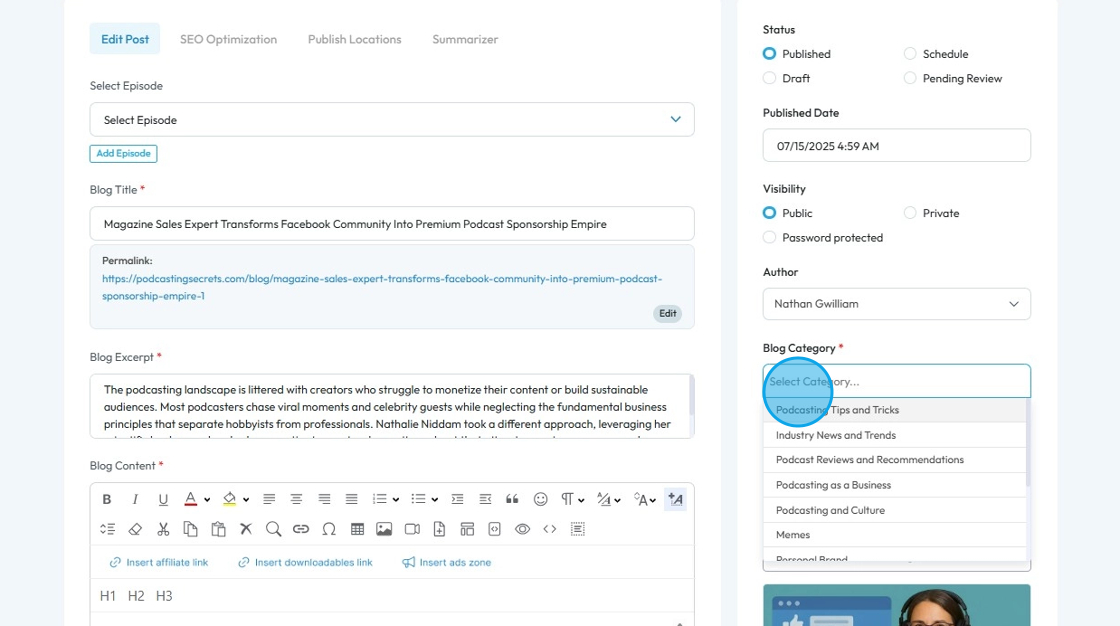
7. Scroll down and click “Update.”
You have successfully changed your blog post’s category
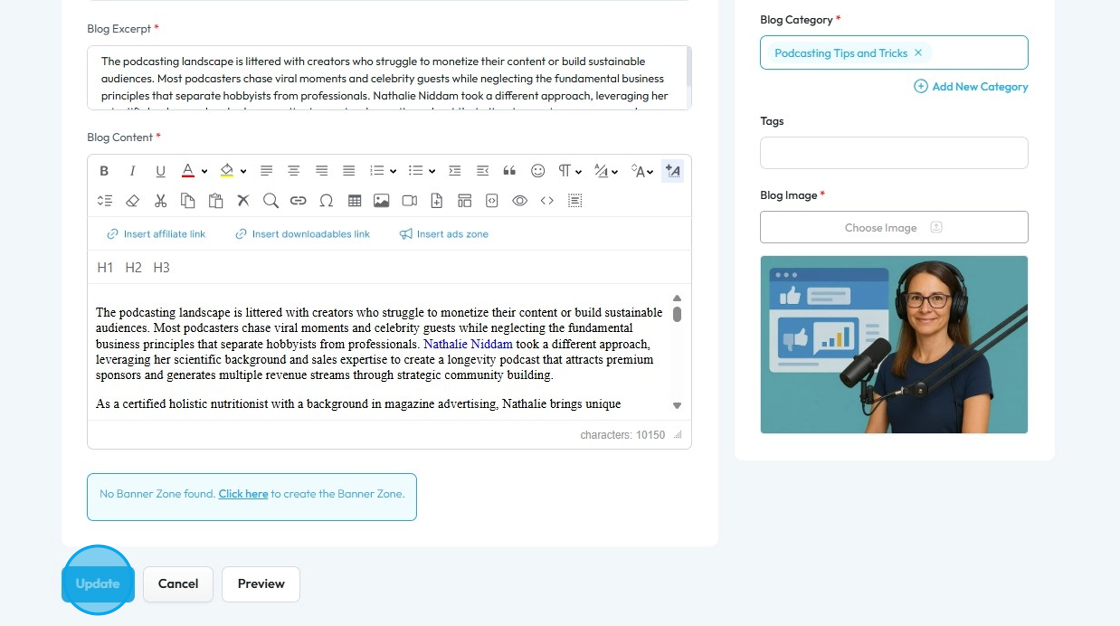
8. Your blog category will then be updated!
Related Articles
How Do I Create a Blog Post
This guide shows you how to create a blog step by step. It covers SEO, categories, and social sharing to help you reach more people and grow your online presence. 1. Click "Create" 2. Click "Blogs" 3. Click "Create Post" to write your own blog or ...How To Navigate AI Blog Generator on PodUp
This guide walks you through using PodUp’s AI Blog Generator to quickly create SEO-friendly blog content. It covers title ideas, keyword use, and tone selection to help you write faster and reach your audience more effectively. 1. Navigate to ...How to Use AI to Generate A Blog
This guide shows you how to use AI to create blog posts faster. It covers generating titles, optimizing for SEO, and adjusting tone and audience to make your content more effective. 1. Click "Create" 2. Click "Blogs" 3. Click "Generate Blog Using AI" ...How to Categorize My Blog Post
This guide provides a straightforward process for categorizing your blog posts, ensuring that your content is organized, easily discoverable, and more user friendly. Tip: Categories make it easier on the readers and the editors to find the blog! 1. ...How to Change Video Episode Category on PodUp
This guide offers a comprehensive overview of changing the category of video episodes on PodUp, ensuring accurate classification for greater audience reach. 1. Navigate to https://app.podup.com/ 2. Click "Create" 3. Click "Videos" 4. The “Video” page ...