How to Add a YouTube Button to My Blog Post and Connect It to My YouTube Account
1. Navigate to https://app.podup.com/home
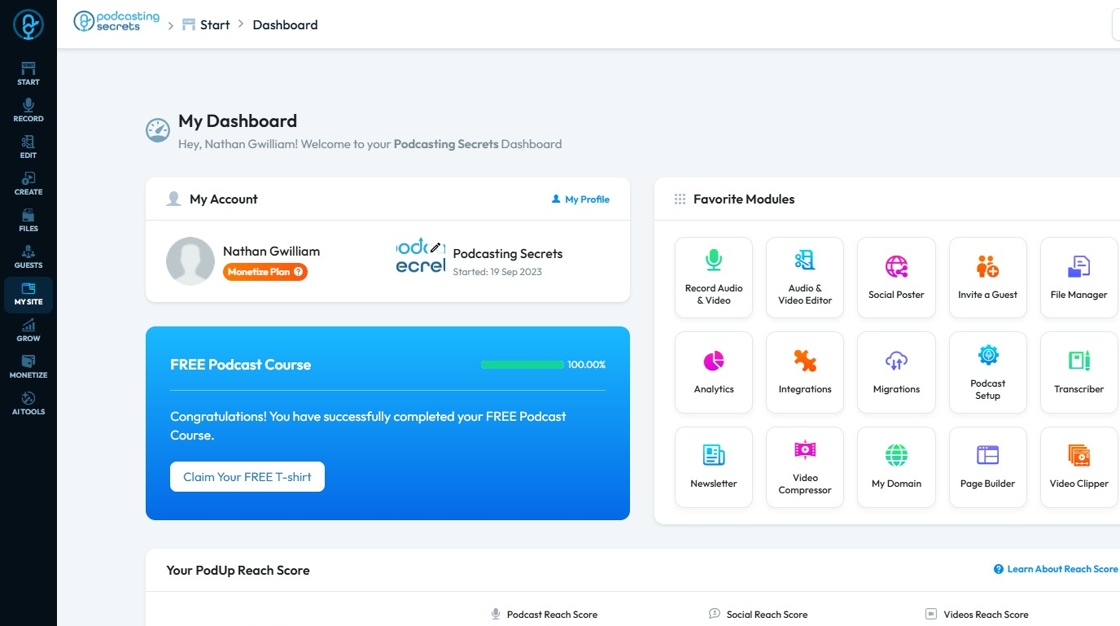
2. Click "My Site".
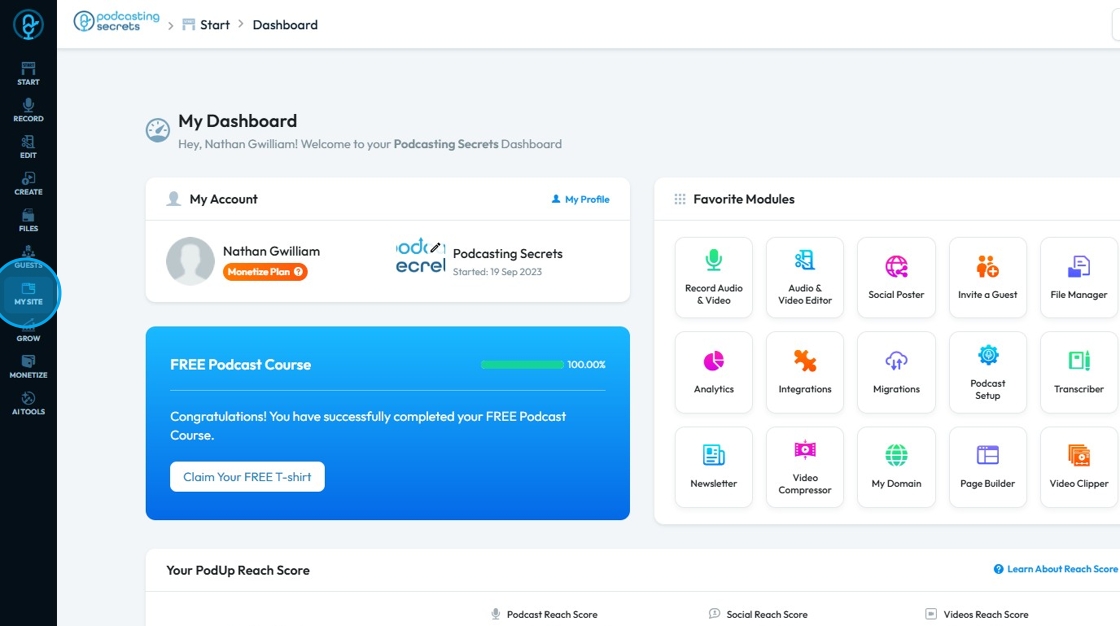
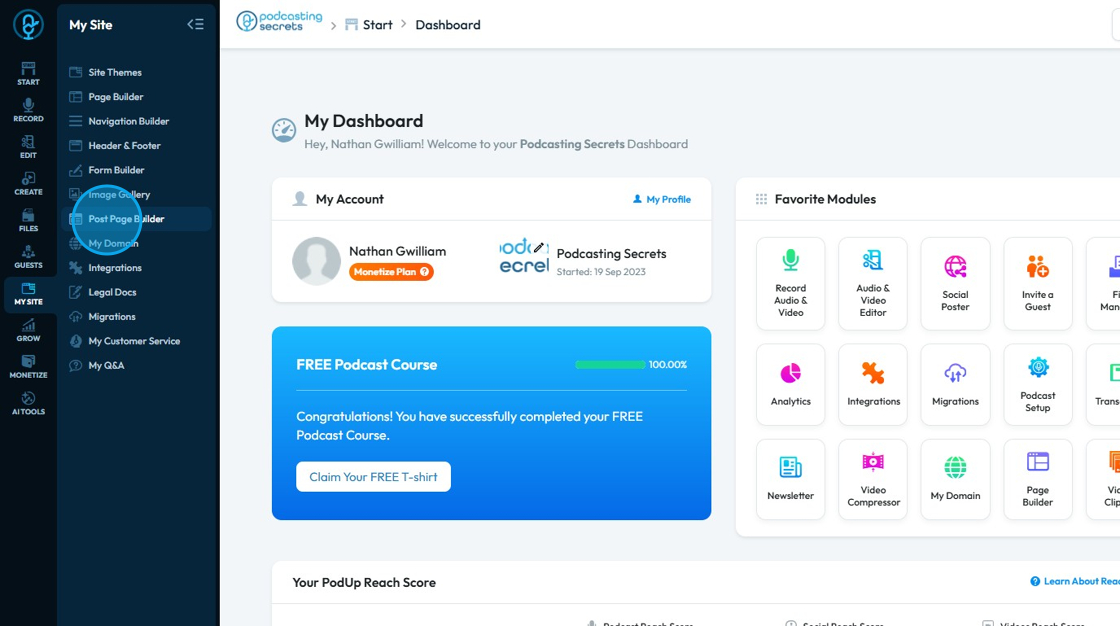
3. Click "Post Page Builder"
4. The "Blog Details" page will open up
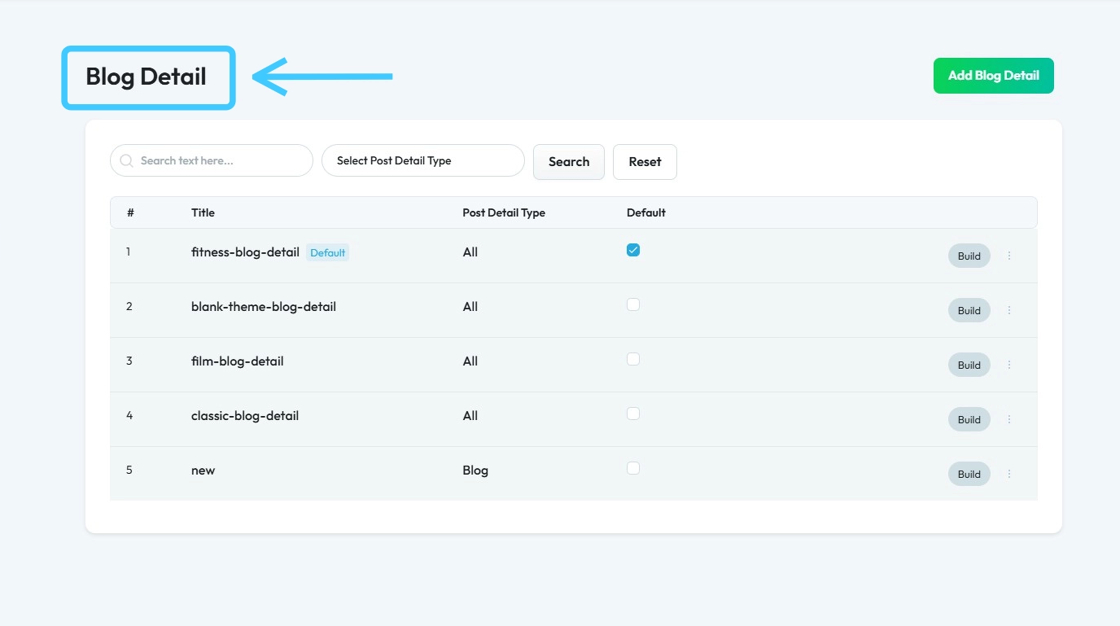
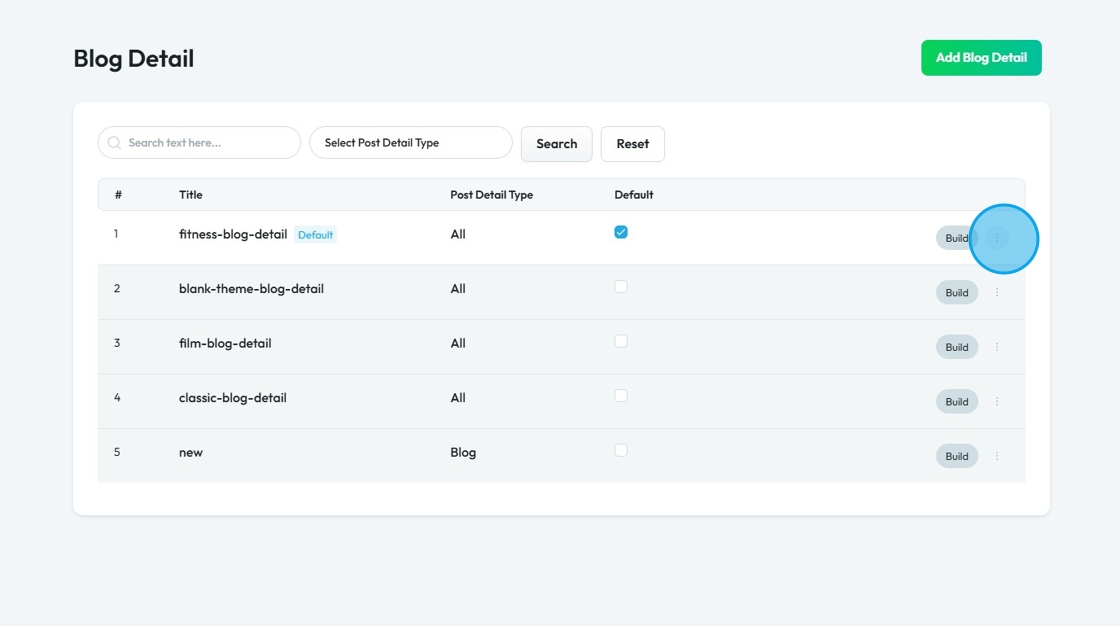
5. Click on the "3 Dots" icon of a "Blog Details" which is set as "Default"
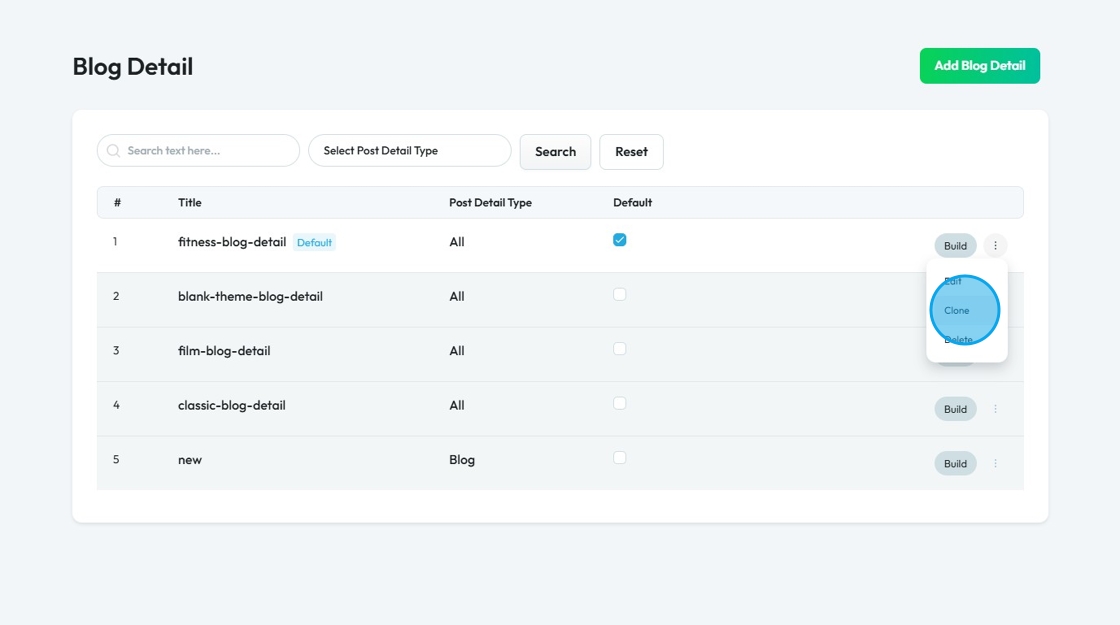
6. Click "Clone"
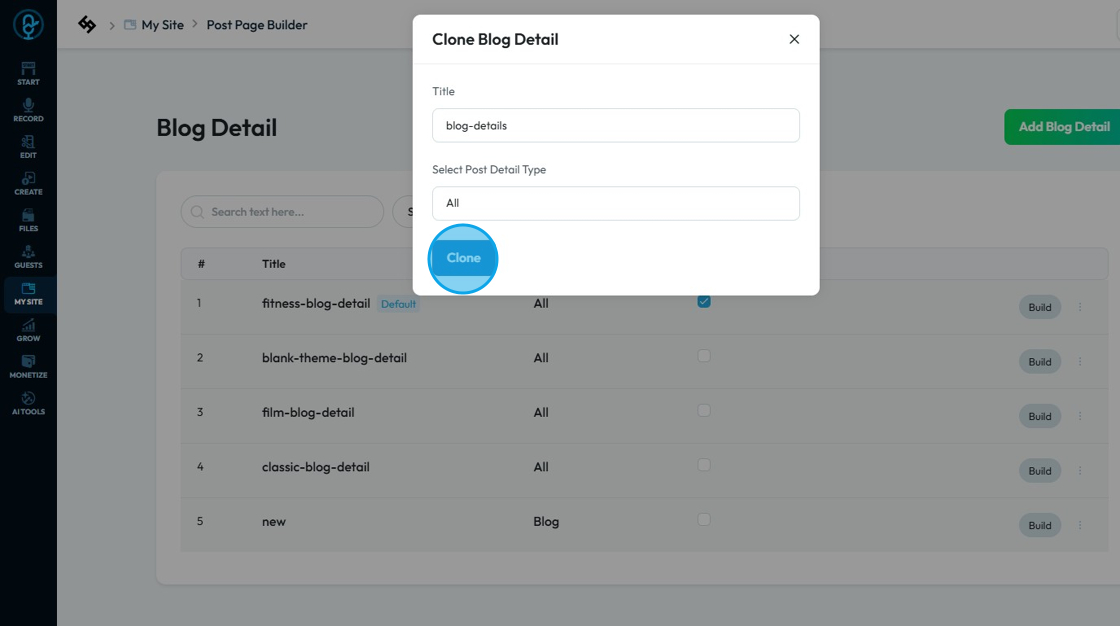
7. Enter a name in the "Title" field and click on "Clone"
8. To edit the new "Blog Details", click the "3 Dots" icon
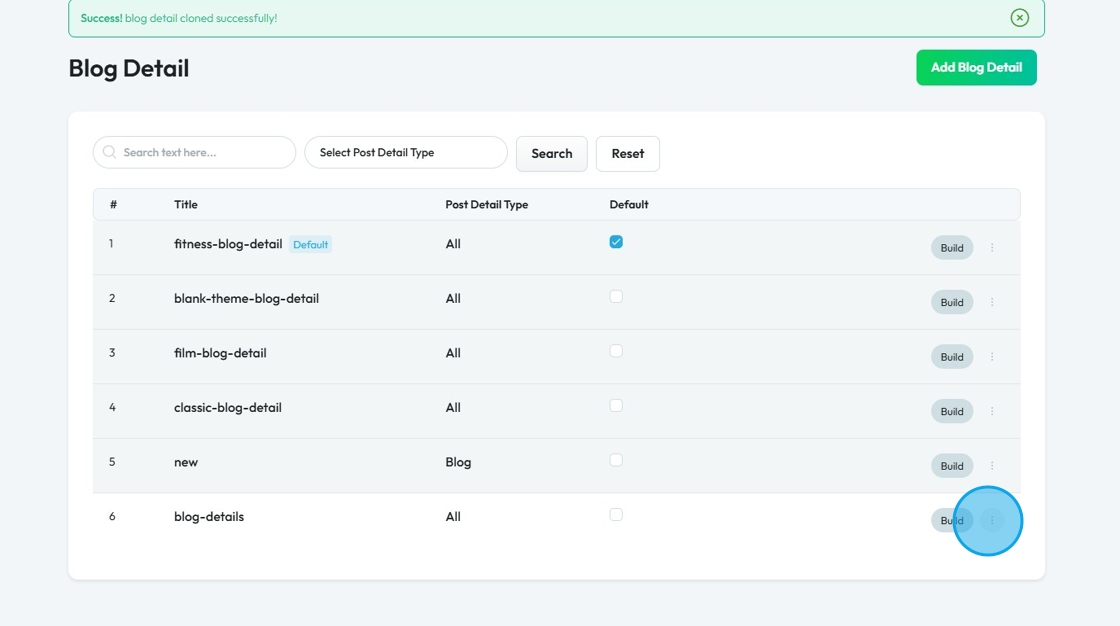
9. Click "Edit"
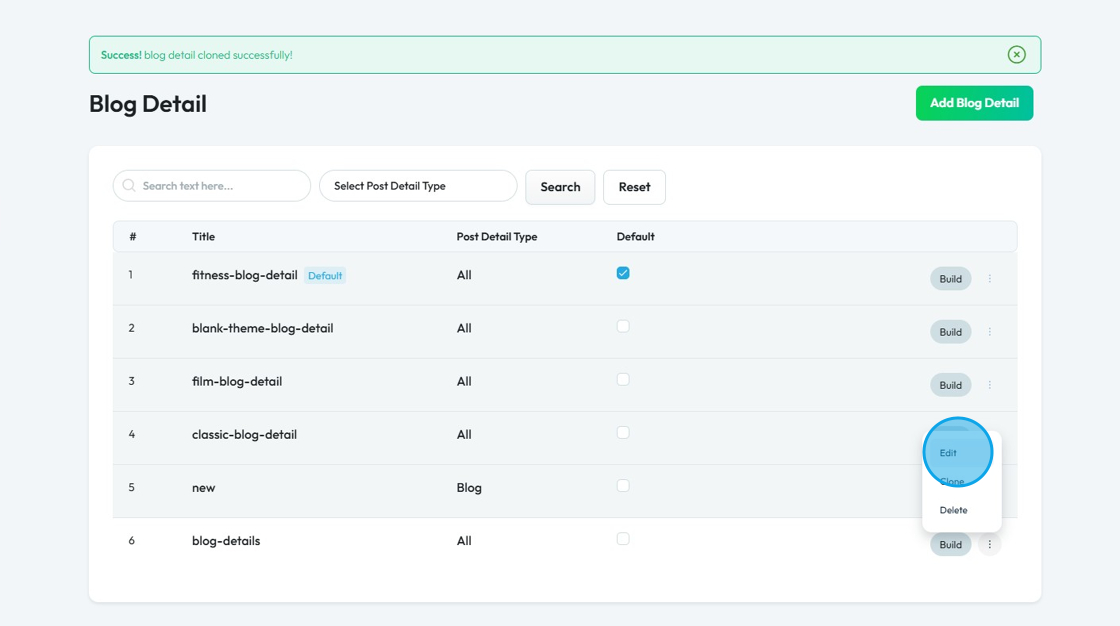
10. You can rename the "Blog Details" and also change "Select Post Details Type" from "All" to "Blog.
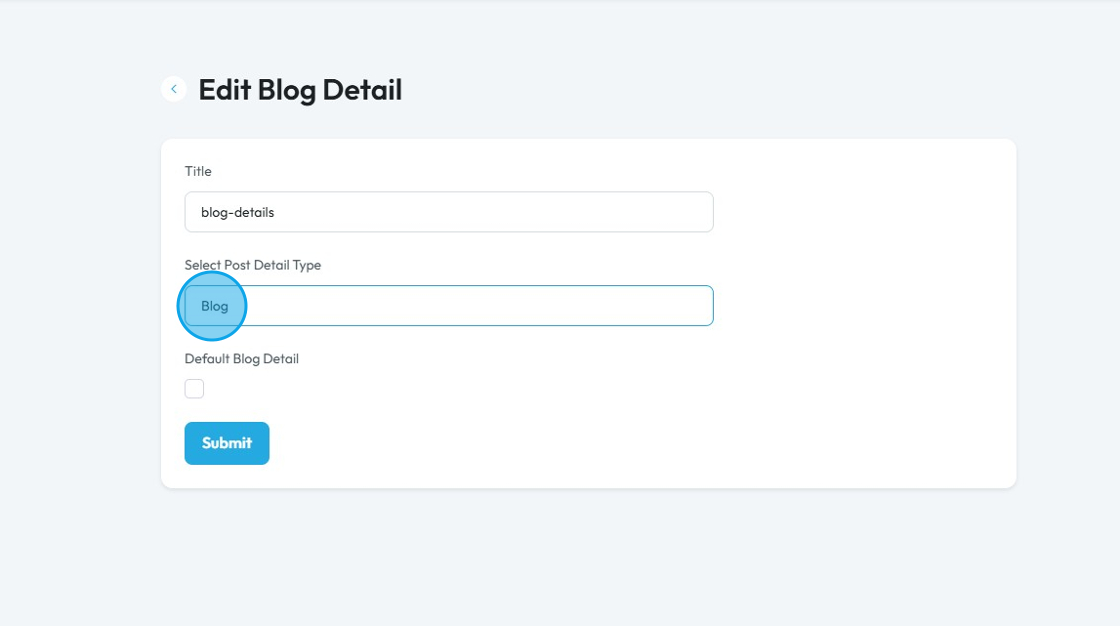
11. Click "Submit"
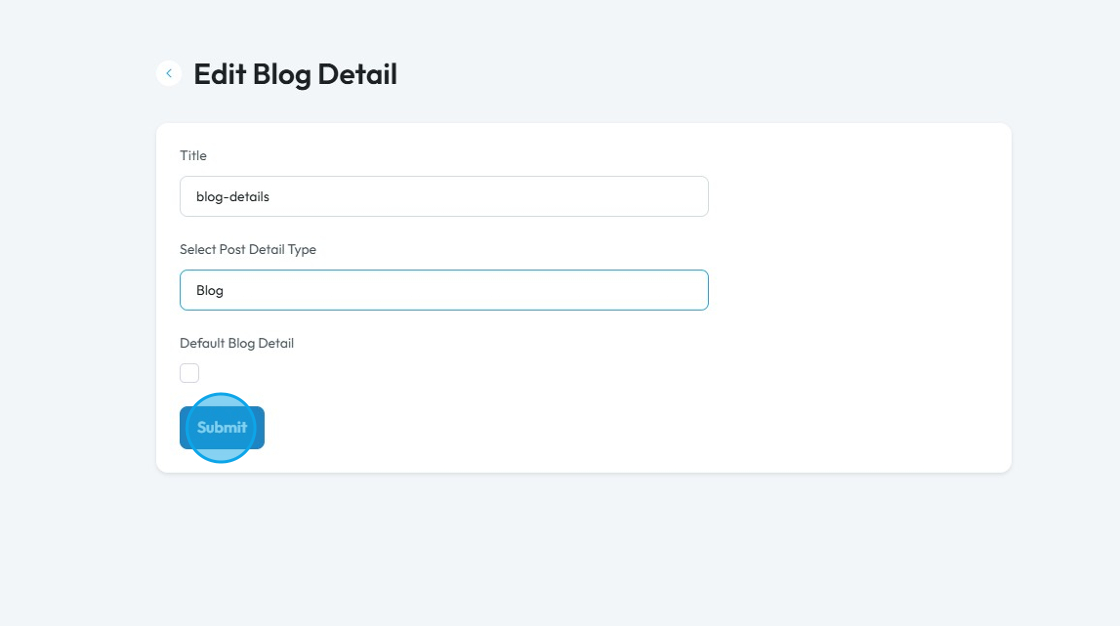
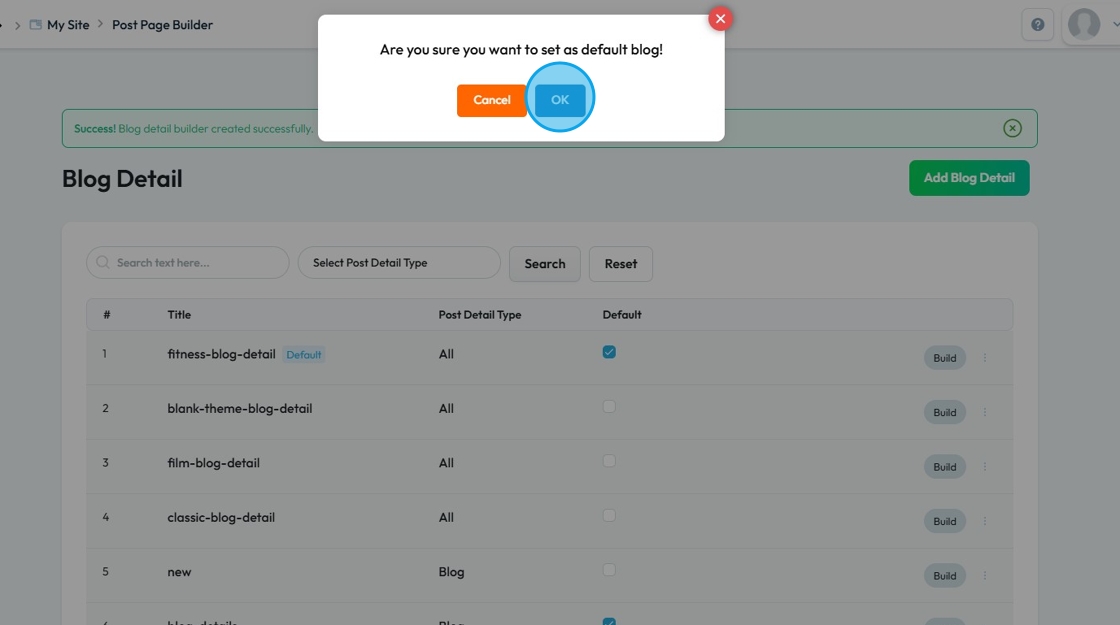
12. Click the "Checkbox" of the new "Blog-Details"
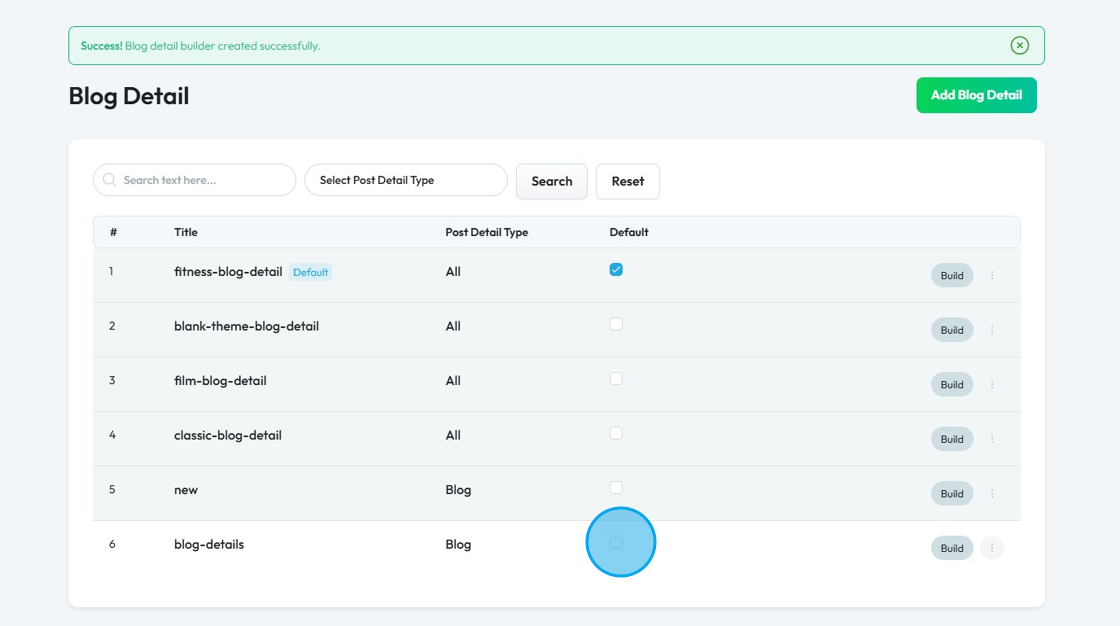
13. Click "OK"
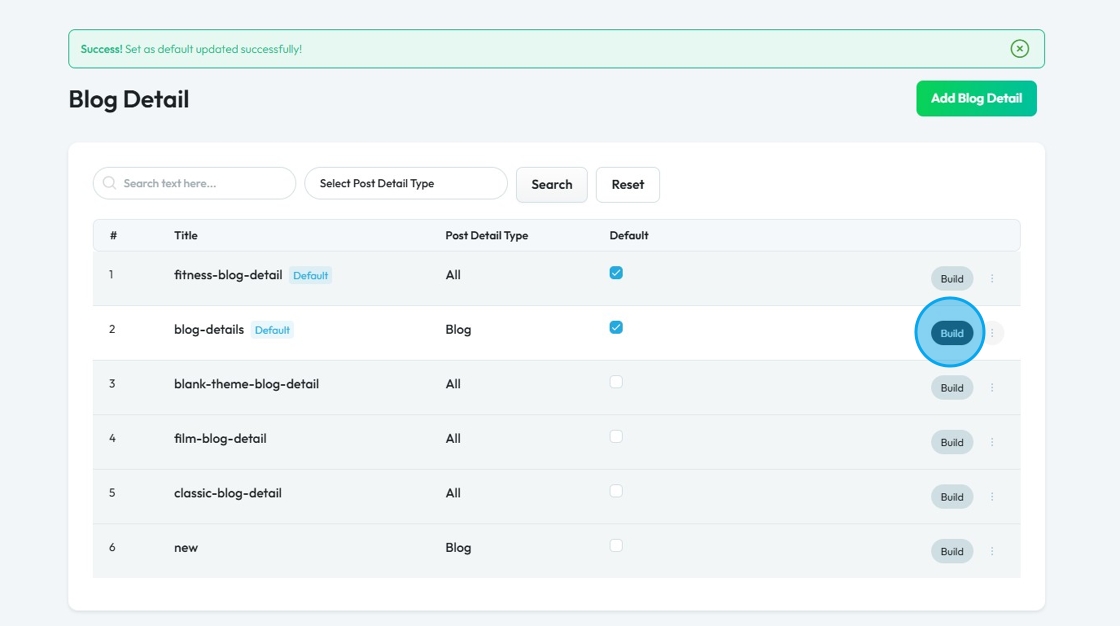
14. Once it has been selected, click "Build"
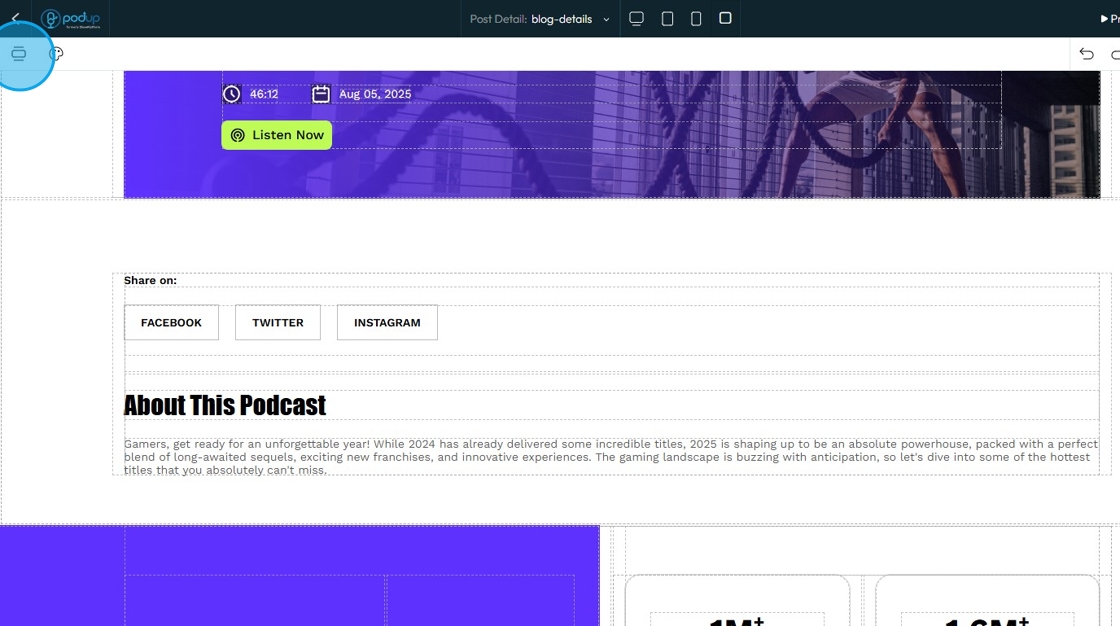
15. The PodUp Post Page Builder will load. Click the "Component" section
16. Click "Social Links"
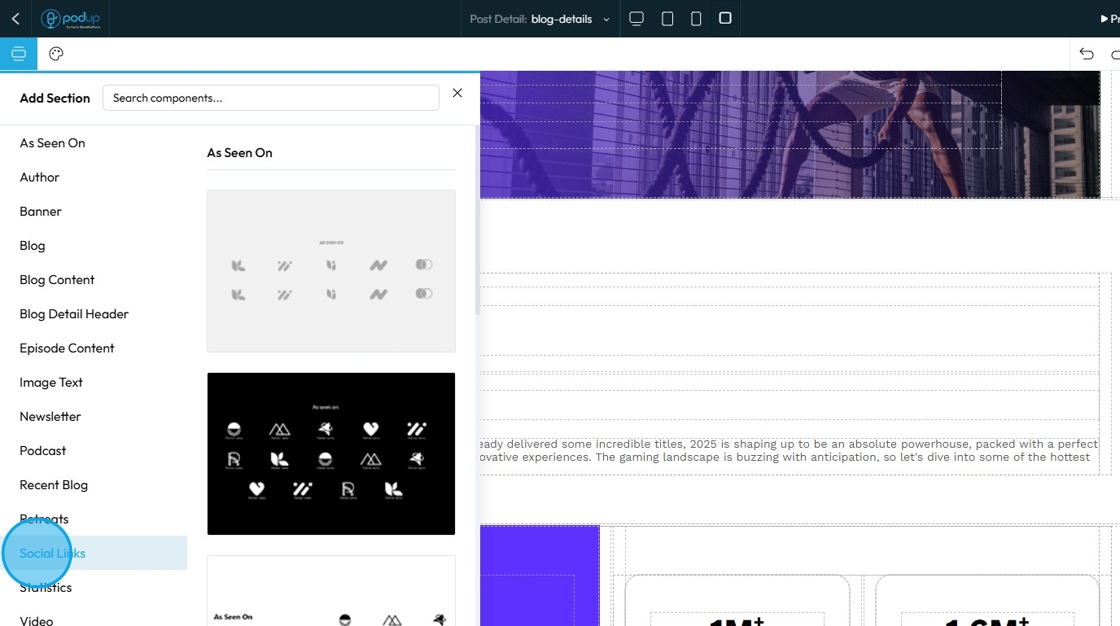
17. Drag and Drop the component to the desired location
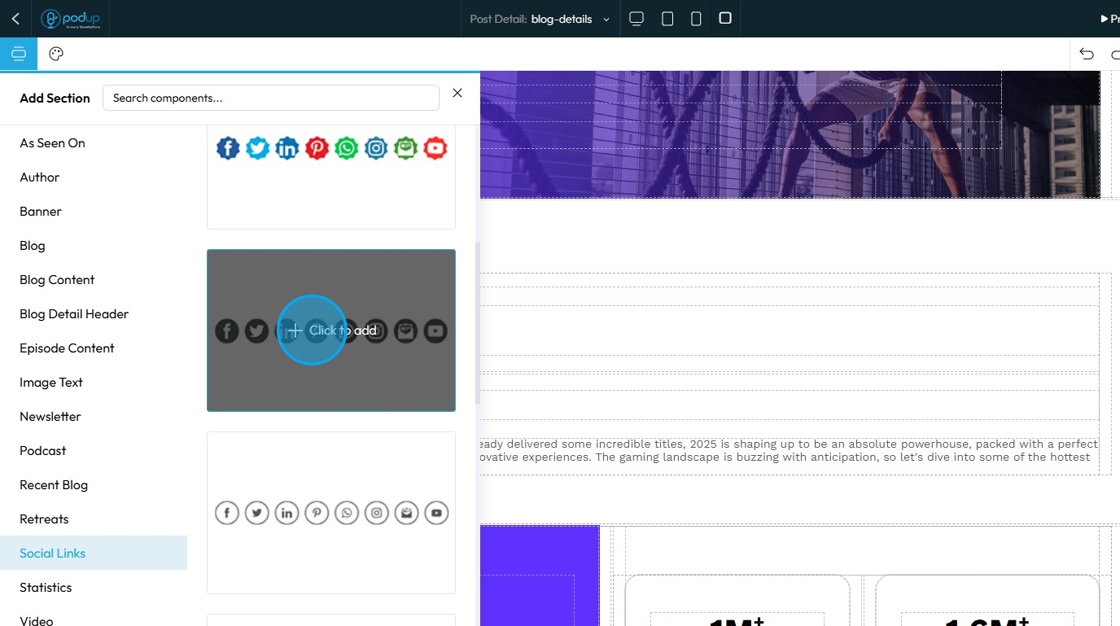
18. Social Link template will be added on the page
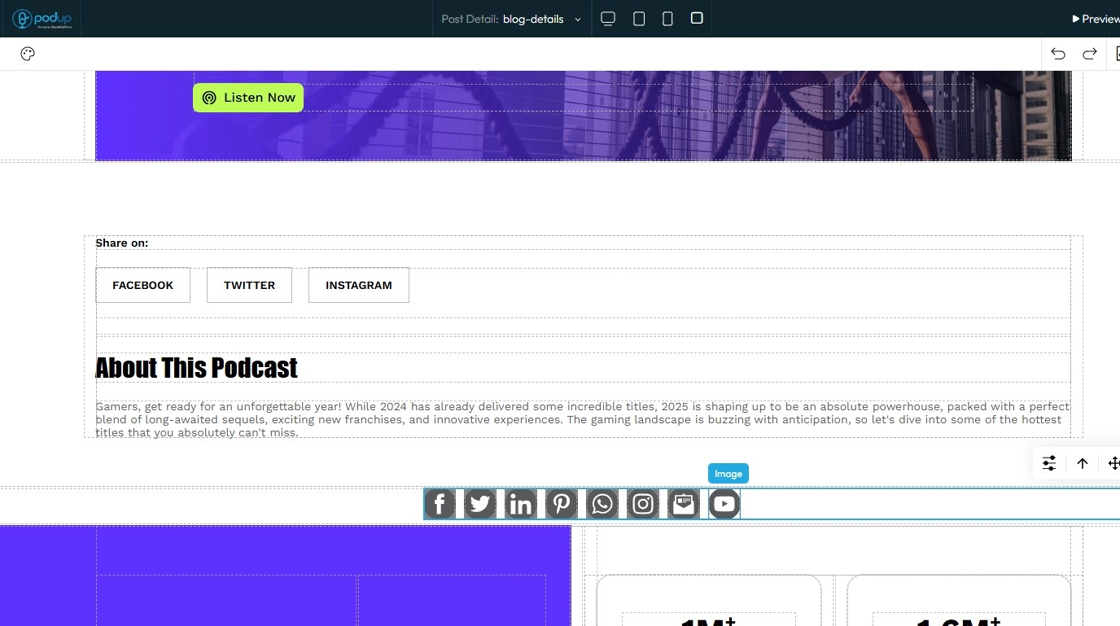
19. Click on the "YouTube" icon
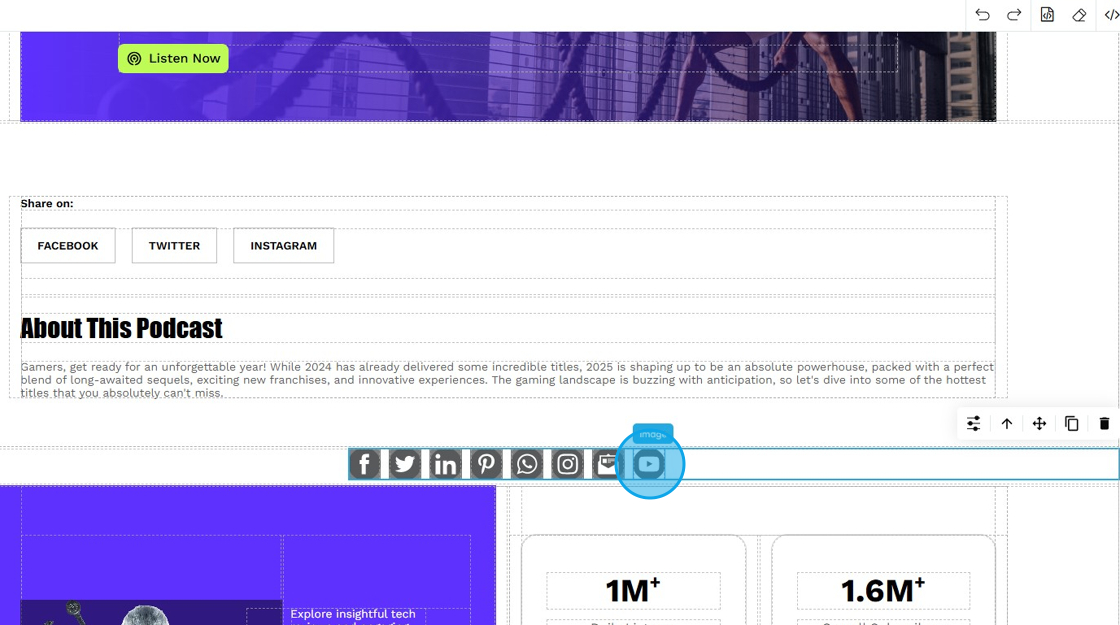
20. Select Customization
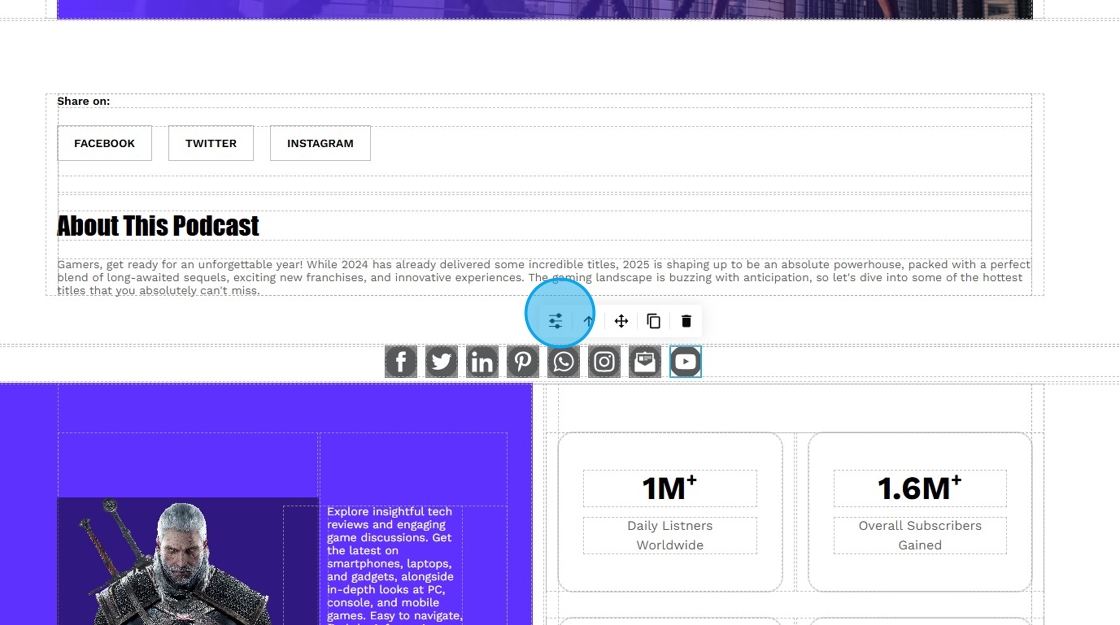
21. Refer to "How to Format a Design Element" for the Design section, as it applies to every element
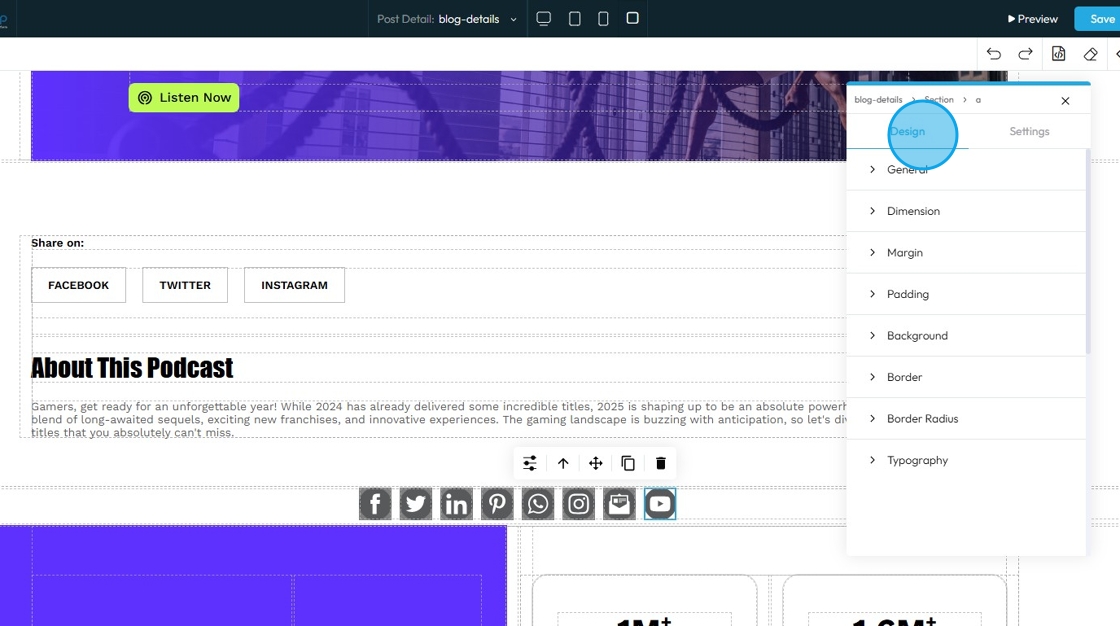
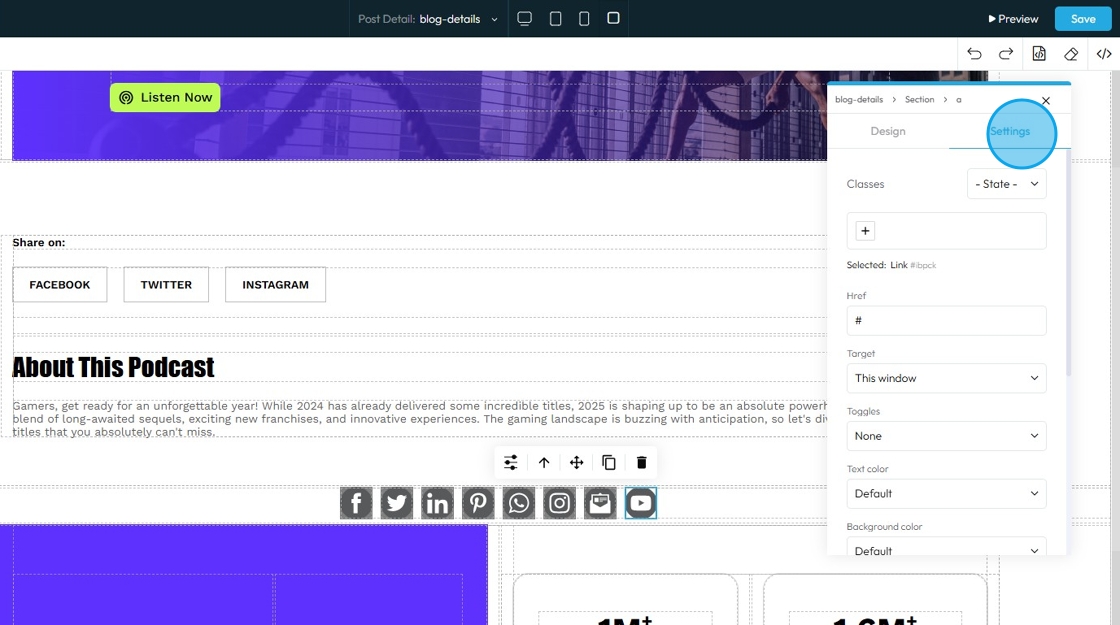
22. Click "Settings"
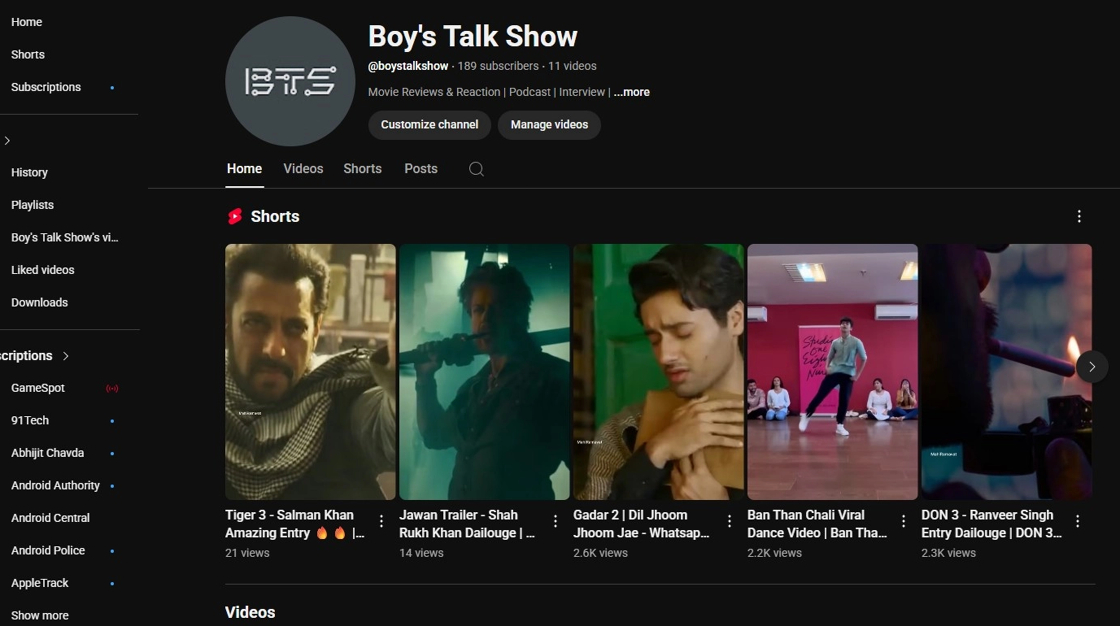
23. Navigate to your "YouTube" channel and copy the page URL.
24. Return to the "PodUp Post Page" builder
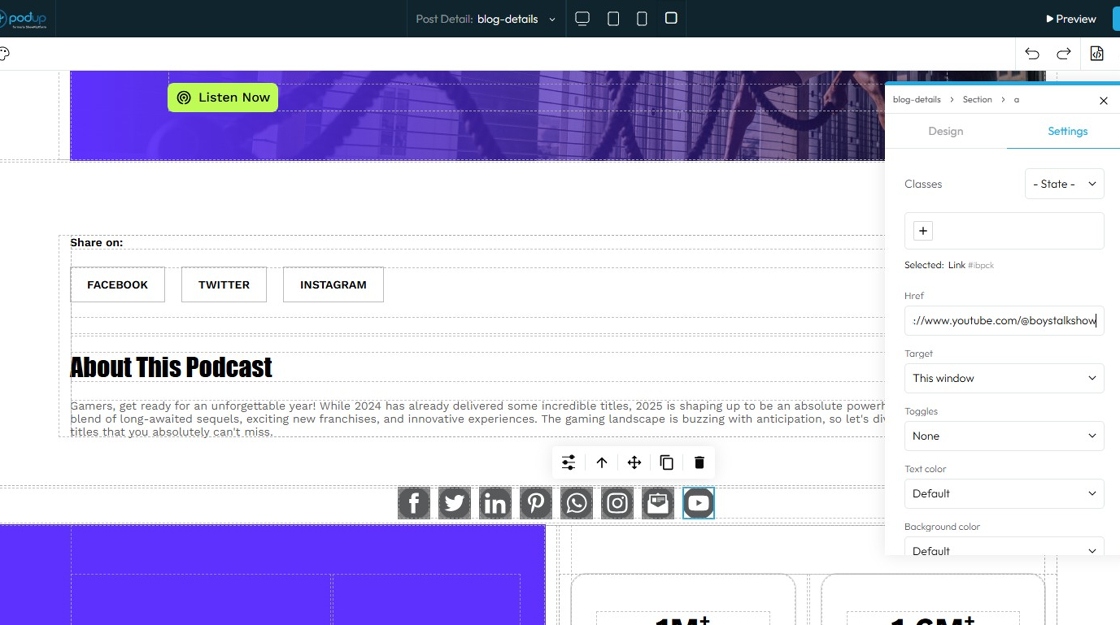
25. Paste the copied URL in the "Href"
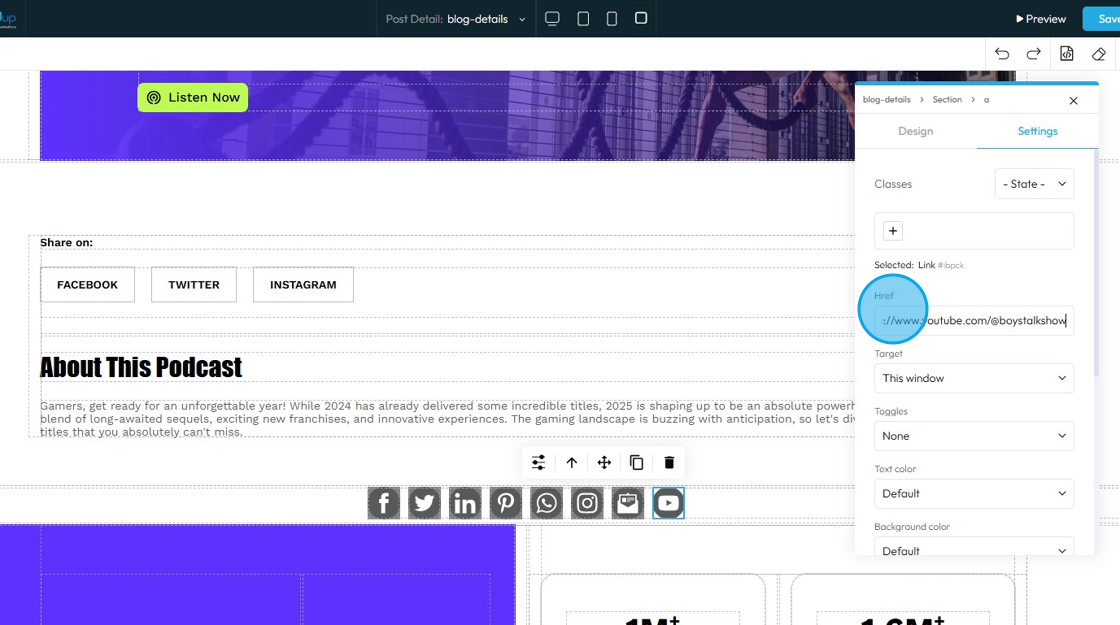
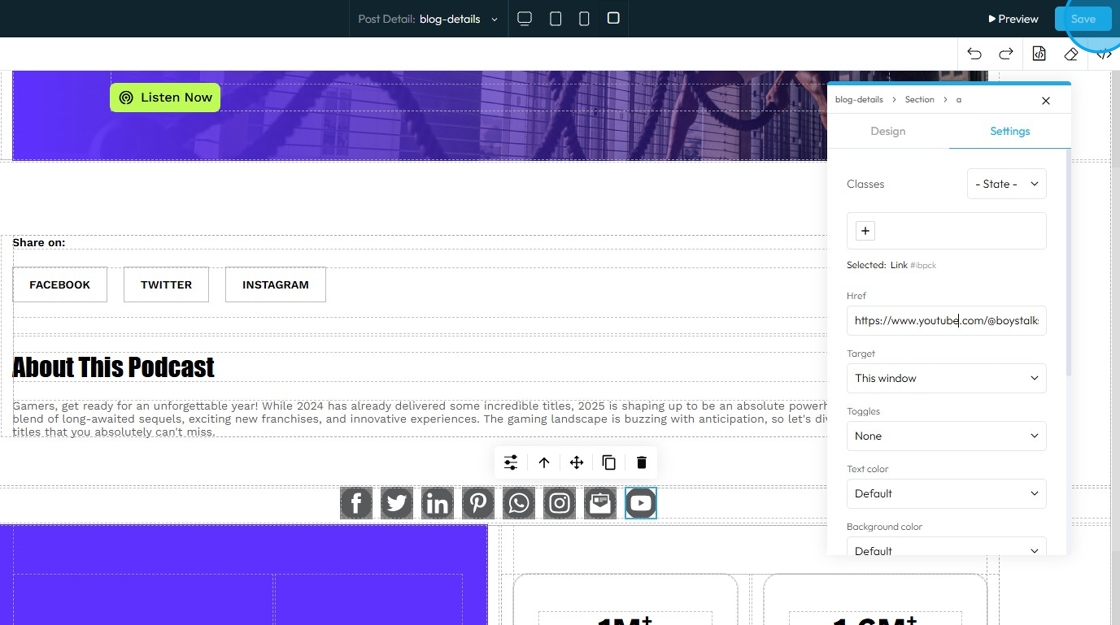
26. Click "Save" in the top-right corner
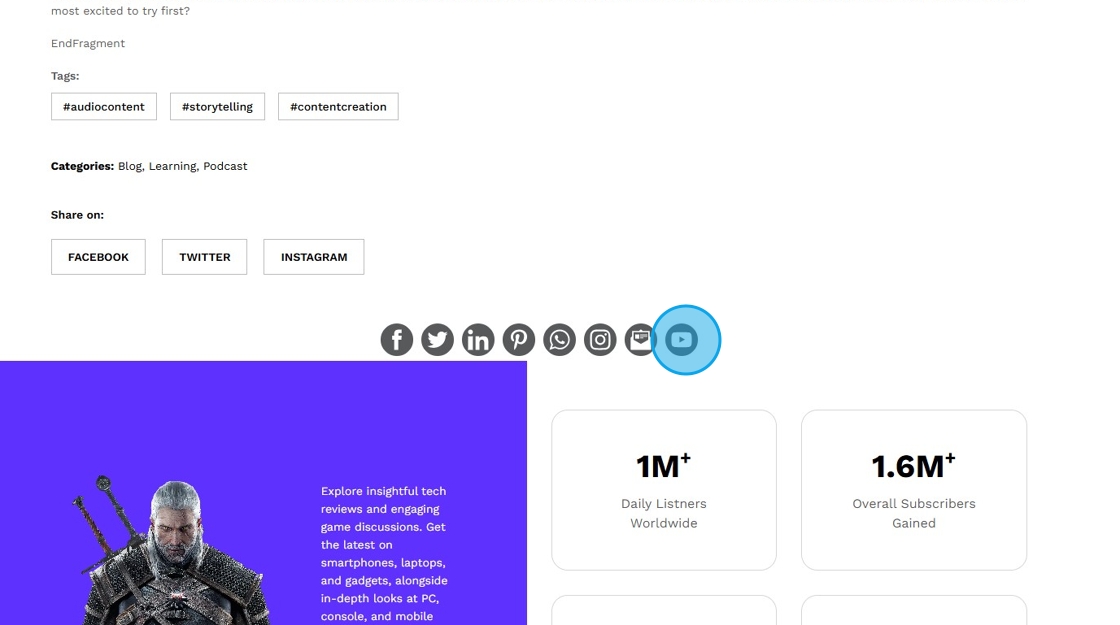
27. Navigate to your Blog Page and click the "YouTube" icon
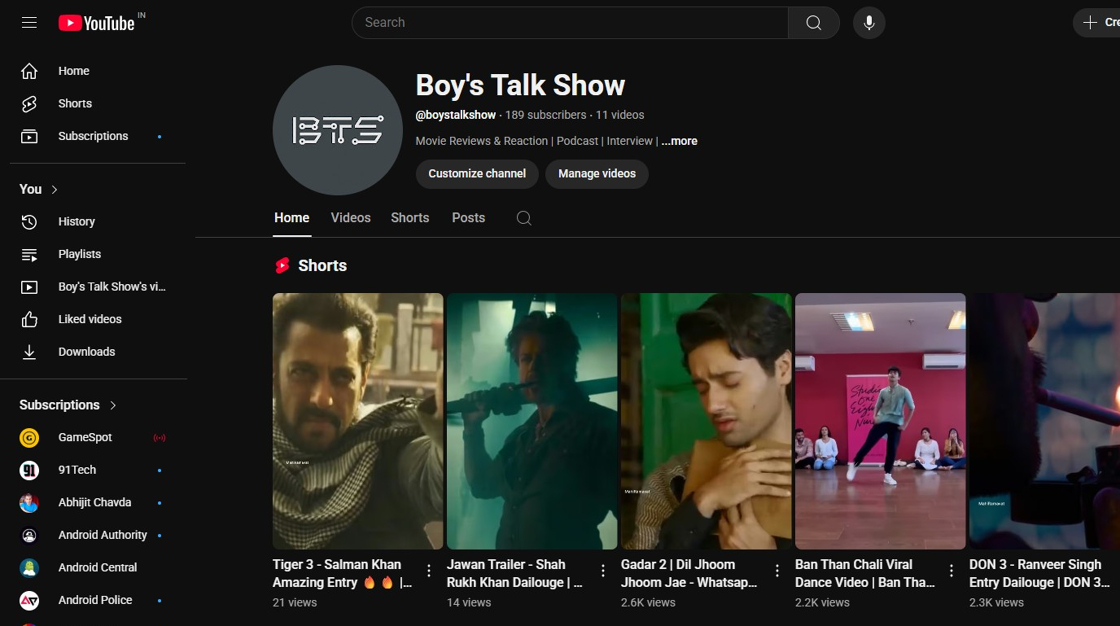
28. You will be redirected to the copied YouTube URL
Related Articles
How to Add a YouTube Button to My Podcast Page and Connect It to My YouTube Account
By following this guide, you can add a YouTube button to your podcast page and enhance audience engagement. 1. Navigate to https://app.podup.com/home 2. Click "My Site" 3. Click "Post Page Builder" 4. This will be your "Blog Details Page" 5. Click ...How to Add a YouTube Button to My Video Page and Connect It to My YouTube Account
By following this guide, you can customize your page and link it to your YouTube content to boost engagement. 1. Navigate to https://app.podup.com/home 2. Click "My Site" 3. Click "Post Page Builder" 4. The "Blog Details" page will open up 5. Click ...How to Add a Facebook Button to My Blog Post and Connect It to My Facebook Account
This guide offers a method for adding a Facebook button to your blog, enhancing your site's interactivity and connectivity with social media. 1. Navigate to https://app.podup.com/home 2. Click My Site. 3. Select "Post Page Builder" 4. This will ...How to Add A Linkedin Button to My Blog Post and Connect It to My Linkedin Account
By following this guide, you can easily link your blog to your LinkedIn account, allowing readers to engage with your professional profile. 1. Navigate to https://app.podup.com/home 2. Click "My Site". 3. Select "Post Page Builder" 4. The "Blog ...How to Add a Instagram Button to My Blog Post and Connect It to My Instagram Account
By following this guide, you can easily customize and link your Instagram profile, making it accessible to your readers. 1. Navigate to https://app.podup.com/home 2. Click "My Site" 3. Select "Post Page Builder" 4. The "Blog Details" page will open ...