Why does PodUp optimize my files
Optimized audio and video files make everything work better - both for your visitors and for search engines. They help your site load faster, rank better, and look more polished—without sacrificing quality. Optimized files on PodUp save storage and streamline file management.
Tip: PodUp optimizes audio and video files as part of its all-in-one podcasting platform to improve quality, efficiency, and storage use.
1. Navigate to https://app.podup.com/filemanager/files/
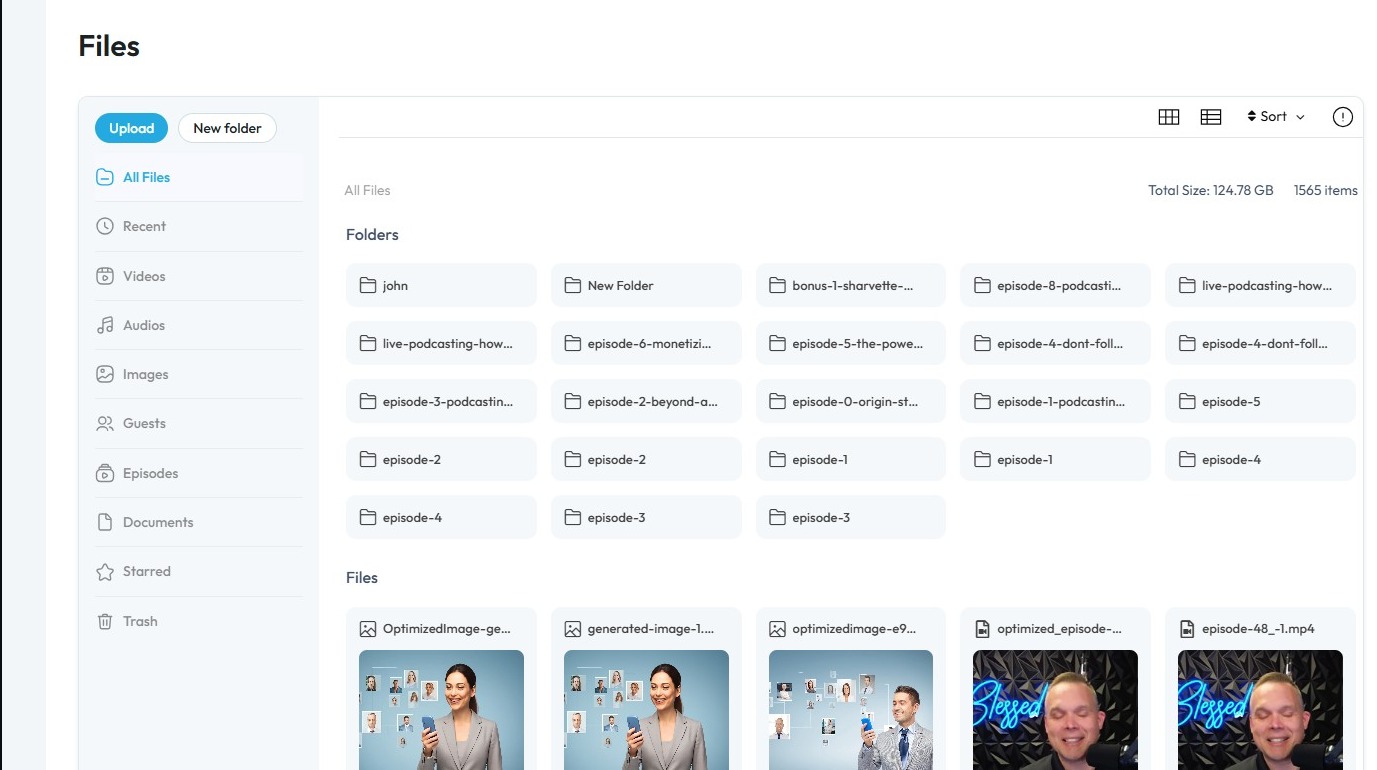
2. Click on the “Unoptimized” or “Original File"
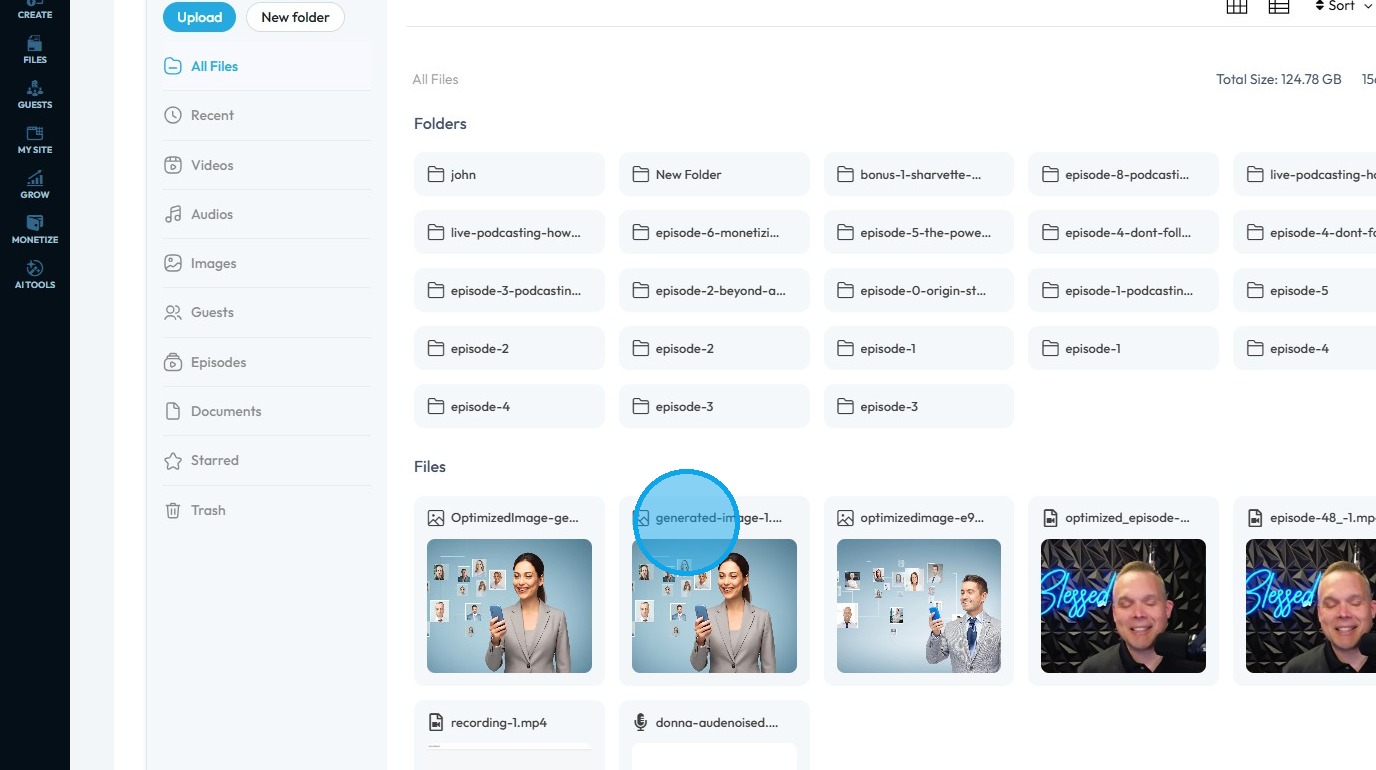
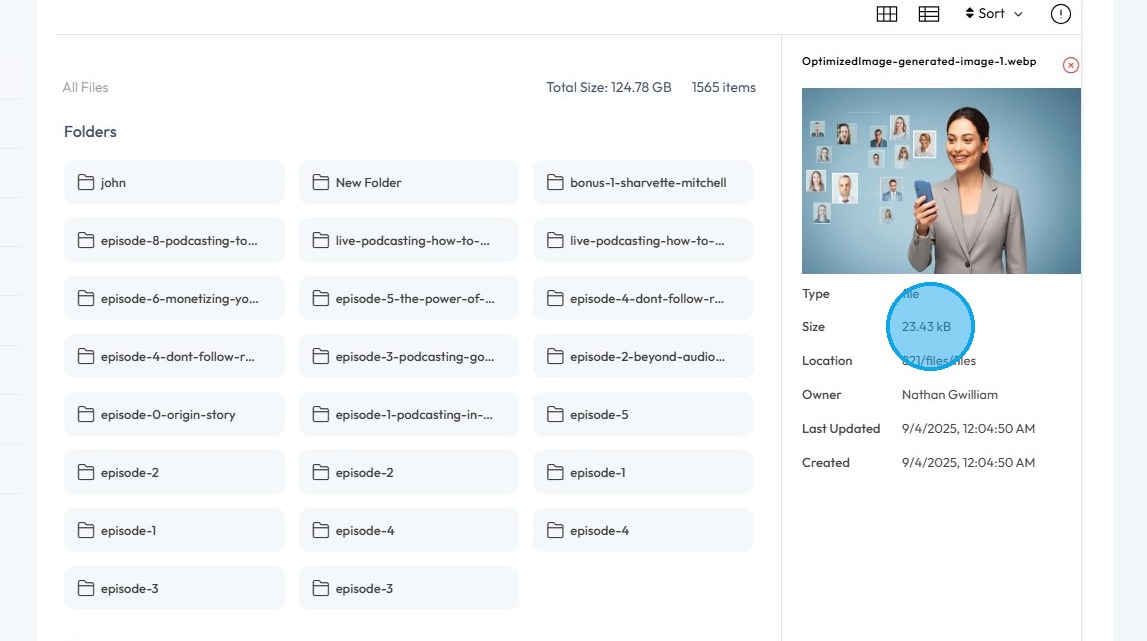
3. In the details panel, the image size is displayed as 1.83 MB
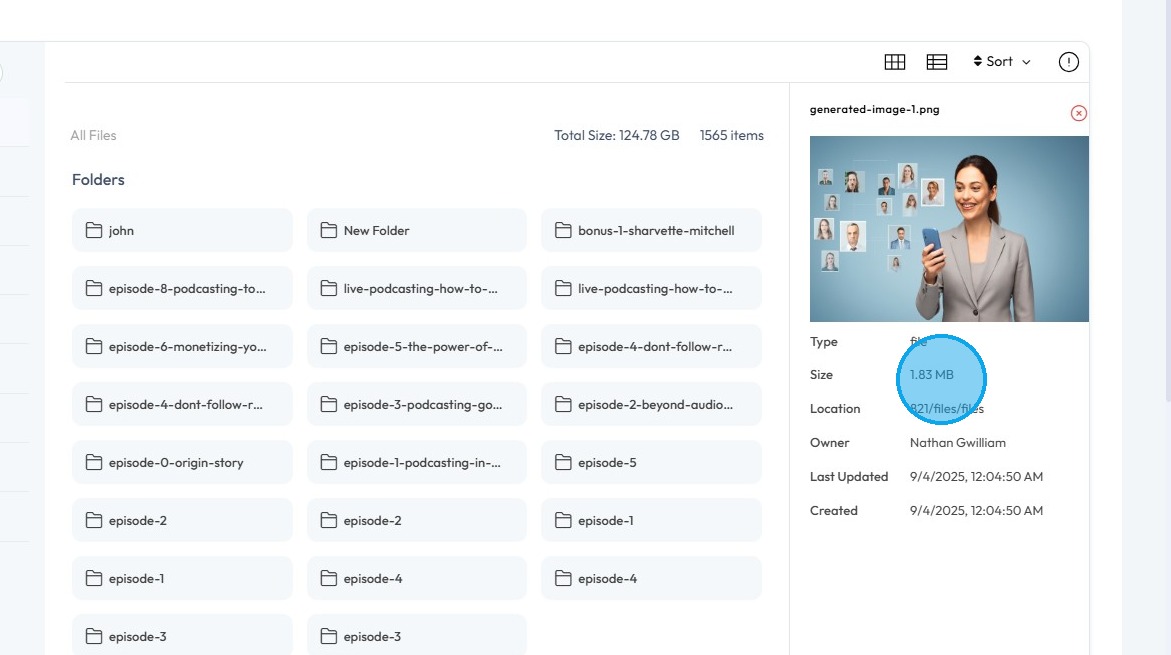
4. Now, select the Optimized File
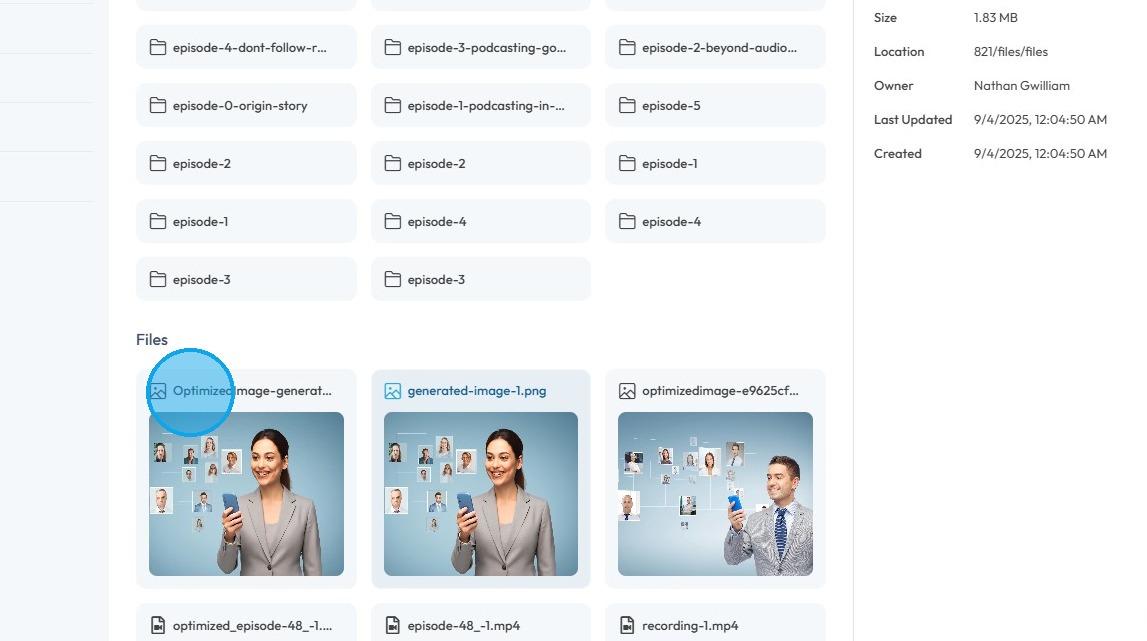
5. The file size of the Optimized File will be 23.43 kB.
Related Articles
How can I Compress Favicon Files?
By following this guide, you can efficiently compress and optimize favicon files in PodUp to improve website performance. 1. Navigate to https://app.podup.com/home 2. Click "File Manager" 3. The File Manager will open 4. Select "Upload" 5. Select the ...How can I compress favicon files?
By following this guide, you can compress and optimize your website’s favicon using PodUp to improve loading times and enhance overall site performance. 1. Navigate to https://app.podup.com/home 2. Click "File Manager" 3. Click "Upload" 4. The file ...How To Access Episode Files on Podup
By following this guide, you can easily access and manage your episode files on PodUp. 1. Navigate to https://app.podup.com/home 2. Click "Files". 3. Choose "Episodes" 4. Your Episode Files will be displayed hereHow To Access Guest Files on Podup
This guide shows you how to quickly access and manage guest files in PodUp to make your workflow smoother 1. Navigate to https://app.podup.com/home 2. Click "Files" 3. Select "Guests" 4. You can now view all your Guest FilesHow To Permanently Delete Files In PodUp
This guide provides clear, step-by-step instructions for permanently deleting files in Podup, ensuring users can effectively free up storage space. By following the outlined process, you can avoid the common mistake of leaving files in the "trash," ...