What can my Guest do During our Recording
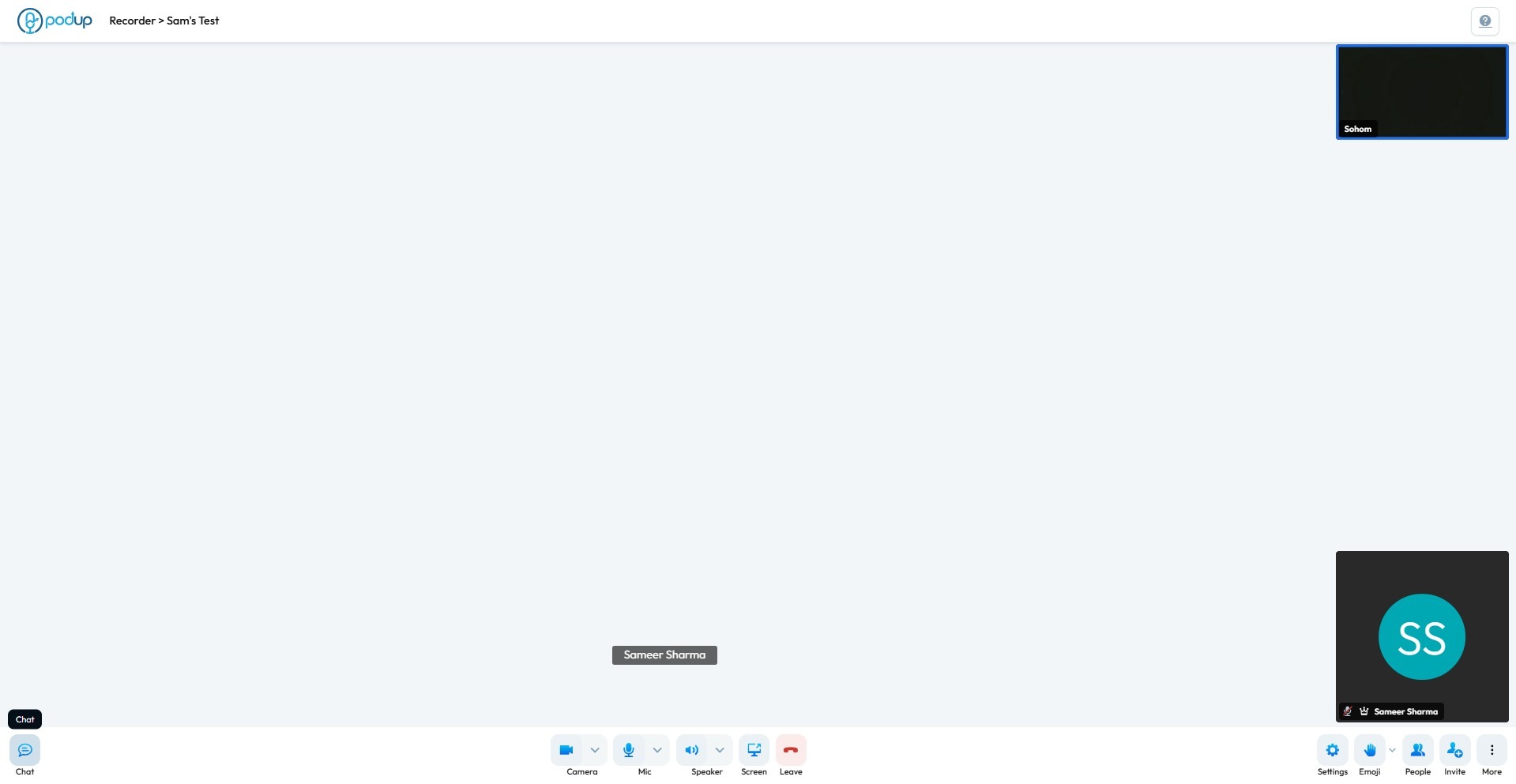
2. Guest can chat during the recording
Chat: Chat is a feature, that provides a real-time text log of the conversation. It's a quiet and efficient way to share information, ask questions, and interact with others while the meeting host or a speaker is talking.

3. Click here.
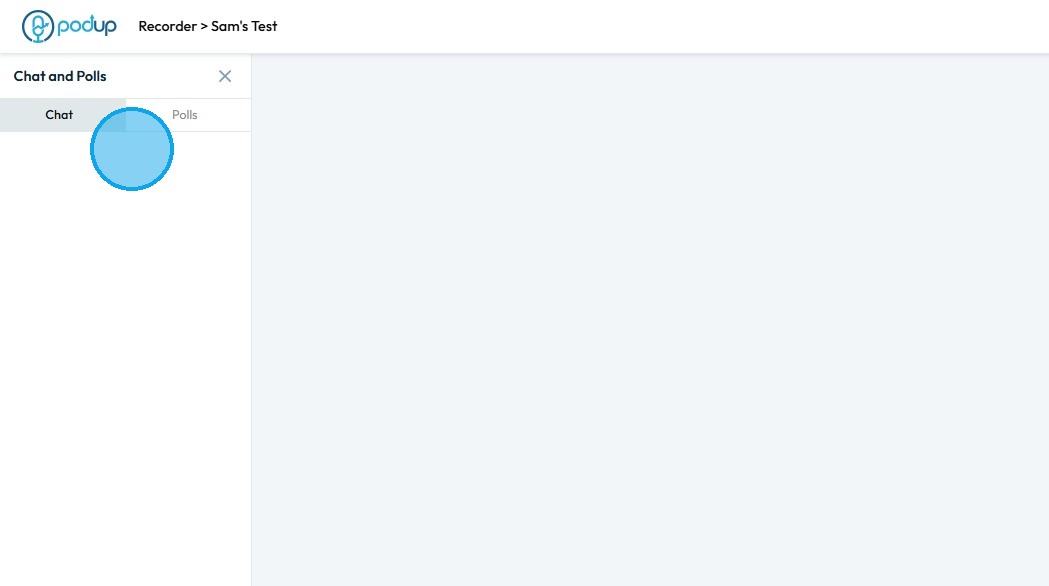
4. Guest can create "Polls"
Polls: Is a feature that allows the host/guest to ask a question and have meeting participants vote or submit a response in real time. It's a structured way to get immediate feedback, gauge understanding, or collect data from your audience.
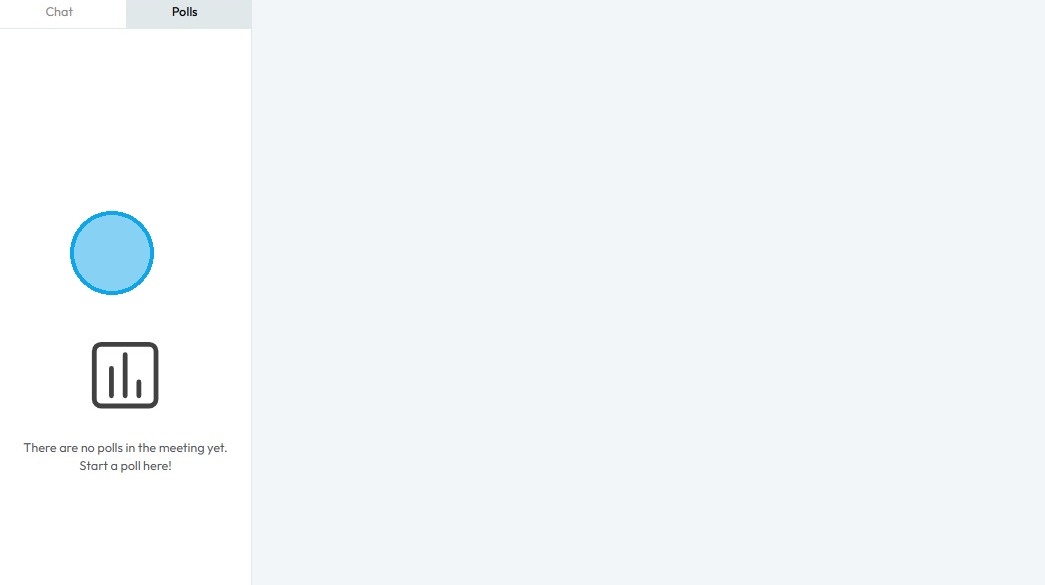
5. Guest can change their video source
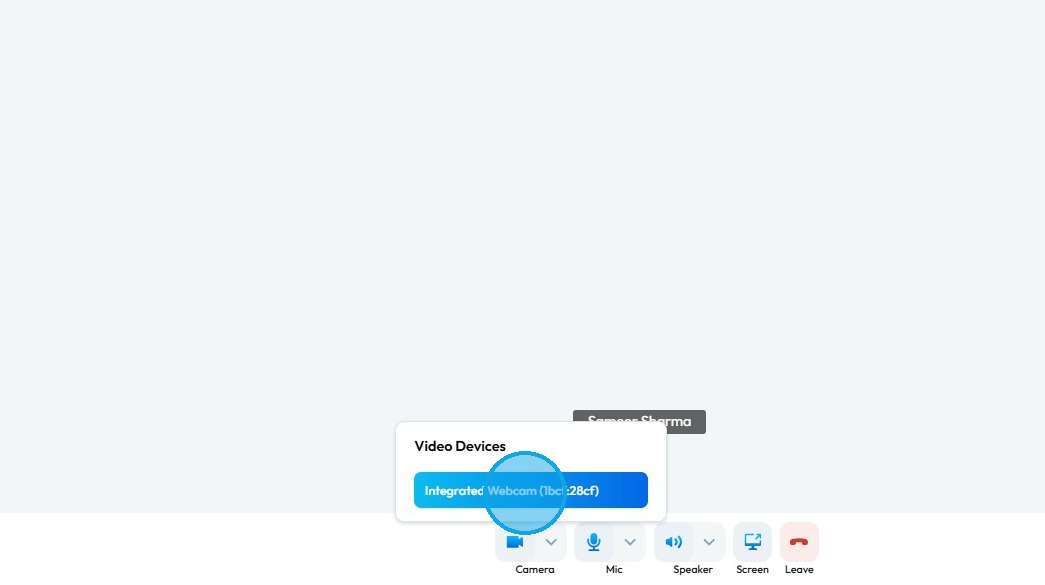
6. Guest can change their audio source
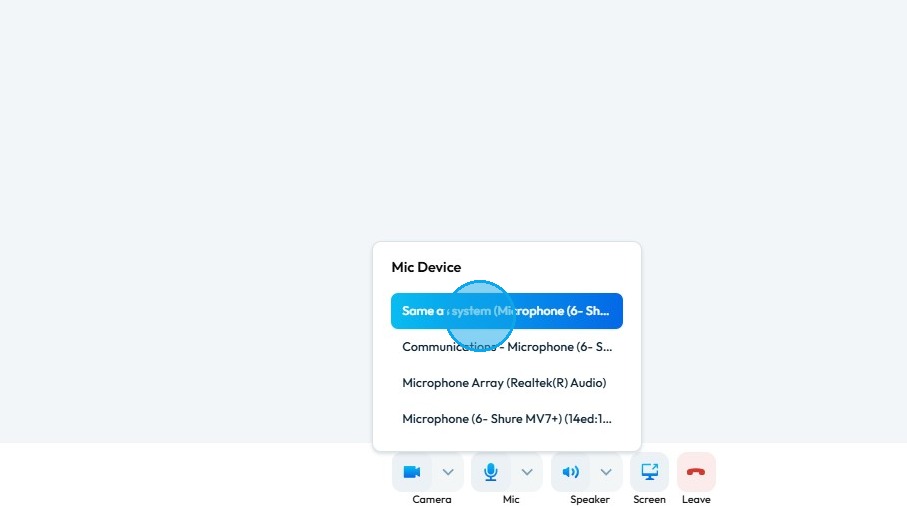
7. Guest can change their speaker devices
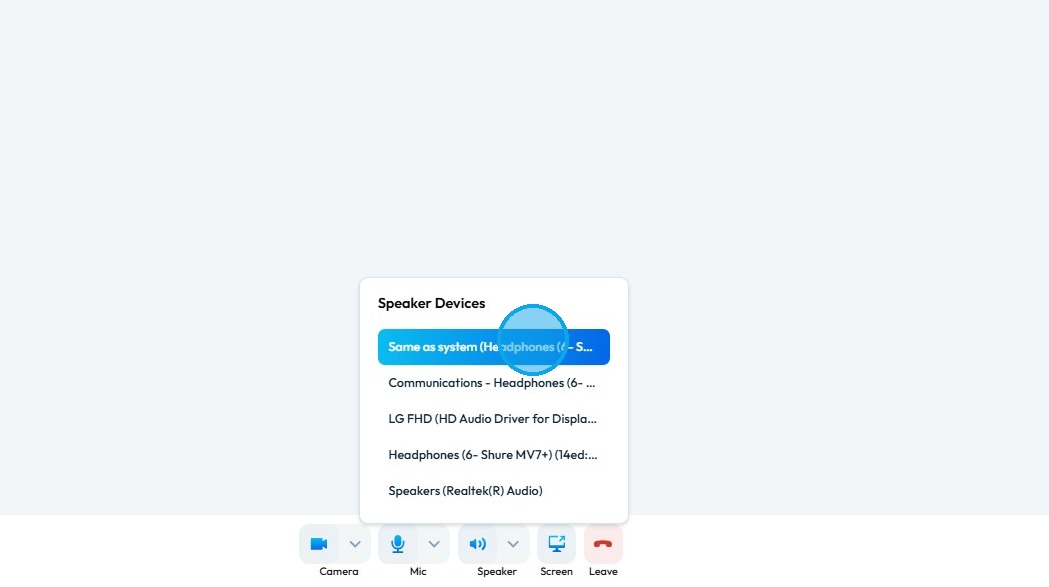
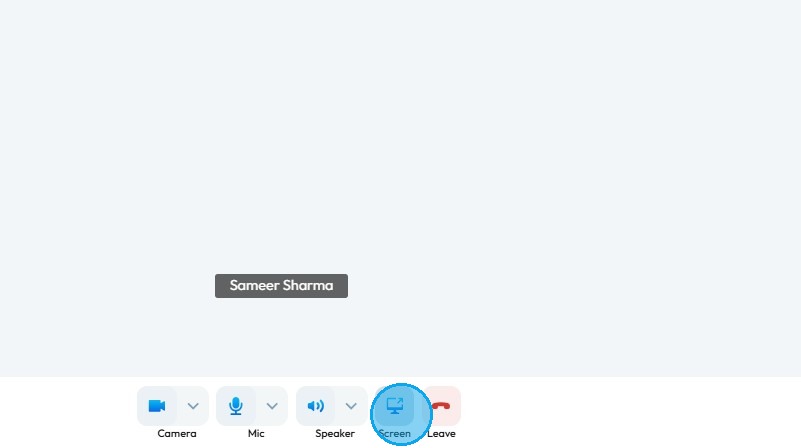
8. Guest can share their screen
9. Guest can invite people for recording "Invite more people"
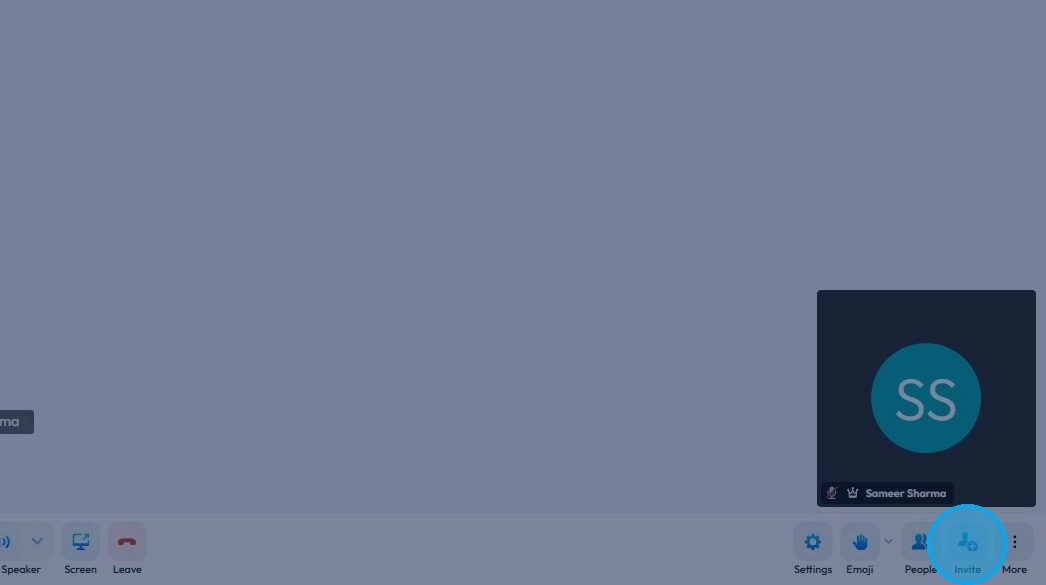
10. Guest can check who are attending the recording session
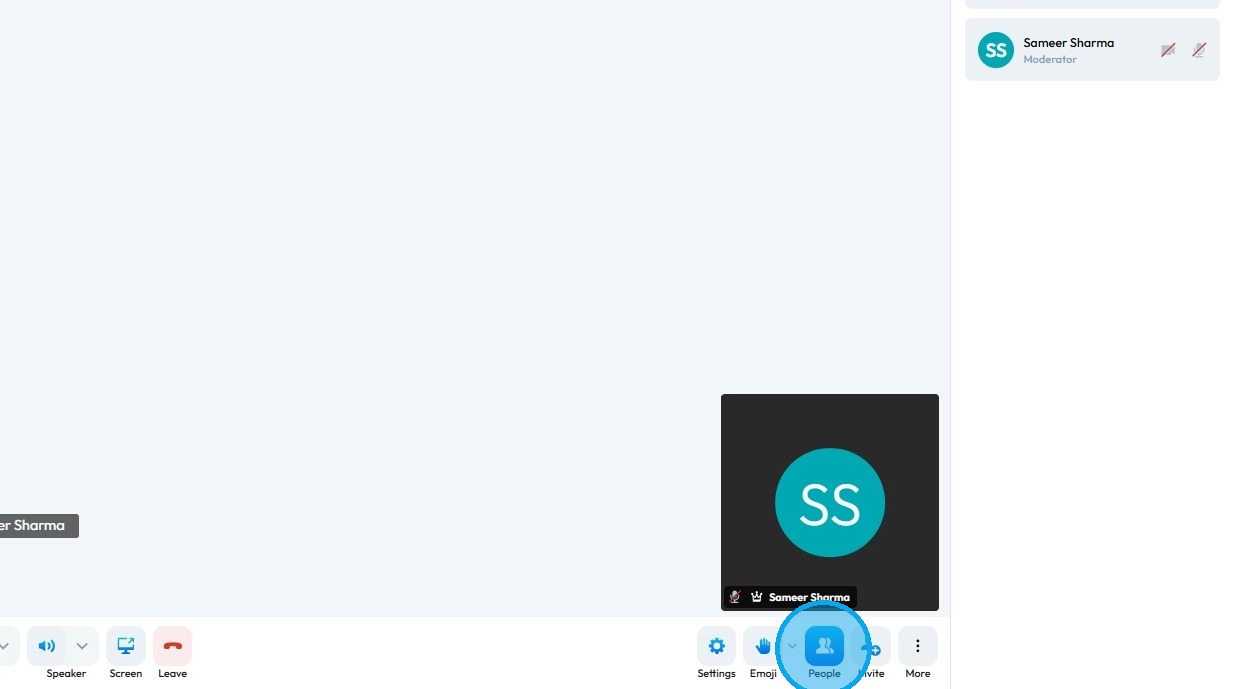
11. Guest can share "Emoji" during the recording session

Related Articles
How to Invite Guest to Join My Studio
This guide provides a straightforward process for inviting guests to your studio on Podup, making collaboration seamless. With clear steps, users can easily share studio access either through a direct link or an automated email invitation. It's an ...What Does My Guest Get When I Invite Them to Join My Studio?
By following this guide, you can help guests understand what to expect in your recording studio and enhance their experience. 1. The guest will receive an invitation at their email address with the studio link.Why is my recording loading?
By following this guide, users can troubleshoot recording delays on PodUp and optimize playback by understanding and addressing factors like internet speed. 1. Navigate to https://app.podup.com/home 2. Click "Record Audio & Video" 3. The “List of ...Why is my recording processing?
By following this guide, you will understand the recording “processing” phase in PodUp, helping you manage expectations and ensure a smoother experience with your audio or video files. 1. When your recording in PodUp is showing as "processing," it ...How to Denoise my recording?
Easily remove unwanted noise in PodUp to boost your audio’s clarity and quality 1. Navigate to https://app.podup.com/home 2. Click "Record" 3. Select "All Recordings" 4. The 'All Recordings' page will open 5. Select the 'Studio' for the recording you ...