Hide your self-view in recorder
By following this guide, you can join a PodUp recording and manage self-view settings to focus on content without distractions.
1. Navigate to app.podup.com/home
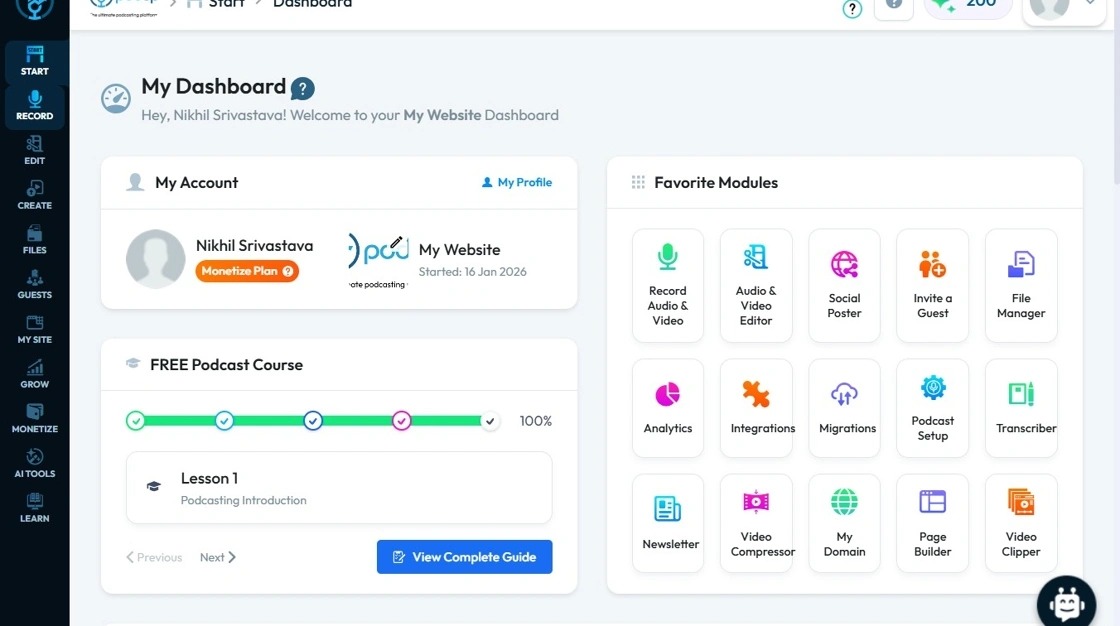
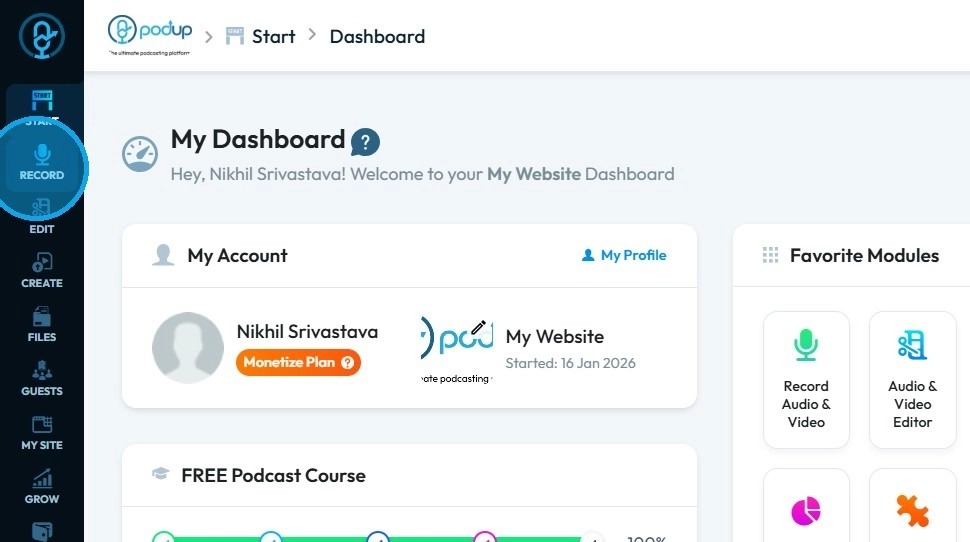
2. Click on Record, Select Recorder
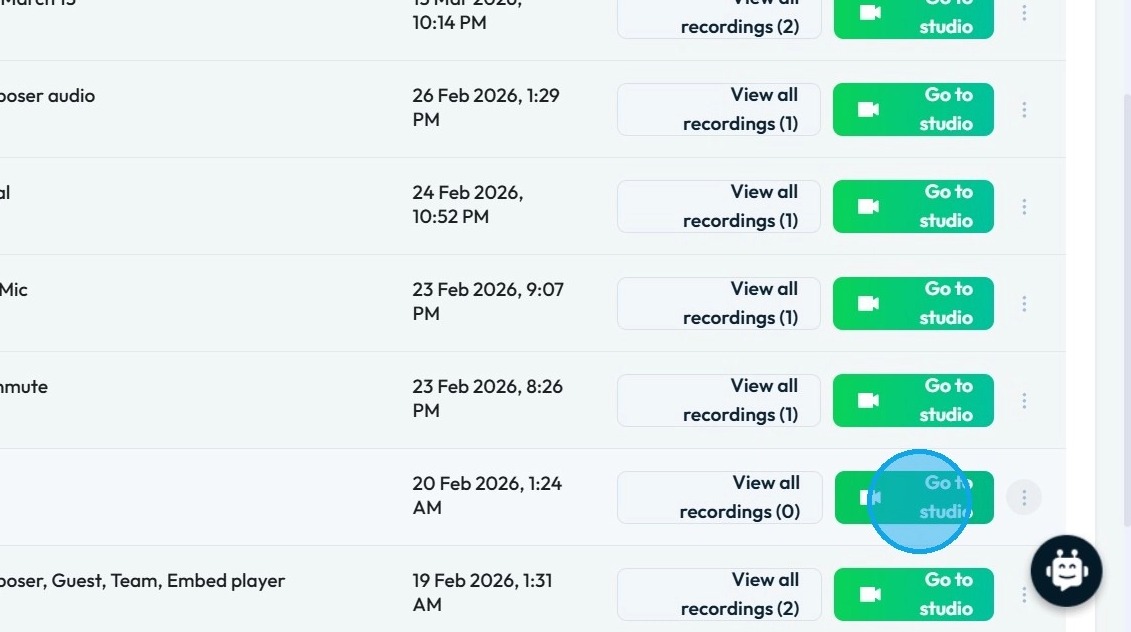
3. Select Studio
4. Navigate to https://app.podup.com/join-show/sam-s-test/show
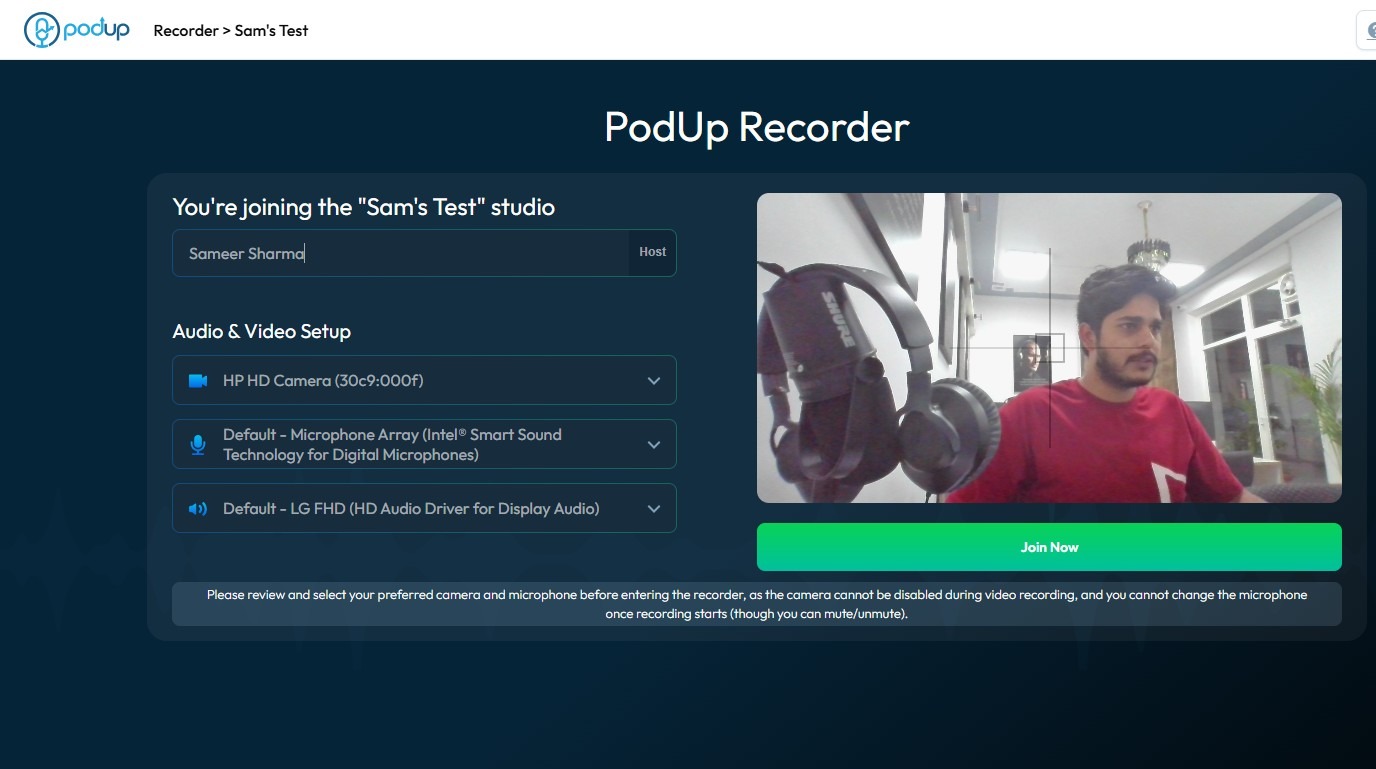
5. Click "Join Now" to enter the Studio
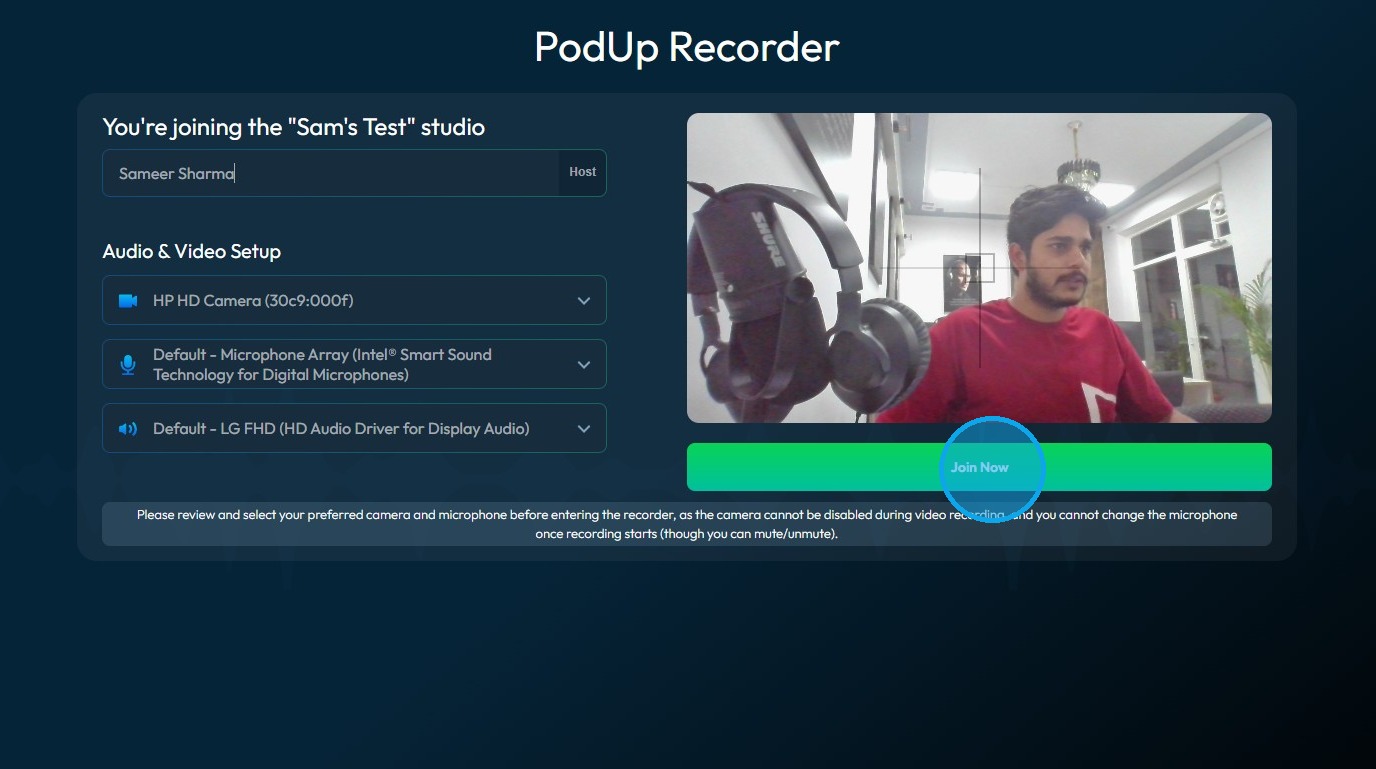
6. Check your preview
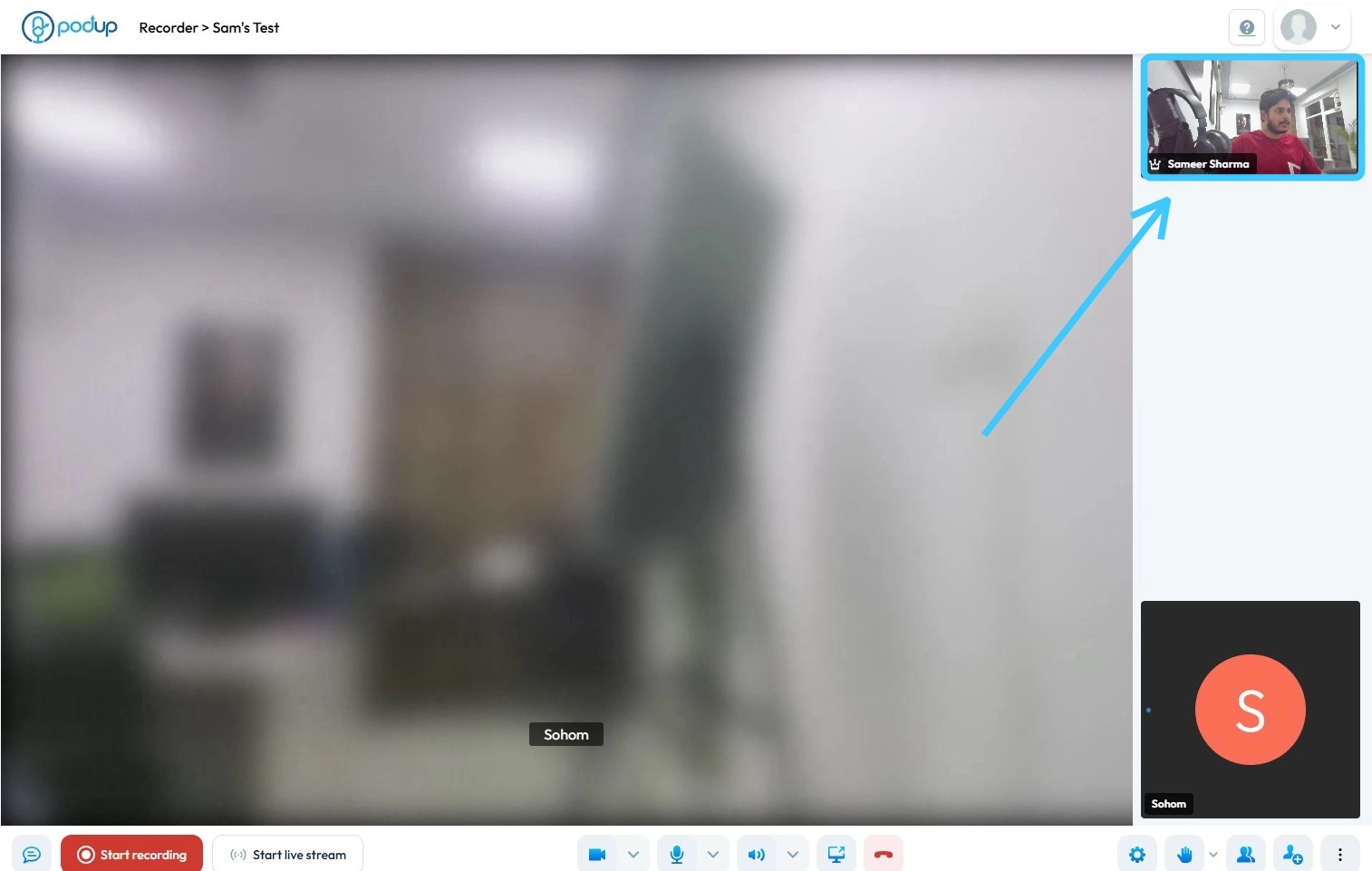
7. Click the three dots icon
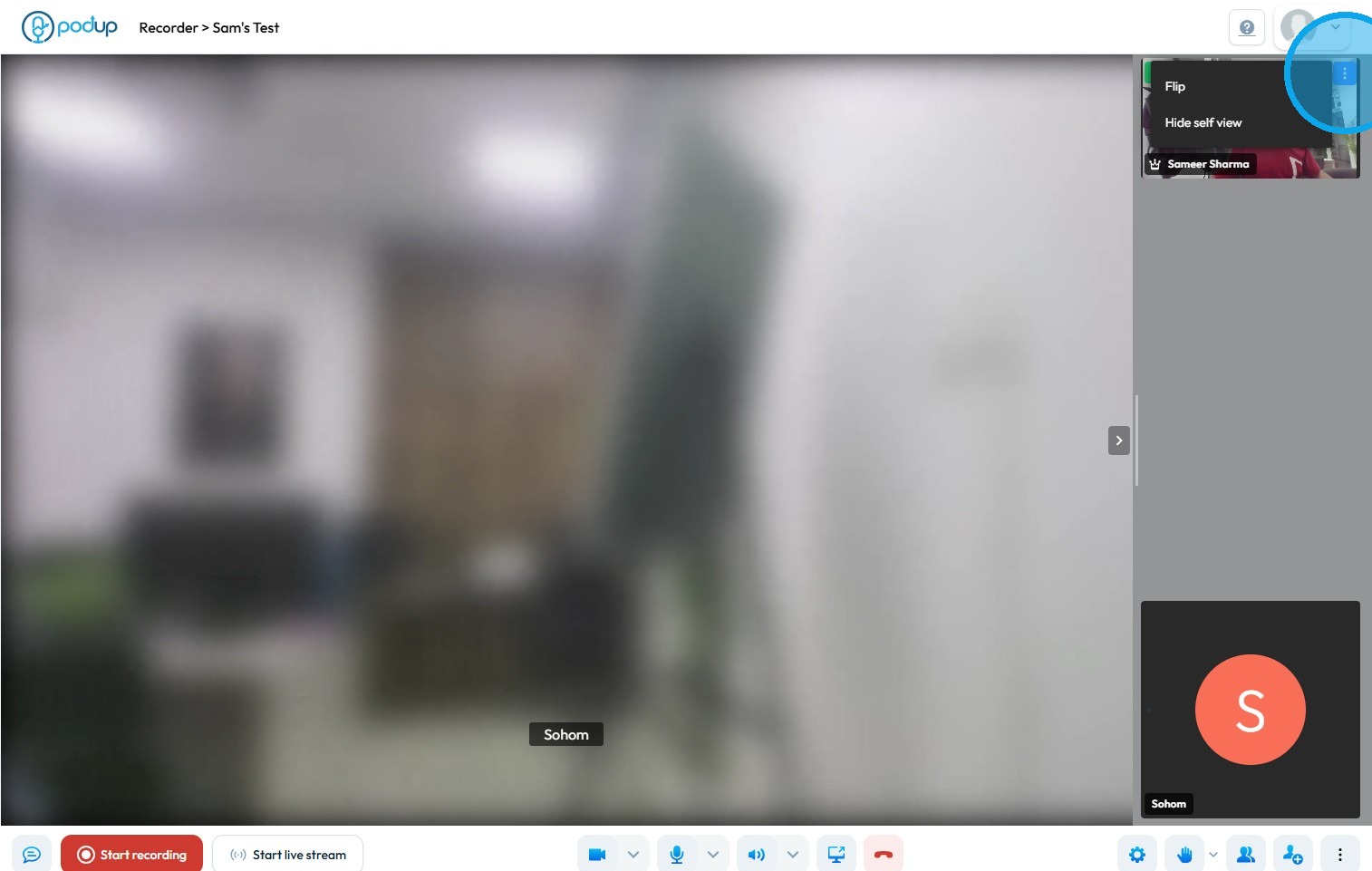
8. Select "Hide self view"
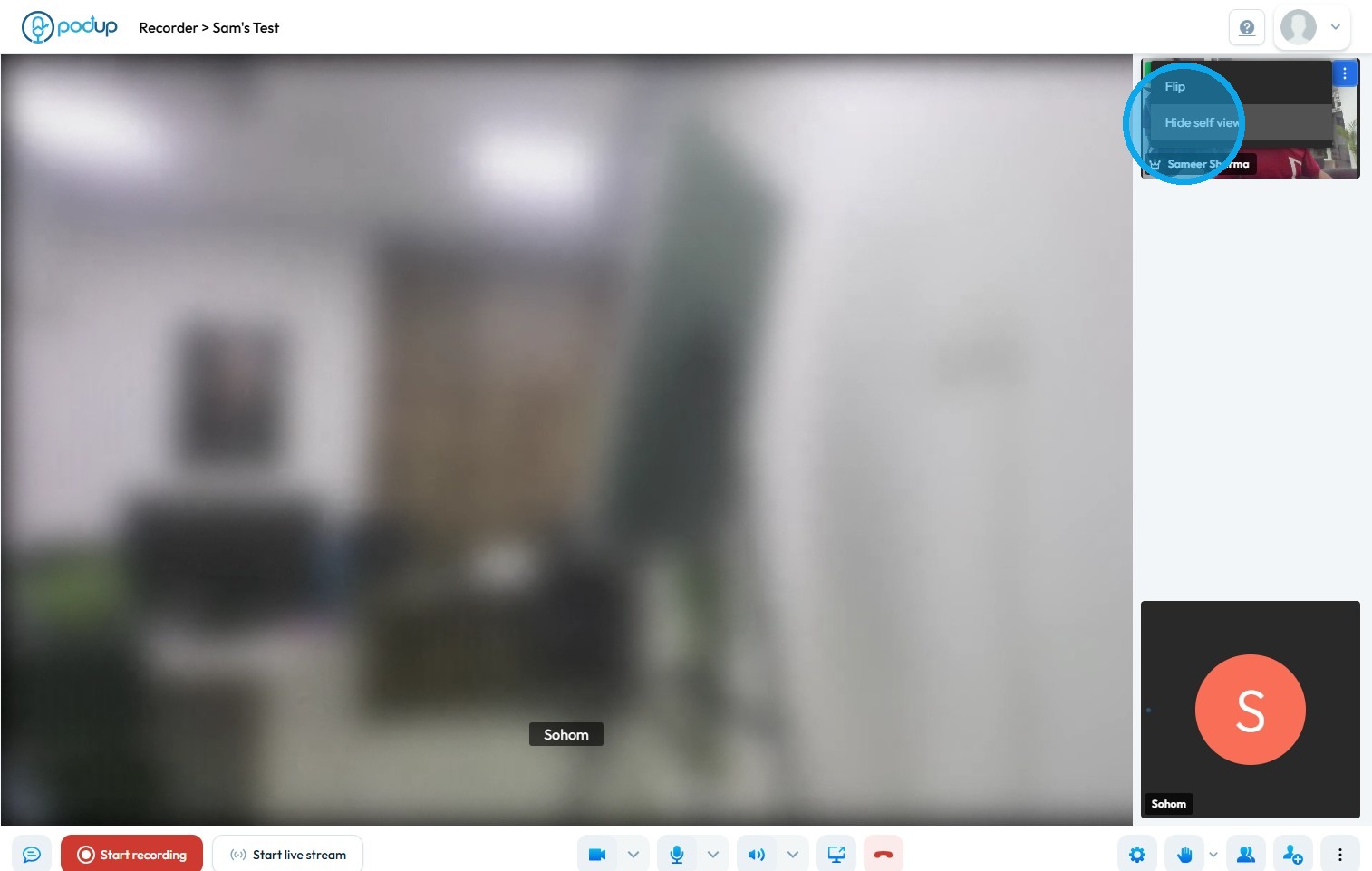
9. The host preview will be hidden
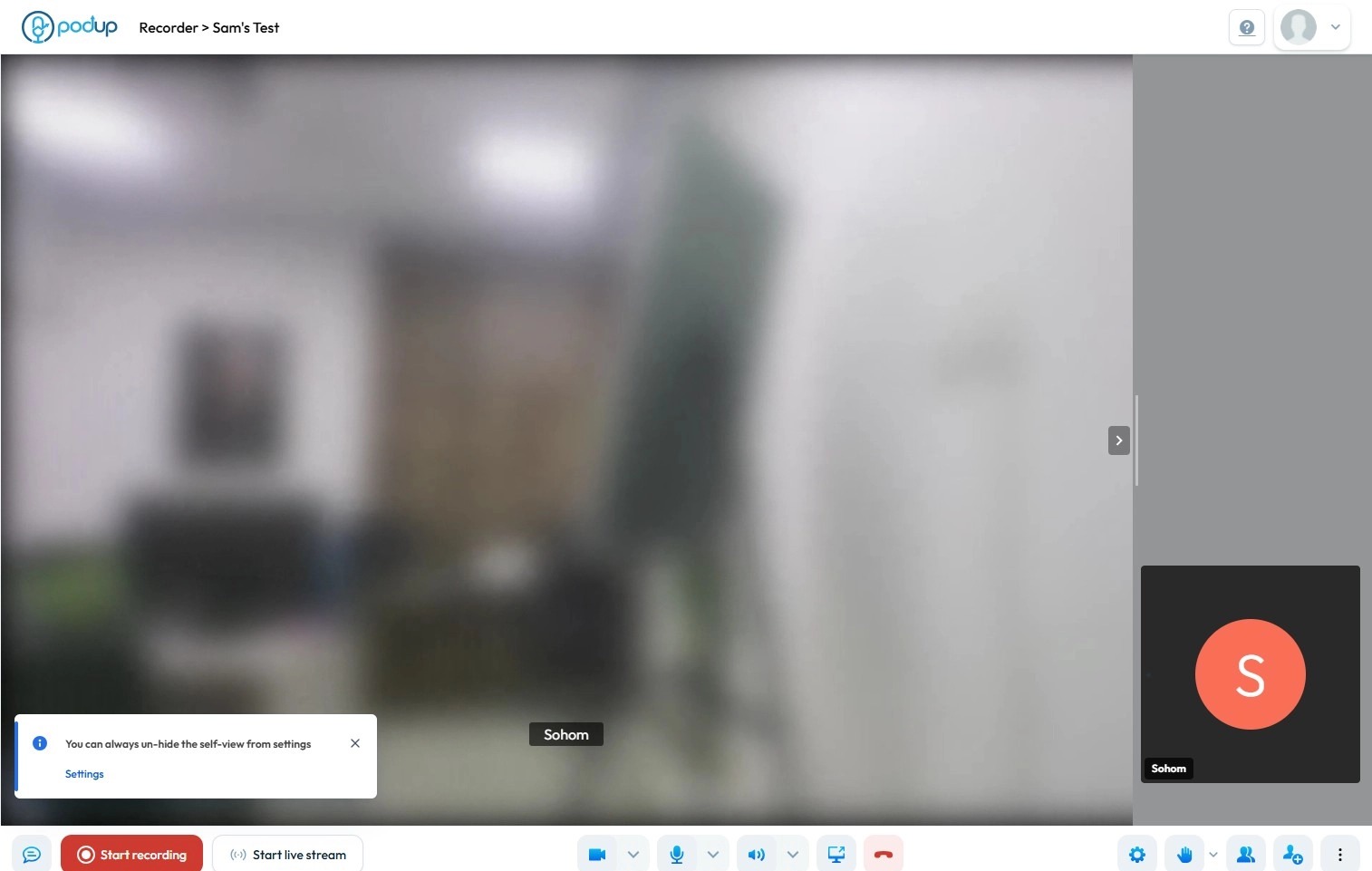
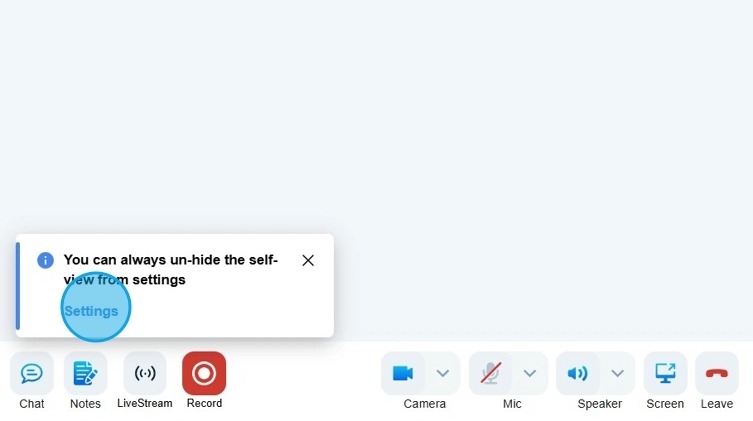
10. To Un-hide click on Settings
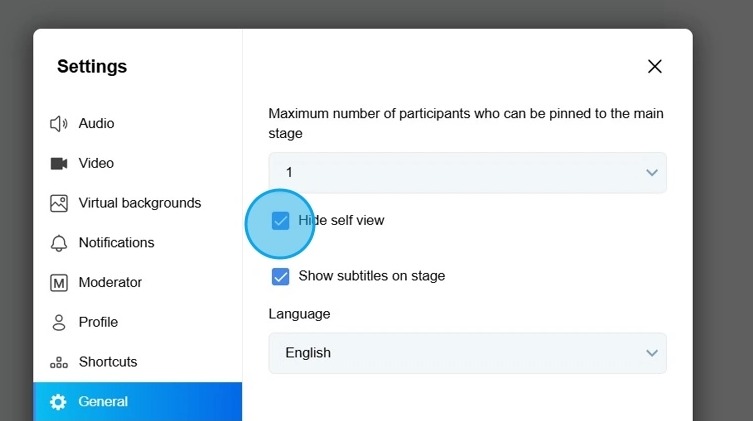
11. Uncheck the Self hide view box
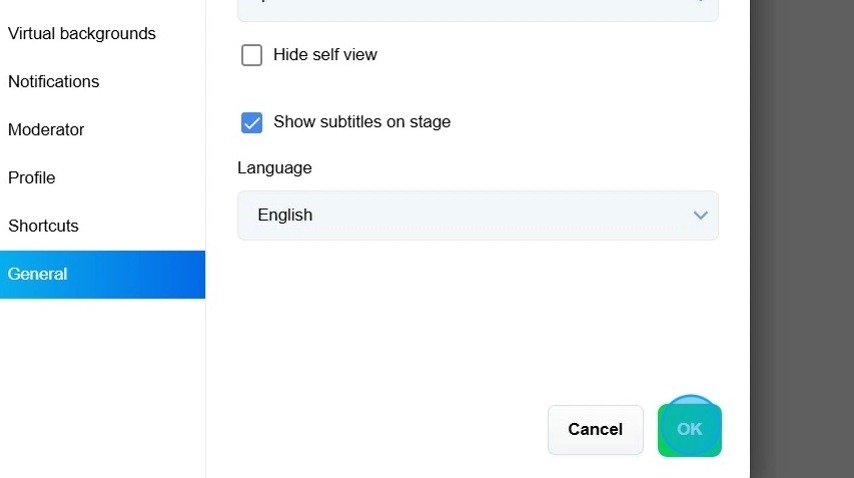
12. Click "OK" to confirm
Related Articles
How To Navigate Recorder (Detailed)
This guide gives you clear steps to record and manage a podcast studio. It covers setup, adding guests, recording, and editing. With this easy-to-follow resource, you can improve your podcast quality and work more efficiently. Tip: Words to know ...How to view all the replies?
Use this guide to access and manage comment replies on your PodUp site to boost engagement 1. Navigate to https://app.podup.com/home 2. Click "Grow" 3. Select "Comments" 4. The “Commenter” page displays all comments on your website 5. Click the three ...How do I hide a page from my website
By following this guide, you can easily hide pages on your PodUp website, ensuring only relevant content remains visible for a clean, focused user experience. 1. Navigate to https://app.podup.com/home 2. Click "My Site". 3. Select "Navigation ...Can you pin a video in the recorder?
You can use this guide to pin a video during recording to focus on key participants and make sessions more engaging. 1. Navigate to https://app.podup.com/home 2. Click "Record" 3. Select "Recorder" 4. The “List of Studios” page will open 5. Click the ...How Can I Check Who has Access to Recorder
By following the steps outlined, users can easily identify roles and permissions, ensuring proper access management. 1. Navigate to https://app.podup.com/home 2. Click "Start" 3. Click "My Team" 4. The ‘My Team’ page will open, where you can check ...