How To Submit A Media Release Using PodUp Legal Docs
1. Navigate to https://app.podup.com/home
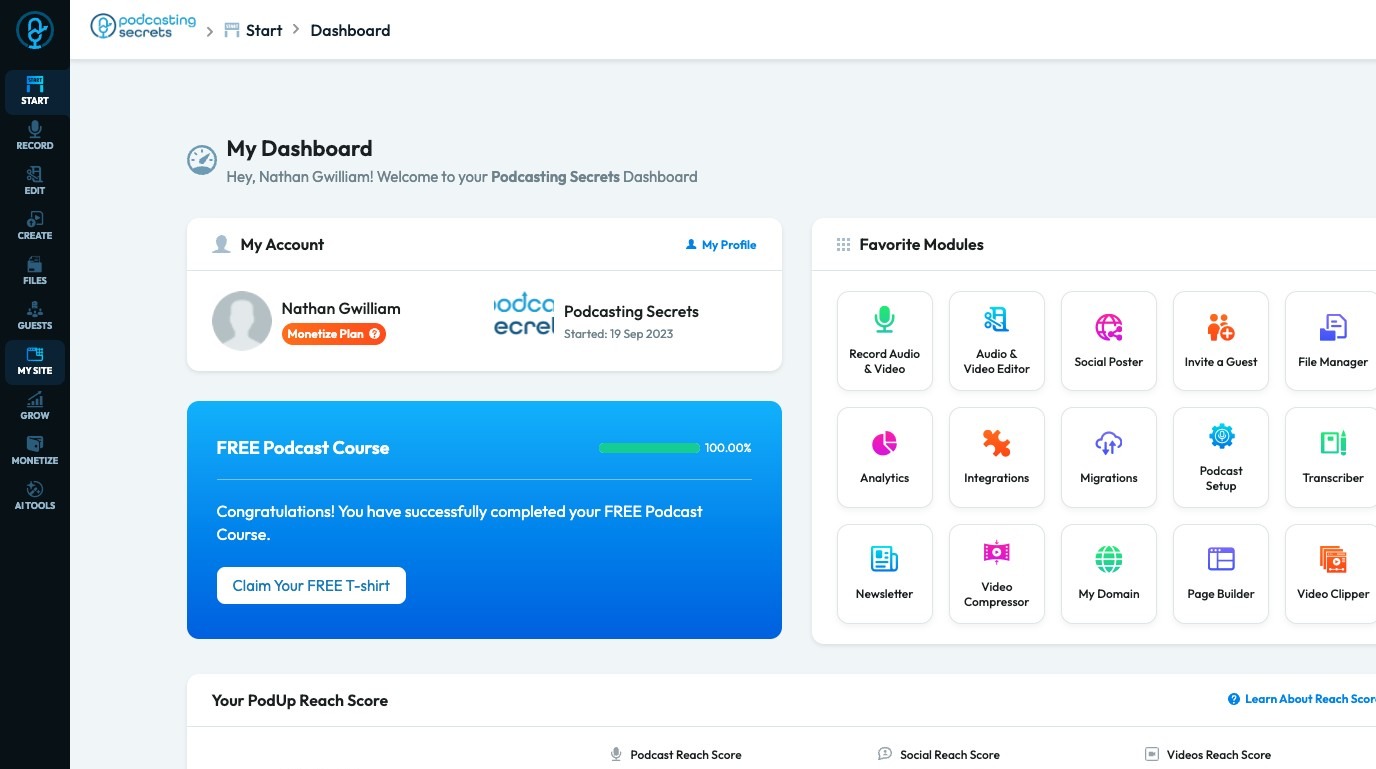
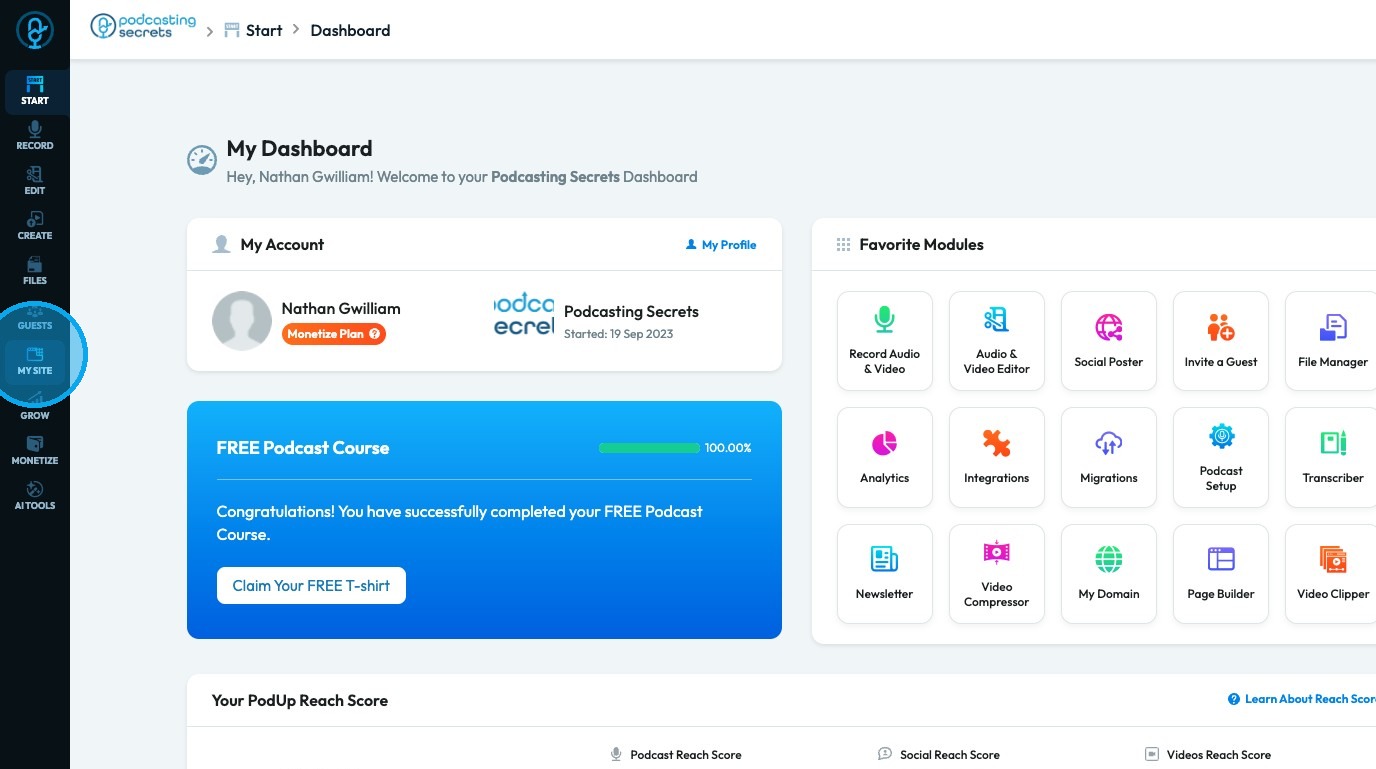
2. Click "My Site."
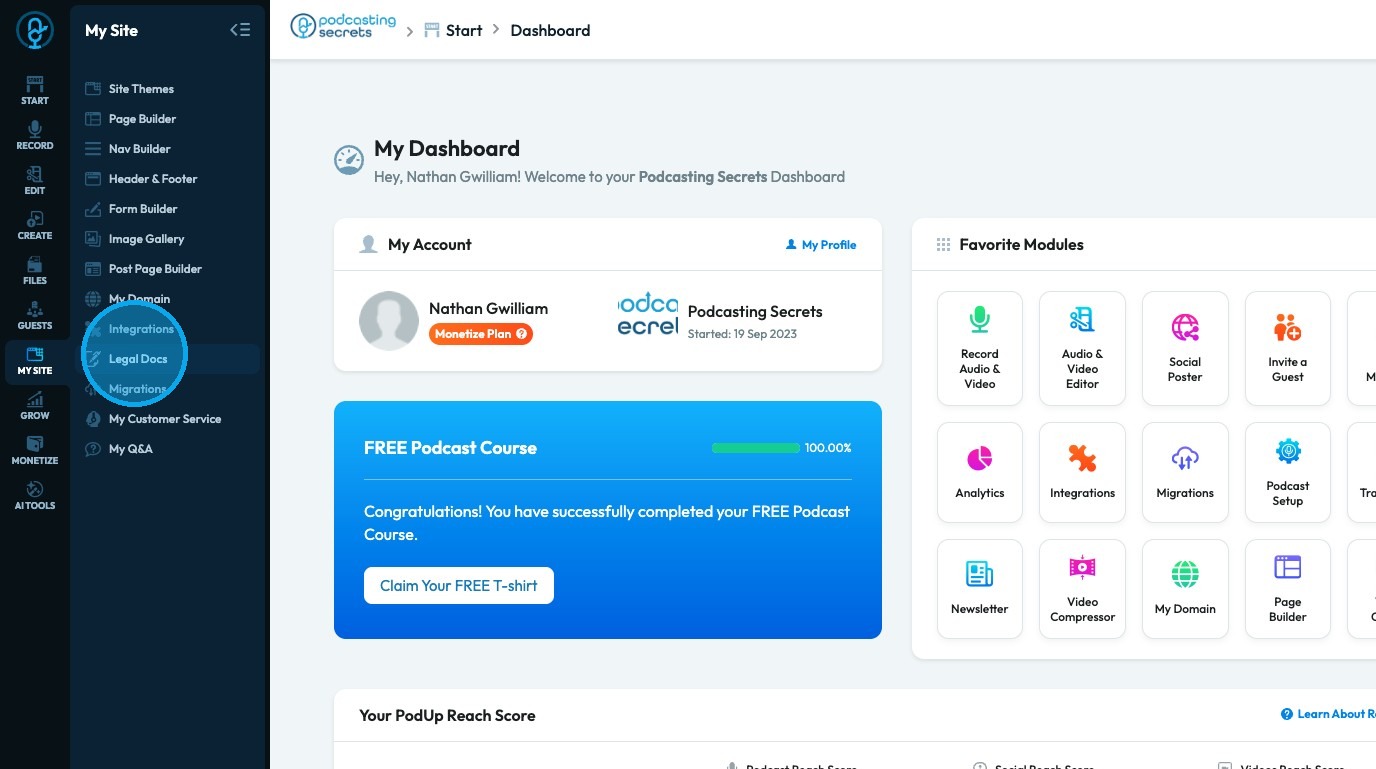
3. Select "Legal Docs"
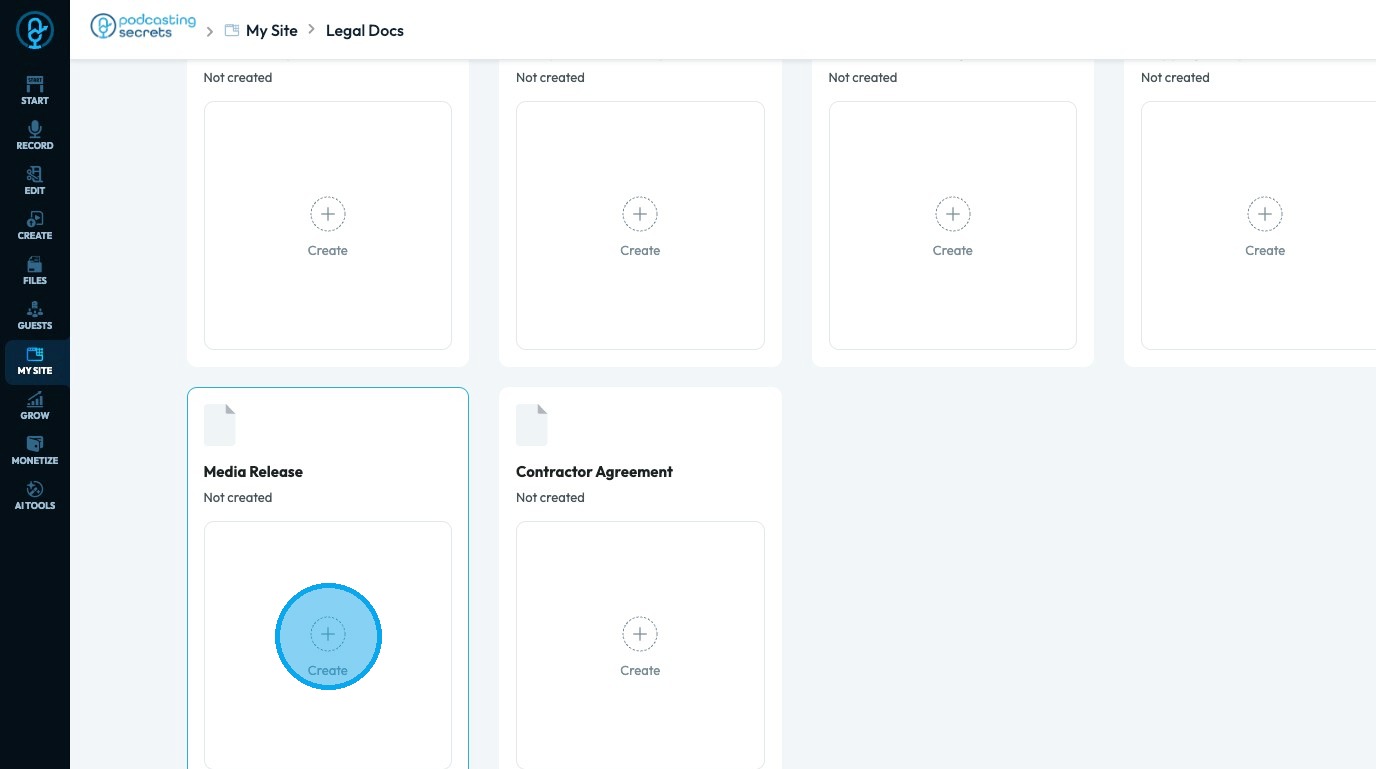
4. Scroll down and select "Media Release"
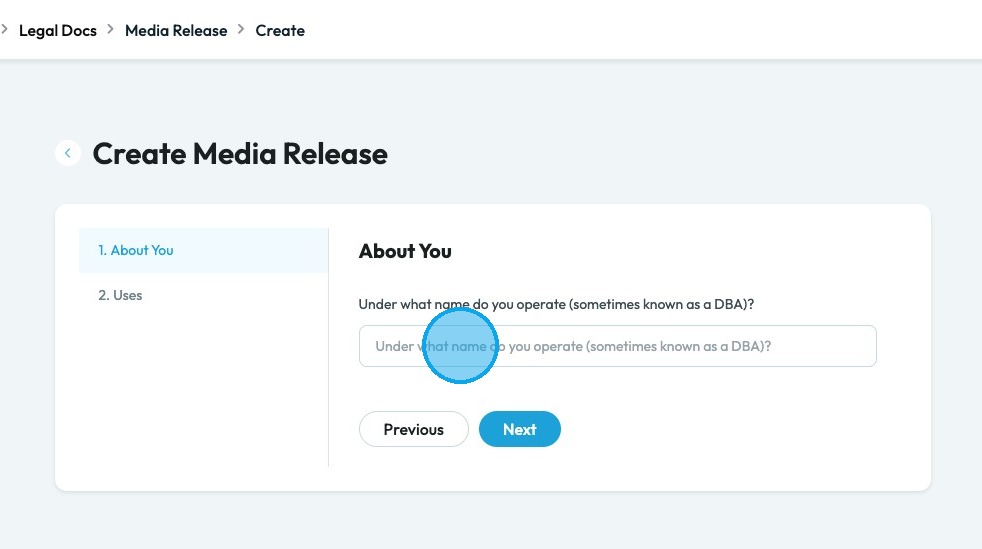
5. Click the "Under what name do you operate(sometimes known as a DBA)?" field and enter your DBA
DBA: "Doing Business As." It is a registered name that a business uses other than its legal name. Let's a person or company operate under a different name without forming a new legal entity.
Click "Next" to continue to the next page. Click "Previous" to return to the last page you were on
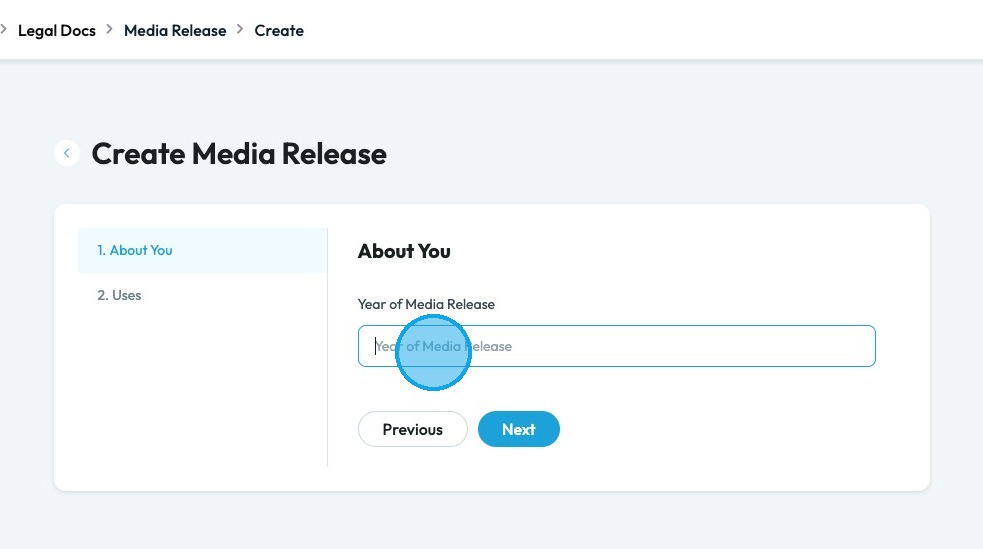
6. Click the "Year of Media Release" field and insert the year of the media release
- Generally, this is the current year
Click "Next" to continue to the next page. Click "Previous" to return to the last page you were on
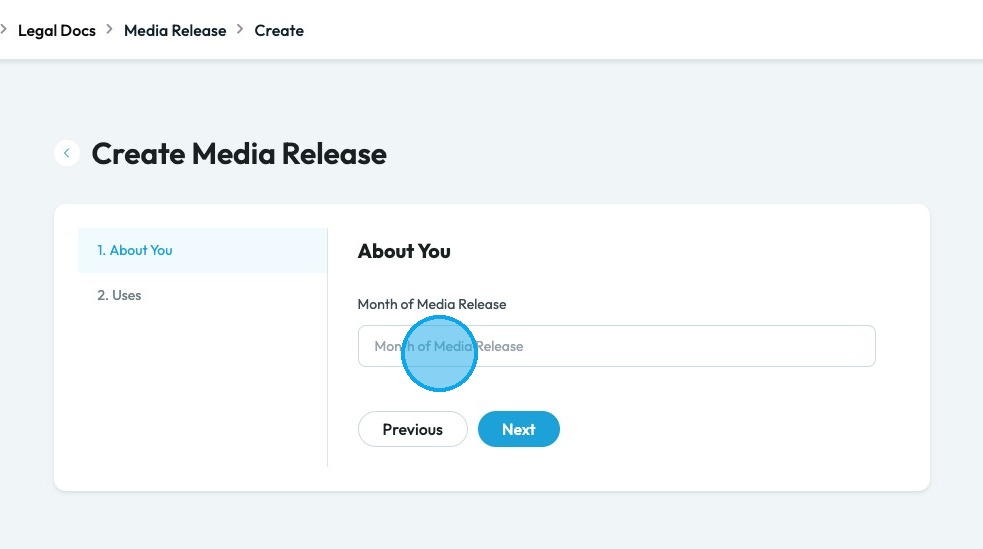
7. Click the "Month of Media Release" field and insert the year of the media release
- Generally, this is the current month
Click "Next" to continue to the next page. Click "Previous" to return to the last page you were on
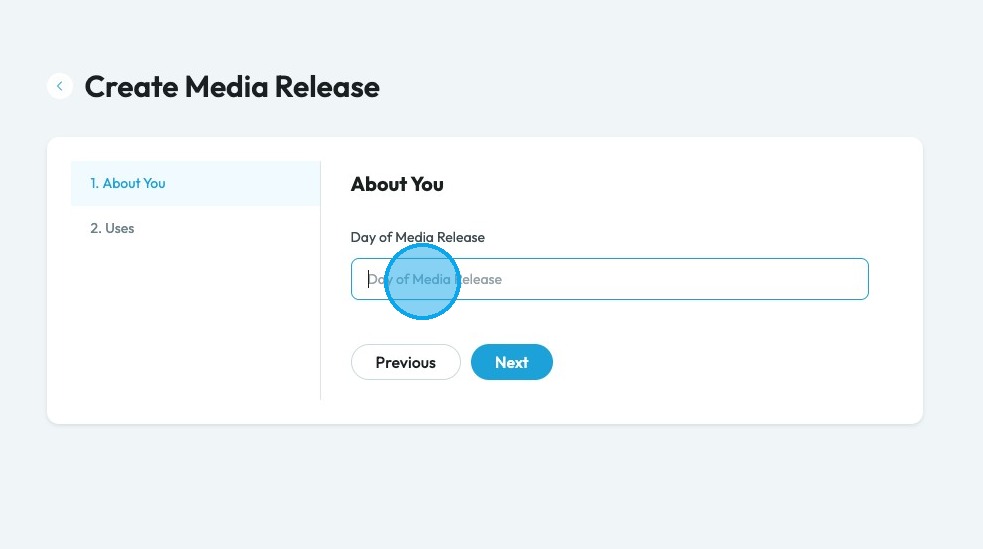
8. Click the "Day of Media Release" field and insert the year of the media release
Click "Next" to continue to the next page. Click "Previous" to return to the last page you were on
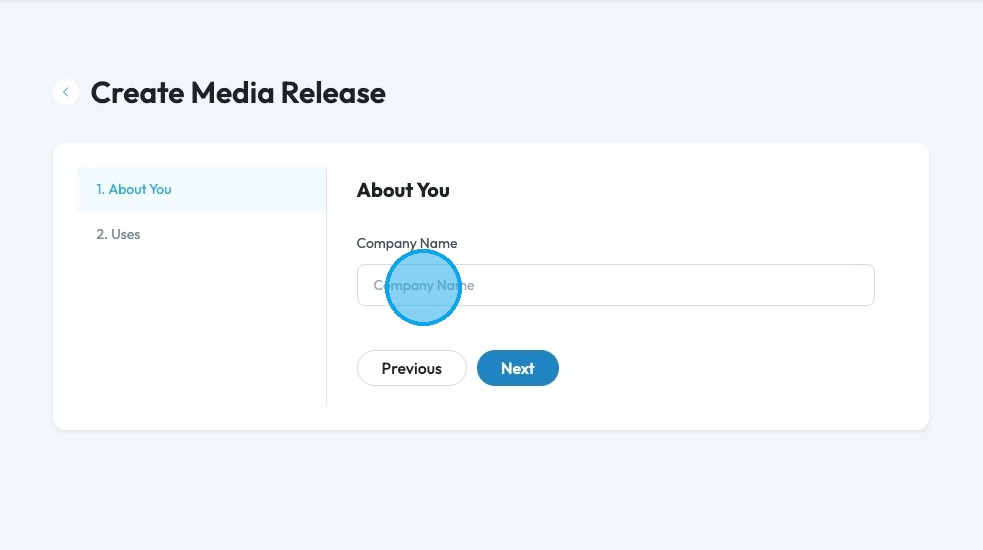
9. Click the "Company Name" field and record the name of the company
Click "Next" to continue to the next page. Click "Previous" to return to the last page you were on
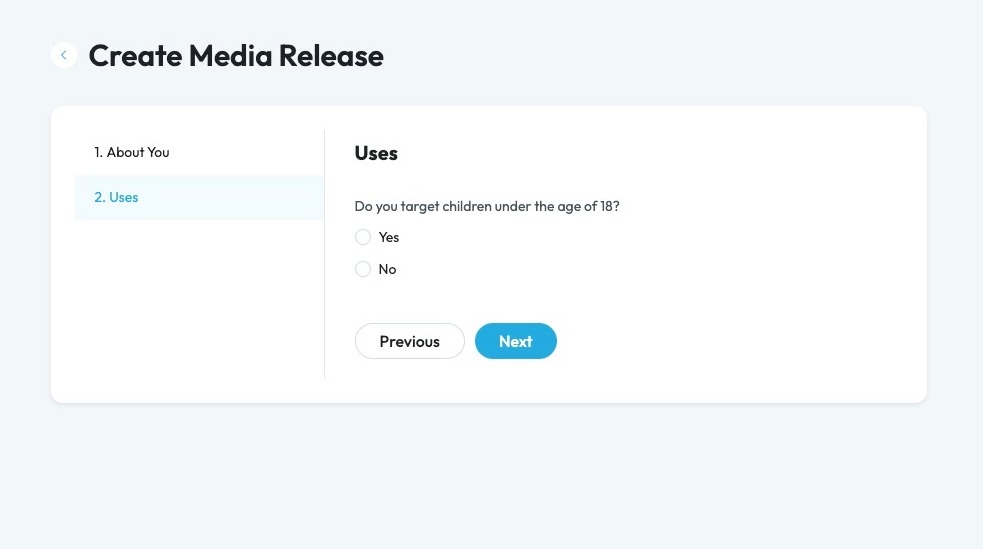
10. Click "Yes" or "No" based on if you target children under the age of 18, meaning that your media release allows you to share media of someone under the age of 18
- If you select "Yes", a second question will appear asking you to record the name of the parent or guardian of the children under 18
- If you select "No", a second question will appear asking you to record the name of the person who has the media release
Click "Next" to continue to the next page. Click "Previous" to return to the last page you were on
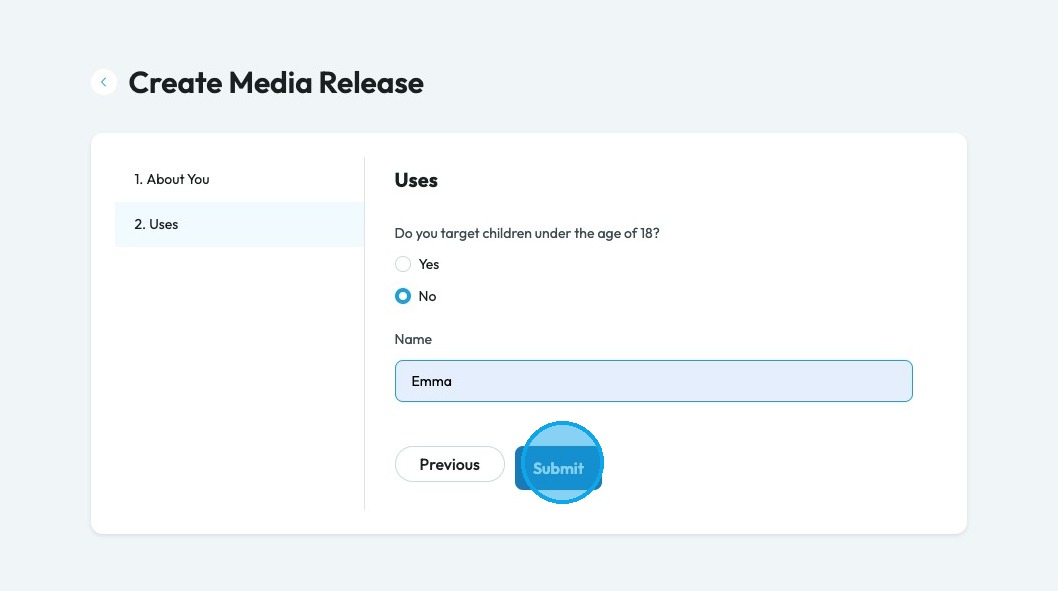
11. Click "Submit"
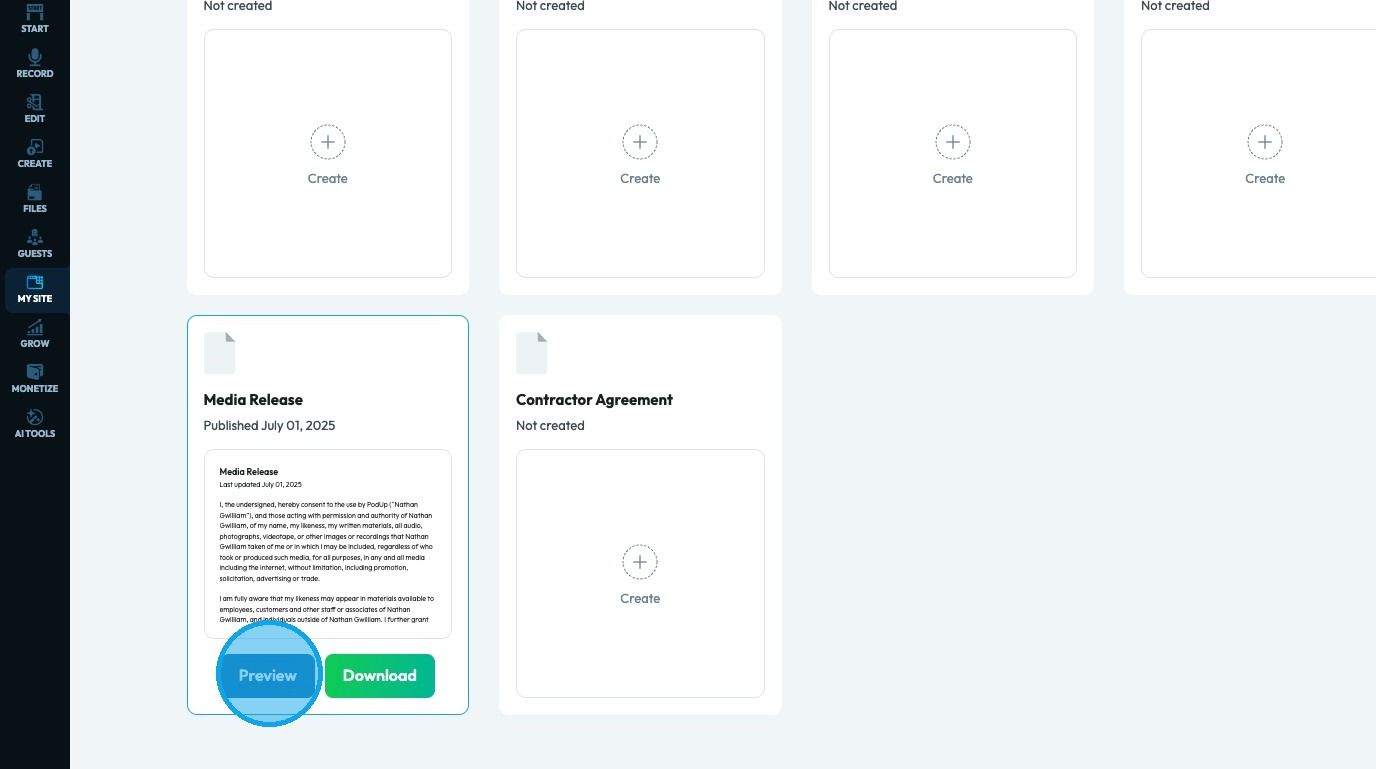
12. Click "Preview" to view the Media Release again
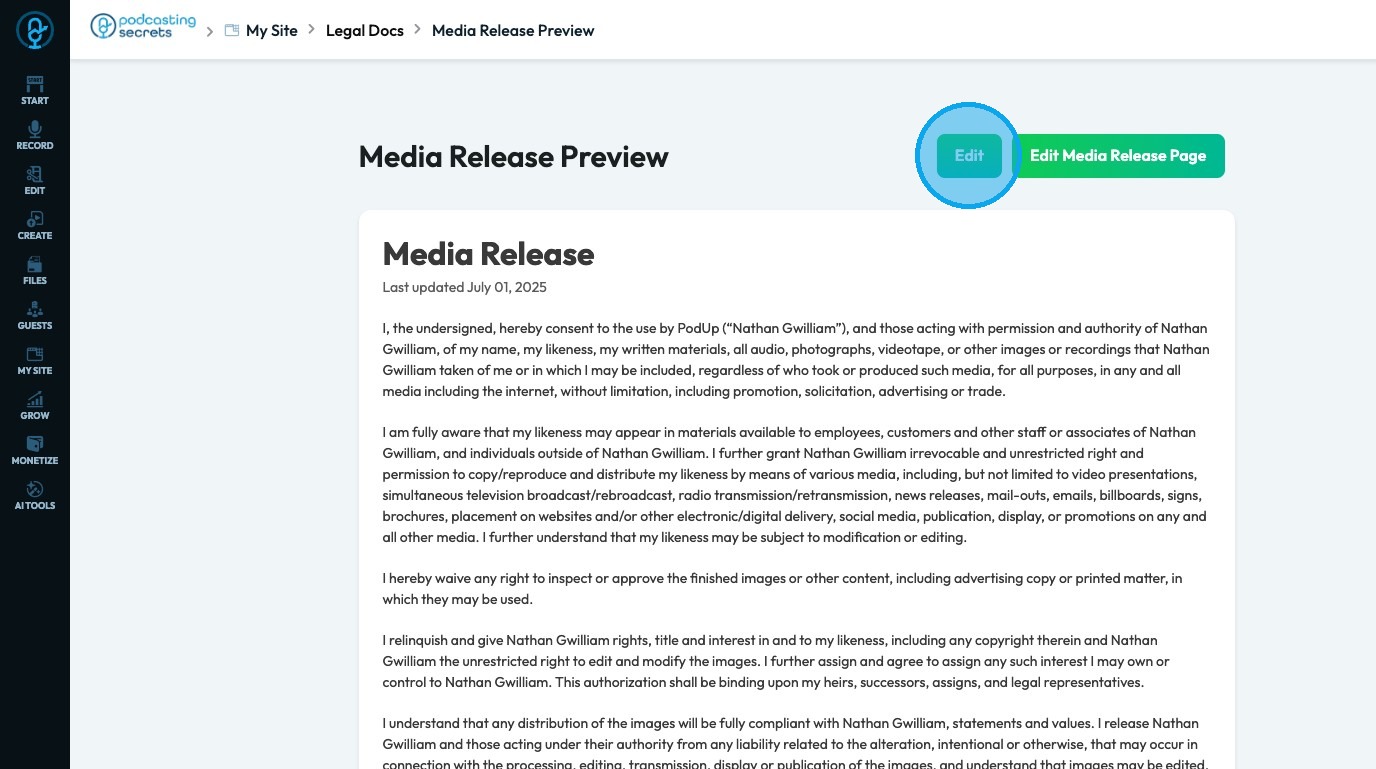
13. Click "Edit" to edit the media release
- This will take you back to the form you were just filling out
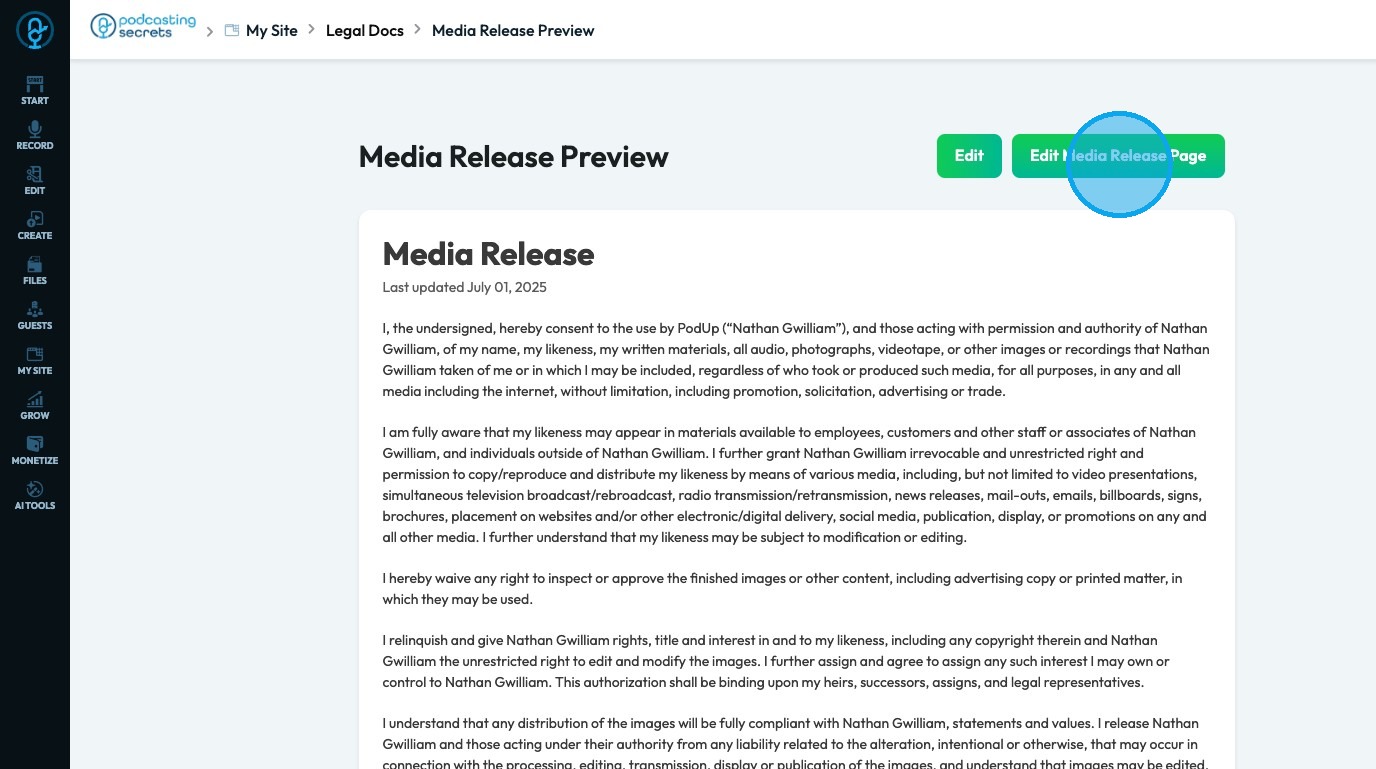
14. Click "Edit Media Release Page" to edit the media release on the website itself
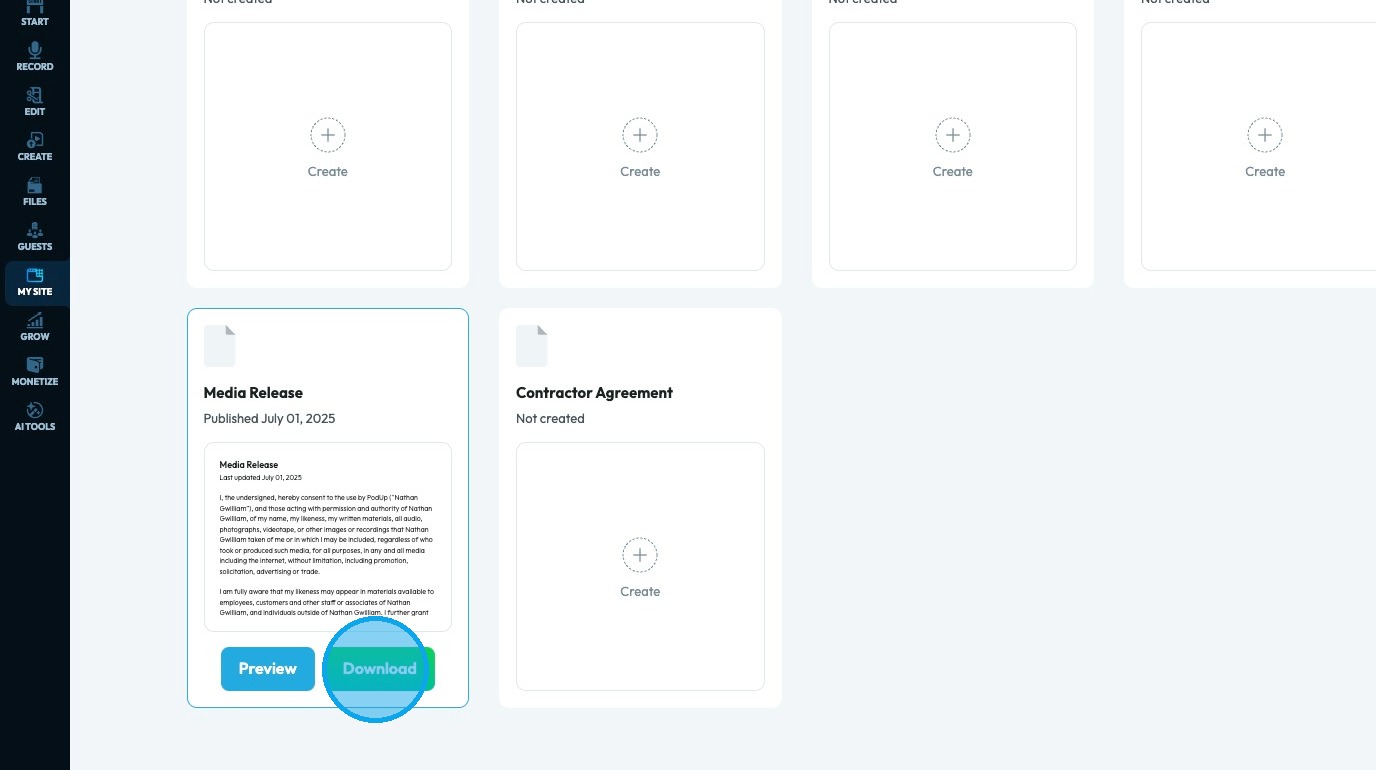
15. Click "Download" to download a copy of the media release
Alert: Alert! LLC is a show-technology company that makes it simpler and more affordable to create, produce, and monetize shows. Please note that LLC is not a lawyer referral service, accountant referral service, accounting firm, or law firm, does not provide legal or tax advice or representation, and is not intended as a substitute for an attorney, accountant, accounting firm, or law firm. LLC has placed the information on this website as a service to the general public. While some of the information on this site is about legal issues, it is not, and is not intended as legal or tax advice or as a substitute for the particularized advice of your own counsel. Anyone seeking specific legal, tax, or professional advice or assistance should retain an attorney, accountant, or other licensed professional, as the case may be. This website could include inaccuracies or typographical errors. The materials on this website do not constitute legal advice, do not necessarily reflect the opinions of LLC or any of its employees, and are not guaranteed to be correct, complete, or up-to-date. The information on this website is provided “AS IS” without warranty of any kind, either express or implied, including but not limited to, the implied warranties of merchantability, fitness for a particular purpose, or non-infringement. Each individual document published on this website may contain other proprietary notices and copyright information relating to that specific document.
Related Articles
How to Navigate PodUp Legal Docs
This guide is essential for anyone looking to create legal documents efficiently using PodUp's templates. It provides clear instructions on accessing and utilizing a range of legal policies, from Privacy Policies to Contractor Agreements, which are ...How To Create Privacy Policy Using Podup Legal Docs
By following this guide, you can create a comprehensive privacy policy on PodUp to ensure legal compliance and build trust. Alert: Alert! LLC is a show technology company that makes creating, producing and monetizing shows simpler and more ...How to Create Terms and Conditions for Your Podcast Website using PodUp Legal Docs
By following this guide, you can create customized Terms and Conditions for your podcast website to ensure legal compliance and build trust. Alert: Alert! LLC is a show technology company that makes creating, producing and monetizing shows simpler ...How To Create a Cookie Policy Notice on PodUp Legal Docs
Use this guide to create a Cookie Policy Notice on PodUp and build audience trust Alert: Alert! LLC is a show technology company that makes creating, producing, and monetizing shows simpler and more affordable. Please note that LLC is not a lawyer ...How To Navigate Social Media Poster (Detailed)
This guide provides a straightforward method for creating and scheduling social media posts using the Podup platform. It offers step-by-step instructions, ensuring users can easily navigate through the process of adding content, selecting social ...