How to navigate to my Published website?
By following this guide, you can quickly and easily access your published website without any confusion.
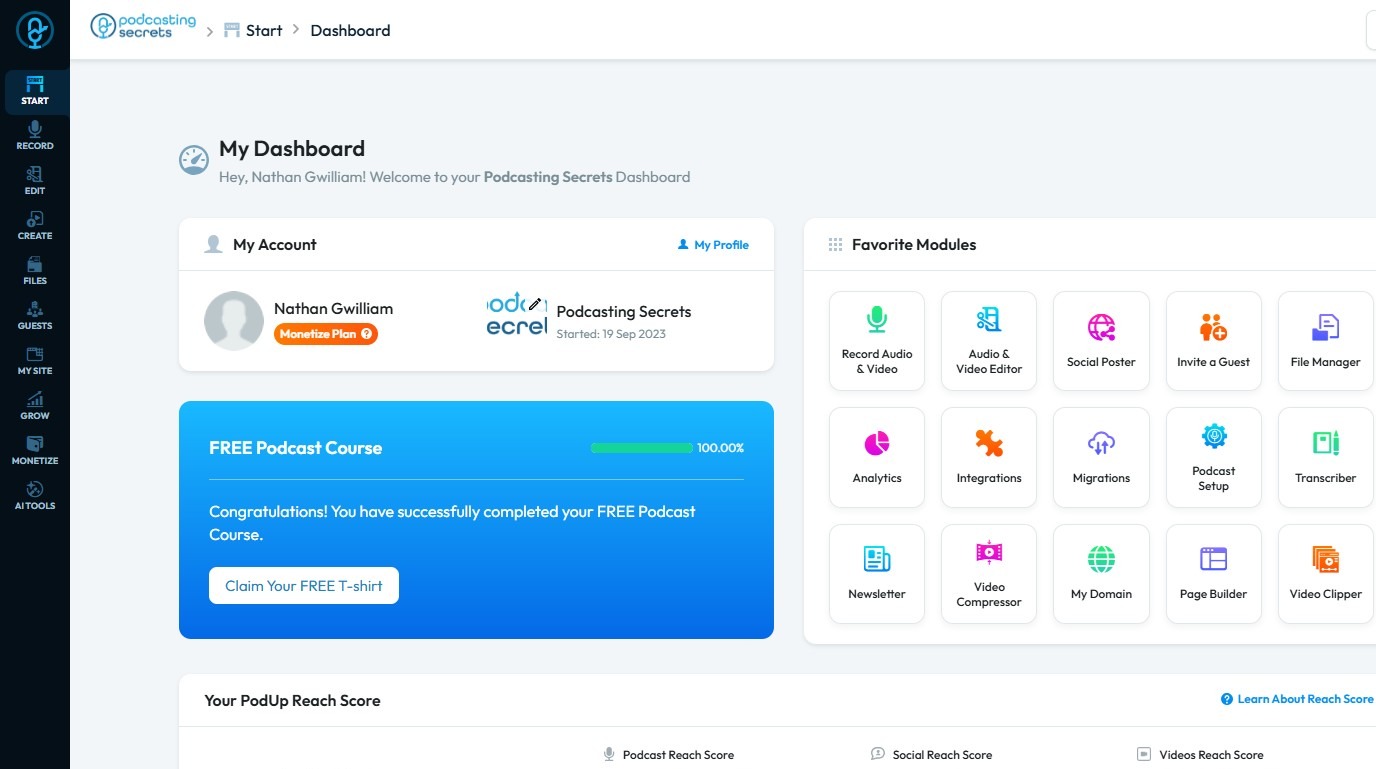
1. Navigate to https://app.podup.com/home
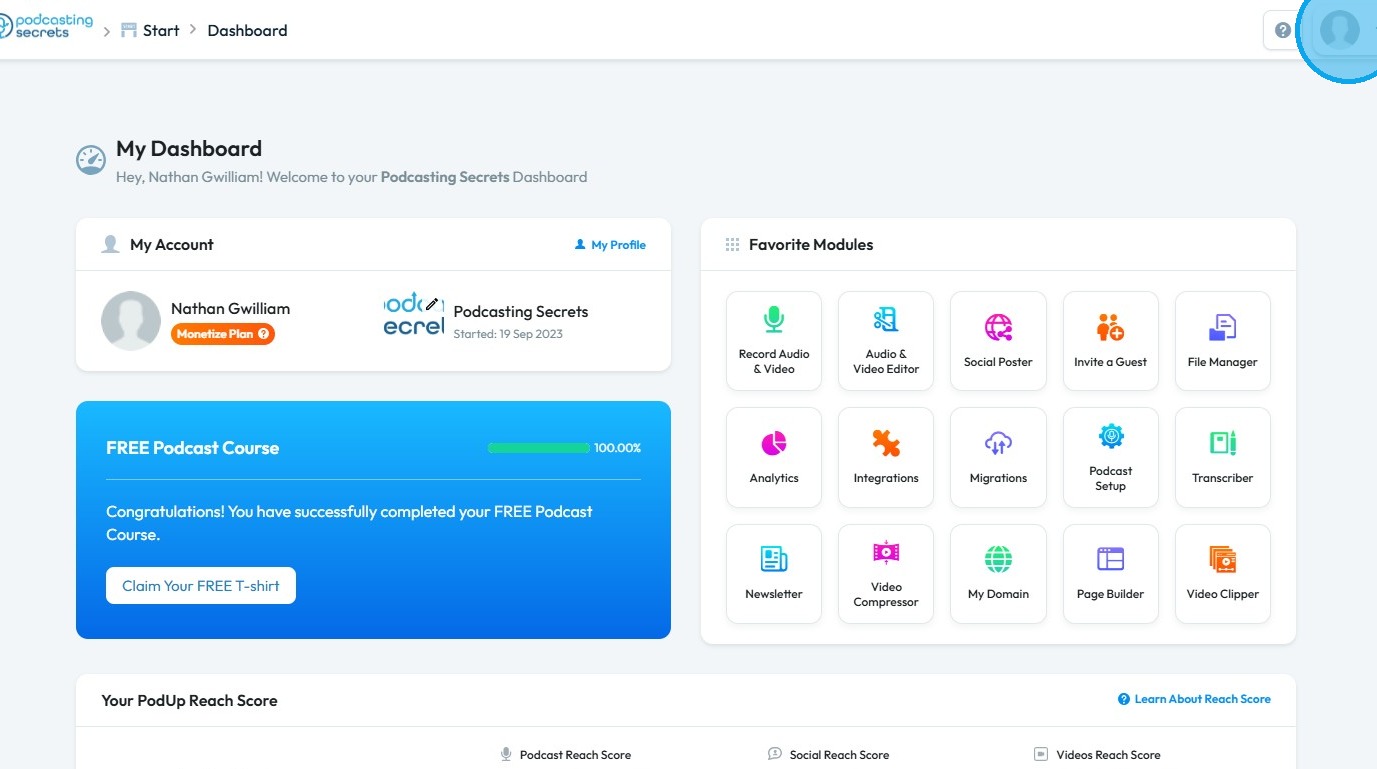
2. Click the Profile Icon located in the top-right corner
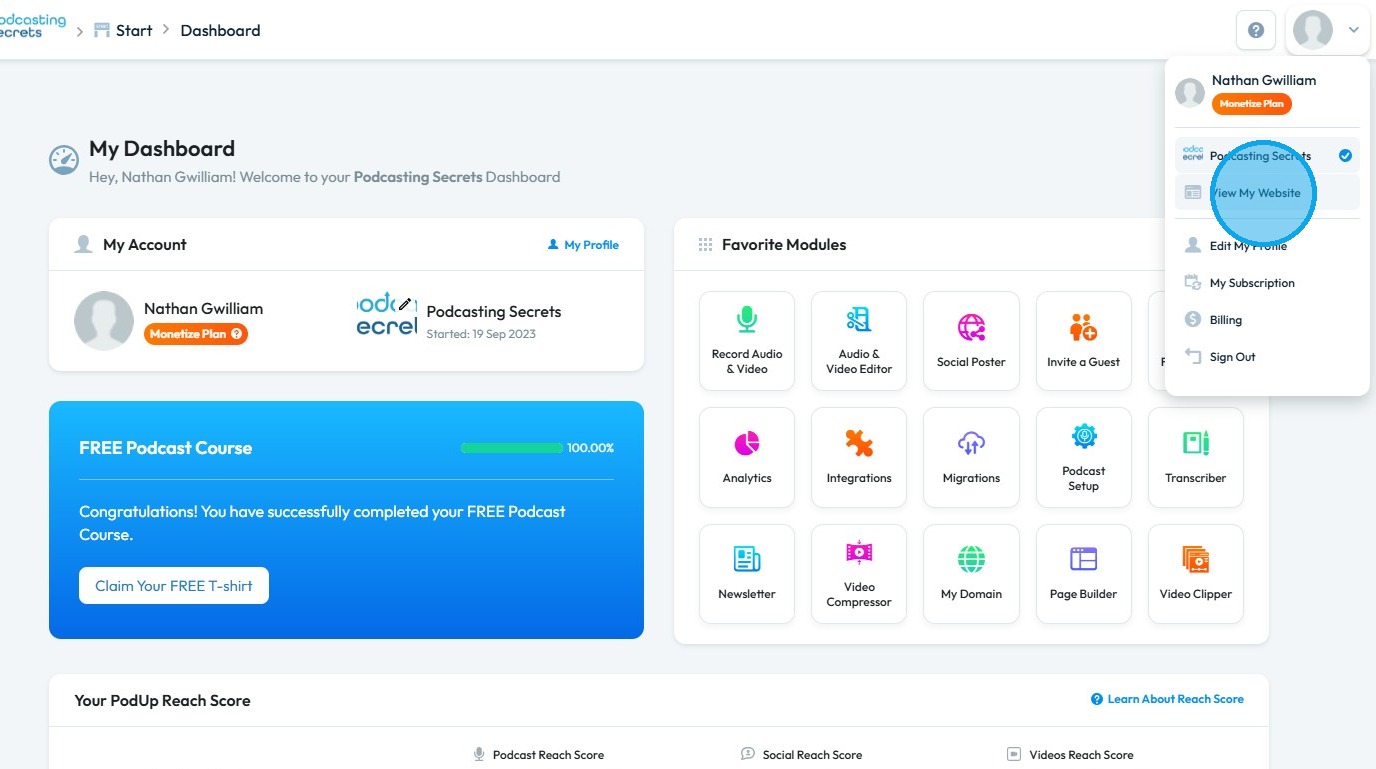
3. Select "View My Website"
4. You will be directed to your published website

Related Articles
How to Make Sure That My Website Page isn't Published
By following this guide, you can keep your website page unpublished to control visibility and refine content before launch. 1. Navigate to https://app.podup.com/home 2. Click "My Site" 3. Select "Page Builder" 4. This section displays all the pages ...How to Navigate Nav Builder (Detailed)
This guide provides a step-by-step approach to creating a navigation menu in PodUp, essential for enhancing user experience on your website. It simplifies the process of organizing and managing your site's links, making it easier for visitors to ...How do my blogs get uploaded to my website
This guide shows you how to upload blogs to your website step by step 1. Navigate to https://app.podup.com/home 2. Click "Create" 3. Select "Blogs" 4. Click "Create Post" 5. The page will be displayed as shown 6. Complete all required details and ...How To Navigate Episode Manager (Detailed)
This guide provides a step-by-step process for adding an episode in PodUp, making it an invaluable resource for podcasters looking to streamline their workflow. It covers everything from entering episode details to uploading images and sharing links, ...How do I upload my videos to my website
This guide shows you how to easily upload and manage video episodes on your website to boost your online presence 1. Navigate to https://app.podup.com/home 2. Click "Create" 3. Select "Videos" 4. Click "Create Video" 5. The "Create Video" page will ...