How to Navigate Summarizer (Detailed)
This guide offers a straightforward approach to creating summaries for various content types on the Podup platform, enhancing your ability to distill information quickly and effectively. With easy-to-follow steps, it empowers users to generate concise summaries for blogs, videos, and podcasts while optimizing them for social media sharing. By streamlining the summarization process, this guide helps users save time and improve content engagement across multiple platforms.
1. Navigate to https://app.podup.com/home
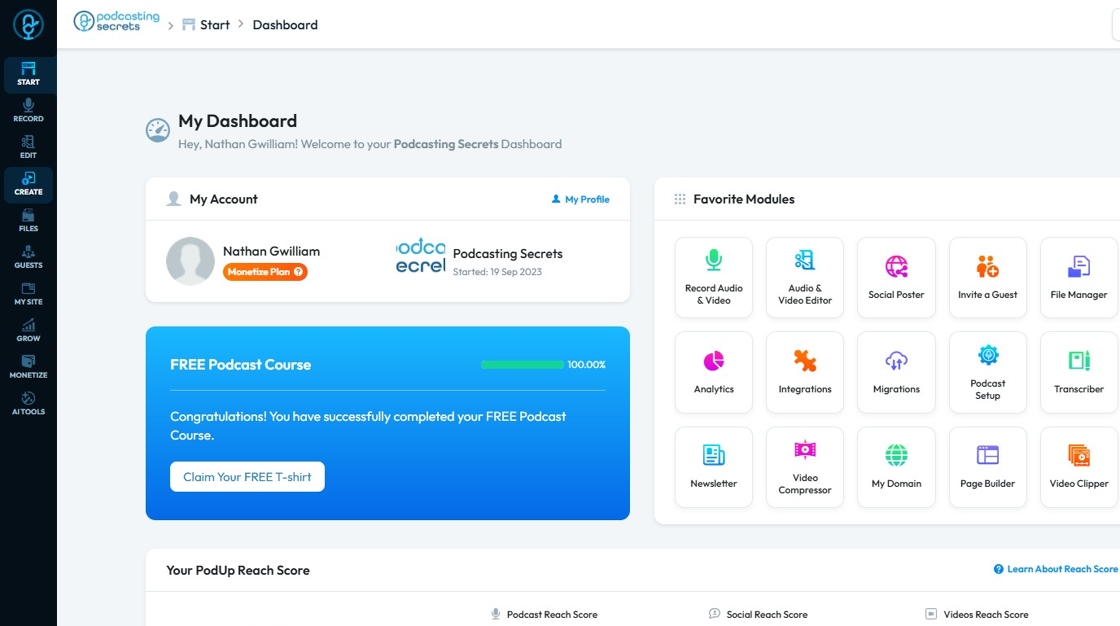
2. Click "Create"
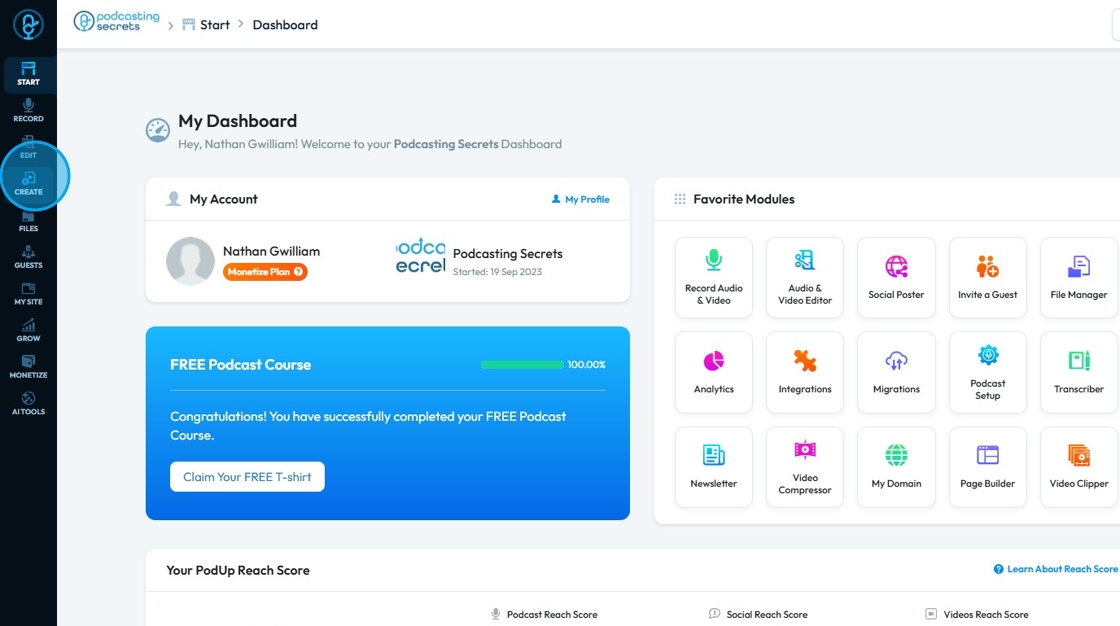
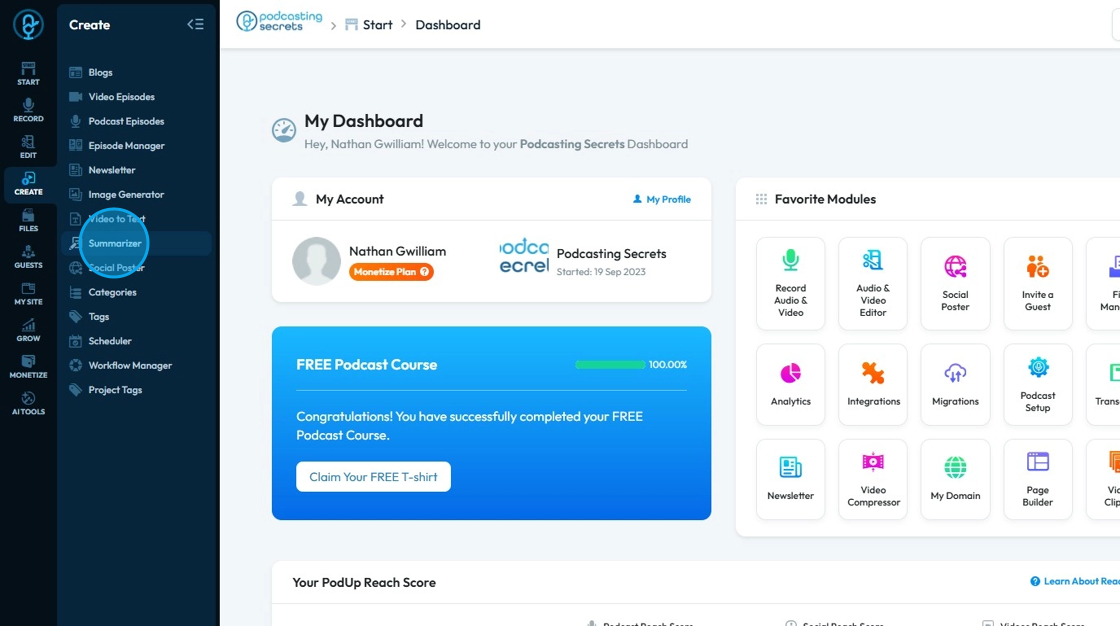
3. Select "Summarizer"
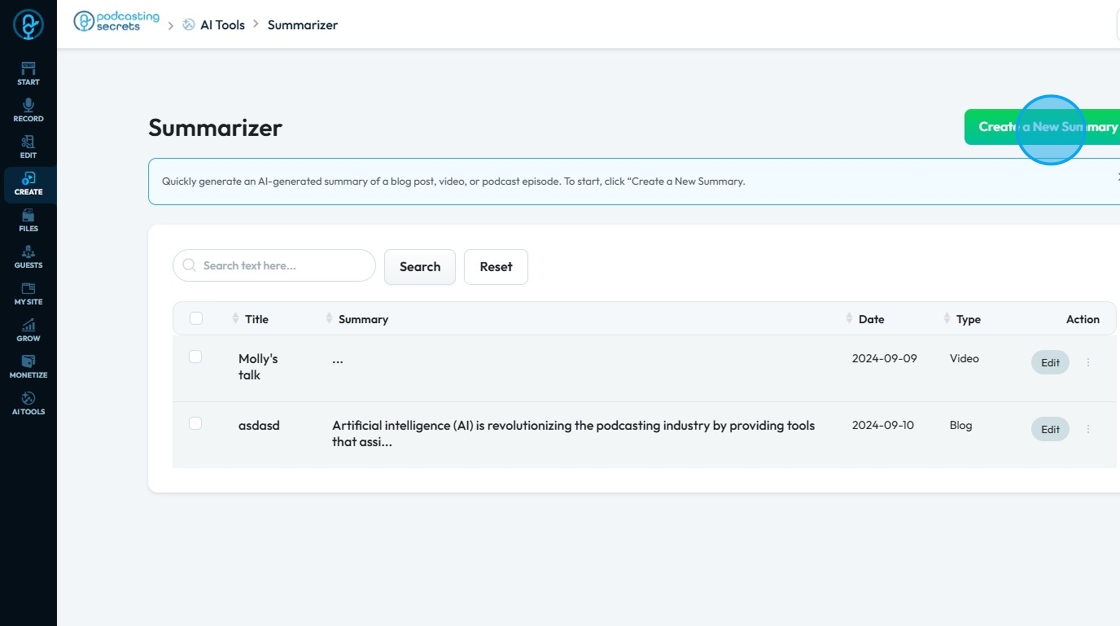
4. To create a summary of your content, click "Create a New Summary"
5. Click the "Summary title" field to enter the title for your summary.
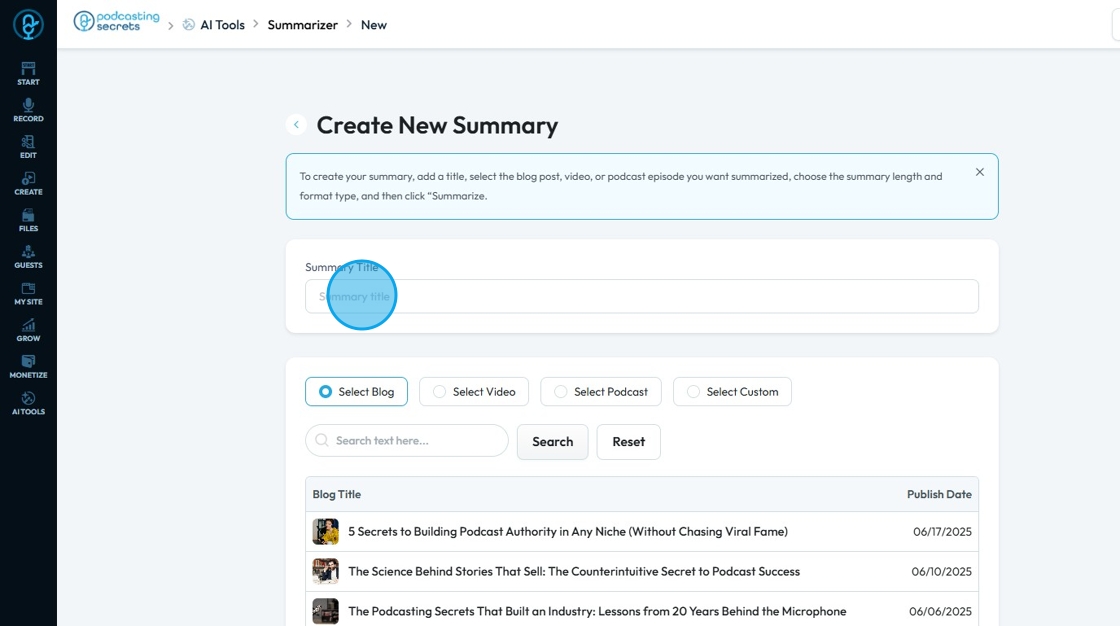
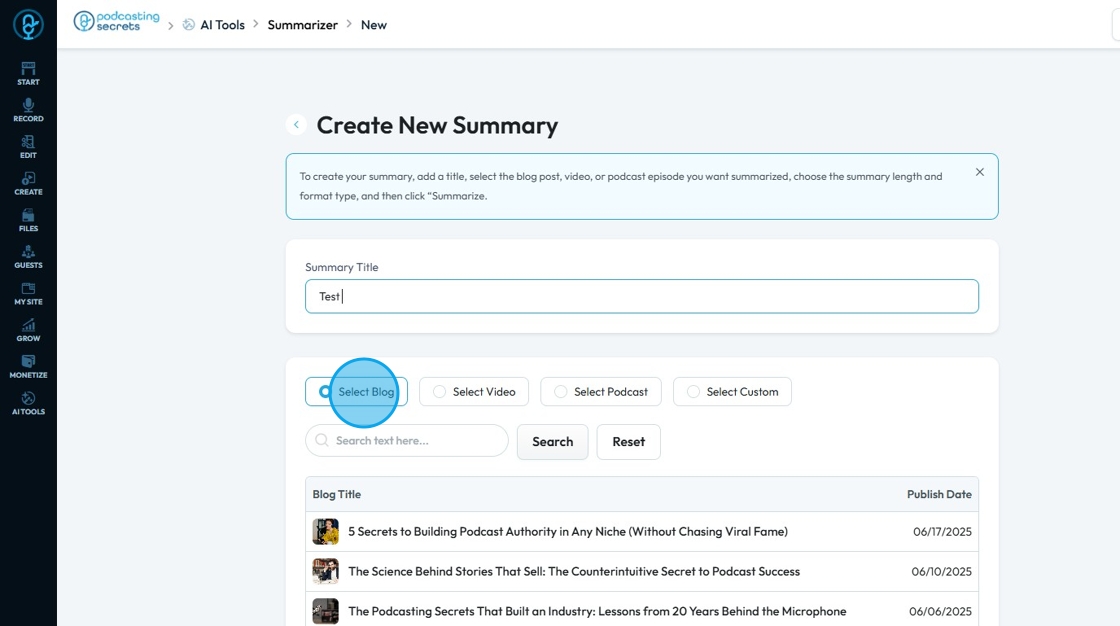
6. Click "Select Blog" to summarize a blog
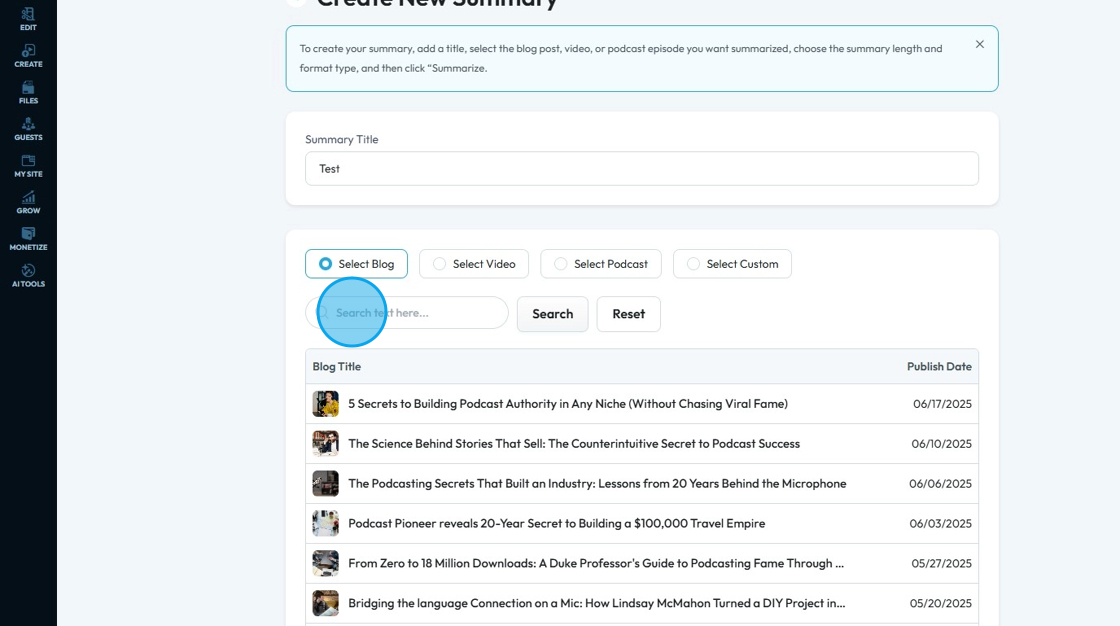
7. Click the "Search text here" field and type in the title or publication date to find a specific blog
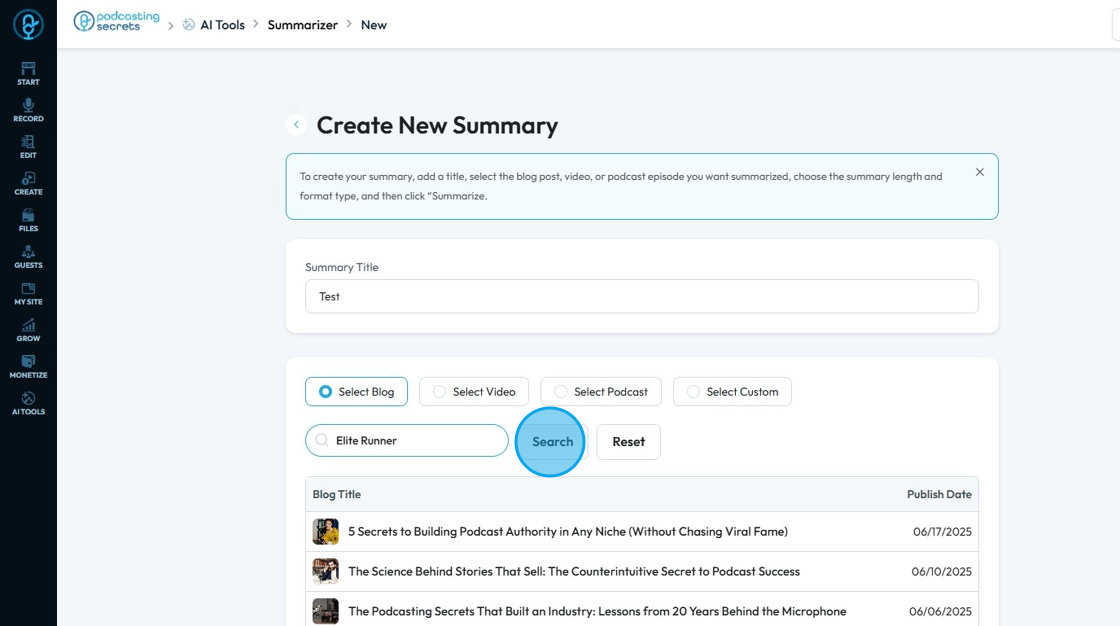
8. Click "Search" to run the search and collect a list of all the blogs that contain the text you are searching for
9. Click "Reset" to reset the search results to the original display
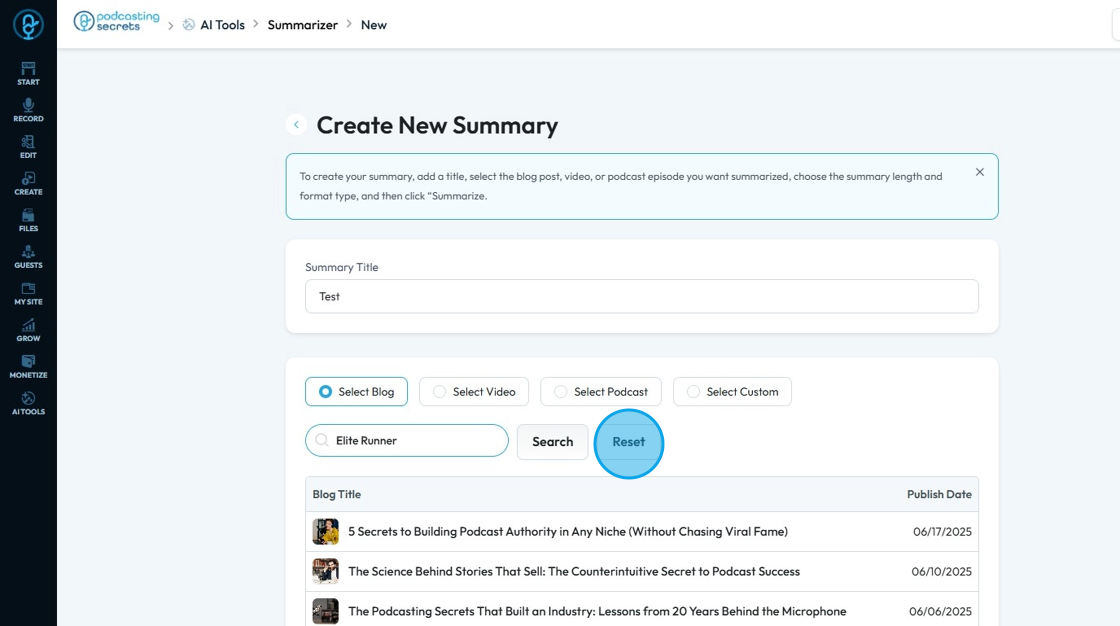
10. Hover over the desired blog and click "Select"
You can only select one at a time
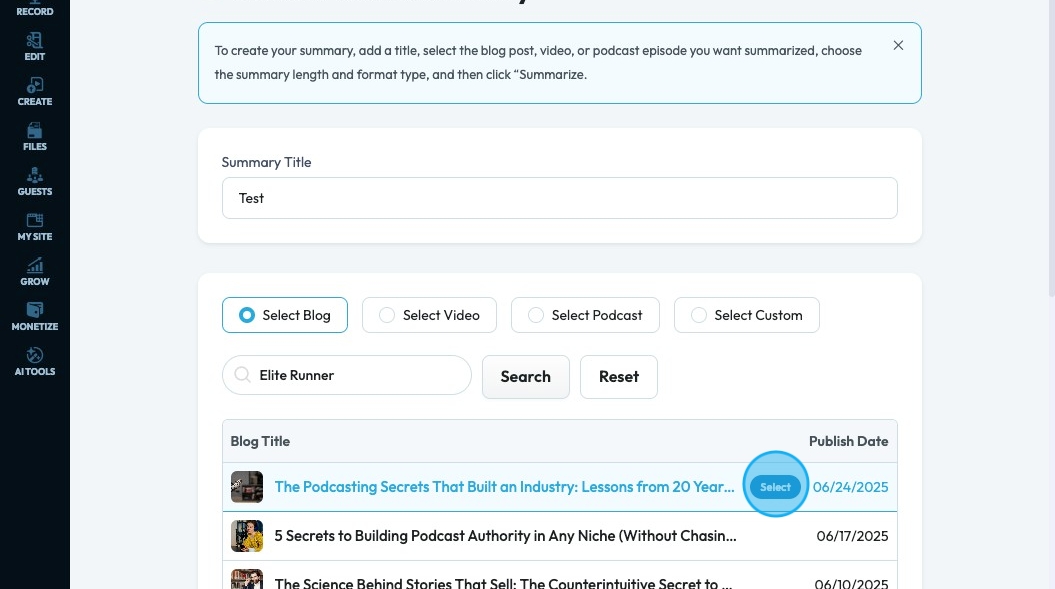
11. Click "Select Video" to choose a video to summarize
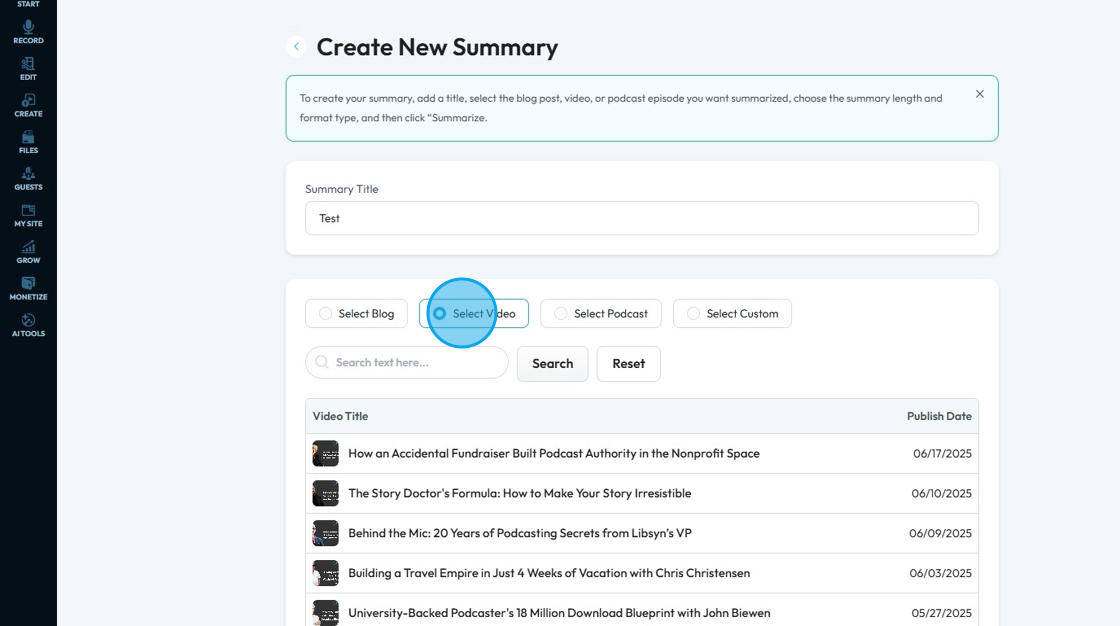
12. Click the "Search text here" field and type in the title or publication date to find a specific video
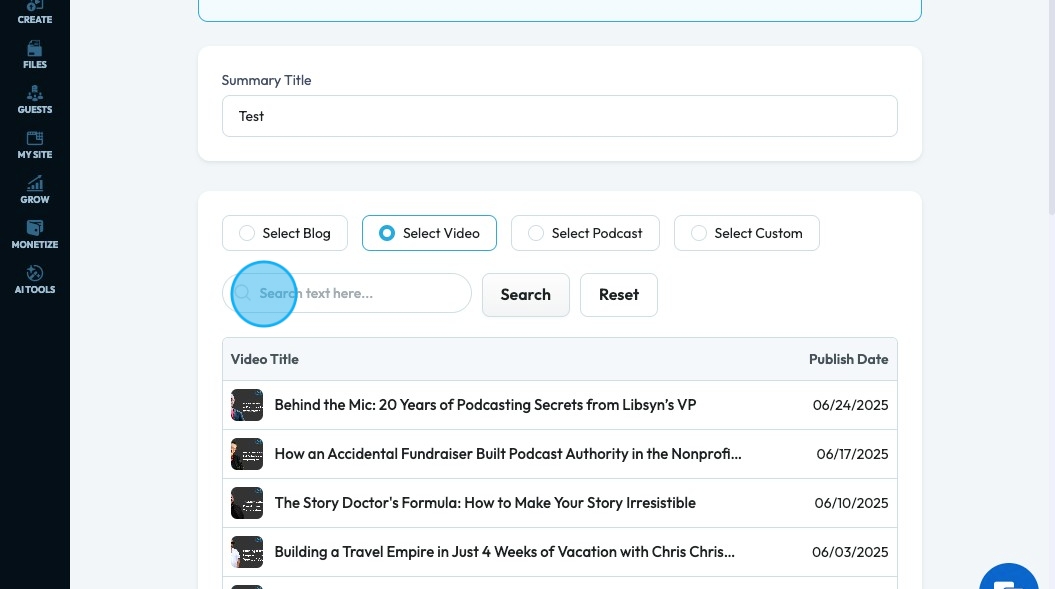
13. Click "Search" to run the search and collect a list of all the videos that contain the text you are searching for
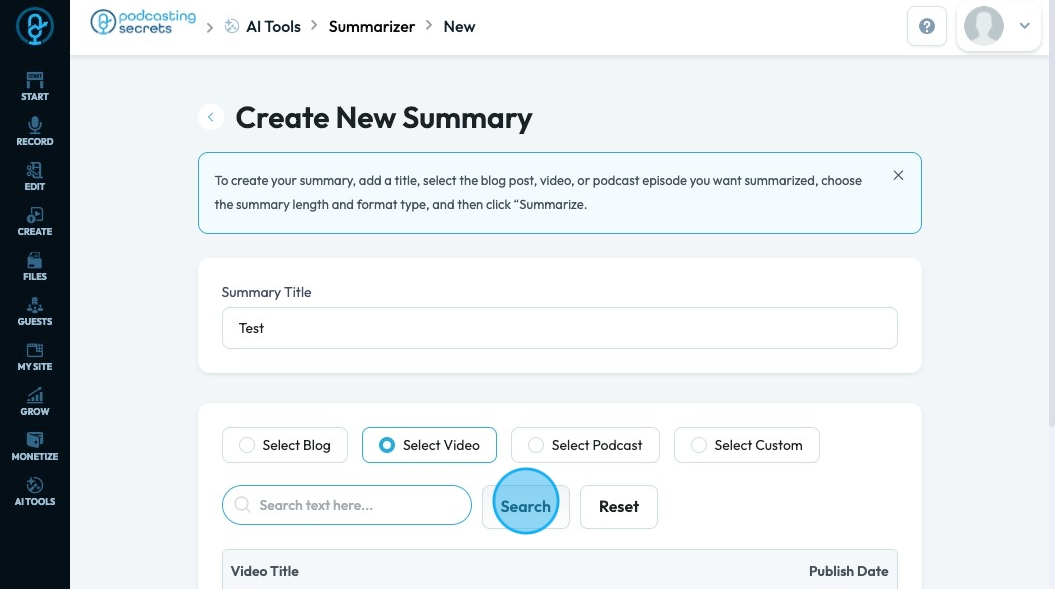
14. Click "Reset" to reset the search results to the original display
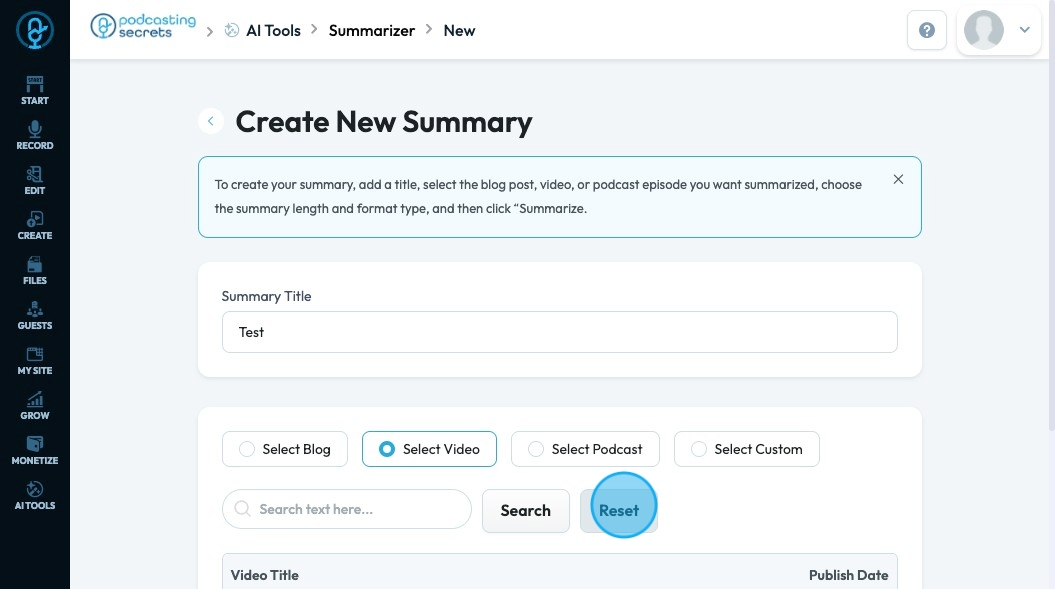
15. Hover over the desired video and click "Select". Once it has been selected, it will say "Selected"
You can only select one at a time
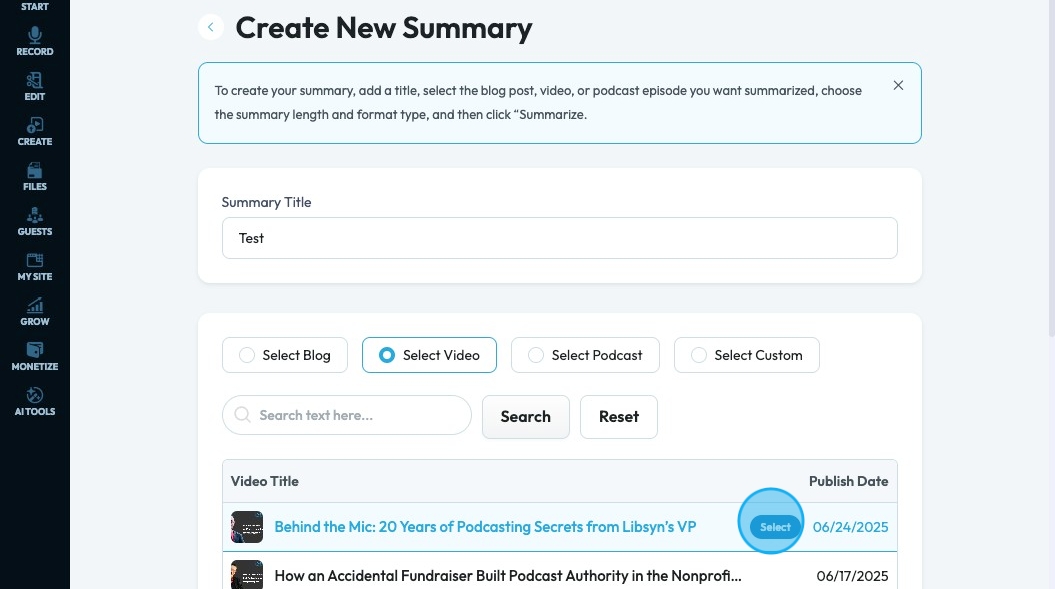
16. Click "Select Podcast" to choose any desired "Audio Podcast"
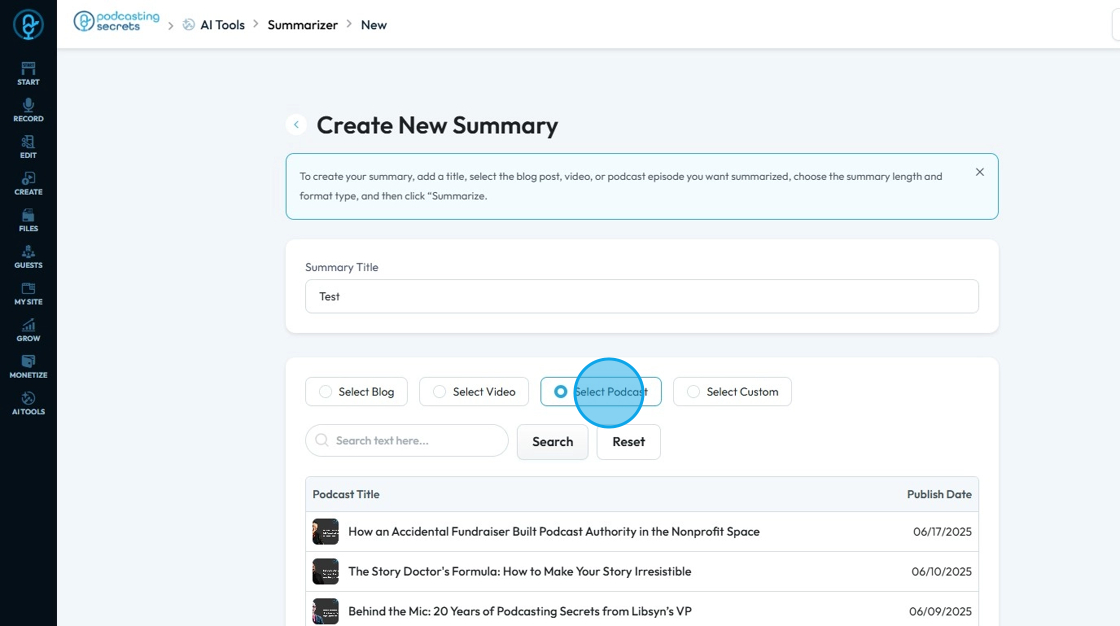
17. Hover over the desired podcast and click "Select". Once it has been selected, it will say "Selected"
You can only select one at a time
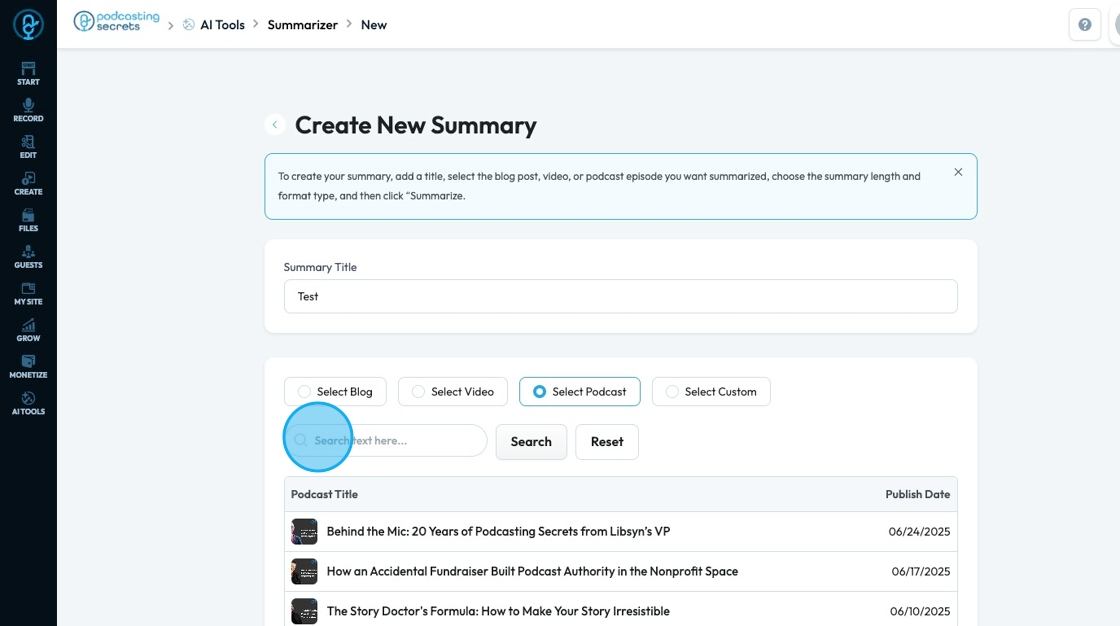
18. Click "Search" to run the search and collect a list of all the podcasts that contain the text you are searching for

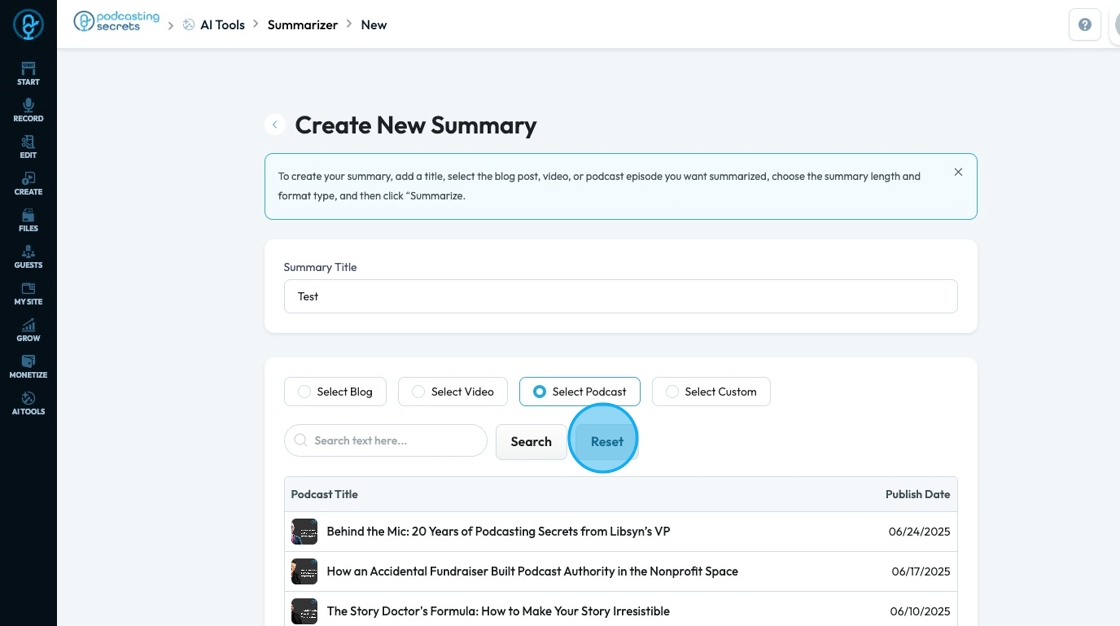
19. Click "Reset" to reset the search results to the original display
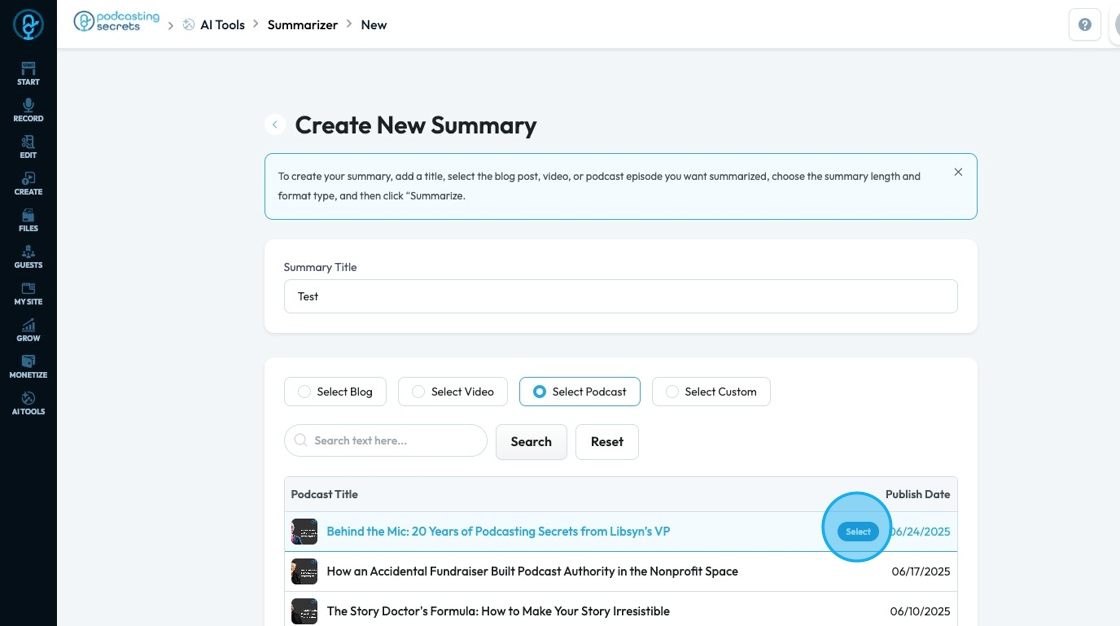
20. Hover over the desired podcast and click "Select". Once it has been selected, it will say "Selected"
You can only select one at a time
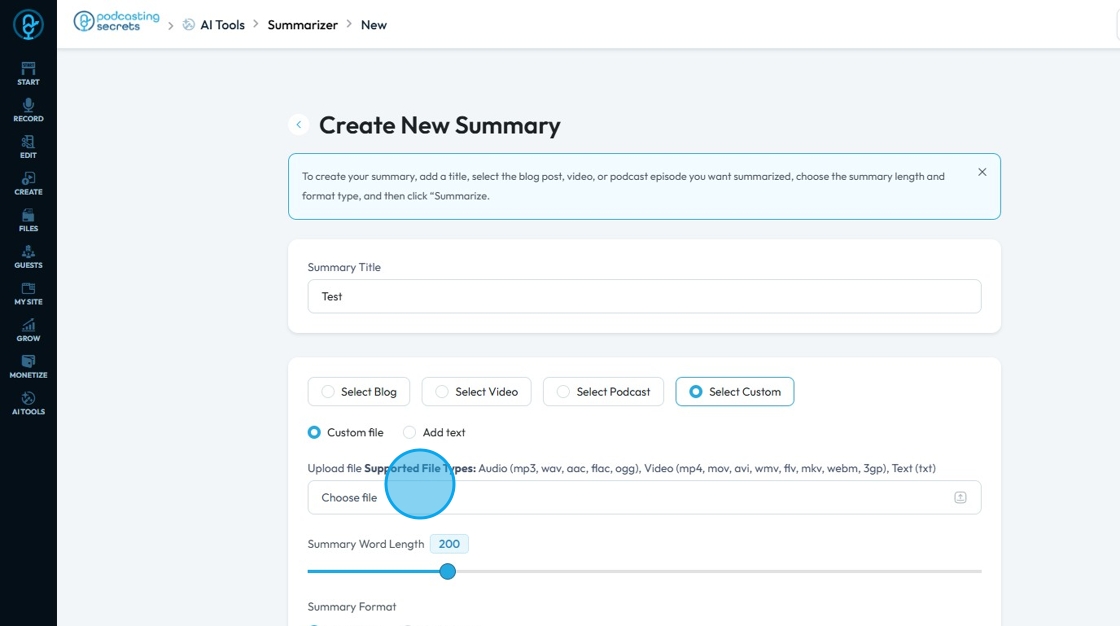
21. Click "Select Custom" to choose a file which is not in PodUp

22. Click "Choose file" to select a custom file
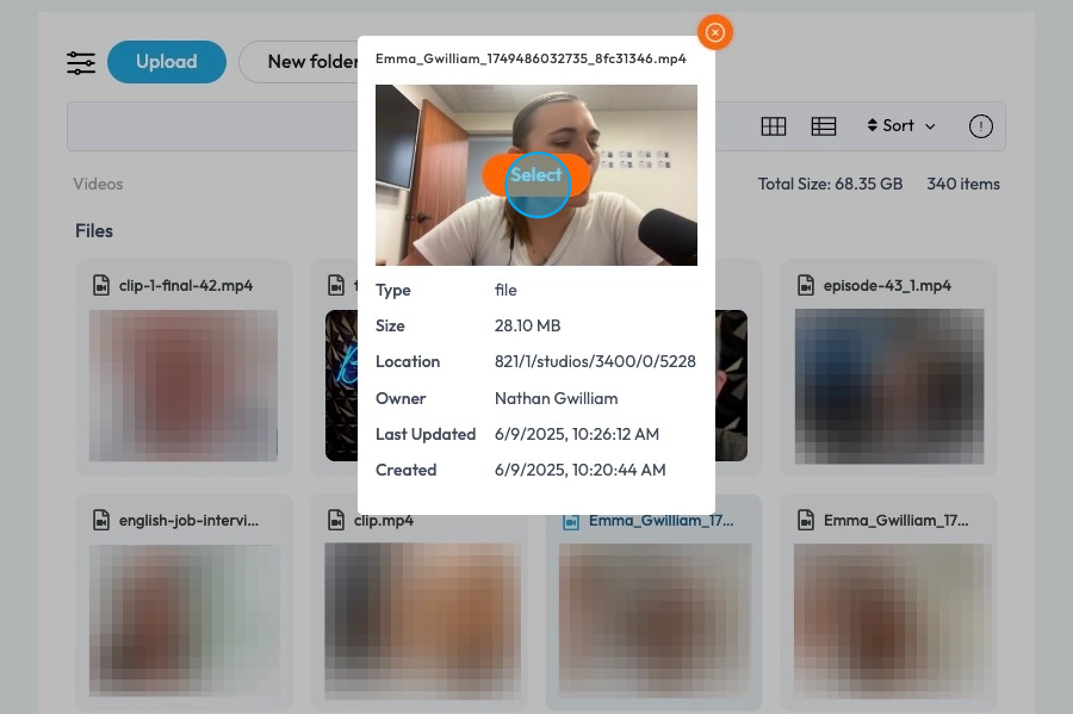
23. Select a file already in PodUp or upload a new file from your computer by selecting the blue "Upload" button
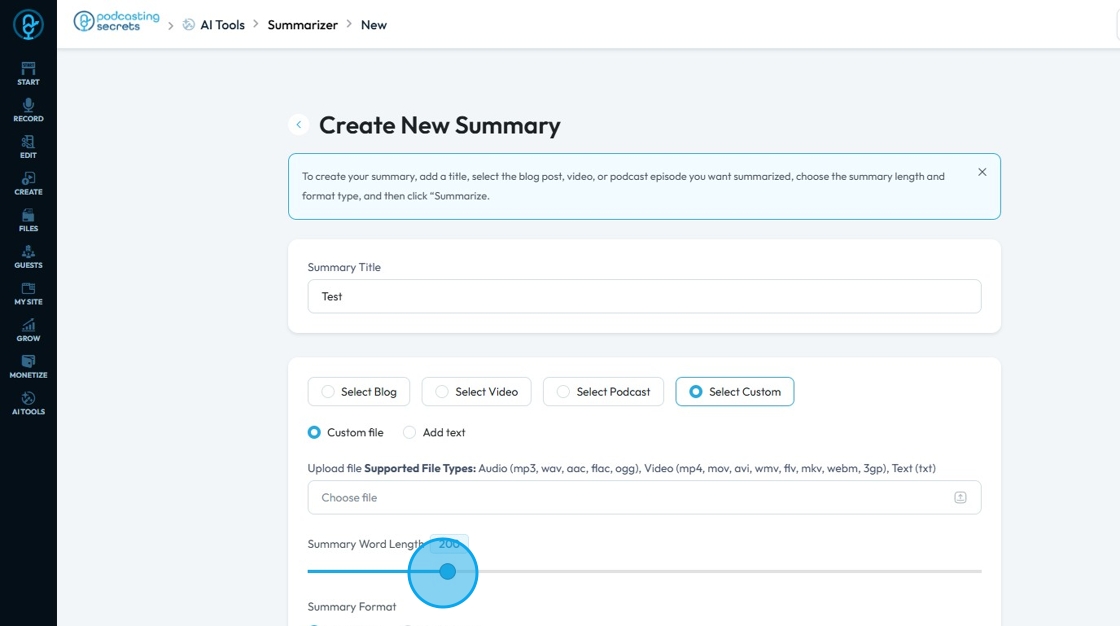
24. Click the point and slide it to set the word limit of your content summary
- The word length can range from 10 to 1000 words
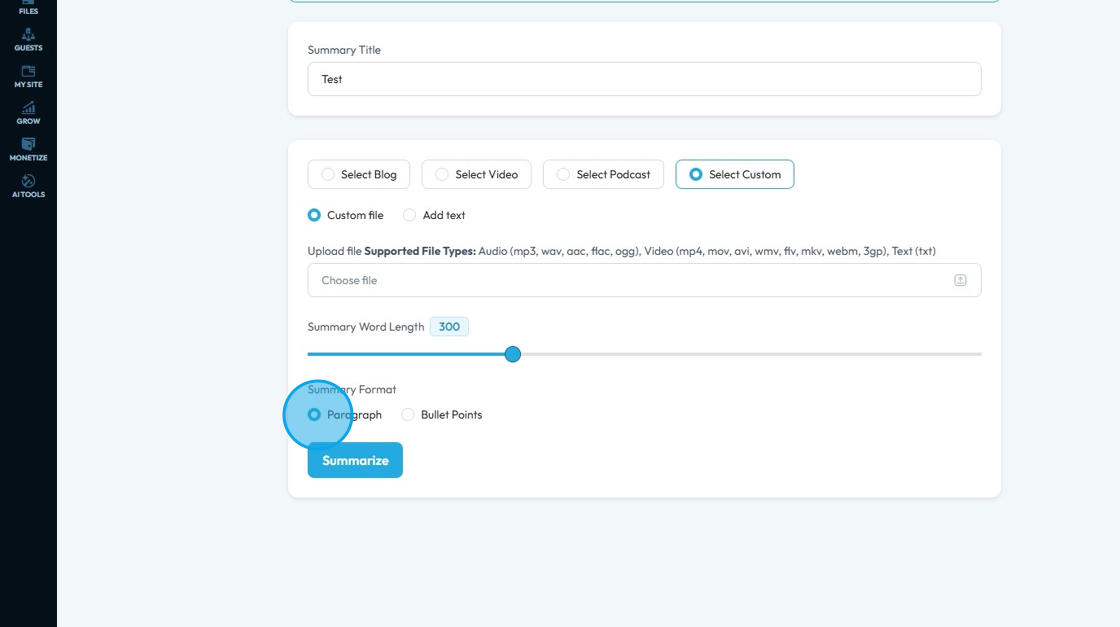
25. Click "Paragraph" if you want the summary in paragraph format
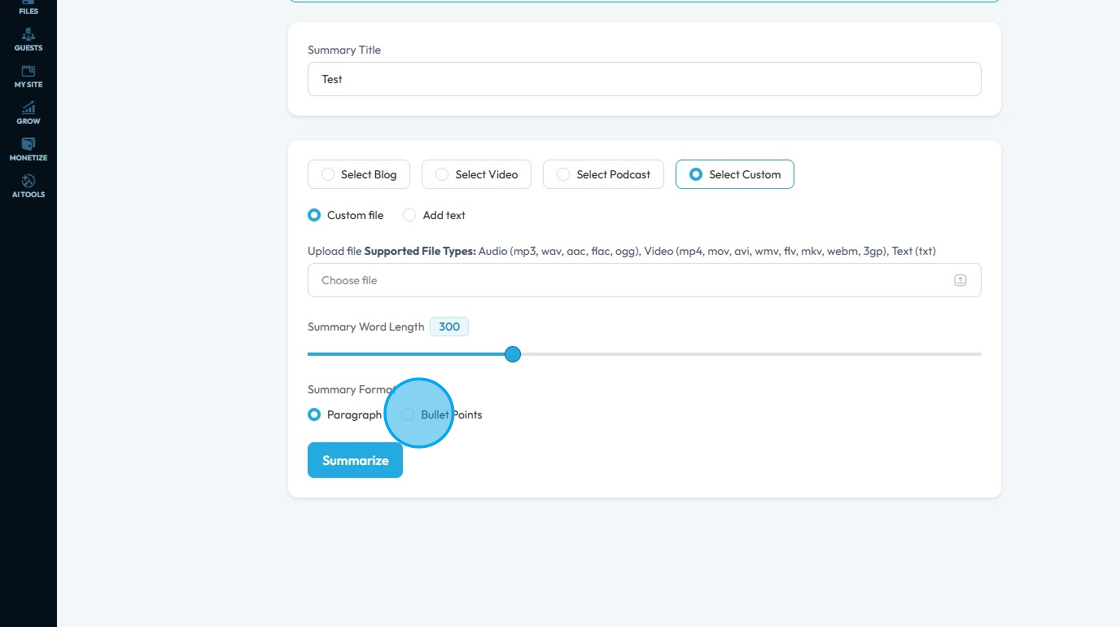
26. Click "Bullet Points" if you want the summary in bullets points
27. Click "Summarize"
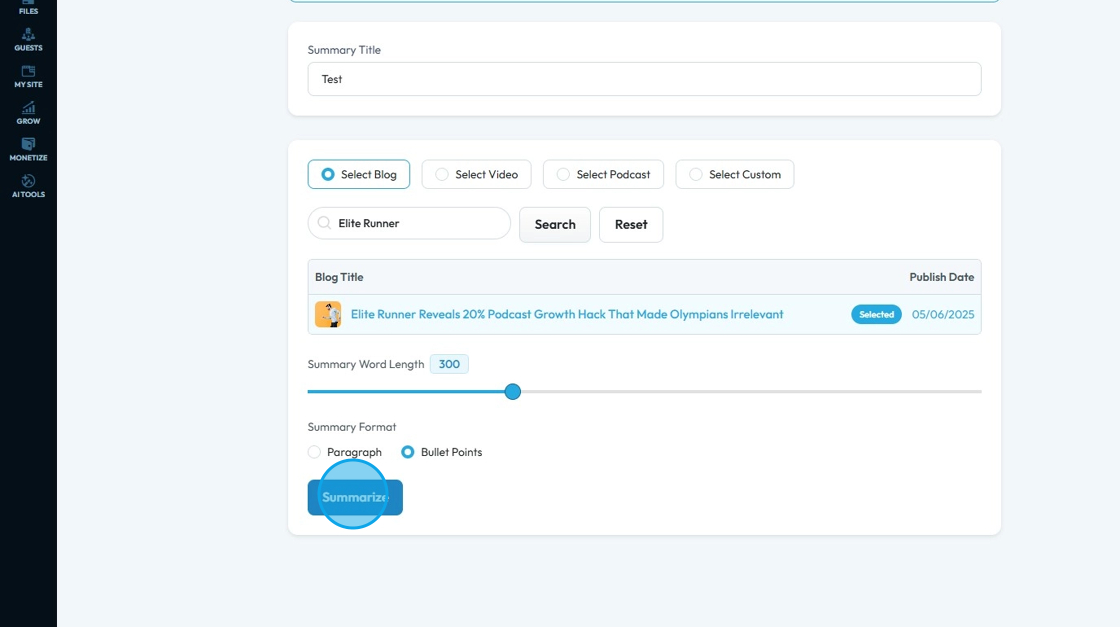
28. The summary will start generating. It may take some time so you can select the button to return to the list page
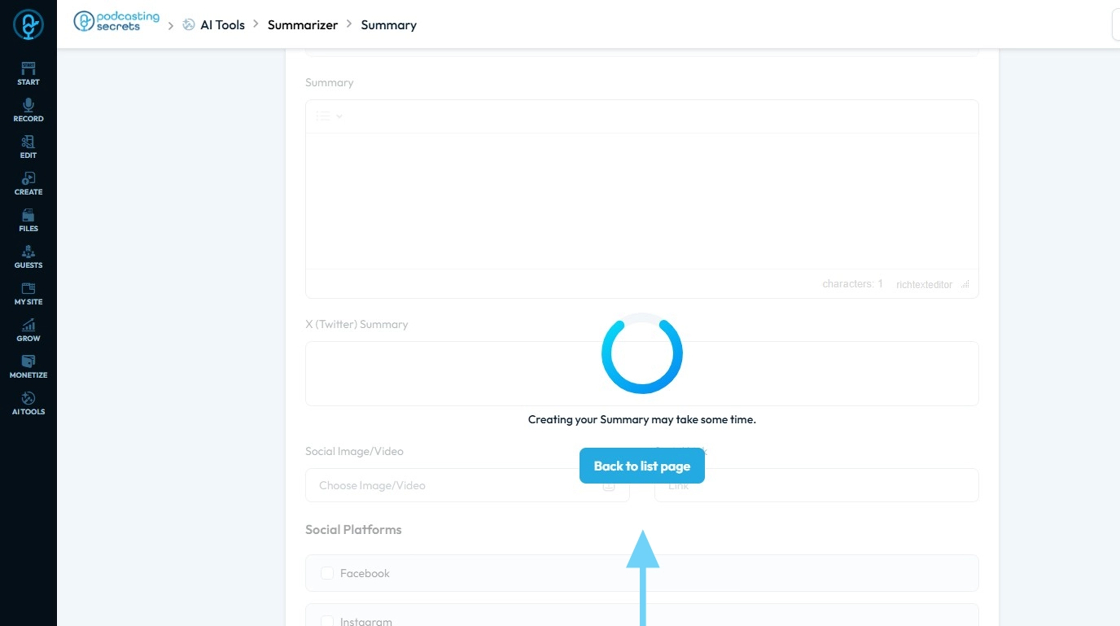
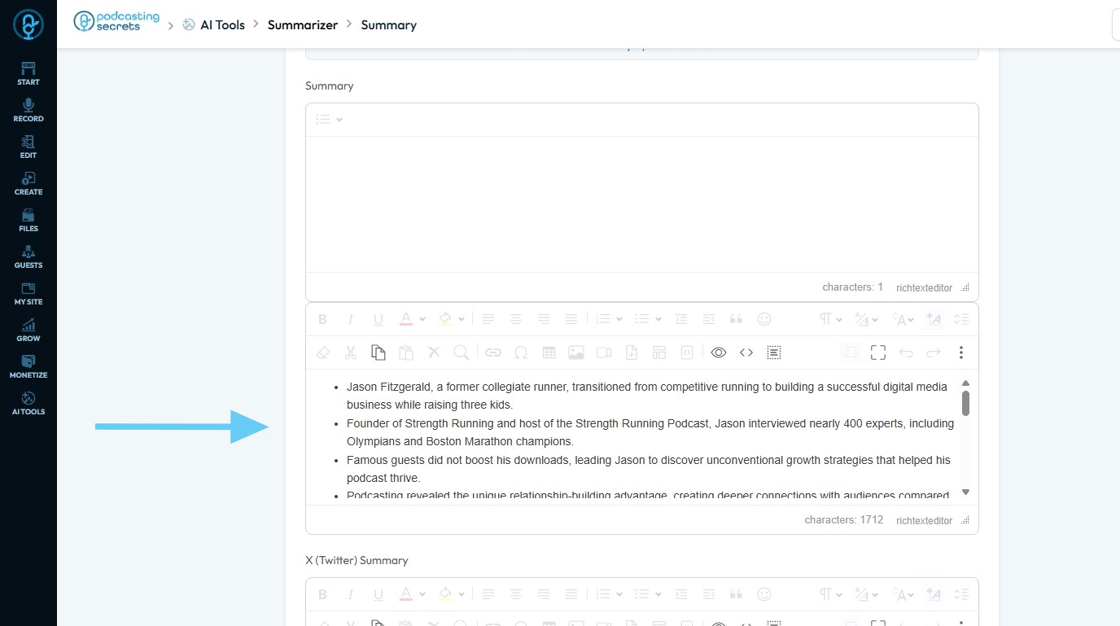
29. The summary will be formatted and ready to publish
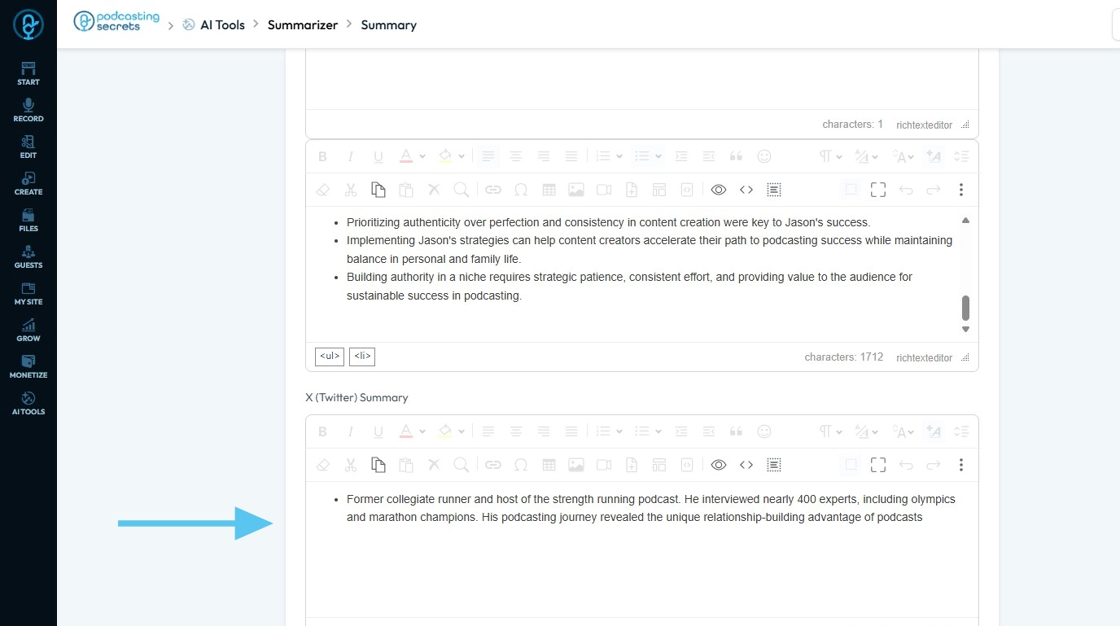
30. You will also get a Summary appropriate for X (Twitter), which only allows 280 Characters on a single post.
31. Click "Choose Image/Video" if you want to add an Image to your summary.
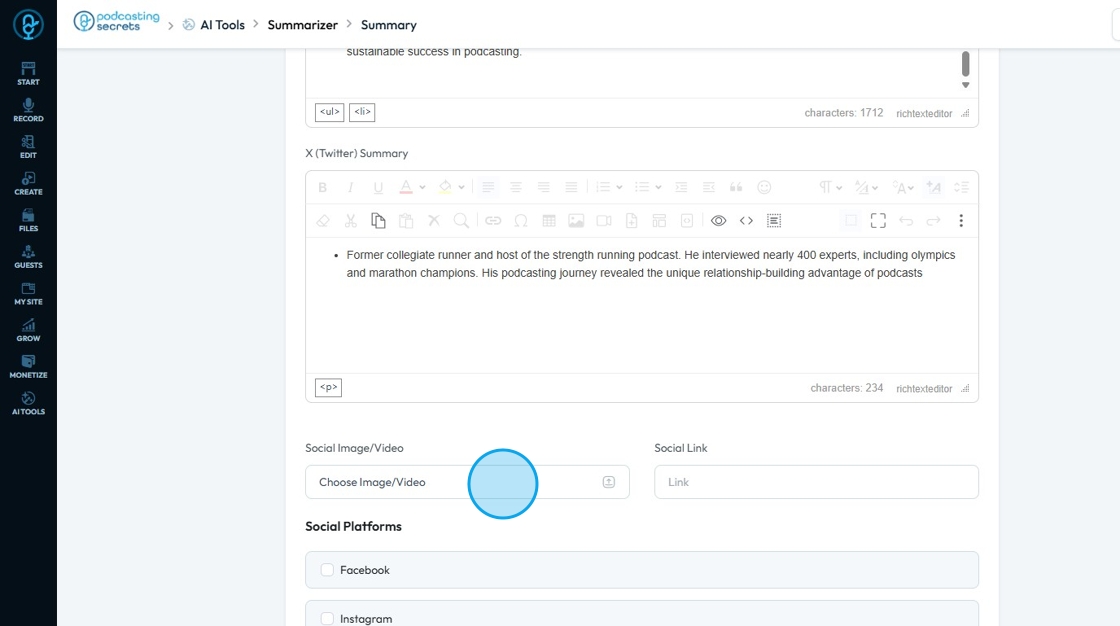
32. Click the "Link" field to add a link of your posted content to mention it with the summary.
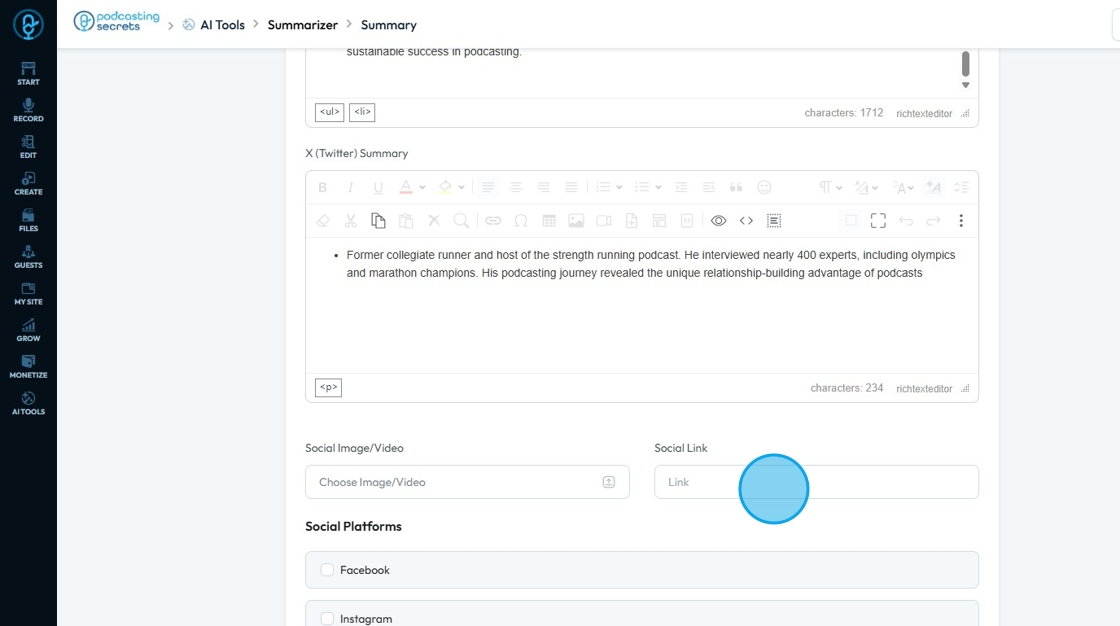
33. Under Social Platform you can choose on which platform you want to share the summary.
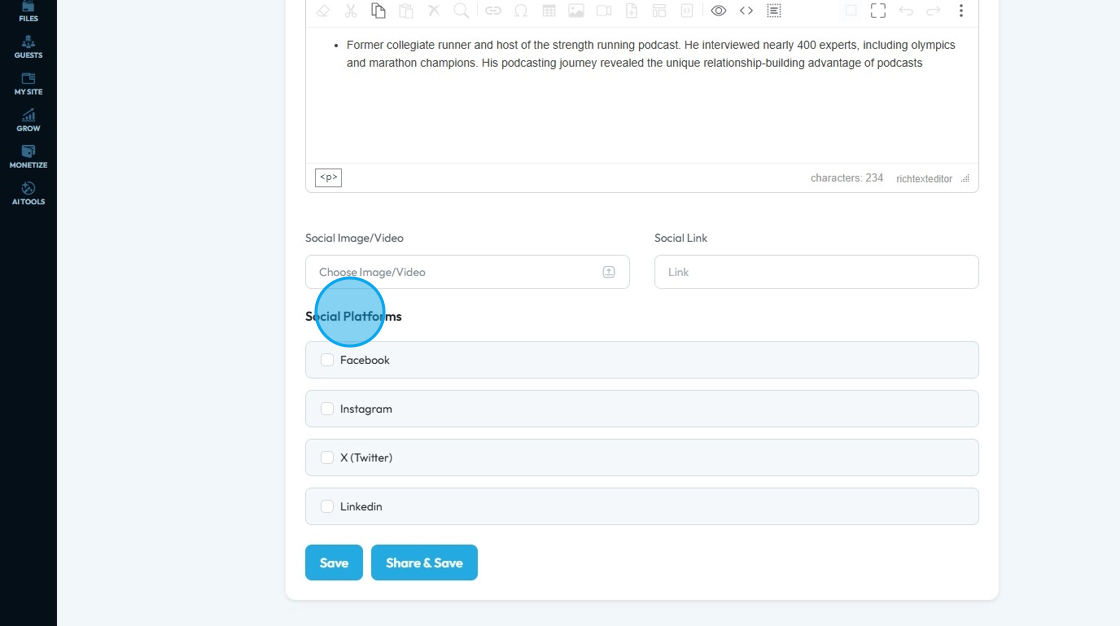
34. Click "Facebook"
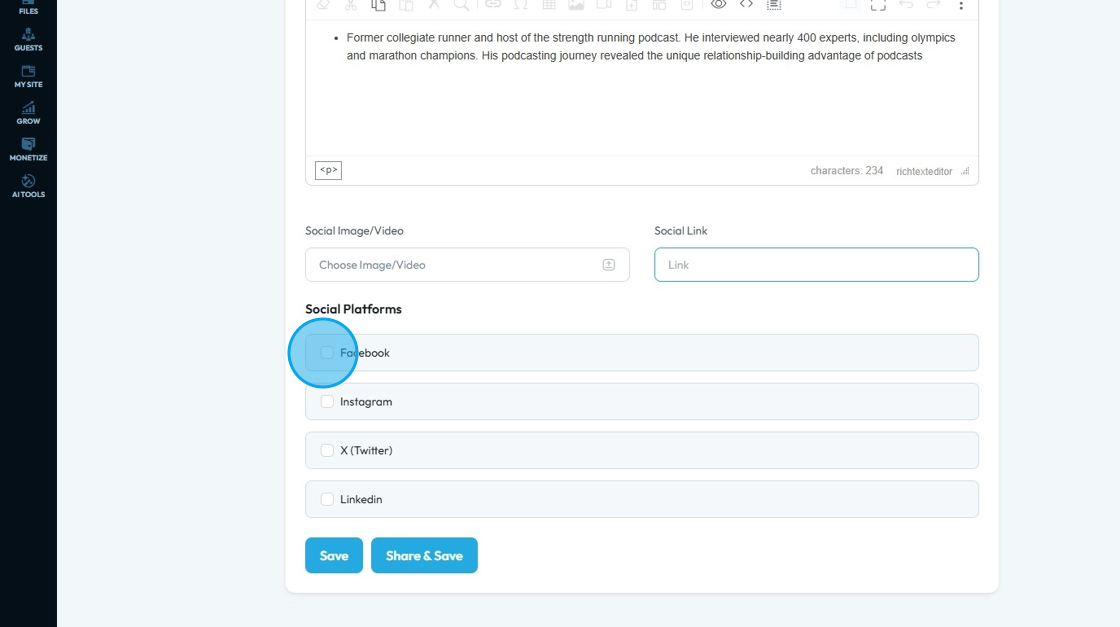
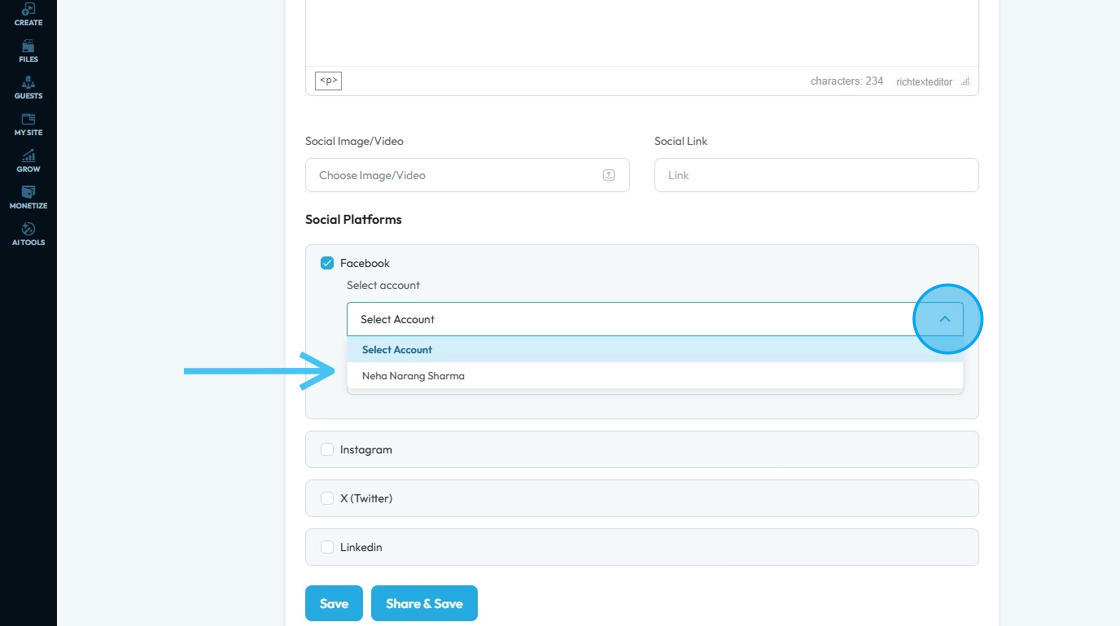
35. Then click "Select Account"
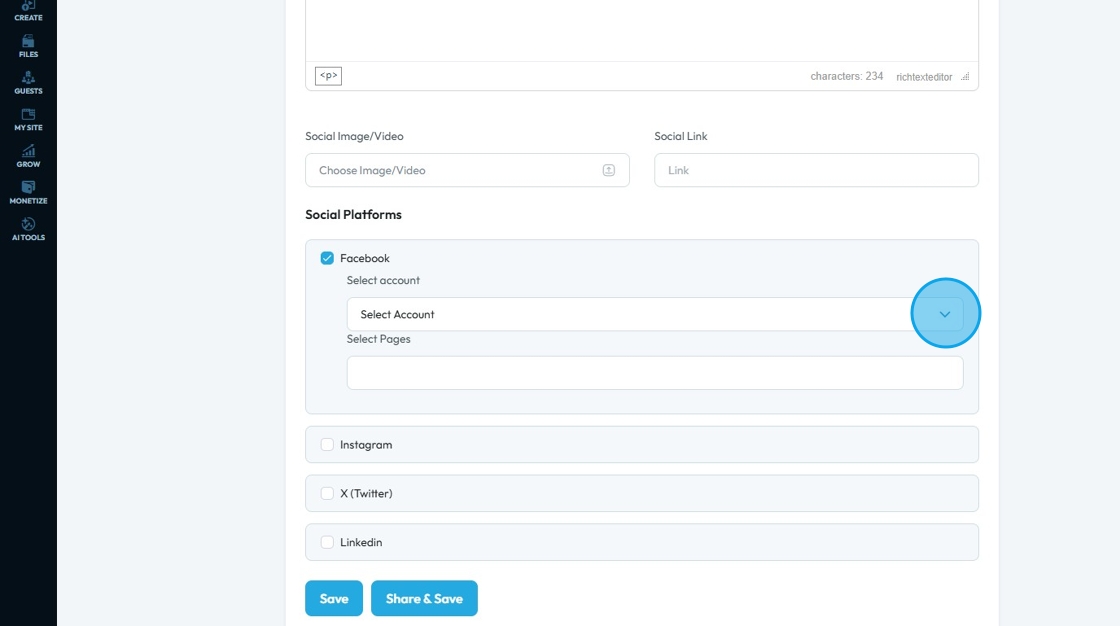
36. Select the desired account and the integrated pages will appear in "Select Pages"
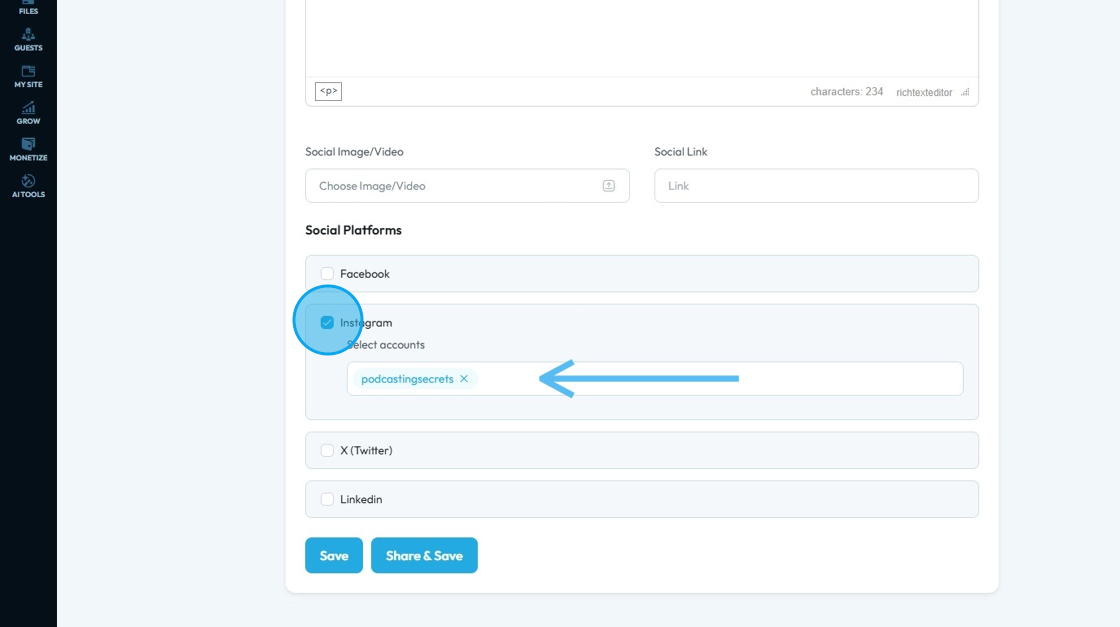
37. Select "Instagram" and your "Instagram Account" should be visible.
38. Select "X (Twitter)" and your account should be visible

39. Select "LinkedIn" and check for the "Integrated Account" (Also should add Account Integration Link)

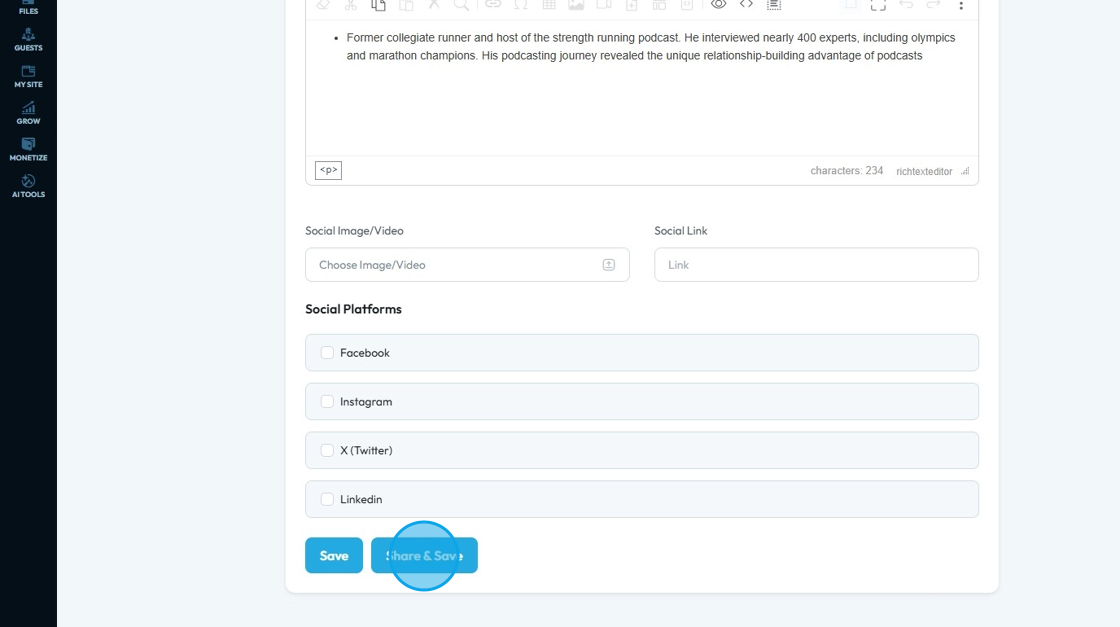
40. Click "Save" to save the summary to the PodUp software
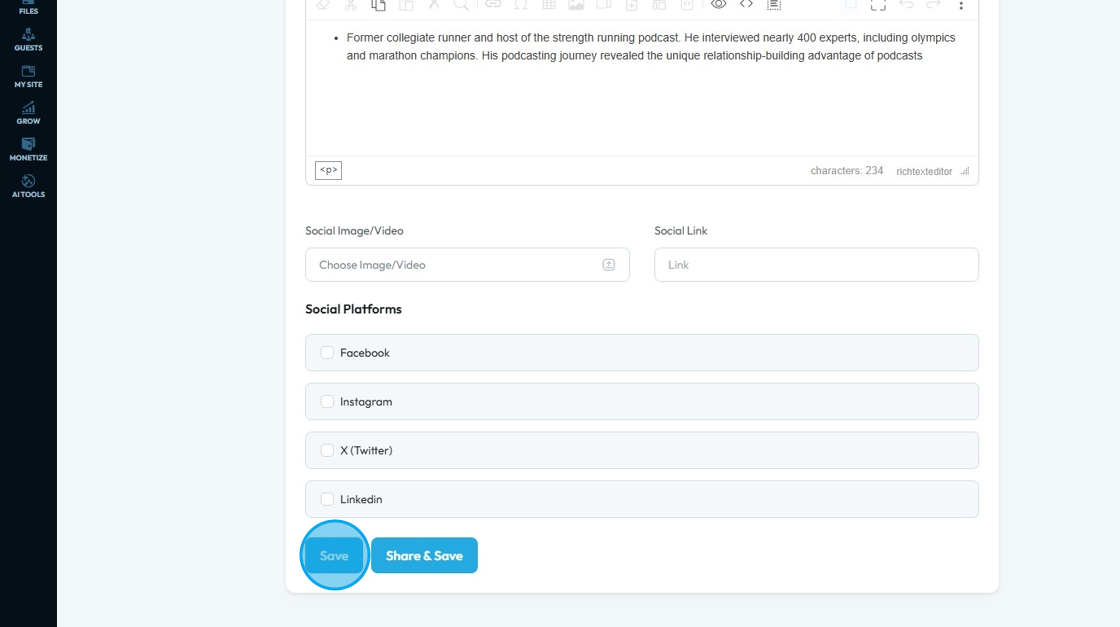
41. Click "Share & Save" to share the summary to the social platforms and save it to the PodUp software.
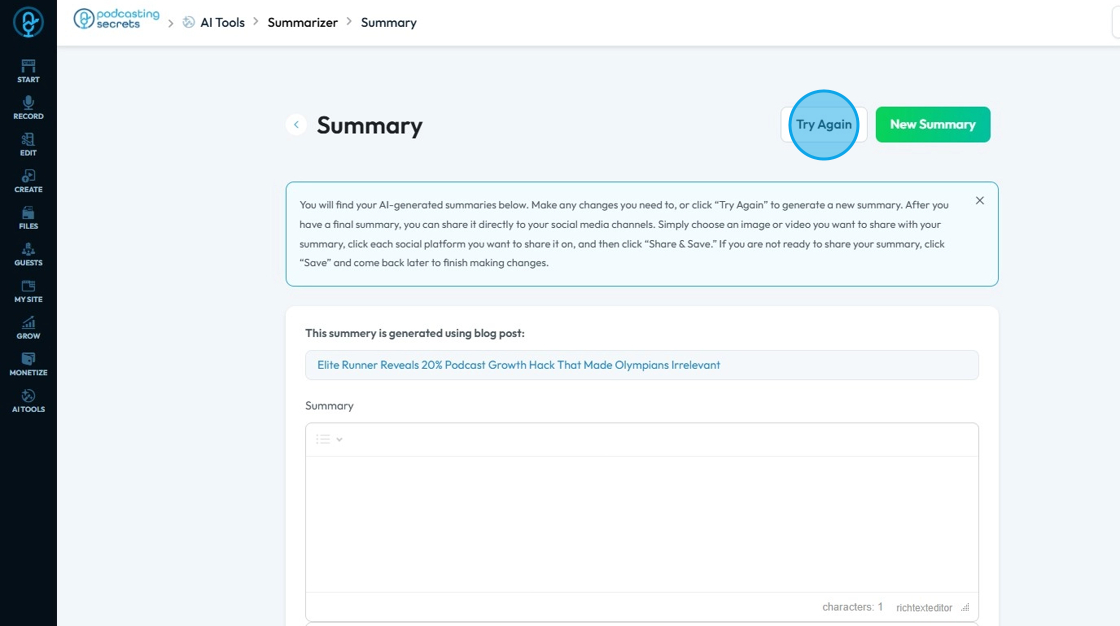
42. Right at top, Click "Try Again" to generate summary again.
43. And click "New Summary" to generate a summary for a new content.

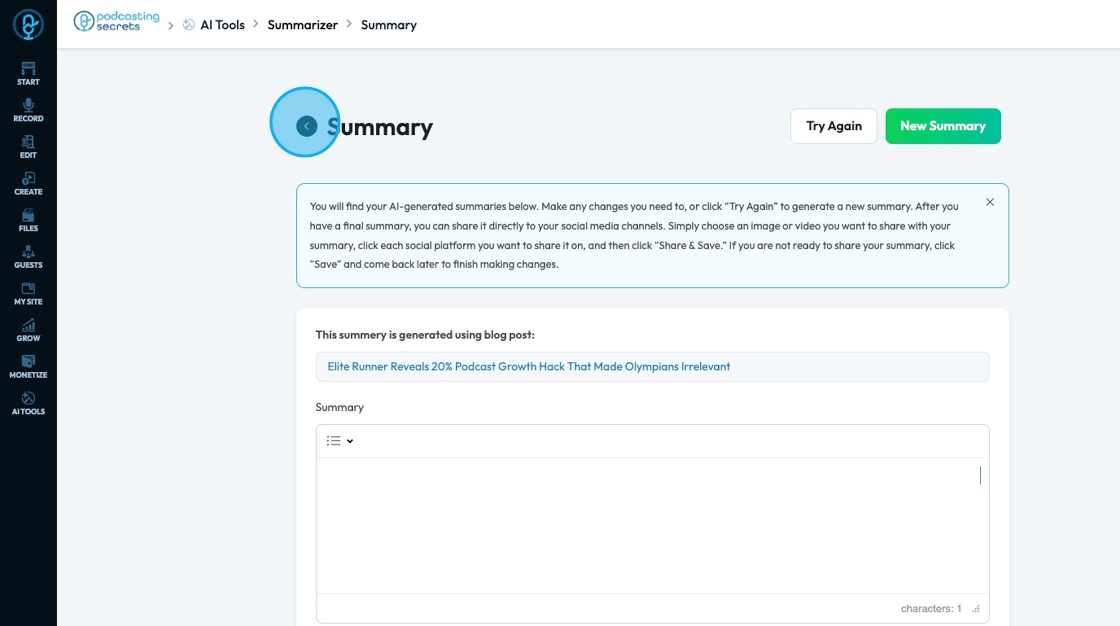
44. Click the back arrow to return to the listings page
45. Click the "Search text here" field and type in the title or publication date to find a specific summary
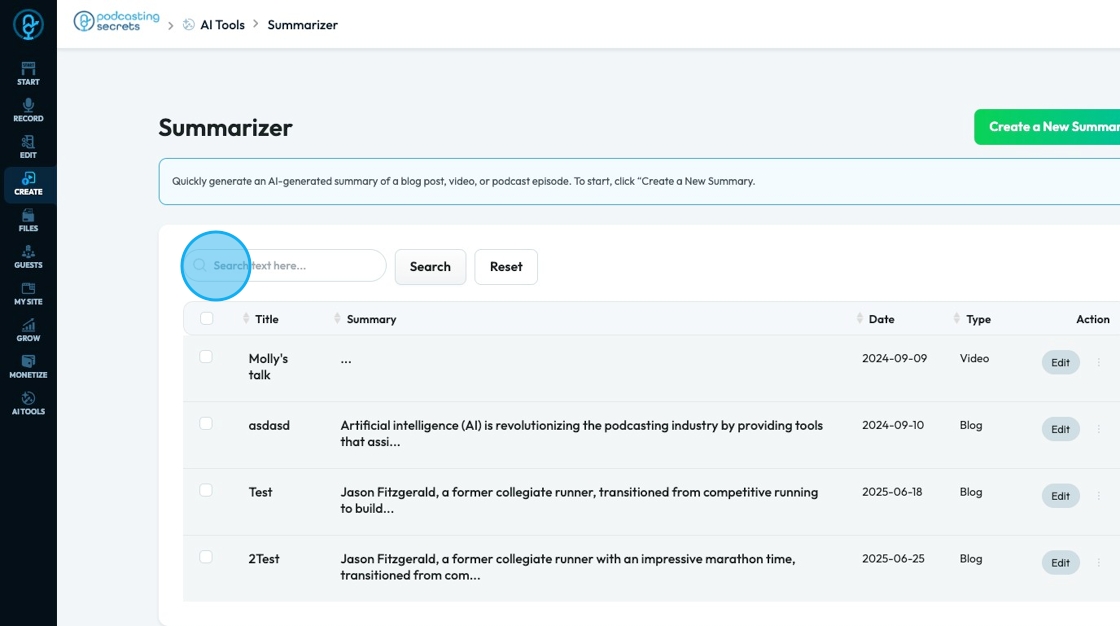
46. Click "Search" to run the search and collect a list of all the podcasts that contain the text you are searching for

47. Click "Reset" to reset the search results to the original display

48. Click "Edit" to edit the summary and reopen the file

49. Click the 3 dots to access view and delete
- "View": Edit the summary and view the file
- "Delete": Delete the summary
- A popup will appear asking you to confirm that you want to delete it
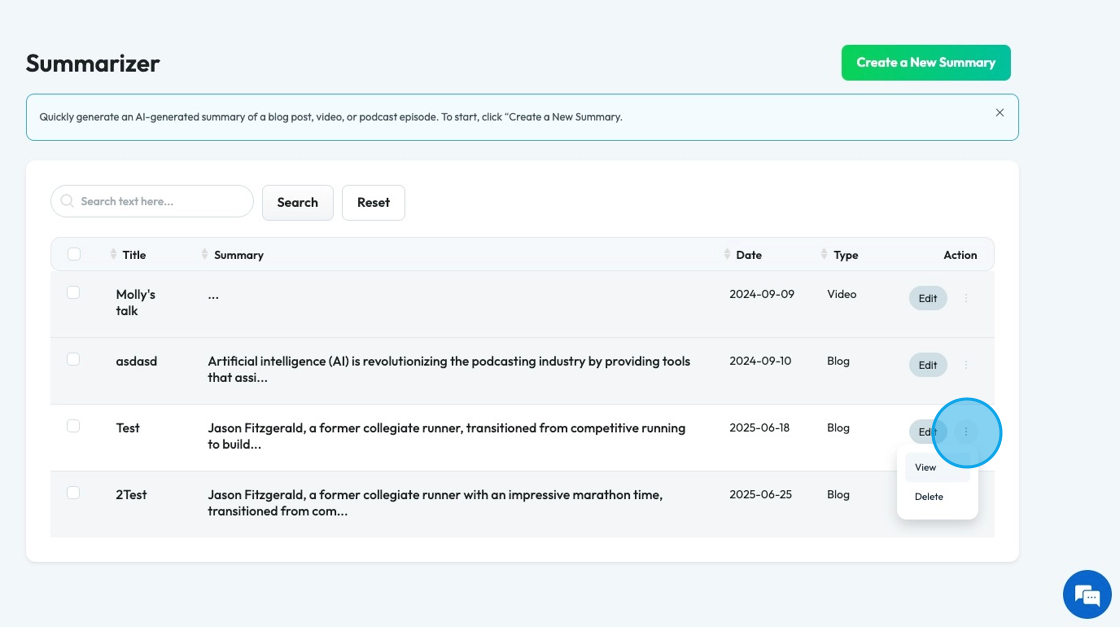
50. Select the checkbox next to the name of the file to delete multiple files at once

Related Articles
How to Navigate Summarizer (Detailed)
This guide offers a straightforward approach to creating summaries for various content types on the Podup platform, enhancing your ability to distill information quickly and effectively. With easy-to-follow steps, it empowers users to generate ...How to Navigate Blogs (Detailed)
This guide provides a comprehensive overview to create blog posts on Podup, making it a valuable resource for anyone looking to enhance their blogging process. It outlines step-by-step instructions for both writing original content and generating ...How to Navigate Image Generator (Detailed)
This guide offers a straightforward process for generating AI images tailored for podcast studio setups, making it ideal for podcasters and content creators. By following the step-by-step instructions, users can easily visualize their podcast ...How to Navigate Image Generator (Detailed)
This guide offers a straightforward process for generating AI images tailored for podcast studio setups, making it ideal for podcasters and content creators. By following the step-by-step instructions, users can easily visualize their podcast ...How To Navigate Guest Settings (Detailed)
This guide is essential for anyone looking to create a customized guest intake form using PodUp's Guest Settings. It offers detailed instructions on how to navigate the platform, edit profile components, and tailor questions to fit specific needs. By ...