How to Manage Users under My Shop in PodUp Application
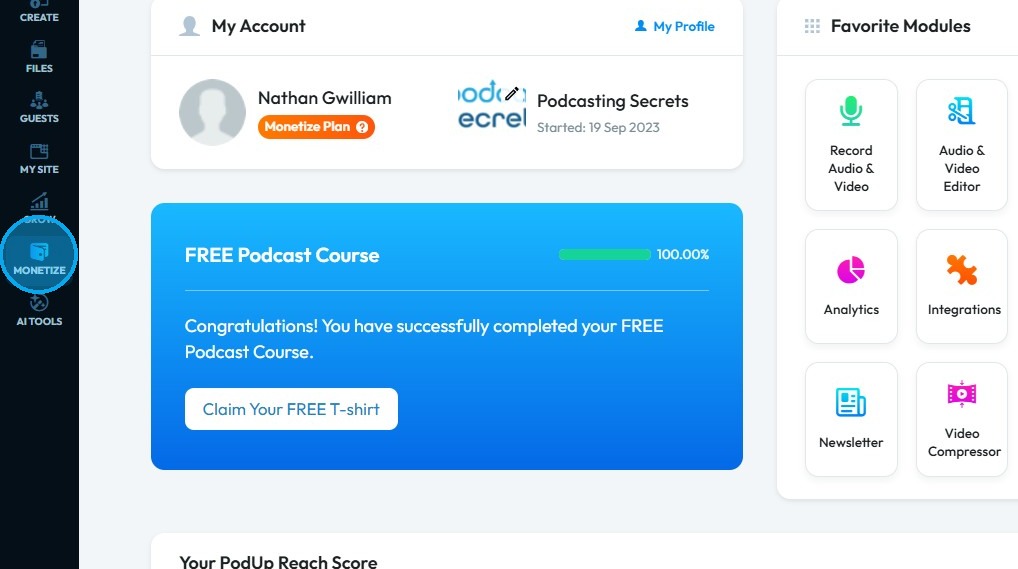
2. Click "My Shop"
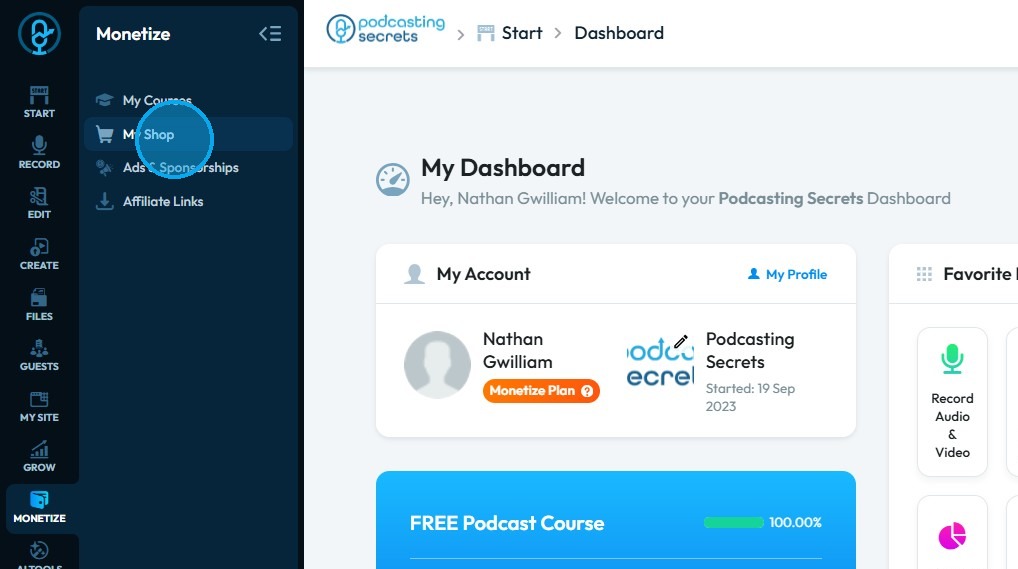
3. A new window opens up
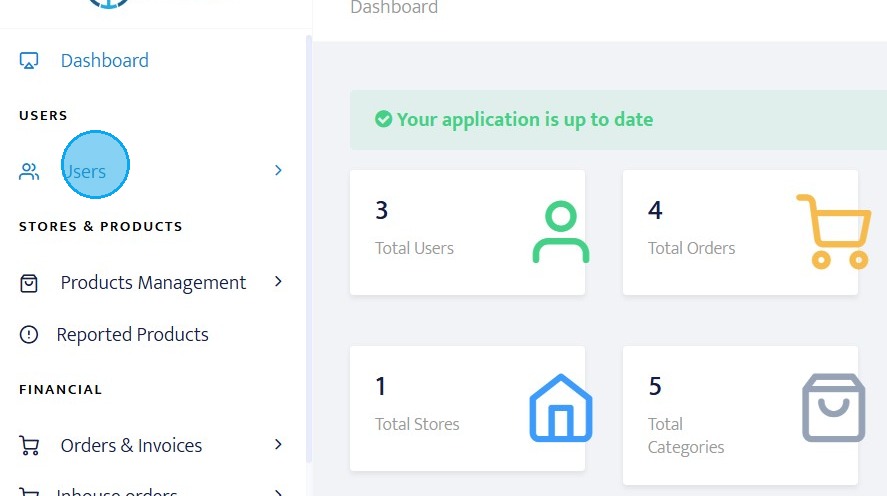
Click "Users" a drop down list appears
4. Click "All users" to access the list of all users of the "My Shop" section
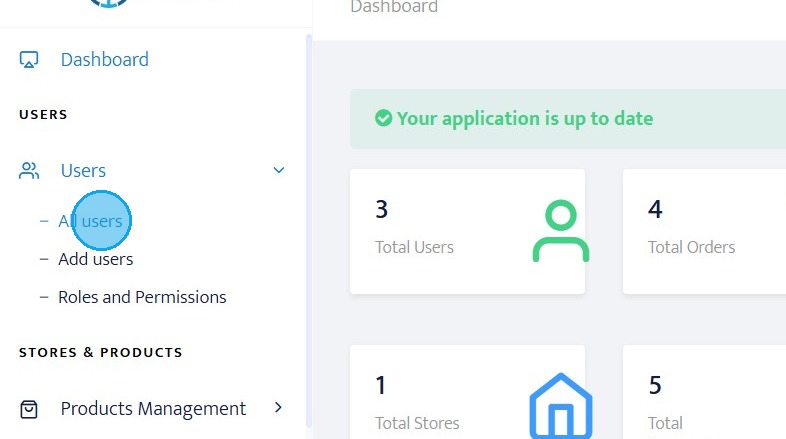
5. All User section opens up
You will easily find the list of users and manage them
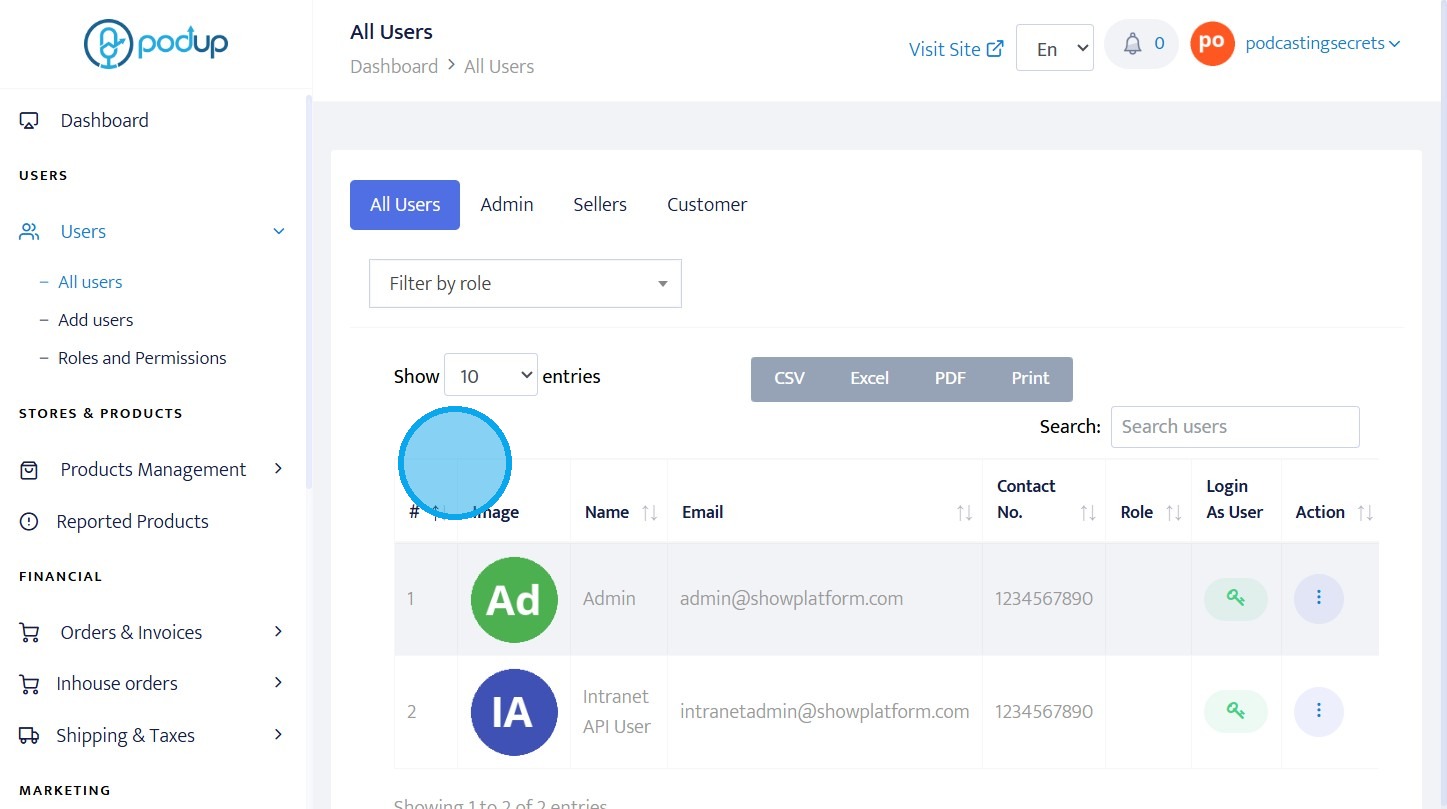
6. Click "CSV" or "Excel" or "PDF" or "Print" to download the user list
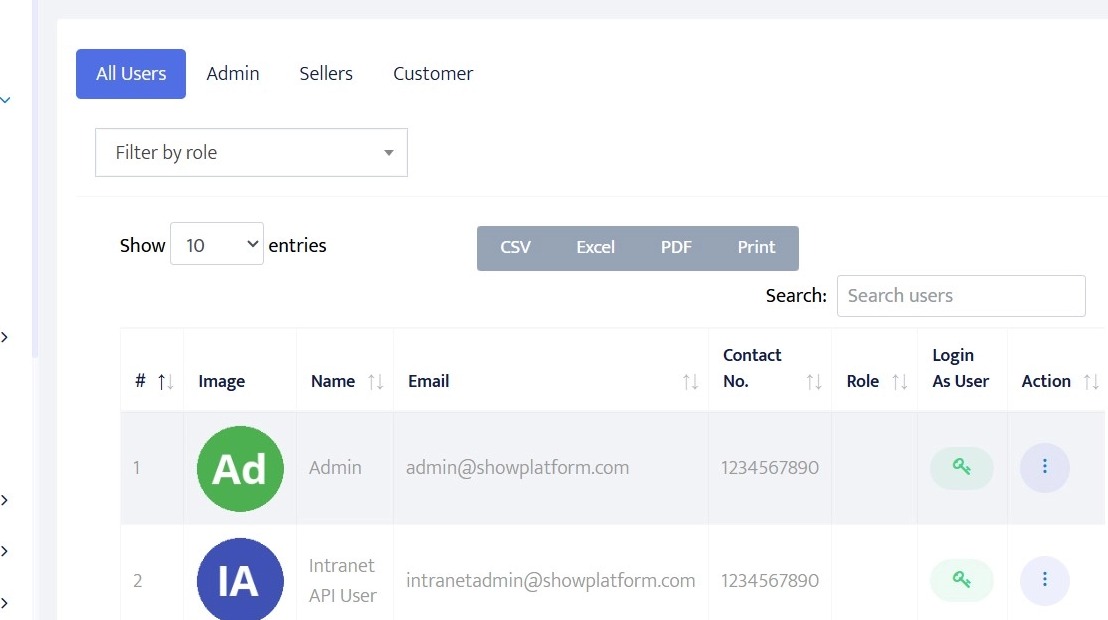
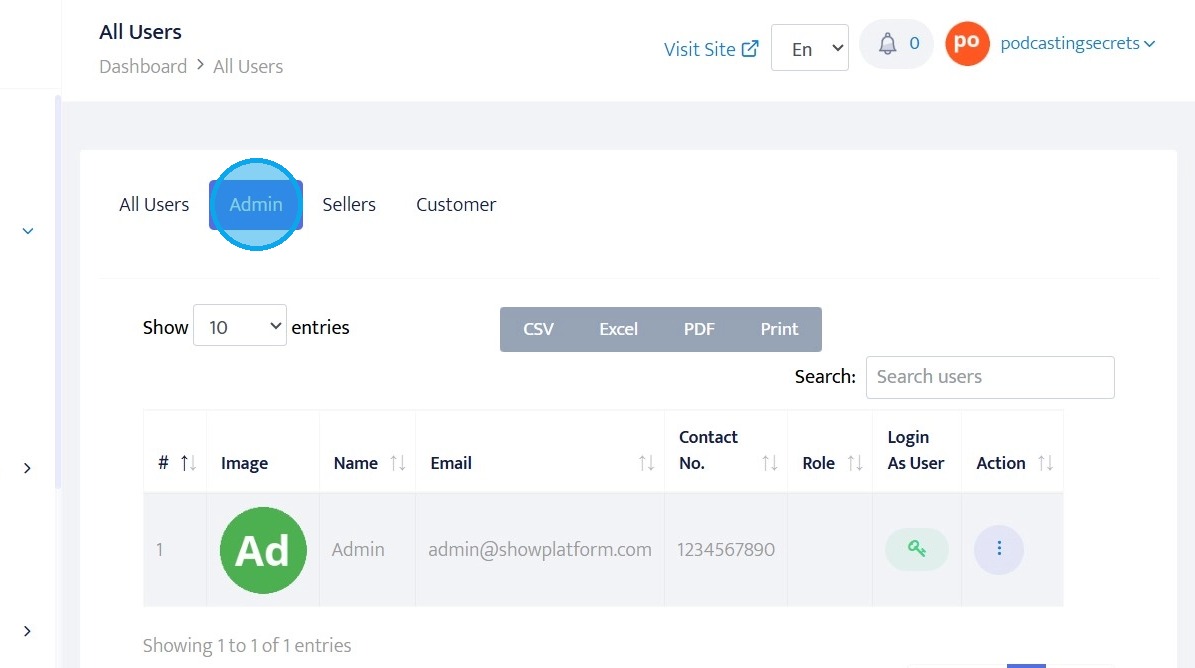
7. Click "Admin" to access the list of Admins
Admins: These users likely have the highest level of access and control within the platform. They are responsible for managing the overall system, settings, and other users
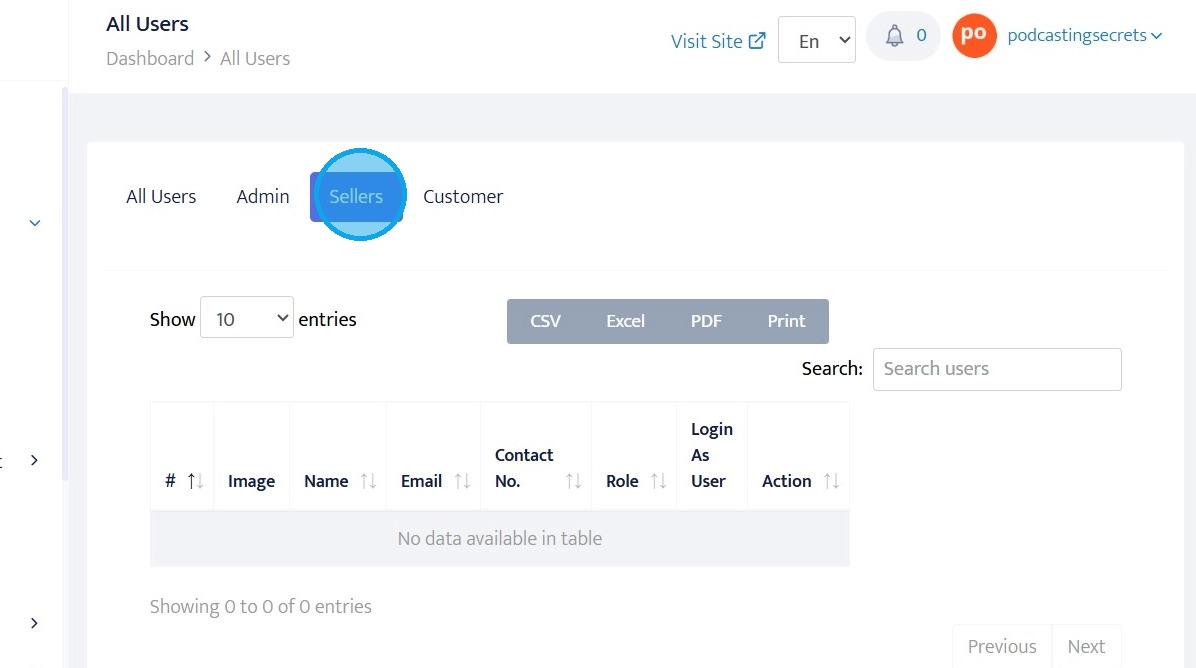
8. Click "Sellers" to access the list of Sellers
Seller: These users are individuals or businesses who use the platform to sell products or services
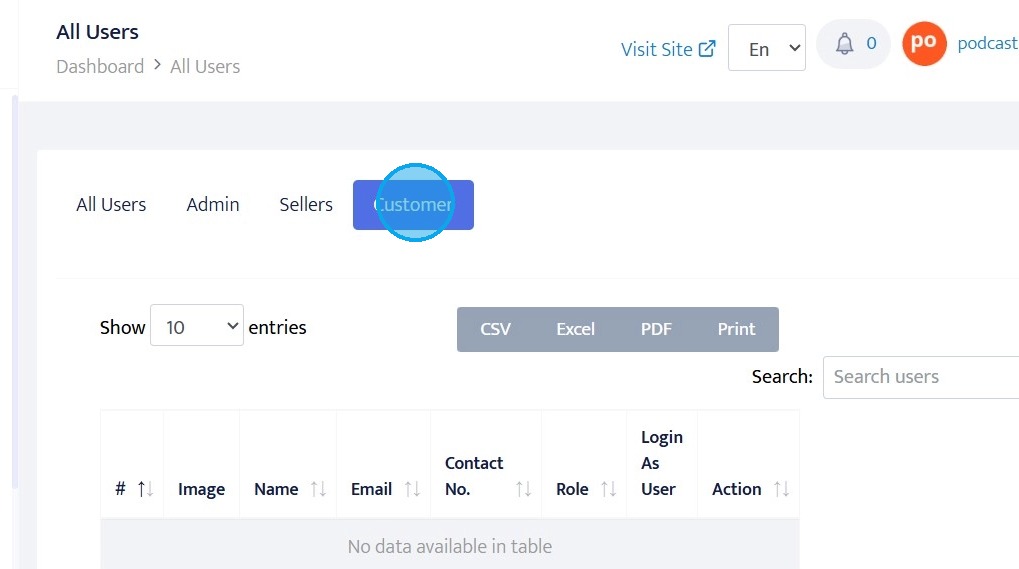
9. Click "Customer" to acces the list of Customers
Customers: These users are the end-consumers who purchase products or services from the sellers on the platform
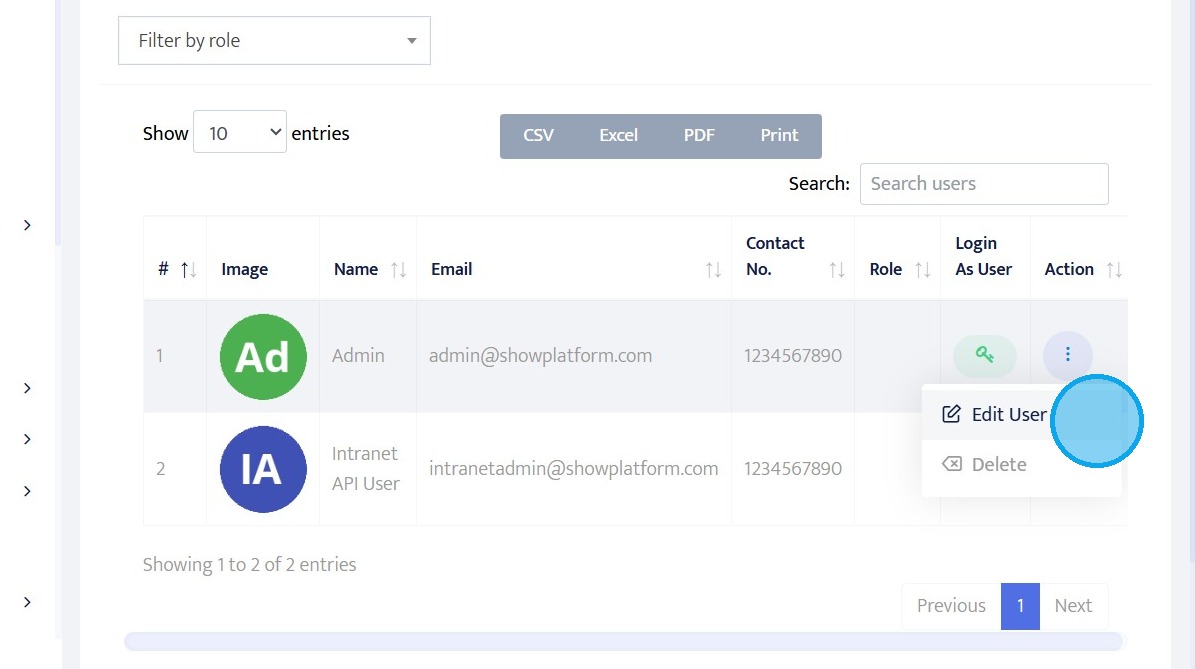
10. Click "Edit User"
You can change the details of the User from this section
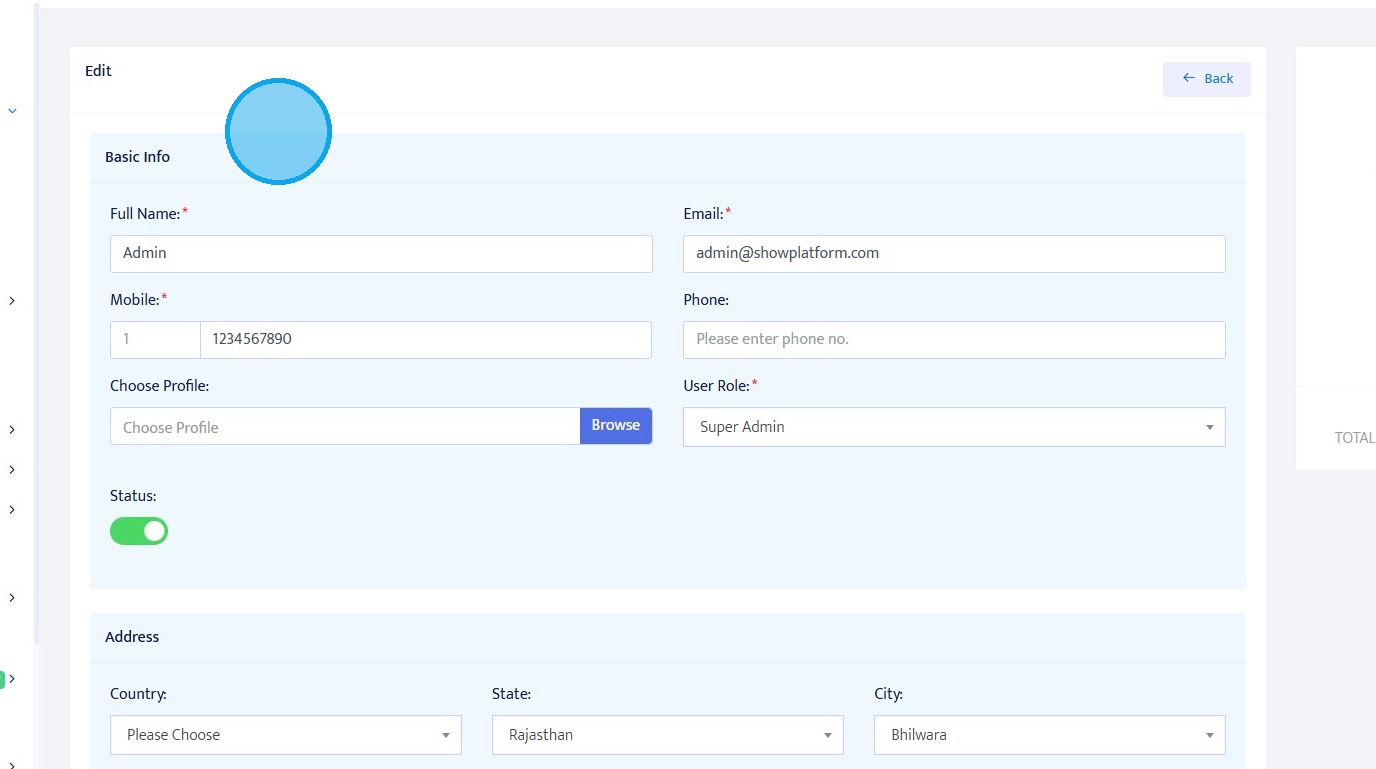
11. You can update details of the user from this section
- Full Name: Name of the user
- Email: Email of the user
- Mobile: Mobile number of the user
- Phone: Additional number of
- Choose Profile: Choose profile picture of the user
- User Role: Select from the different roles specified from the drop down menu
- Status: You can either activate the User or deactive the user by toggling the Status
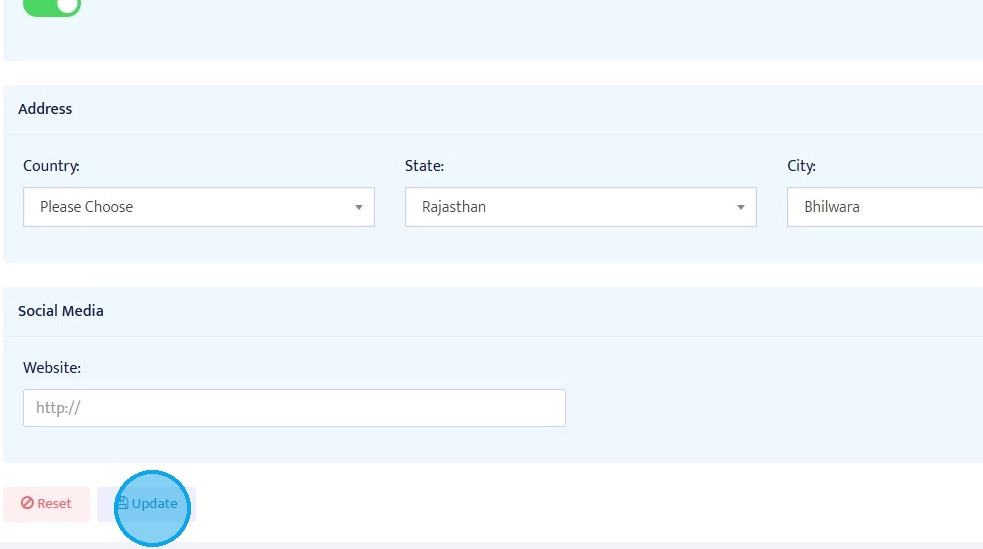
12. Country: Select the name of the country of the user
State: Select the name of the state of the user
City: Select the name of the city of the user
Website: Enter the name of the website
Click "Update" to save the details
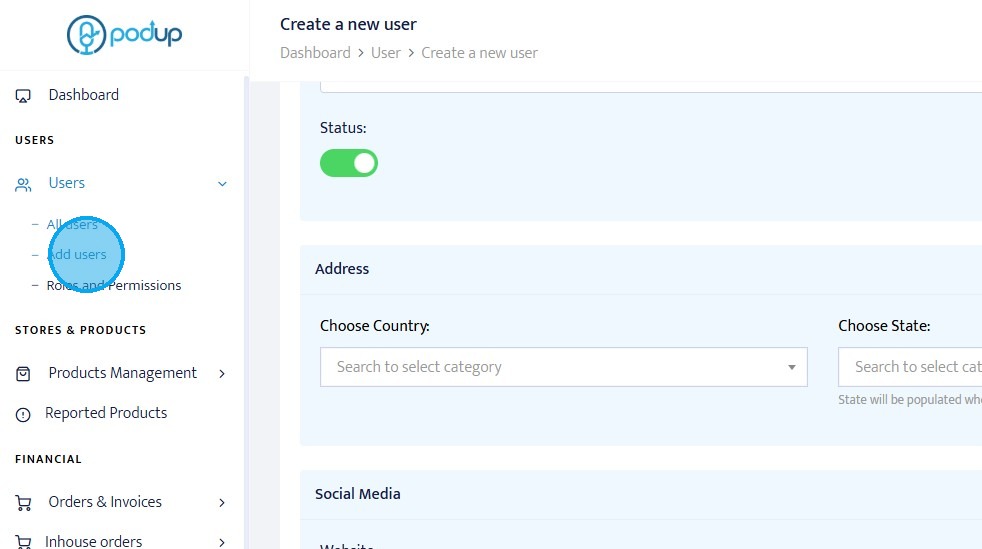
13. To add a new user click "Add users"
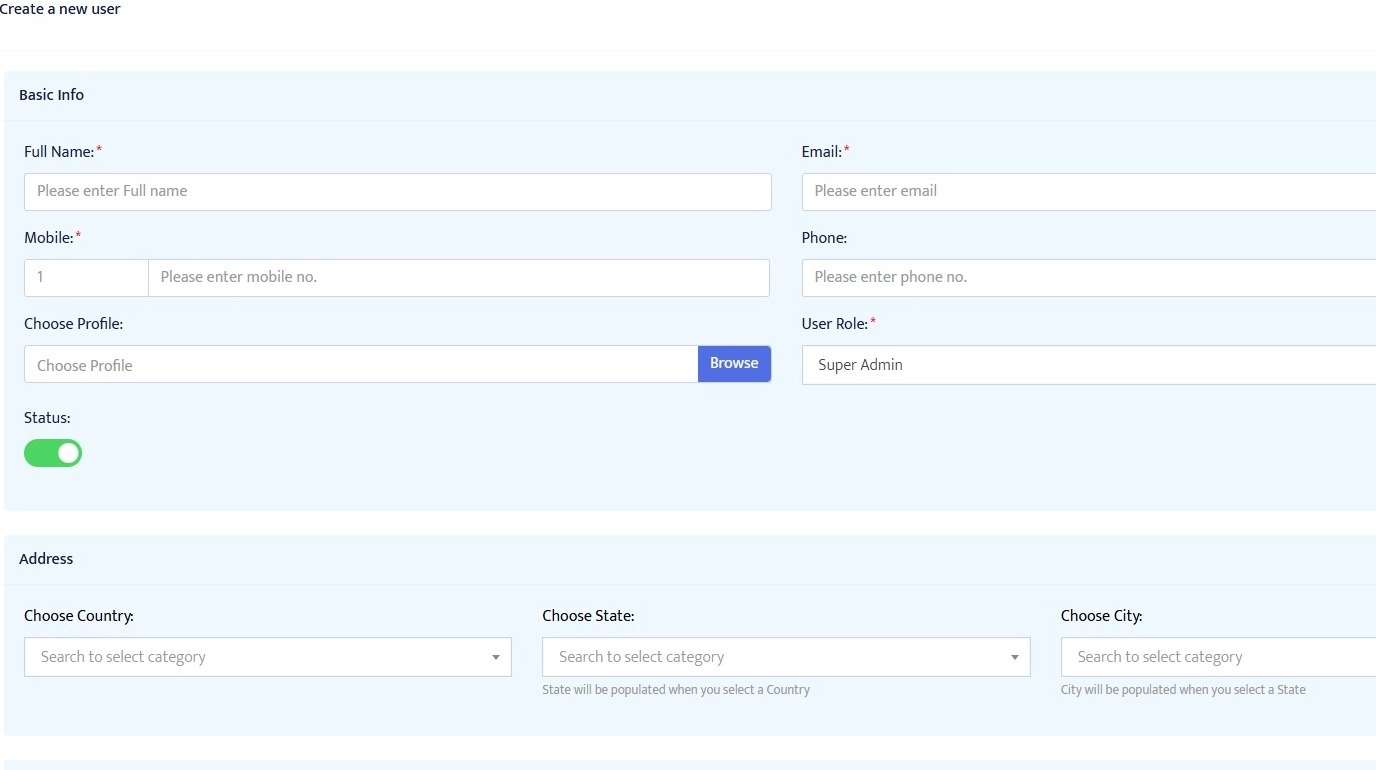
14. Enter the "Basic info" of the user
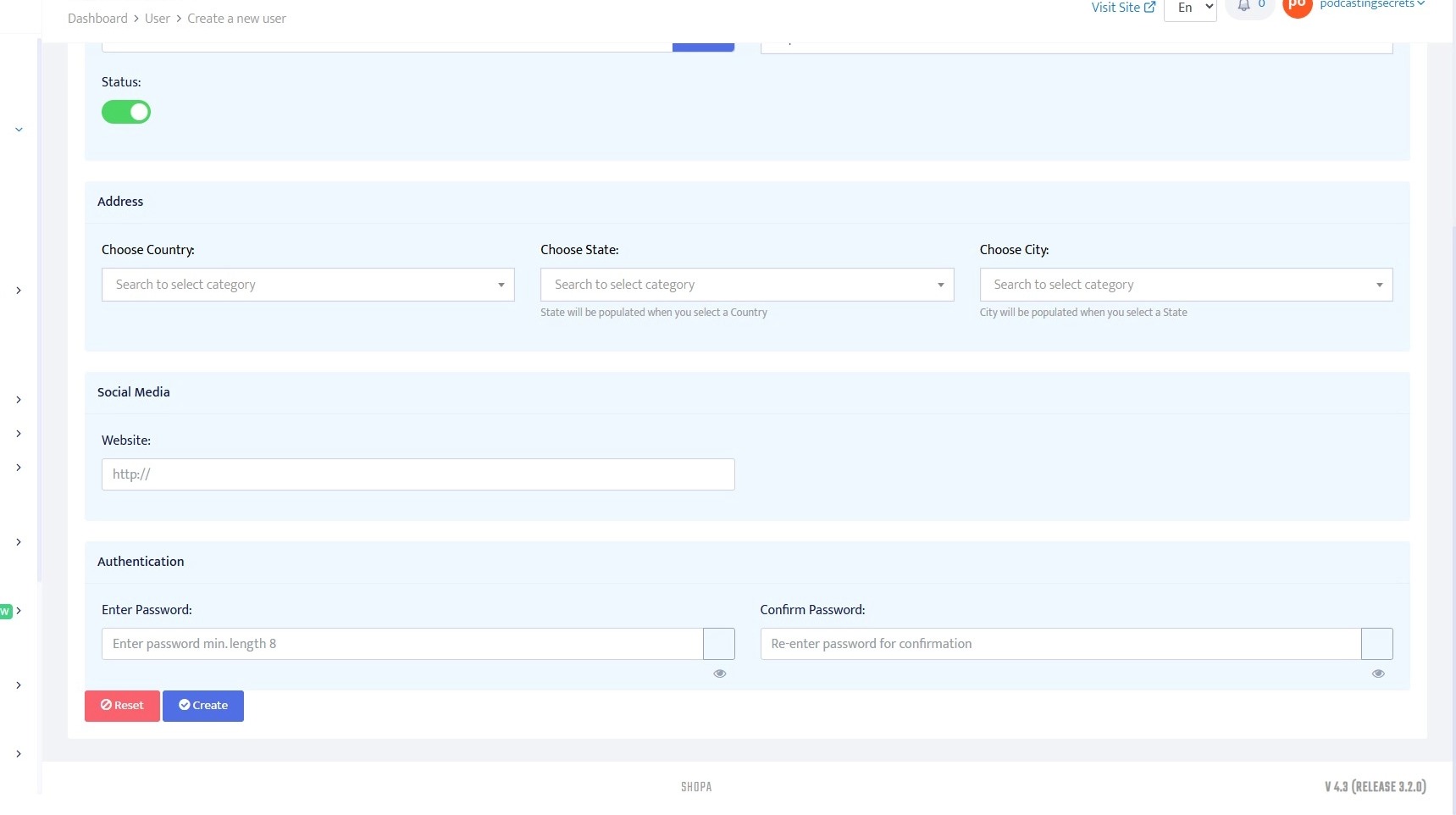
15. Click "Social Media" and enter the website address
Enter the password and confirm the password
Click "Create" to create a new user
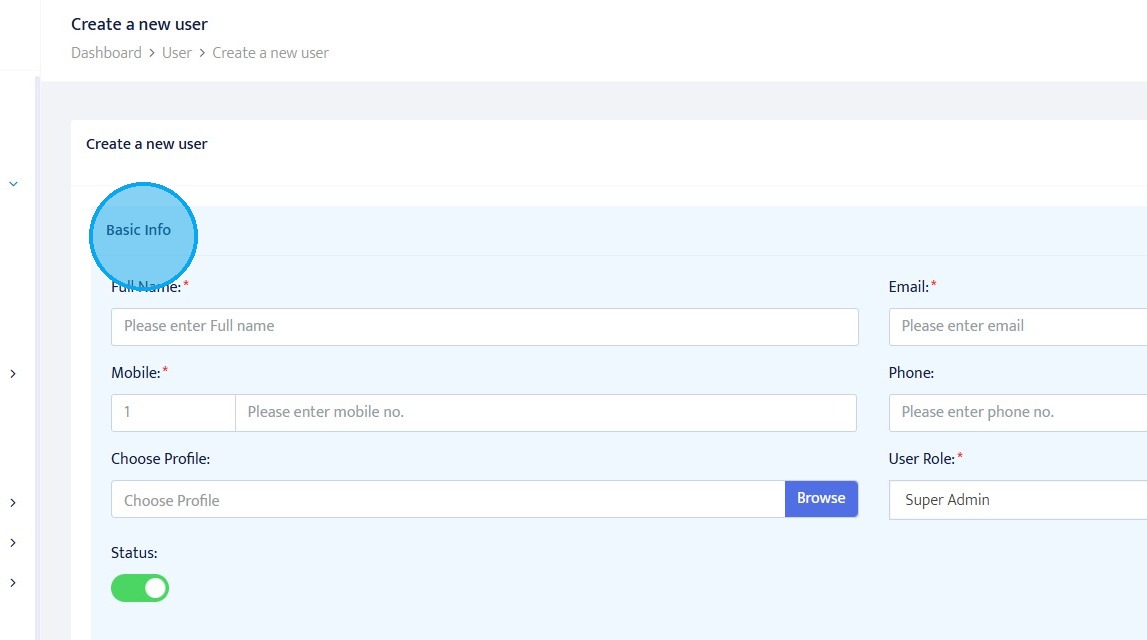
16. Click "Basic Info
..."
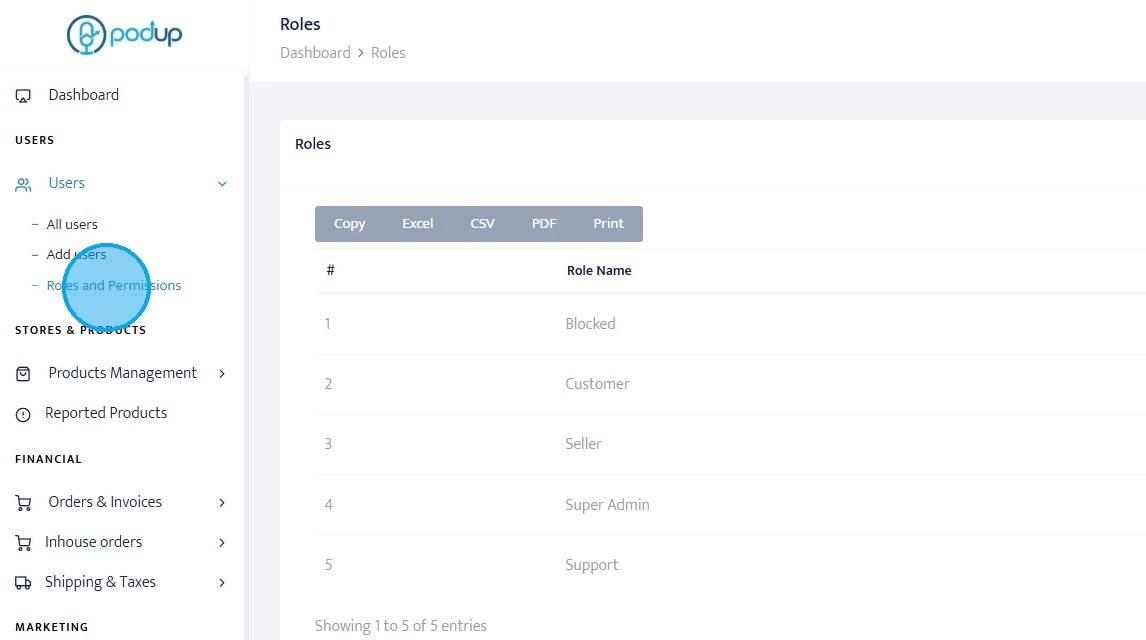
17. Click "Roles and Permission" to grant different level of access to different users
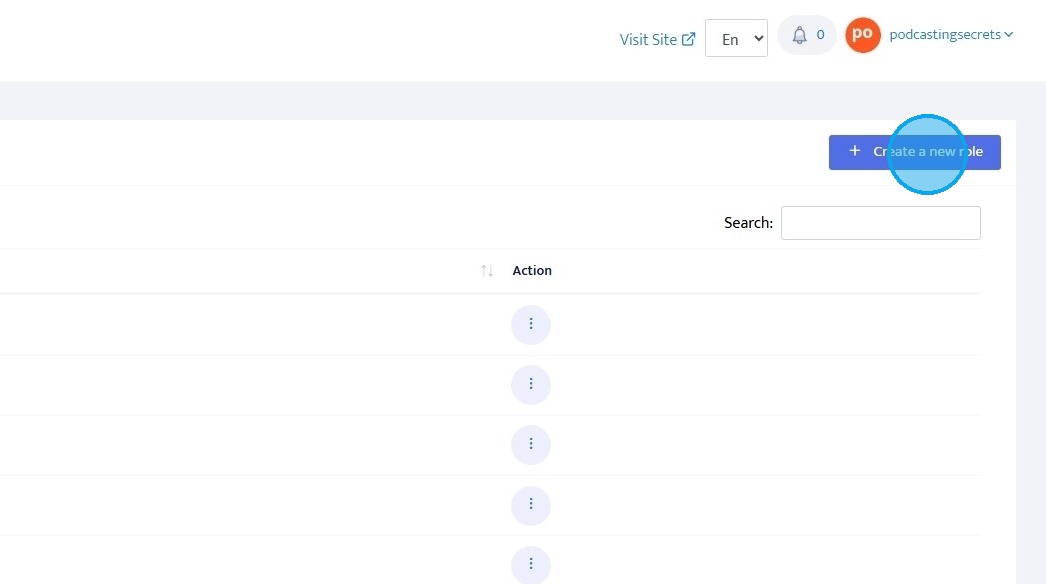
18. To create new role click "+Create a new role"
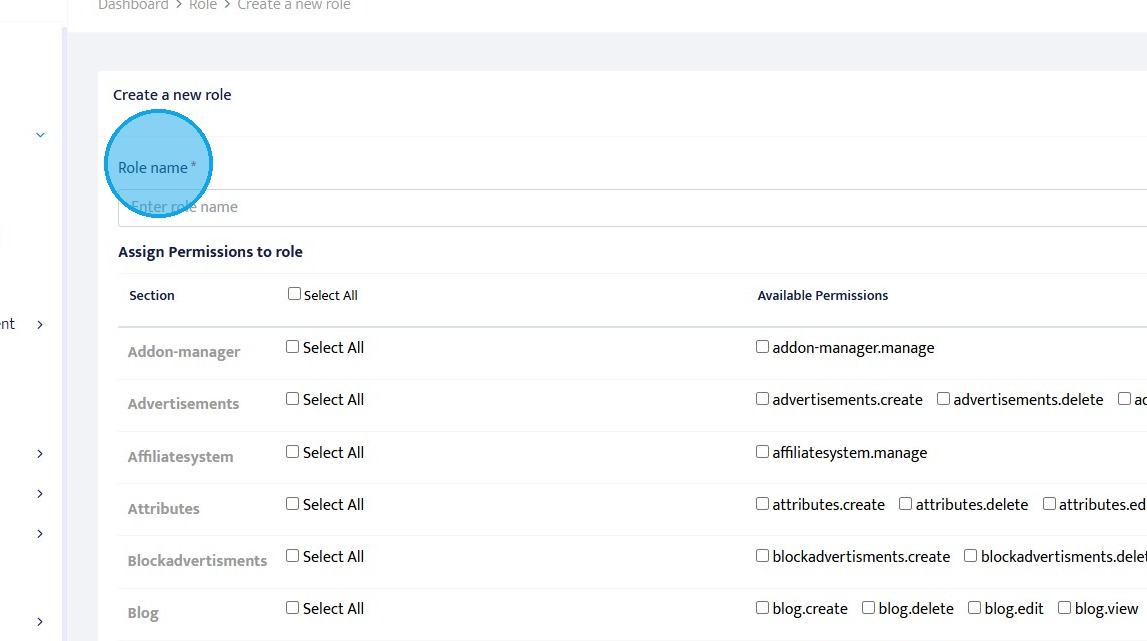
19. You will enter a new page
Click "Role Name" and enter the name of the role
You can select and grant permission to the role depending upon your policy
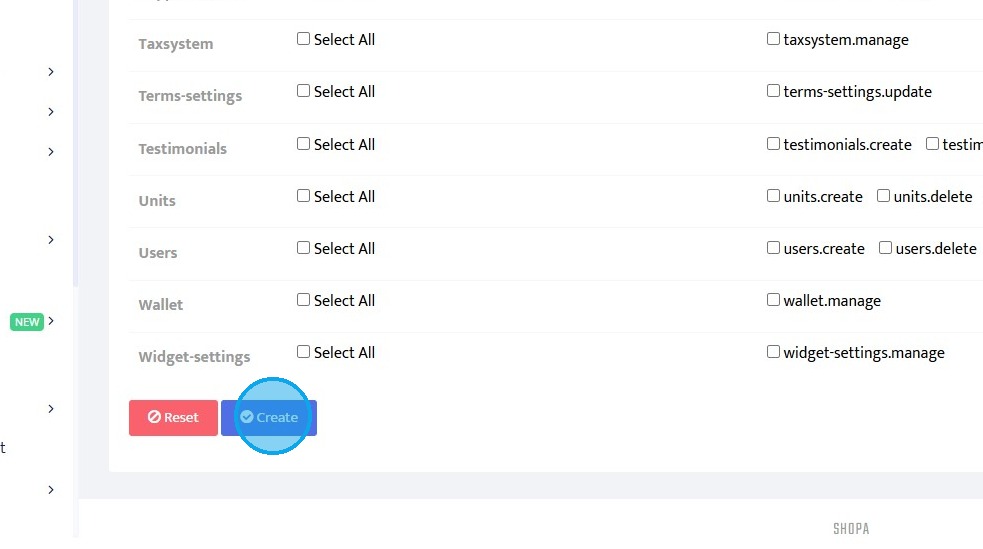
20. Once you have selected the permisssions you can click "Create"
Related Articles
How to add a Unit in Podup Shop?
This guide provides a straightforward, step-by-step process for adding a unit in Podup, making it easy for users to manage their products effectively. 1. Navigate to https://app.podup.com/home 2. Click "Monetize" 3. Click "Shop" 4. Click "Products ...How to create a Special Offer on PodUp Shop?
This guide provides a straightforward process for creating special offers on PodUp Shop, making it easy for users to enhance their marketing strategies. 1. Navigate to https://app.podup.com/home 2. Click "Monetize" 3. Click "Shop" 4. Click "Products ...How to create a New Subcategory in Podup Shop?
This guide provides a straightforward process for creating a new subcategory in Podup, making it easy for users to enhance their product organization. By following the clear steps outlined, users can efficiently manage their inventory and improve the ...How to add a New Child Category in Podup Shop?
This guide provides a straightforward process for adding a new child category in Podup, making it essential for users looking to enhance their product organization. 1. Navigate to https://app.podup.com/home 2. Click here. 3. Click "Shop" 4. Click ...How to check Reviews in PodUp Shop?
This guide provides a straightforward method for accessing and managing product reviews in the PodUp Shop, ensuring you can easily evaluate customer feedback. 1. Navigate to https://app.podup.com/home 2. Click "Monetize" 3. Click "Shop" 4. Click ...