How to duplicate a page
Use this guide to duplicate pages in PodUp and manage your website efficiently.
1. Navigate to https://app.podup.com/home
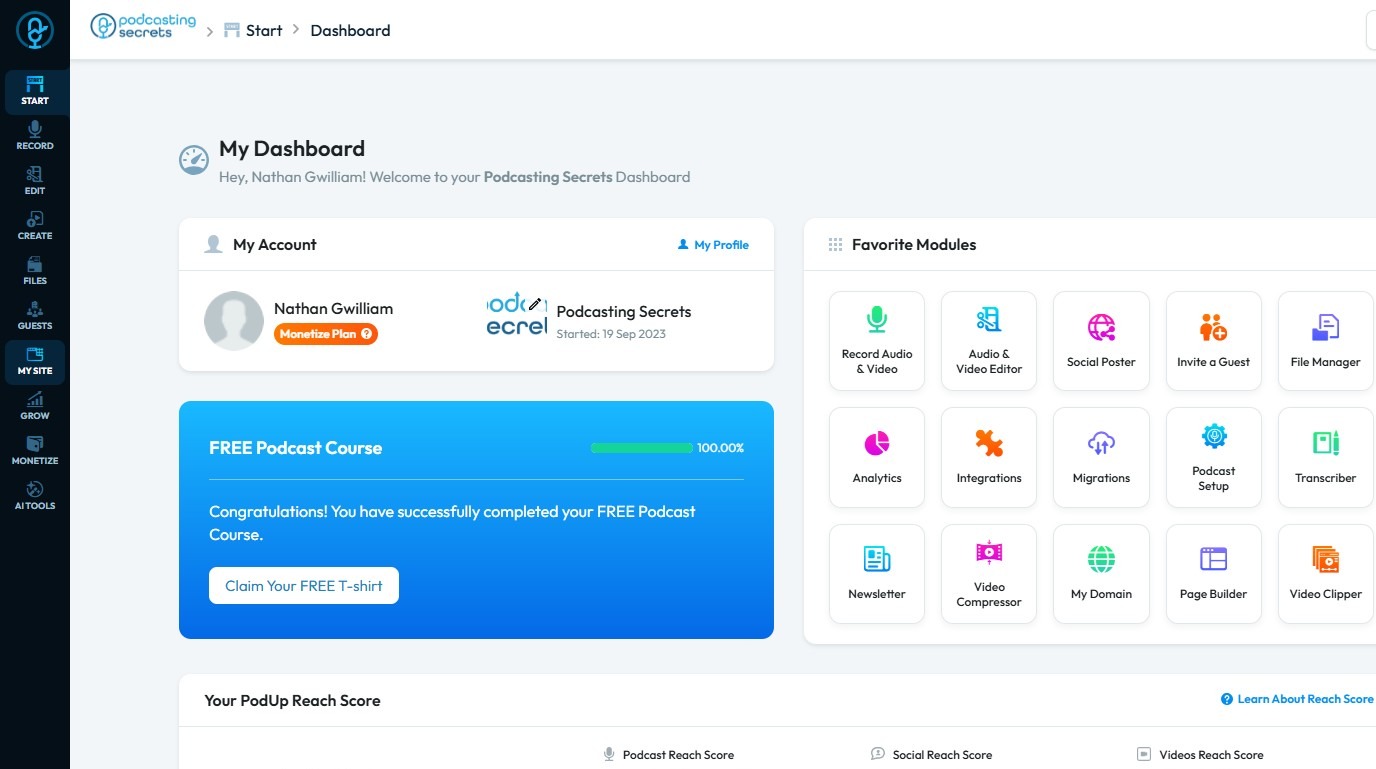
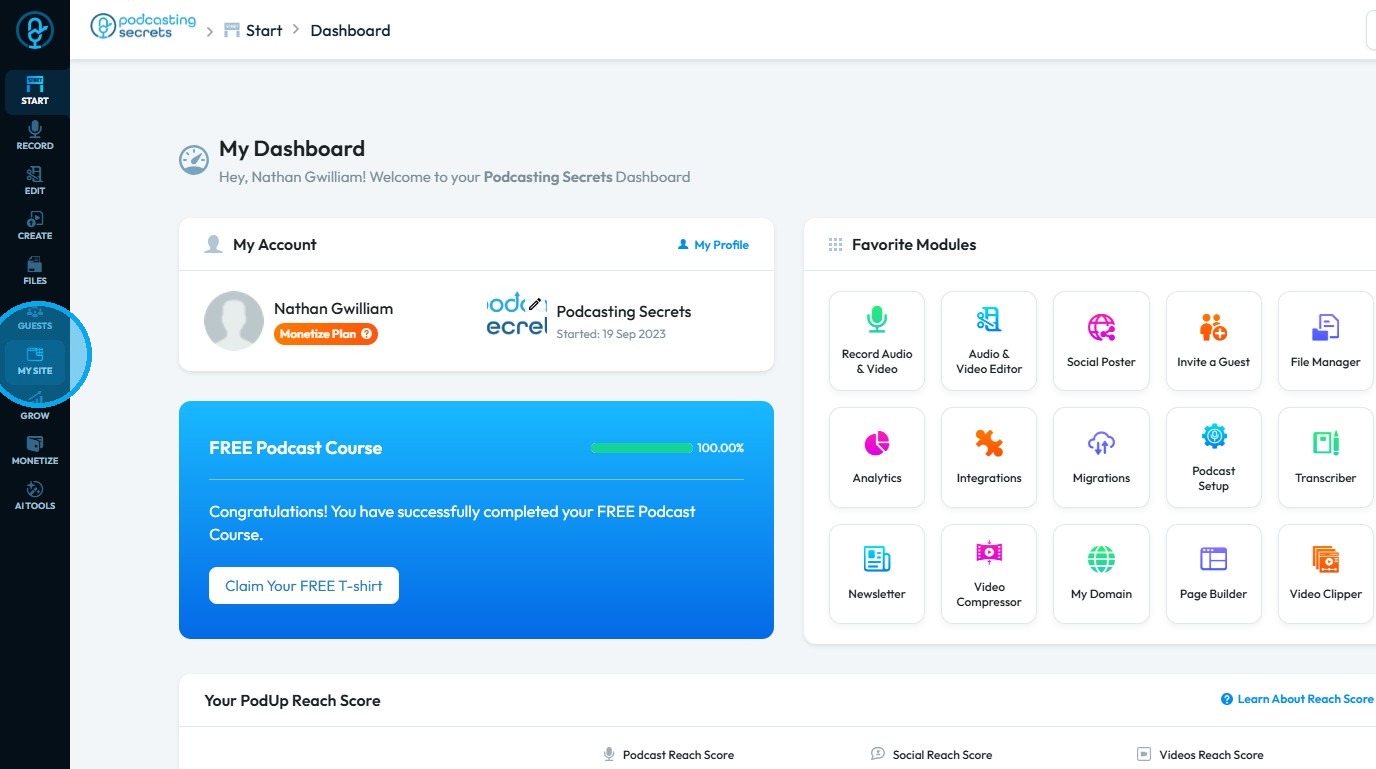
2. Click "My Site"
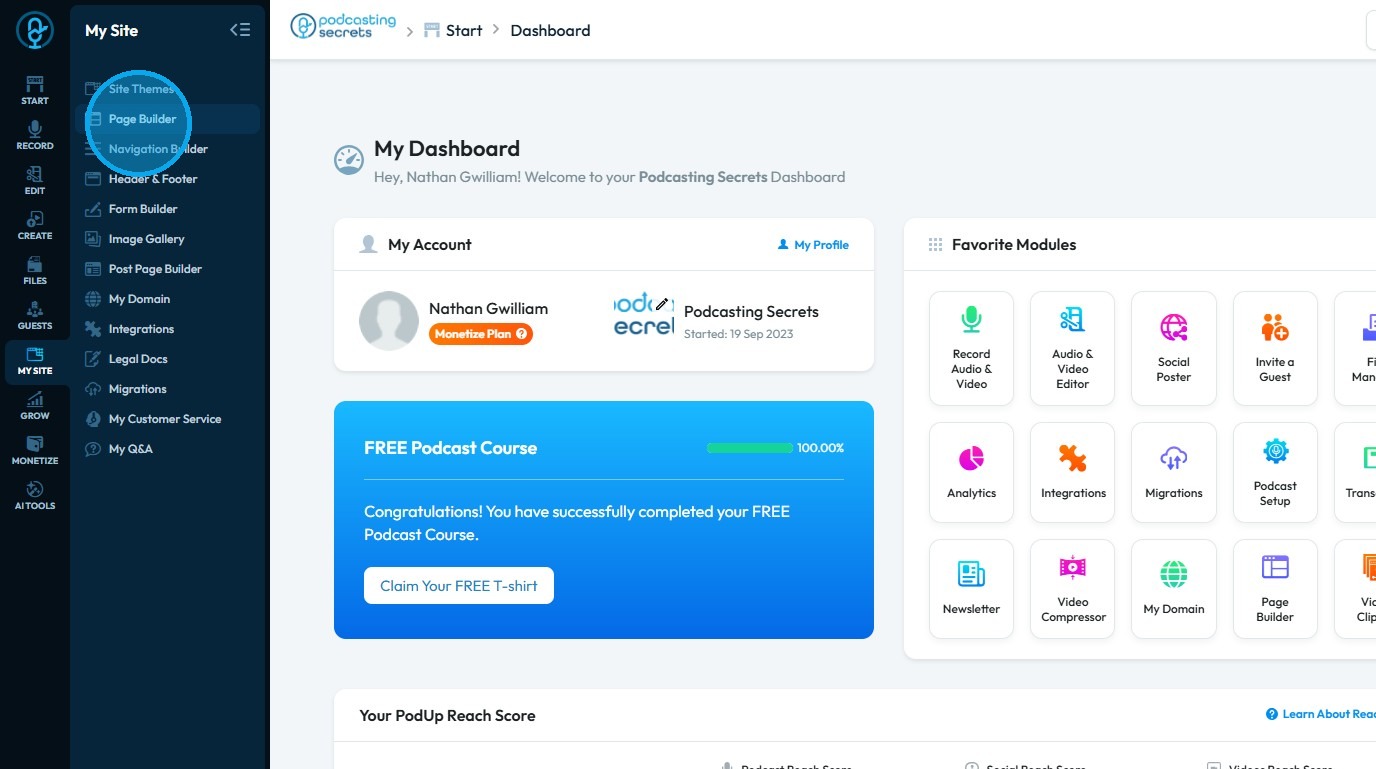
3. Click "Page Builder"
4. This module displays all your pages
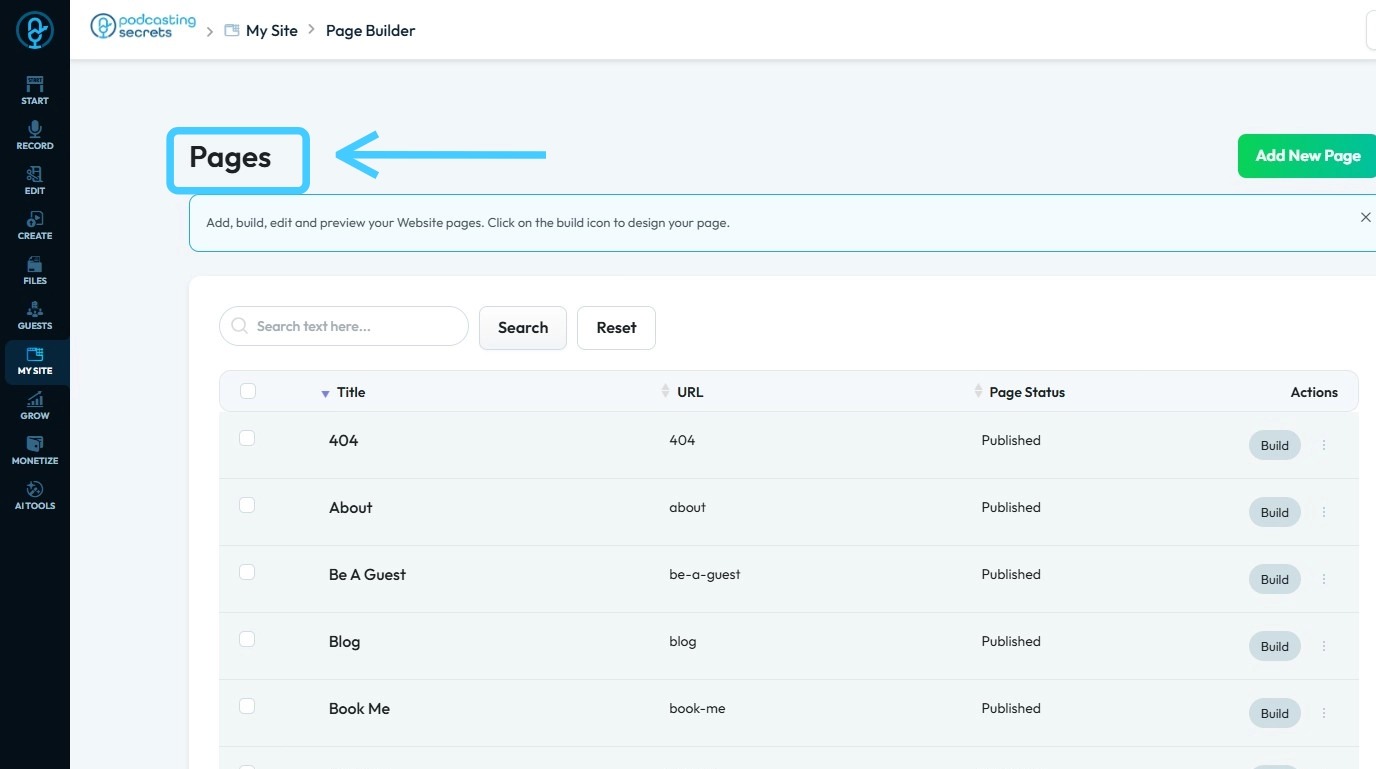
5. Click on the "3 Dots" button
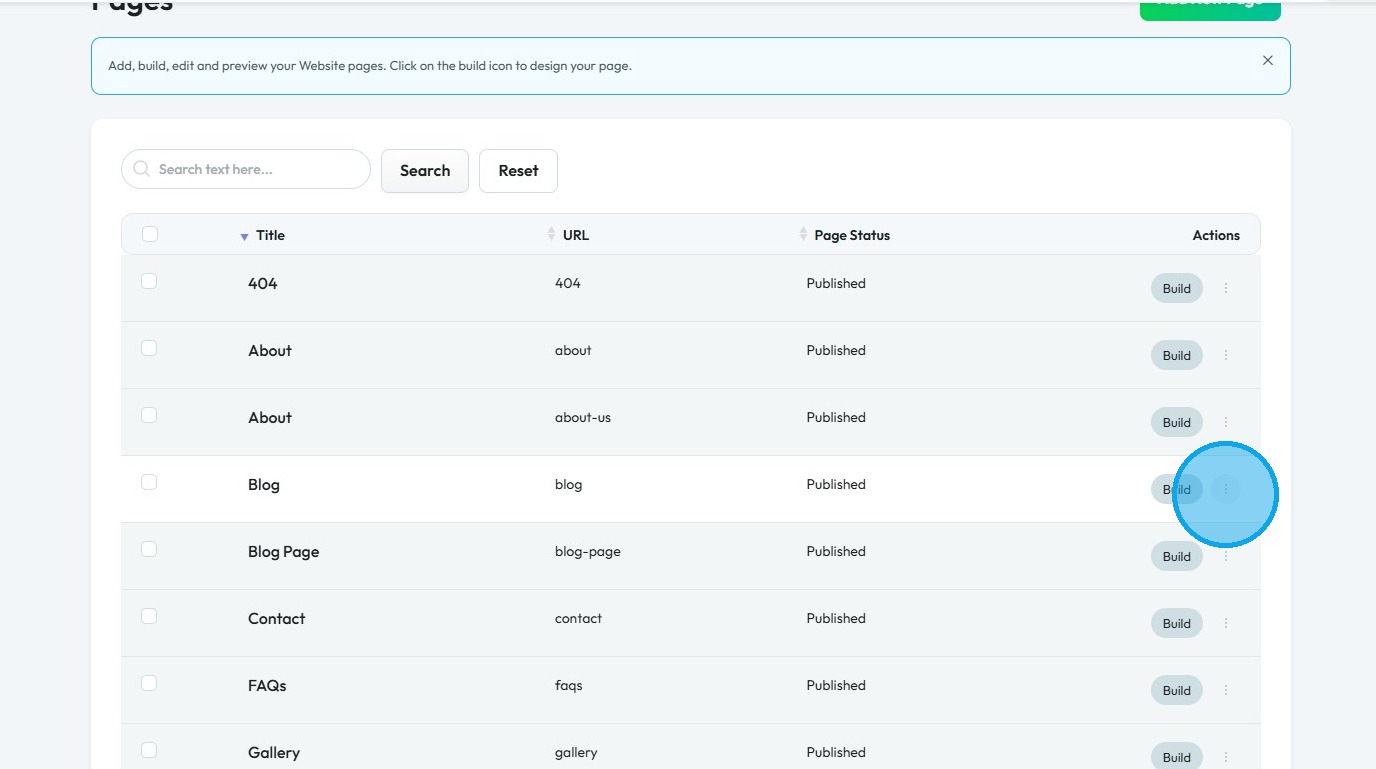
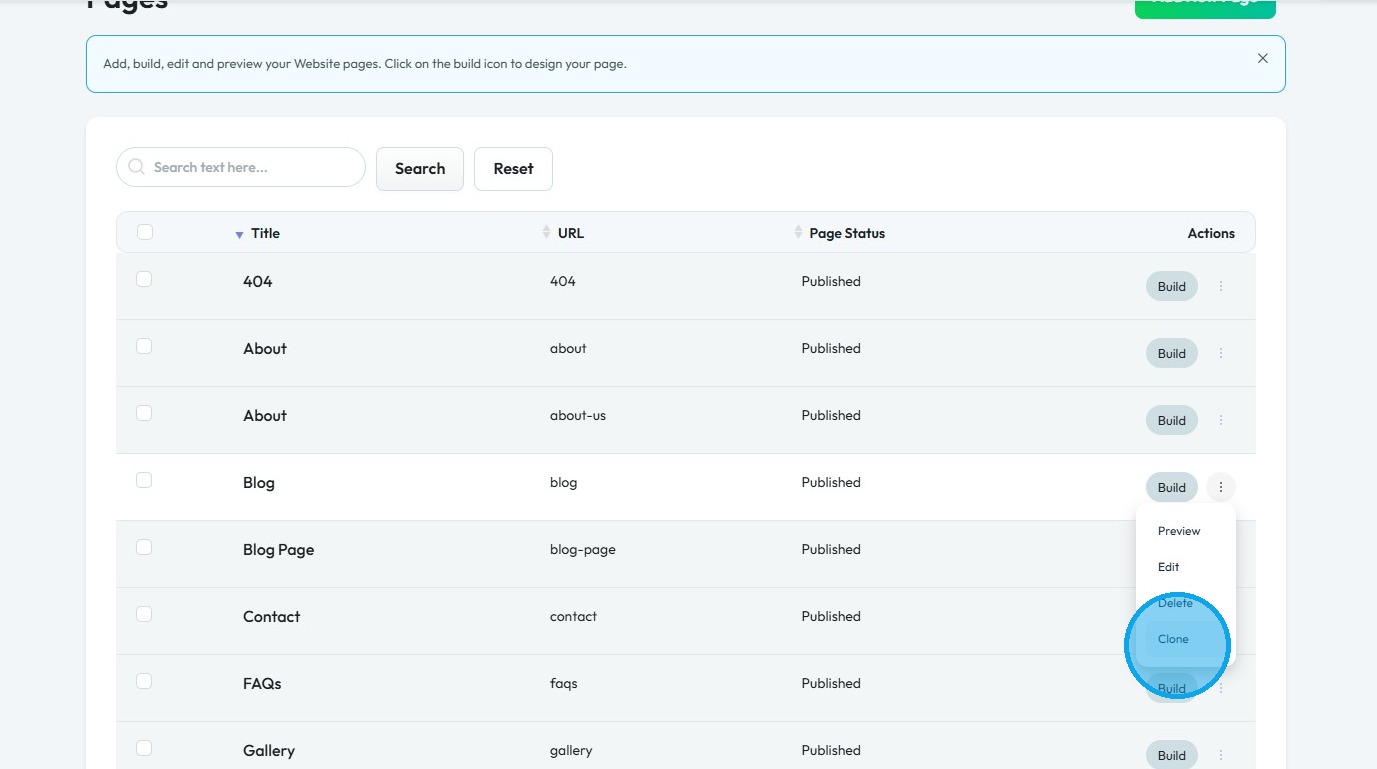
6. Select "Clone"
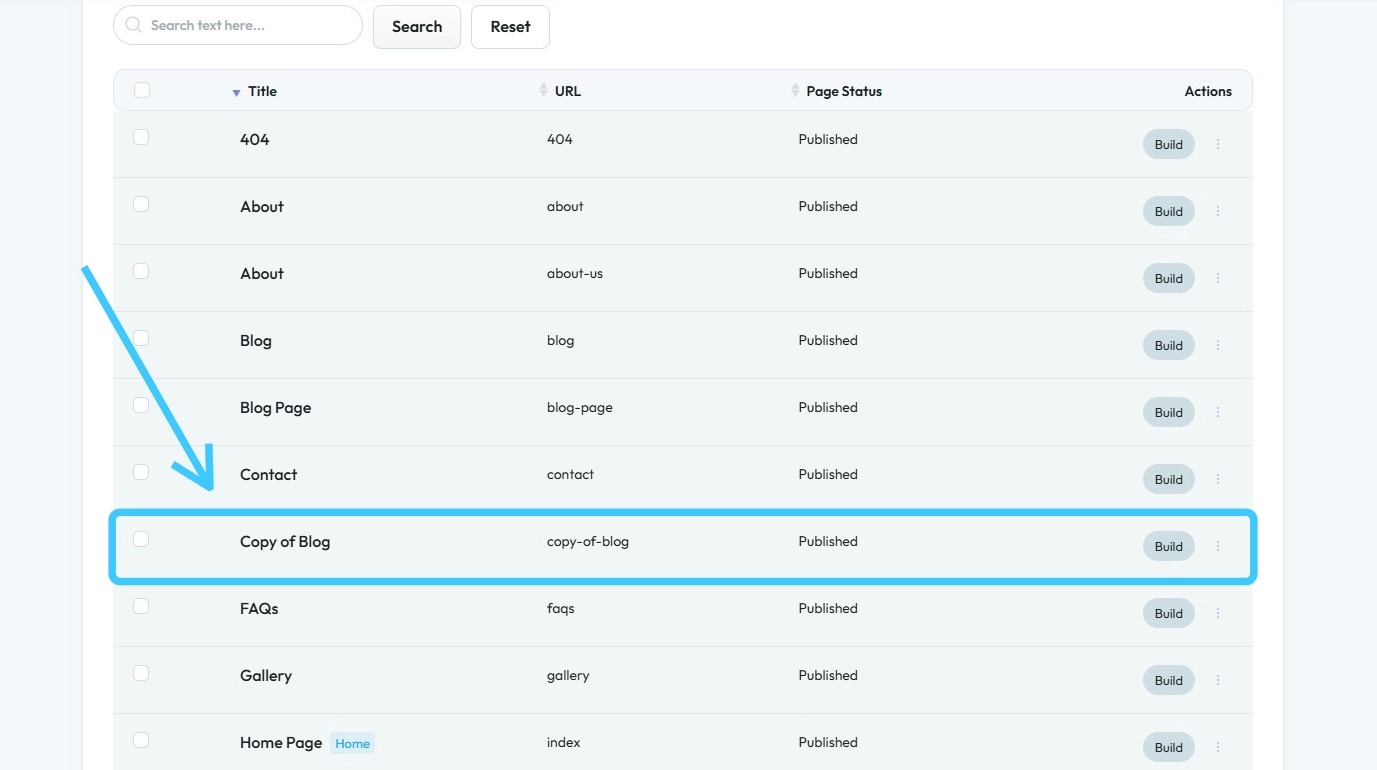
7. The page has been successfully duplicated
Related Articles
How to Clone a Blog Page
This guide provides a straightforward method for cloning a blog page, making it easy to replicate and customize your content. By following the steps outlined, users can efficiently create a duplicate blog page, saving time and effort in content ...How to Navigate Page Builder (Detailed)
This guide provides a straightforward method for creating and customizing website pages using PodUp's Page Builder, making it ideal for users of all skill levels. It outlines each step in the process, from accessing the page builder to editing ...Can I have multiple copies of a page?
Use this guide to quickly copy pages on your website, making content management easier and saving you time. Tip: Yes, you can have multiple copies of a page. 1. Navigate to https://app.podup.com/home 2. Click "My Site" 3. Select "Page Builder" 4. In ...How to Customize "Create Code" Quick Add in PodUp Page Builder
By following this guide, you can efficiently customize the Create Code Quick Add feature in Page Builder to enhance your website’s design and interactivity. 1. Navigate to https://app.podup.com/home There are 2 ways to access the Page Builder 2. 1. ...How to Add an Image from a URL to PodUp Page Builder using Quick Add (Detailed)
This guide offers a straightforward approach to adding images from URLs in PodUp Page Builder, making it ideal for users looking to enhance their website visually and interactively. It provides detailed steps for customizing images, managing styles, ...