How do I delete files
By following this guide, you can efficiently delete files in PodUp to manage your storage and keep your workspace organized.
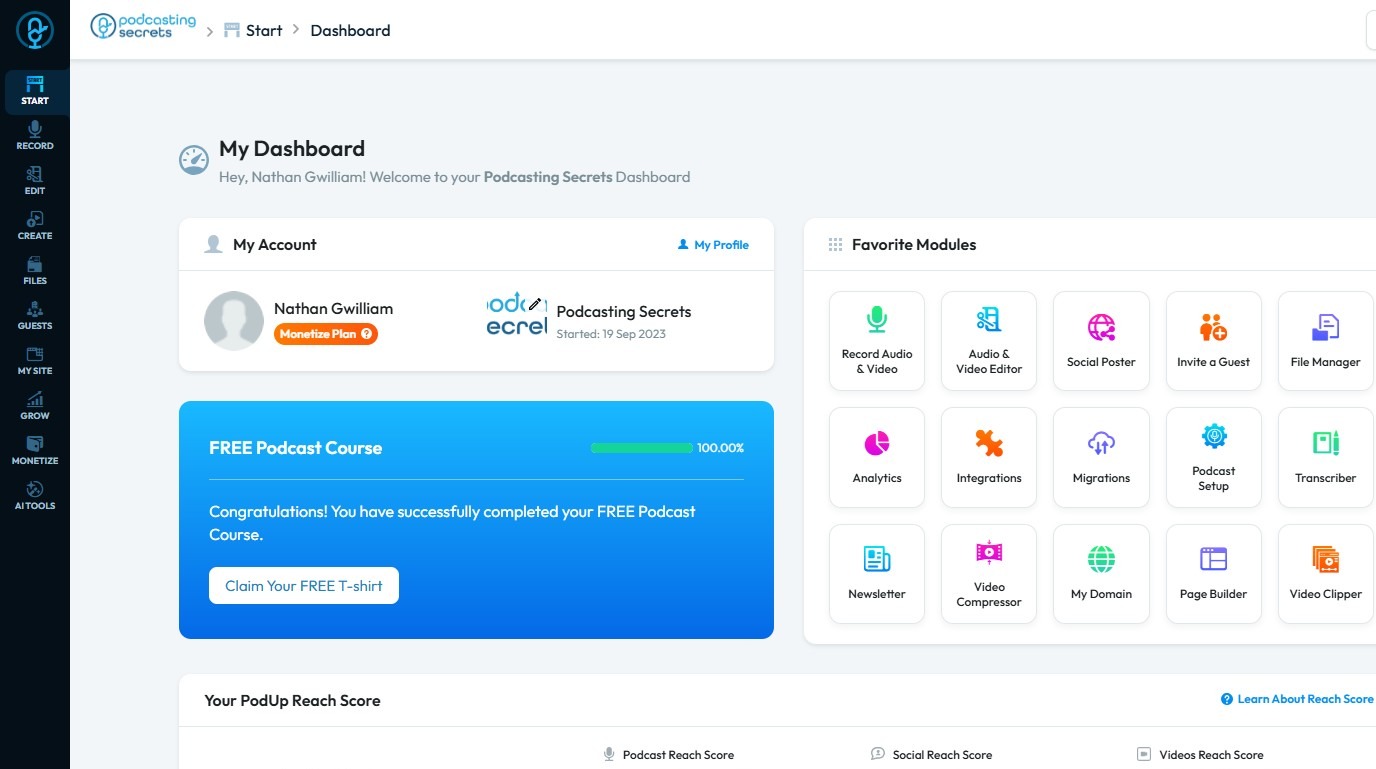
1. Navigate to https://app.podup.com/home
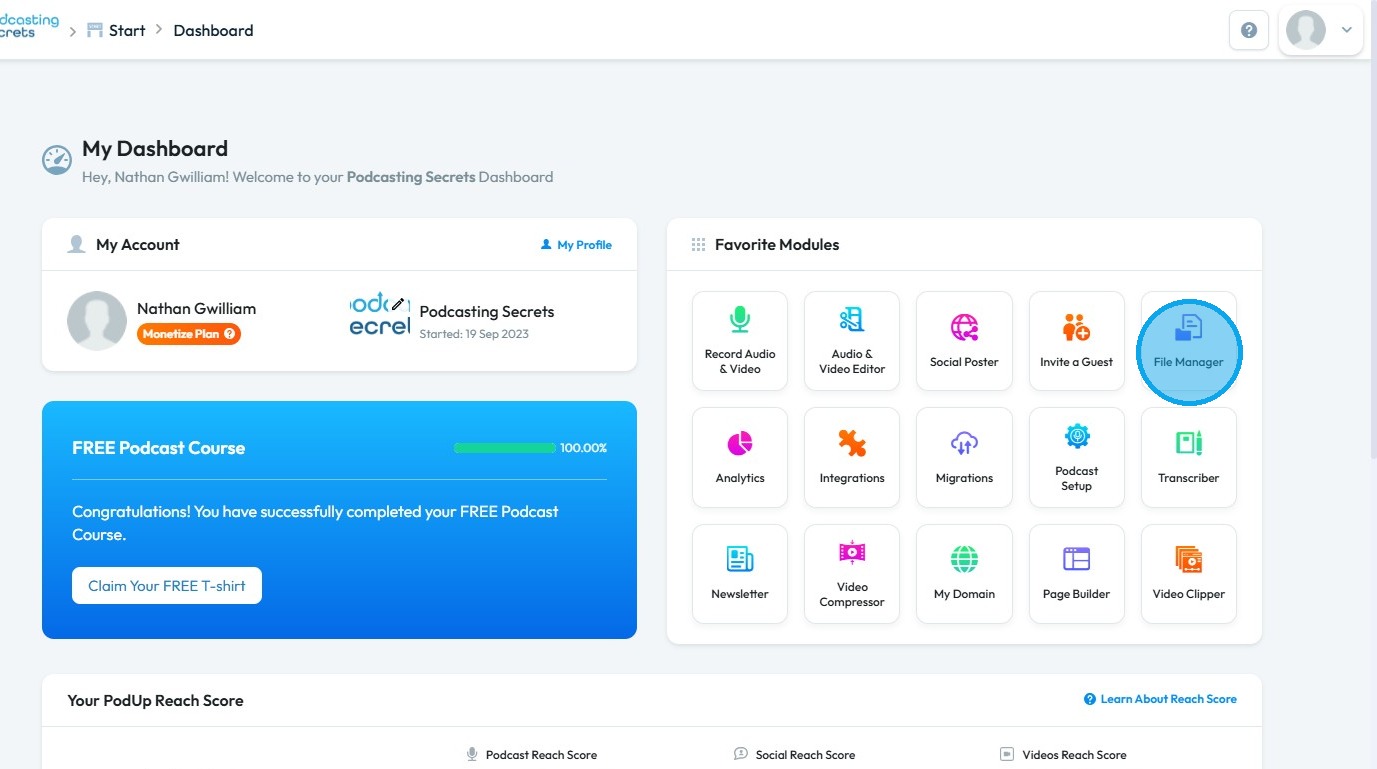
2. Click "File Manager"
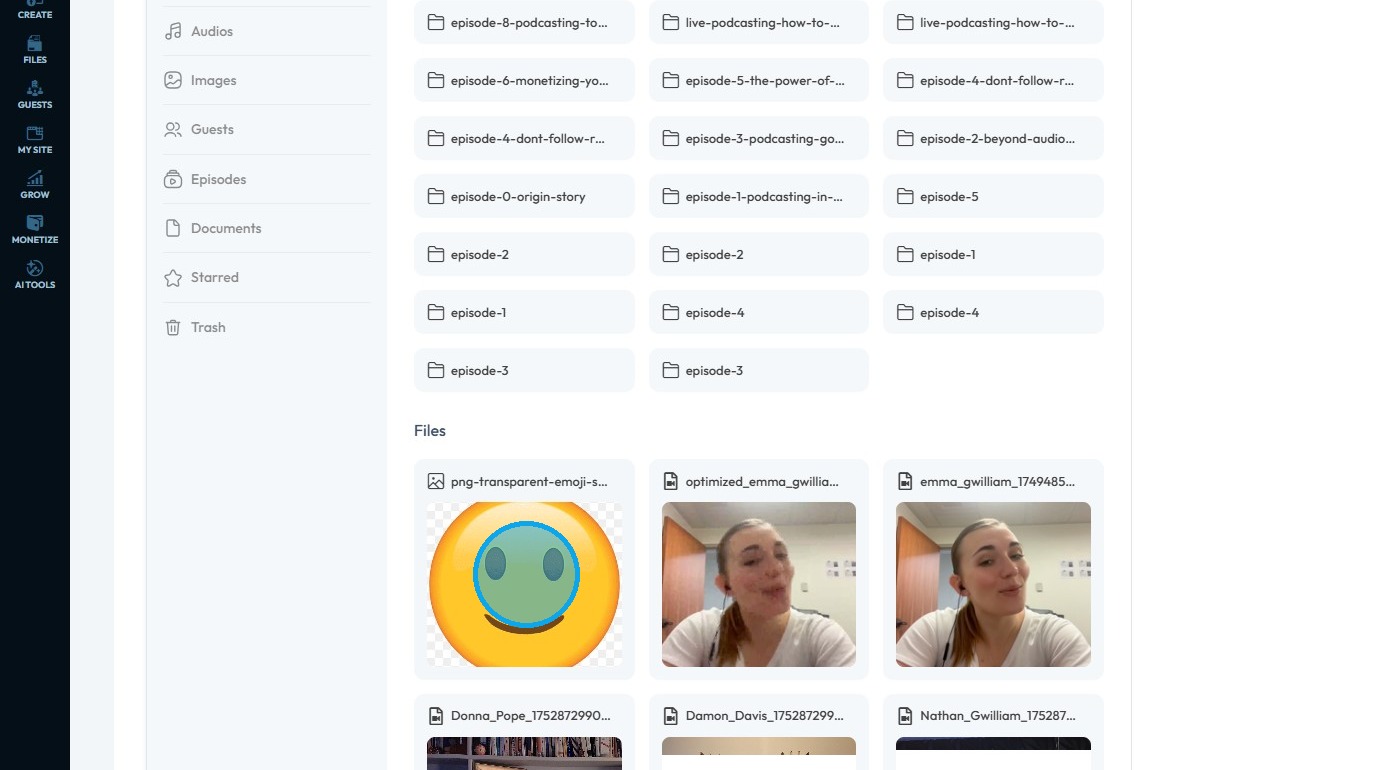
3. Right-click on the file you wish to delete
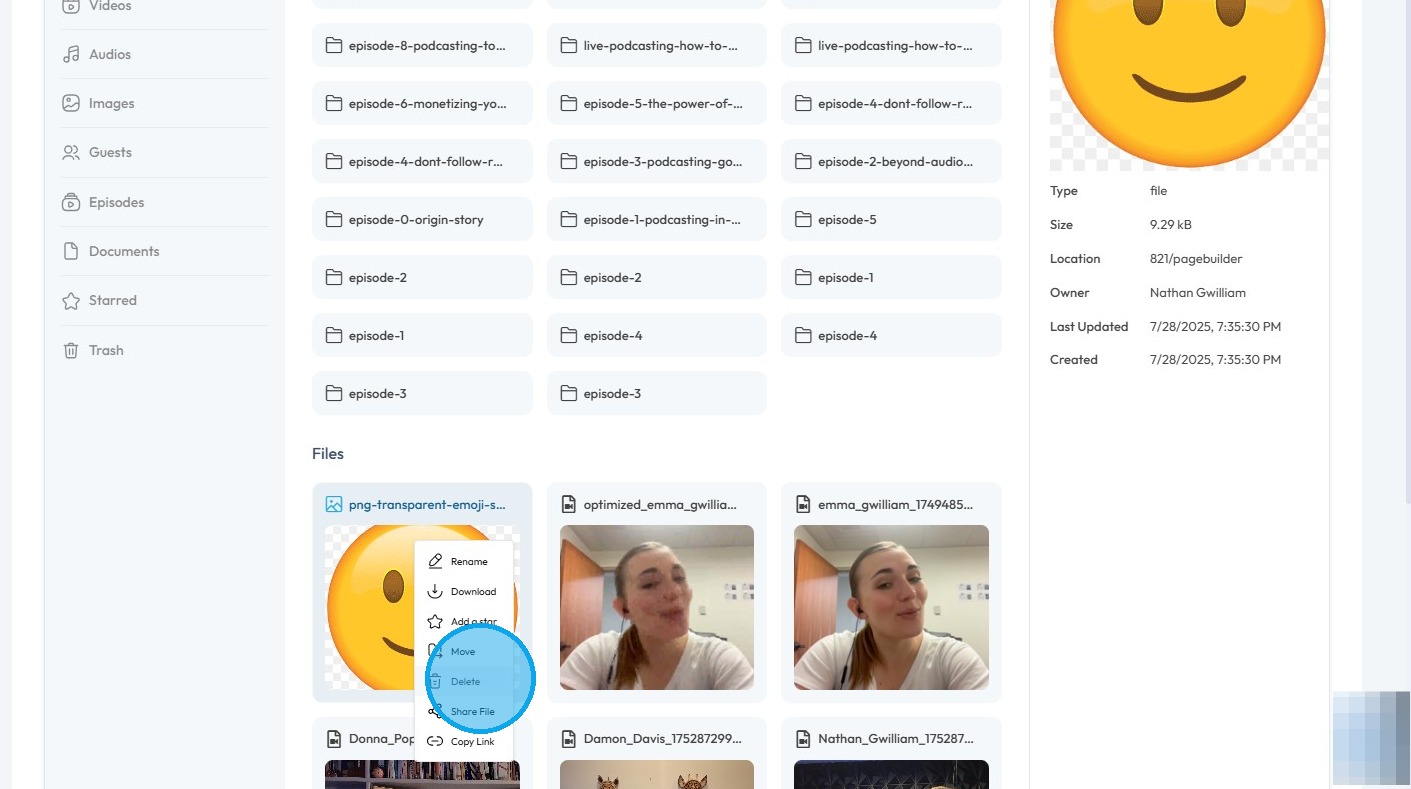
4. Click "Delete"
5. Select "Confirm"

6. The file will be removed but not permanently deleted
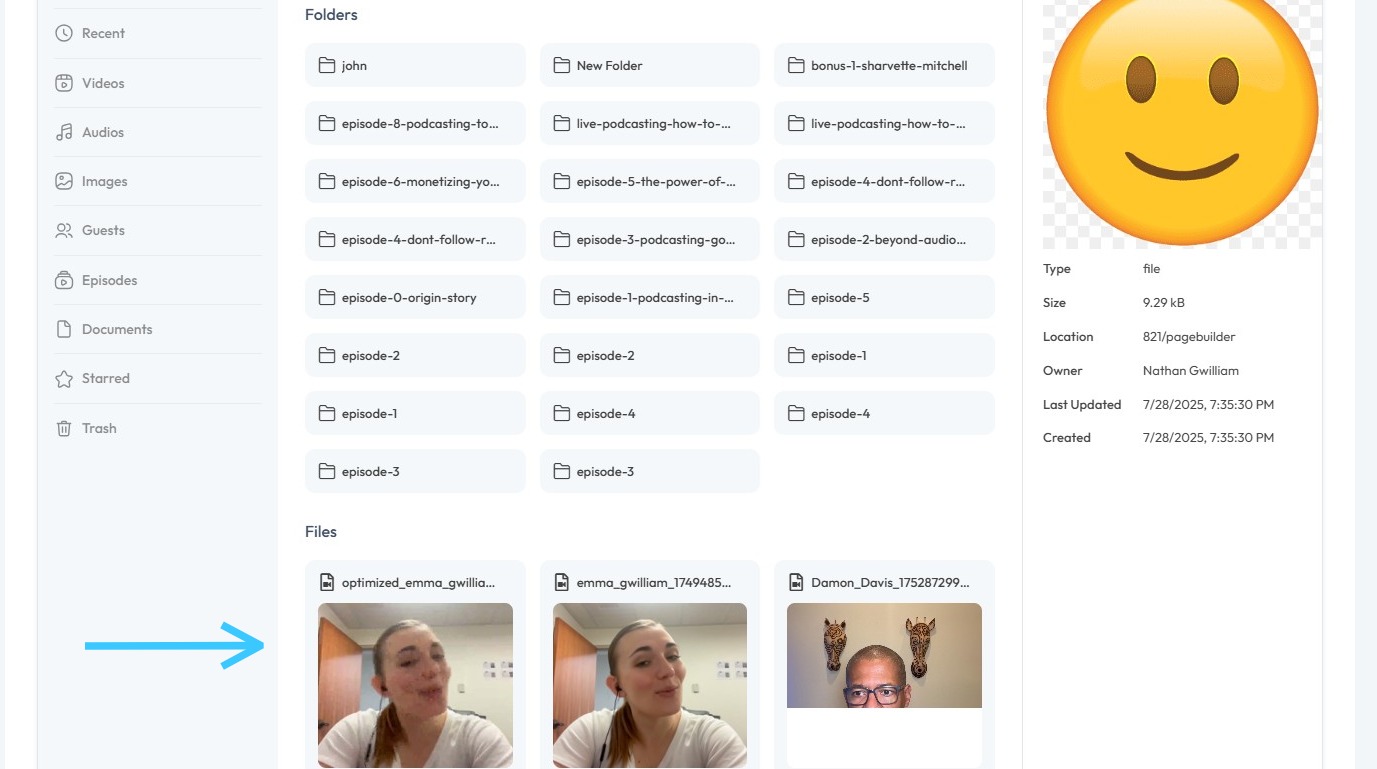
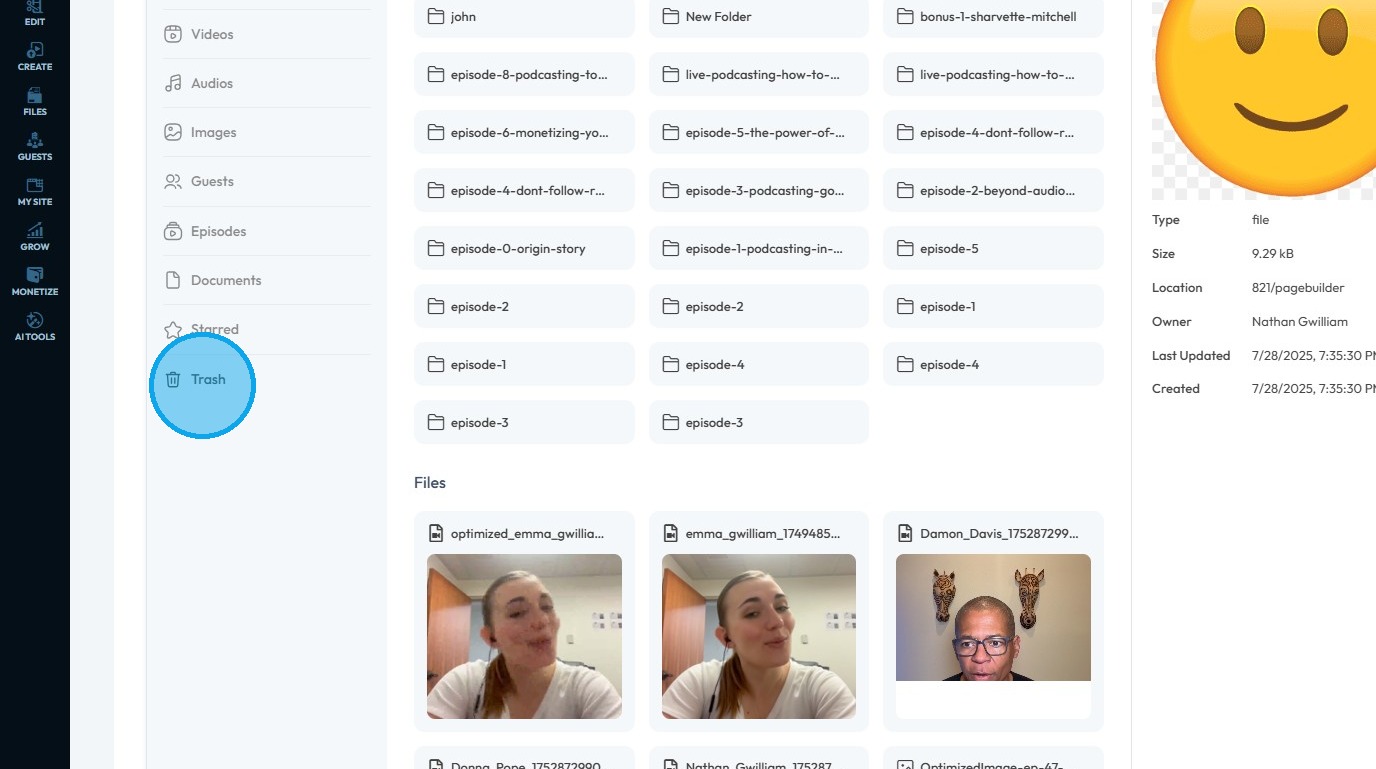
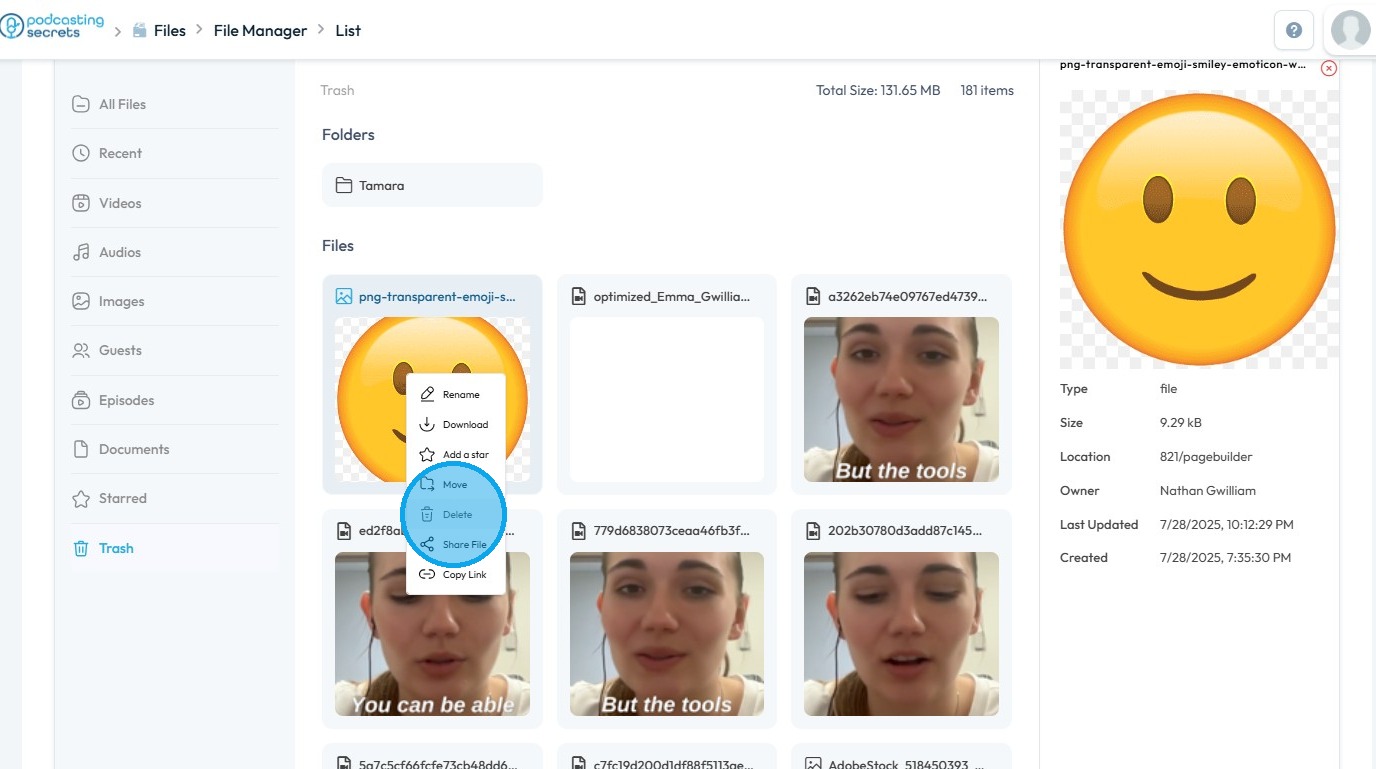
7. To permanently delete the file, click "Trash"
8. You can view the file here
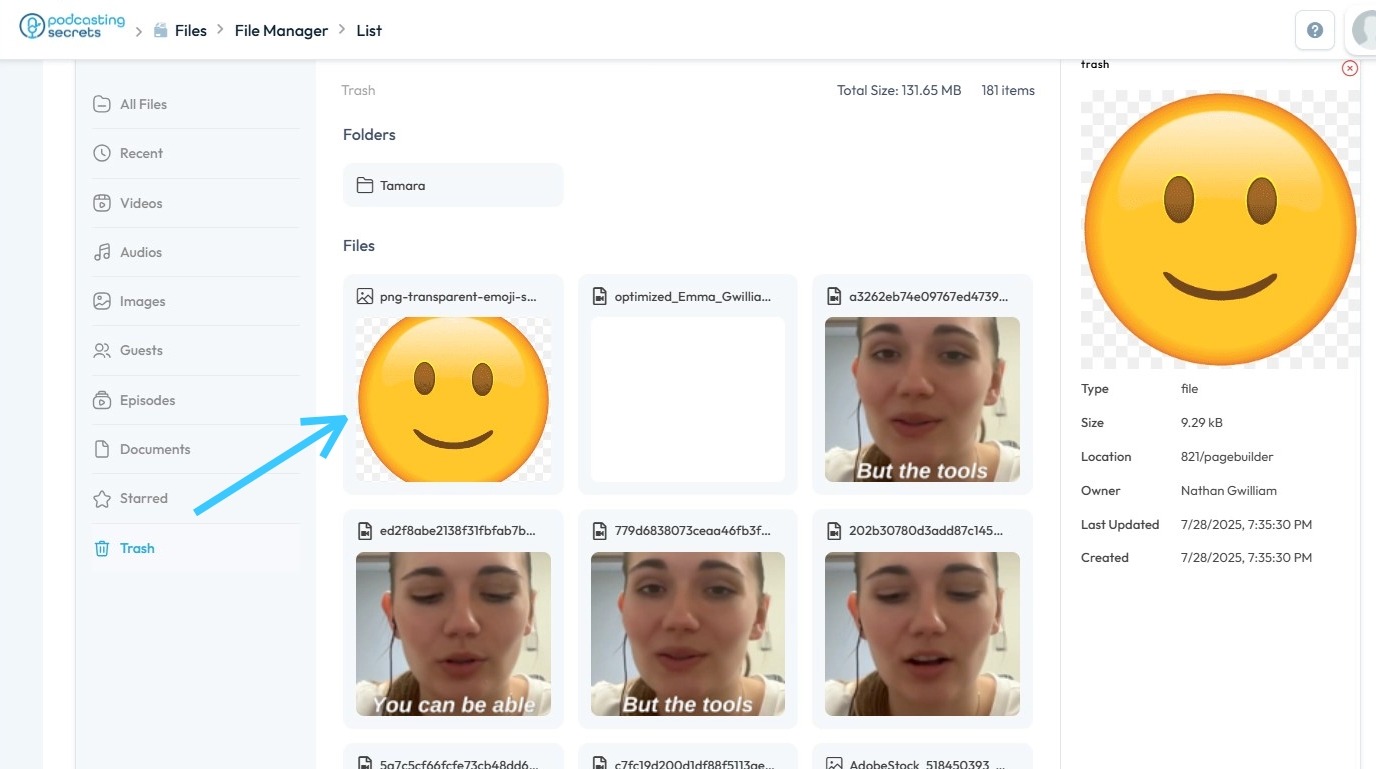
9. Right-click on the File.
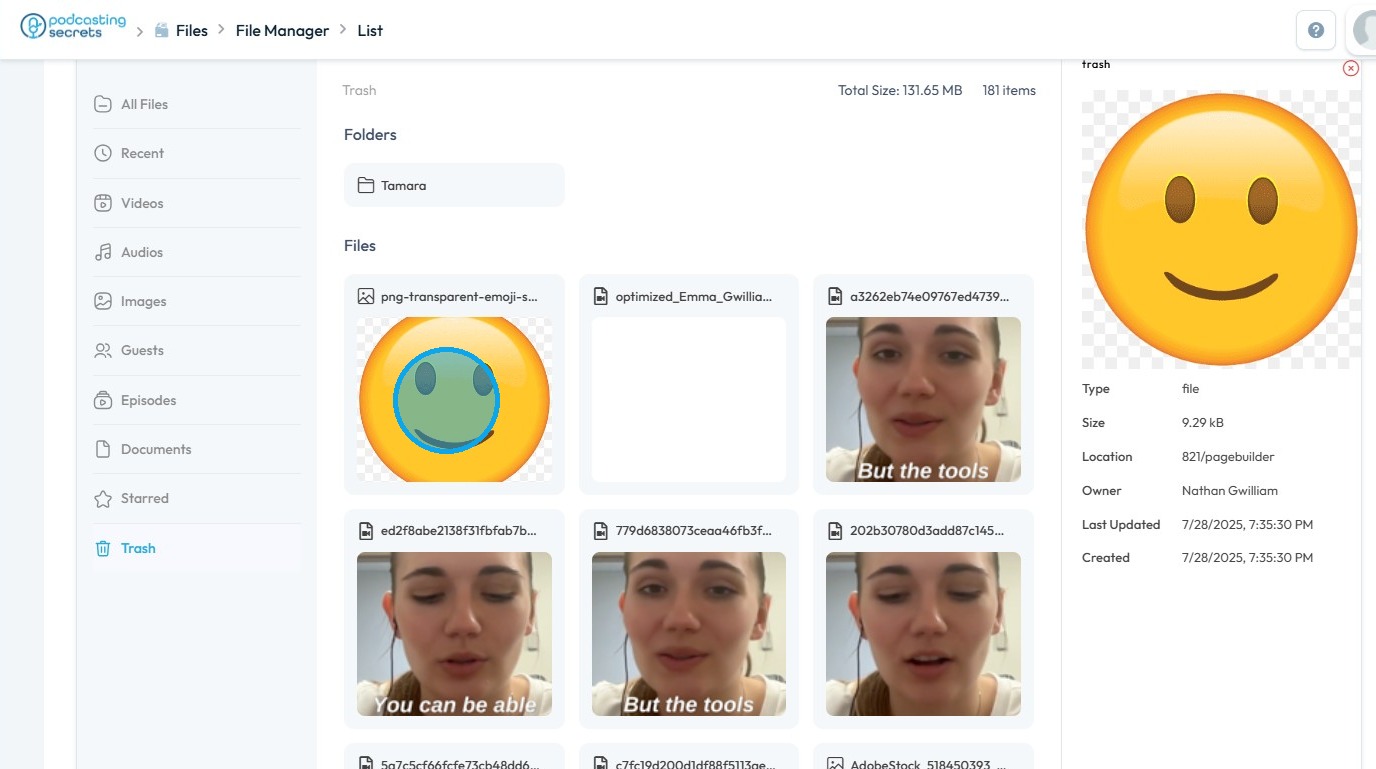
10. Select "Delete"
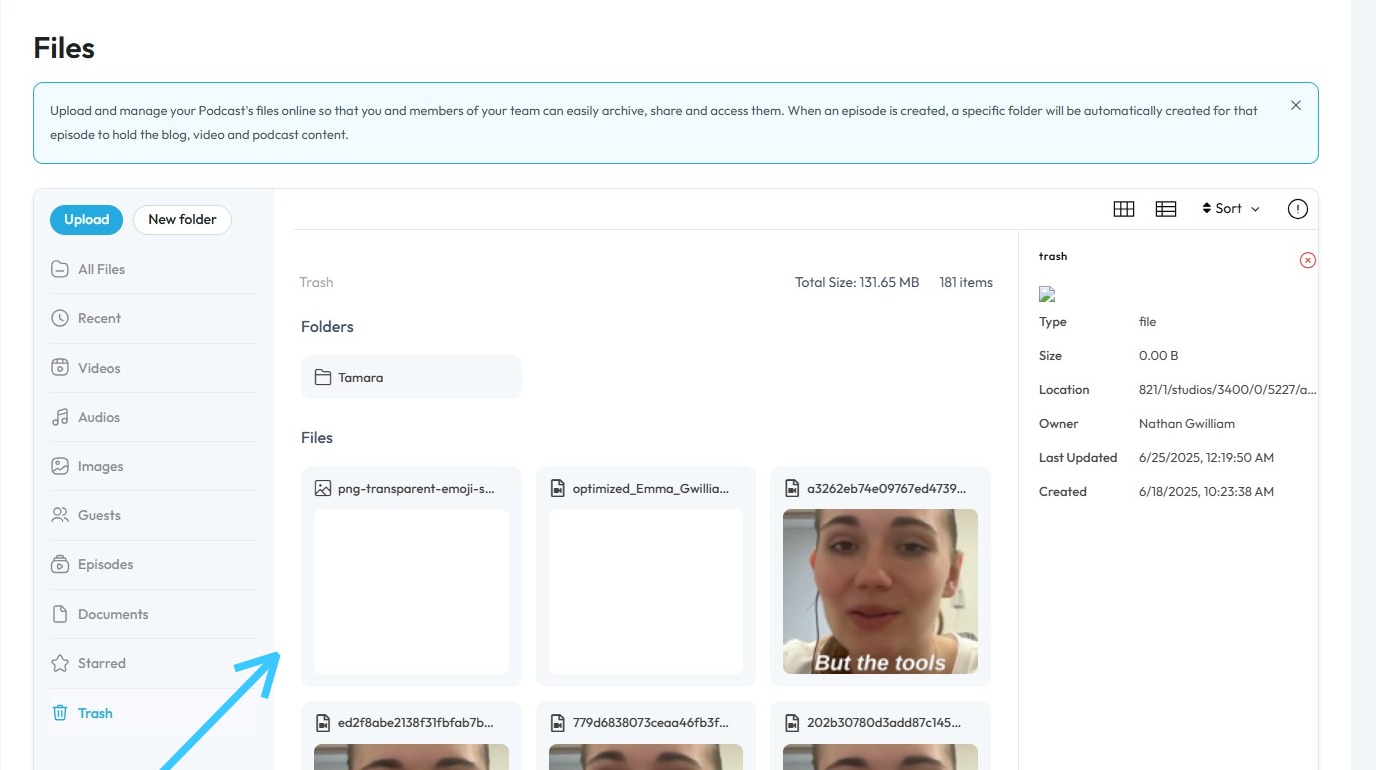
11. Select "Confirm".

12. The file will be permanently deleted
Related Articles
How To Permanently Delete Files In PodUp
This guide provides clear, step-by-step instructions for permanently deleting files in Podup, ensuring users can effectively free up storage space. By following the outlined process, you can avoid the common mistake of leaving files in the "trash," ...How to Manage Files in File Manager in PodUp
This guide shows you how to manage files in PodUp’s File Manager. Learn how to view, sort, filter, and organize content like videos and documents, star important files, and recover deleted ones. 1. Click "Files" 2. Click "All Files" 3. File Manager ...How To Rename Files
By following this guide, you can quickly rename files in the PodUp app to improve organization and accessibility. 1. Navigate to https://app.podup.com/home 2. Click "File Manager" on Dashboard. 3. Right-click on the file you wish to rename 4. Select ...How Do I Find My Audio Files?
This guide shows the easy way to find your audio files on PodUp. 1. Navigate to https://app.podup.com/home 2. Click "Files". 3. Click "Audios" 4. You will see all your "Audio Files".How To Access Episode Files on Podup
By following this guide, you can easily access and manage your episode files on PodUp. 1. Navigate to https://app.podup.com/home 2. Click "Files". 3. Choose "Episodes" 4. Your Episode Files will be displayed here