How to Delete an Image From My Video
This guide shows you how to easily remove unwanted images from your video using PodUp. With clear steps, it’s perfect for quickly cleaning up your content—no matter your skill level.
1. Navigate to https://app.podup.com/home
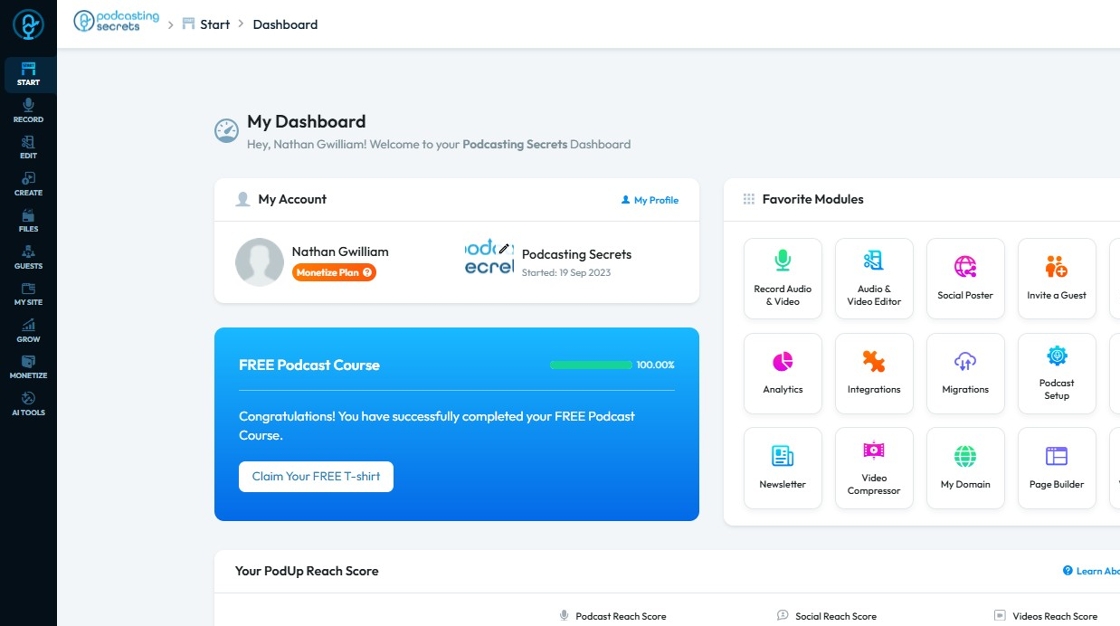
2. Click on "Audio & Video Editor" in "Favorites Modules" on your "Dashboard"
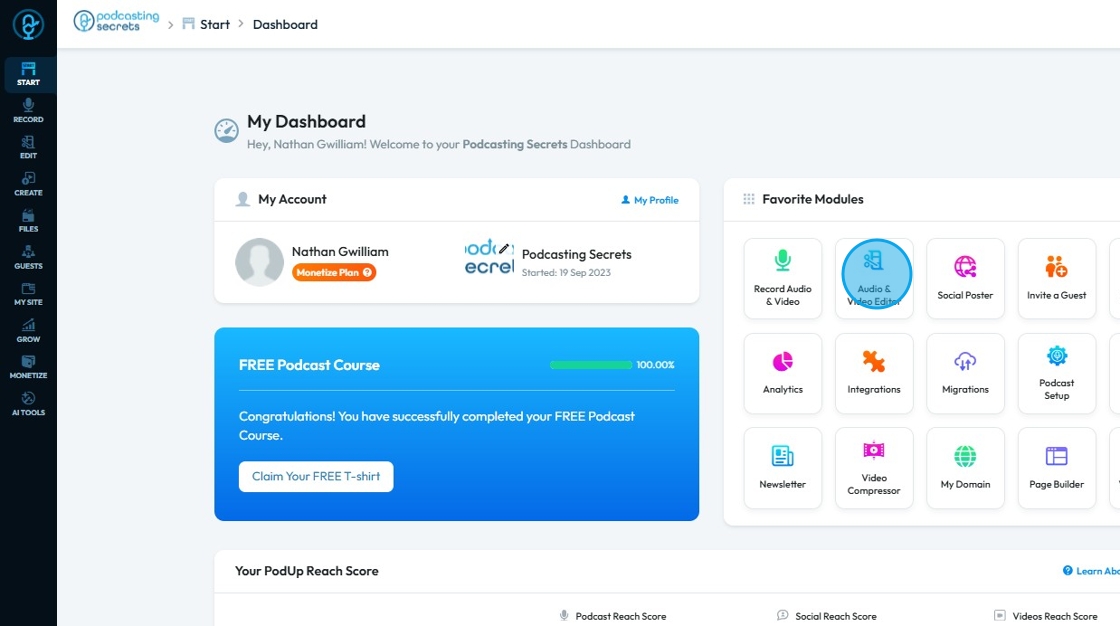
3. The "Editor" will look like this
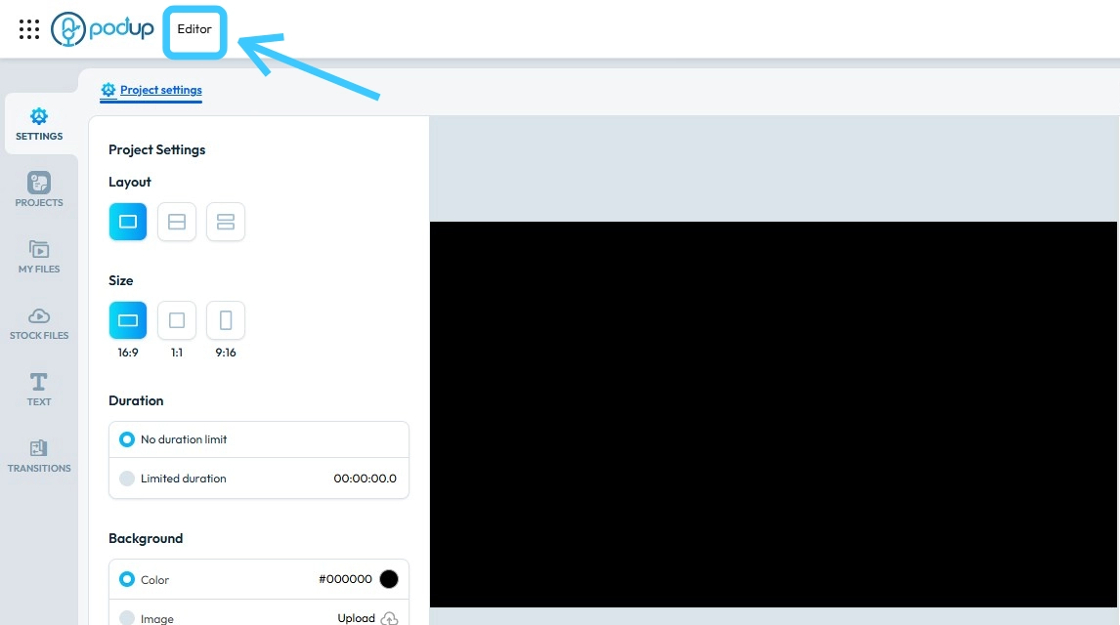
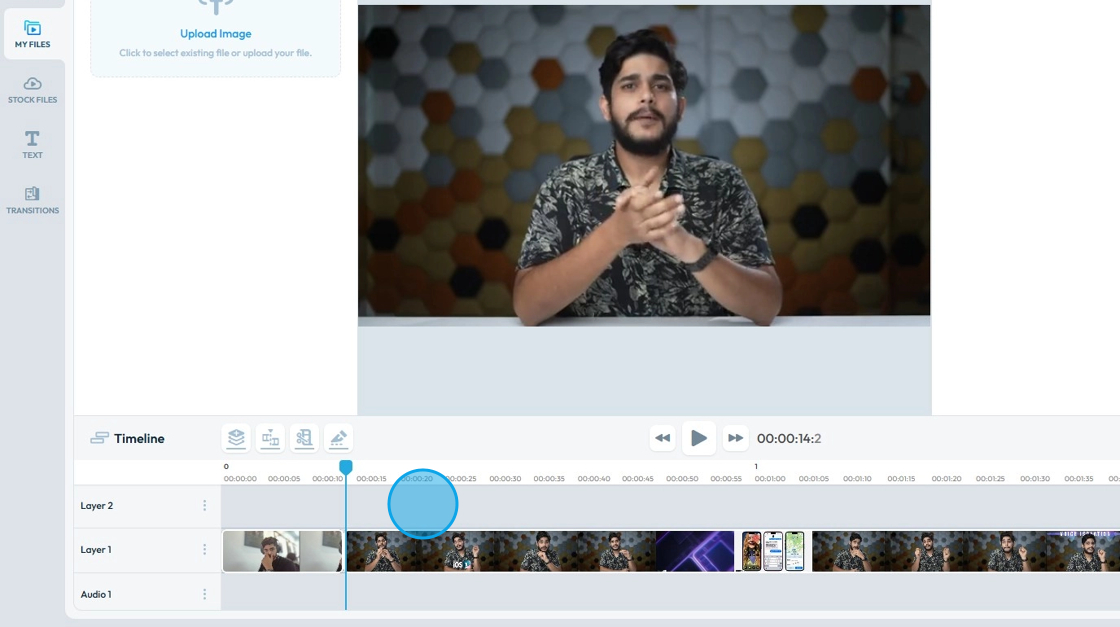
4. Find the image you want to delete in the time line at the bottom of the screen

5. To Remove the image, click on the "Close (x)" button of the Image in the layer section.
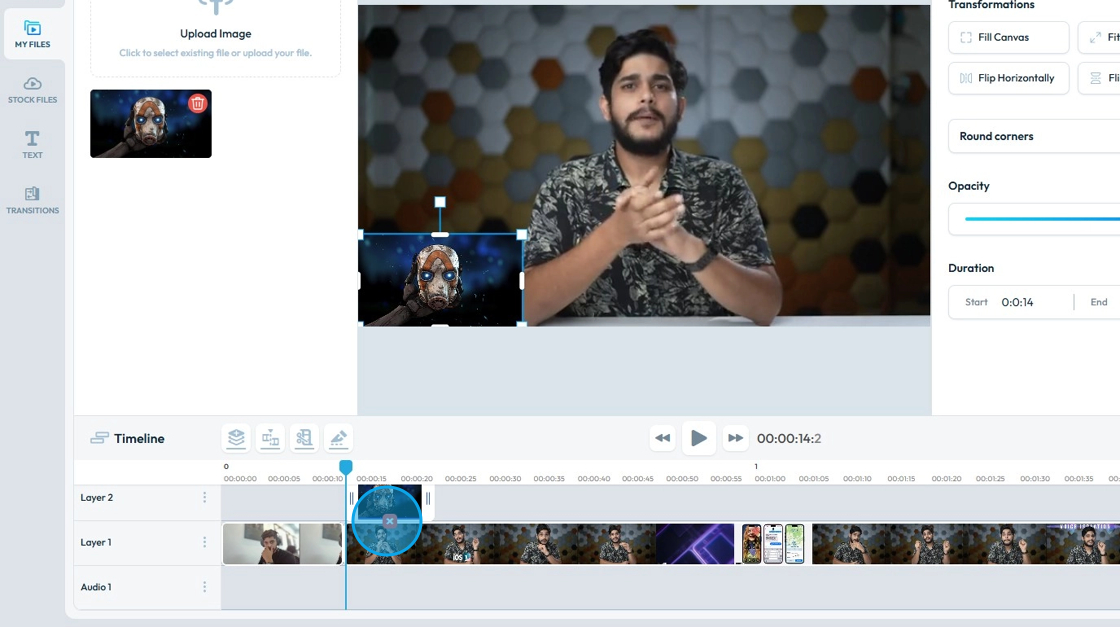
6. The video will then be gone from the timeline
Related Articles
How to Navigate Image Generator (Detailed)
This guide offers a straightforward process for generating AI images tailored for podcast studio setups, making it ideal for podcasters and content creators. By following the step-by-step instructions, users can easily visualize their podcast ...How to Navigate Image Generator (Detailed)
This guide offers a straightforward process for generating AI images tailored for podcast studio setups, making it ideal for podcasters and content creators. By following the step-by-step instructions, users can easily visualize their podcast ...How to Navigate Video to Text (Detailed)
This guide provides a comprehensive walkthrough for utilizing Podup's Video to Text feature, making it ideal for anyone needing accurate transcriptions of audio or video content. Users will learn how to efficiently convert files, customize speaker ...How to Navigate Video to Text (Detailed)
This guide provides a comprehensive walkthrough for utilizing Podup's Video to Text feature, making it ideal for anyone needing accurate transcriptions of audio or video content. Users will learn how to efficiently convert files, customize speaker ...How to Add A Video to My Website using Quick Add (Detailed)
This guide shows you how to quickly add videos to your website using the Quick Add feature. It walks you through choosing a video source and customizing how it looks and works. Follow the steps to make your site more engaging and professional with ...