How to customize embed player
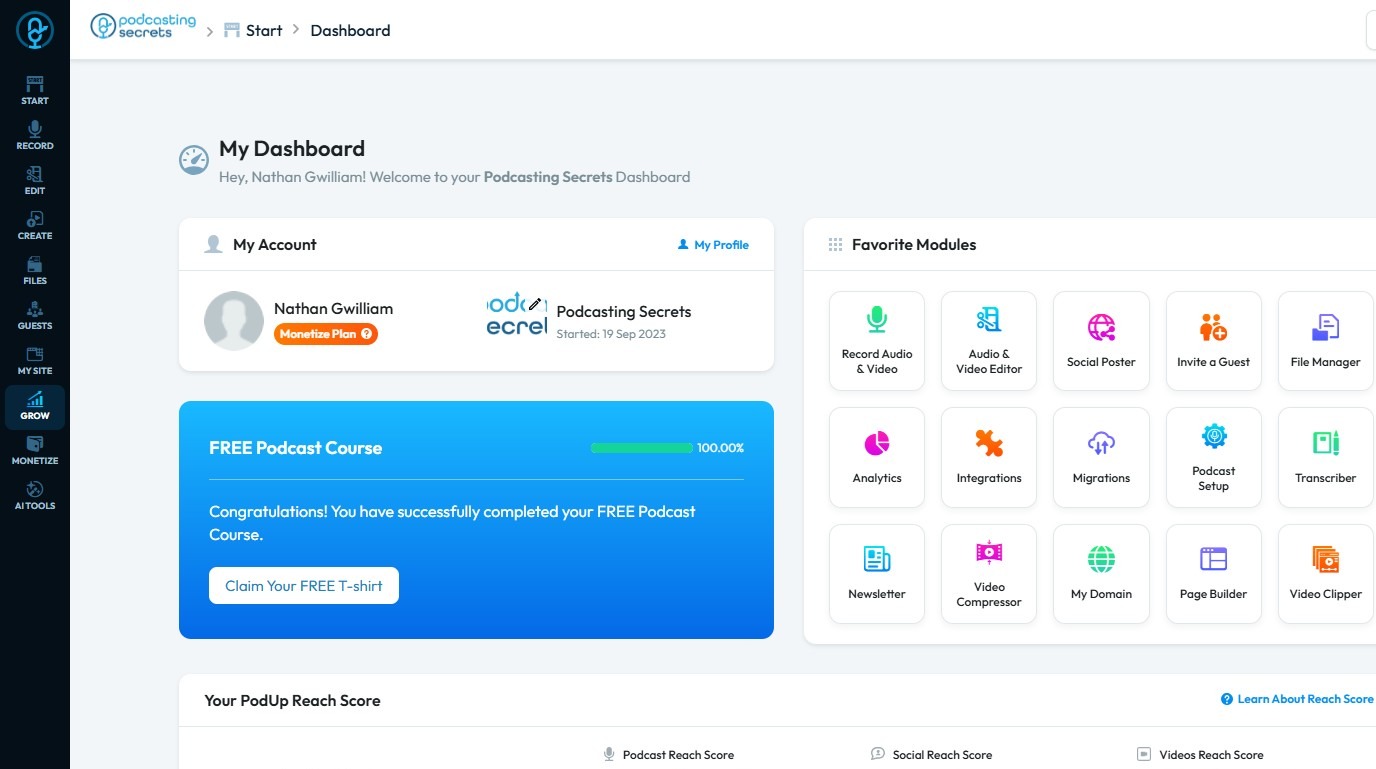
2. Click "Grow"
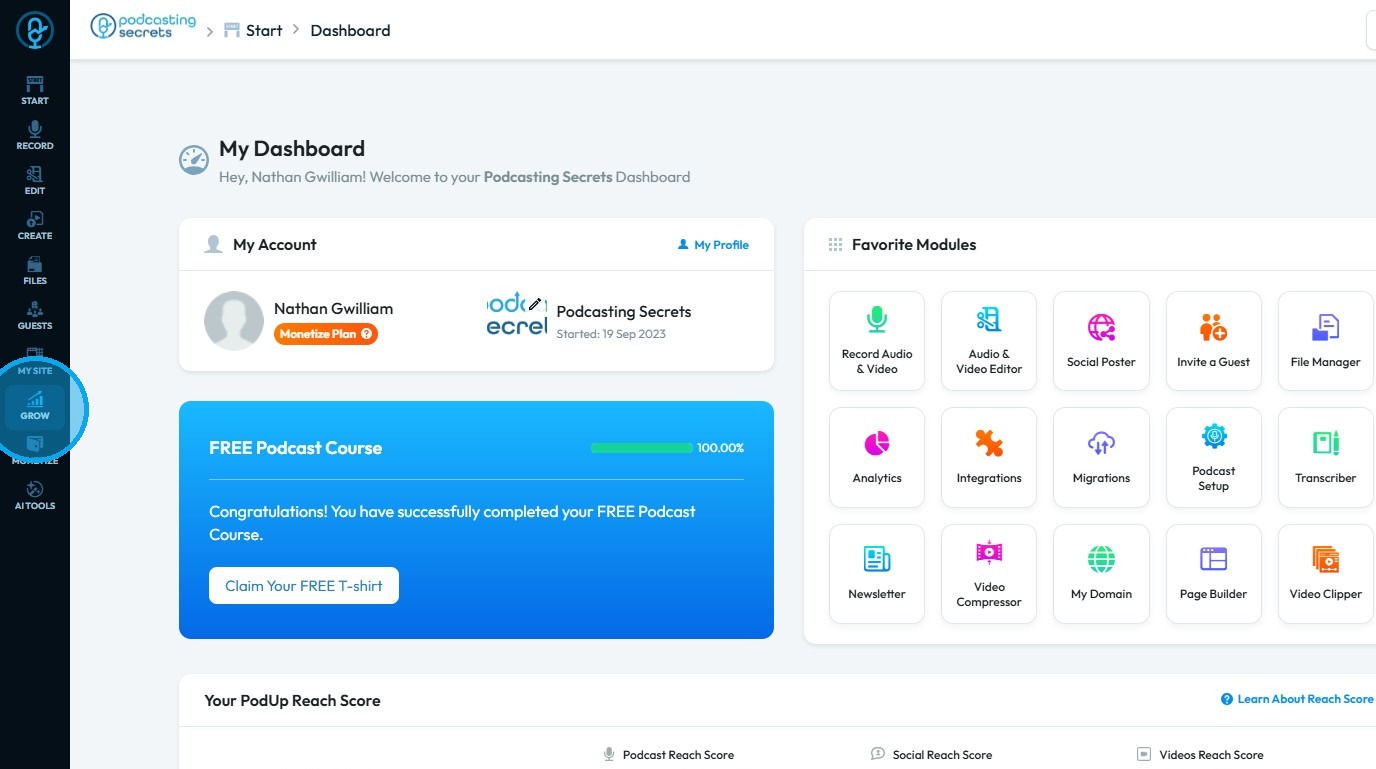
3. Select "Embed Player"
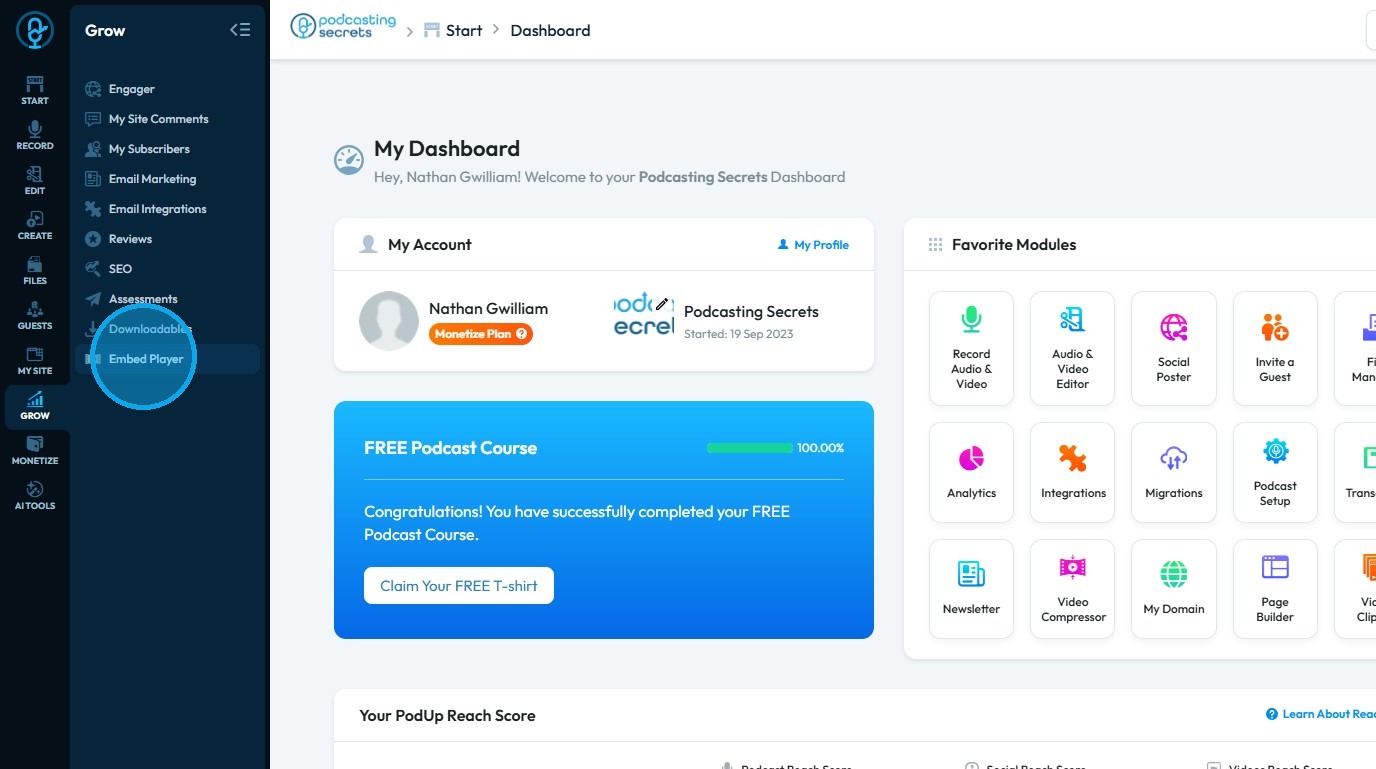
4. You will be directed to the “My Embed Players” page
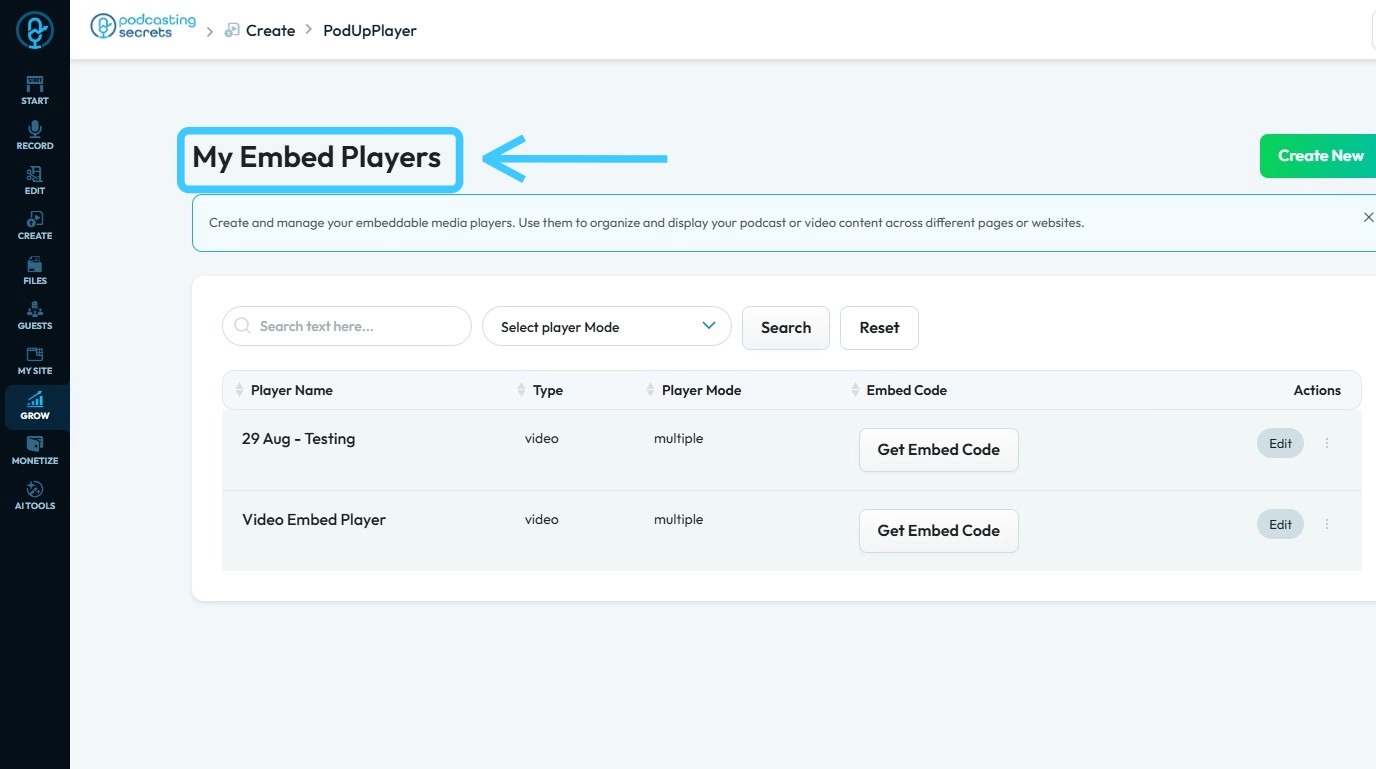
5. Click the “Edit” button for the embed player you wish to modify
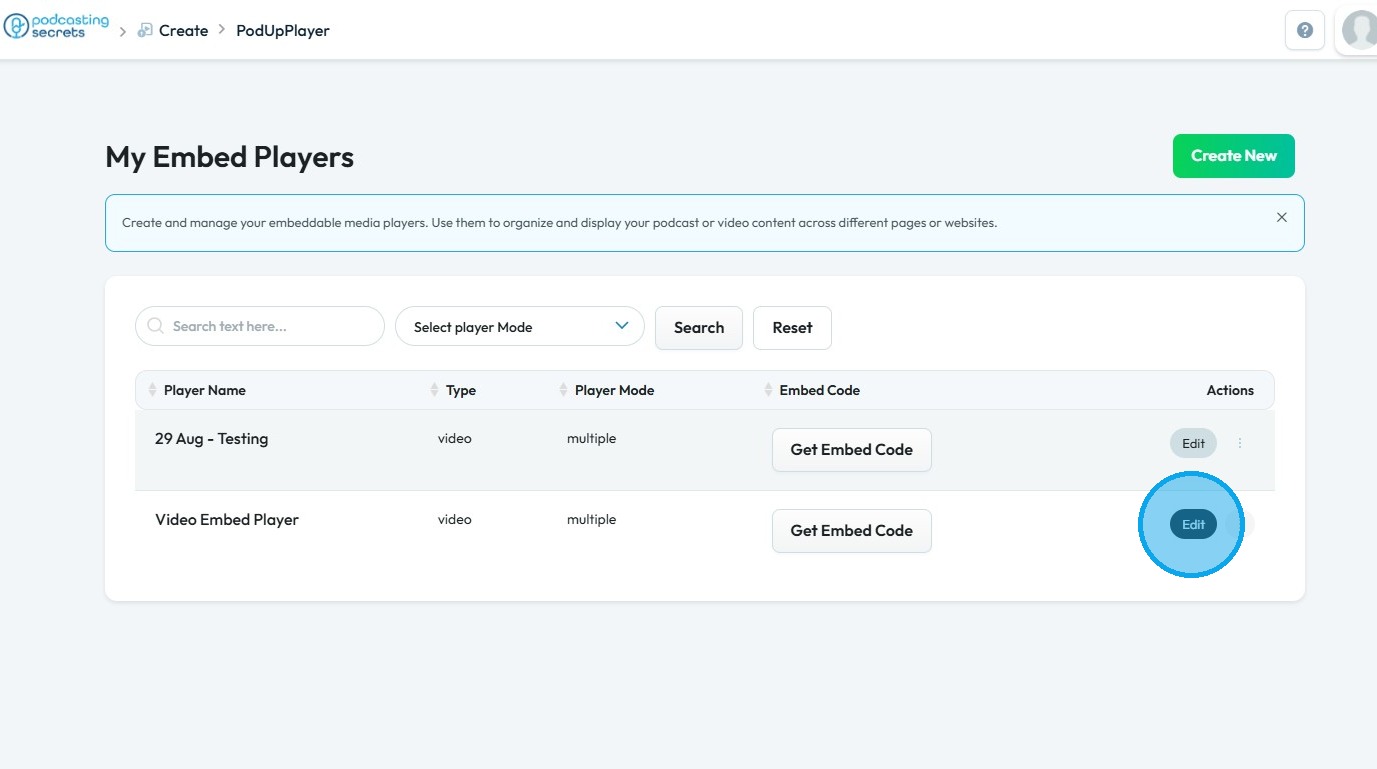
6. The “Edit Embed Player” page will open
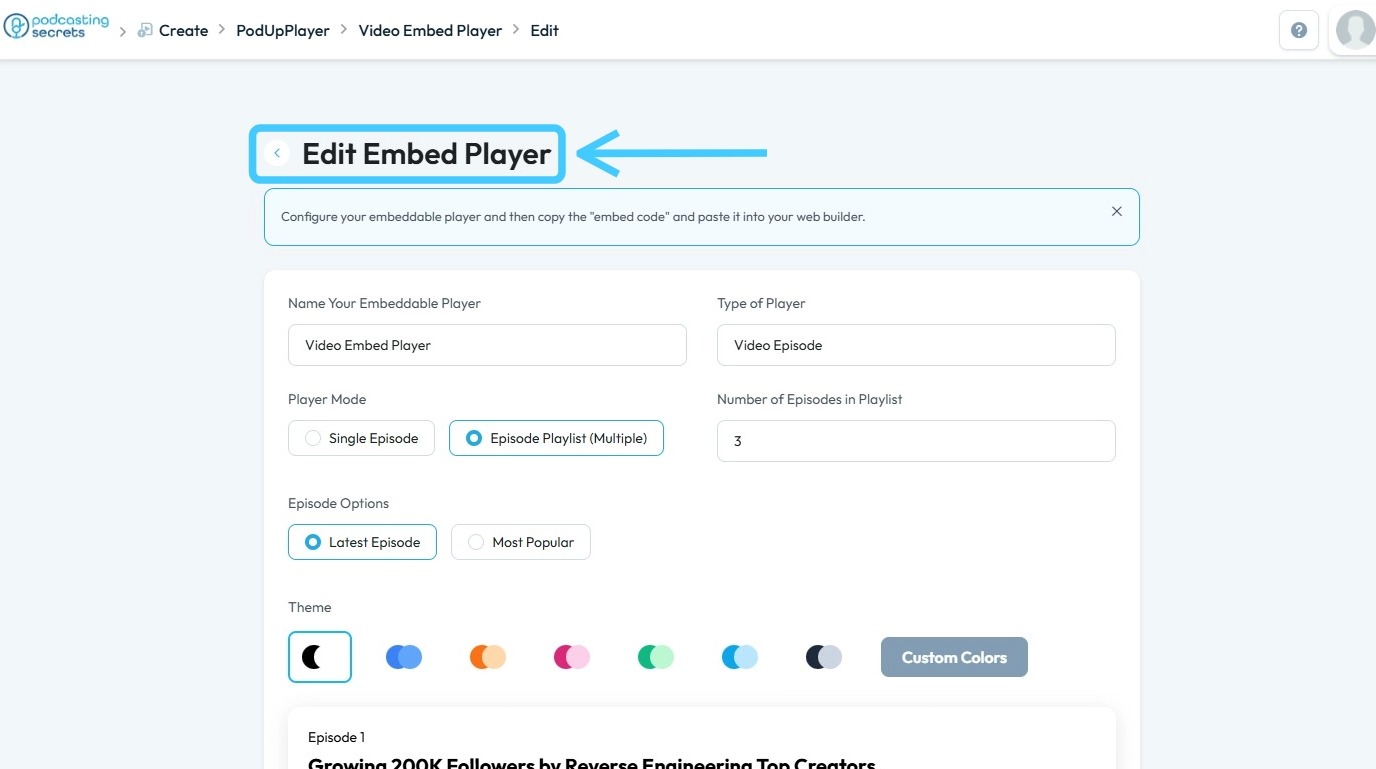
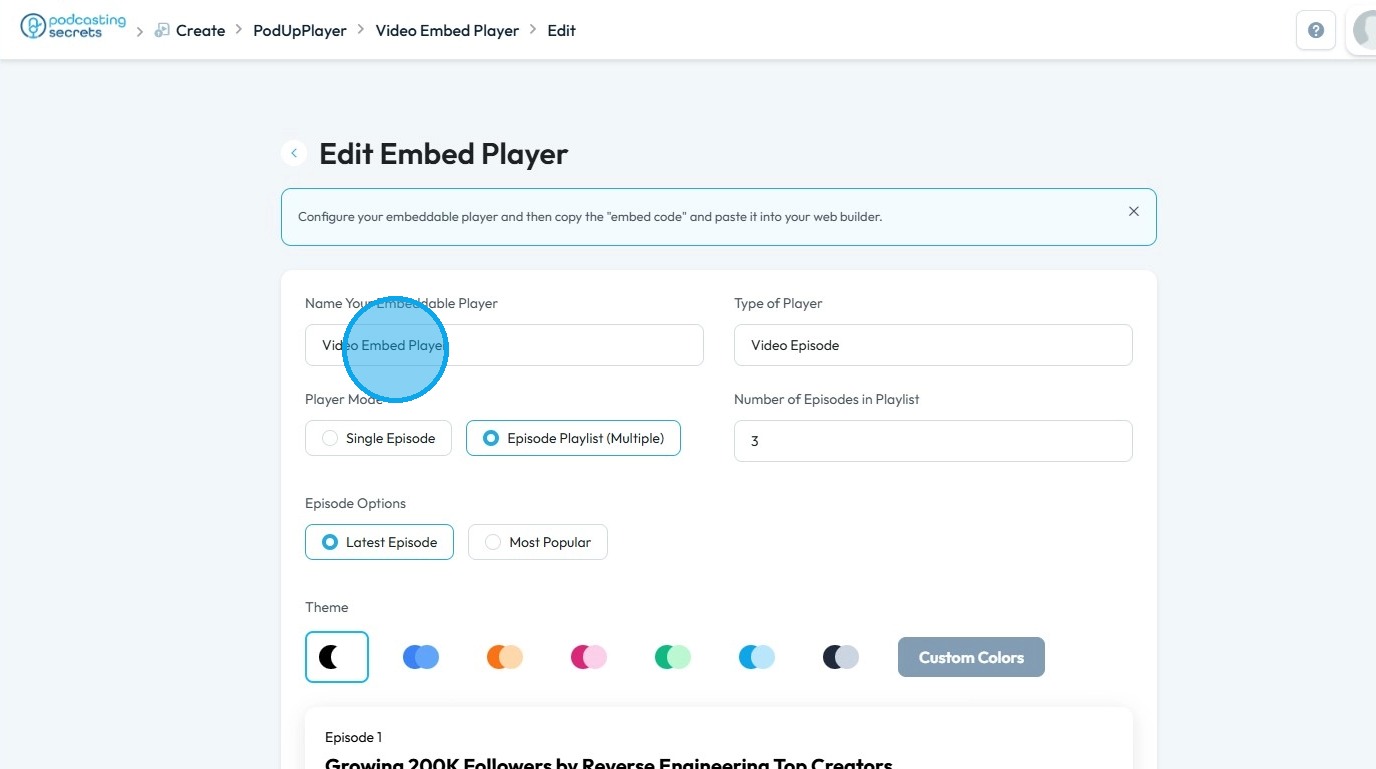
7. You can update the name of your embed player
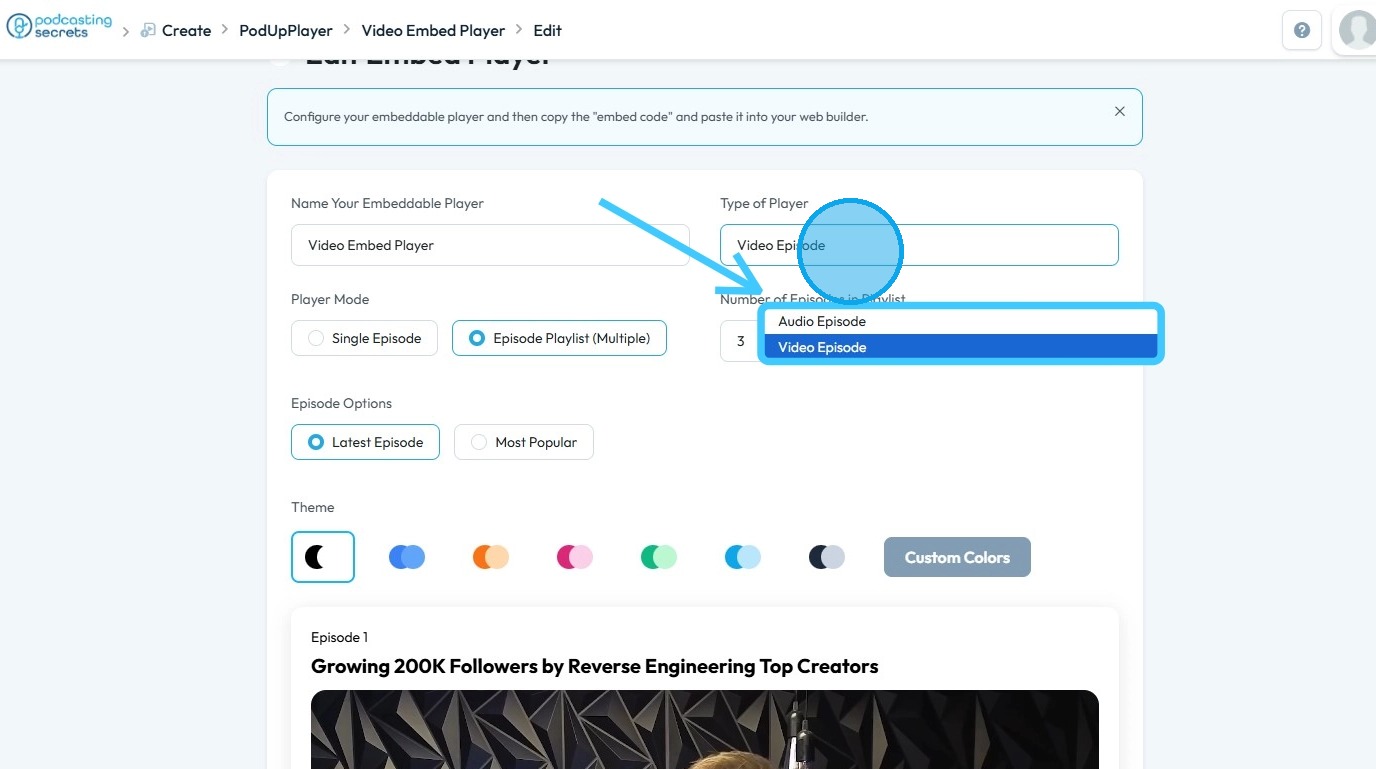
8. Click on the "Type of Player" to choose from:
- Audio Episode: The player will play audio episodes only
- Video Episode: The player will play video episodes
9. You can also configure the Player Mode:
Single Episode: Allows only one episode to be played in the player
Episode Playlist: Enables multiple episodes to be played within the player.
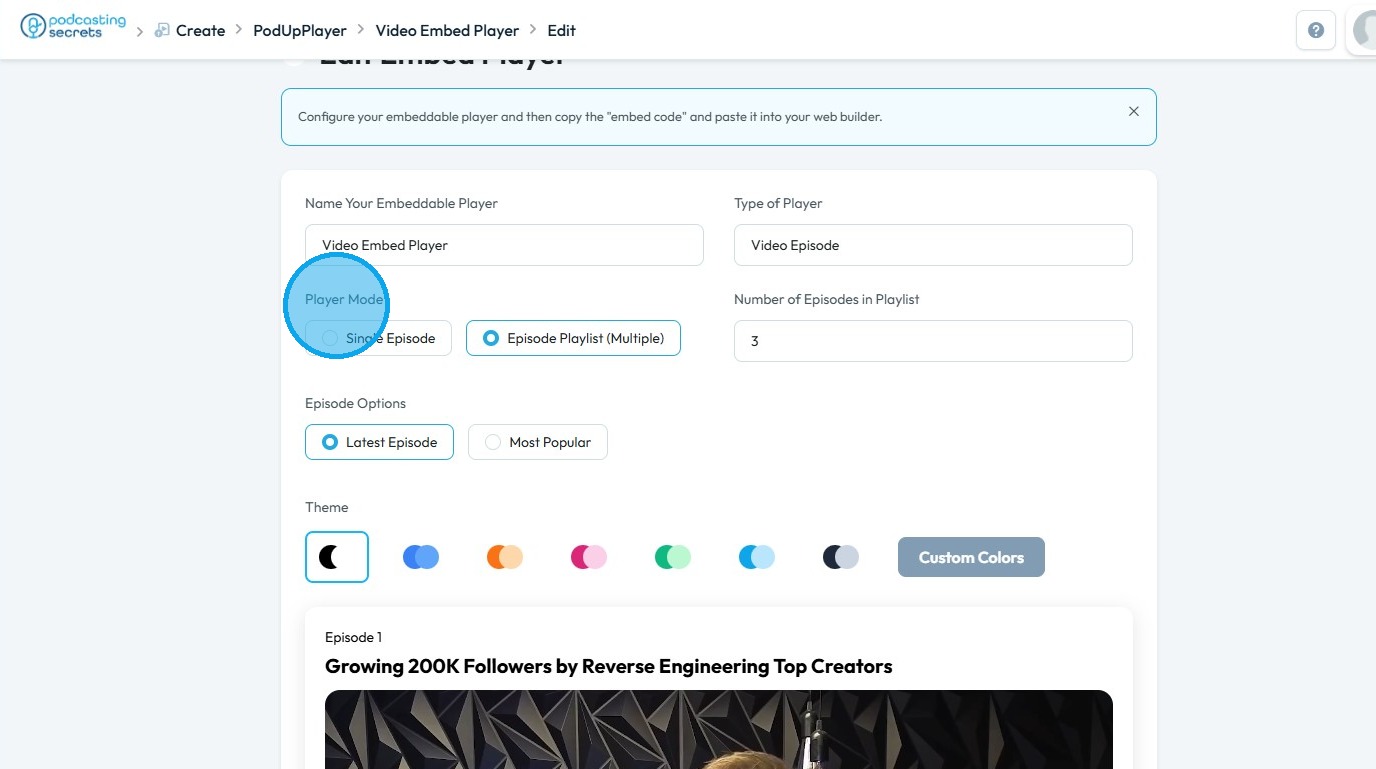
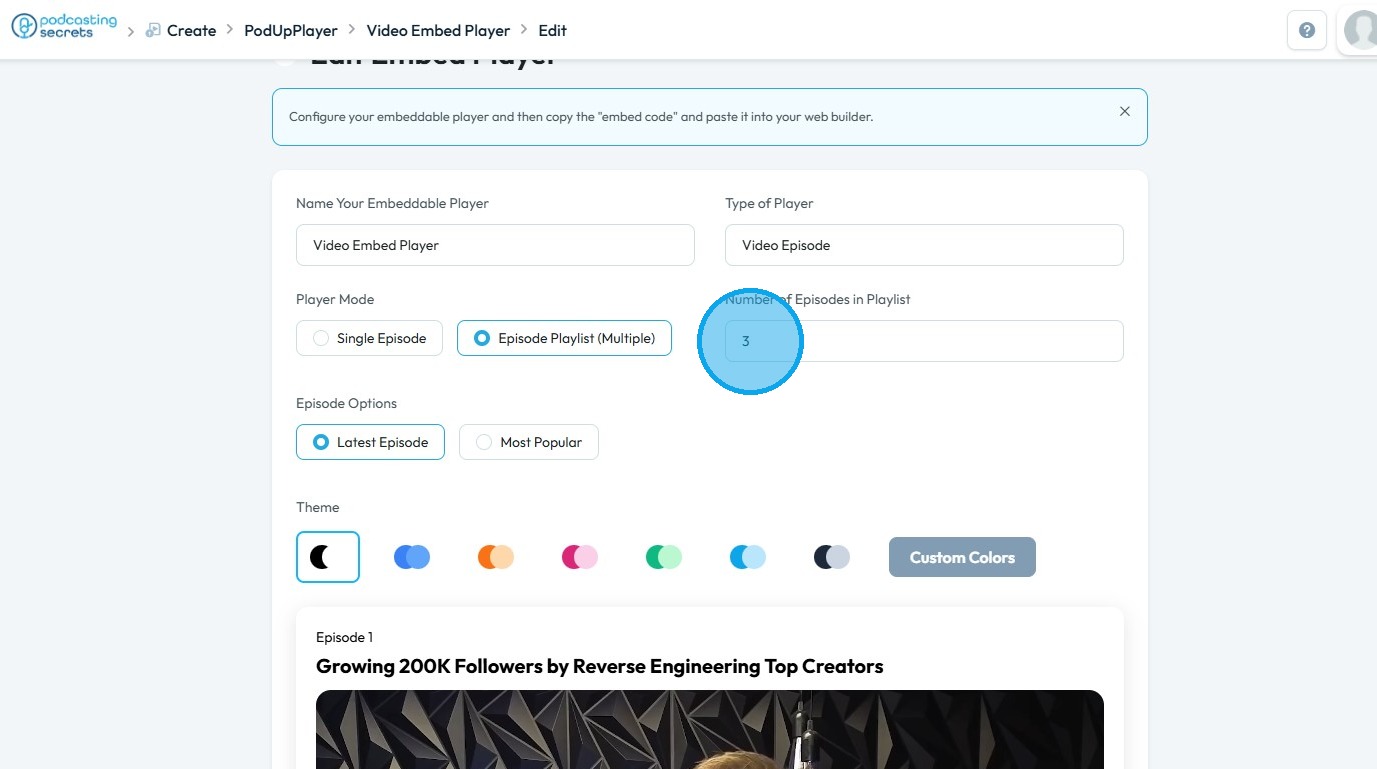
10. If Episode Playlist is selected, you can specify the number of episodes in the “Number of Episodes in Playlist” field
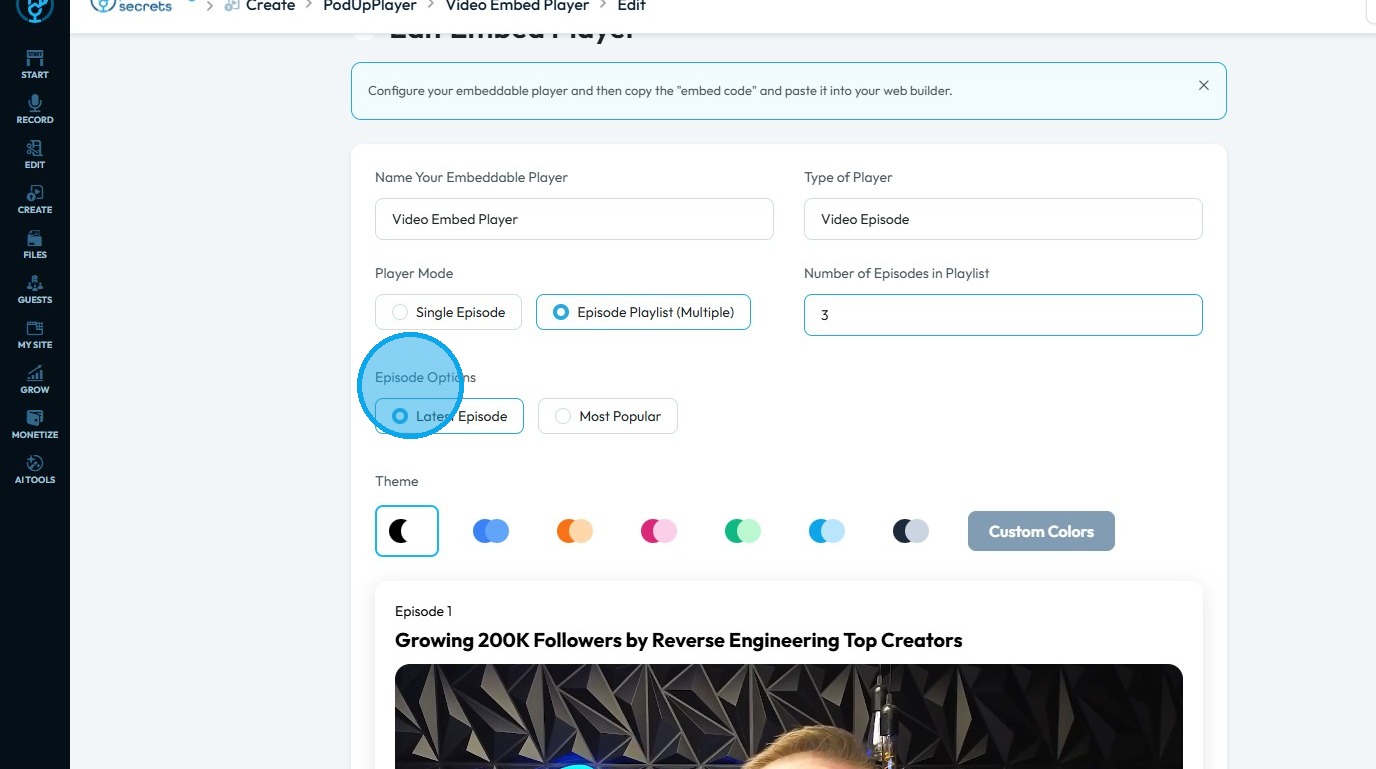
11. "Episode Options" allow you to select what episodes will be played in the "Embed Player"
- Latest Episodes: - The player will play the most recent episodes
- Most Popular:- The player will play the most popular episodes
12. You can change the theme color using the presets or add custom colors
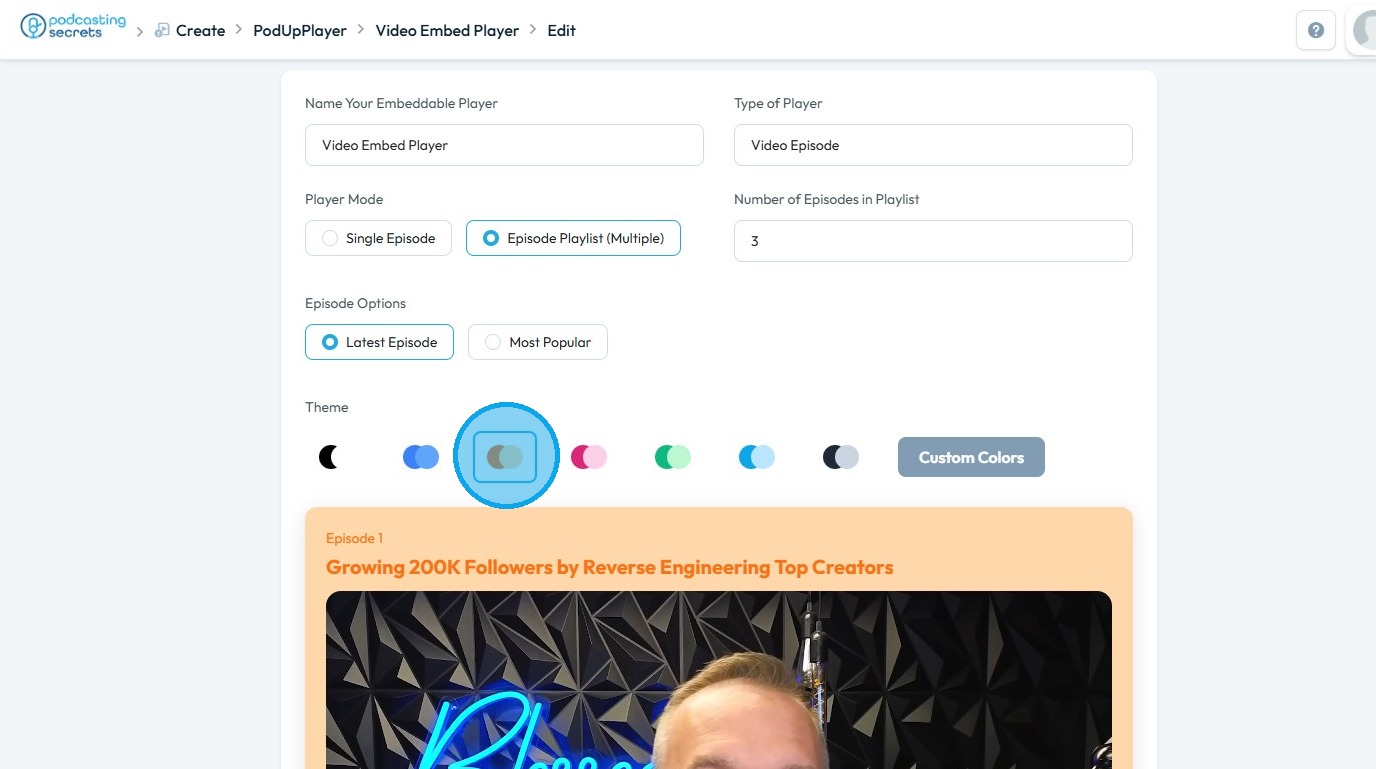
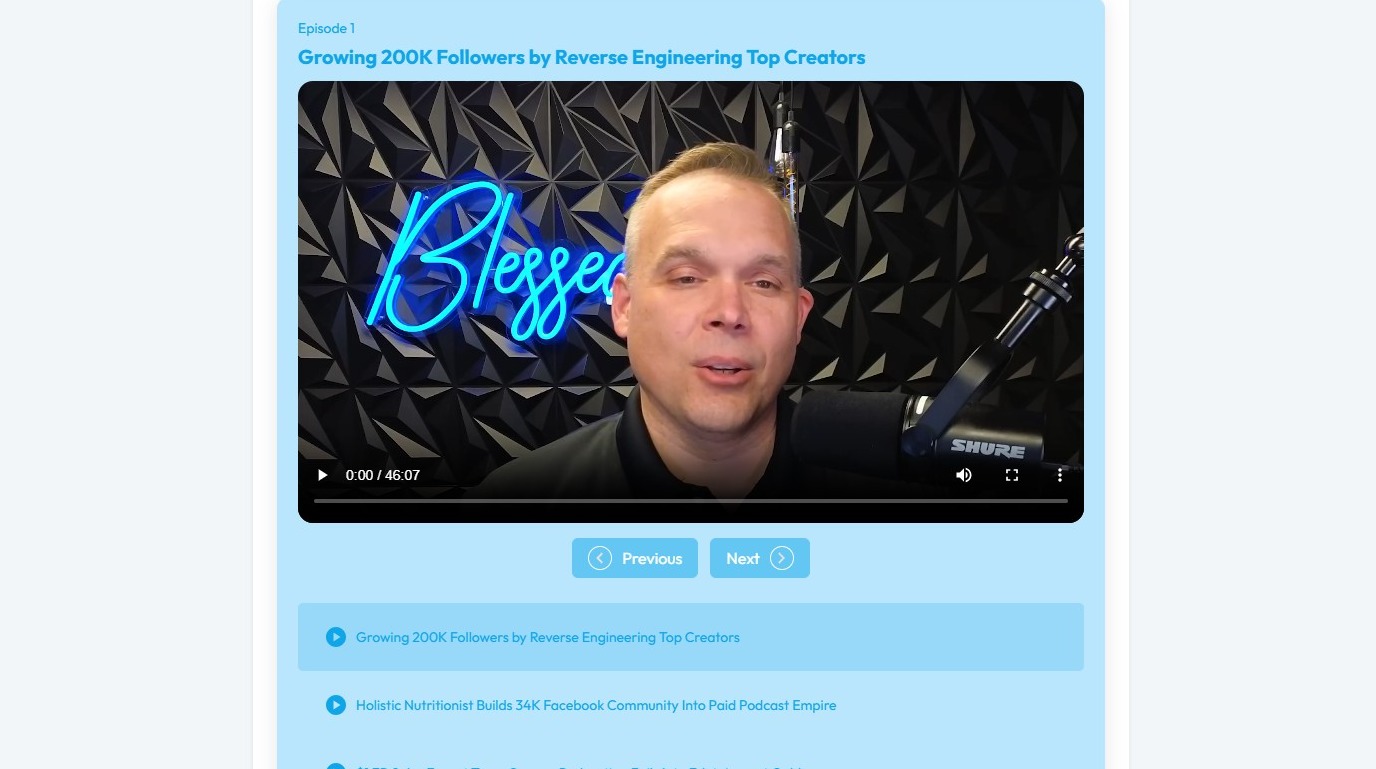
13. This is a preview of how the embed player will appear
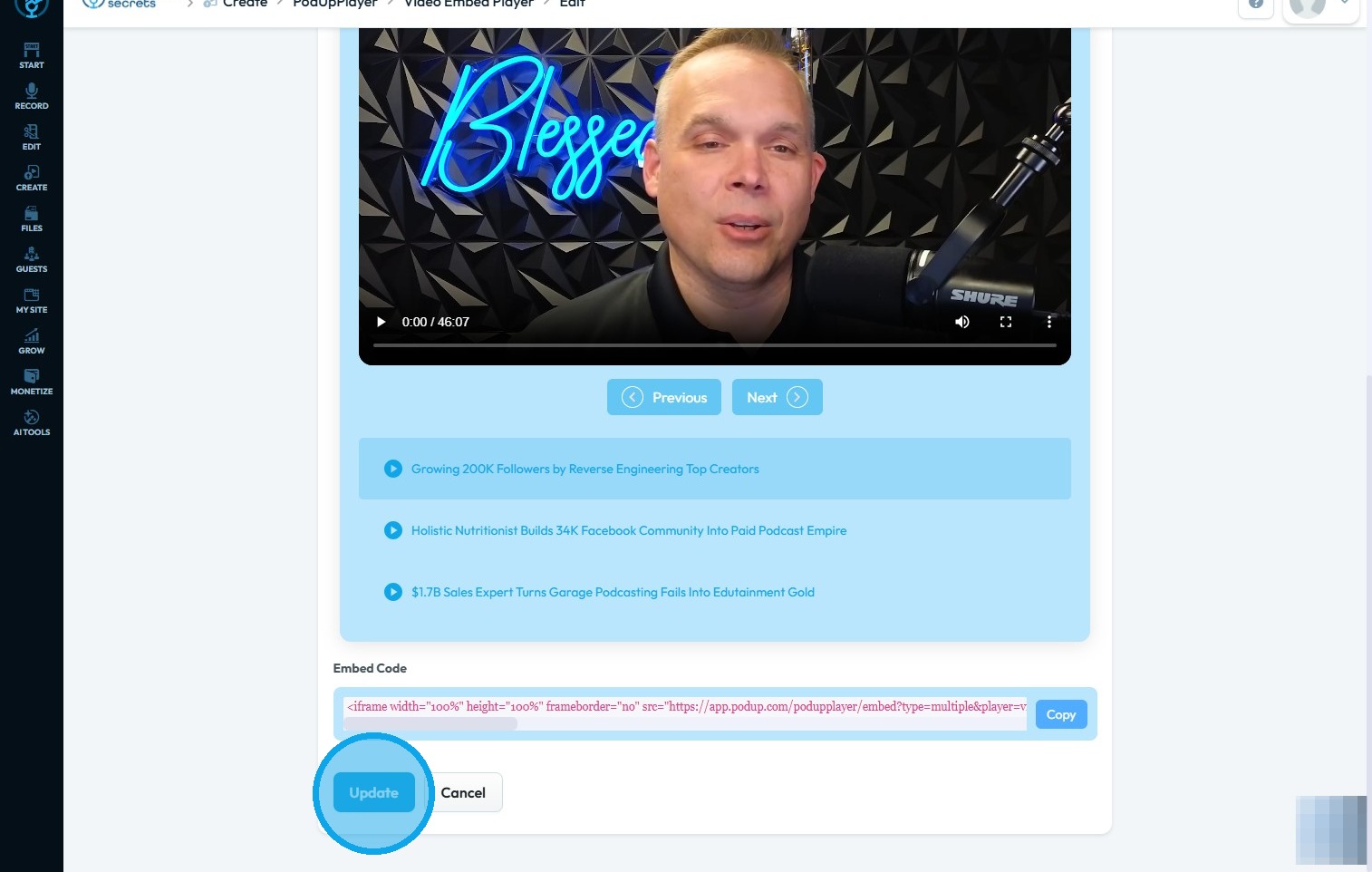
14. Once customization is complete, click “Update”
Related Articles
How to Make embed Player
Use this guide to create and customize an embeddable PodUp player for sharing audio or video. 1. Navigate to https://app.podup.com/home 2. Click "Grow" 3. Select "Embedded Player" 4. The “My Embedded Players” page will load 5. Click "Create New" 6. ...What is embed player
Use this guide to embed media on your site and boost engagement and accessibility. 1. An embed player lets you play audio or video directly on a webpage, without sending users to another site.Why is my embed player not working?
Follow this guide to resolve PodUp embed player problems and stream smoothly 1. The PodUp embed player might not be working due to several common issues: Incorrect embed code placement or errors in the HTML embed snippet can prevent the player from ...How to add embed player to your site
Use this guide to add an embed player to your site and share audio or video content. 1. Navigate to https://app.podup.com/home 2. Click "Grow" 3. Select "Embed Player" 4. Click "Get Embed Code" for the embed player you wish to add to your webpage 5. ...How to Customize "Create Code" Quick Add in PodUp Page Builder (Detailed)
This guide offers a step-by-step approach to customizing the Create Code Quick Add feature in Page Builder, making it essential for anyone looking to enhance their website's interactivity and design. It covers key functionalities, such as adding ...