How to Connect Twitter Using PodUp Integrations
1. There are 3 ways to open "Integrations" page.
1st Method: Navigate to https://app.podup.com/home

2. Click on "Integrations" in "Favorites Modules" on your "Dashboard".

3. This is how "Integrations" page will look like.

4. 2nd Method: Click on "Start".

5. Select "Integrations"
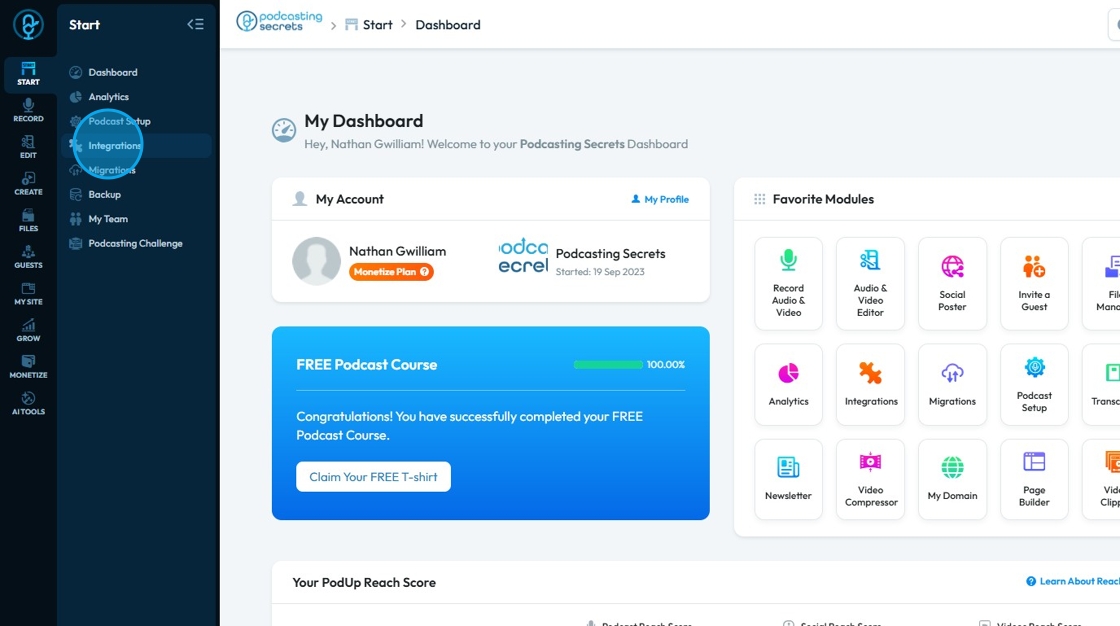
6. You will land on same "Integrations" page.

7. 3rd Method: Click "My Site"

8. Select "Integrations"

9. Once you are on "Integrations" page.

10. Click "Social"

11. This will be "Social Integration" page.

12. Click "Connect" button for Twitter

13. A new "Sign in Window" will open up.

14. Click the "Sign In" button.

15. Enter "Username" and click "Next"
- You can sign up using Google or Apple if you have linked your Google or Apple account to your X account
- If you can't remember your password, select "Forgot password?" and it will take you through X's password recovery process
- If you do not have an X account, you can create a free account by selecting "Sign Up" under "Forgot password"

16. Enter the "Password"
- If you can't remember your password, select "Forgot password?" and it will take you through X's password recovery process
- If you do not have an X account, you can create a free account by selecting "Sign Up" under "Log in"

17. Click "Log in"

18. Click "Authorize app"

19. Now you will be redirected to "Social Integration"

20. Your "Twitter" account will be connected.
