How to Connect Google Analytics Account to PodUp Analytics Using Integrations
This guide helps you easily connect Google Analytics to PodUp Analytics with clear, step-by-step instructions. It offers different ways to access the integration page and shows you how to track your podcast’s performance. Get better insights into your listeners and make smarter, data-driven decisions for your podcast.
1. There are 3 ways to open "Integrations" page.
1st Method: Navigate to https://app.podup.com/home
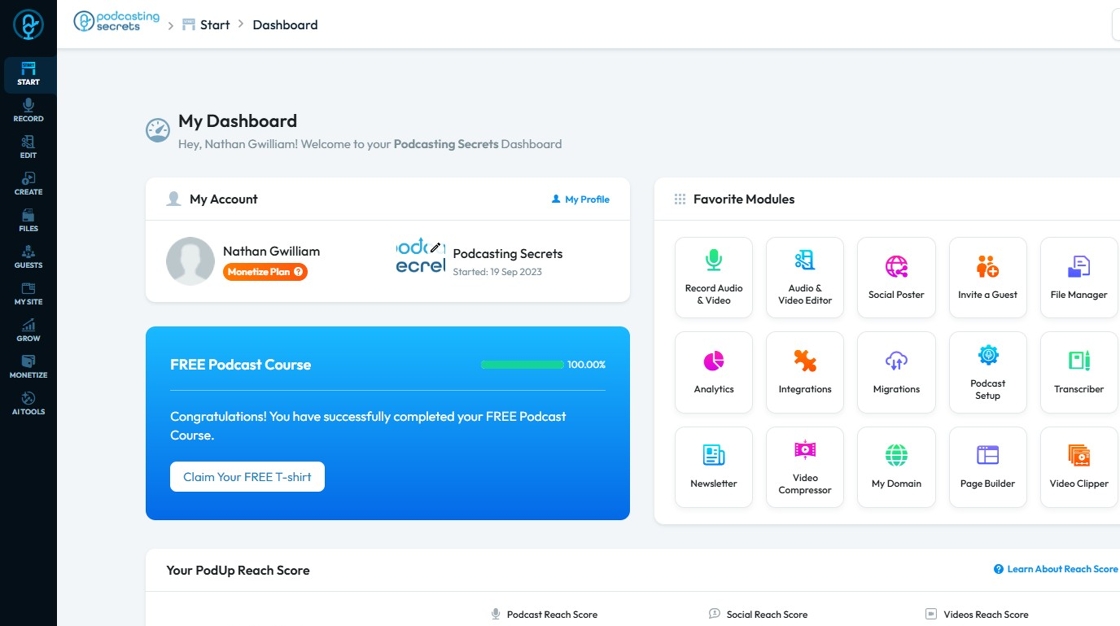
2. Click on "Integrations" in "Favorites Modules" on your "Dashboard".

3. This is how the "Integrations" page will look.

4. 2nd Method: Click "Start".
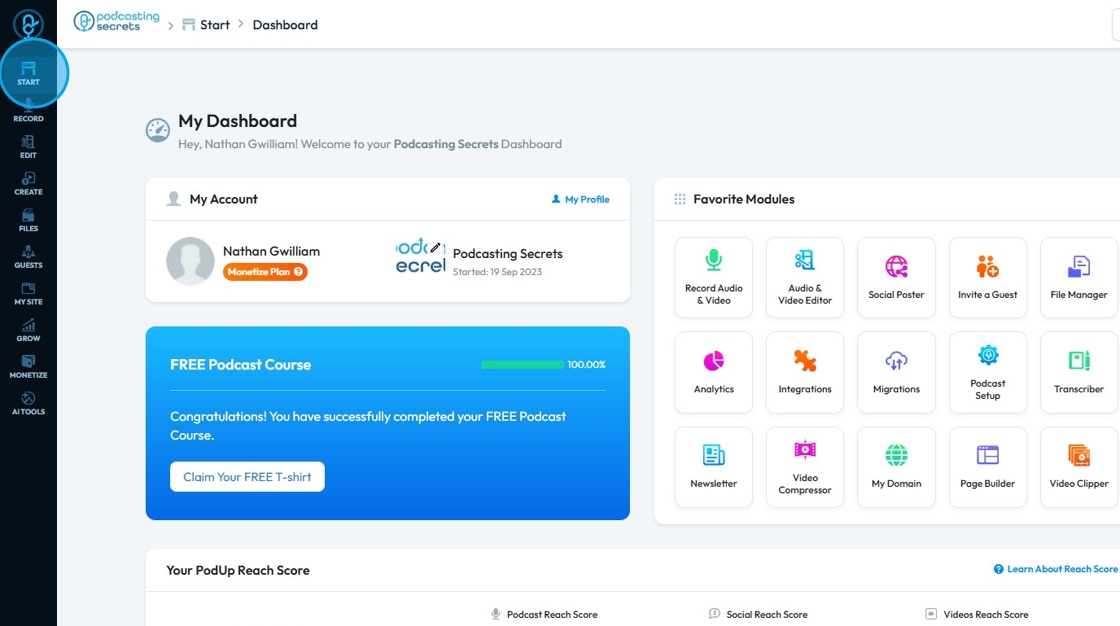
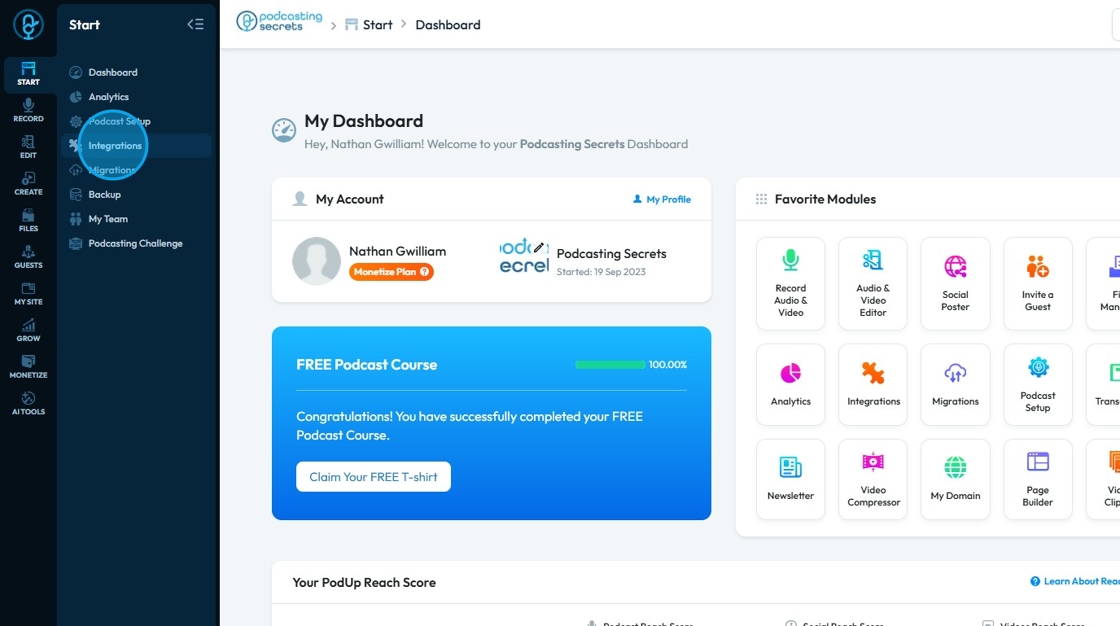
5. Select "Integrations"
6. You will land on same "Integrations" page.
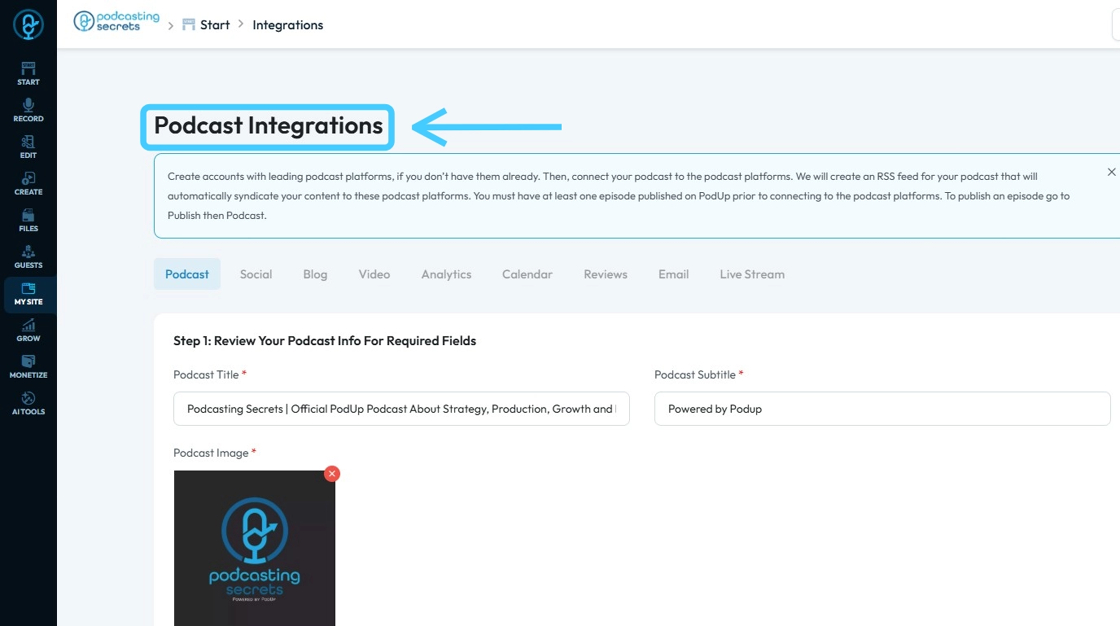
7. 3rd Method: Click "My Site"
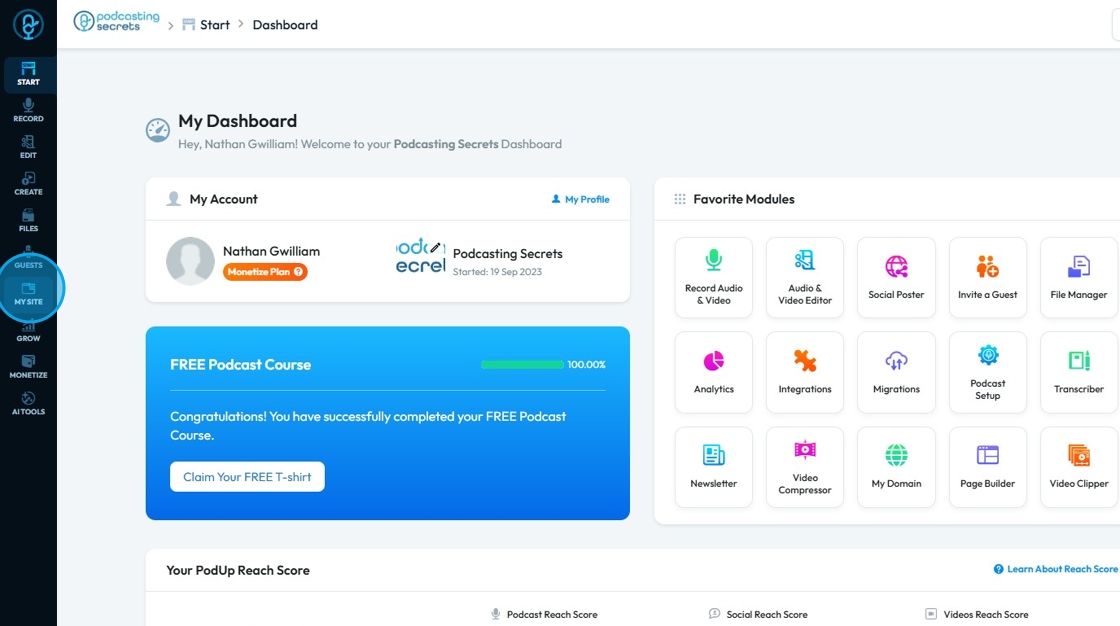
8. Click "Integrations"
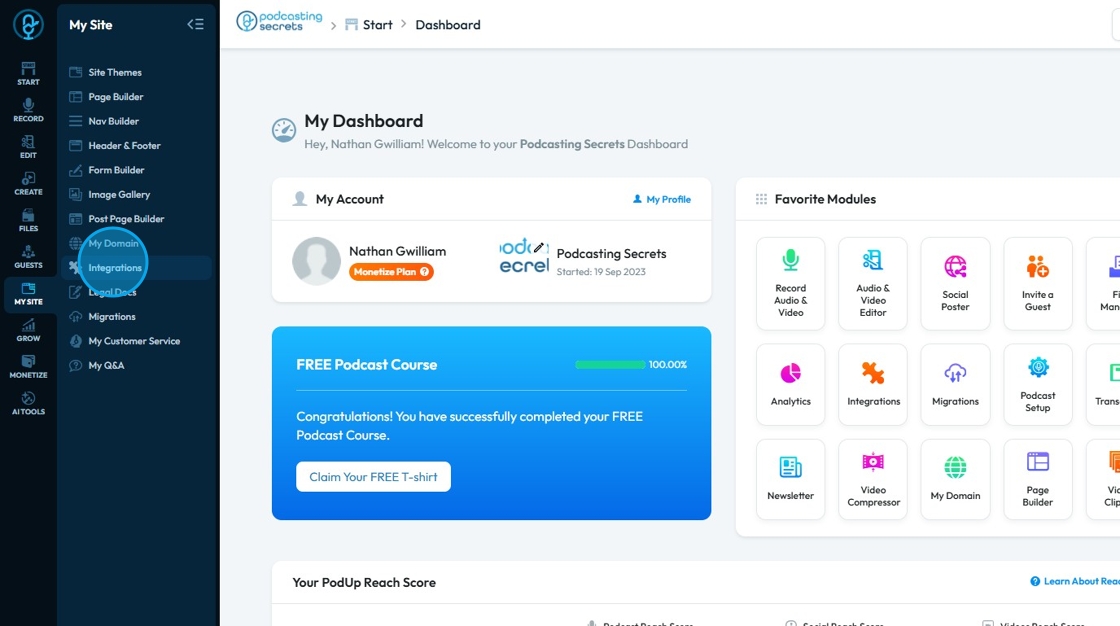
9. Click "Analytics"
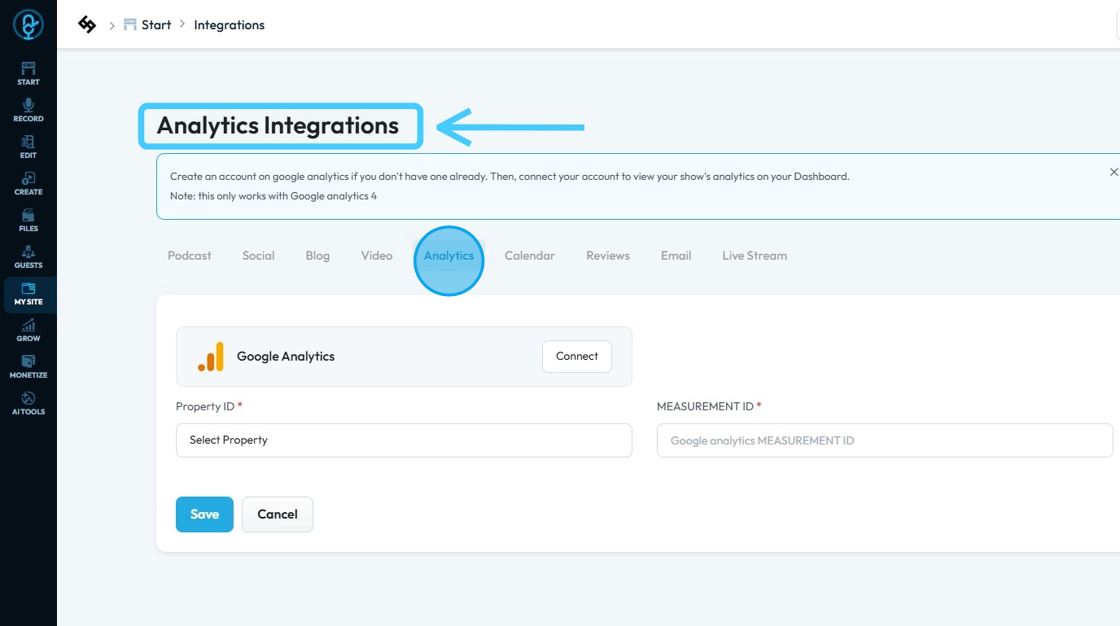
10. Click "Connect" button to integrate Google Analytics.
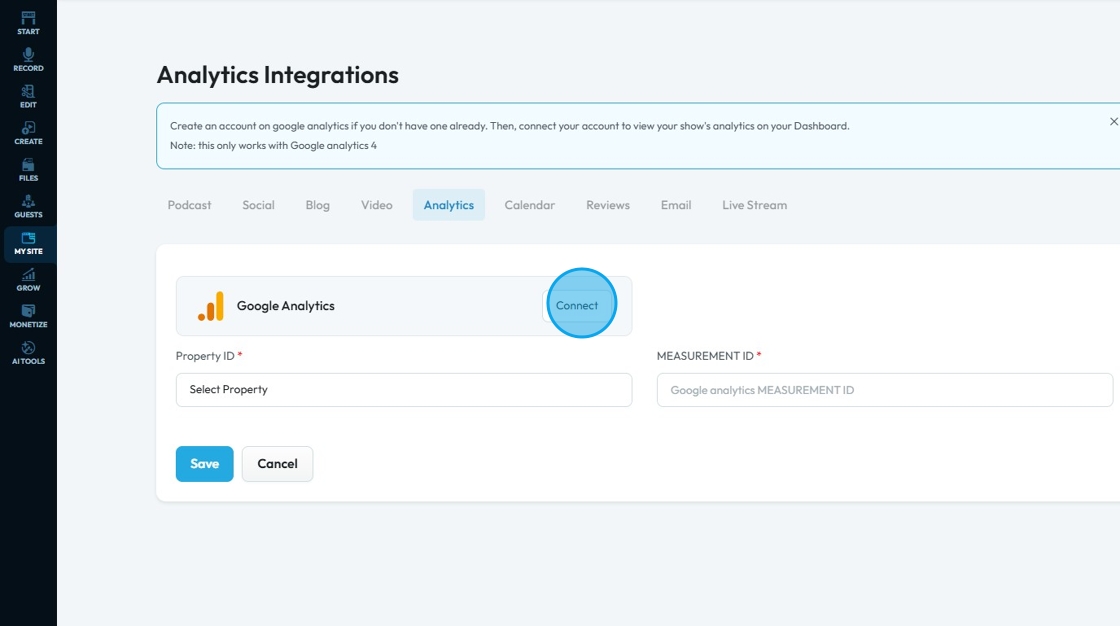
11. A new "Sign In" window will open up.
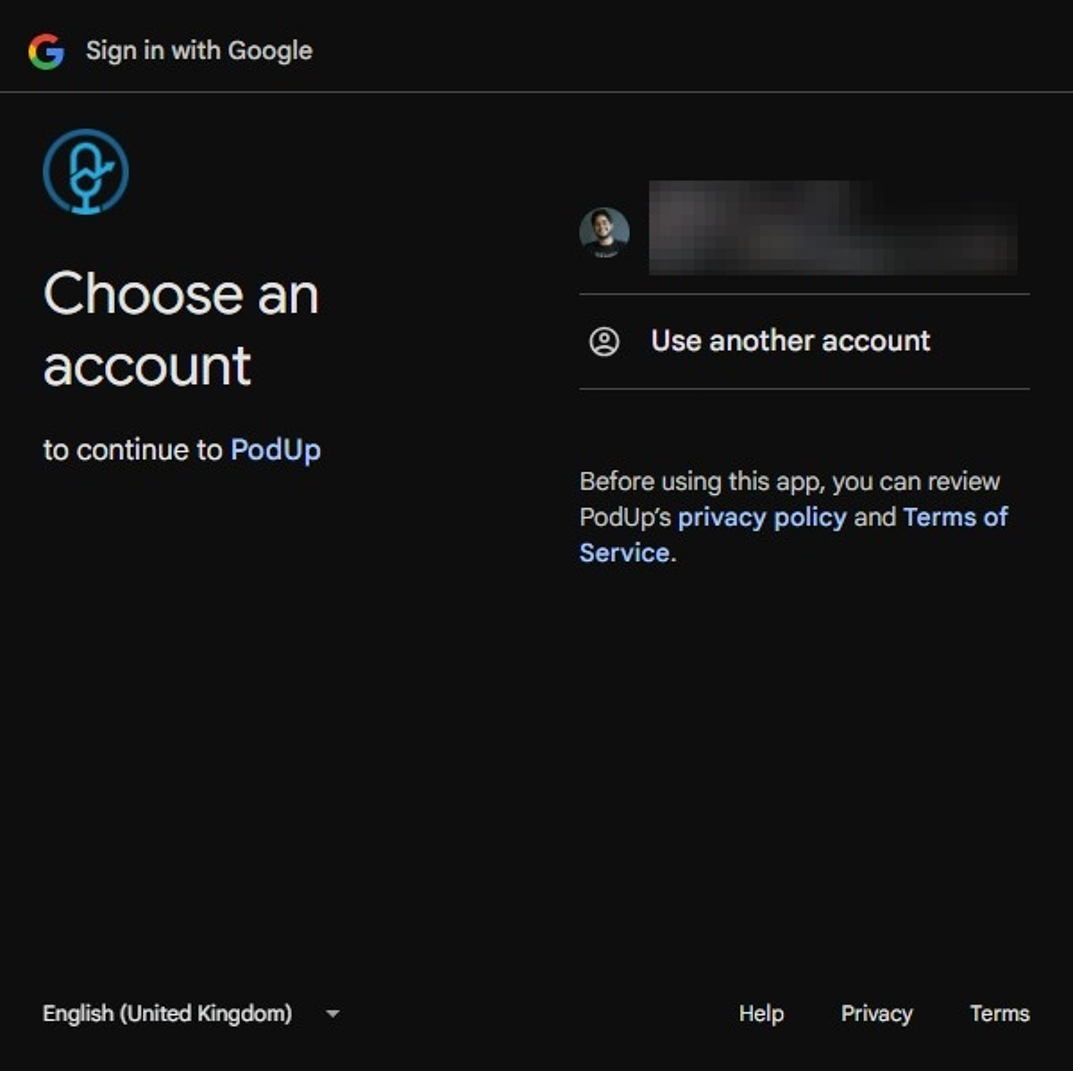
12. Select the "Google Account" or add a new one.
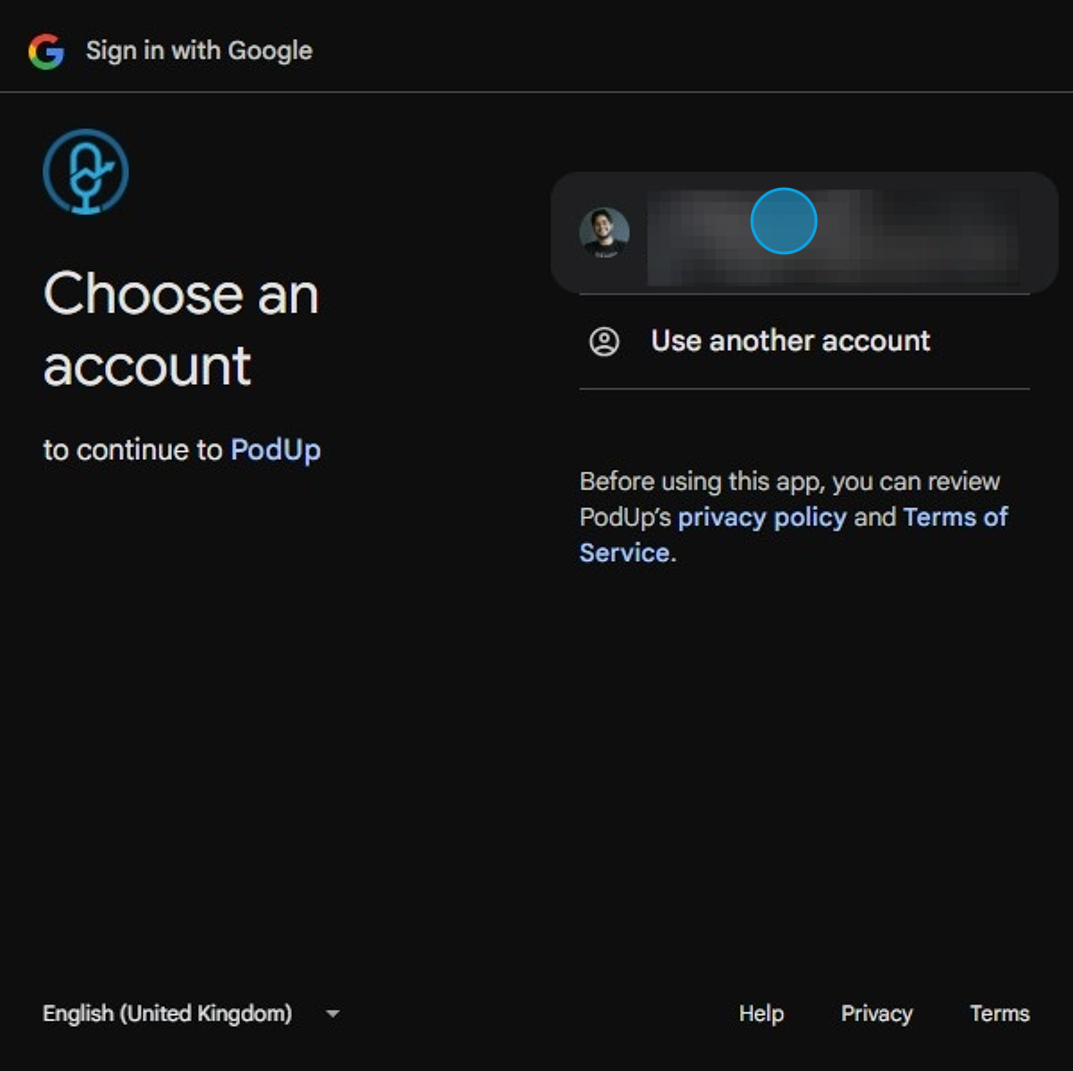
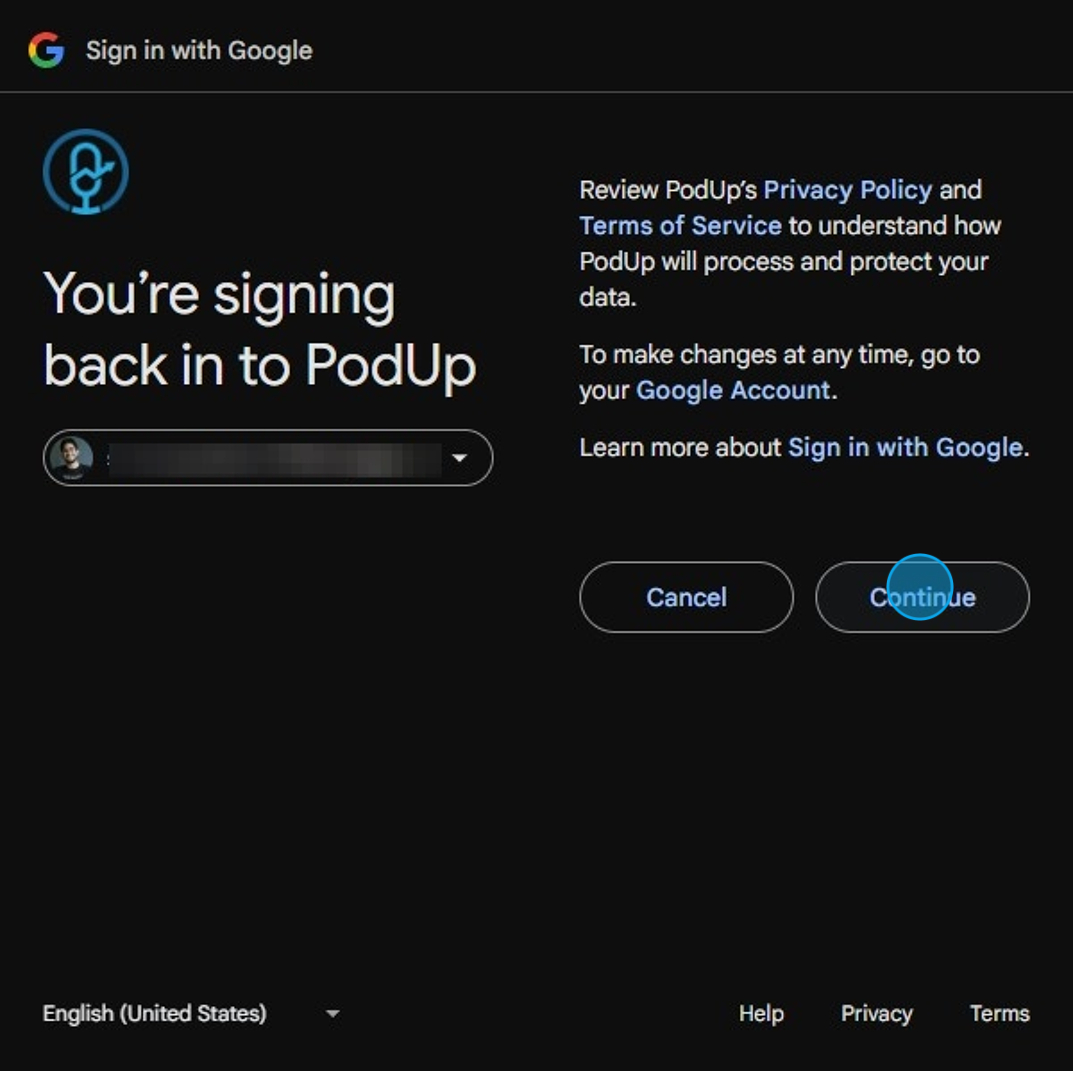
13. Click "Continue"
14. Click "Continue" on this "Permission" window.
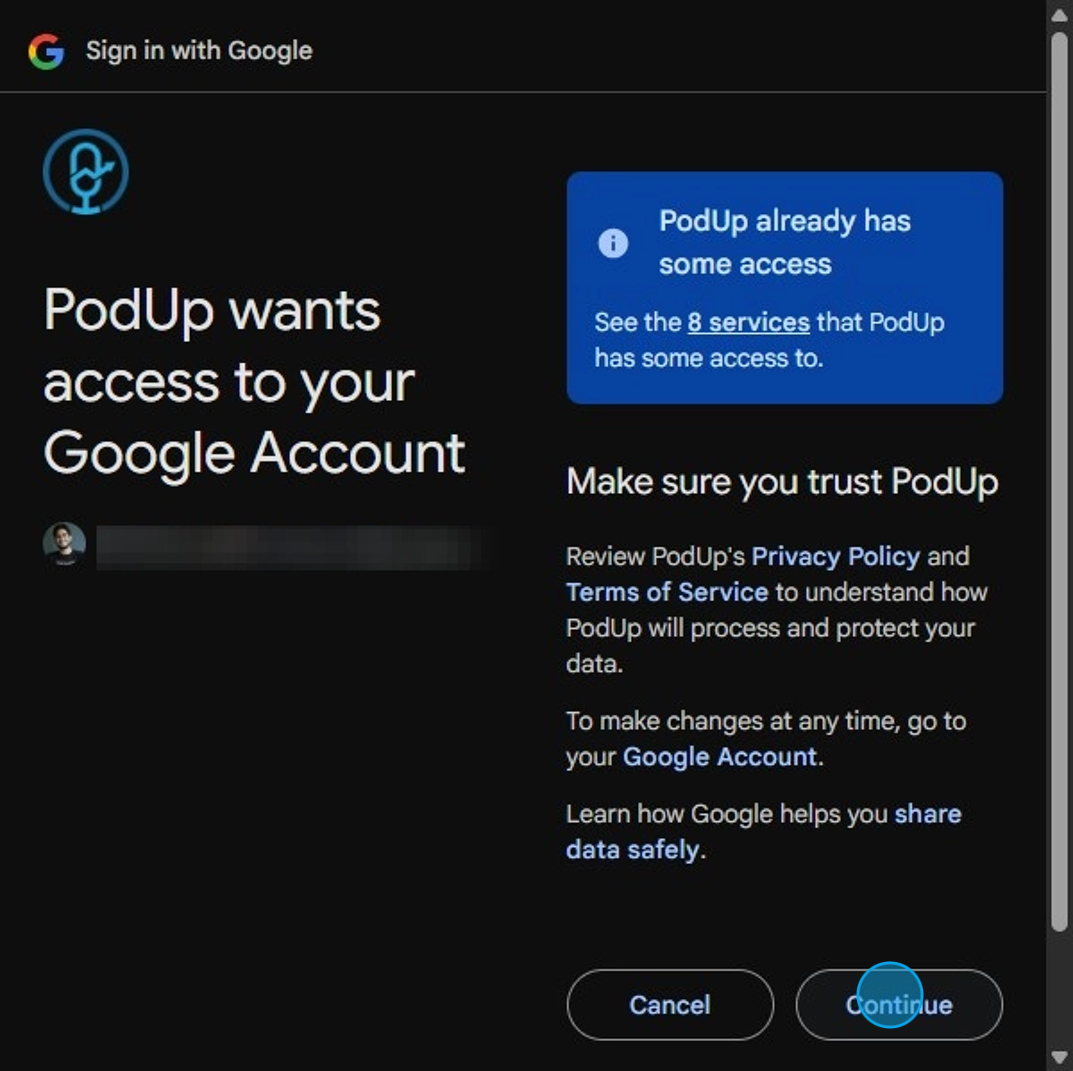
Tip: If you have an error here it might be due to the fact that you don't have a google analytics account. Click Here to view instructions on creating an account in 5 steps
15. Your "Google Analytics" will be connected in PodUp
- Your account will appear underneath the Google Analytics logo
- Your Property ID and Measurement ID will be uploaded to PodUp
- Property ID: A unique identifier for a specific GA property (your website or app) within your Google Analytics account. In Universal Analytics, it looked like
UA-XXXXXXXXX-1. - Measurement ID: Used in Google Analytics 4 (GA4) and identifies the data stream for a website or app. It starts with
G-, likeG-ABCDE12345.
- Property ID: A unique identifier for a specific GA property (your website or app) within your Google Analytics account. In Universal Analytics, it looked like
Click "Save" to keep the IDs
