How to change my homepage
Use this guide to change your PodUp homepage and improve your site’s experience
1. Navigate to https://app.podup.com/home
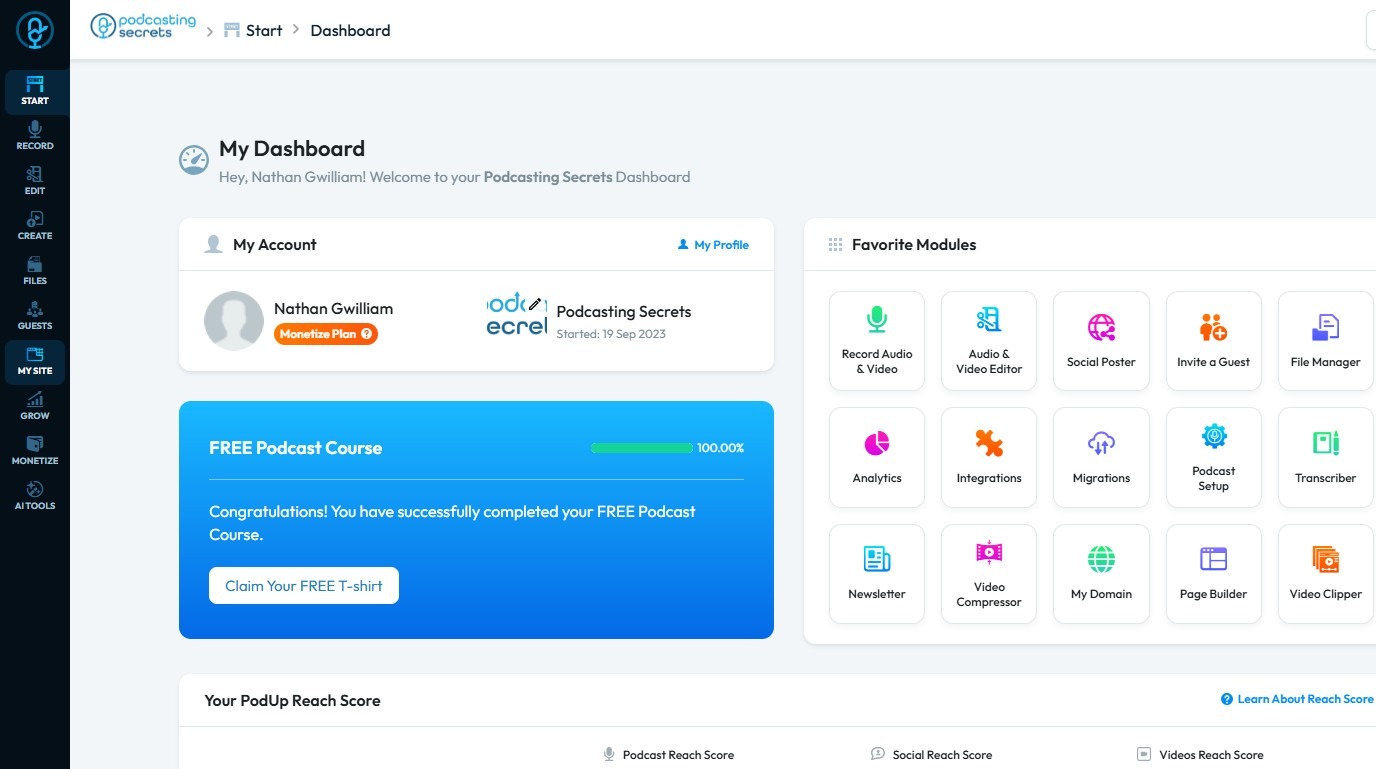
2. Click "My Site"
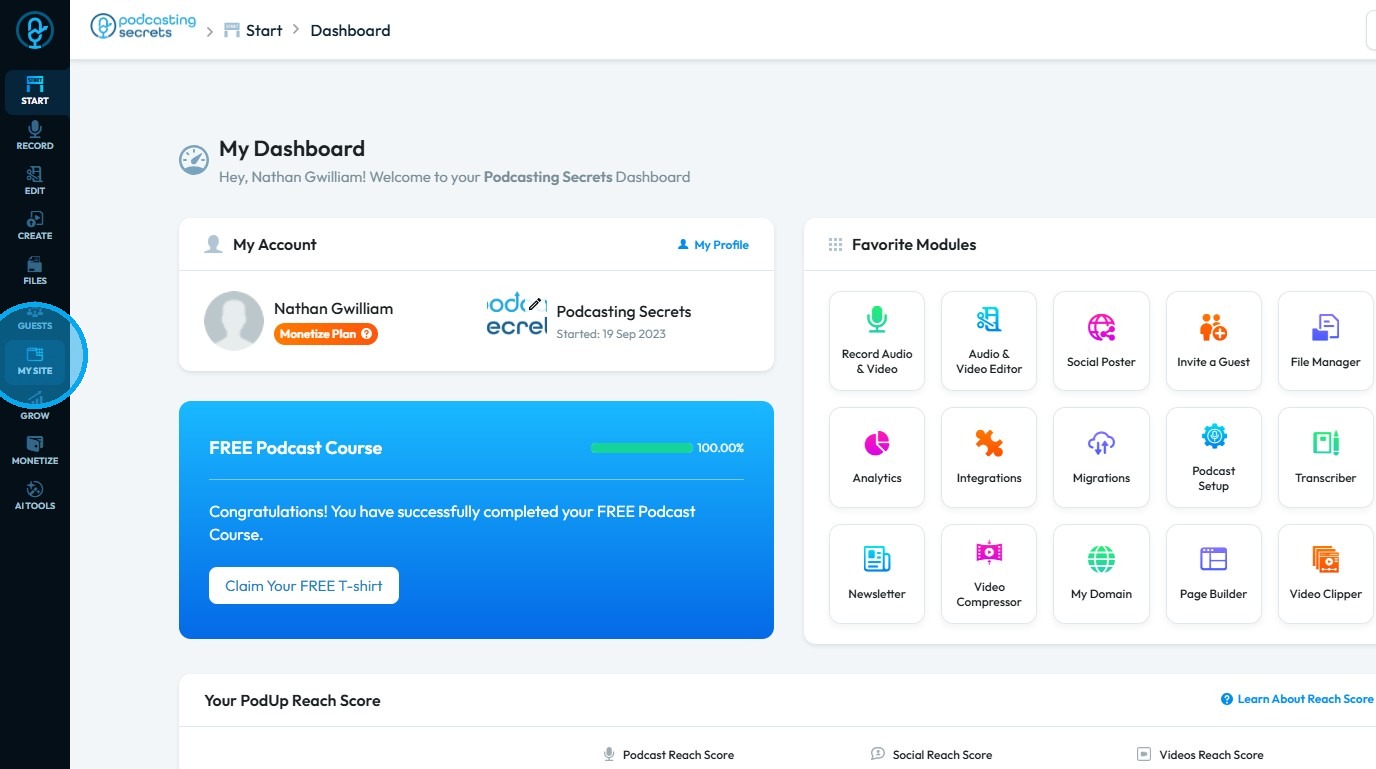
3. Select "Page Builder"
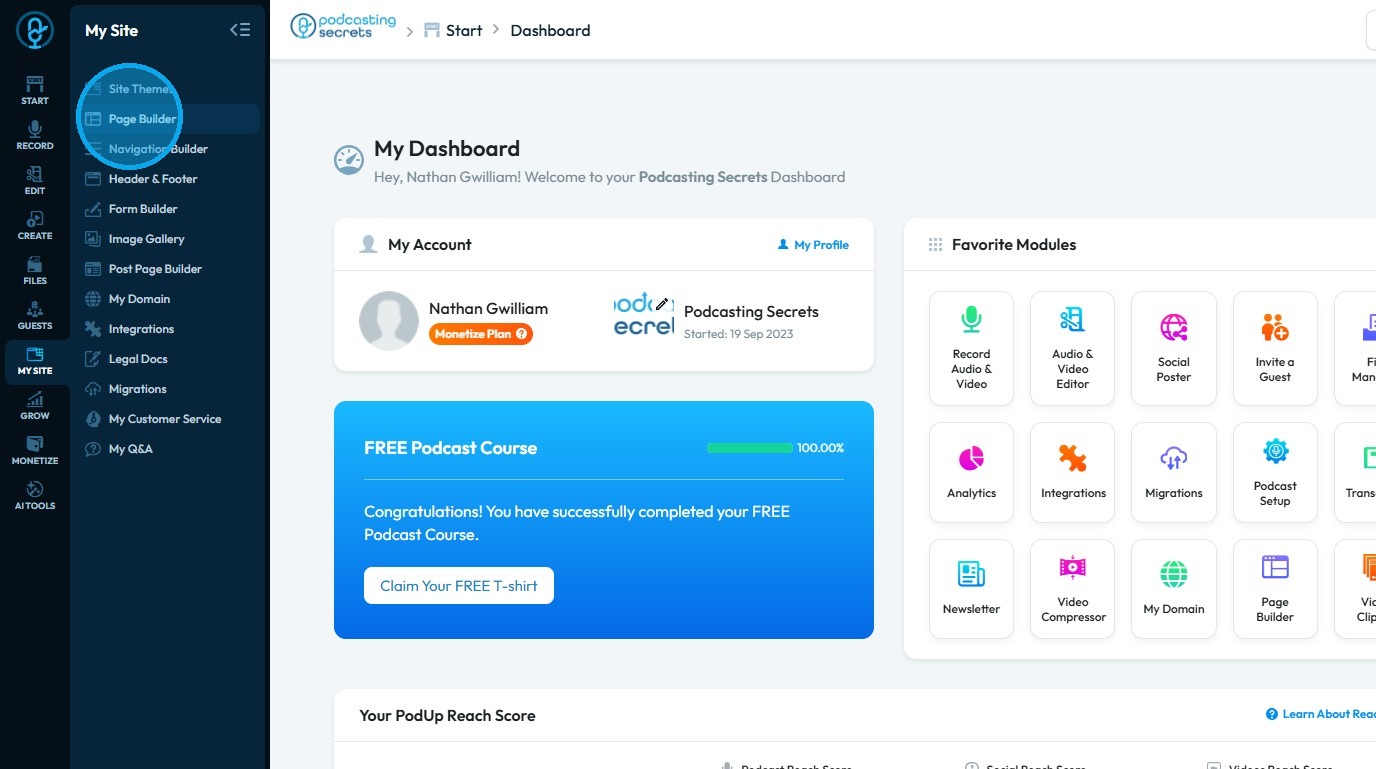
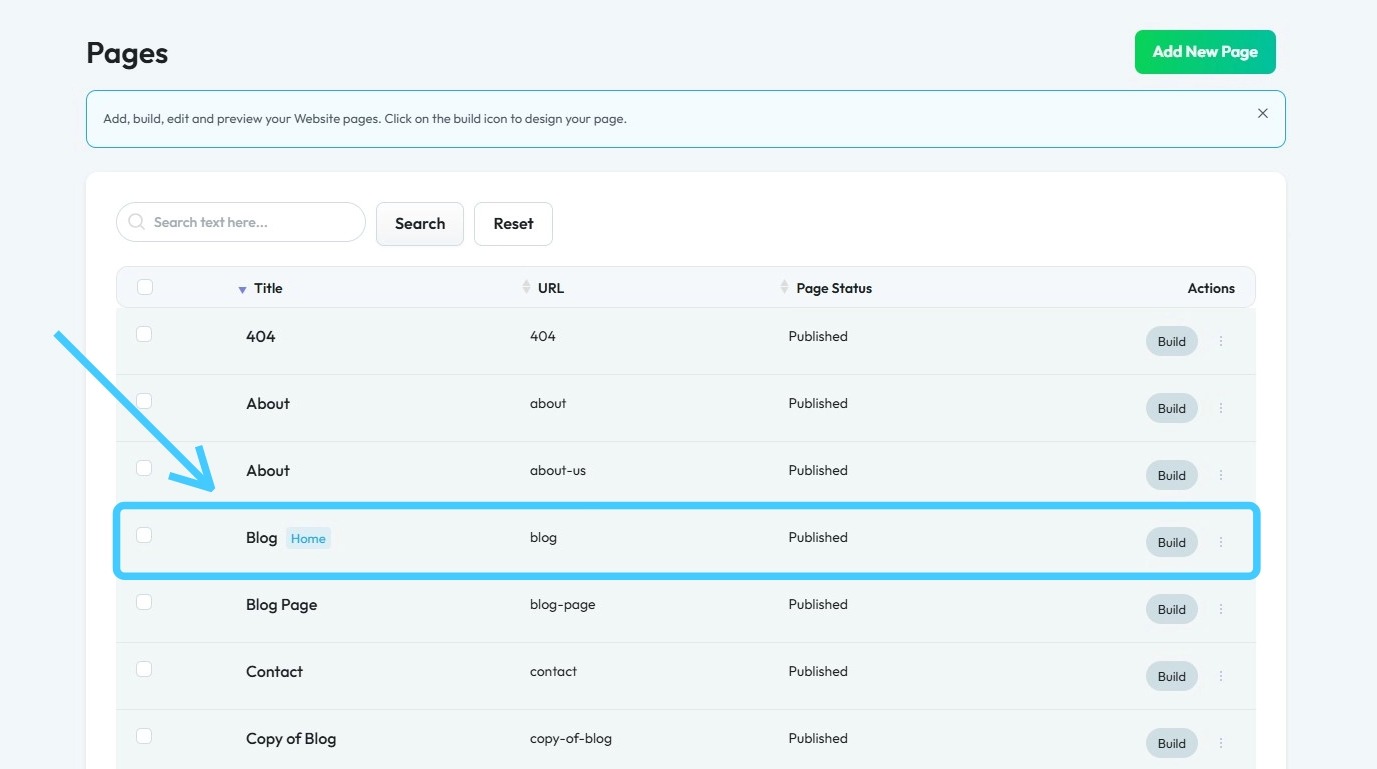
4. All your website “Pages” will open
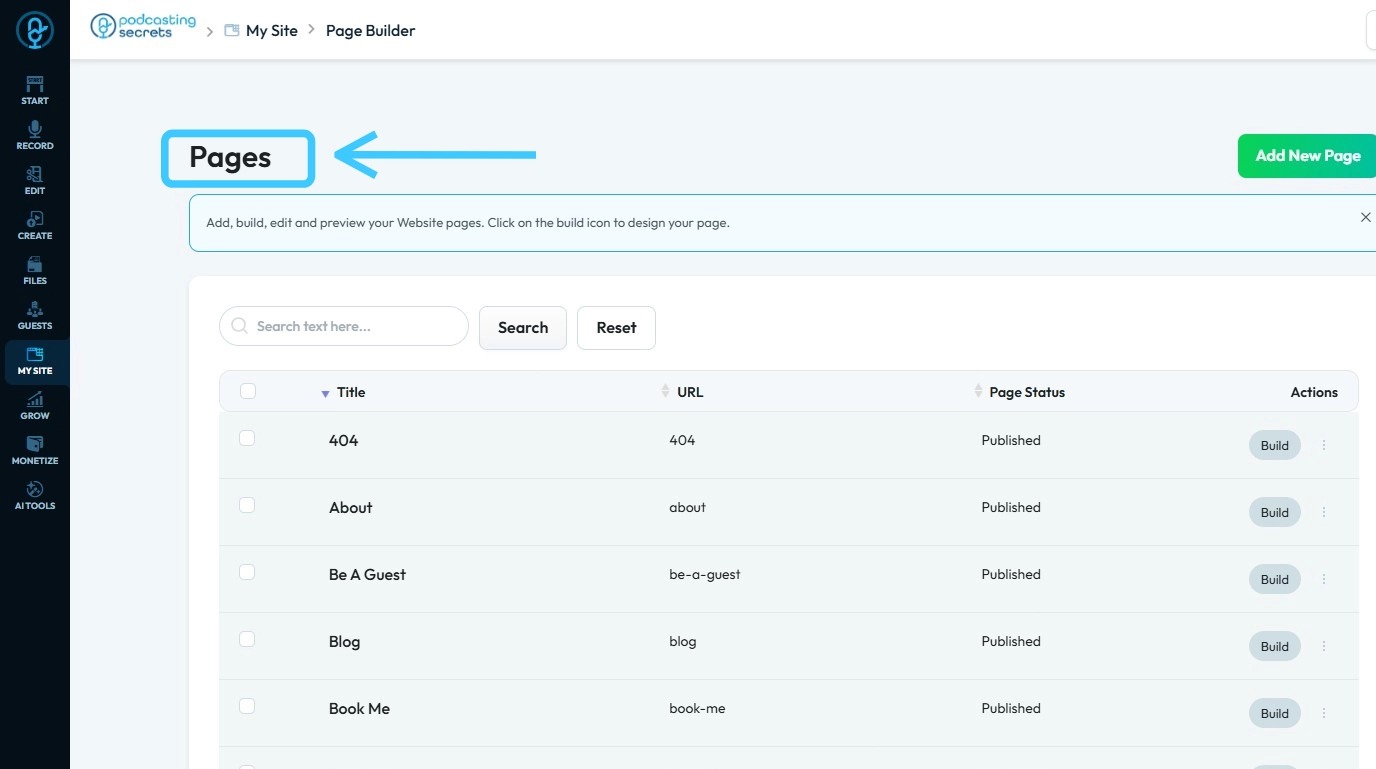
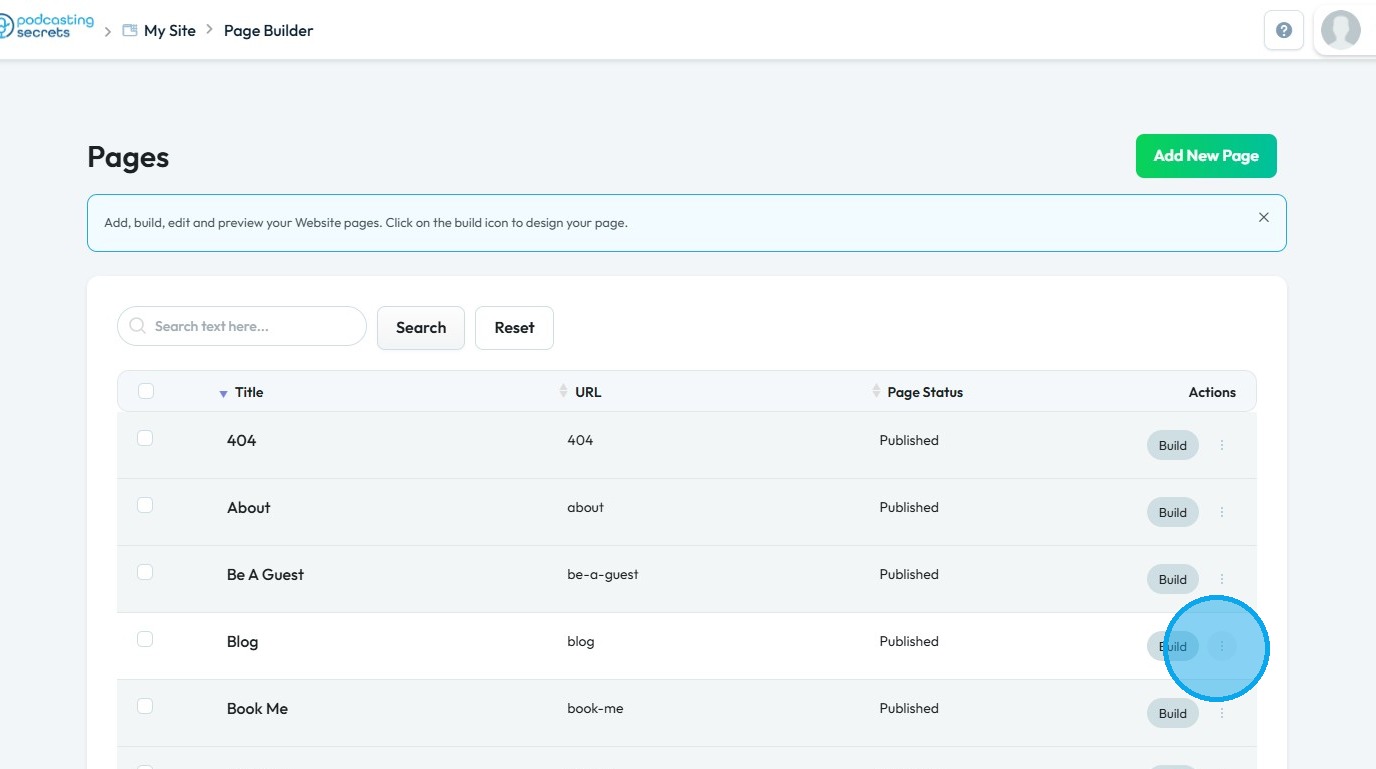
5. Click the "3 Dots" button of the page you want to convert into "Home Page"
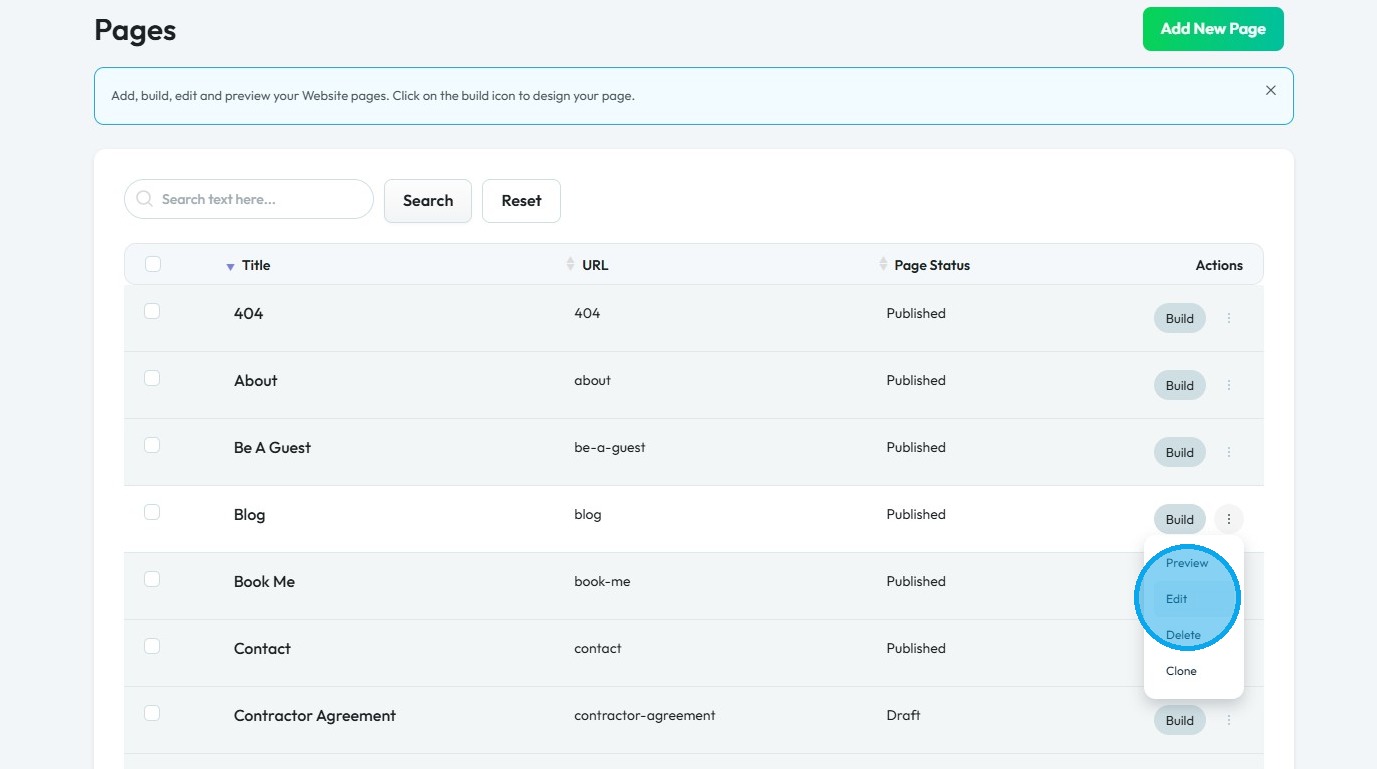
6. Select "Edit"
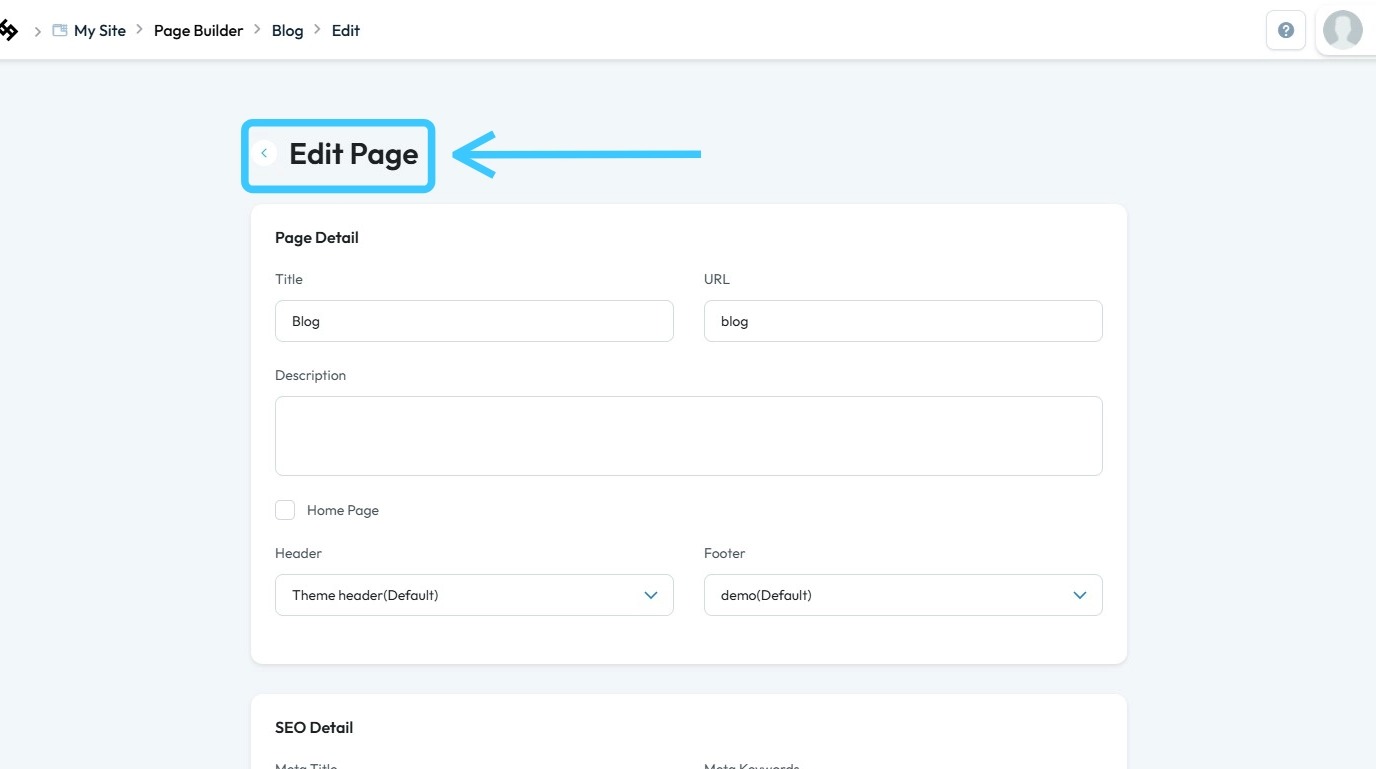
7. The “Edit Page” section will load
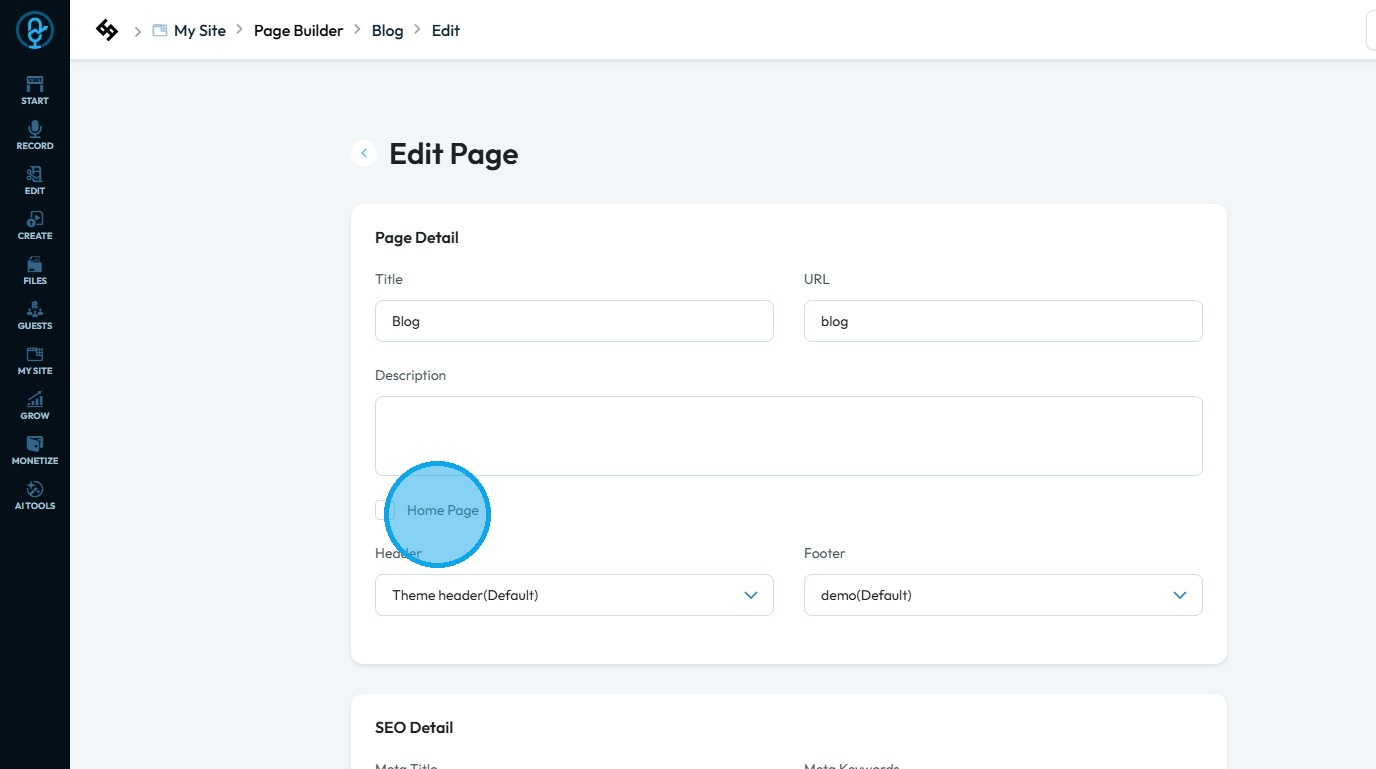
8. In the “Edit Page” section, make sure the “Home Page” checkbox is selected
9. Ensure the Status is set to “Published
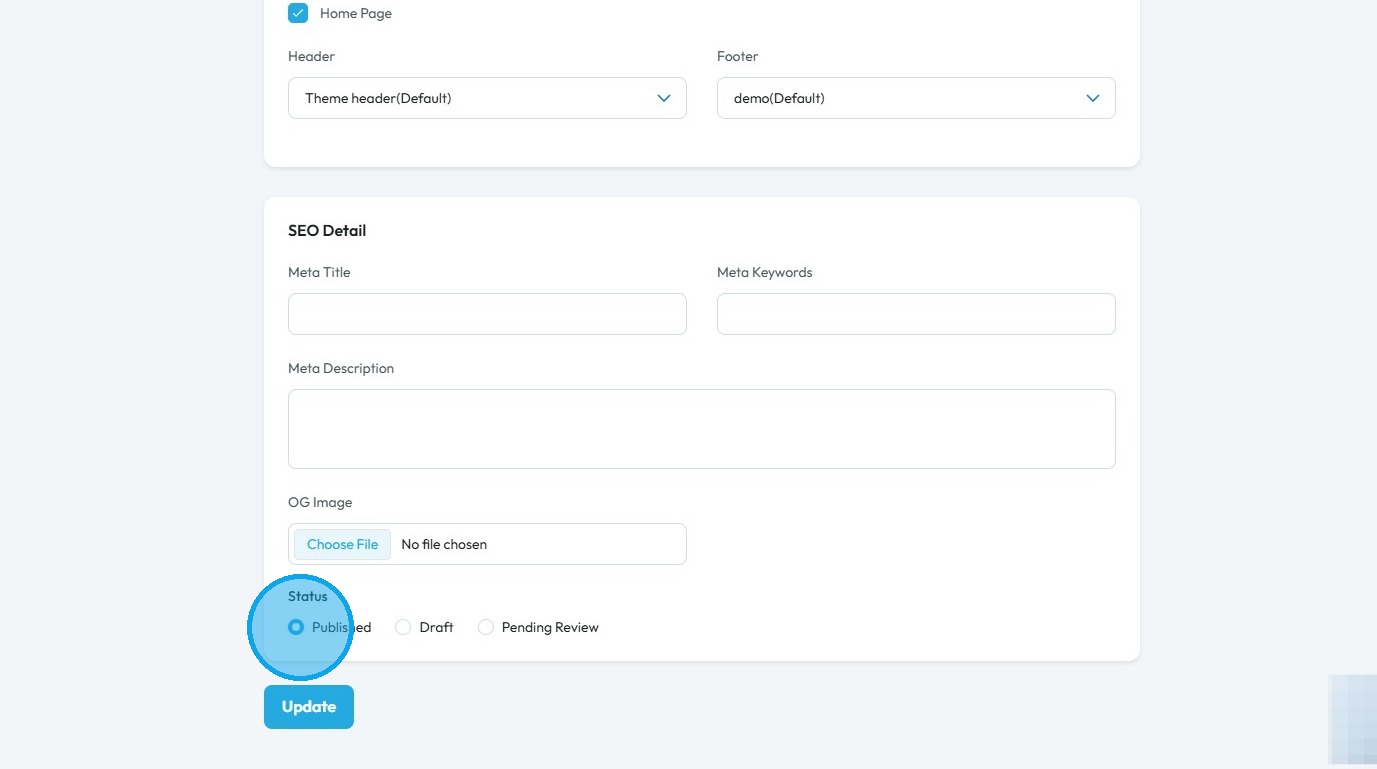
10. Scroll down and click “Update”
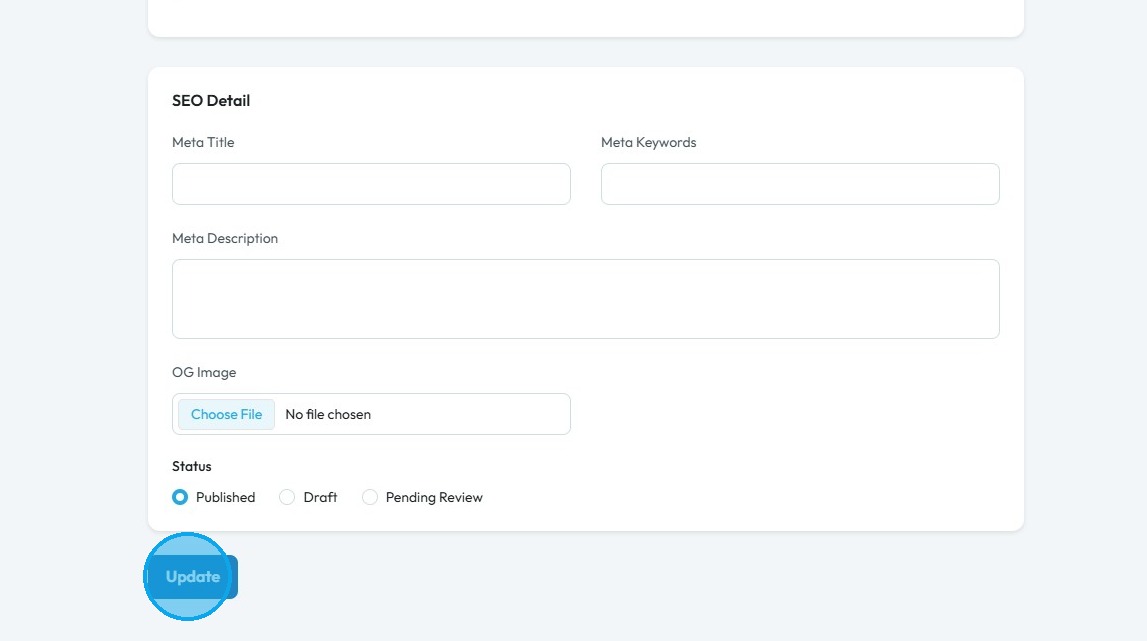
11. The website’s “Home Page” will be updated
Related Articles
How to make a Homepage for my website
Follow this guide to quickly create a professional PodUp home page and establish your online presence 1. Navigate to https://app.podup.com/home 2. Click "My Site" 3. Select "Page Builder" 4. Click "Add New Page" 5. Click "Add New Page" to open the ...How to change account settings?
This guide shows you how to update your PodUp account settings so your profile stays current and reflects your personal information. 1. Navigate to https://app.podup.com/home 2. Click your "Profile" icon in the top-right corner 3. Select "Edit My ...How To Change Your Subscription
This guide provides a straightforward process for changing your subscription plan on PodUp, ensuring you can easily navigate the options available. It outlines two methods for accessing your subscription settings and details how to view both annual ...How do I change the language in PodUp?
Use this guide to change your PodUp site’s language with the "Immersive Translate" Chrome extension Tip: By default, PodUp does not offer a built-in feature to change the language. However, you can use a workaround to change the language of PodUp. 1. ...How to Change Video Episode Category on PodUp
This guide offers a comprehensive overview of changing the category of video episodes on PodUp, ensuring accurate classification for greater audience reach. 1. Navigate to https://app.podup.com/ 2. Click "Create" 3. Click "Videos" 4. The “Video” page ...