How to Add a Section to my Page
This guide provides a straightforward approach to enhancing your webpage by adding new sections using Podup's Page Builder. It simplifies the process into easy-to-follow steps, making effective customization accessible for users of all skill levels.
1. Navigate to https://app.podup.com/home
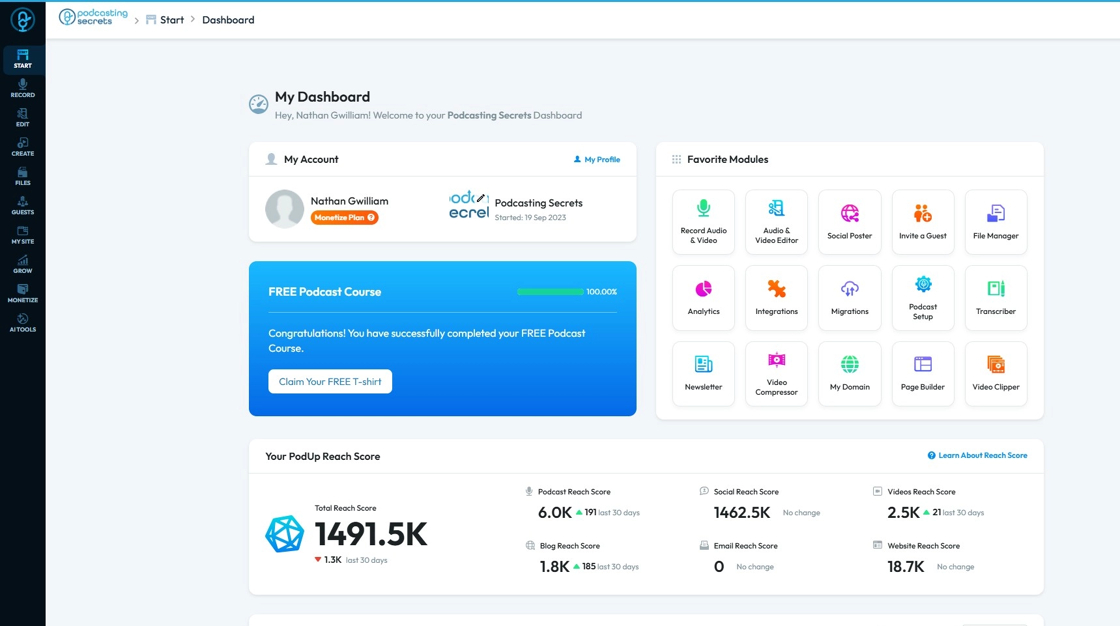
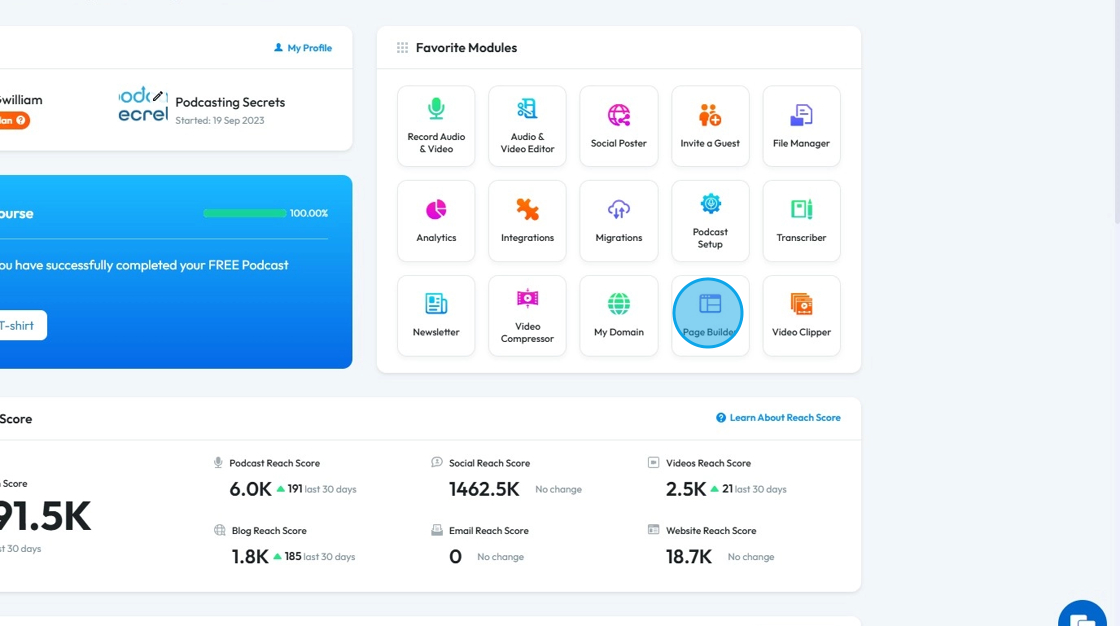
2. Click "Page Builder"
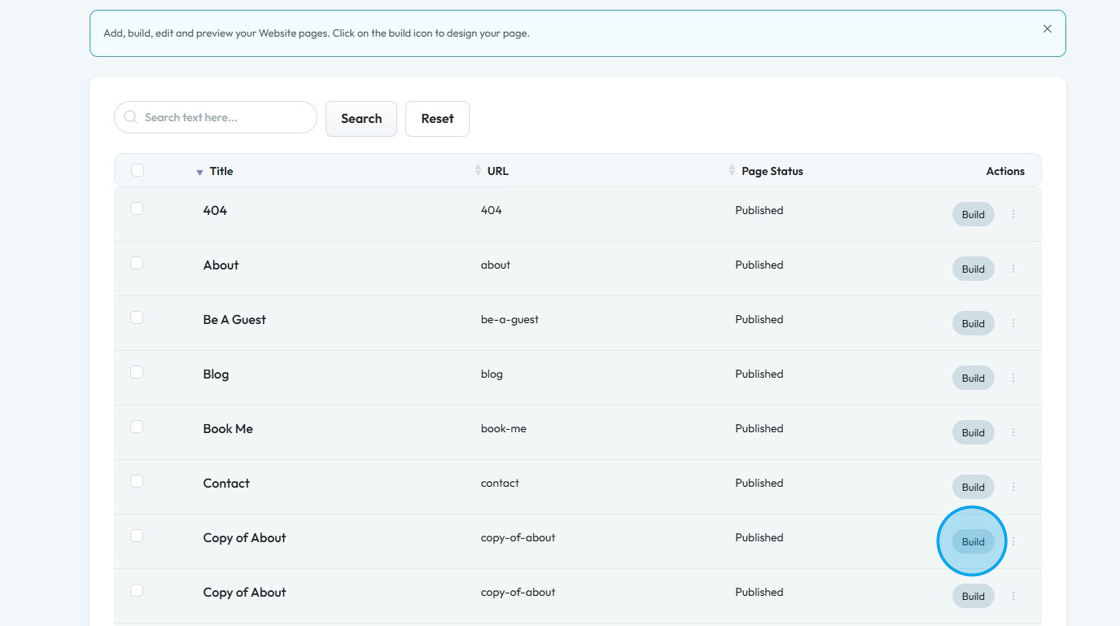
3. Select the page where you wish to add a section
Click "Build"
4. Page builder will open to that page
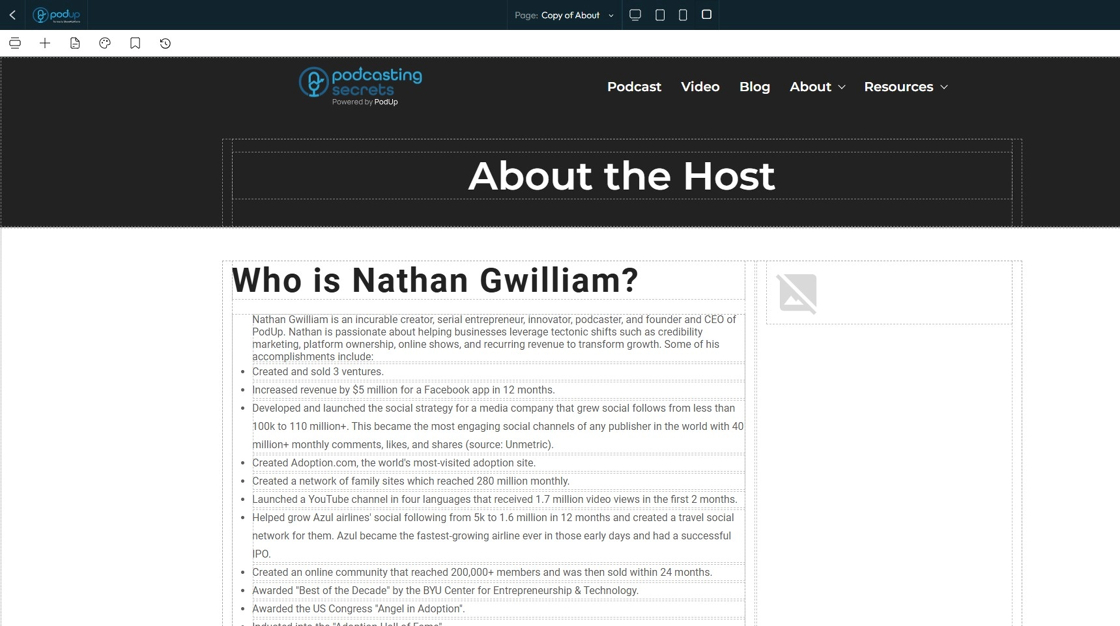
5. Select the section after which you want to add a new section

6. You will see the highlighted section in blue and it will say "section"

7. Click "Add Section" which can be found at the bottom of the section
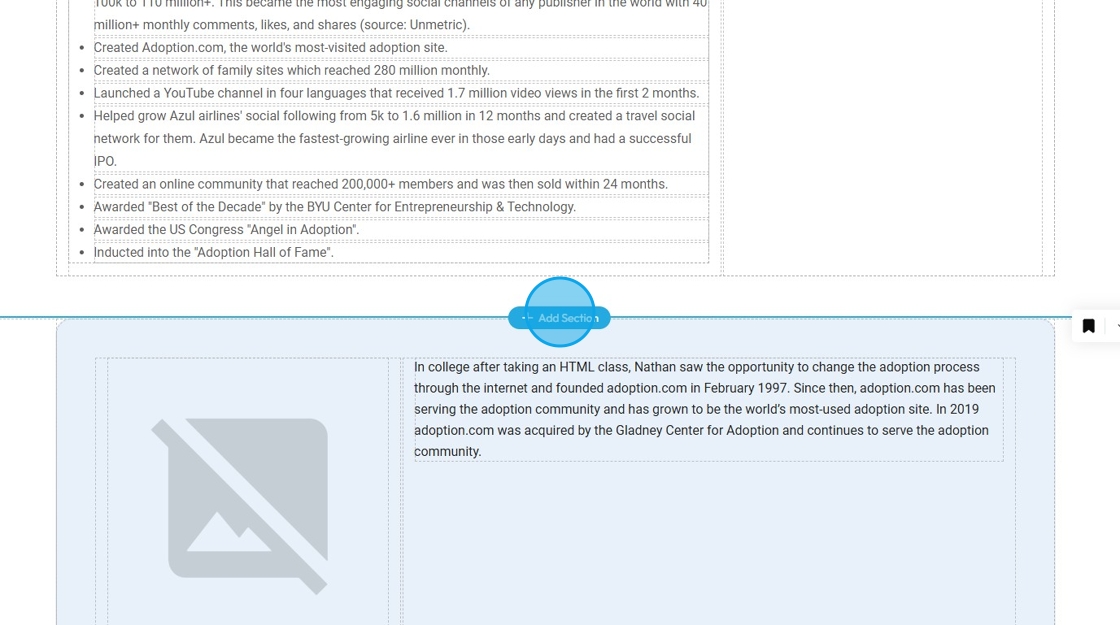
8. The new section will be added where the "Add Section" button was selected

Tip: Tip! See "How to Customize a Section" for how to add content to this section
9. Click "Save"
A new section will be available in the web page. You can customize the section according to your needs

Related Articles
How to add a comments section to my blog?
This guide walks you step by step through adding a comments section to your blog to encourage reader interaction. 1. Navigate to https://app.podup.com/home 2. Click on the "My Site" 3. Choose "Post Page Builder" 4. Click "Build" button of your "Blog" ...How to customize a section?
Customize your website with PodUp’s page builder to improve design, functionality, and visitor experience 1. Navigate to https://app.podup.com/home 2. Click "My Site" 3. Select "Page Builder" 4. The “Pages” section will open, displaying a list of all ...How to Add a Call to Action Section to My Blog
By following this guide, you can add a customizable CTA section to your blog and boost user engagement. 1. Navigate to https://app.podup.com/home 2. Click "My Site" 3. Click "Post Page Builder" 4. "Post Page Builder" opens up 5. Click "Build" next to ...How to Add a Banner to my Page
This guide provides a straightforward process for adding a customizable banner to your page, enhancing your website's visual appeal. With over 100 templates to choose from, it caters to a variety of design preferences, ensuring you can find the ...How to Add a Header to my Page
This guide helps you customize your podcast website header with logos, colors, fonts, and 20+ templates. Create a polished, on-brand look that’s easy to set up and improves user experience. Tip: Header: The top section of a website that usually ...