How to Add a Map to Your Website
By following this guide, you can easily add a map to your website using the PodUp platform through simple, step-by-step instructions.
1. Navigate to https://app.podup.com/home
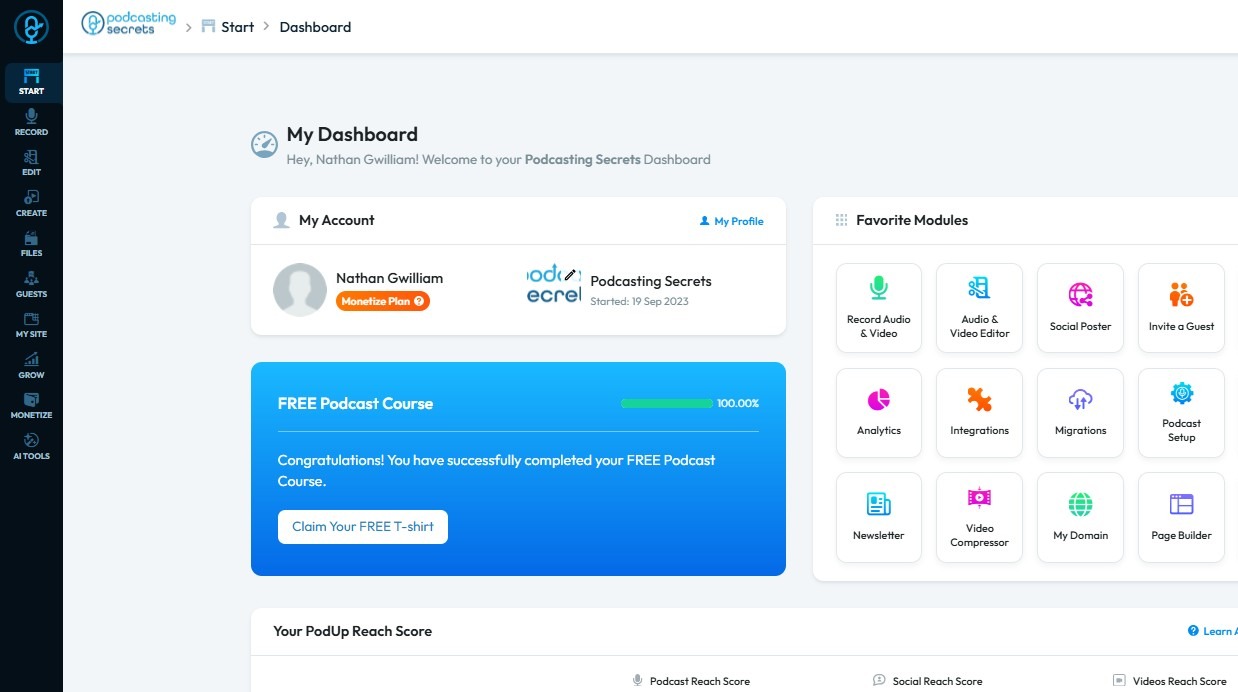
2. Click "Page Builder"
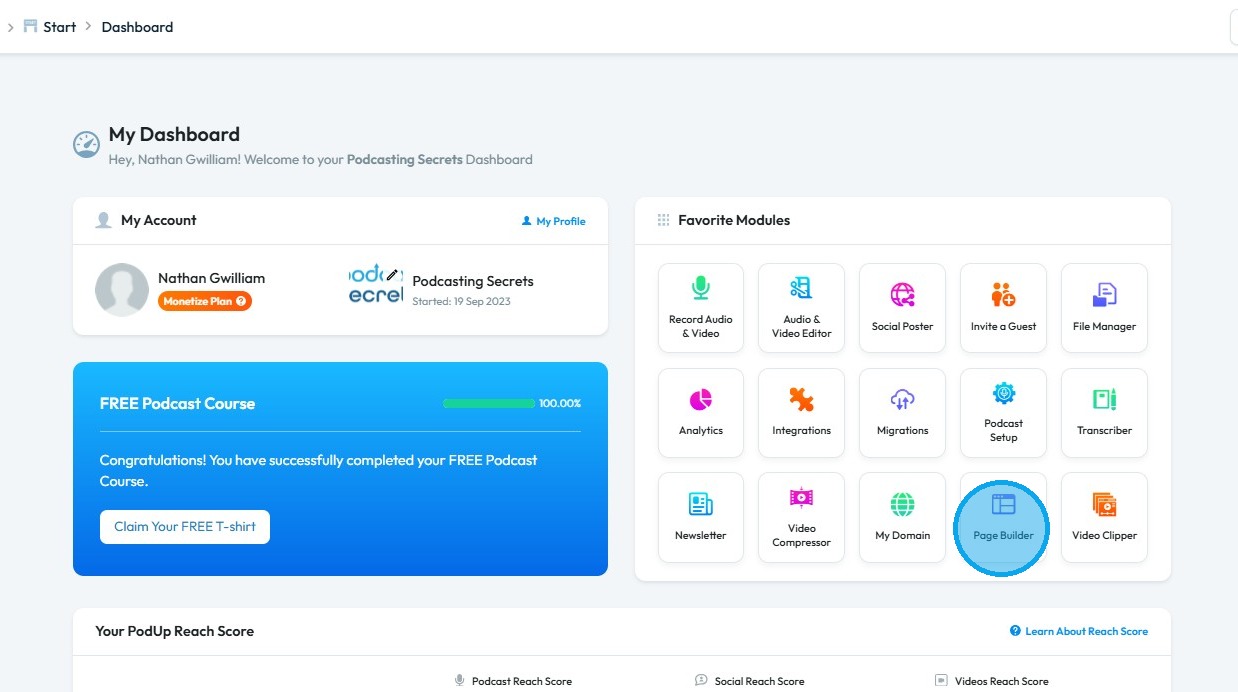
3. Select the page on which you want to add a map
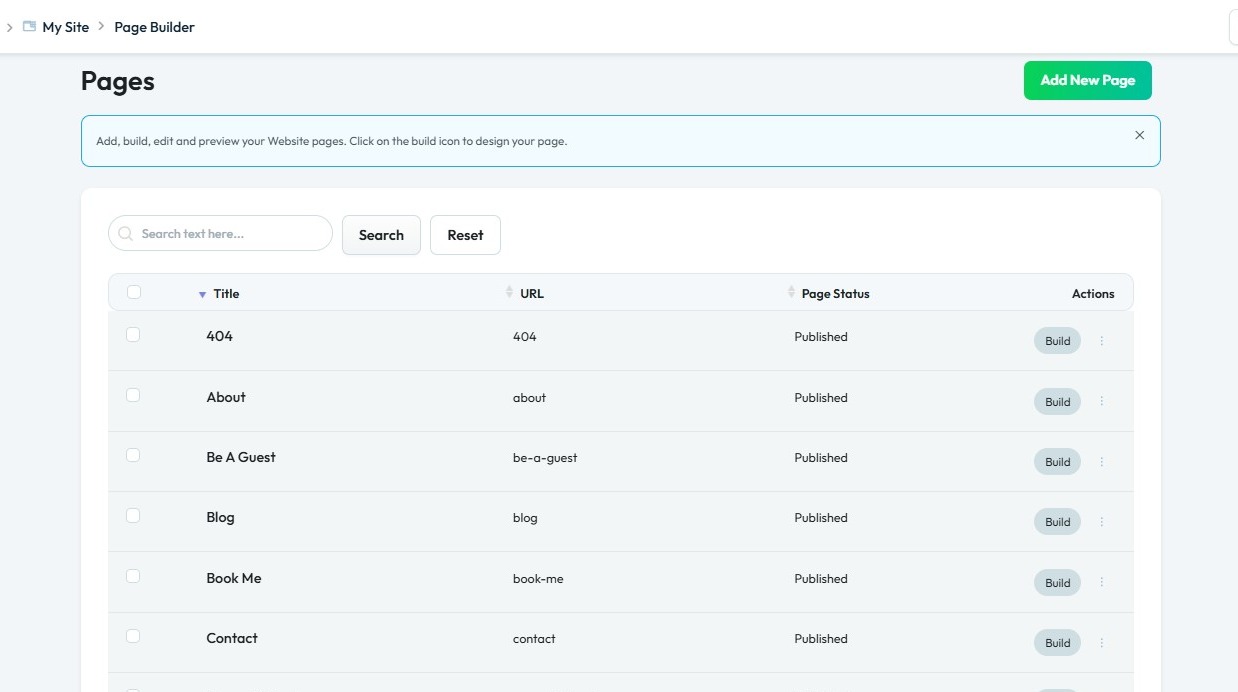
4. Select "Build"
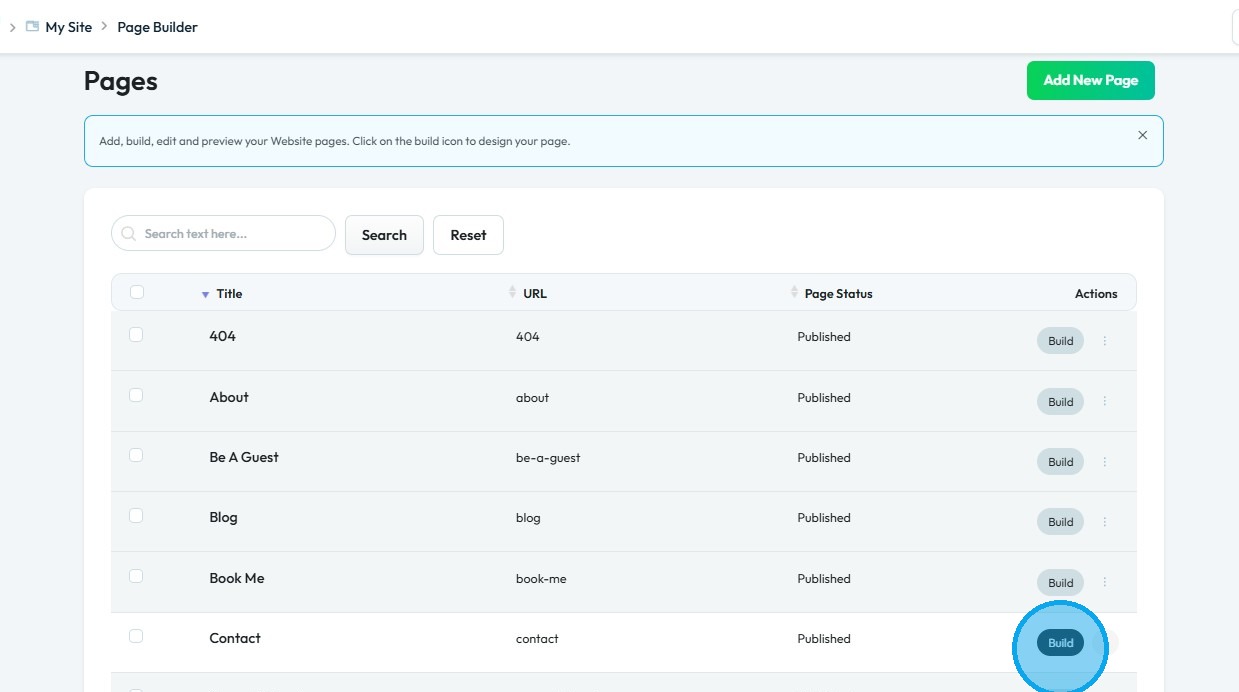
5. The Page Builder will open
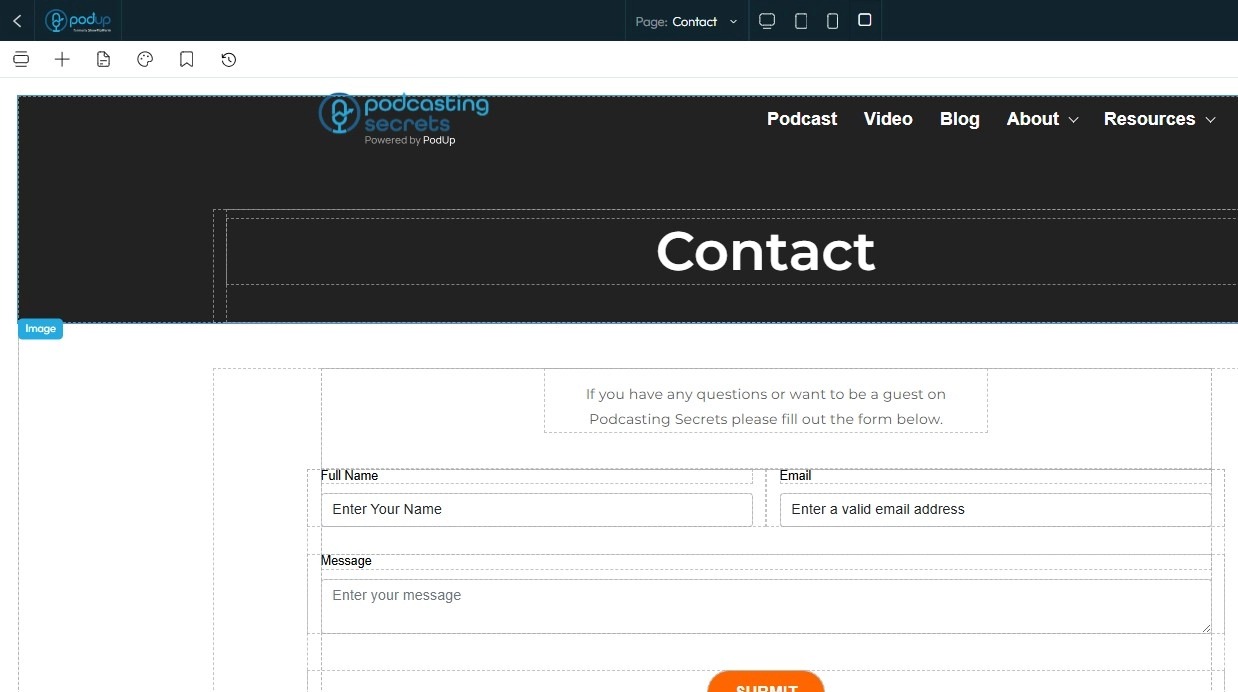
6. Click "Blocks" (+ icon)
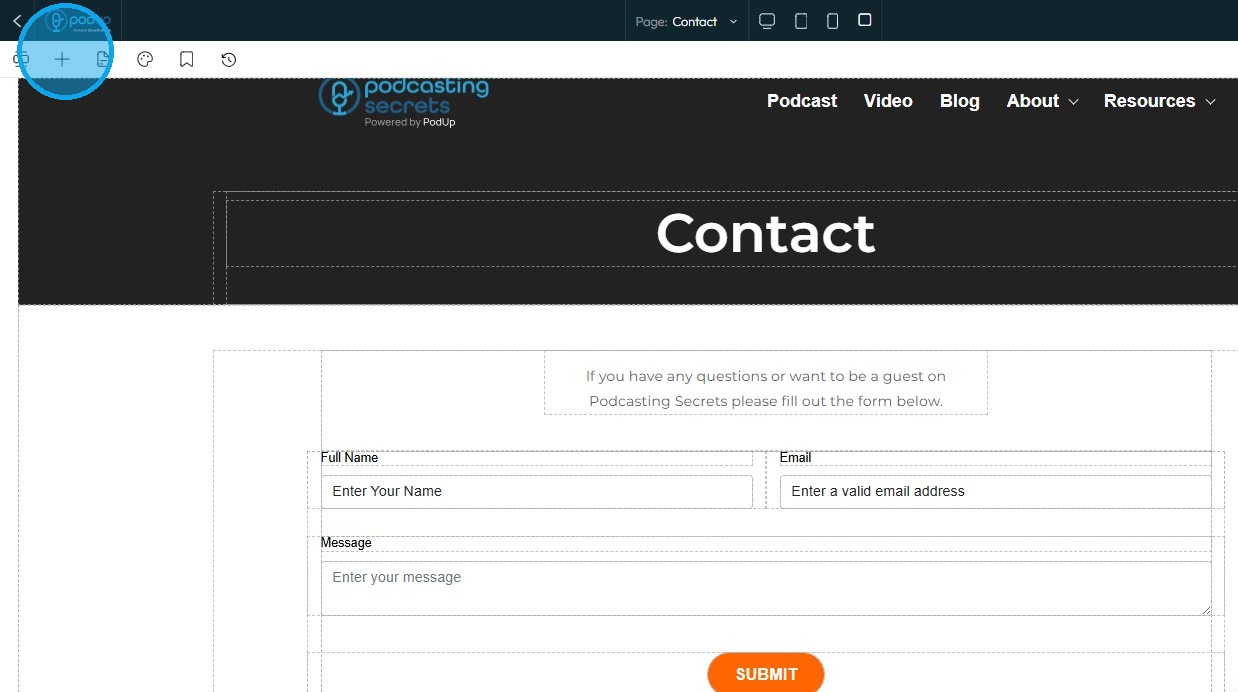
7. Under "Add Elements," click "Quick Add," then drag the "Map" option onto the page where you want it included.
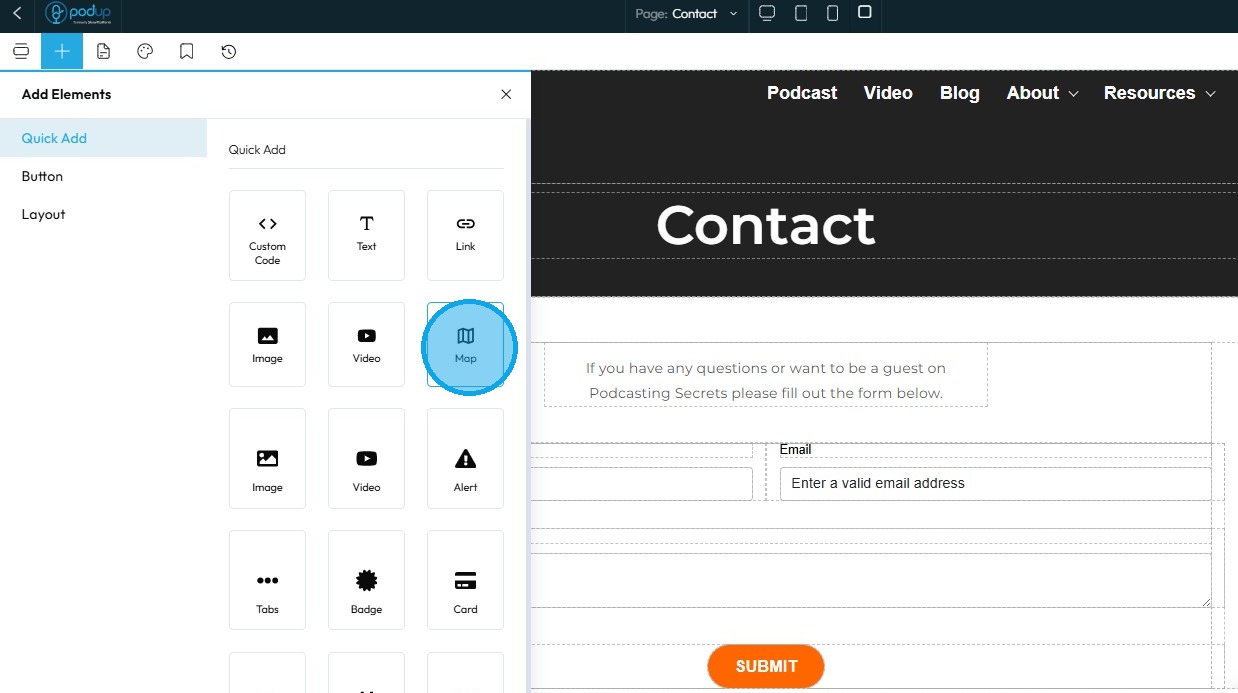
8. The map will appear in the location where you placed it. Customize it as needed
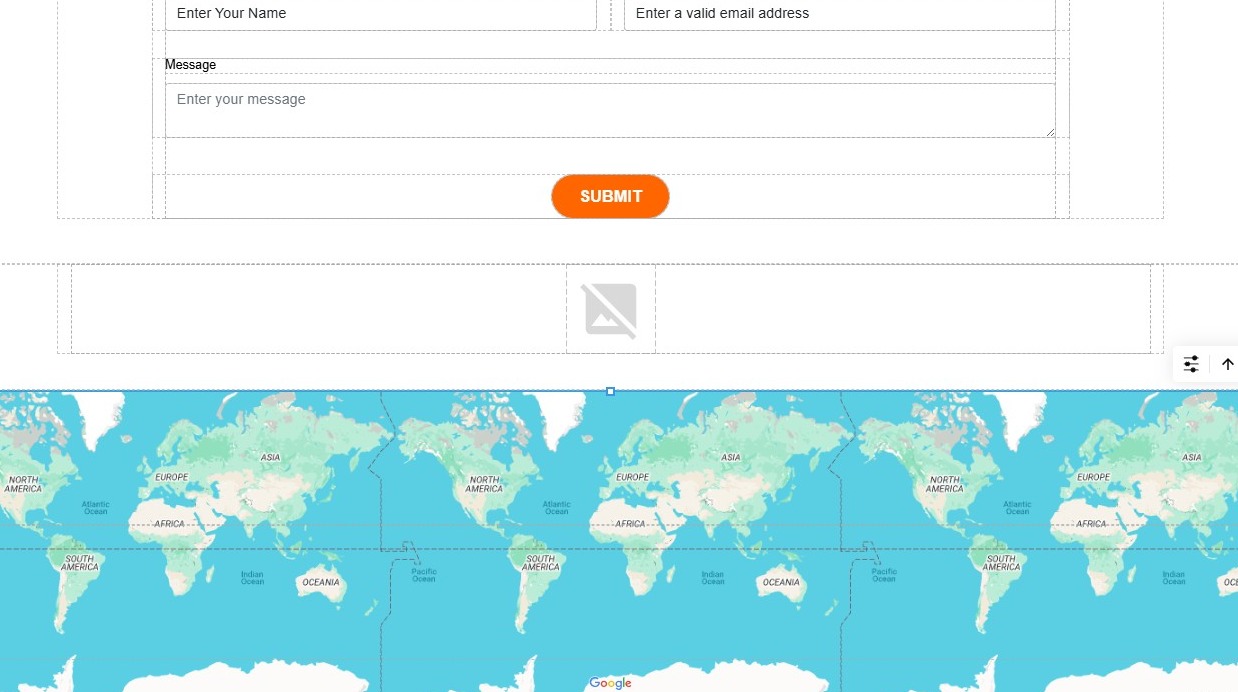
9. Click "Save" in the top-right corner
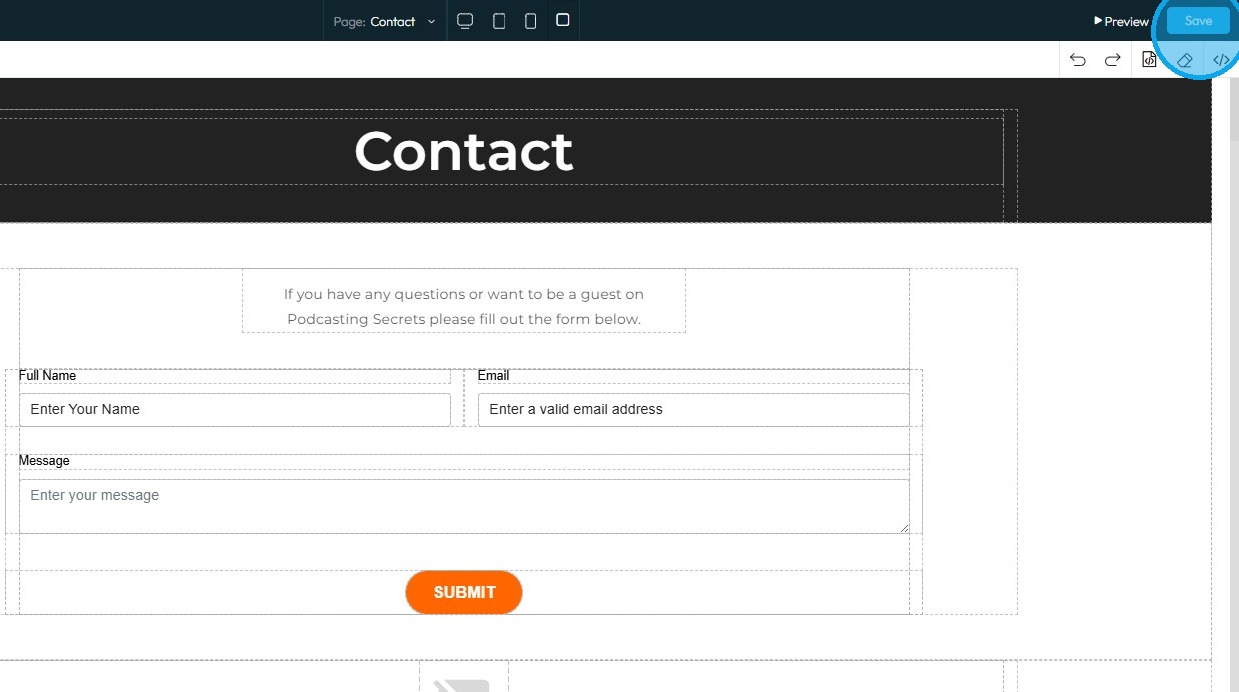
10. Once you publish the changes, they will be reflected on your website

Related Articles
How to Add Code to My Website
This guide offers a straightforward process for adding custom code to your website using Podup's Page Builder. It breaks down the steps clearly, making it accessible even for those with minimal technical knowledge. By following this guide, you can ...How to Add Text to My Website
This guide provides a straightforward method for adding text to your website using Podup's Page Builder. It walks you through the process step-by-step, ensuring even beginners can follow along easily. The included tips on formatting text enhance your ...How Do I Add Tabs to My Website
By following this guide, you can easily add tabs to your website using the PodUp platform to improve organization and enhance user experience. 1. Navigate to https://app.podup.com/home 2. Click "Page Builder" 3. Select the page on which you want to ...How to Add a Card to Your Website
By following this guide, you can easily add a card feature to your website to enhance engagement and visual appeal. 1. Navigate to https://app.podup.com/home 2. Click "Page Builder" 3. Select the page where you want to insert a card 4. Click "Build" ...How do I Add a Checkbox to my Website
By following this guide, you can easily add a checkbox to your website through a clear, step-by-step process that enhances user interaction and requires minimal technical skill. 1. Click "My Site" 2. Select "Page Builder" 3. Select the page where you ...