How to Add a Footer to my Page
Tip: Tip!
Footer: A website footer is the section at the very bottom of a webpage, below the main content. Think of it as the "basement" of your website. While it might not be the most visually prominent part, it serves several important functions for both users and search engines.
1. Click here.

2. Click "Header & Footer"

3. Click "Add New Footer"
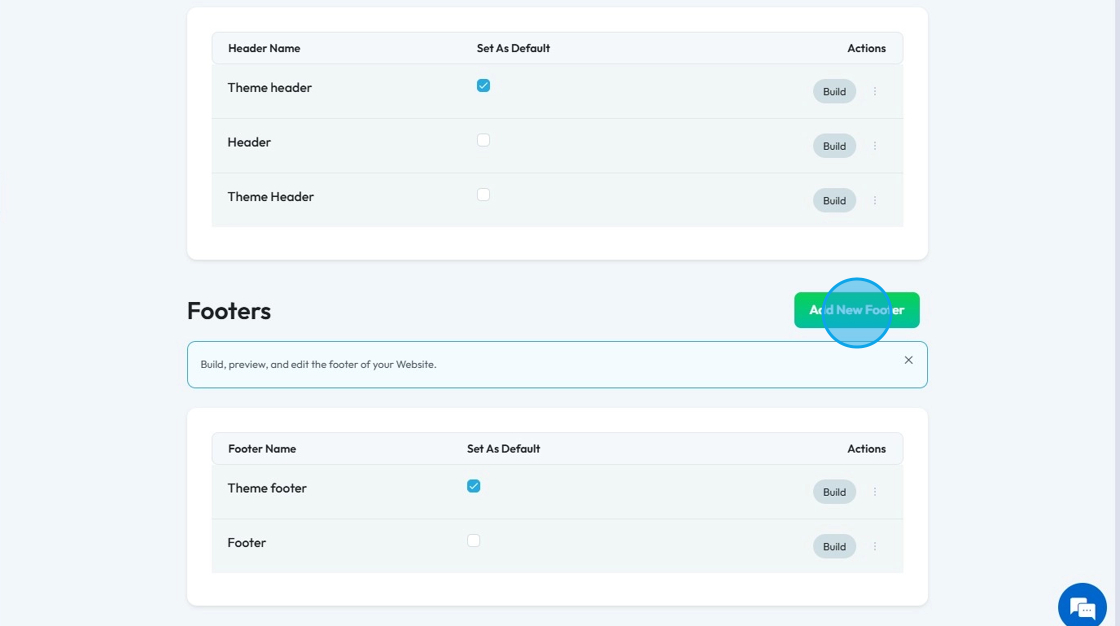
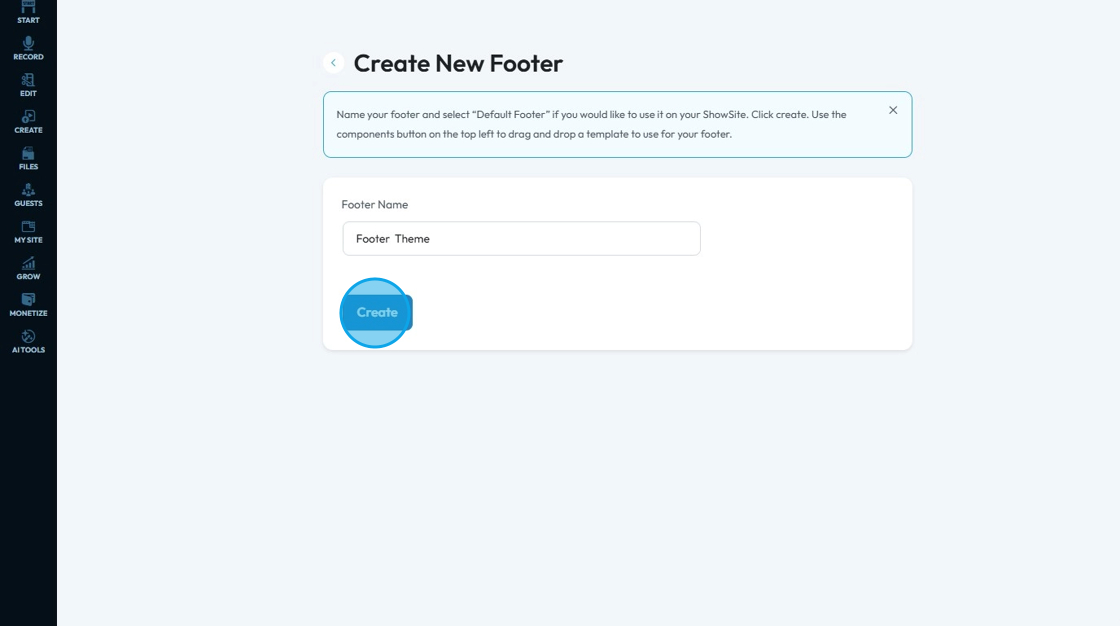
4. Click "Footer Name" and enter the name
Note: This name is used internally
Click "Create"
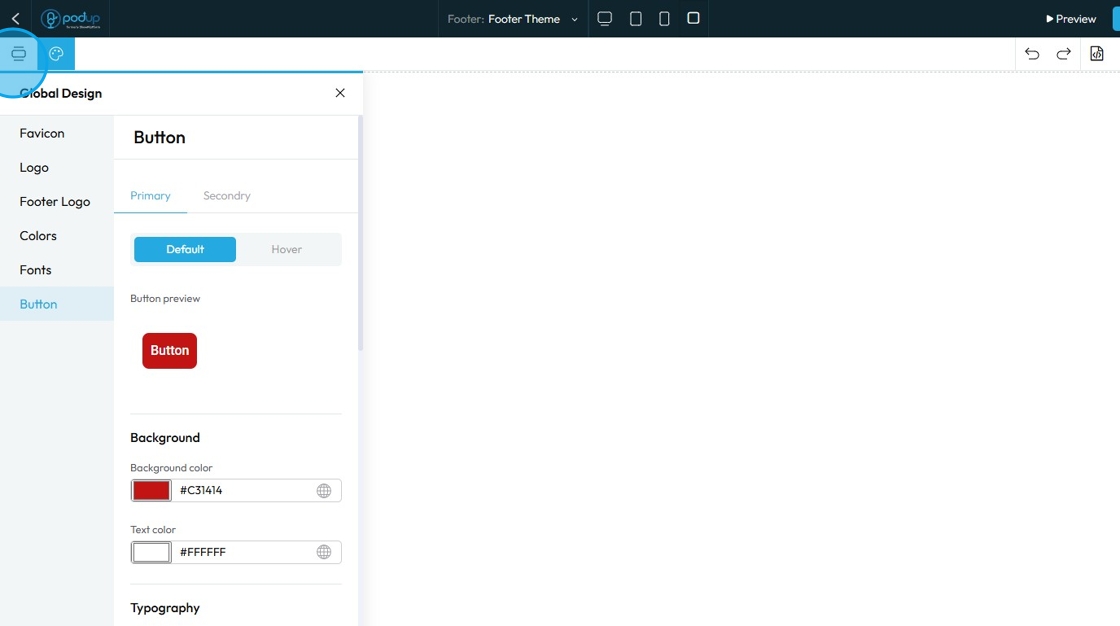
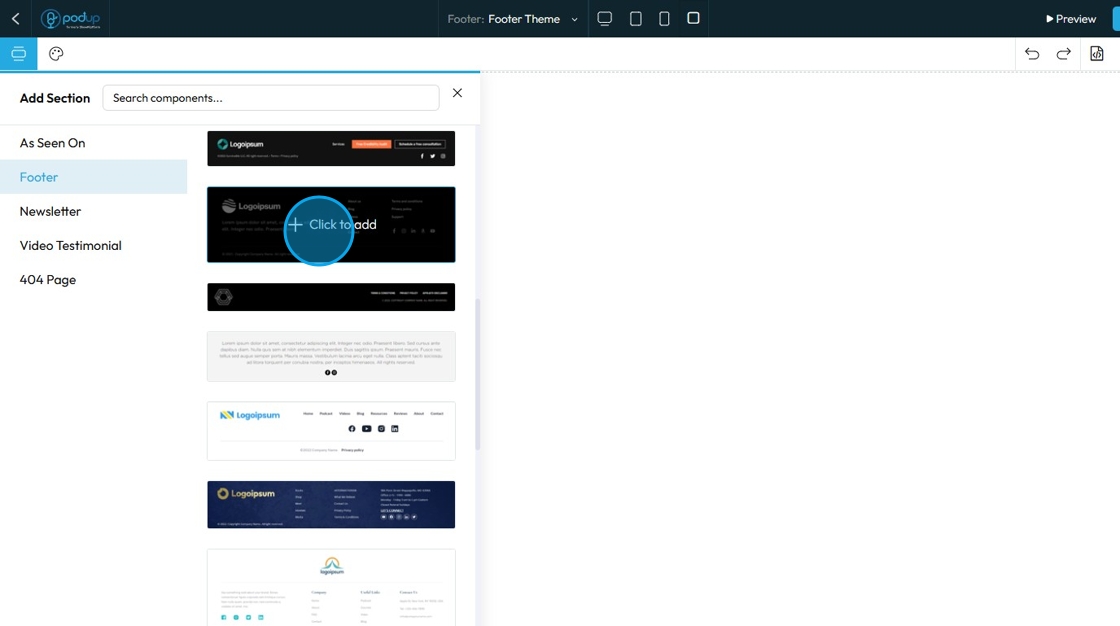
5. Click "Components" to select from 20+ pre designed templates for your footer
6. Click "Footer" to choose from 20+ header template
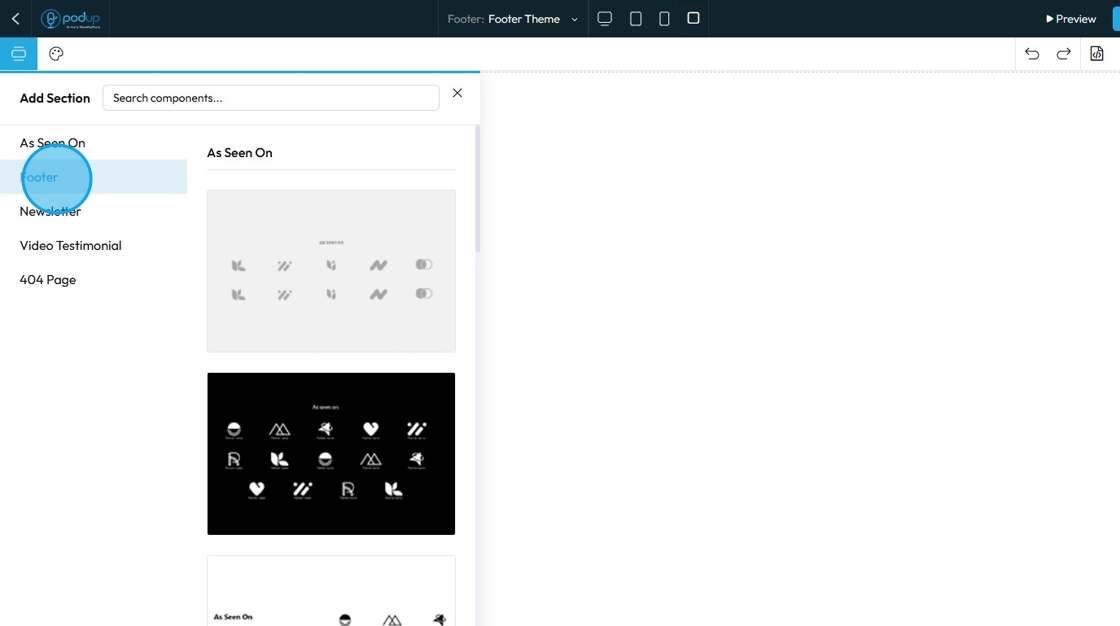
7. Select a footer of your choice
Click "Click to add"
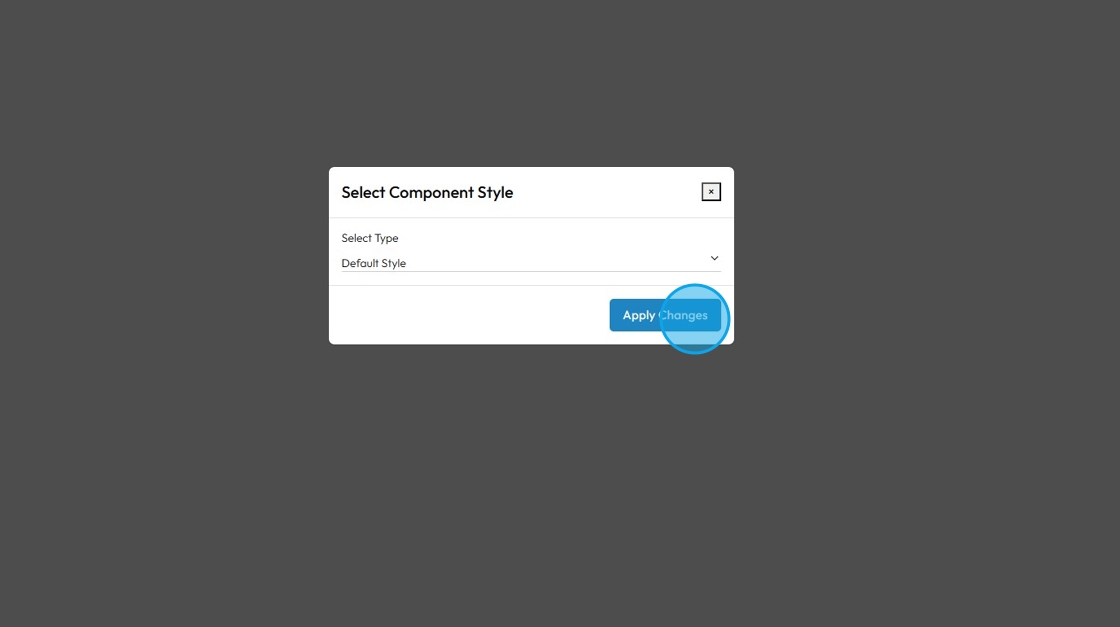
8. Select between "Default Style" and "Global Style"

9. Click "Apply Changes"
10. Your selected template is applied
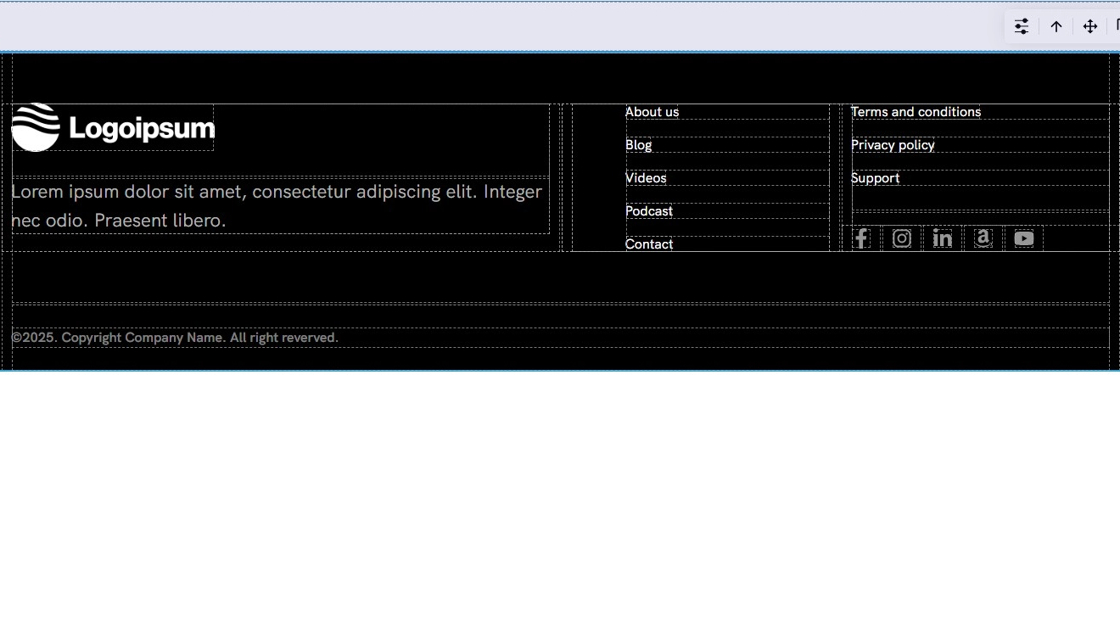
11. Customize the section as per your need
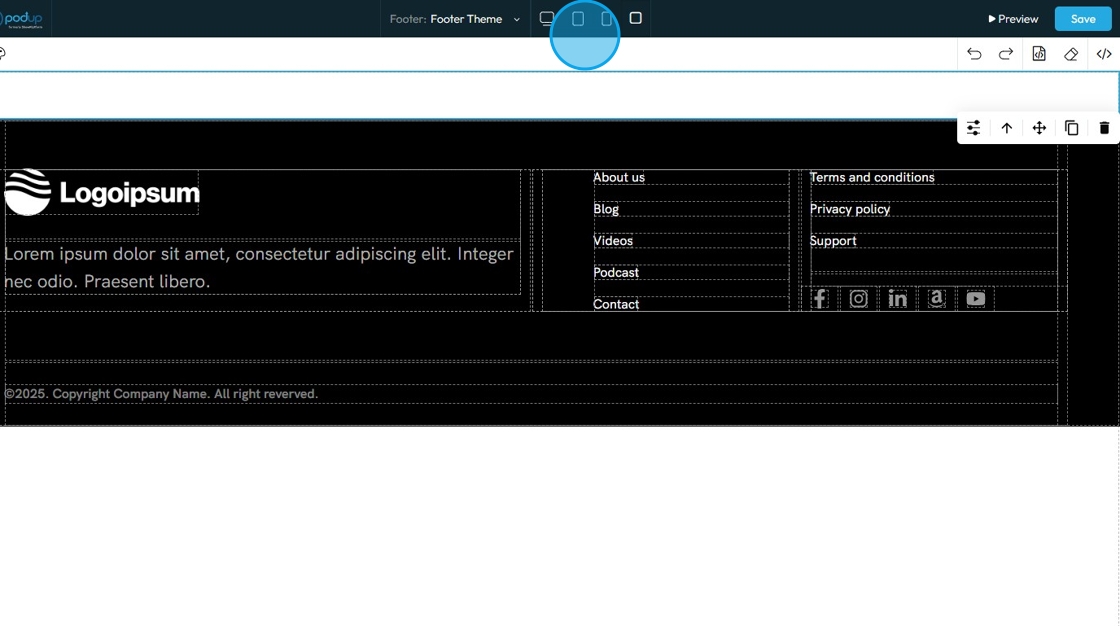
12. Click "Preview" to view how the header section will look
Click "Save"
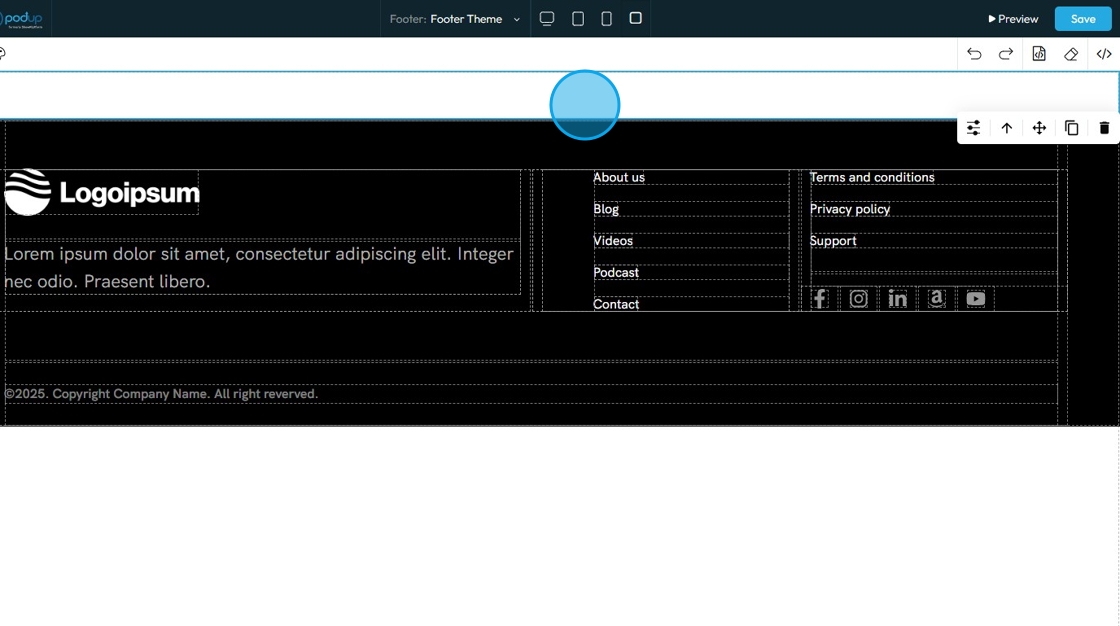
13. You can see the changes to your footer section