How to Add a Collapse Feature to my website
By following this guide, you can easily add a collapse feature to your website, enhancing user experience with step-by-step instructions suitable for all skill levels.
1. Navigate to https://app.podup.com/home
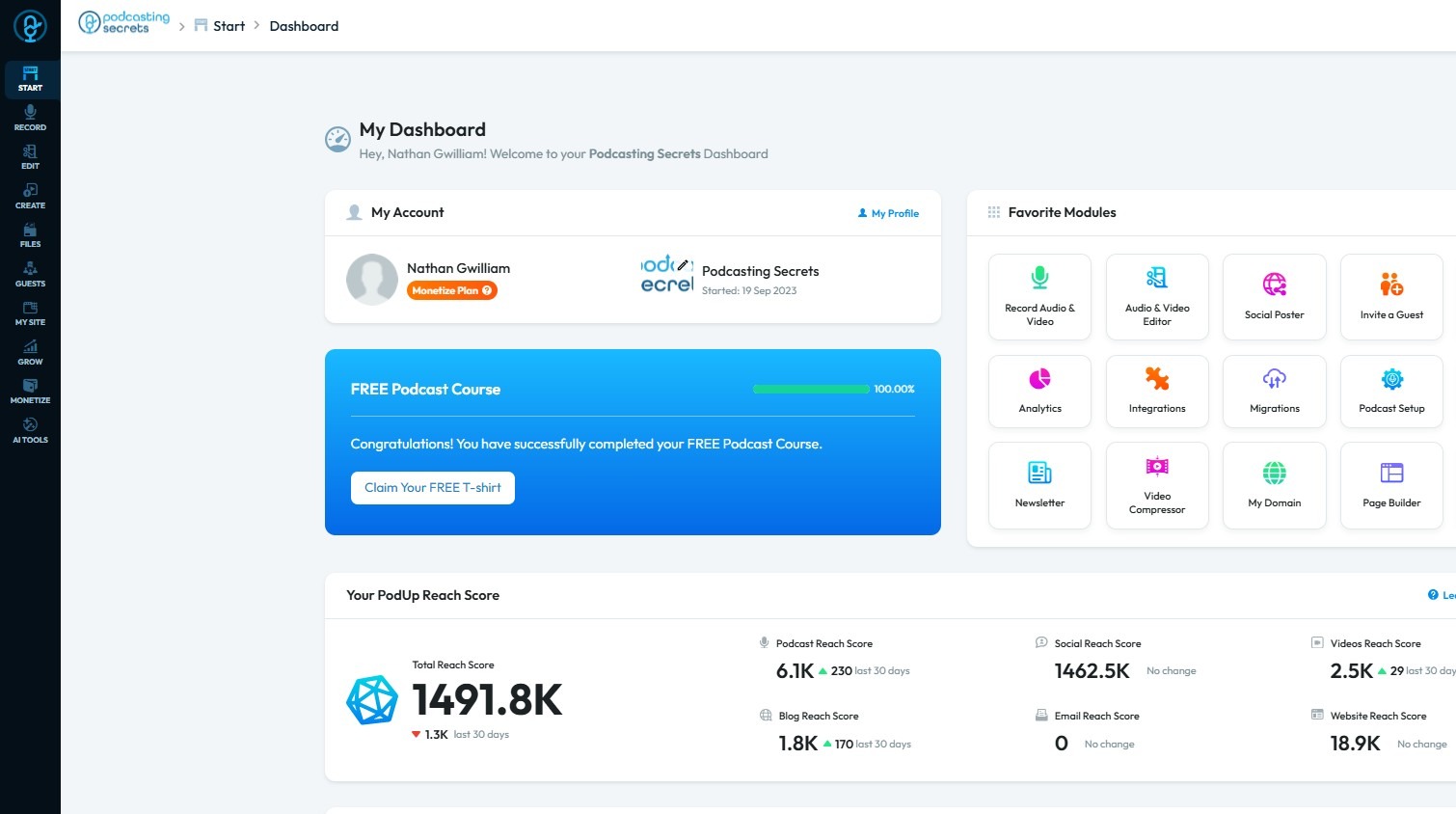
2. Click "Page Builder"
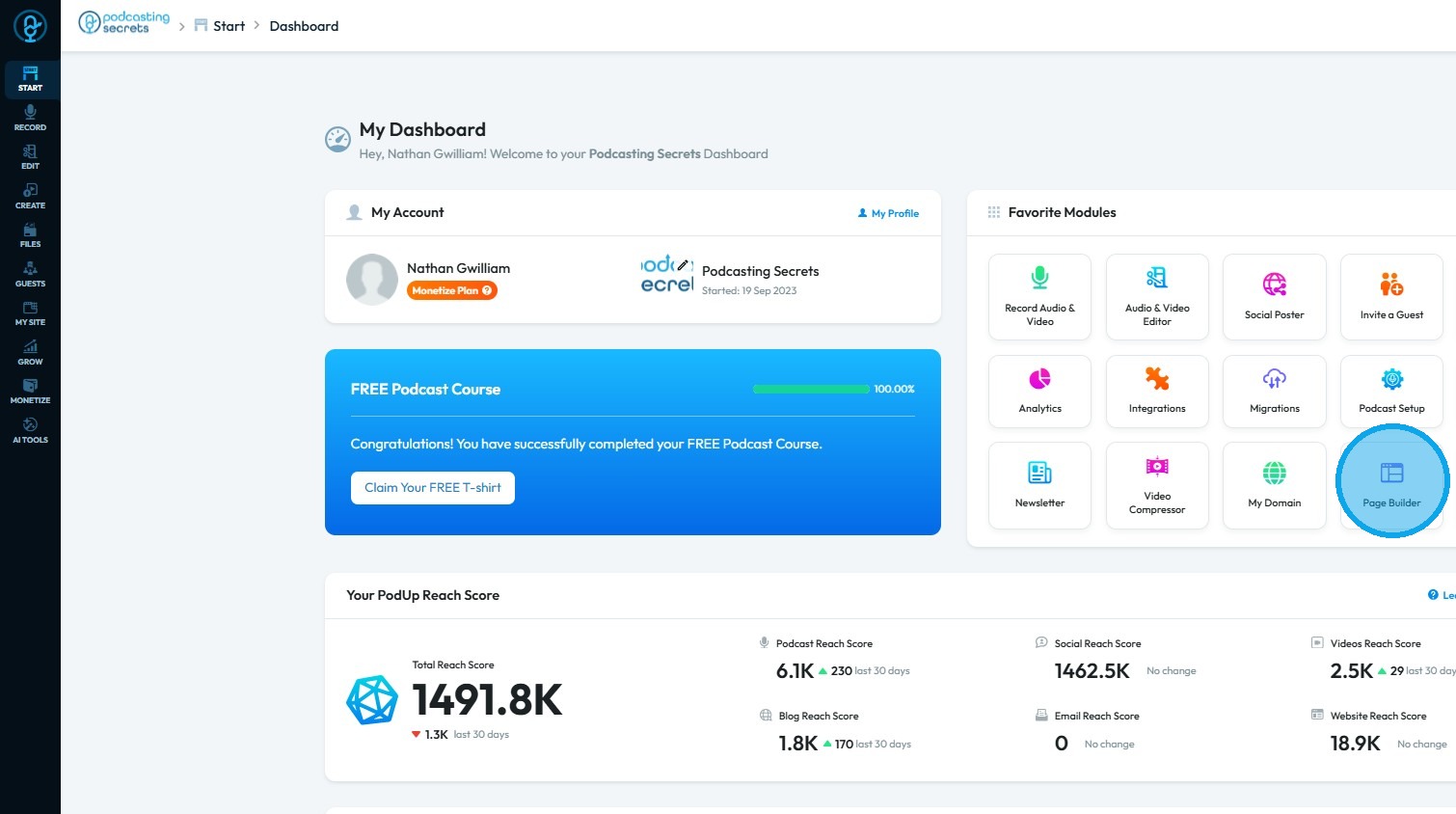
3. Select the page where you want to insert a collapse element
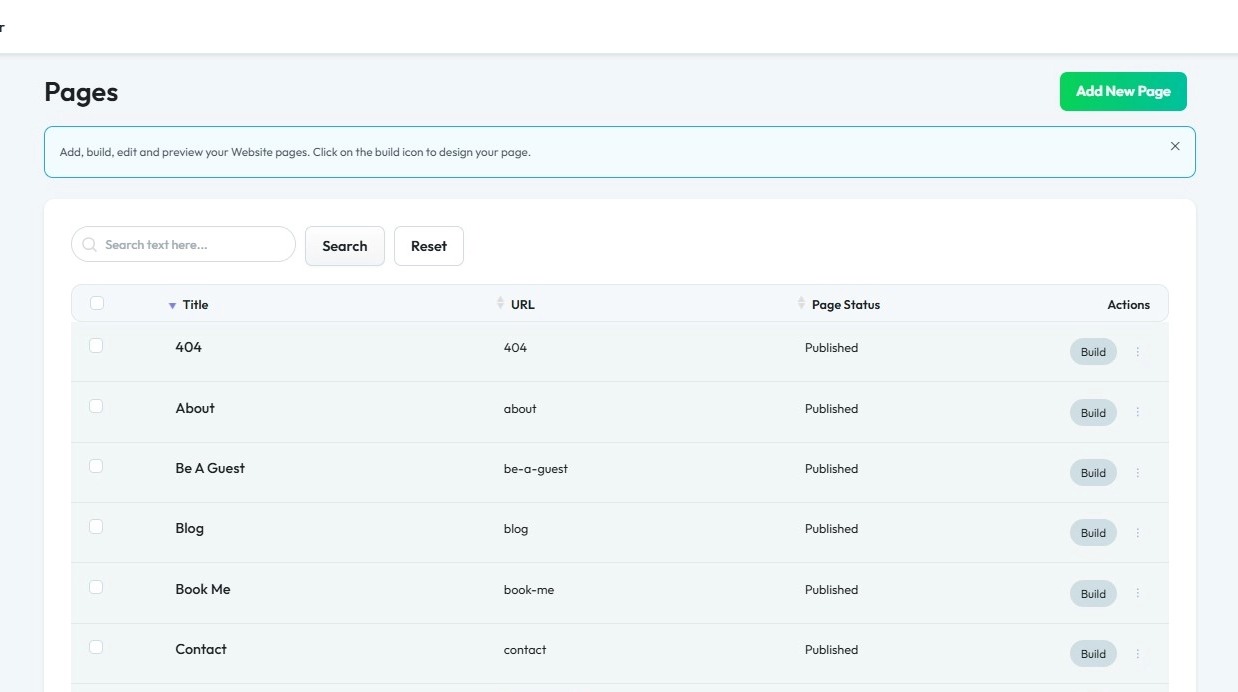
4. Click "Build"
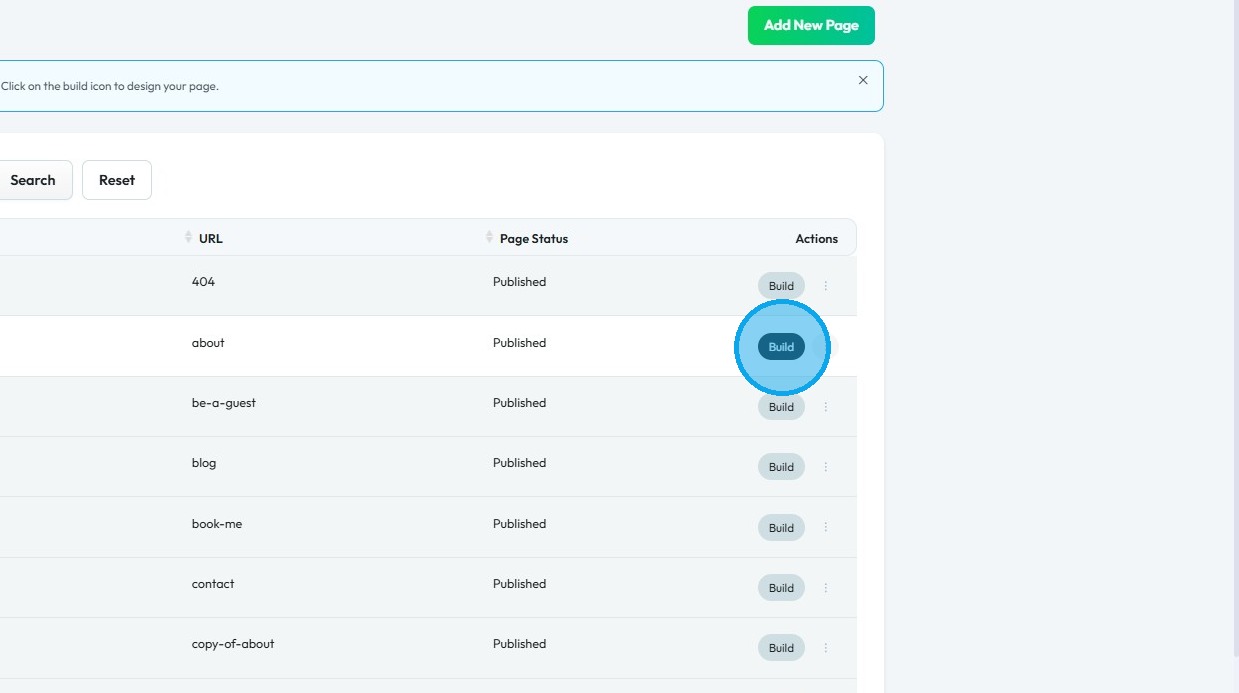
5. The Page Builder will open
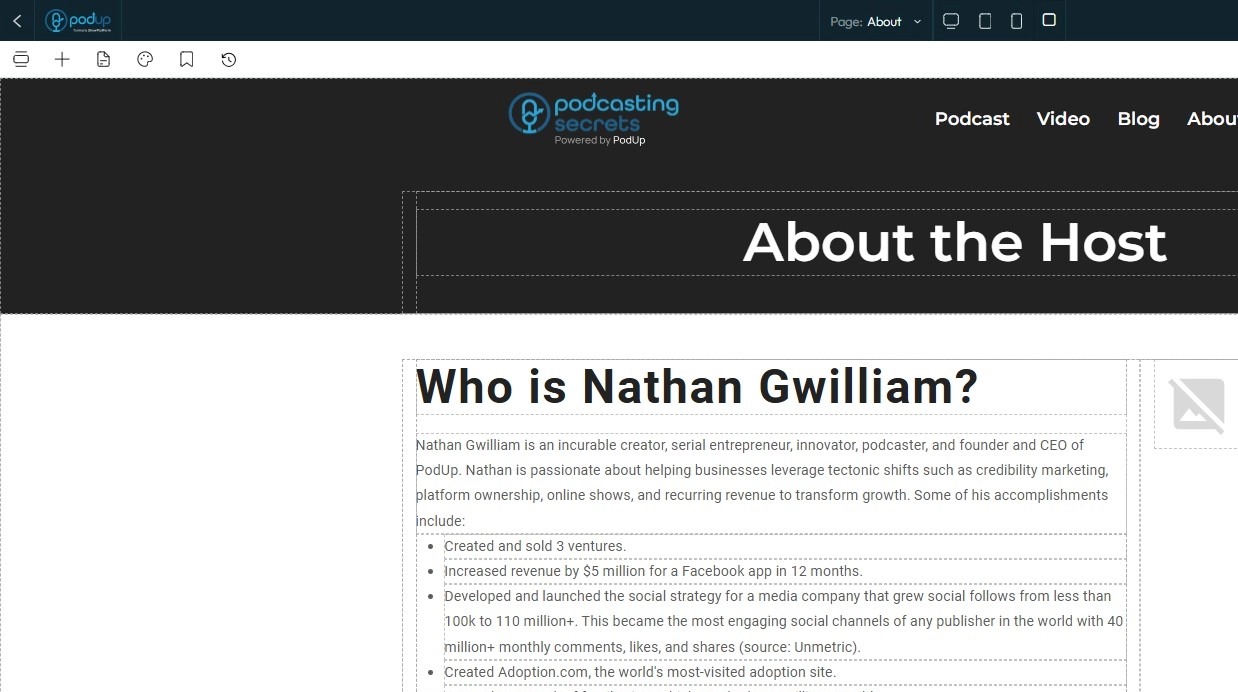
6. Click "Blocks" (+ icon)
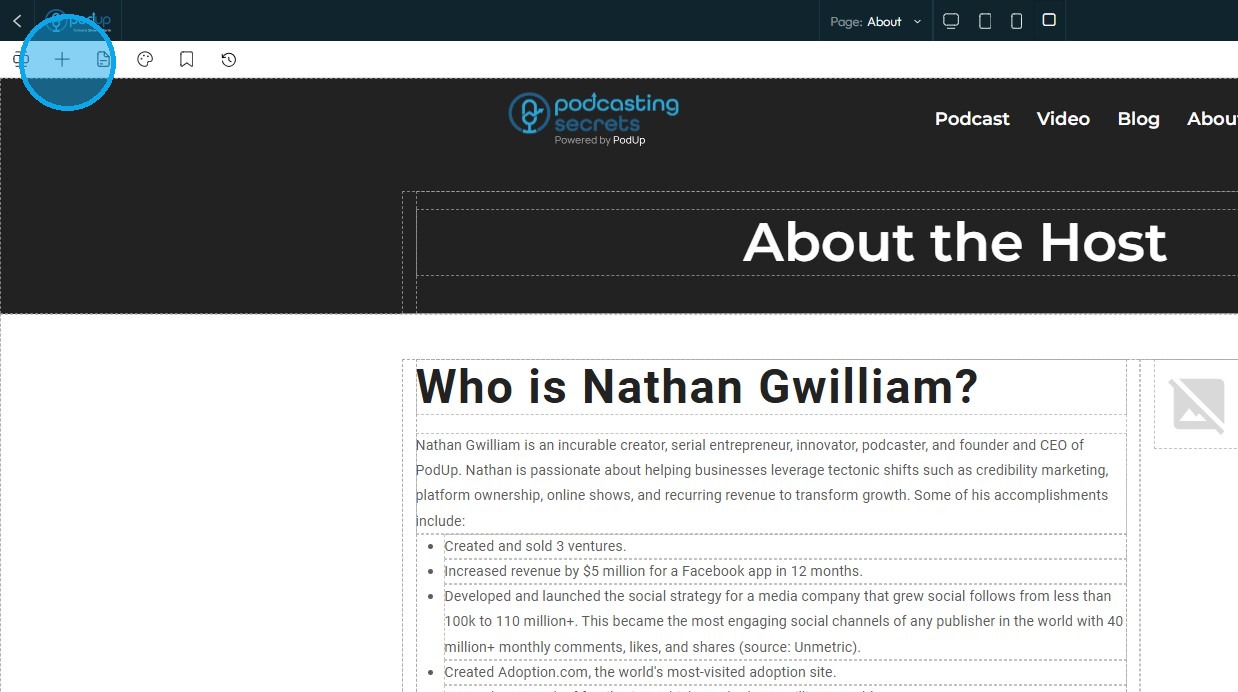
7. Under "Add Elements," select "Quick Add," then drag and drop the "Collapse" element onto the desired location on your page.
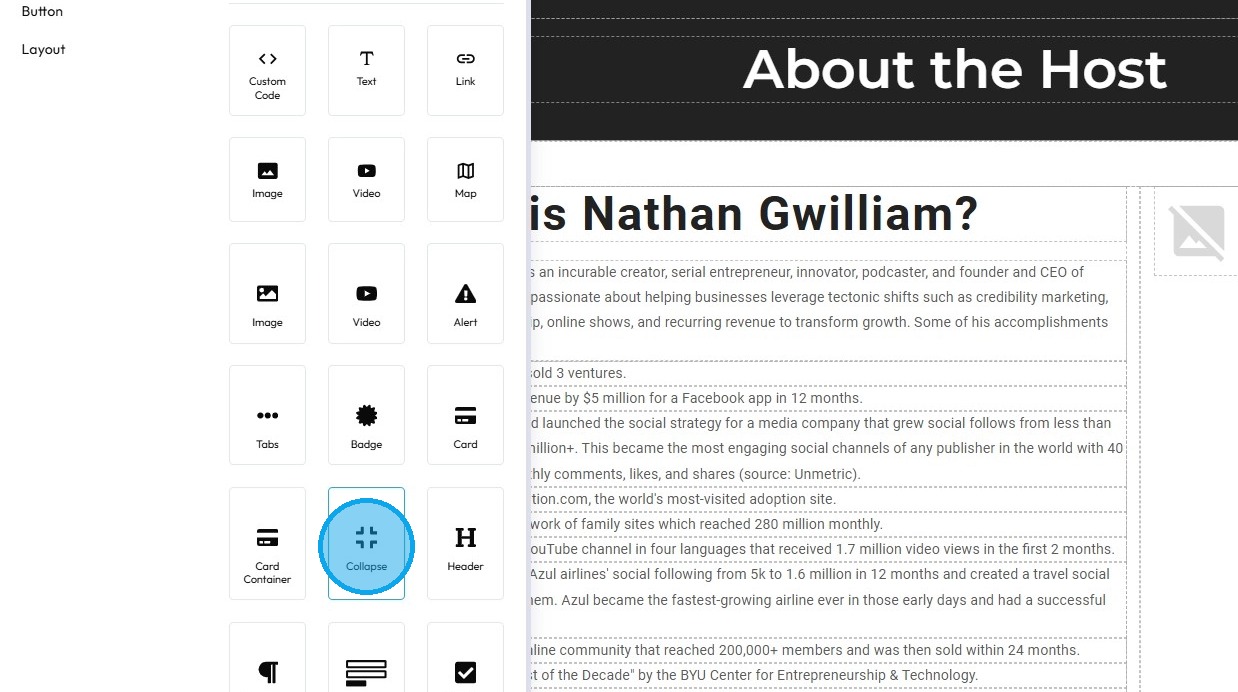
8. The collapse feature will appear in the selected location, where you can customize it to suit your needs.
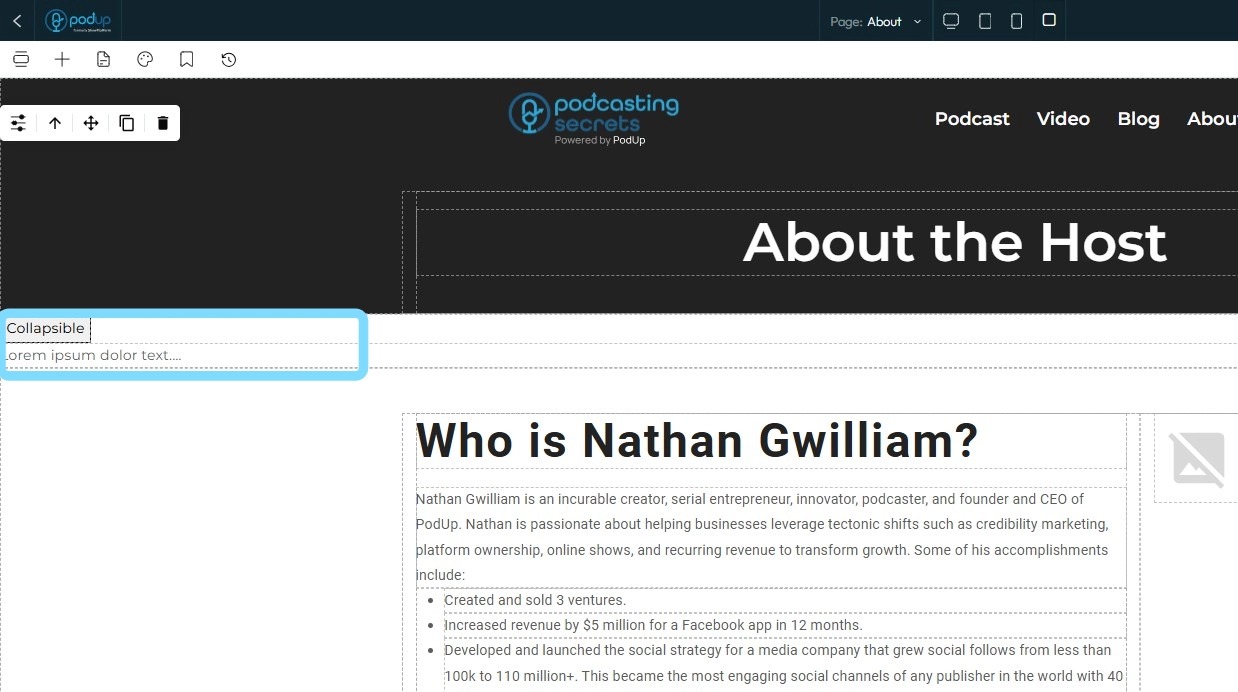
9. Click "Save" at the top-right corner of the page
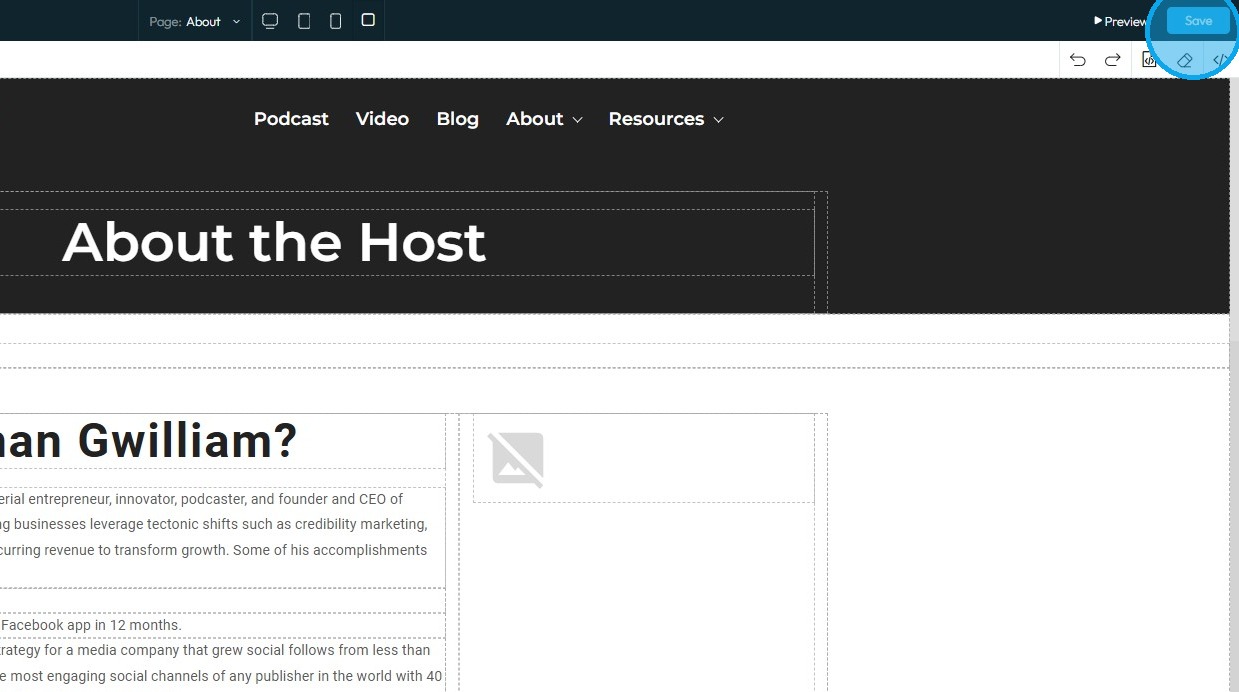
10. Once published, the changes will be visible on your website

Related Articles
How do I customize Web builder Quick Add (Detailed) - Collapse
By following this guide, you will be able to easily customize the Quick Add feature in the PodUp Web Builder from adding a collapse block to adjusting its visual properties ensuring an interactive and visually appealing website. 1. Navigate to ...How do I customize Web builder Quick Add (Detailed) - Tabs
By following this guide, you can easily customize the Quick Add Tabs feature in PodUp Web Builder to enhance your website’s functionality and design. 1. Navigate to https://app.podup.com/home 2. Click "Page Builder". 3. Click the "Build" button for ...How To Customize Link Quick Add in PodUp Page Builder (Detailed)
This guide is essential for anyone looking to enhance their website using PodUp's Page Builder. It provides step-by-step instructions on customizing the Quick Add link feature, allowing you to create interactive and visually appealing elements ...How to Add a Card to Your Website
By following this guide, you can easily add a card feature to your website to enhance engagement and visual appeal. 1. Navigate to https://app.podup.com/home 2. Click "Page Builder" 3. Select the page where you want to insert a card 4. Click "Build" ...How to Add A Video to My Website using Quick Add (Detailed)
This guide shows you how to quickly add videos to your website using the Quick Add feature. It walks you through choosing a video source and customizing how it looks and works. Follow the steps to make your site more engaging and professional with ...