How do I save the text I added to my video
Use this guide to add and save text in your videos with PodUp’s editor.
1. Navigate to https://editor.podup.com/ and load the video you want to edit
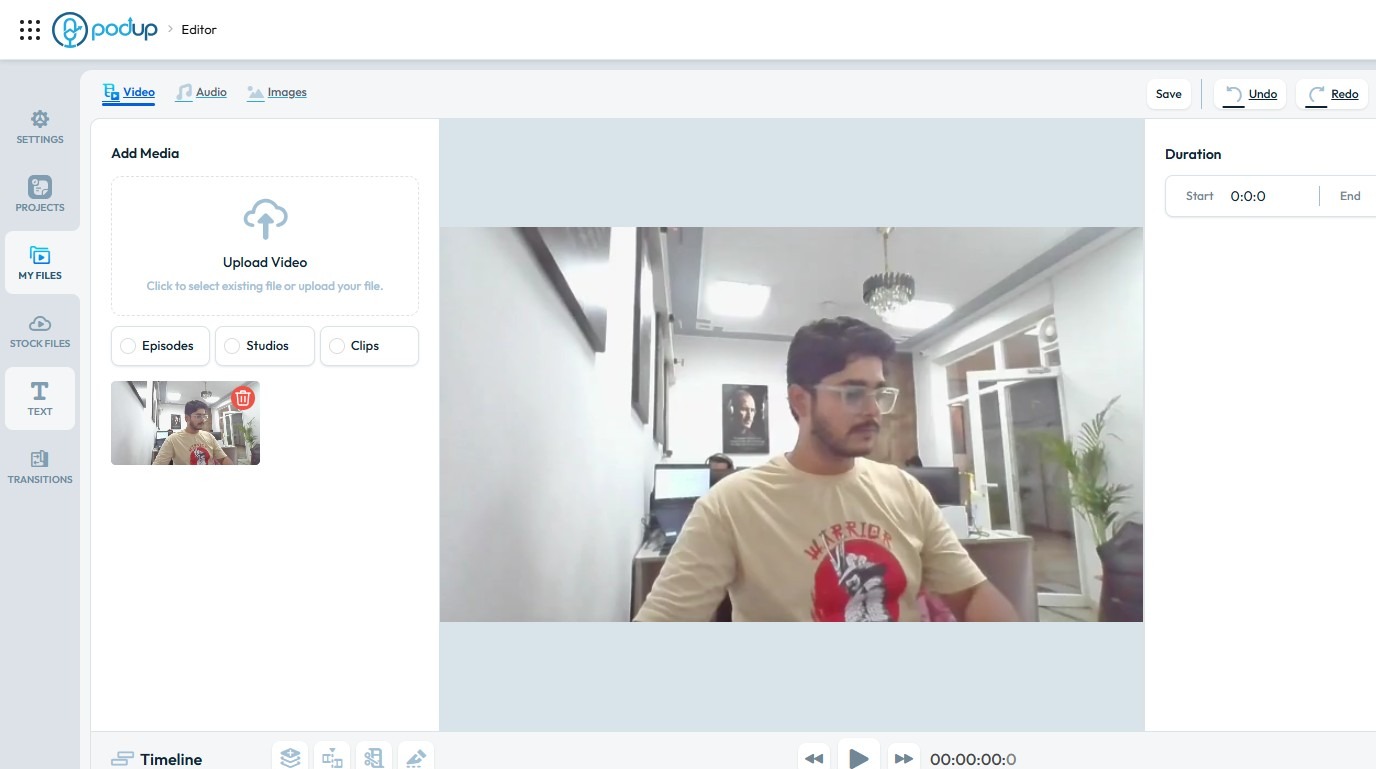
2. Click "Text"
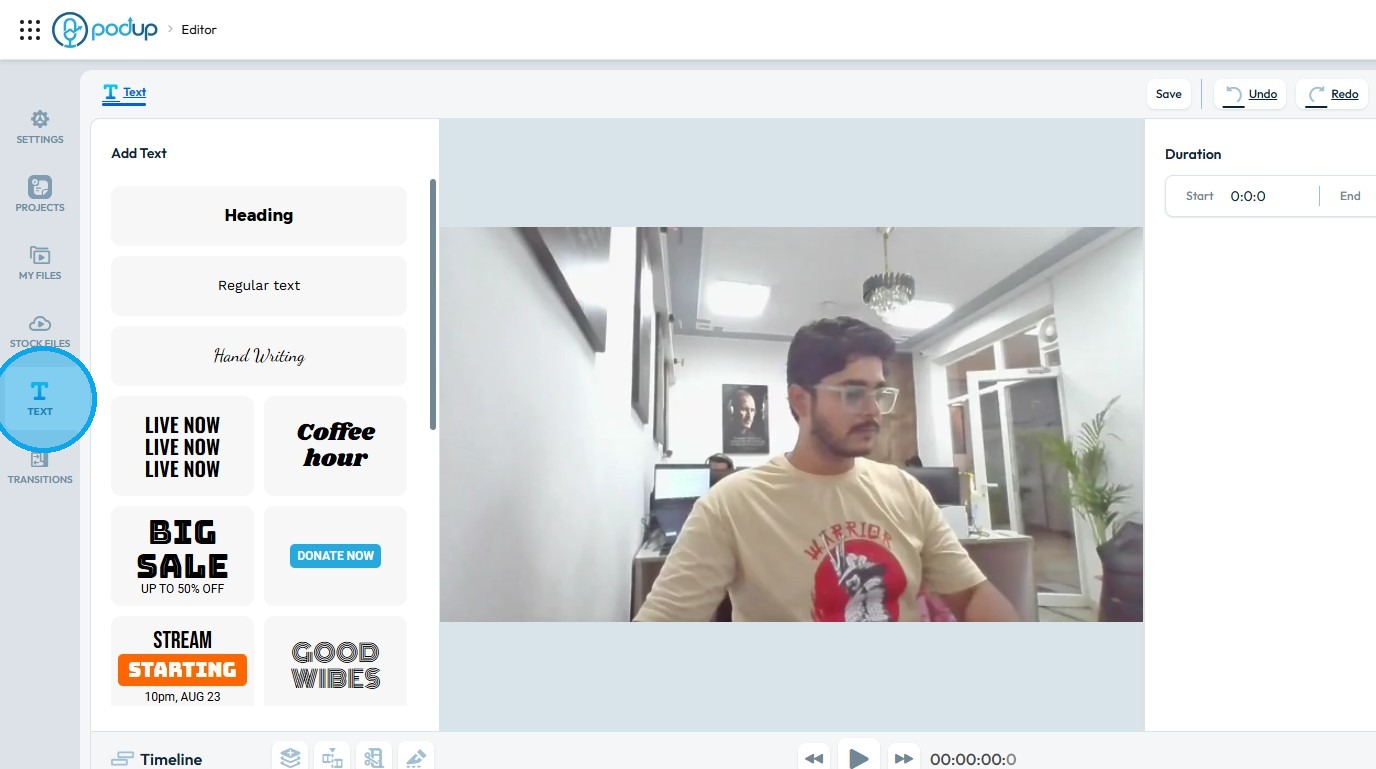
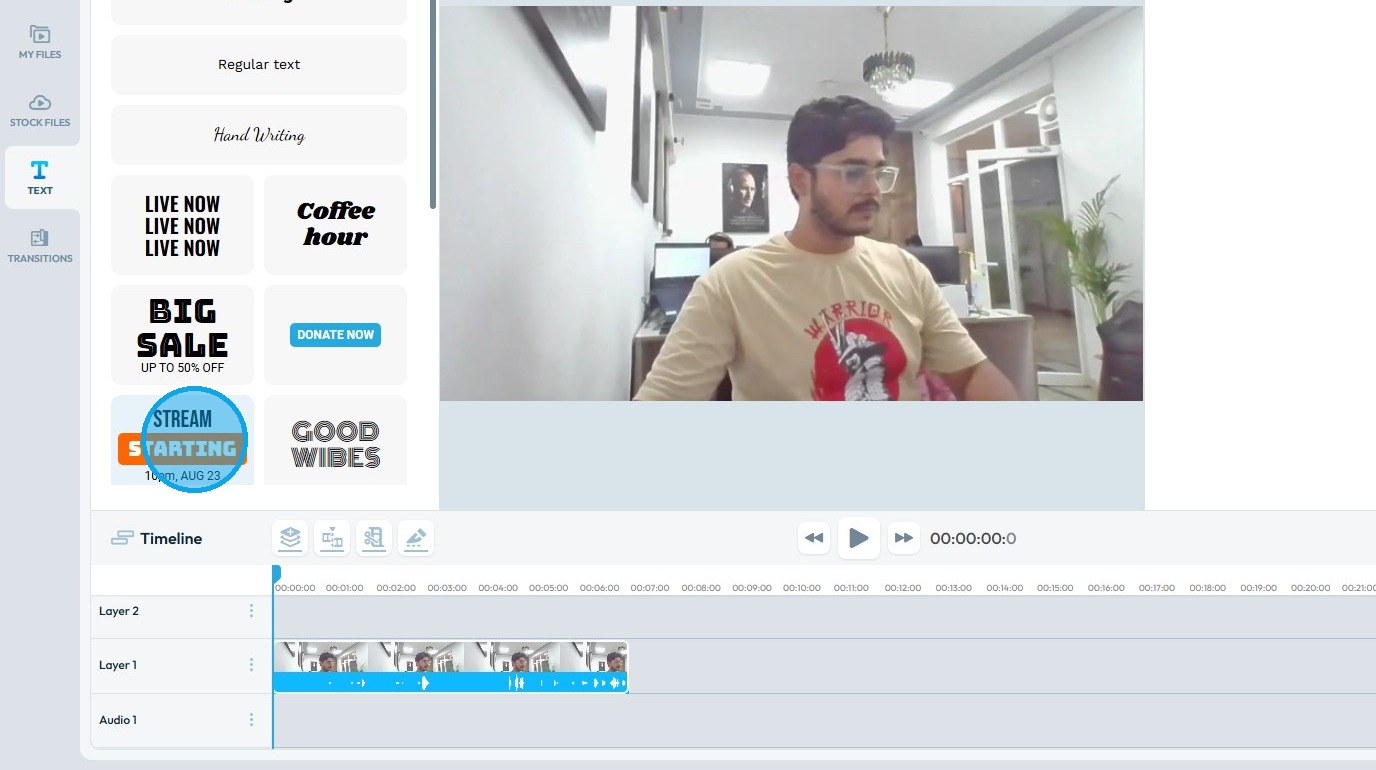
3. Select a ‘Text’ template you prefer and drag it onto the Timeline (Layer)
4. The ‘Text Template’ may contain multiple layers
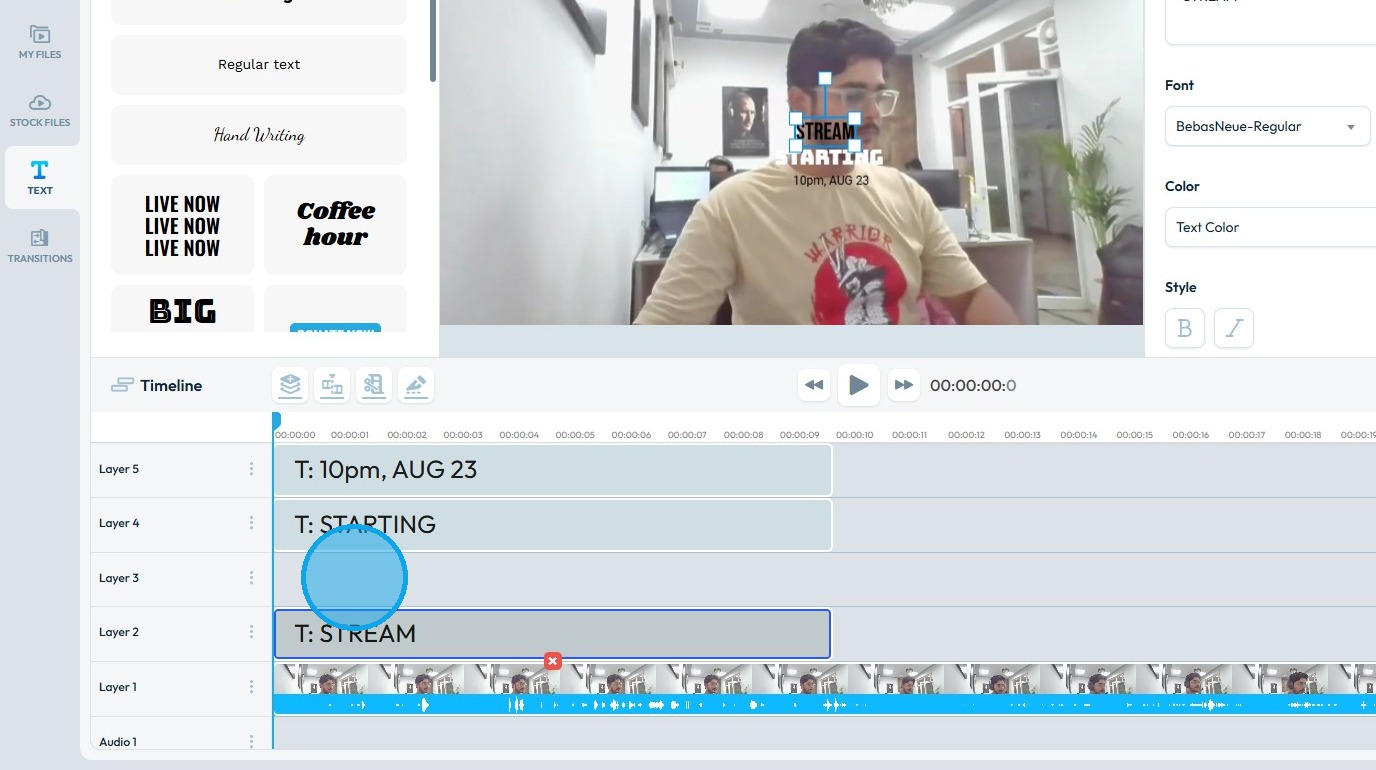
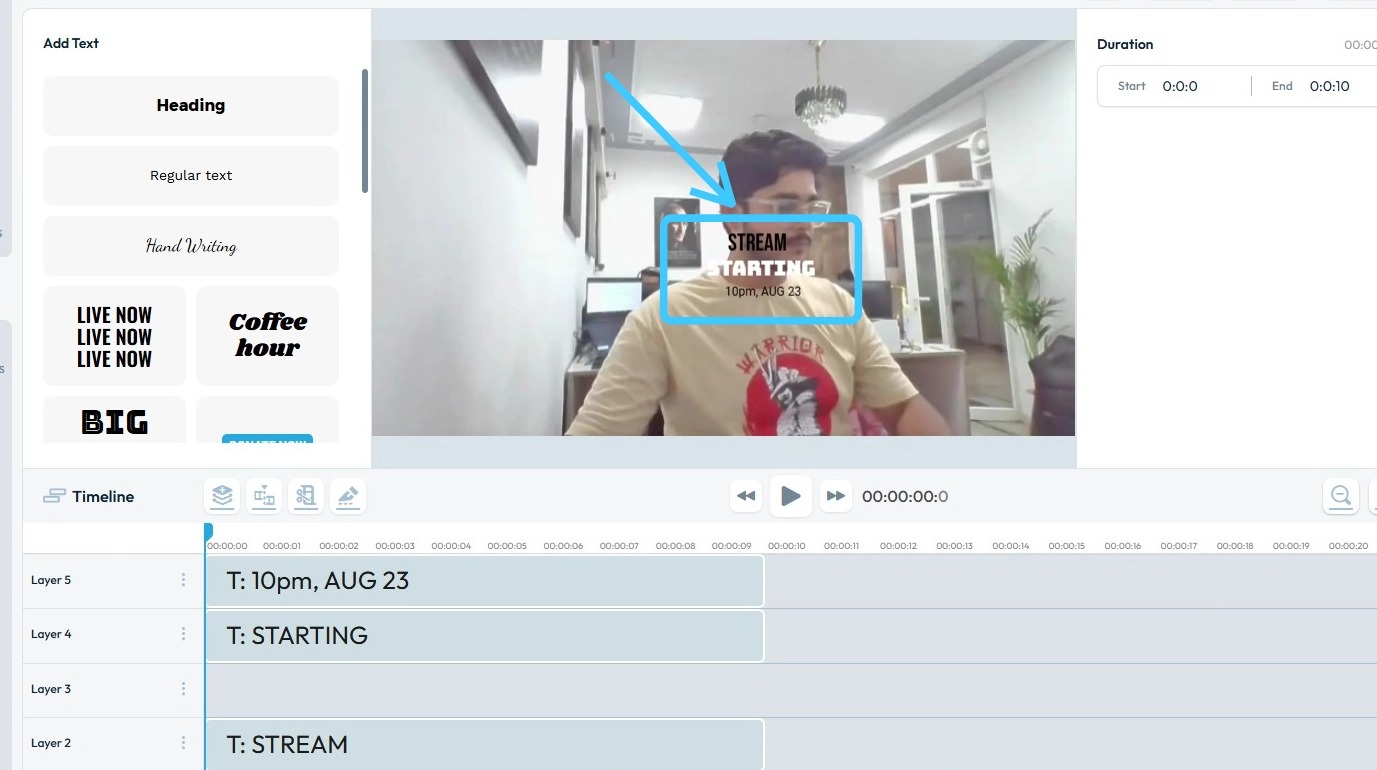
5. The added ‘Text’ will be displayed on your video
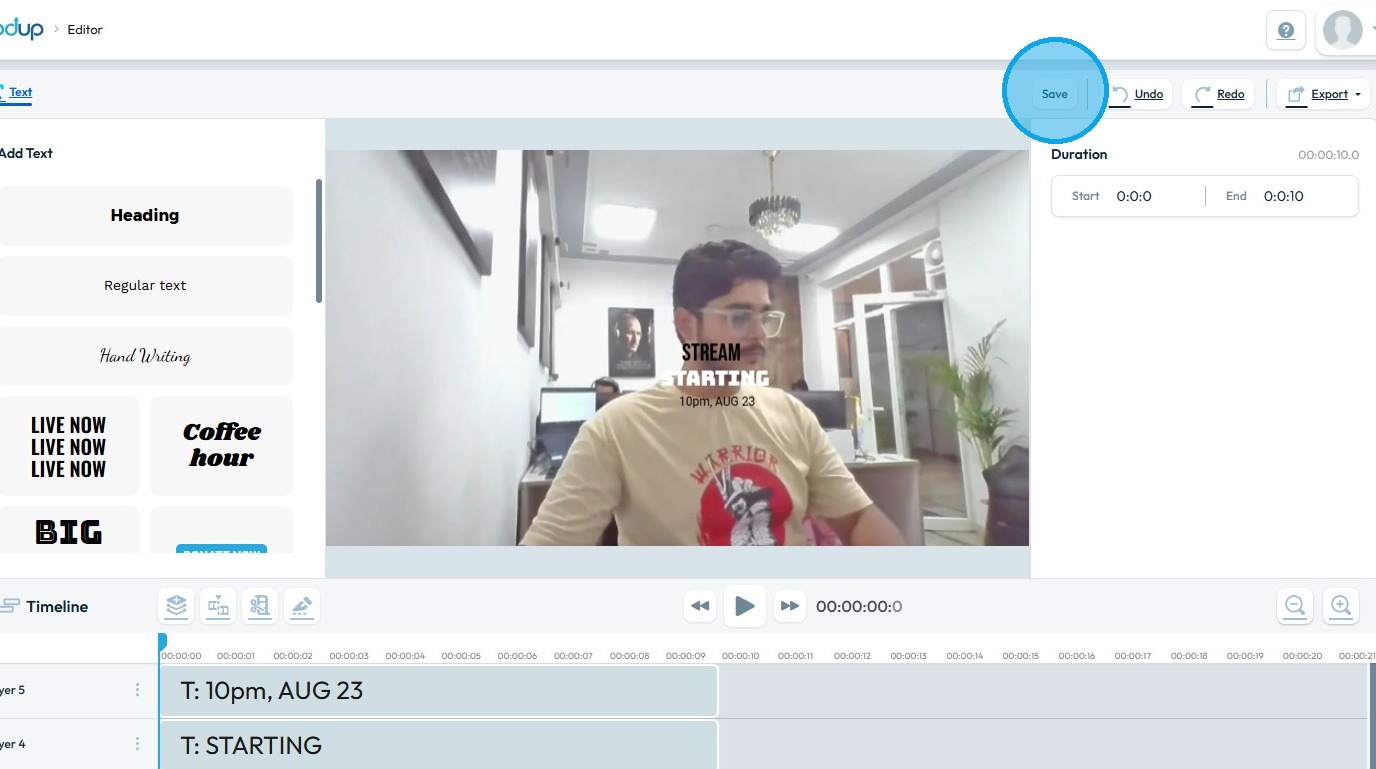
6. Click "Save" to save the Text applied on the video
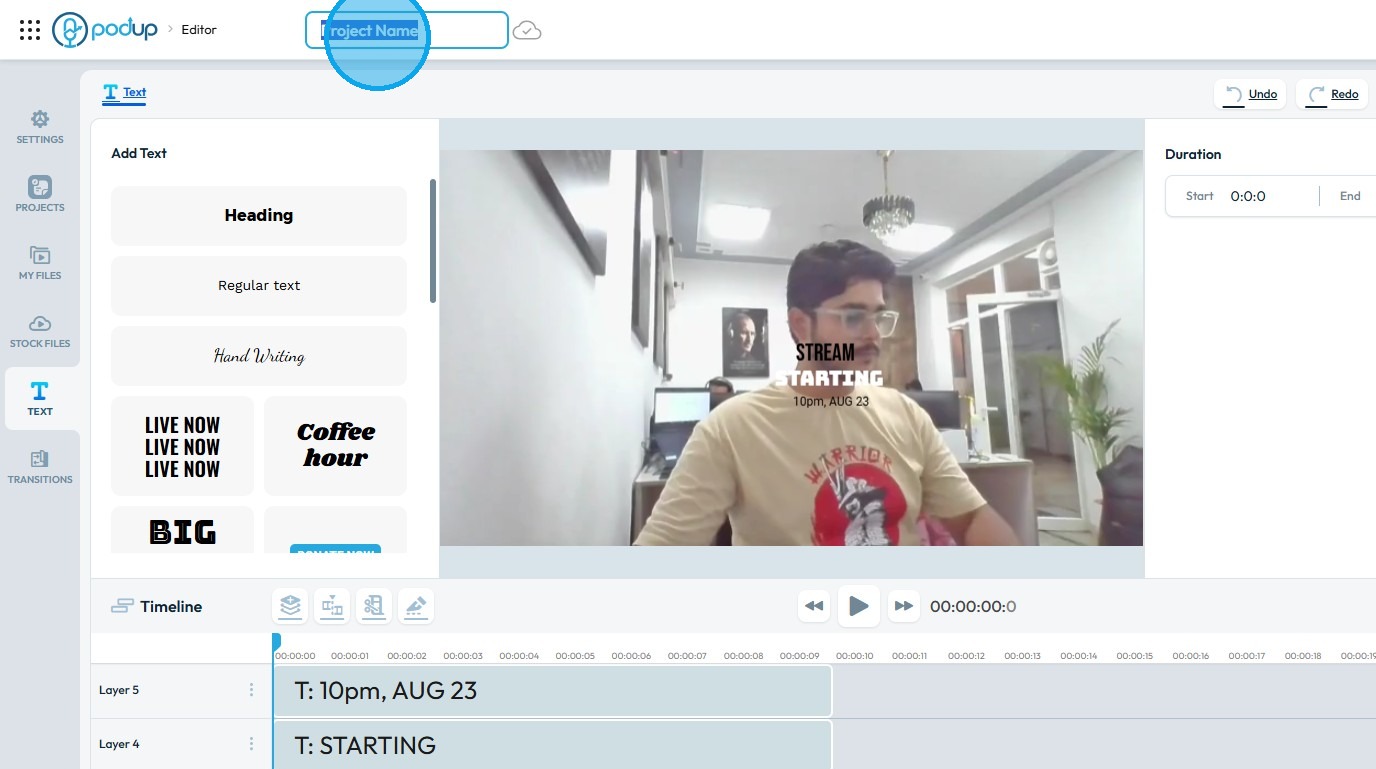
7. PodUp will prompt you to name your ‘Project'
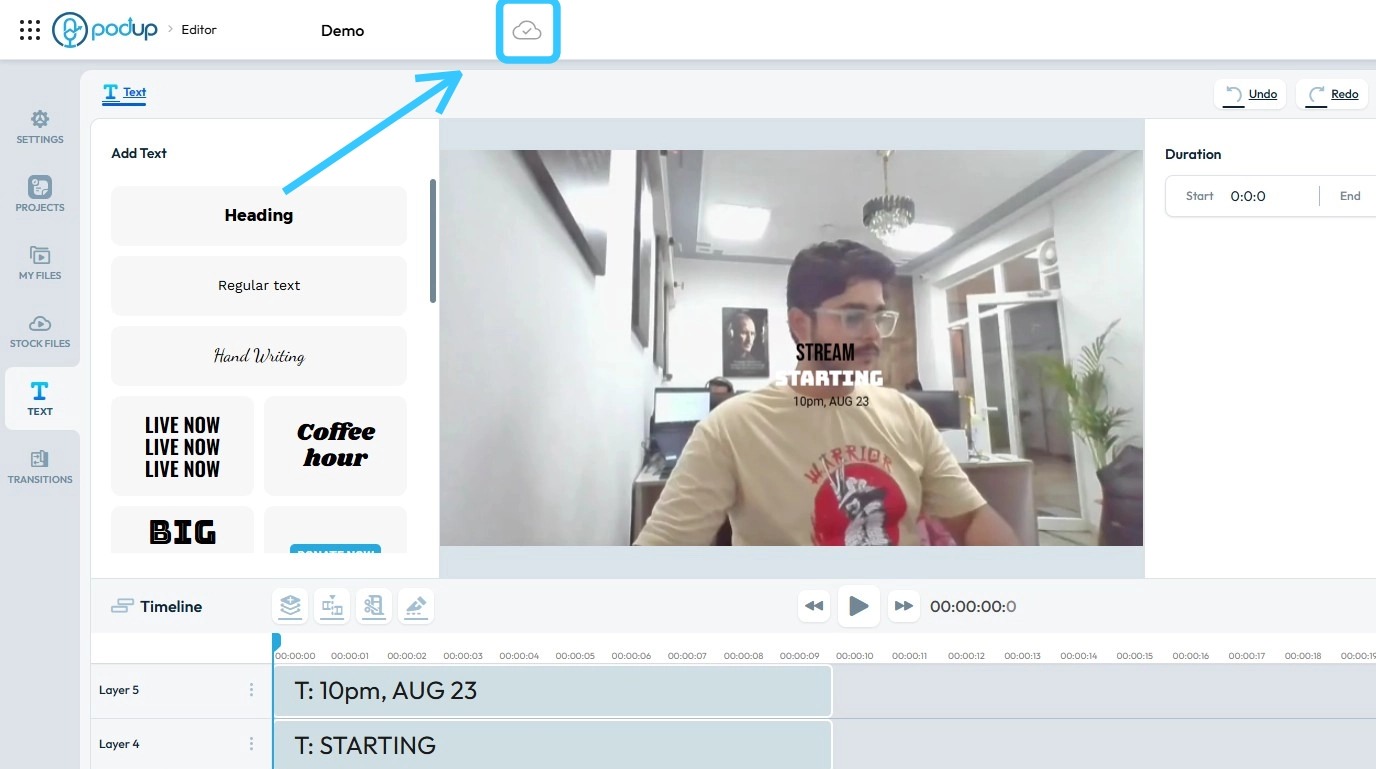
8. After entering the project name, press ‘Enter.’ A ‘Cloud’ icon will appear, indicating that your changes have been saved
Related Articles
How To Format Text and Adding Links in PodUp Text Boxes (Detailed)
This guide provides essential tips for effectively writing text, helping users enhance their copy with various formatting options, links, and multimedia elements. By mastering text styling, table creation, and embedding features, readers can ...How do I save the video I added to my episode
This guide shows you how to manage your video content without hassle. 1. Navigate to https://editor.podup.com/ and load a video into the Timeline 2. Drag and drop a video onto the Timeline 3. Once the video is loaded onto the Timeline, you can make ...How do I save the music I added to my video
Use these steps to add music to your videos and securely save your work. 1. Navigate to https://editor.podup.com/ and load up a video in the timeline 2. You can add music by clicking on "Stock Files" 3. Select "Stock Audio" 4. Drag and drop an audio ...How to Navigate Video to Text (Detailed)
This guide provides a comprehensive walkthrough for utilizing Podup's Video to Text feature, making it ideal for anyone needing accurate transcriptions of audio or video content. Users will learn how to efficiently convert files, customize speaker ...How to Navigate Video to Text (Detailed)
This guide provides a comprehensive walkthrough for utilizing Podup's Video to Text feature, making it ideal for anyone needing accurate transcriptions of audio or video content. Users will learn how to efficiently convert files, customize speaker ...