How do I save the graphic I added to my video
Use this guide to add and save graphics in your videos with PodUp’s editor.
1. Navigate to https://editor.podup.com/
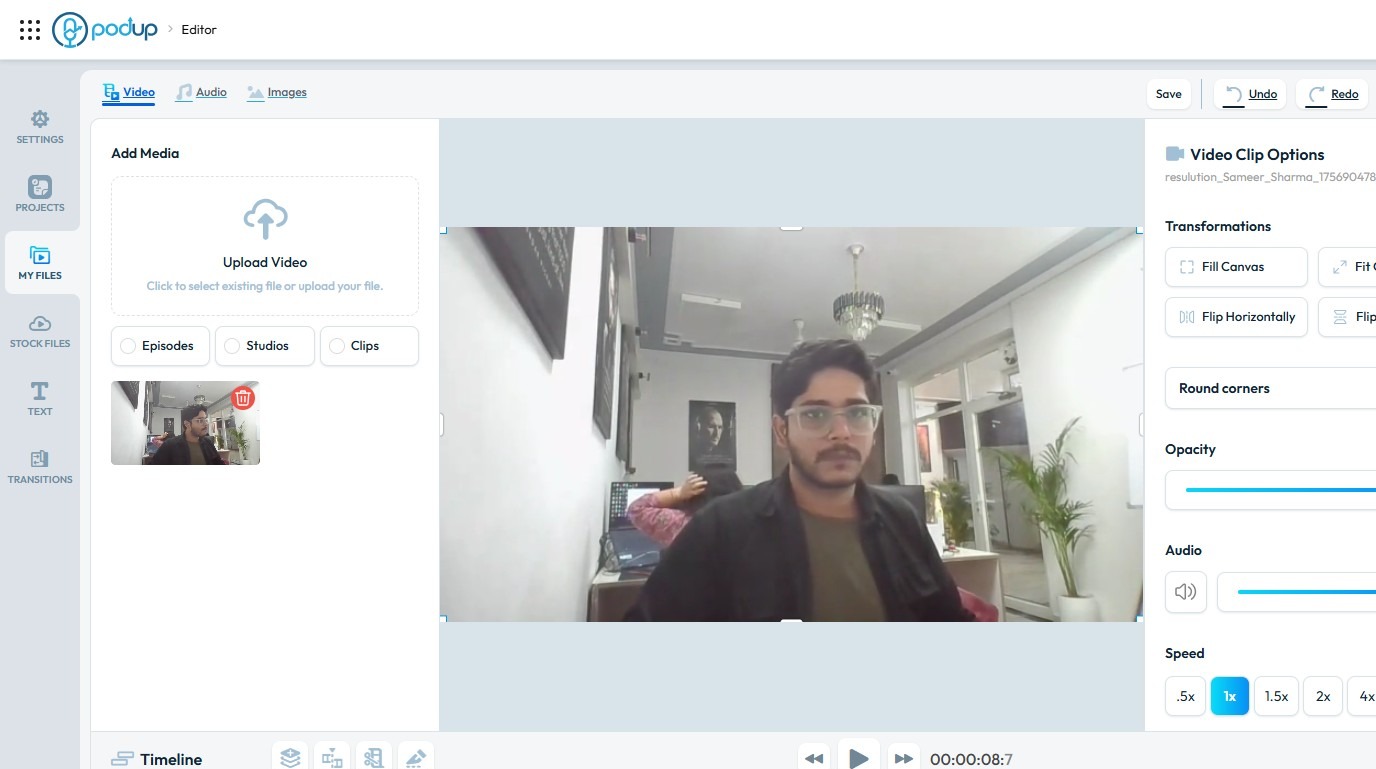
2. Load a video onto the ‘Timeline'
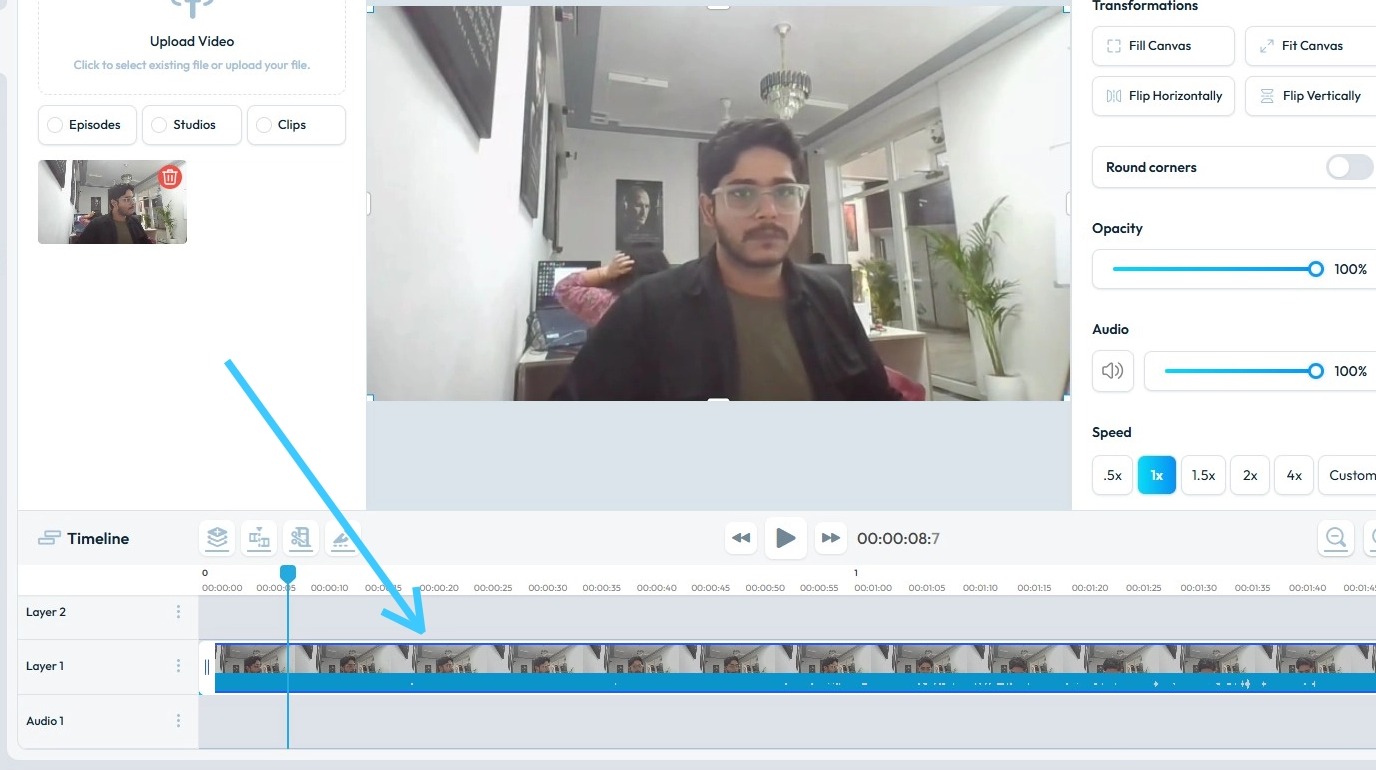
3. To add a "Graphics & Elements" click "Stock Files"
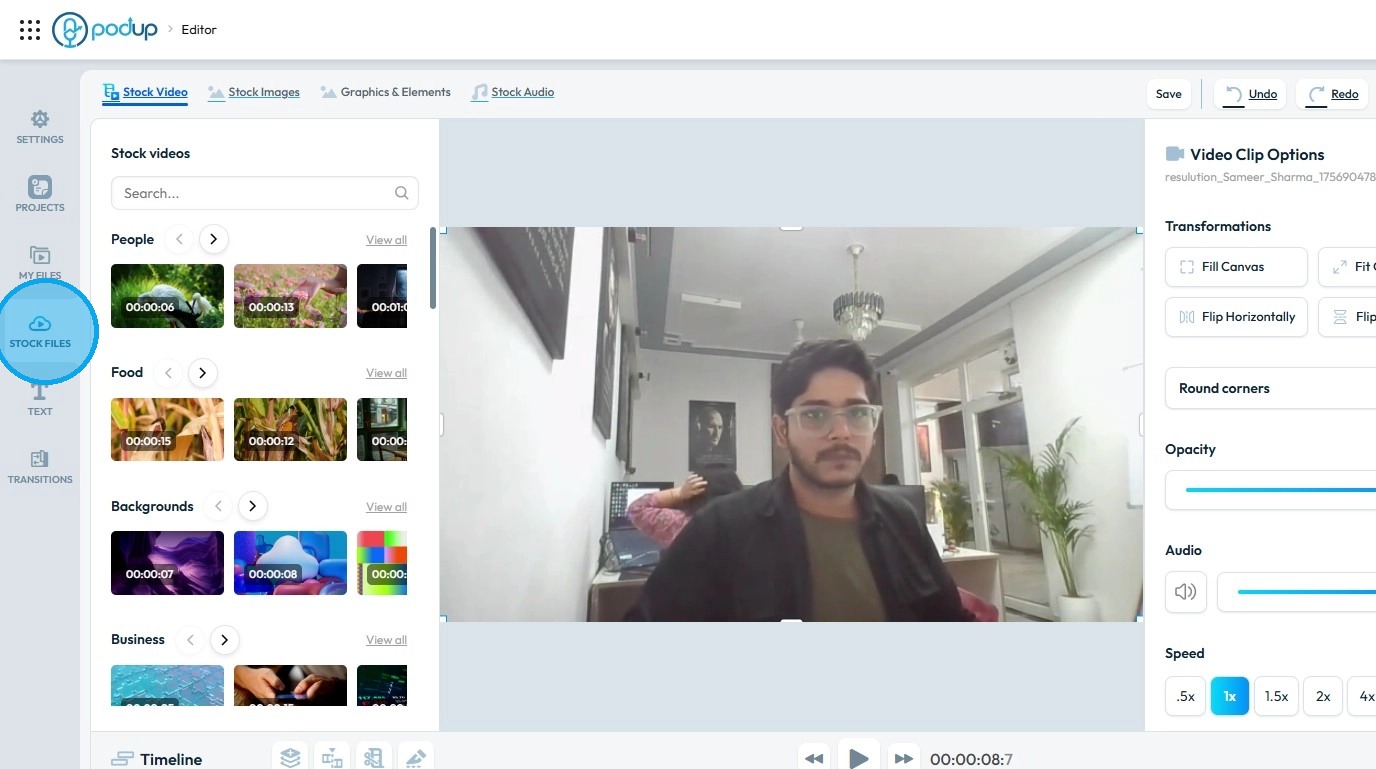
4. Select "Graphics & Elements"
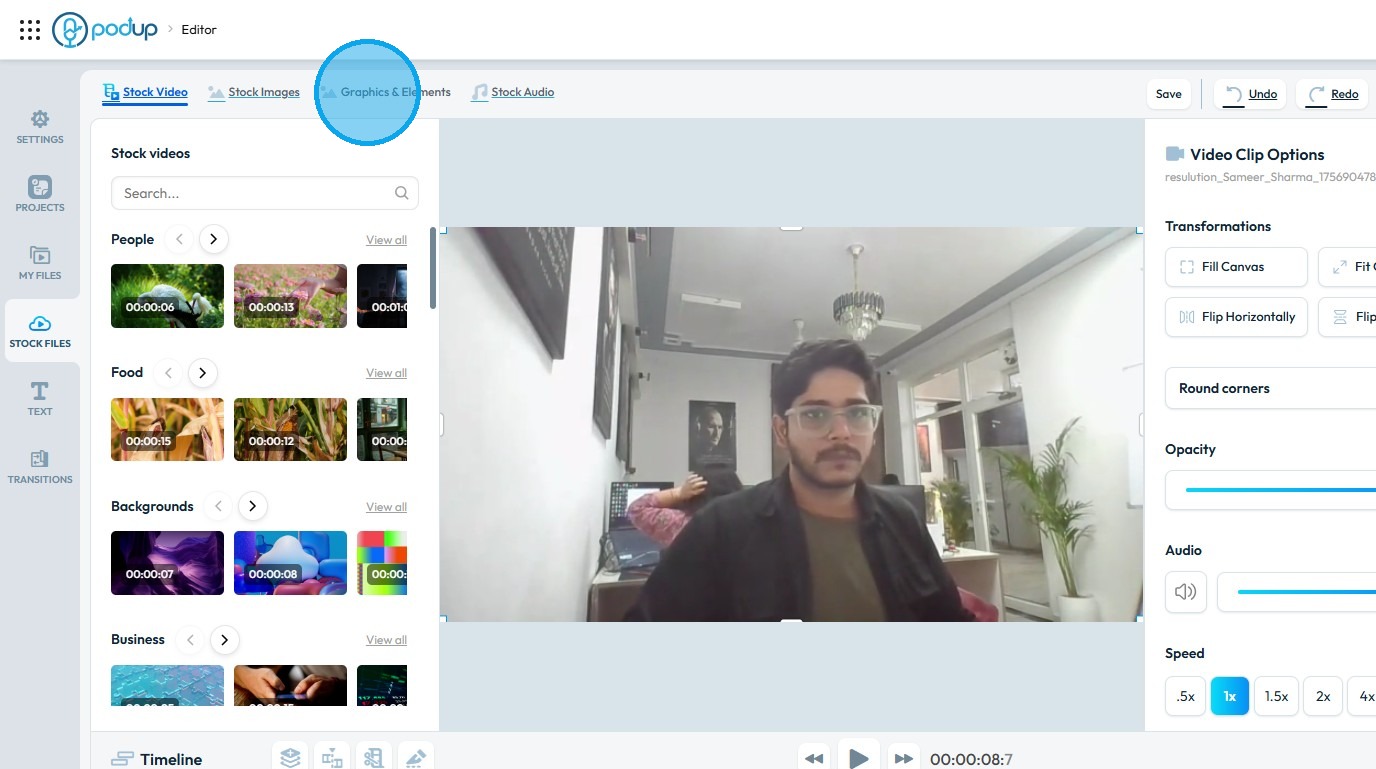
5. Drag and Drop the graphic in the "Timeline"
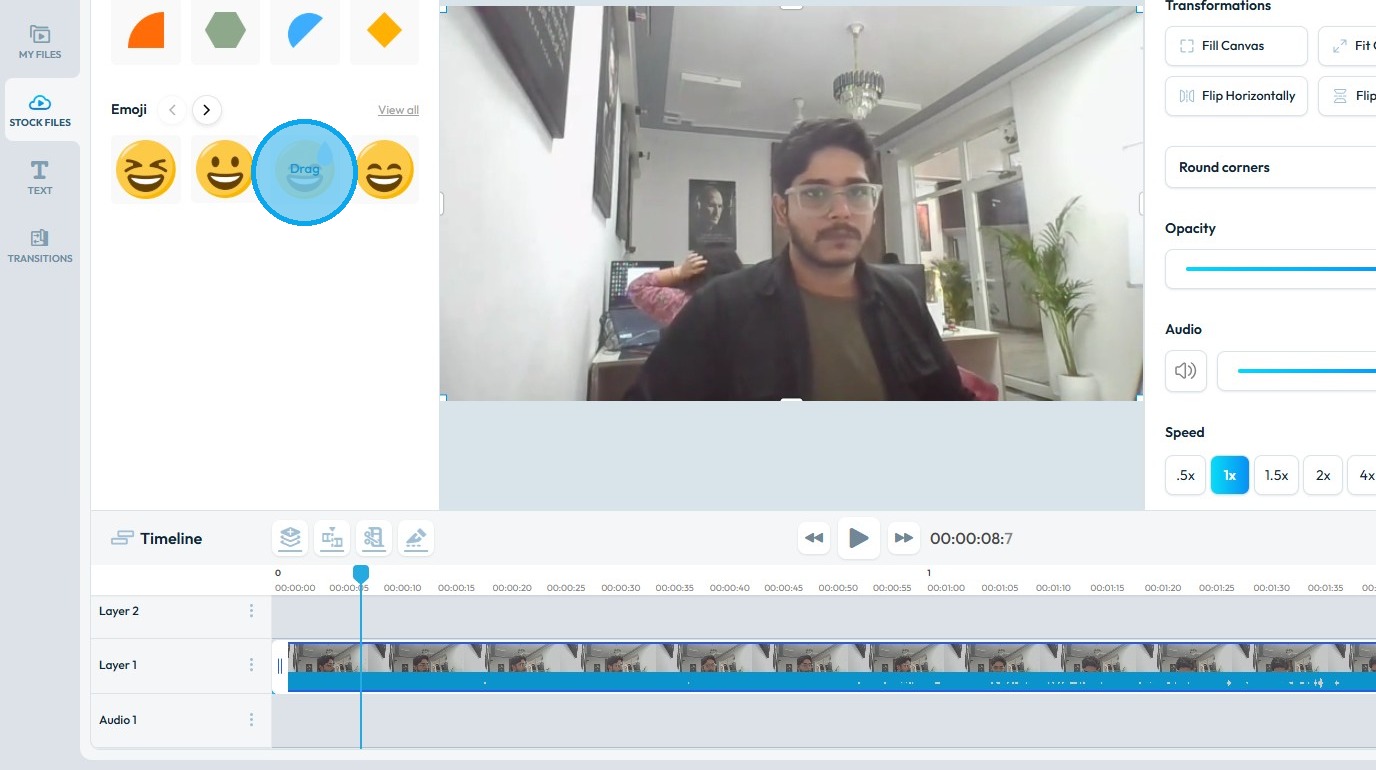
6. Graphic will load up on the screen
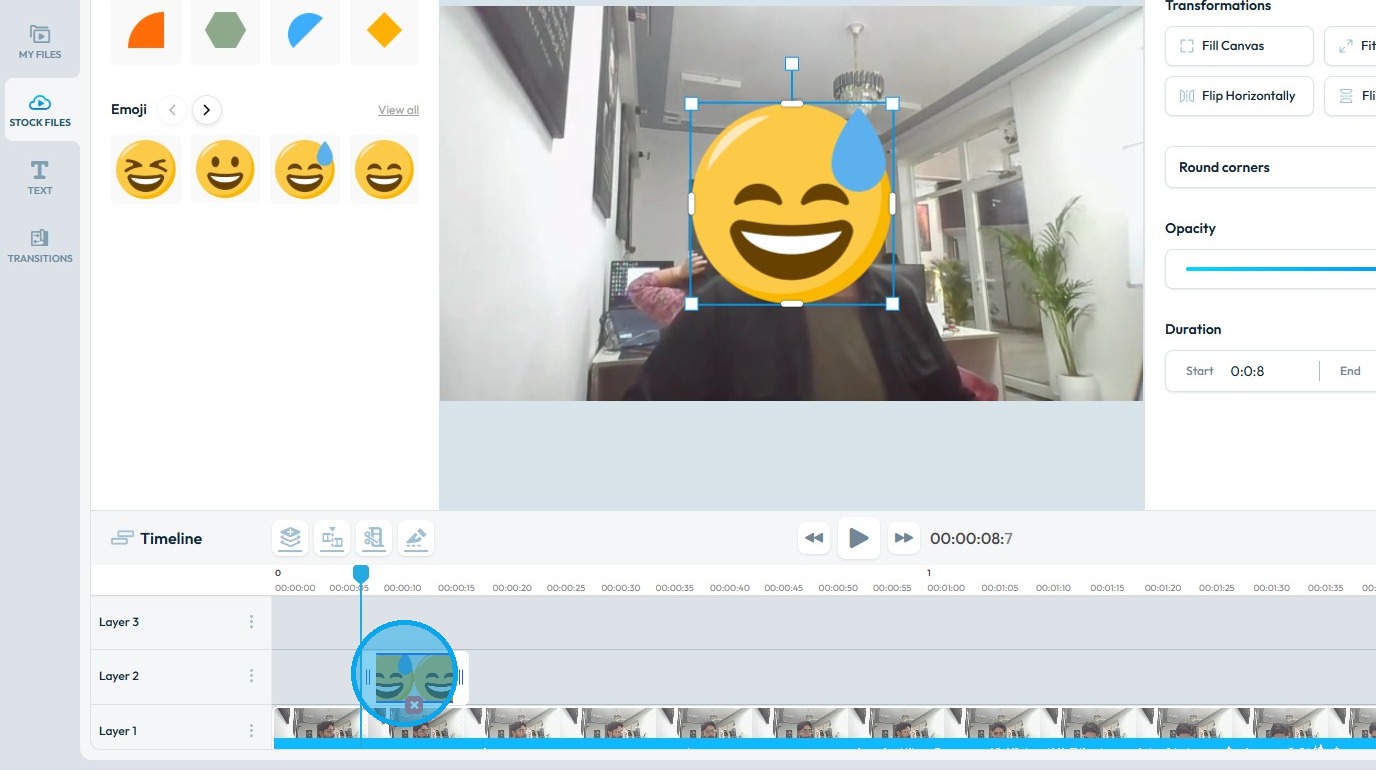
7. Click on the "Graphic" to select it
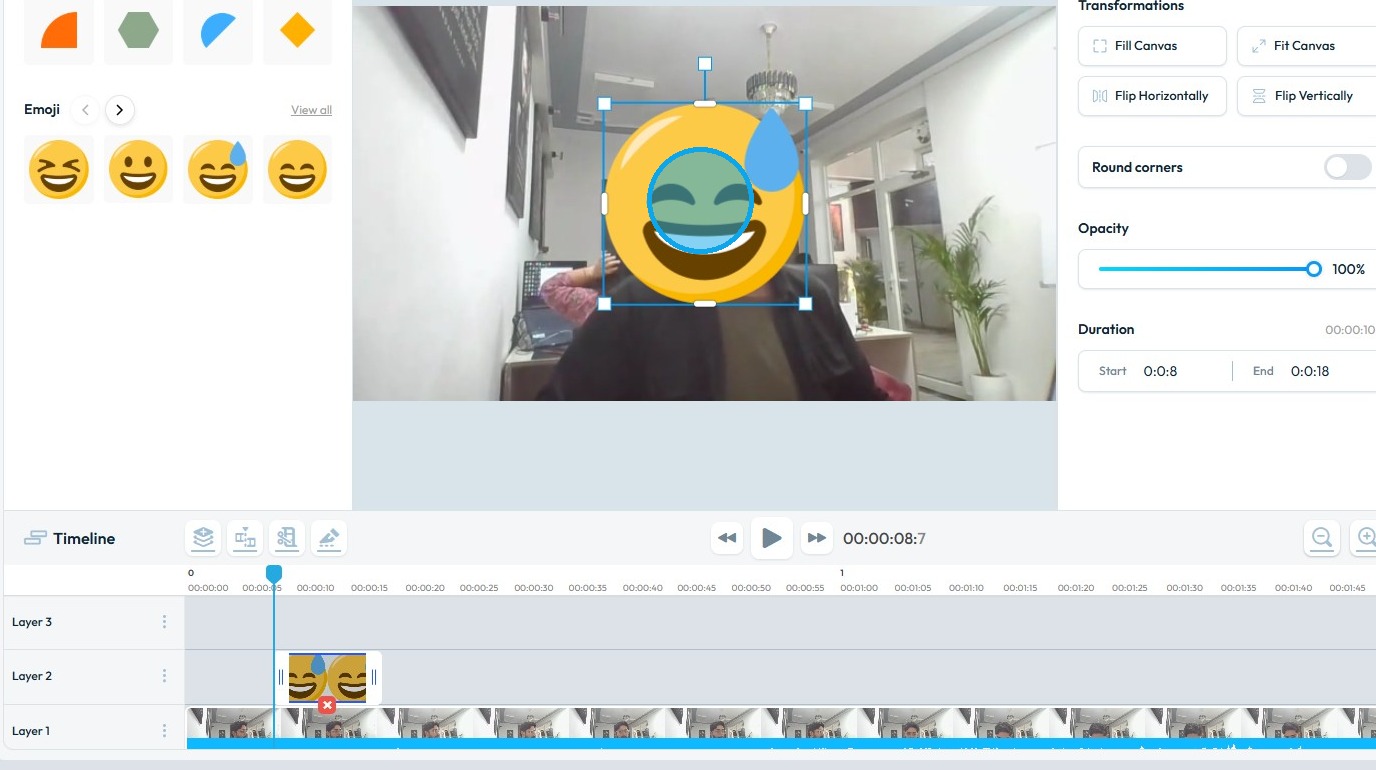
8. You may now adjust the graphic as required
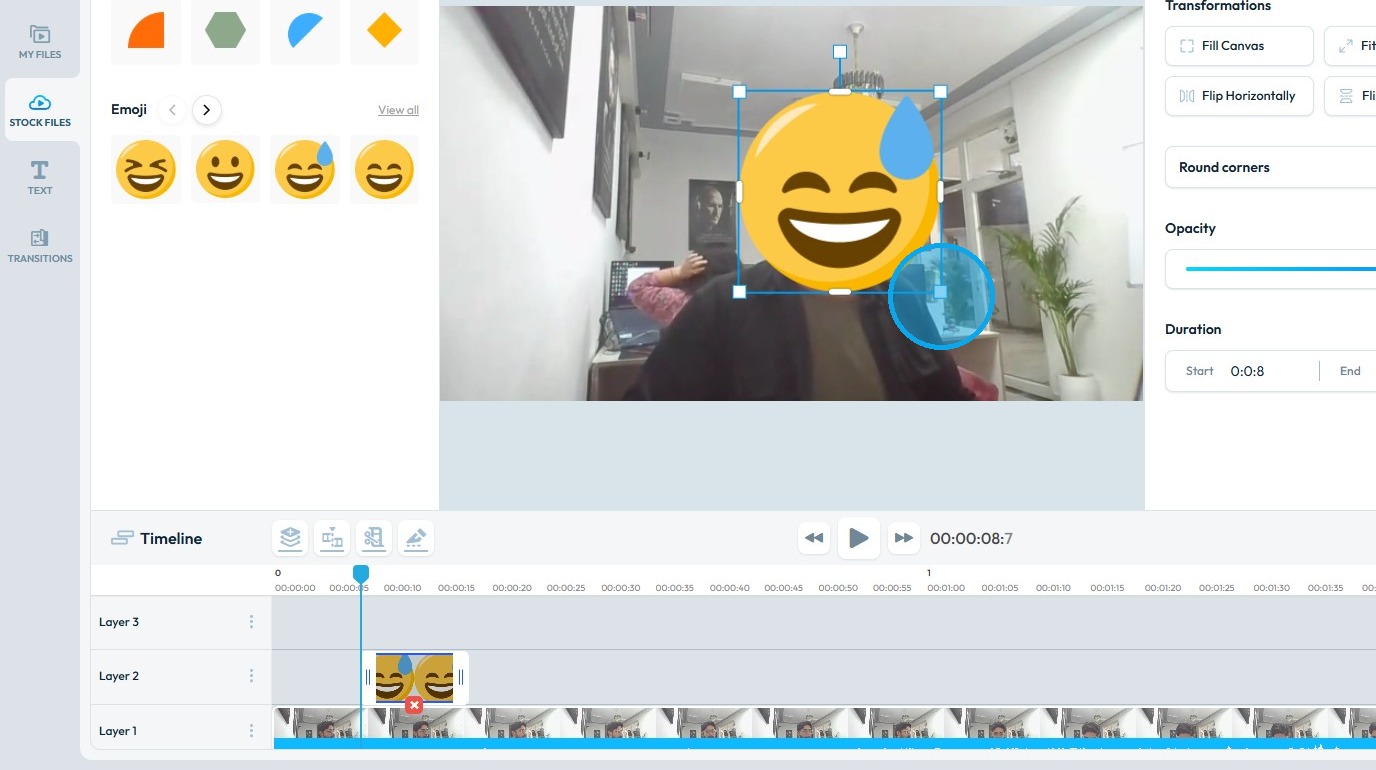
9. Once you have completed the edits, click ‘Save'
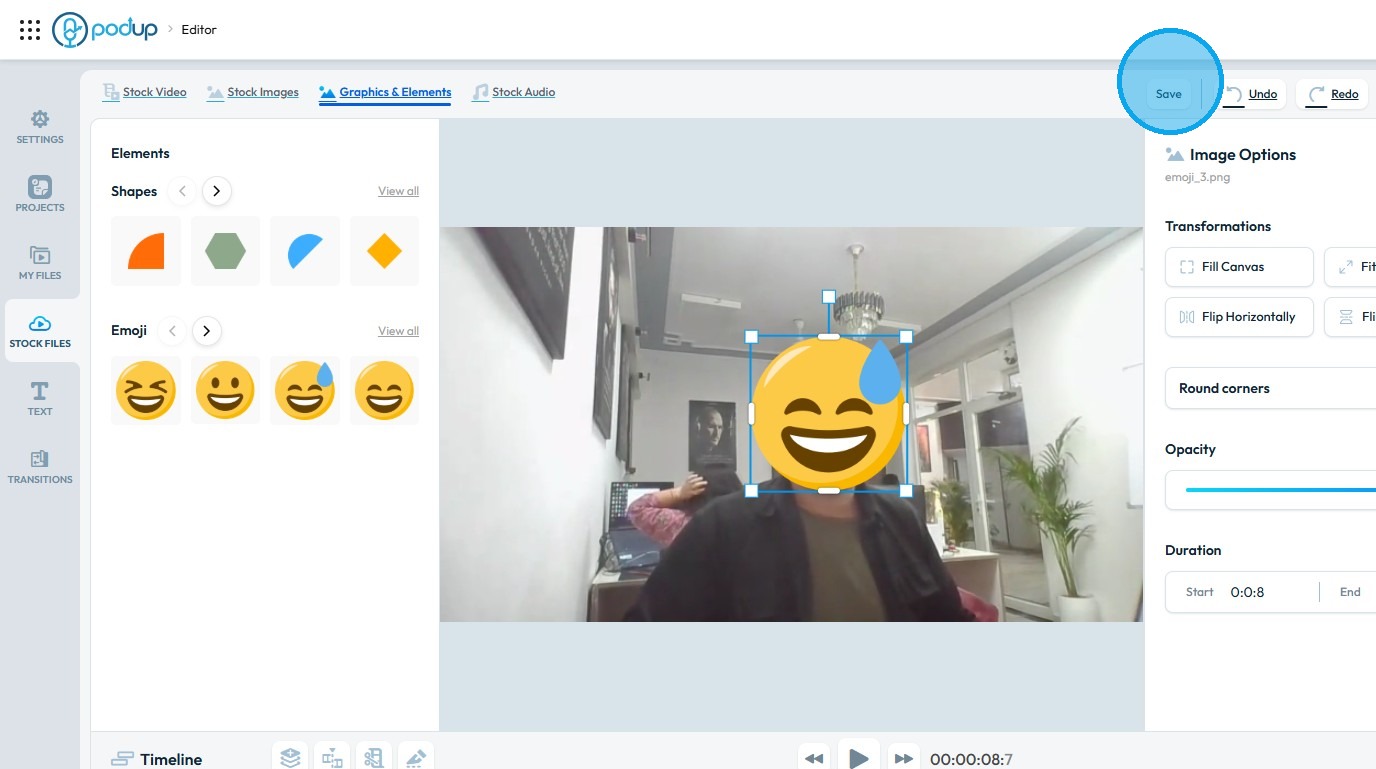
10. PodUp will prompt you to provide a name for the project
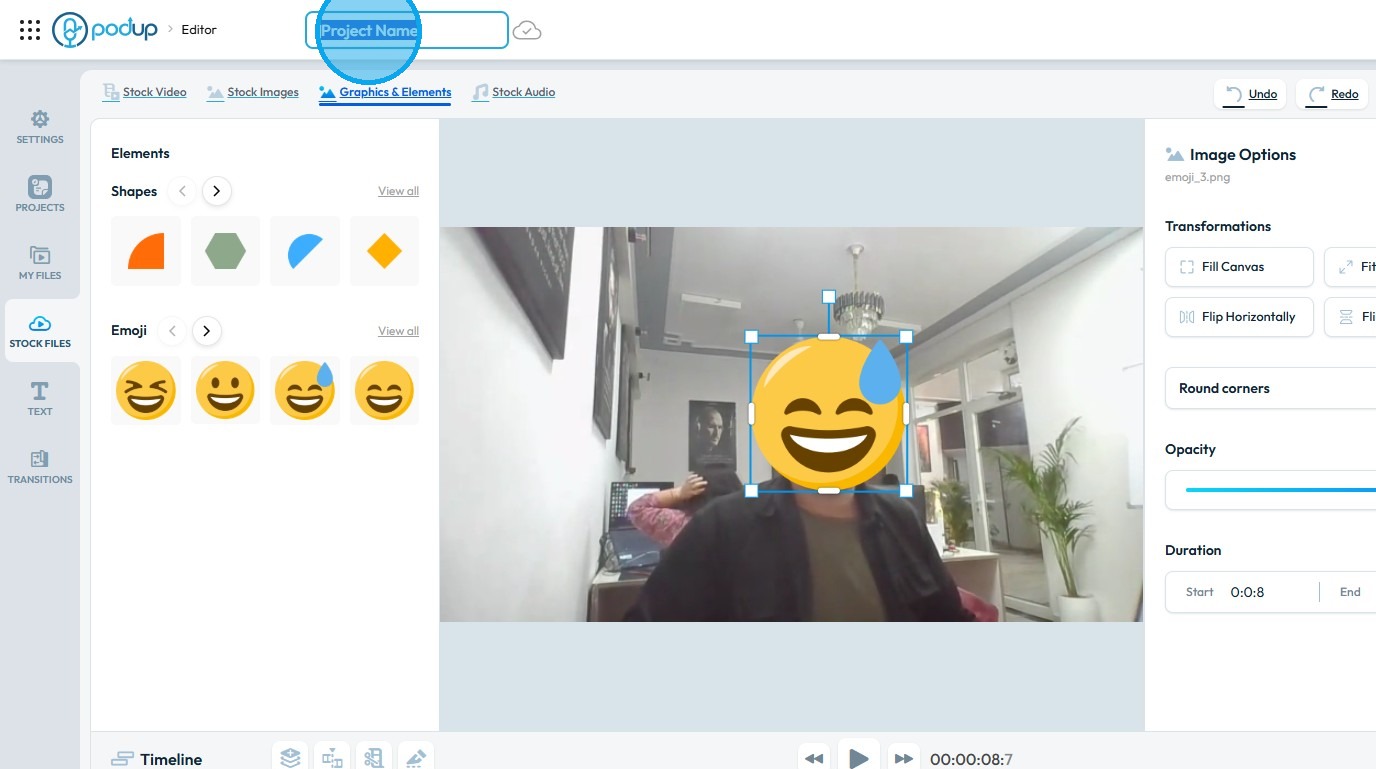
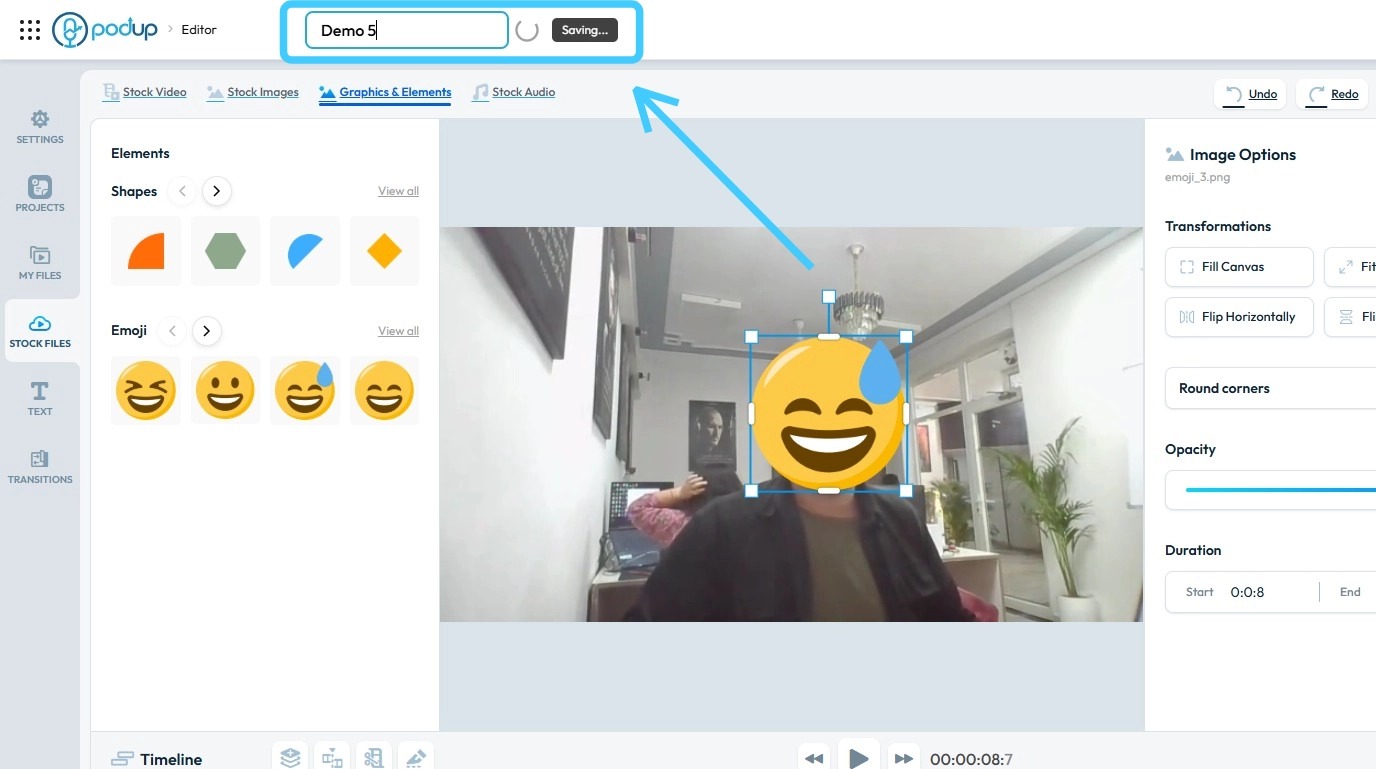
11. Enter a name and press ‘Enter.’ The project will then begin saving
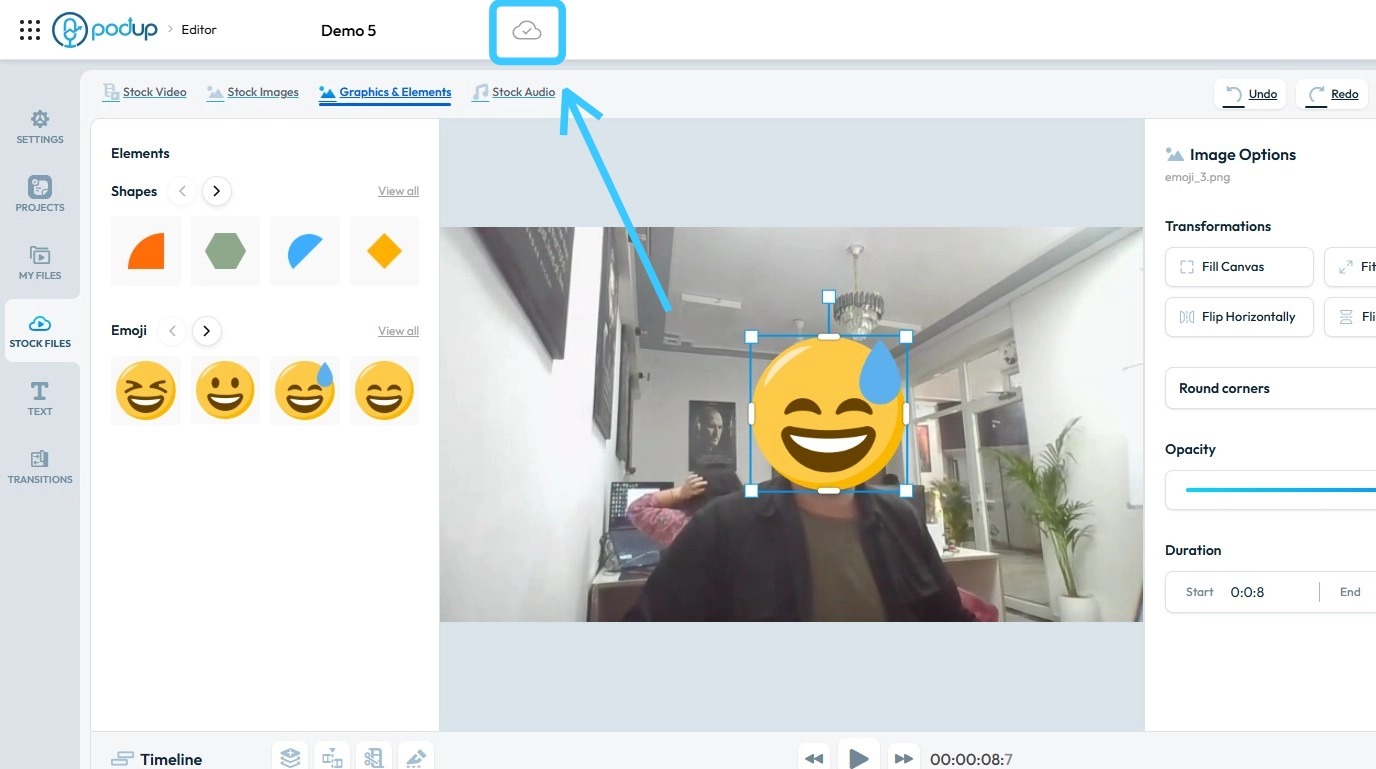
12. A ‘Cloud’ icon will appear, indicating that your changes have been saved
Related Articles
How do I save the text I added to my video
Use this guide to add and save text in your videos with PodUp’s editor. 1. Navigate to https://editor.podup.com/ and load the video you want to edit 2. Click "Text" 3. Select a ‘Text’ template you prefer and drag it onto the Timeline (Layer) 4. The ...How do I save the video I added to my episode
This guide shows you how to manage your video content without hassle. 1. Navigate to https://editor.podup.com/ and load a video into the Timeline 2. Drag and drop a video onto the Timeline 3. Once the video is loaded onto the Timeline, you can make ...How do I save the music I added to my video
Use these steps to add music to your videos and securely save your work. 1. Navigate to https://editor.podup.com/ and load up a video in the timeline 2. You can add music by clicking on "Stock Files" 3. Select "Stock Audio" 4. Drag and drop an audio ...How to Add a Tag to my Video Episode
This guide makes it easy for adding tags to your video episodes on PodUp, enhancing discoverability and organization by efficiently categorizing your content. 1. Navigate to https://app.podup.com/home 2. Click "Create" 3. Select "Video Episodes" 4. ...How to add an image to my video
Use this guide to add and save images in your videos with PodUp’s editor. 1. Navigate to https://editor.podup.com/ and load a video into the Timeline 2. Click "Stock Files" 3. Select "Stock Images" 4. Drag and drop the image in the timeline 5. The ...