How do I save my website changes
1. Navigate to https://app.podup.com/home
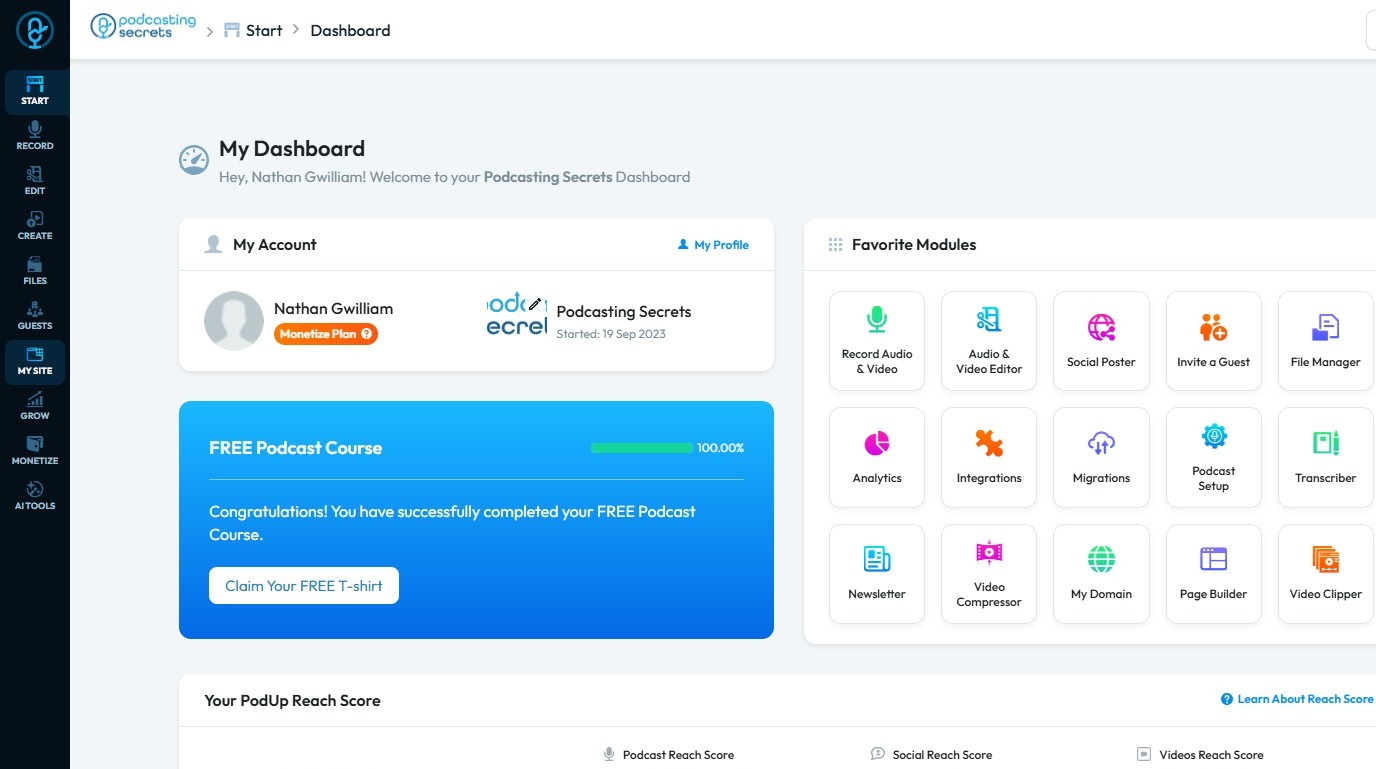
2. Click "My Site"
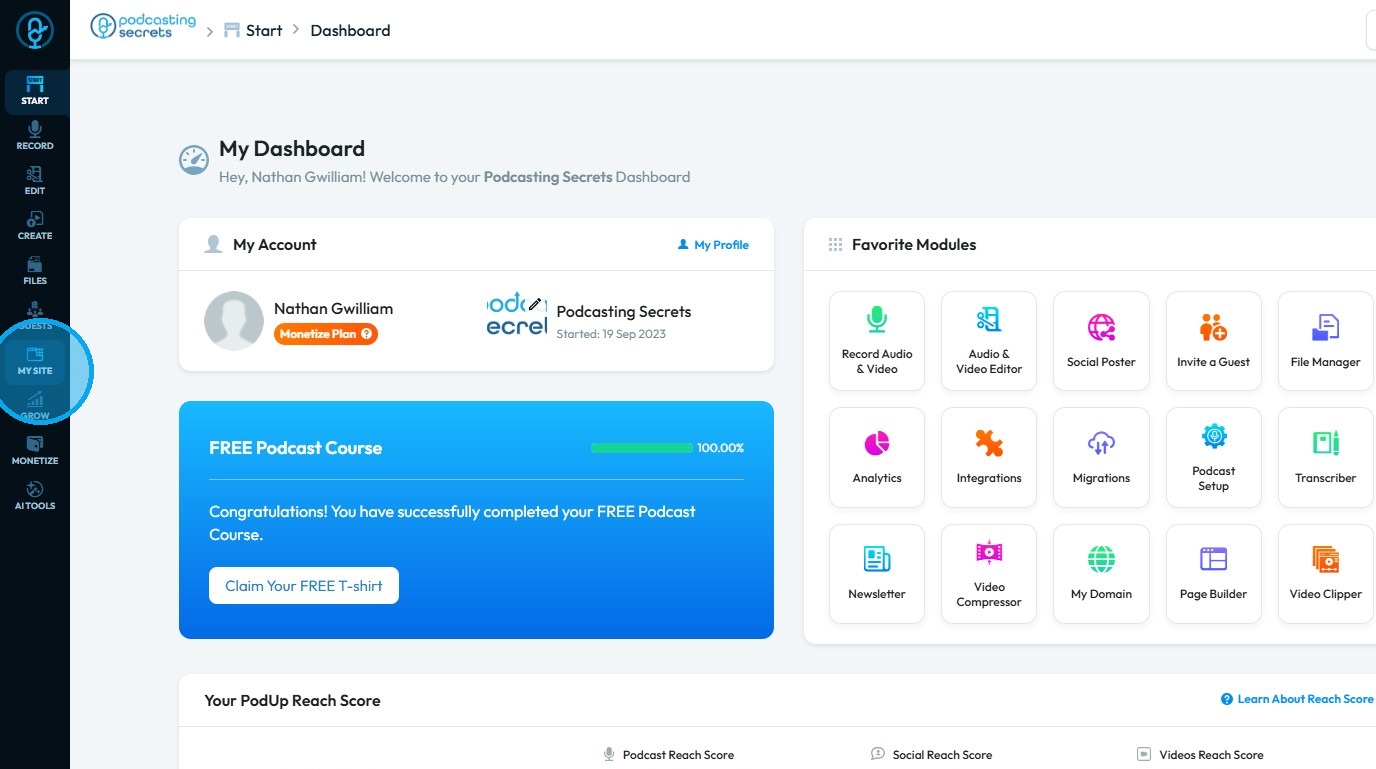
3. Select "Page Builder"
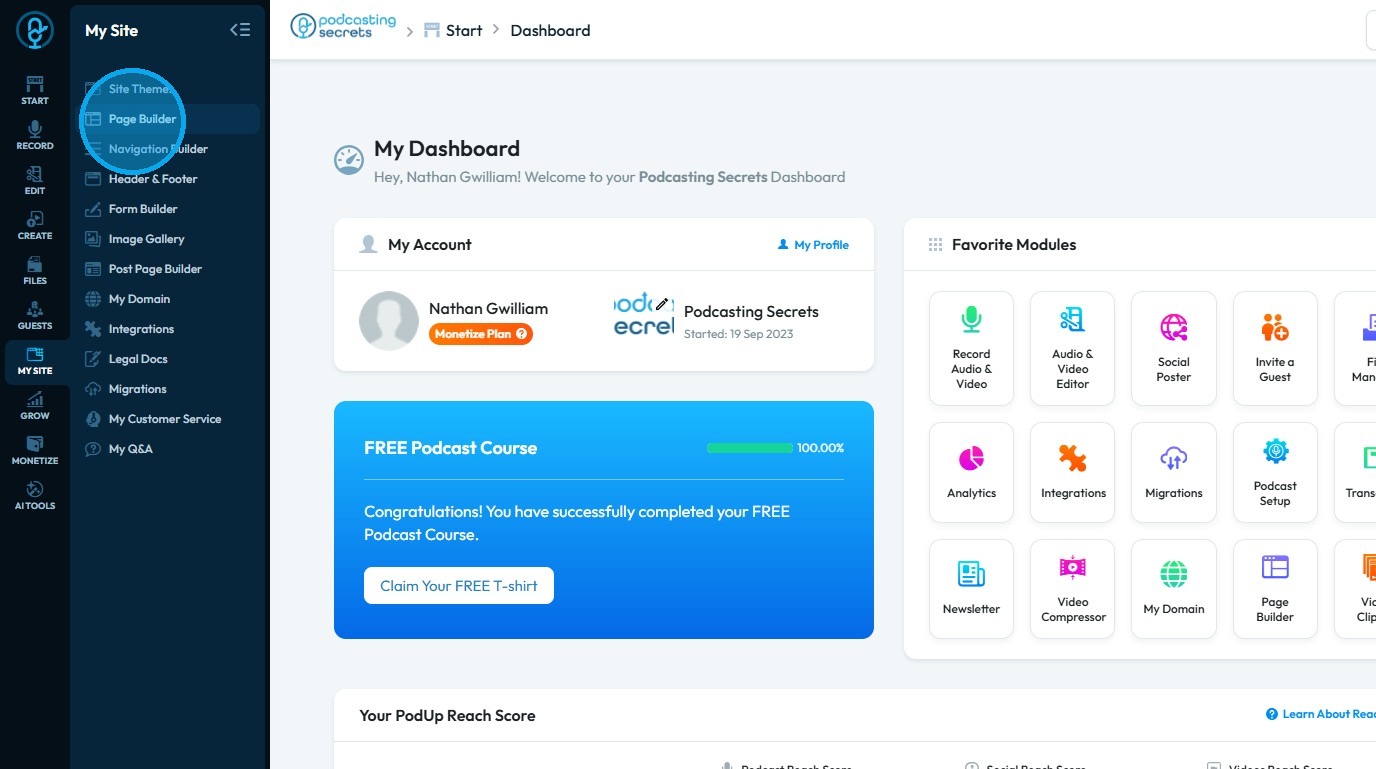
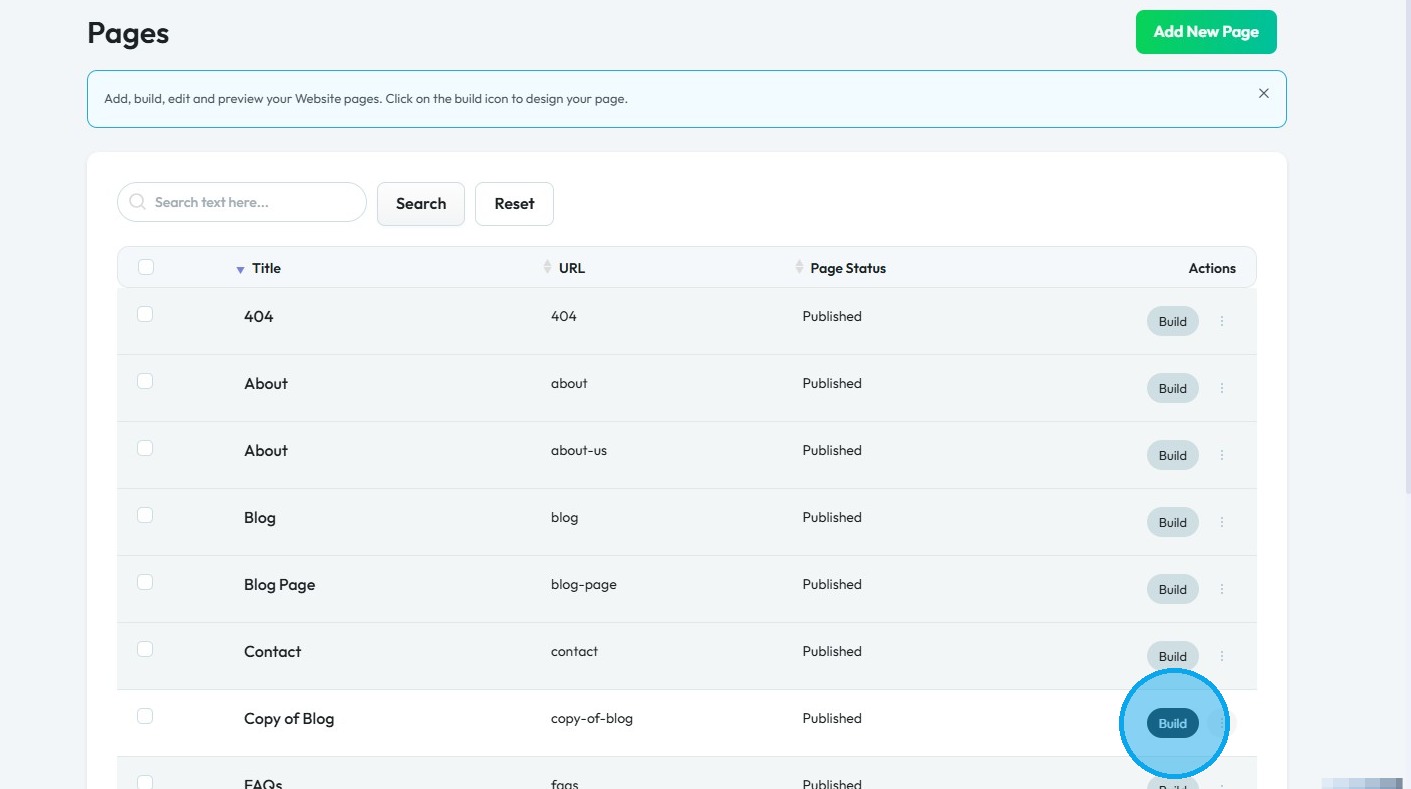
4. This section displays all the pages on your website
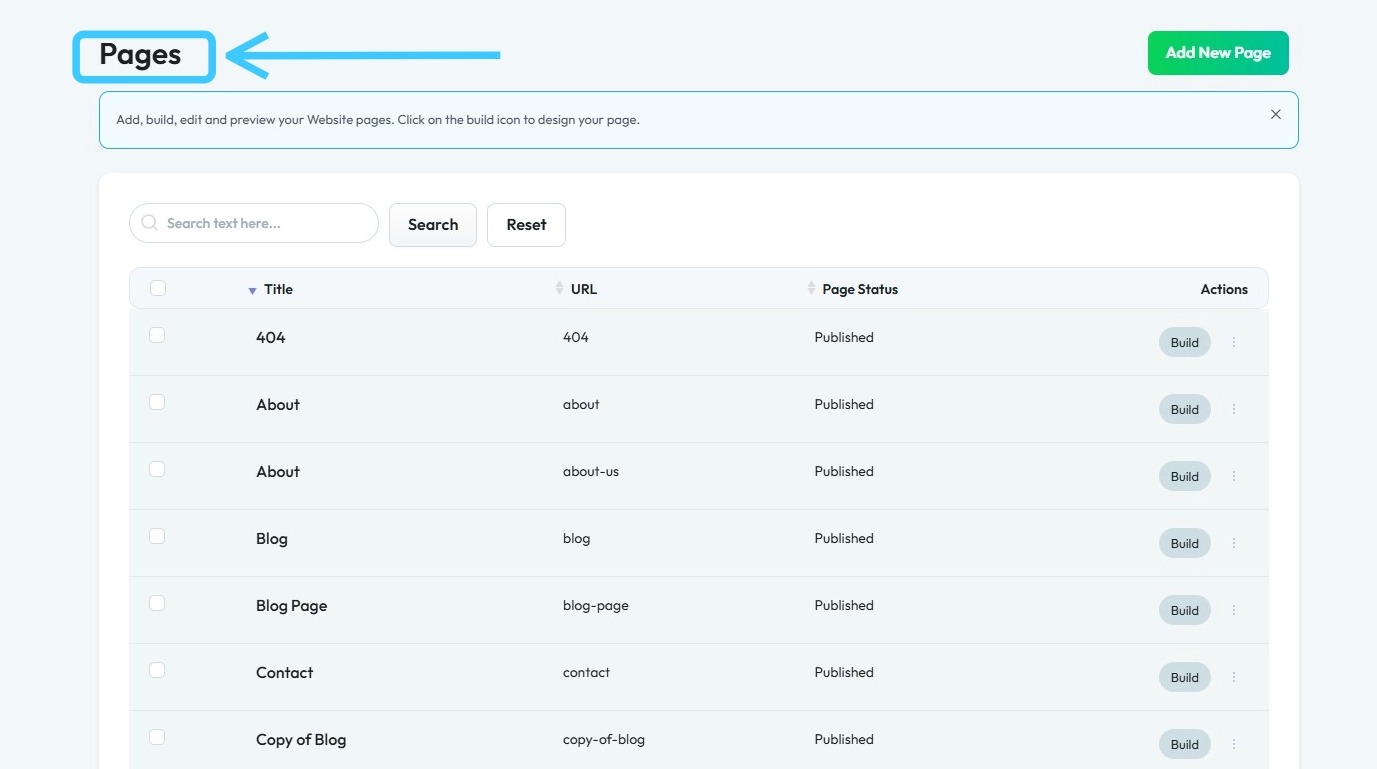
5. Select the ‘Build’ button on the page you want to edit
6. You will be directed to the ‘Page Builder’ page
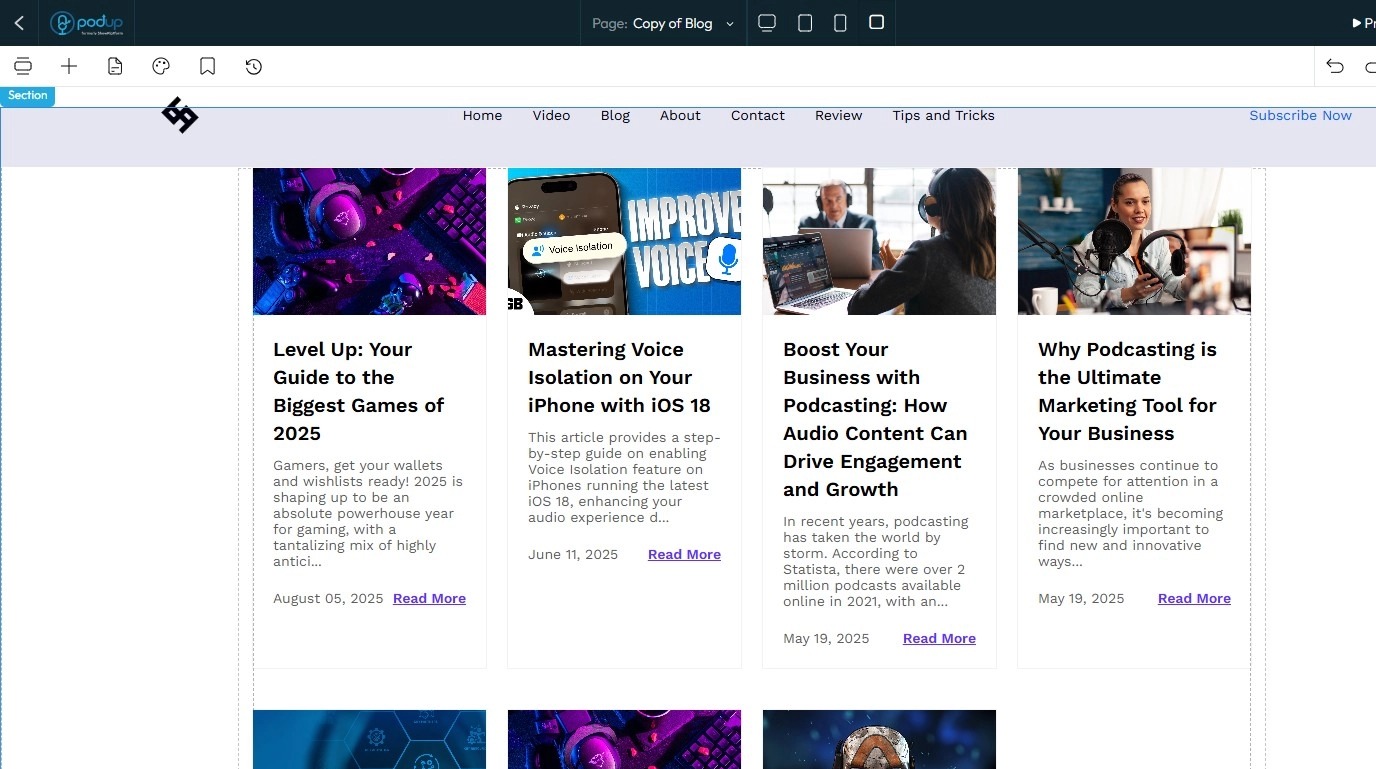
7. Edit the page as needed to implement your changes

8. After completing the edits, click the ‘Save’ button in the top-right corner

Related Articles
Why Aren't My Changes Saving On Website
By following this guide, you can resolve issues preventing your website changes from saving and ensure updates are applied smoothly. 1. Use the Page Builder to make changes to your website 2. After making the changes, make sure to click the "Save" ...How to Add Logo to My Website
This guide provides a straightforward approach to enhancing your website's branding by adding a logo. It offers step-by-step instructions, making the process easy even for beginners. By following these clear directions, you can quickly elevate your ...Can I make my website in another language?
Use this guide to create a multilingual website on PodUp and reach a wider audience Tip: Yes! You can make your website in different languages 1. Navigate to https://app.podup.com/home 2. Click "My Site" 3. Select "Page Builder" 4. This section ...How do my blogs get uploaded to my website
This guide shows you how to upload blogs to your website step by step 1. Navigate to https://app.podup.com/home 2. Click "Create" 3. Select "Blogs" 4. Click "Create Post" 5. The page will be displayed as shown 6. Complete all required details and ...How can I check who has access to my website
Use this guide to manage team member access and keep your website secure. 1. Navigate to https://app.podup.com/home 2. Click "Start. 3. Select "My Team" 4. "My Team" page will show you all the Team members 5. Click "Edit" button of a team member to ...