How do I leave an announcement on my website
This guide shows you how to add announcements to your website using PodUp’s Page Builder, from setup to customization, so you can easily keep visitors informed
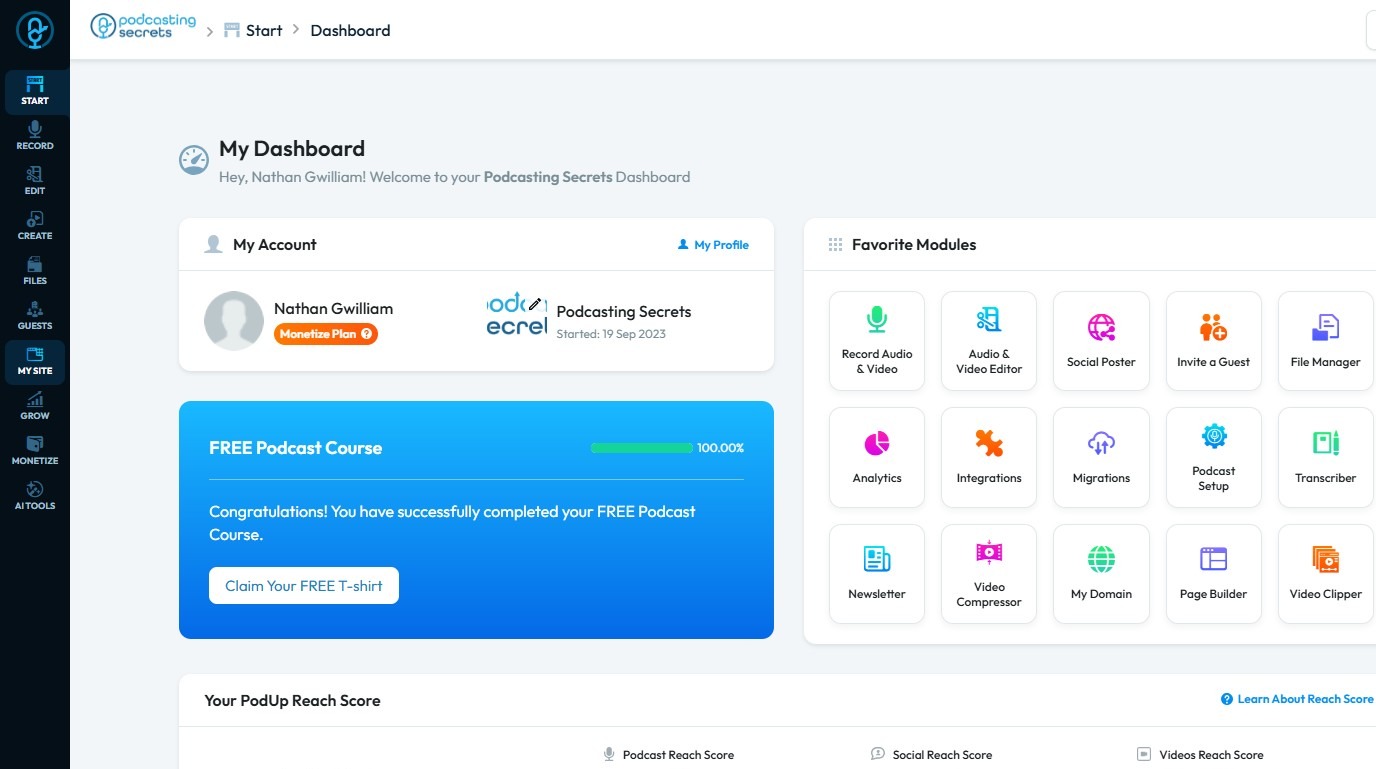
2. Click "My Site"
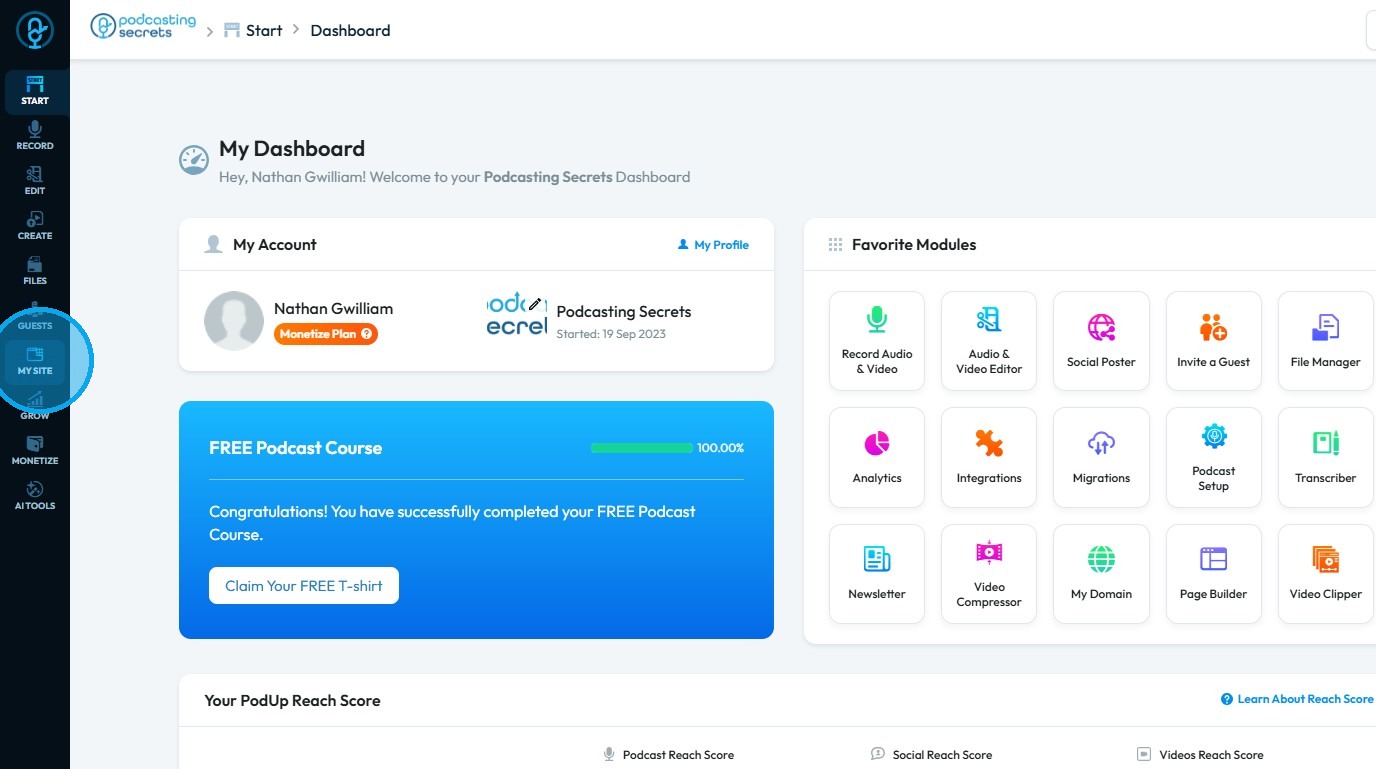
3. Select "Page Builder"
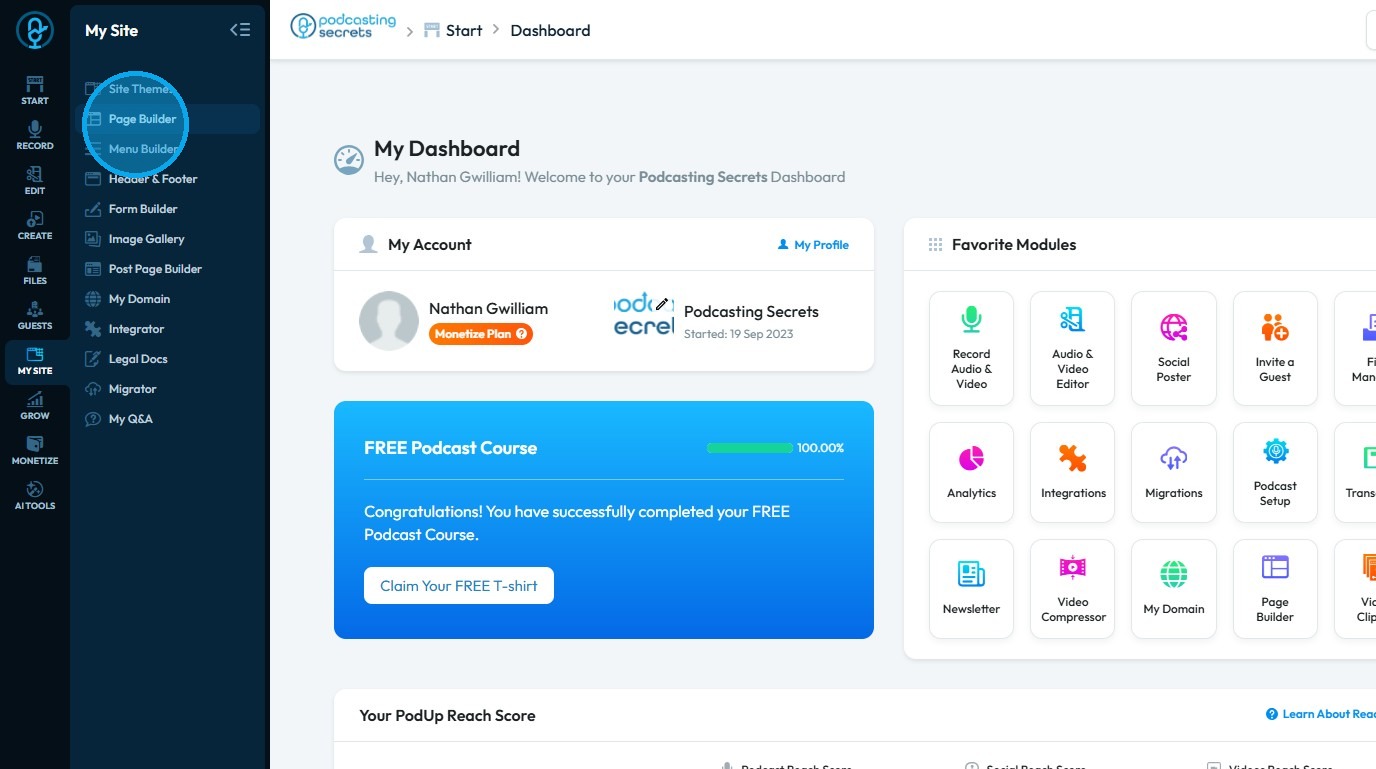
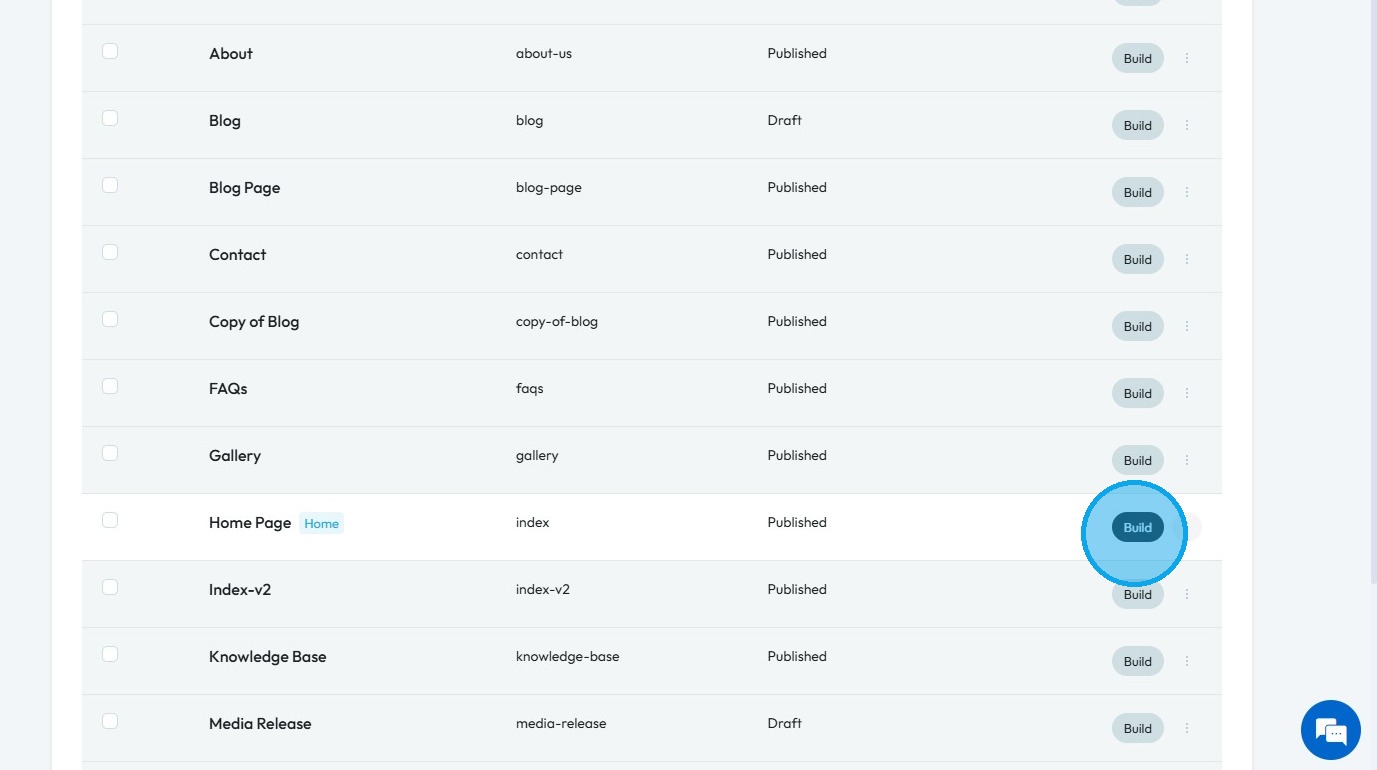
4. You will land on the "Pages" page, here you can find all your website pages
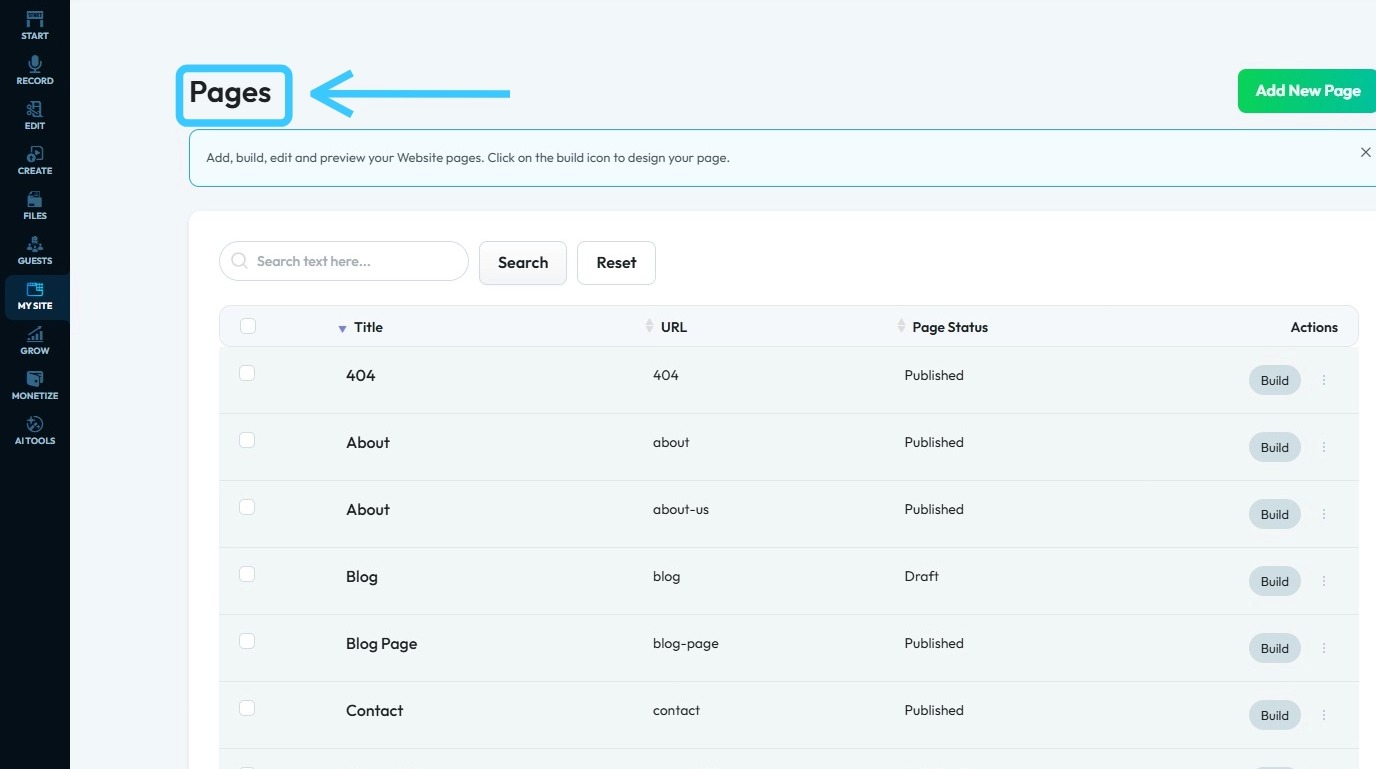
5. Click "Build" on the page you want to add an announcement
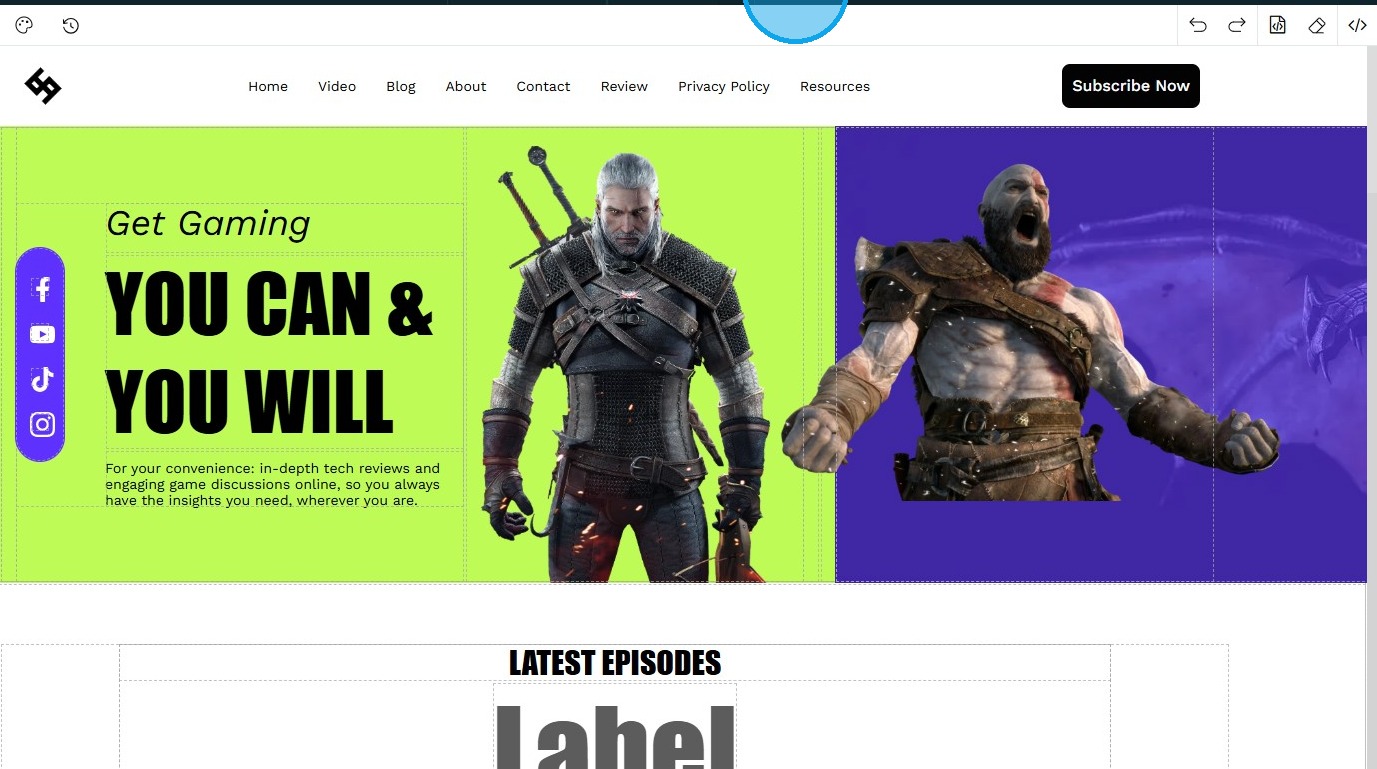
6. The desired page will open with "PodUp Page Builder"
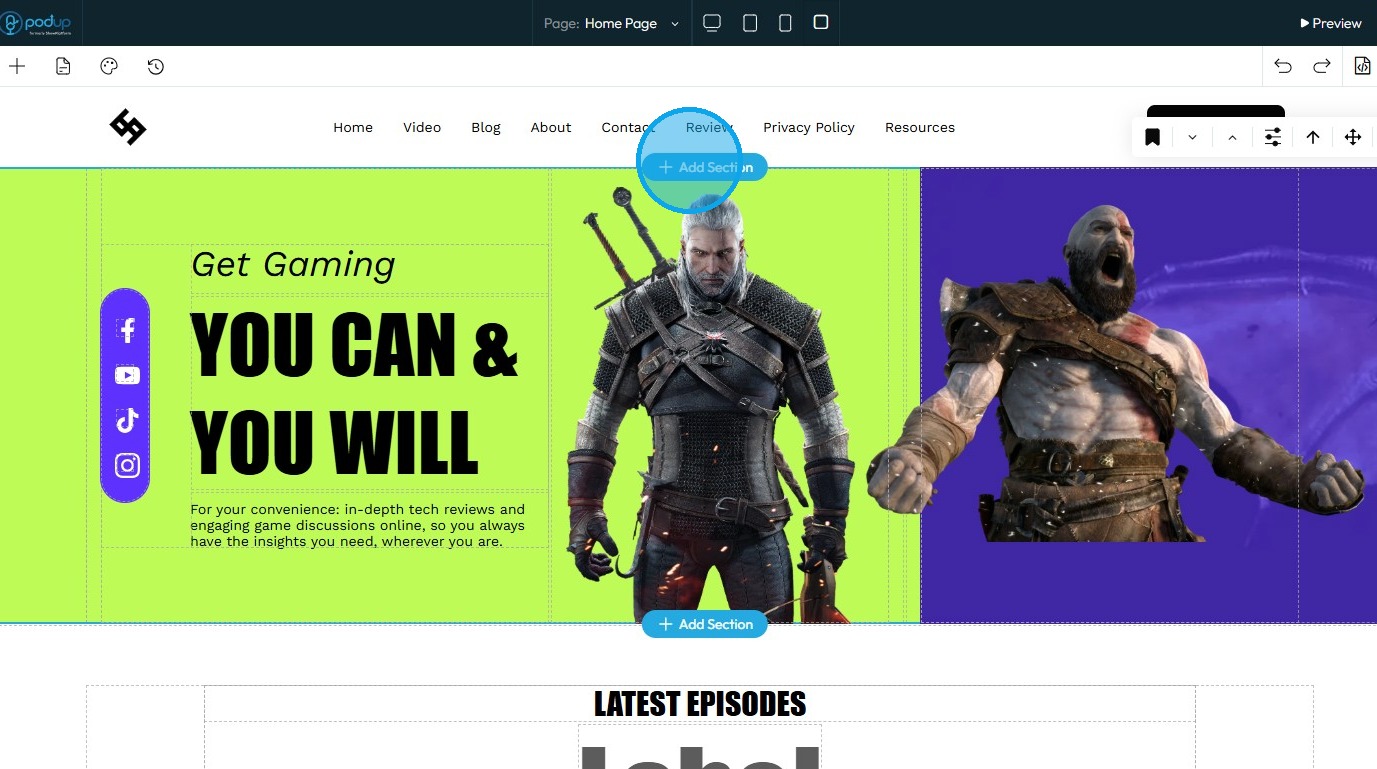
7. To add an "Announcement" first click "Add Section"
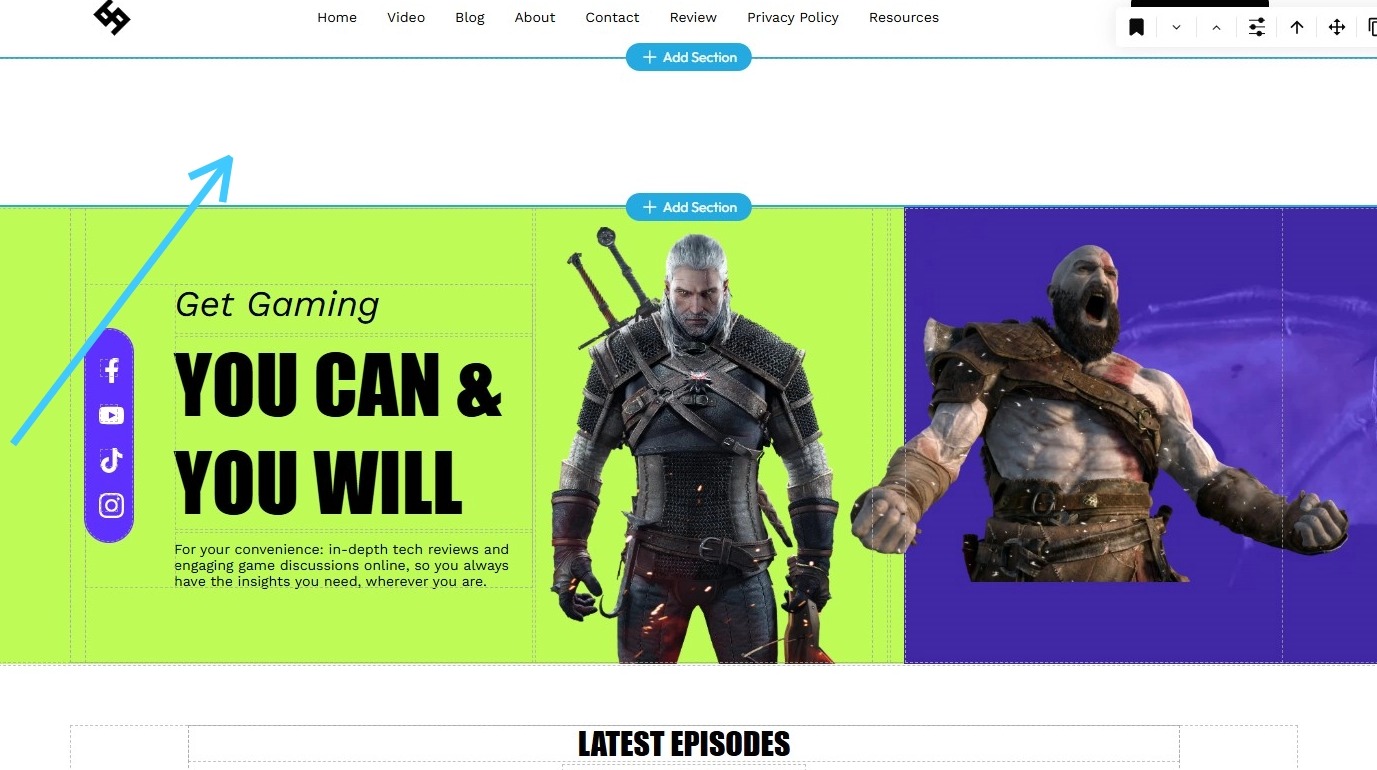
8. A new section will be created
9. Click "Component" icon
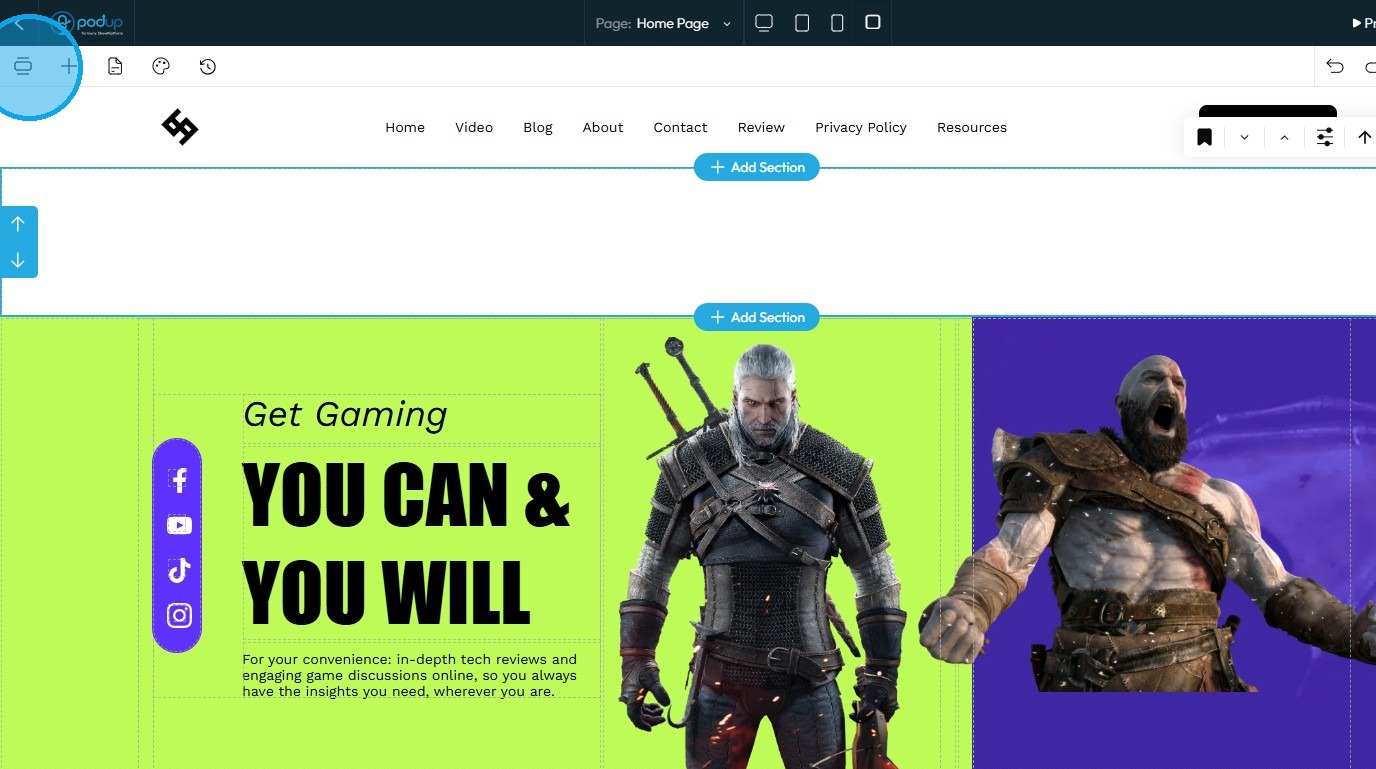
10. Click "Coming Soon" if you want to add "Coming Soon Announcement"
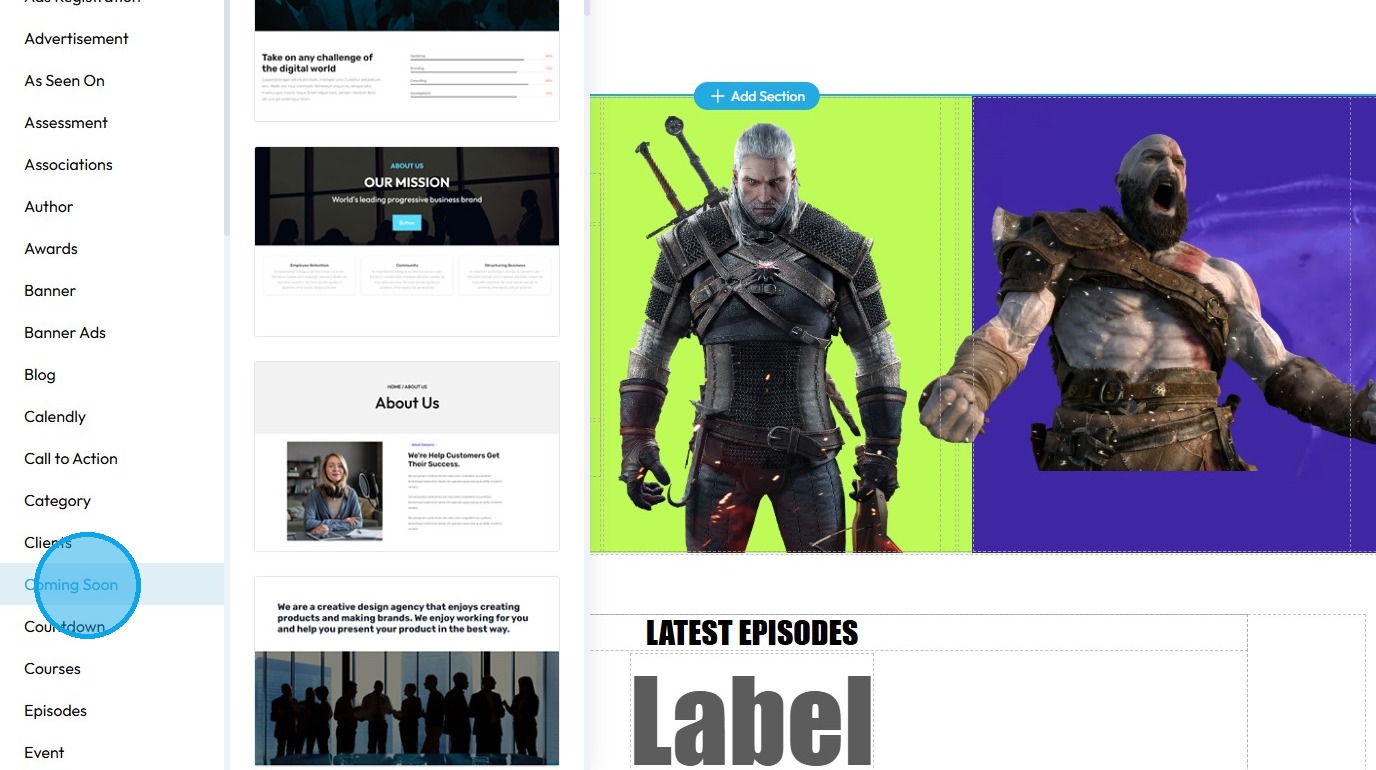
11. Click on a template you want to add to the site
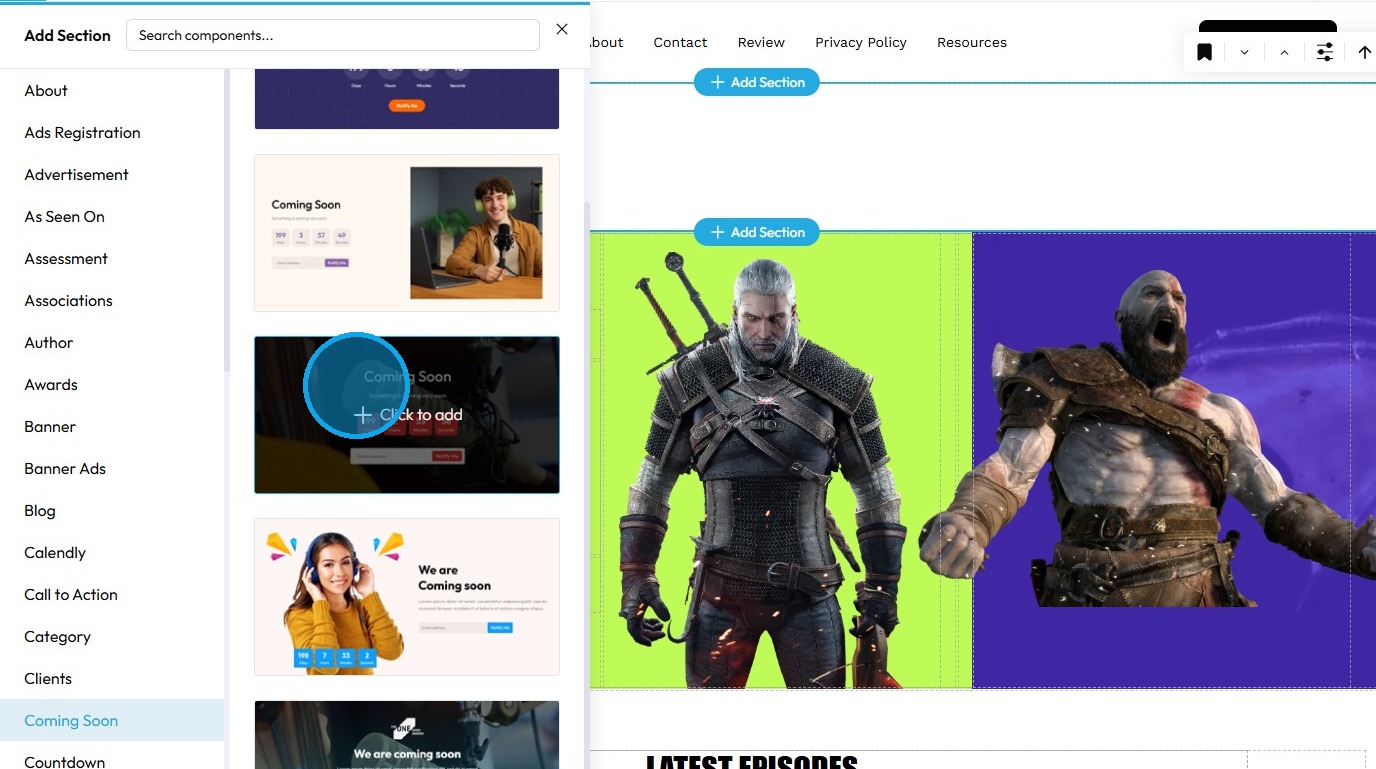
12. The selected template will be added to your webpage
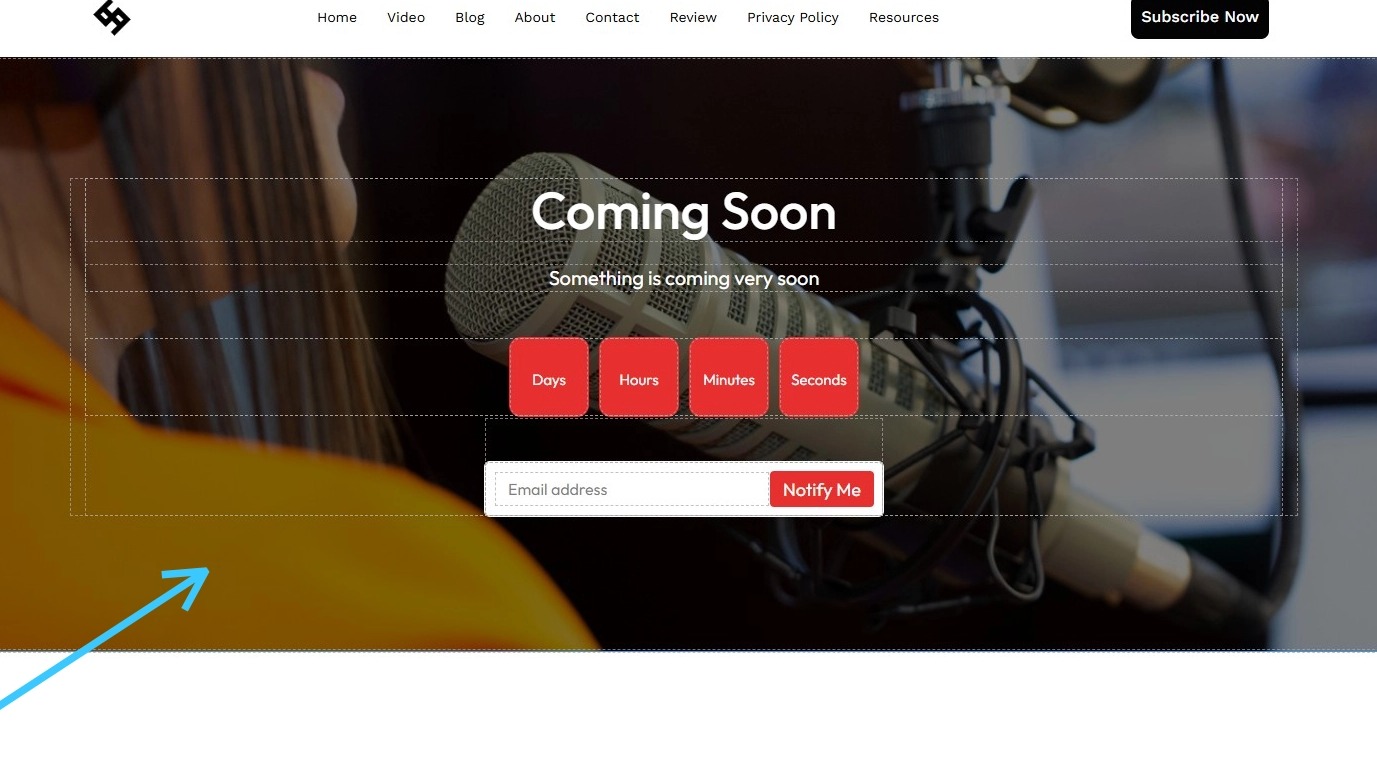
13. To edit it, click on it
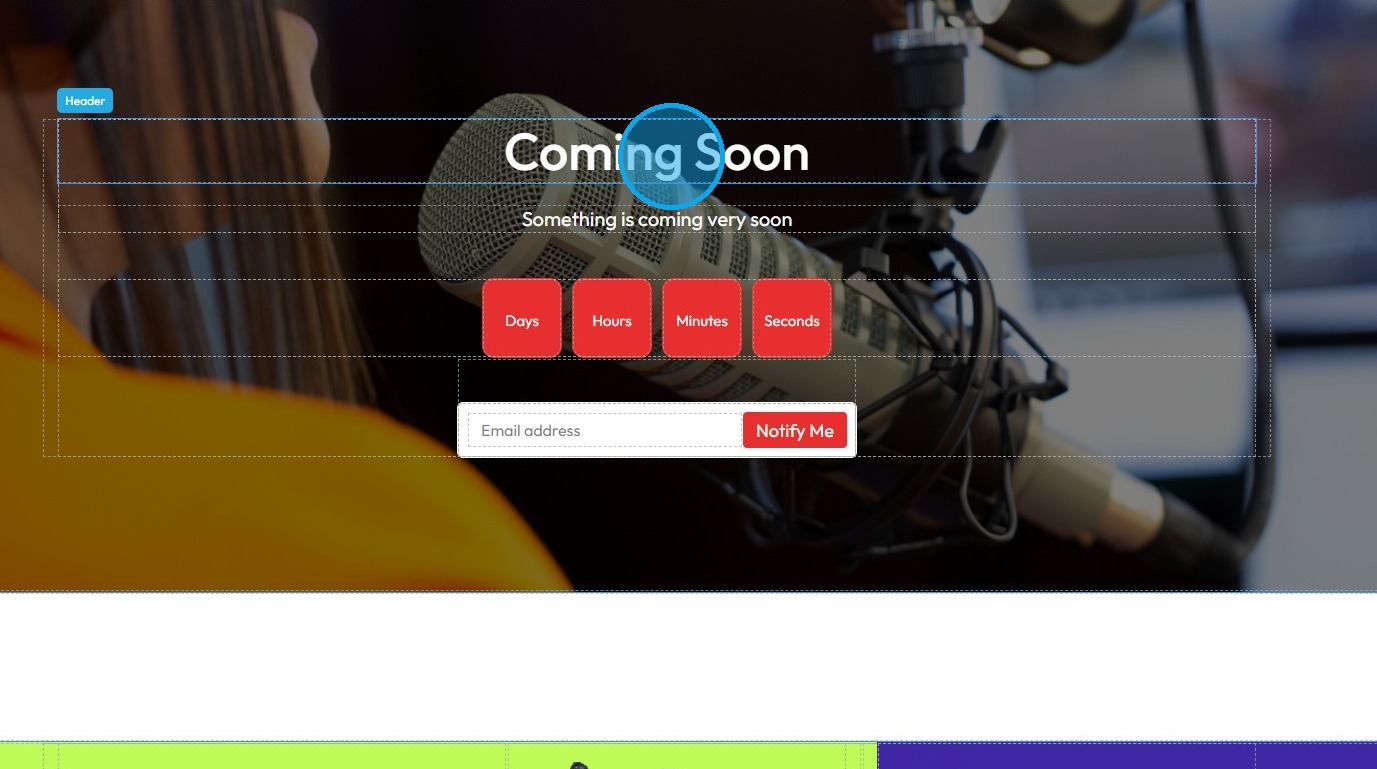
14. Double-click on "Coming Soon" to select it all
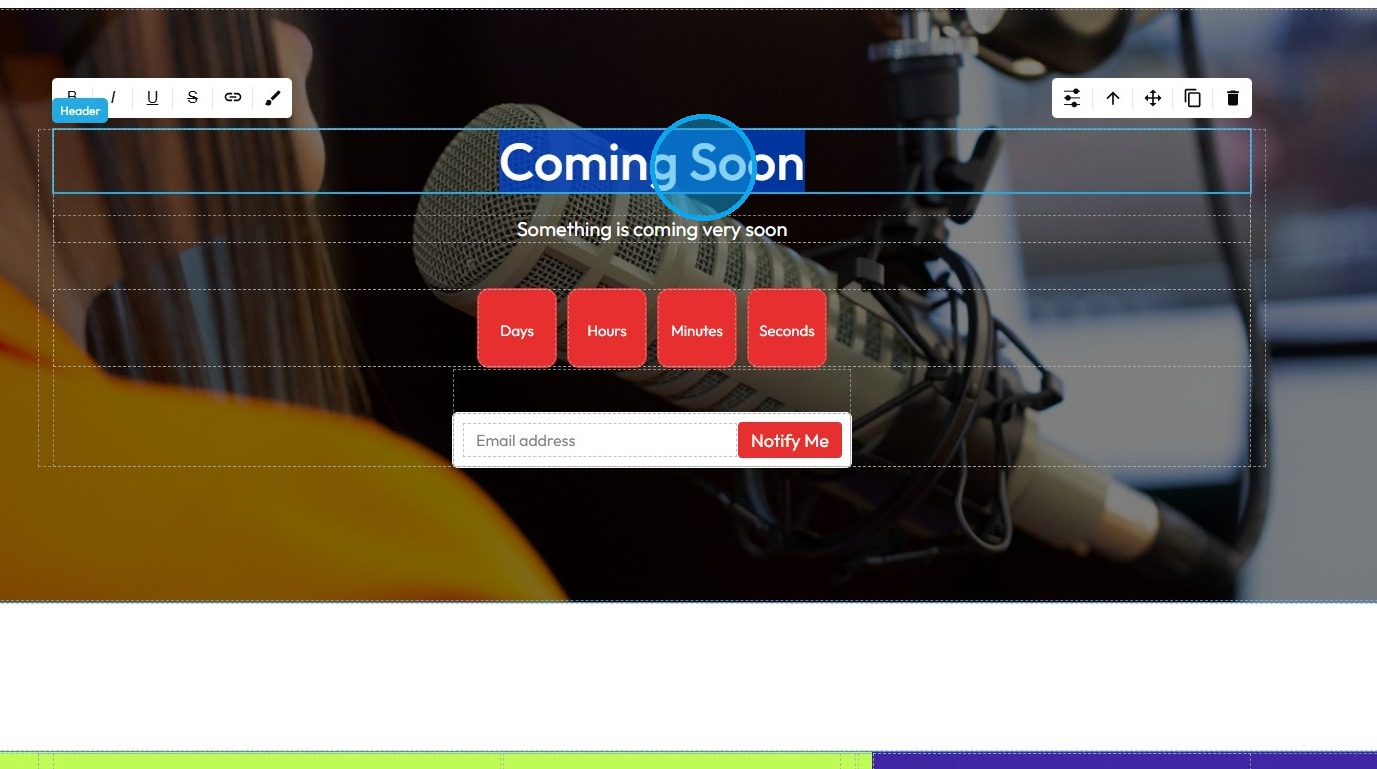
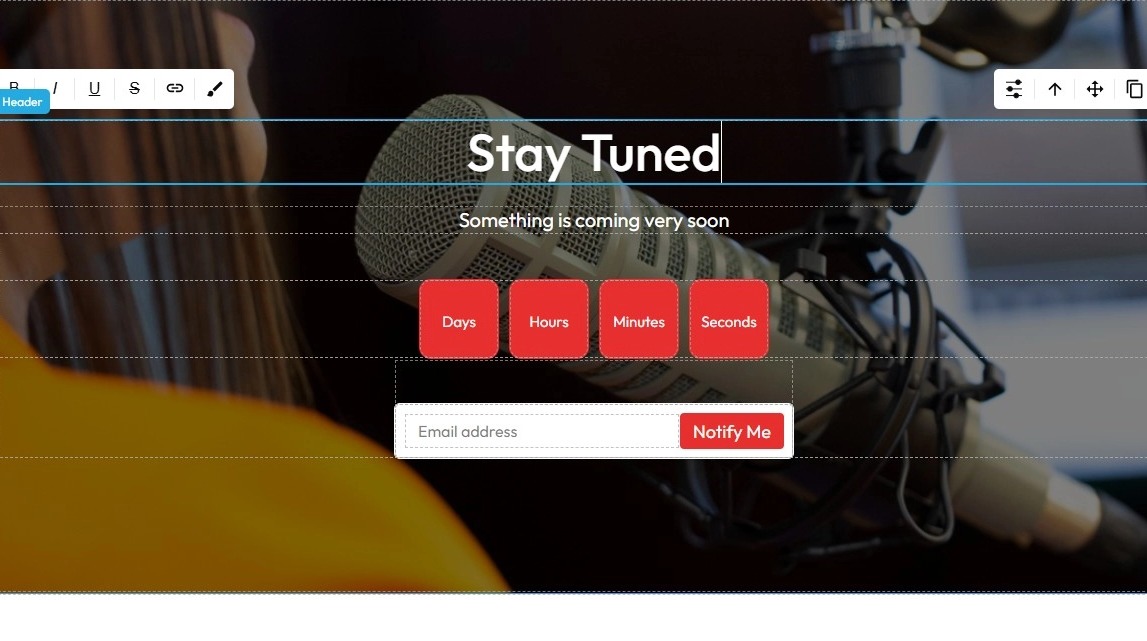
15. Change the text accordingly
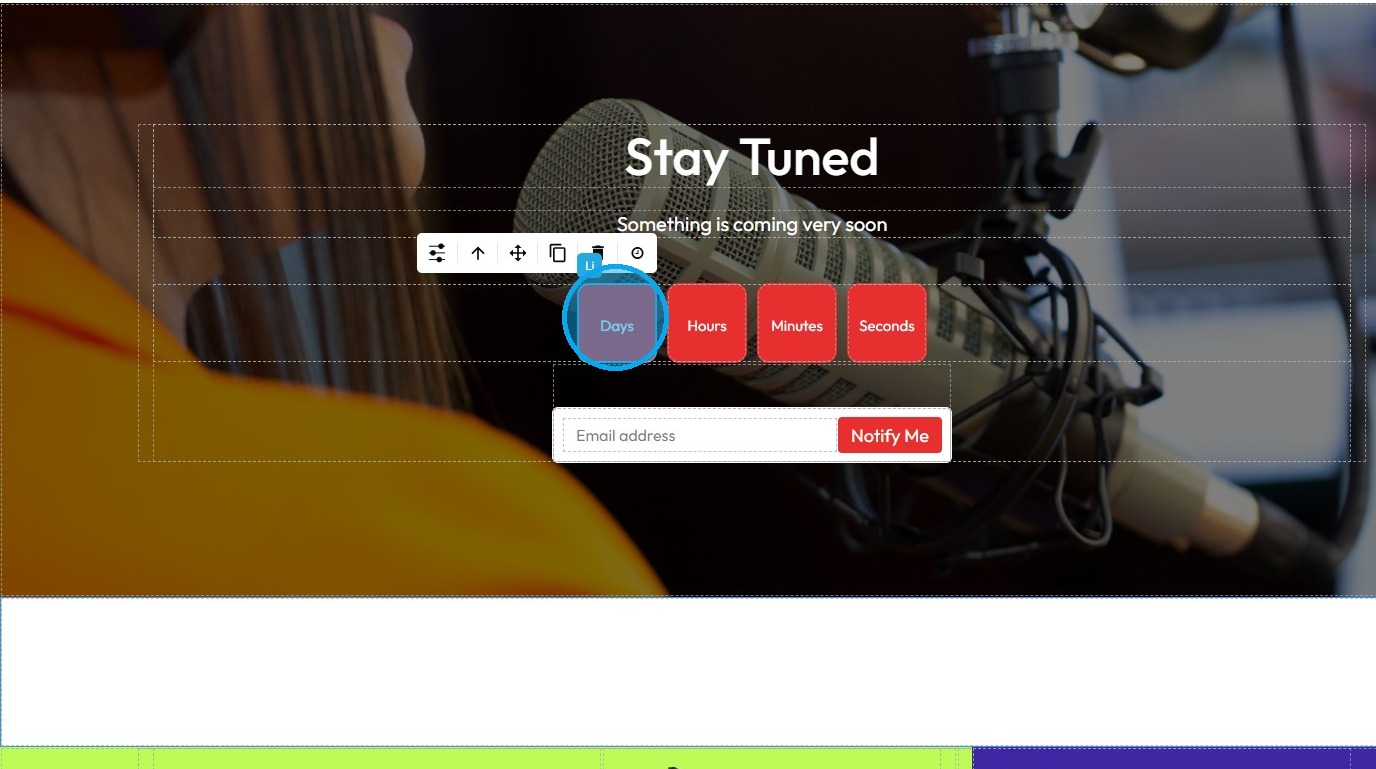
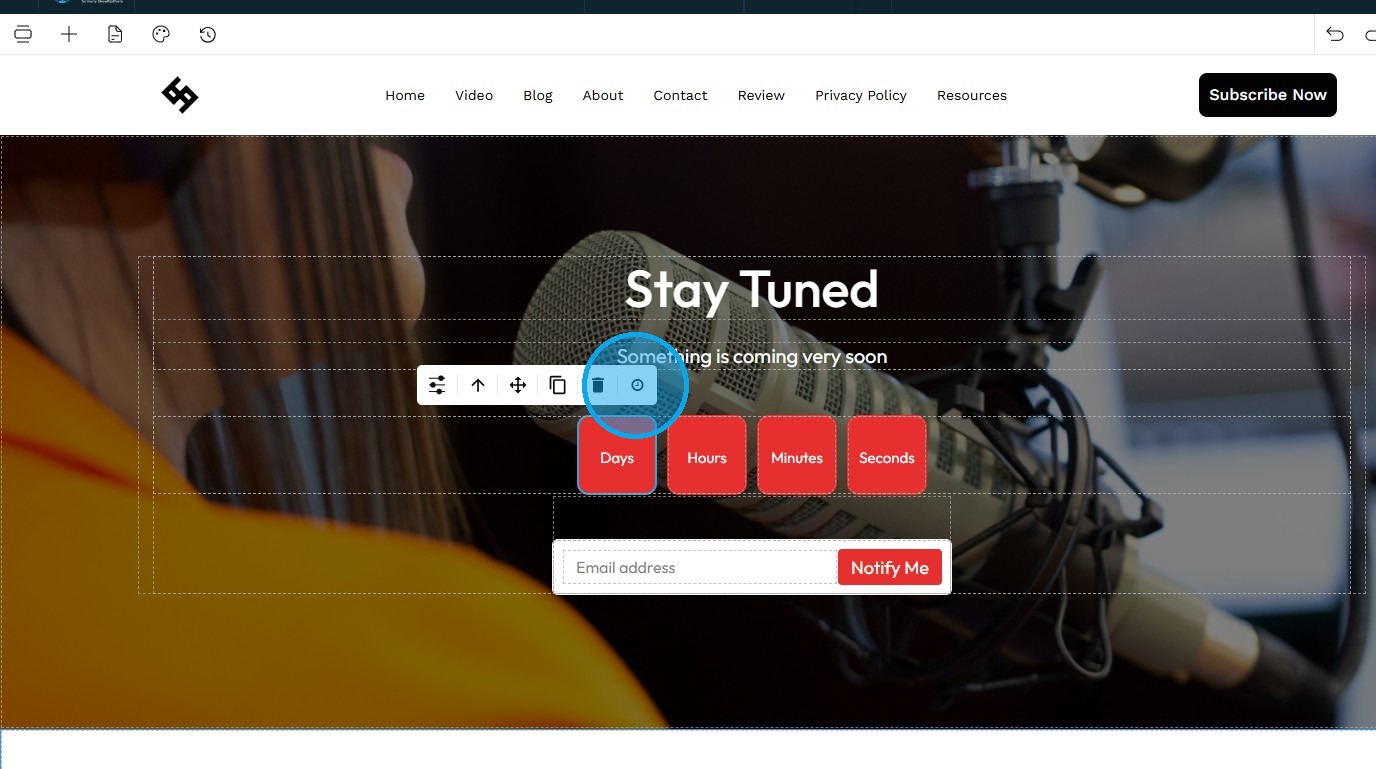
16. To set timer click "Days"
17. Click "set time"
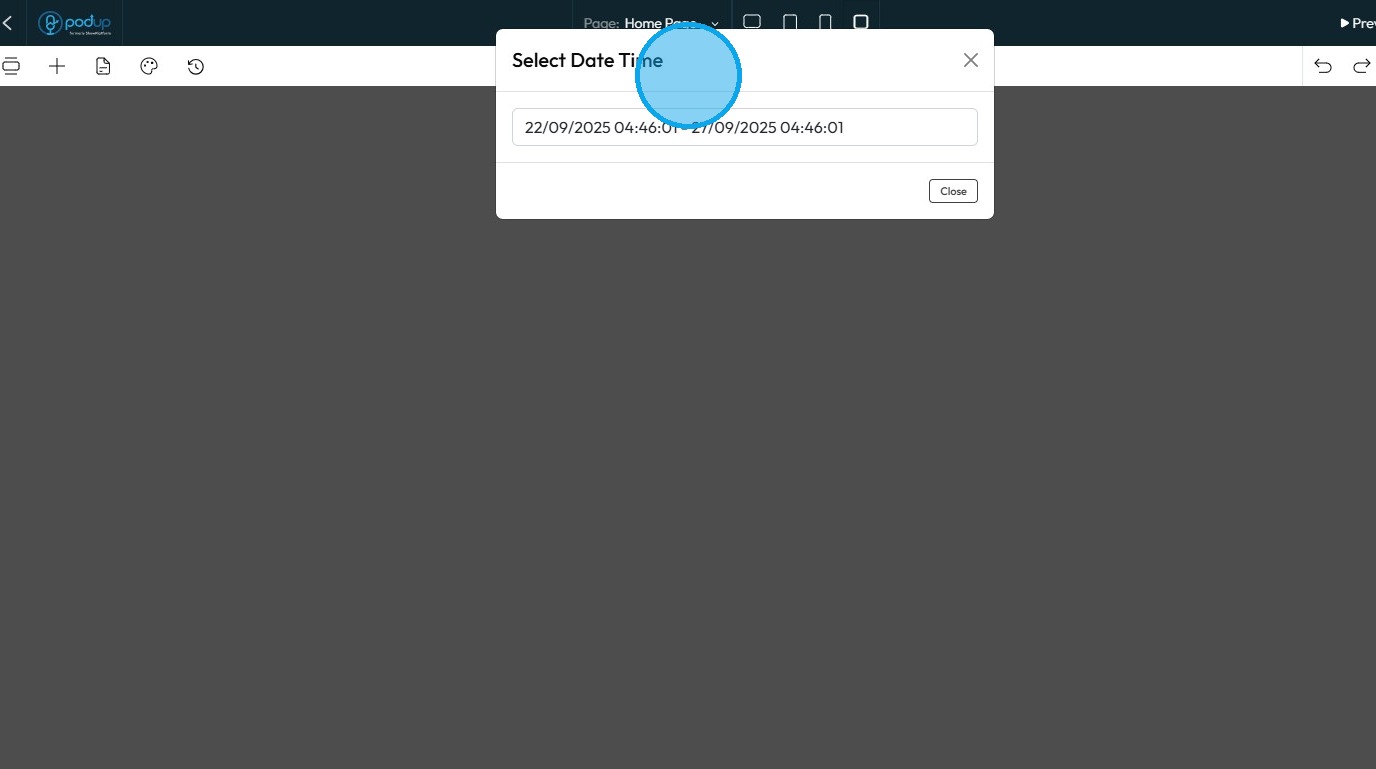
18. "Select Date Time" window will open up
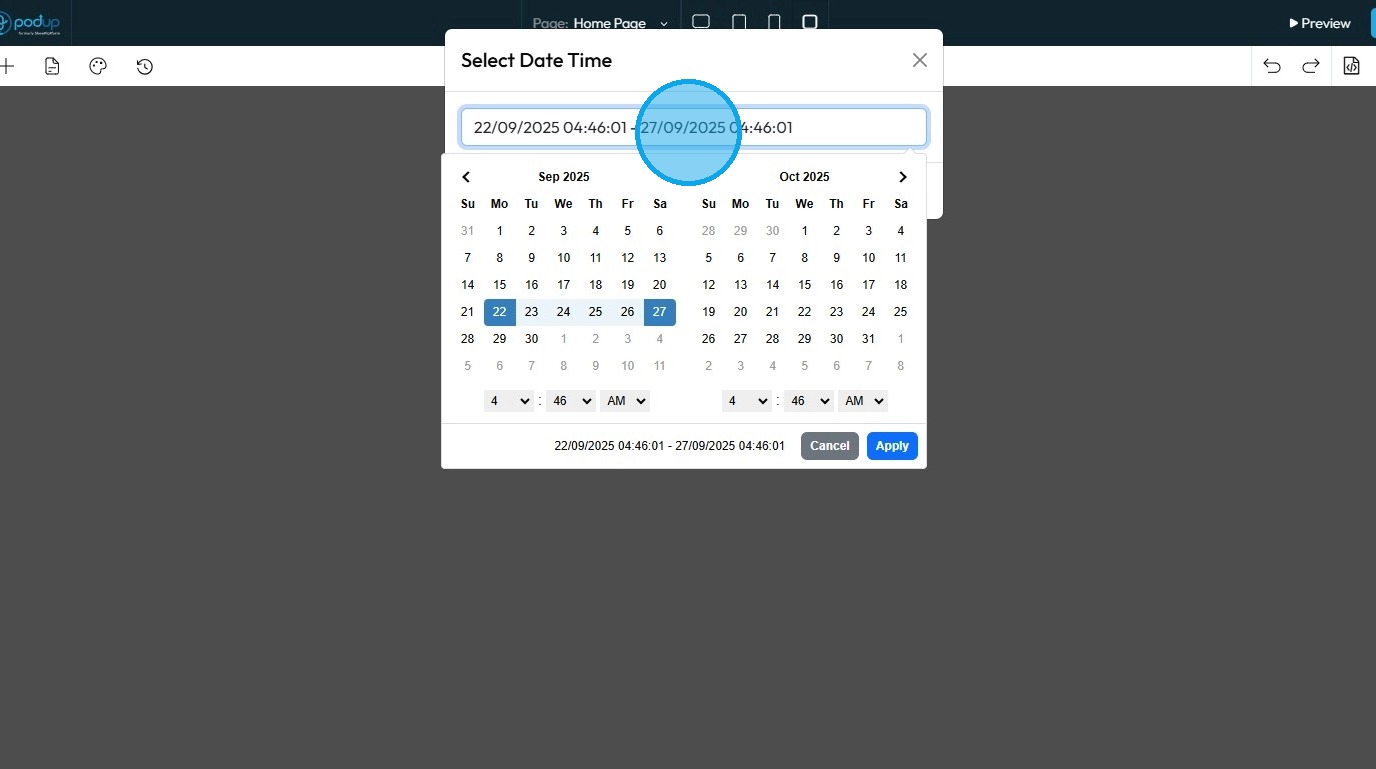
19. Click on the "Time" field to load up the calendar
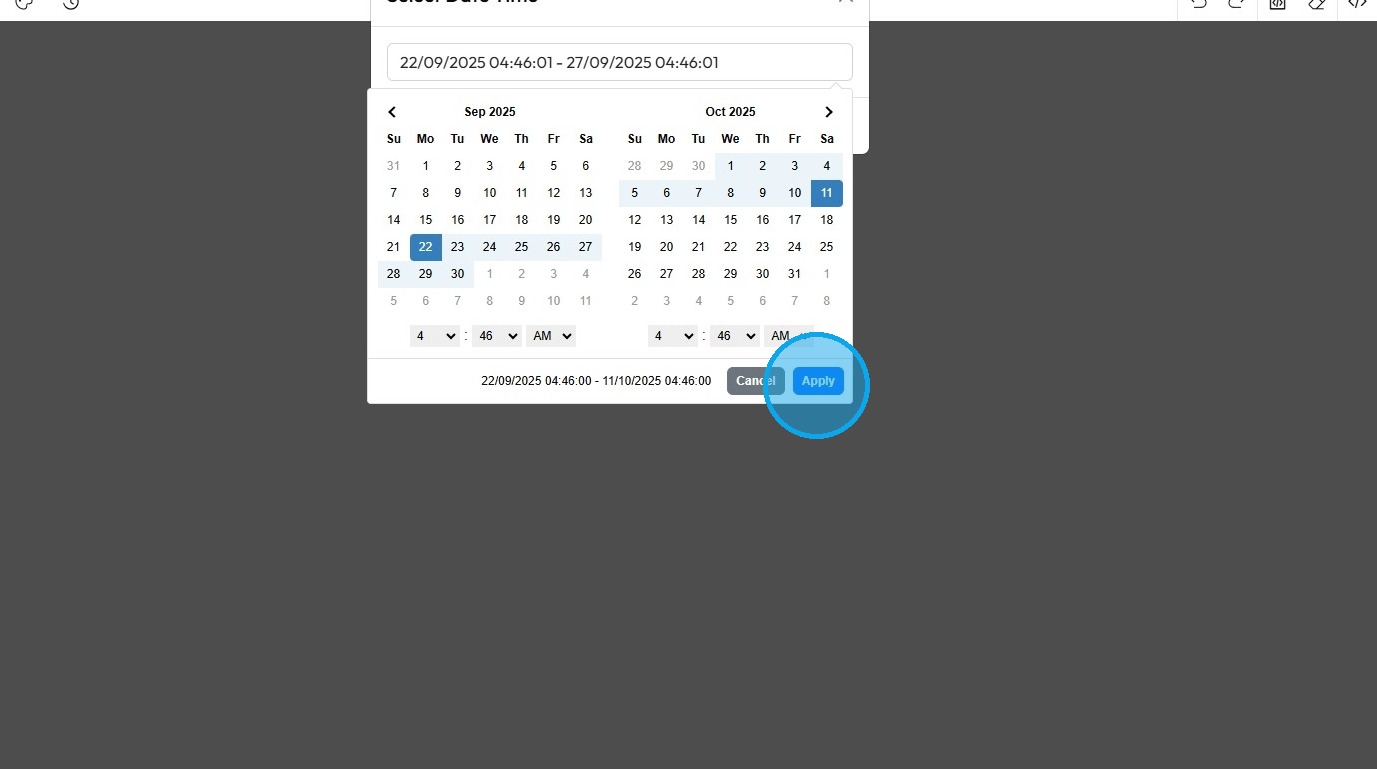
20. Set "Time and Date" and click "Apply"
21. Alternatively to use a different announcement template
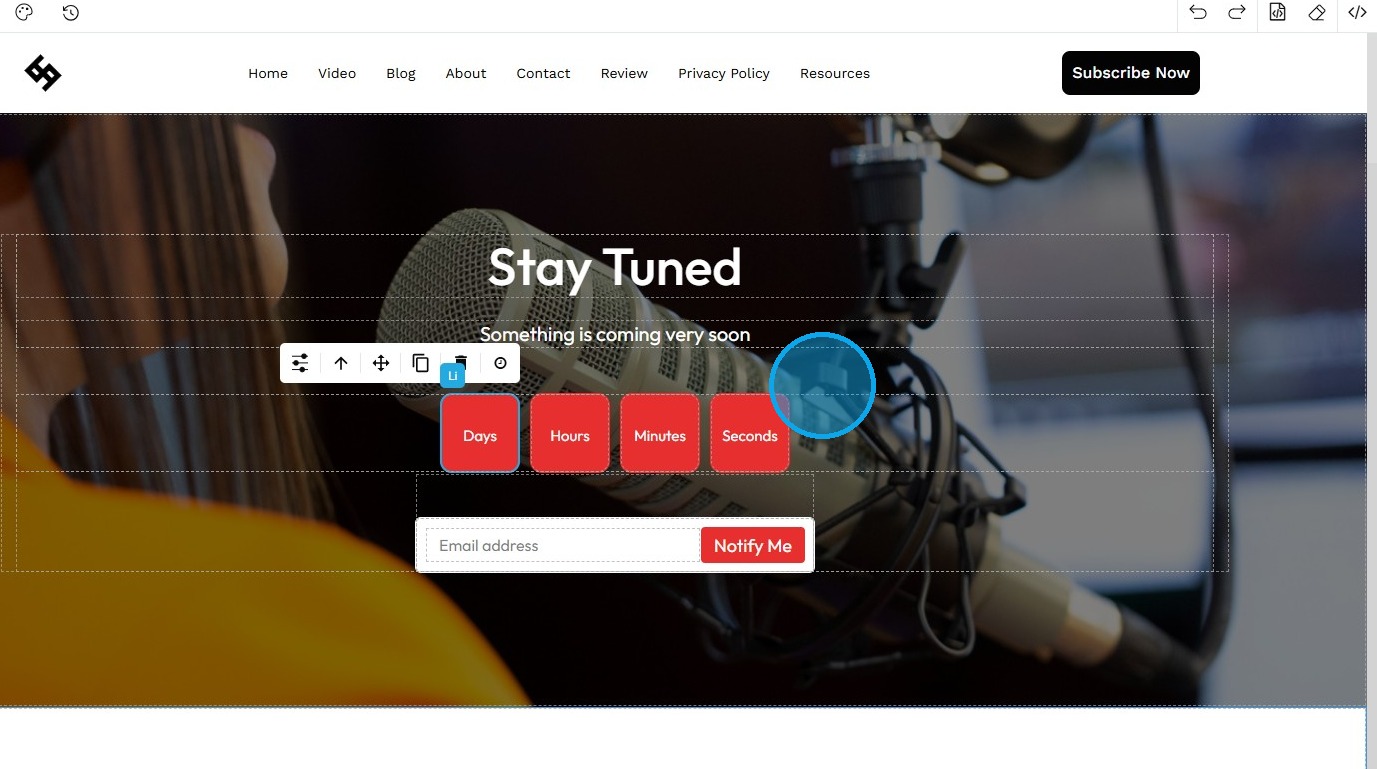
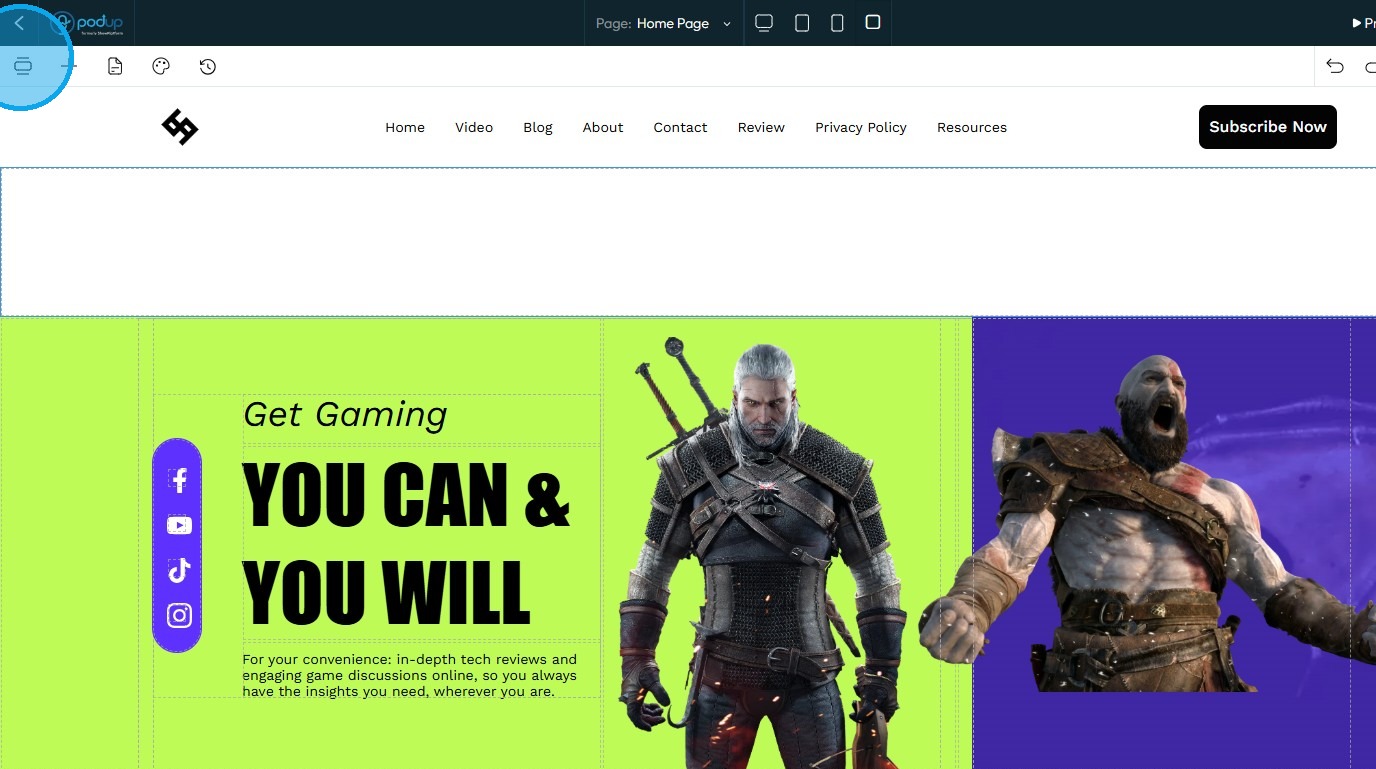
22. Click "component" icon
23. Click "Countdown"
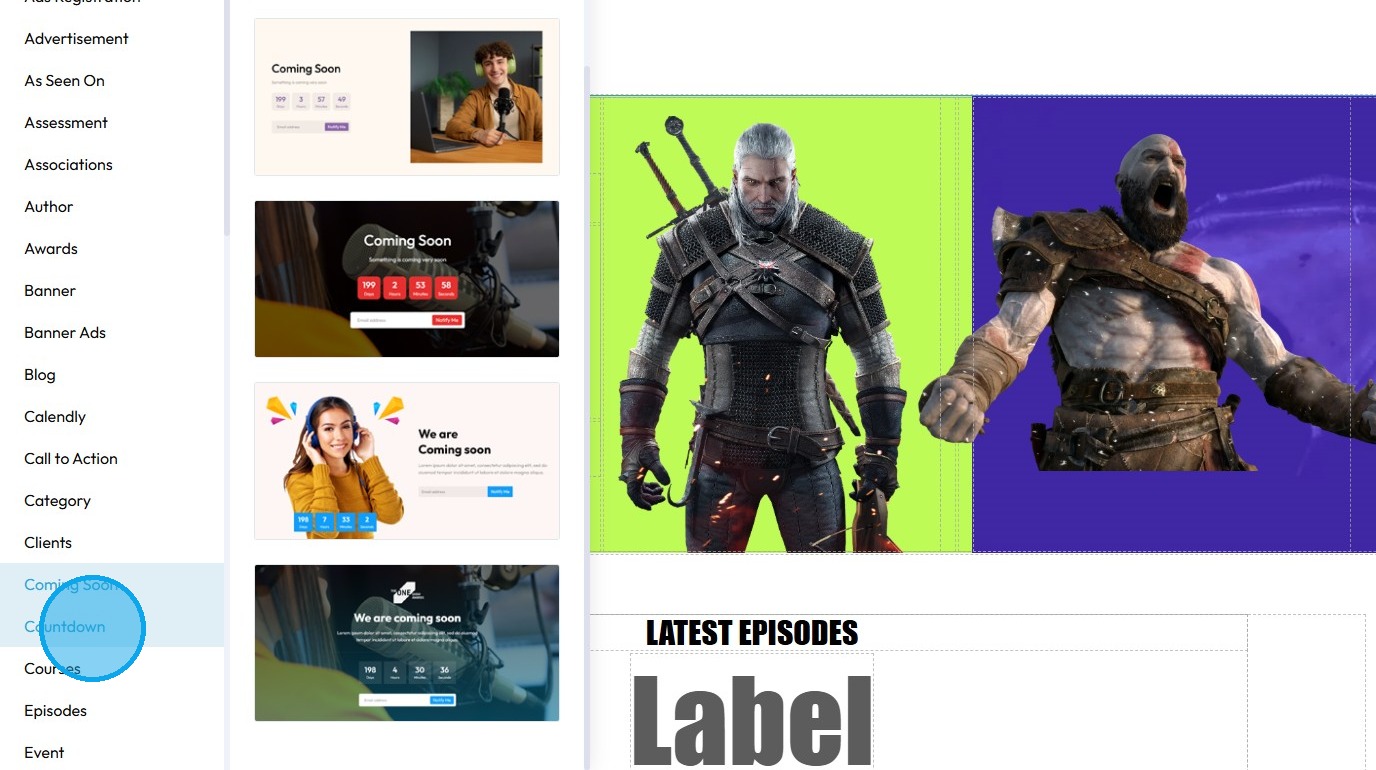
24. Select the template you want to add to your website
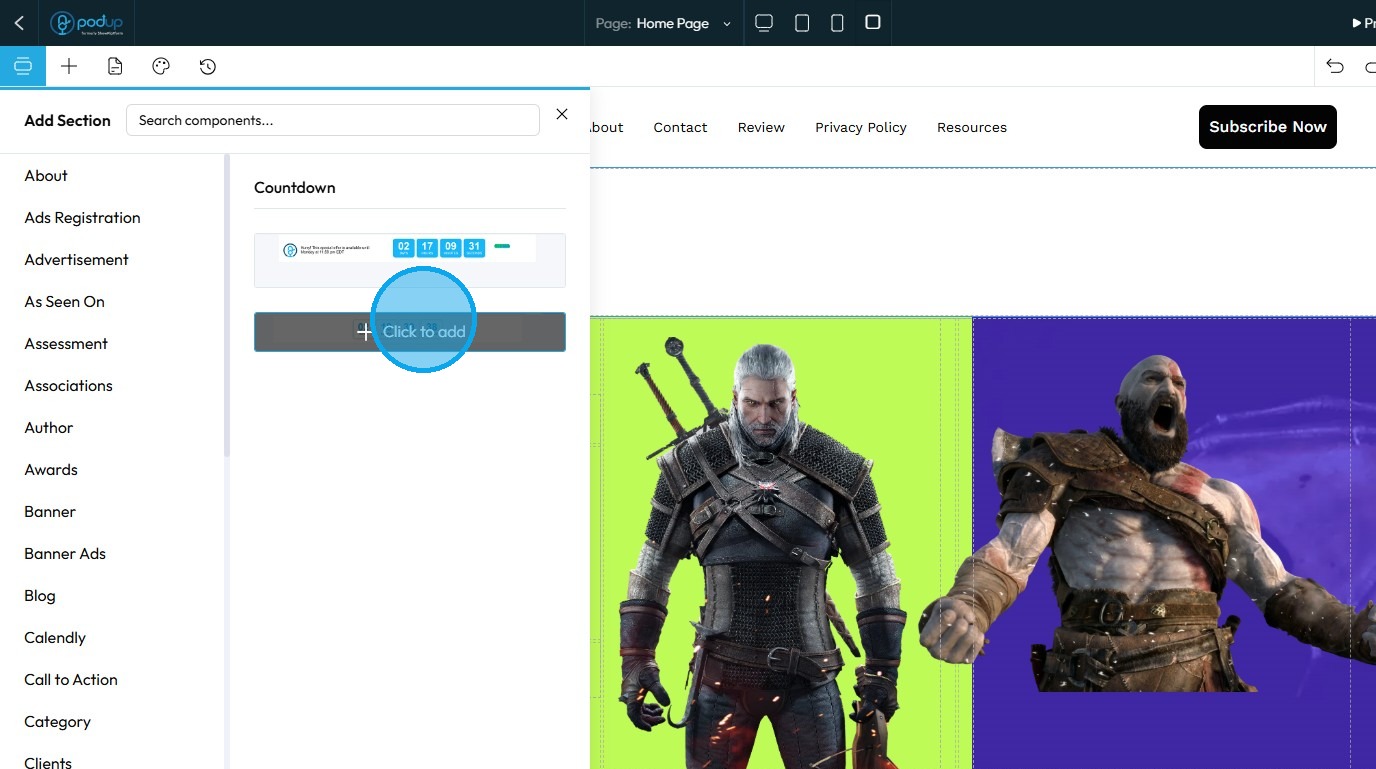
25. The desired template will be added
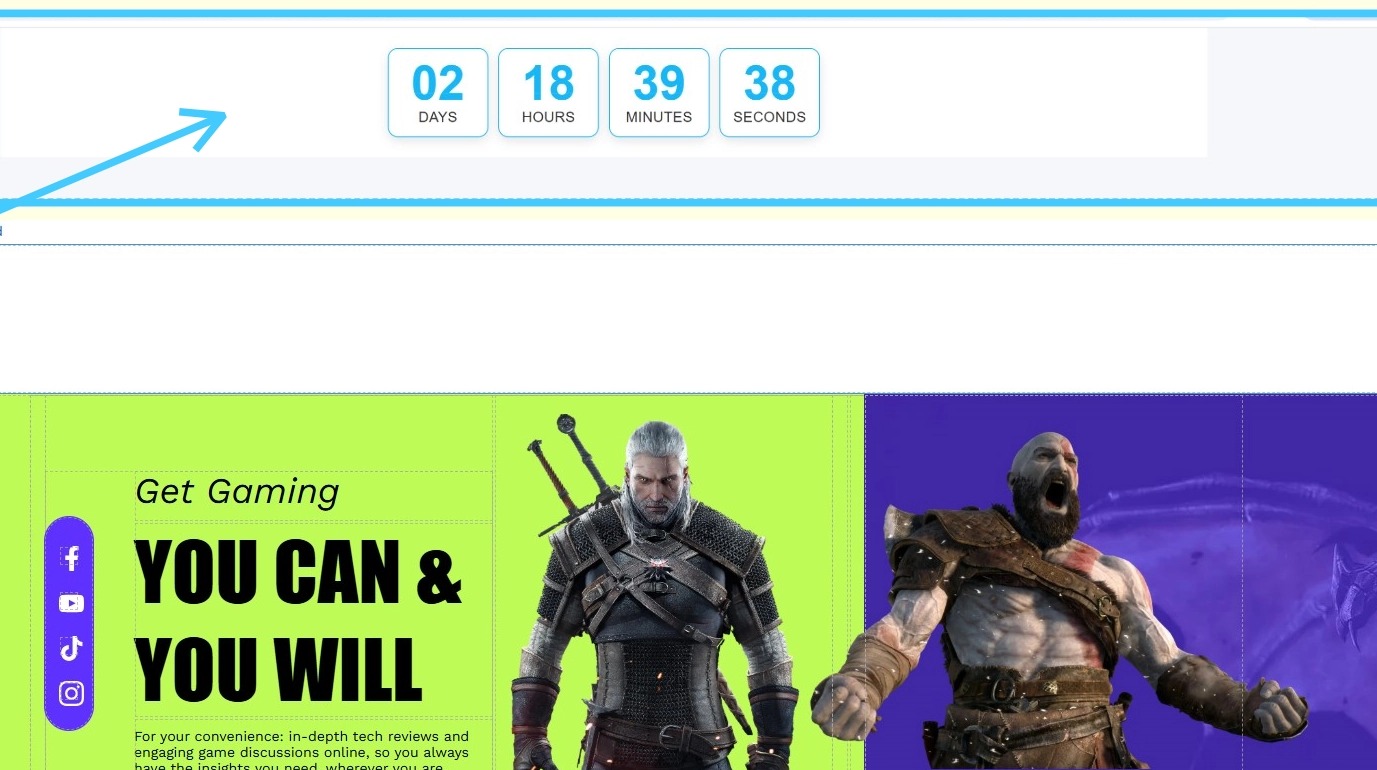
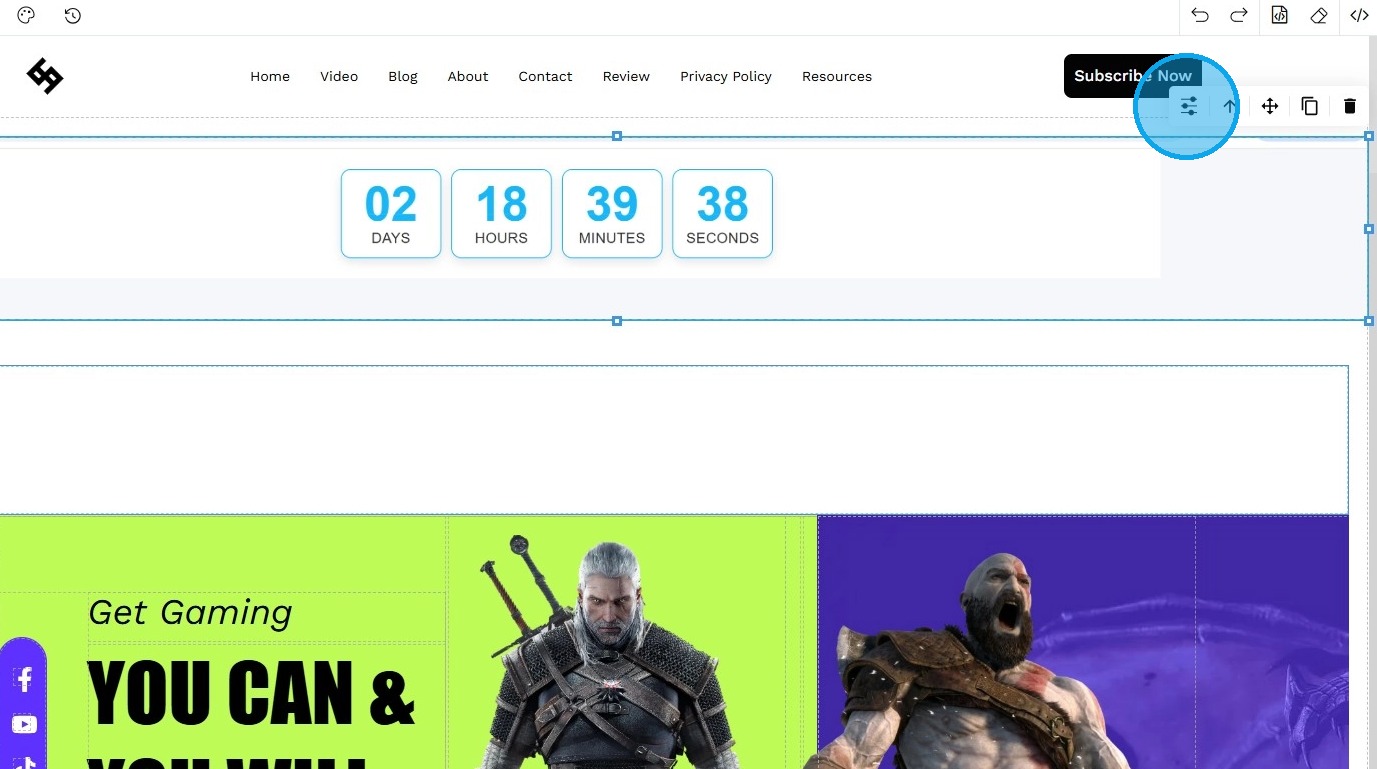
26. Click "Customize" button to edit the template
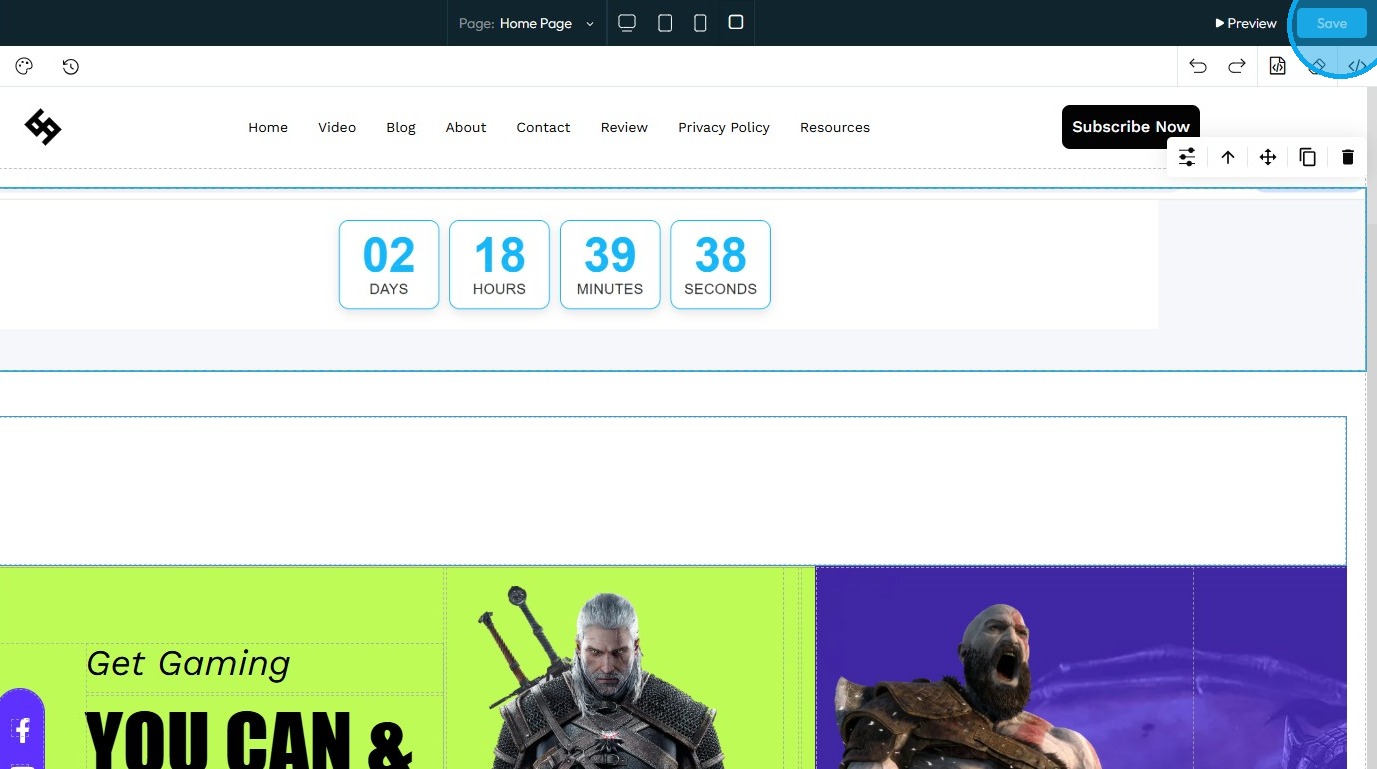
27. When done customizing, click "Save" to keep the changes
Related Articles
How to Add A Video to My Website using Quick Add (Detailed)
This guide shows you how to quickly add videos to your website using the Quick Add feature. It walks you through choosing a video source and customizing how it looks and works. Follow the steps to make your site more engaging and professional with ...Website Templates Overview
By following this guide, you can explore and select the best theme for your genre with ease. Tip: Tip! [[PodUp offers a diverse selection of templates for every type of creator.]] 1. Navigate to https://app.podup.com/home 2. Click "My Site" 3. Select ...Difference Between the Website Templates
By following this guide, you can explore industry-specific website templates and choose the best design for your needs. 1. Best-selling book theme: A Best Selling Book theme is a pre-designed, specialized website template built with features and ...How to navigate to my Published website?
By following this guide, you can quickly and easily access your published website without any confusion. 1. Navigate to https://app.podup.com/home 2. Click the Profile Icon located in the top-right corner 3. Select "View My Website" 4. You will be ...How to Edit Your Website Title
By following this guide, you can edit your website title on PodUp to strengthen your branding and visibility. 1. Navigate to https://app.podup.com/home 2. Click "Start" 3. Select "Podcast Setup" 4. The ‘Podcast Setup’ page will open 5. Click "Edit" ...