Use this guide to quickly access PodUp support and resolve issues

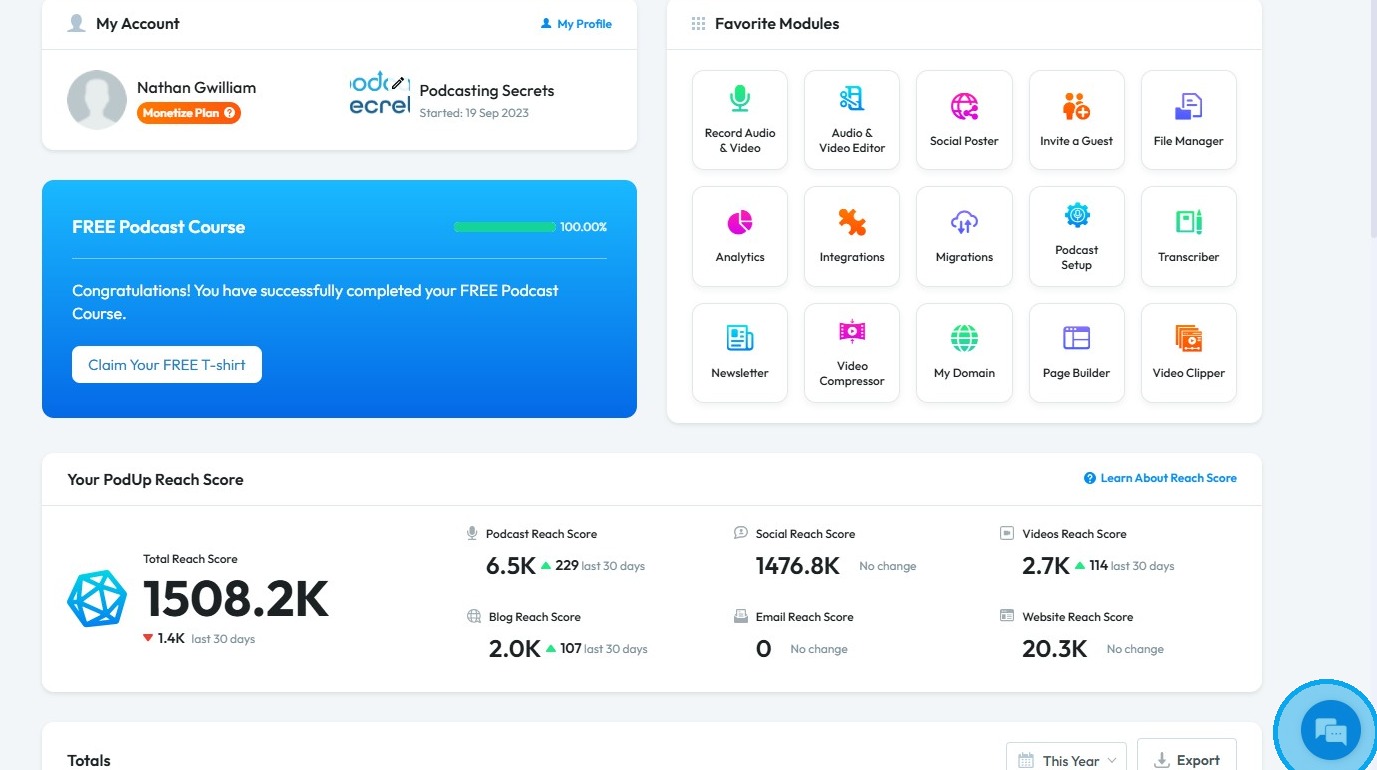
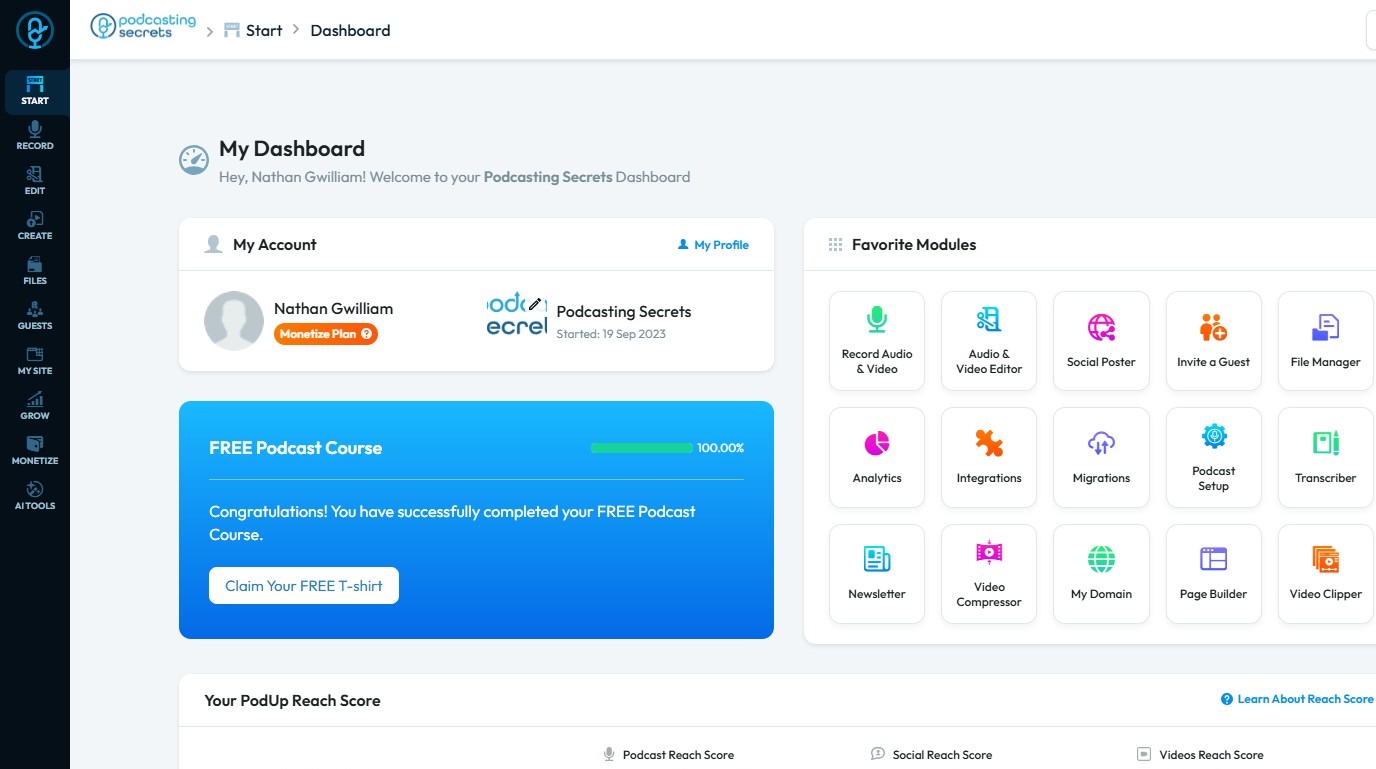
2. In the bottom-right corner of the “Dashboard,” click the chat bubble to access support

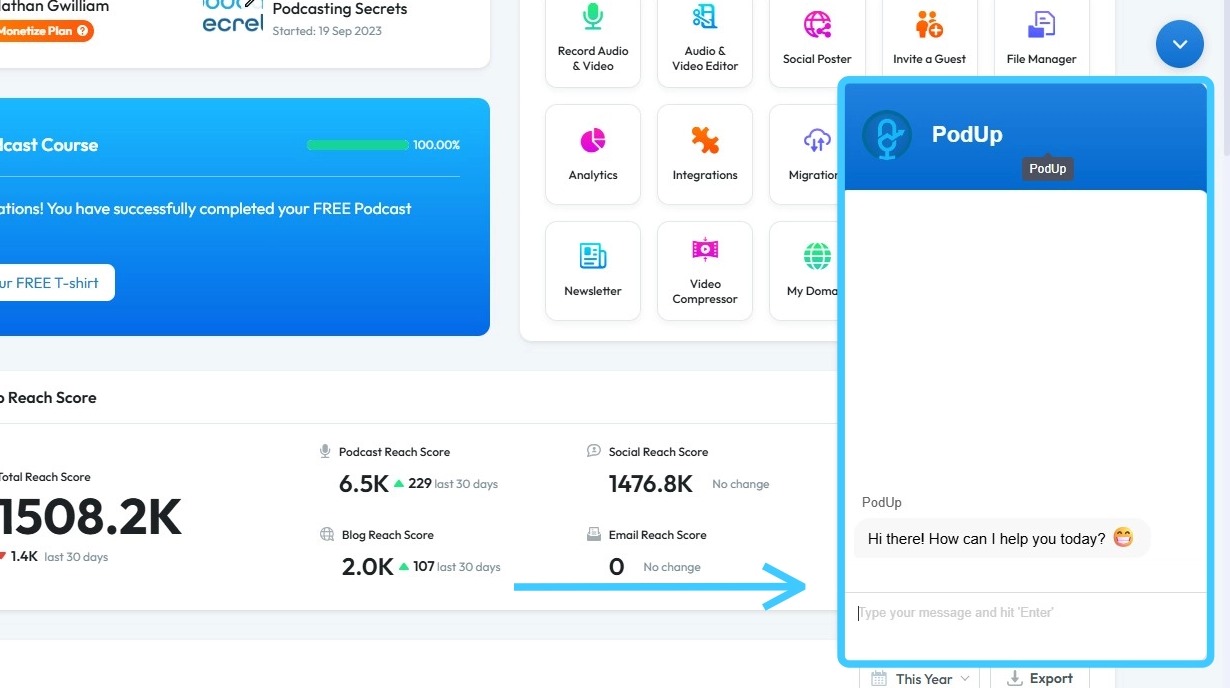
3. The chat box will appear

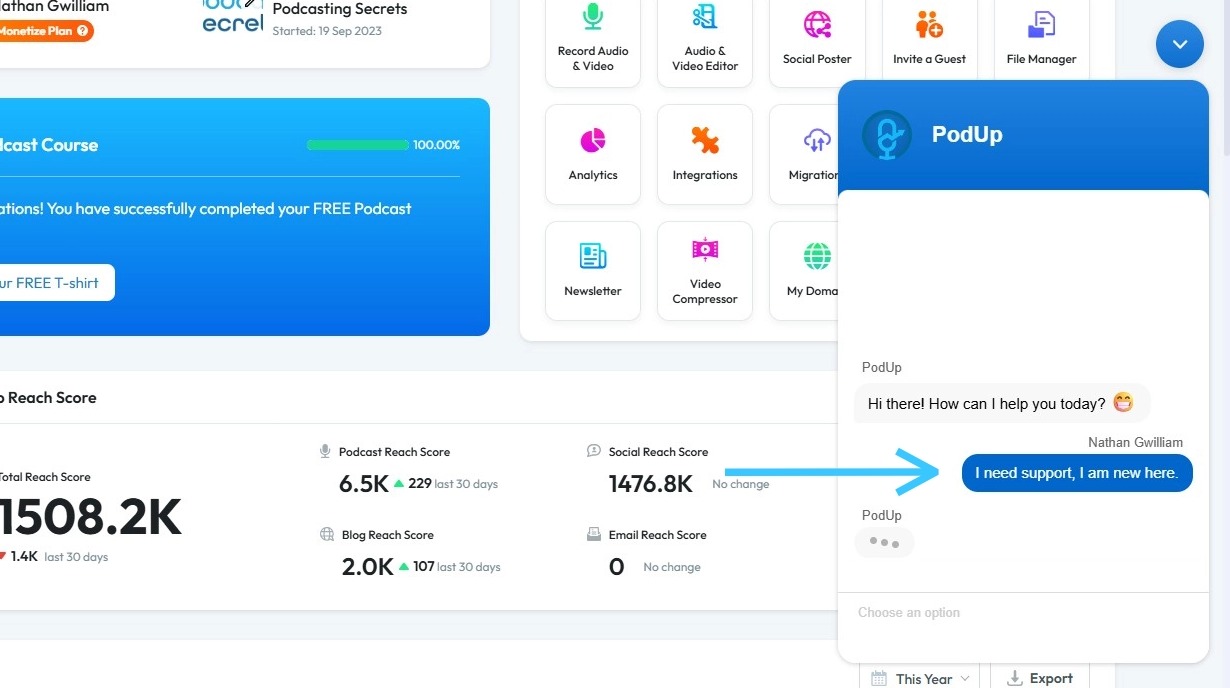
4. Enter your message and press Enter to send

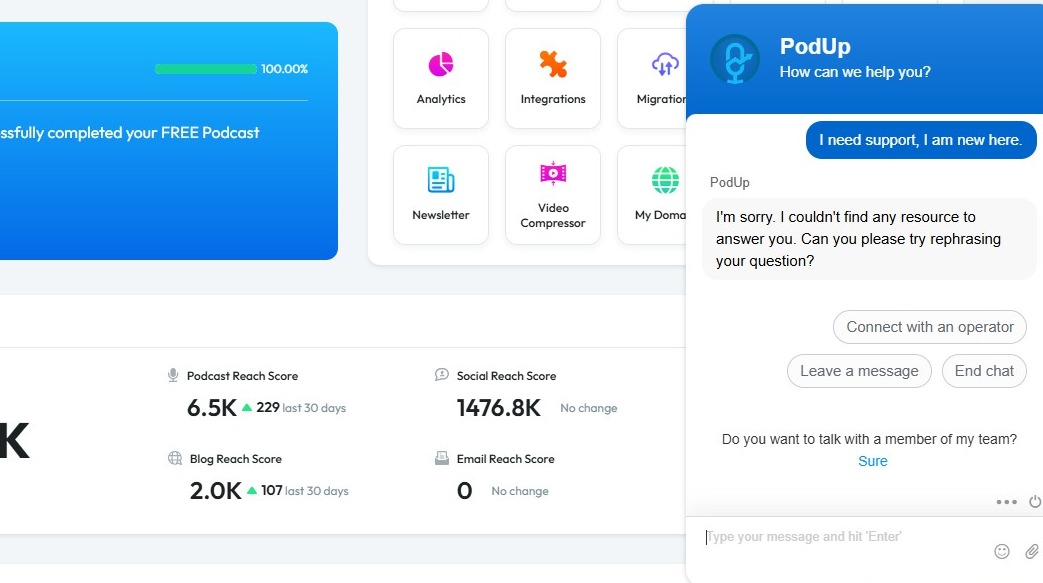
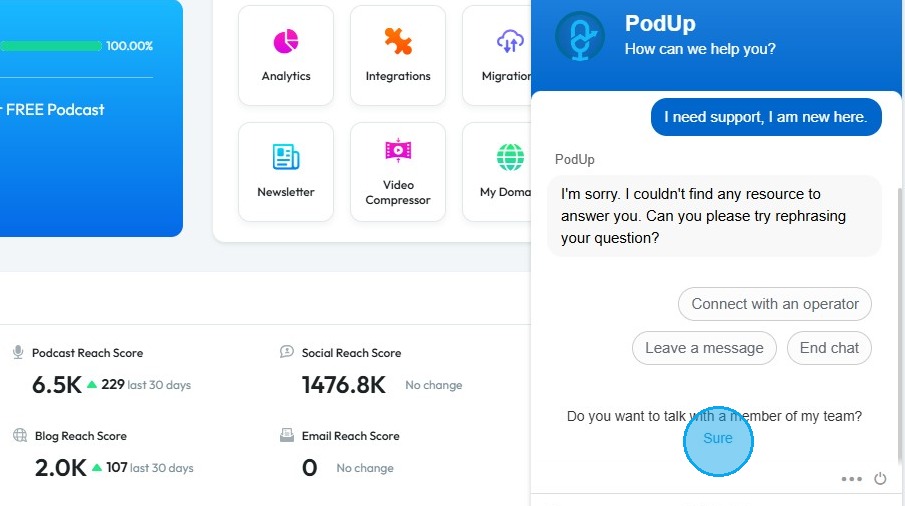
5. Initially, the solution will be looked into our database, but if it is something unique, you will see "I'm sorry. I couldn't find any resource to answer you. Can you please try rephrasing your question?"
You will have 3 Options:
- Connect with an operator: This will transfer you to our customer support team for assistance.
- Leave a message: Describe your issue, and we'll get back to you later.
- End chat: You can end the conversation.

6. Alternatively, you can click “Sure” under “Do you want to talk with a member of my team” to connect with customer support.

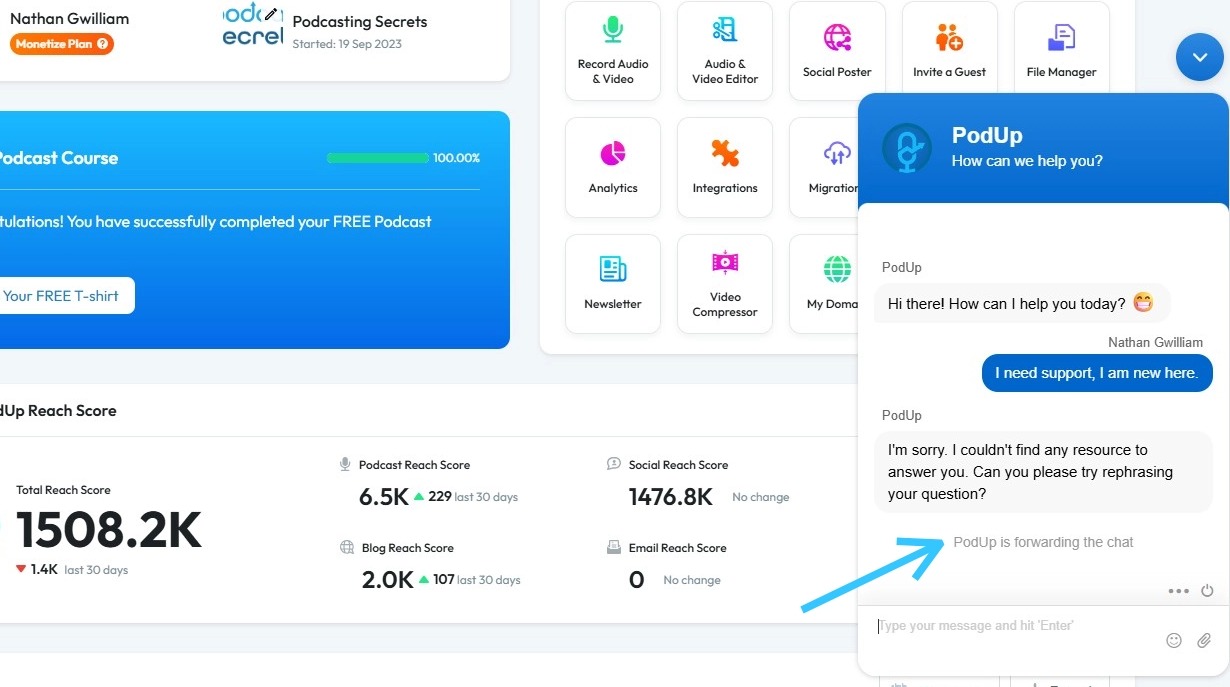
7. PodUp will route the chat to Customer Support

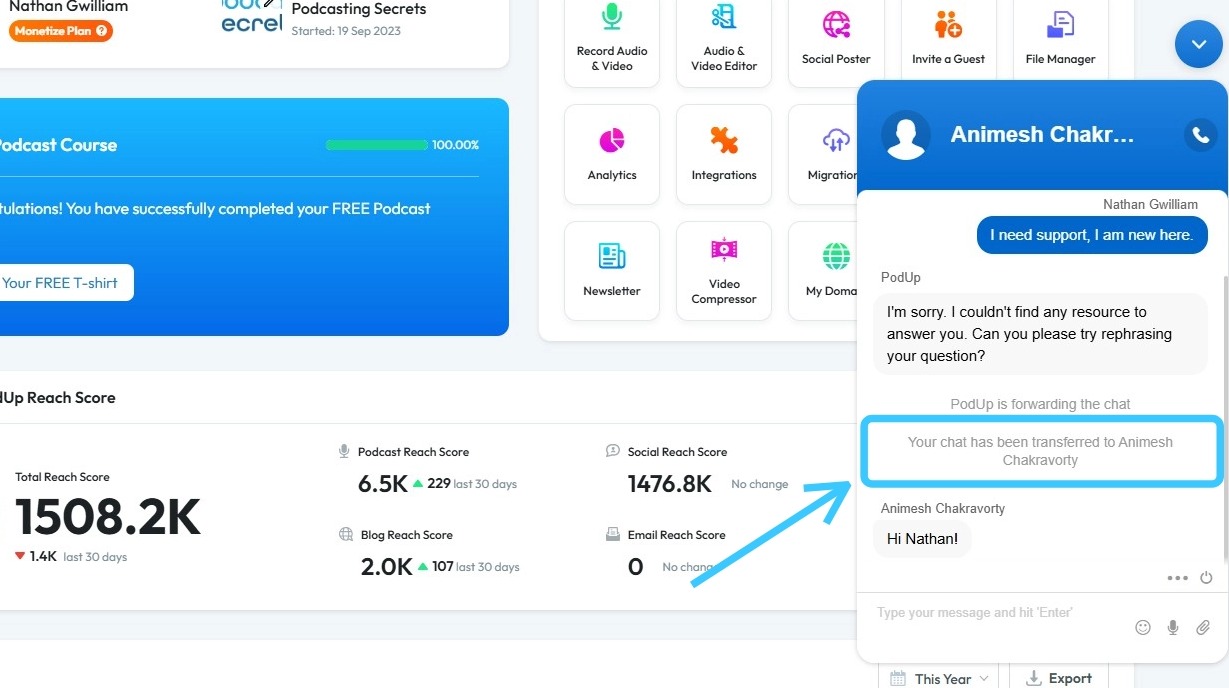
8. Your query will be directed to the Customer Support team

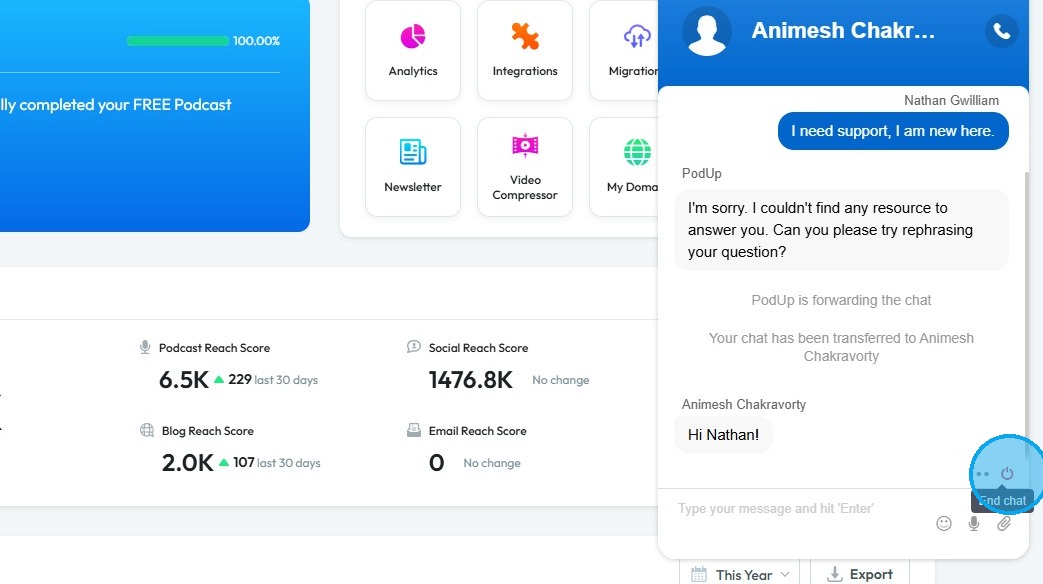
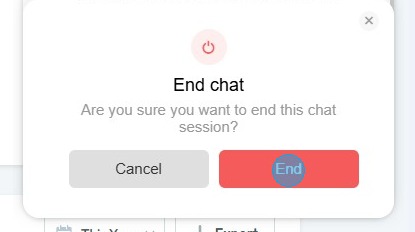
9. Click “End Chat” to close the conversation

10. Click “End” to confirm

Related Articles
How do I make a customer support page?
This guide provides a straightforward, step-by-step process for creating an effective customer support page using PodUp. It simplifies the setup by detailing each action needed, from navigating the platform to customizing your support section. 1. ...
How to Verify My Domain Name
This guide helps you verify your domain with PodUp. It includes clear steps, a timeline, tools, and tips to fix common issues—so you can get your site up and running smoothly. Tip! If you have already created your domain name and integrated it with ...
Courses
● You can offer courses on your site using PodUp. These can be at a fee or free. ● You can create and manage courses using this module. Click on “Add a course” to get started. Fill out the required information like Course type, title, description, ...
How do my blogs get uploaded to my website
This guide shows you how to upload blogs to your website step by step 1. Navigate to https://app.podup.com/home 2. Click "Create" 3. Select "Blogs" 4. Click "Create Post" 5. The page will be displayed as shown 6. Complete all required details and ...
How does my audio podcast get uploaded to my website
This guide makes it easy to upload and share your audio podcast on your website so your audience can enjoy it. 1. Navigate to https://app.podup.com/home 2. Click "Create" to proceed 3. Select "Podcasts" 4. Click "Create Podcast" 5. This will open ...