How do I customize Web builder Quick Add (Detailed) - Collapse
By following this guide, you will be able to easily customize the Quick Add feature in the PodUp Web Builder from adding a collapse block to adjusting its visual properties ensuring an interactive and visually appealing website.
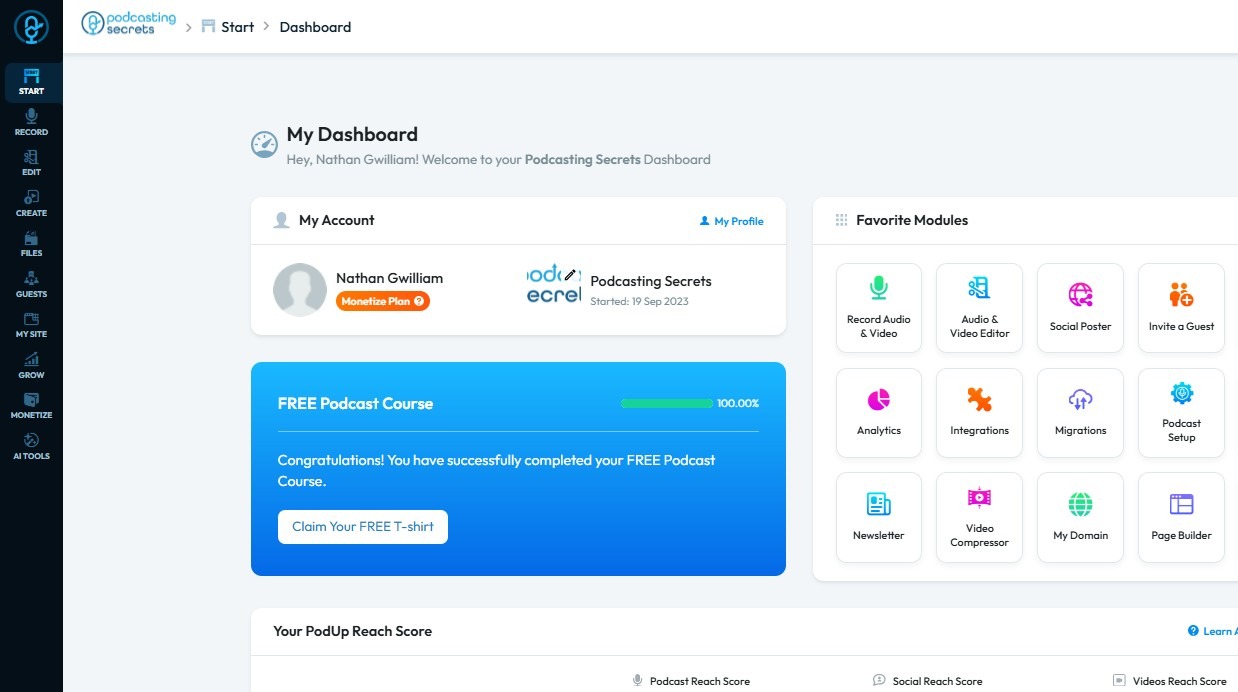
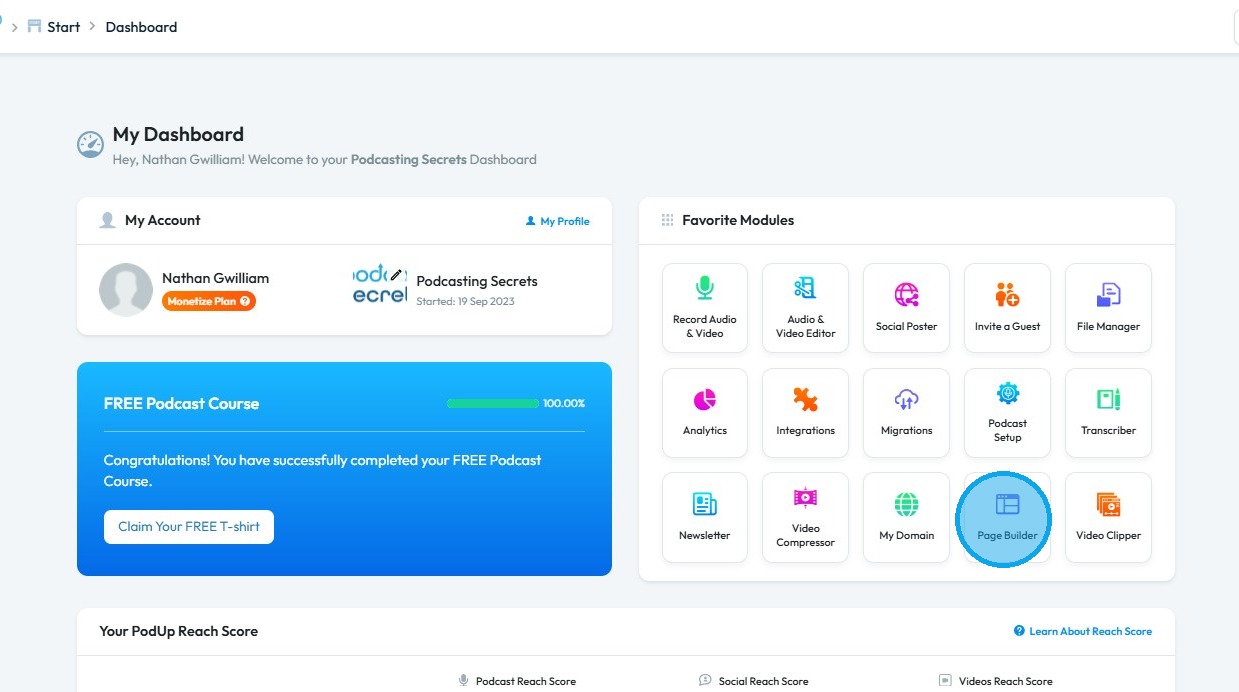
2. Click "Page Builder"
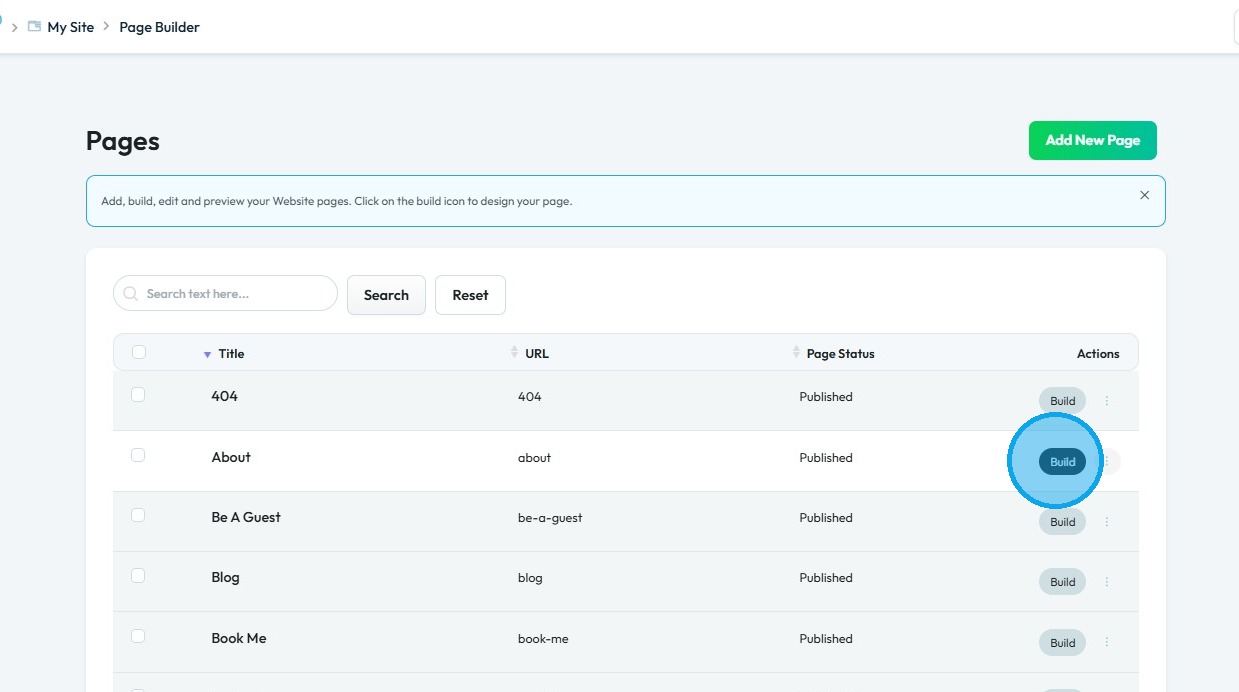
3. Click the “Build” button on the page where you want to add a form
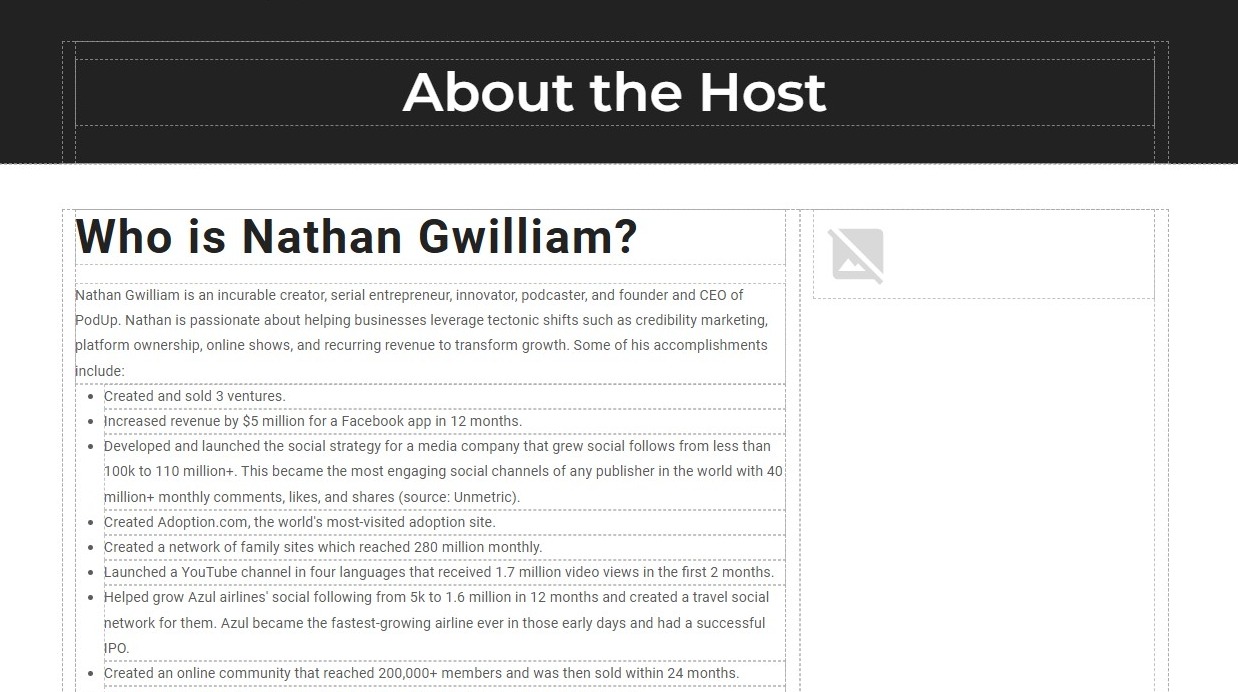
4. The PodUp Page Builder will load
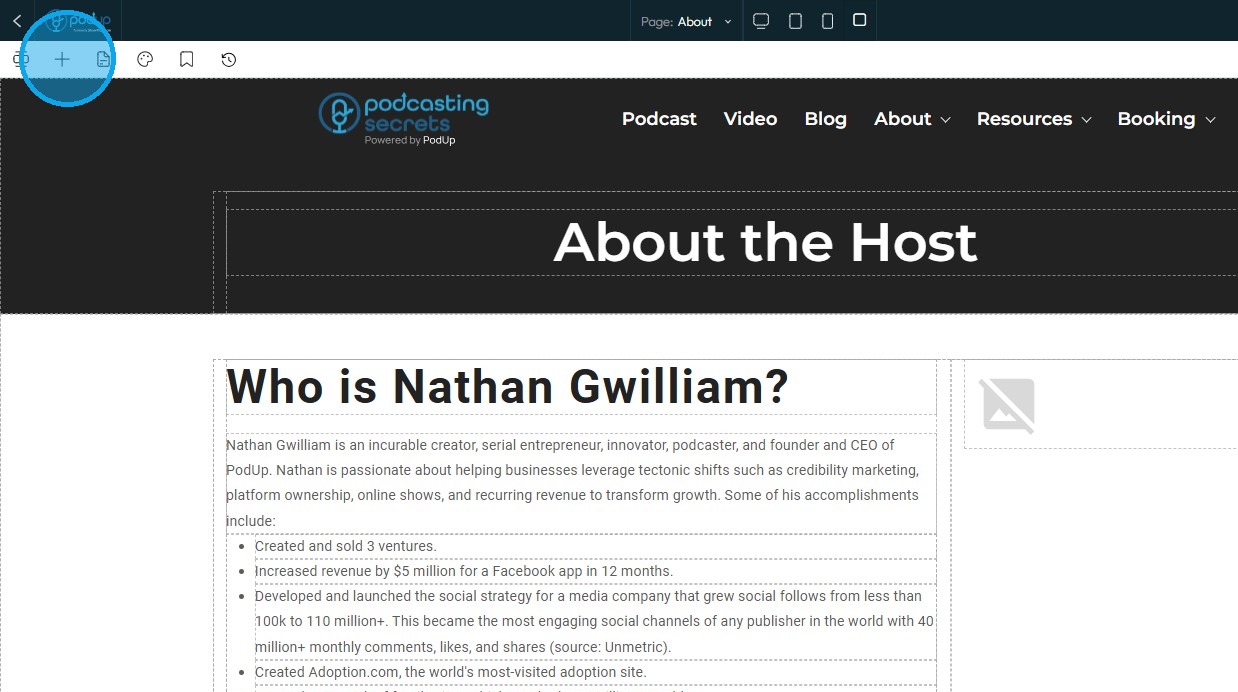
5. Click the “Add Block” icon
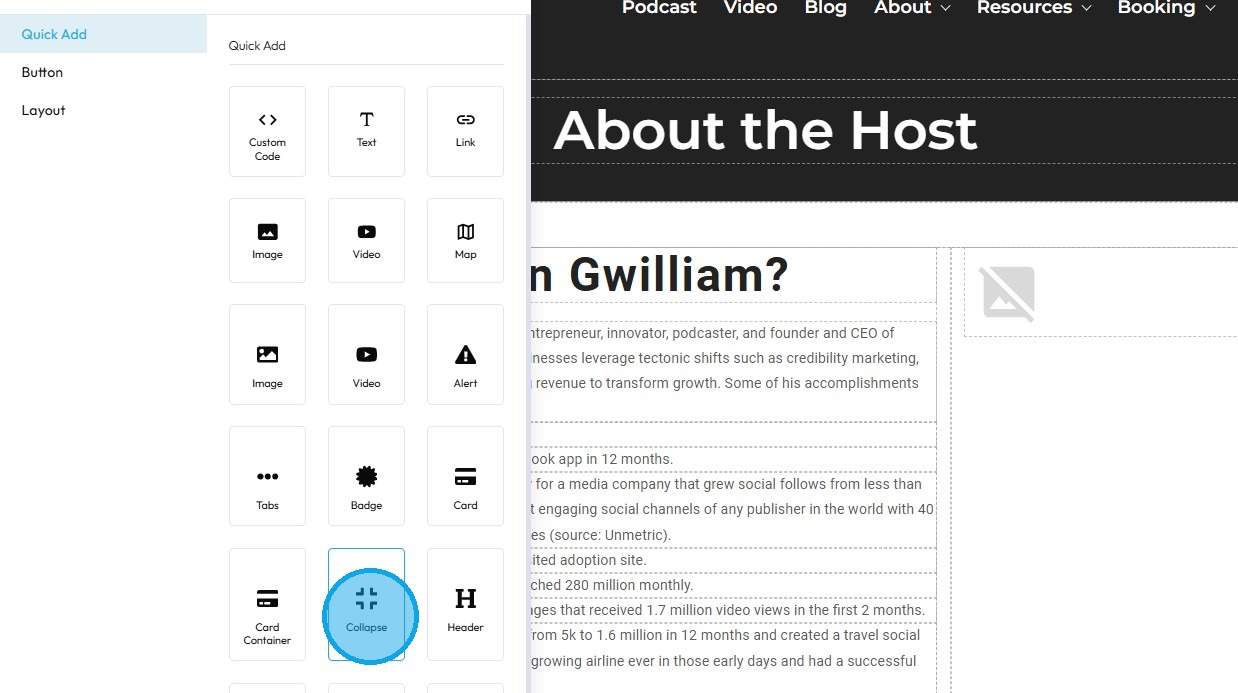
6. Drag and drop the “Collapse” block onto your page
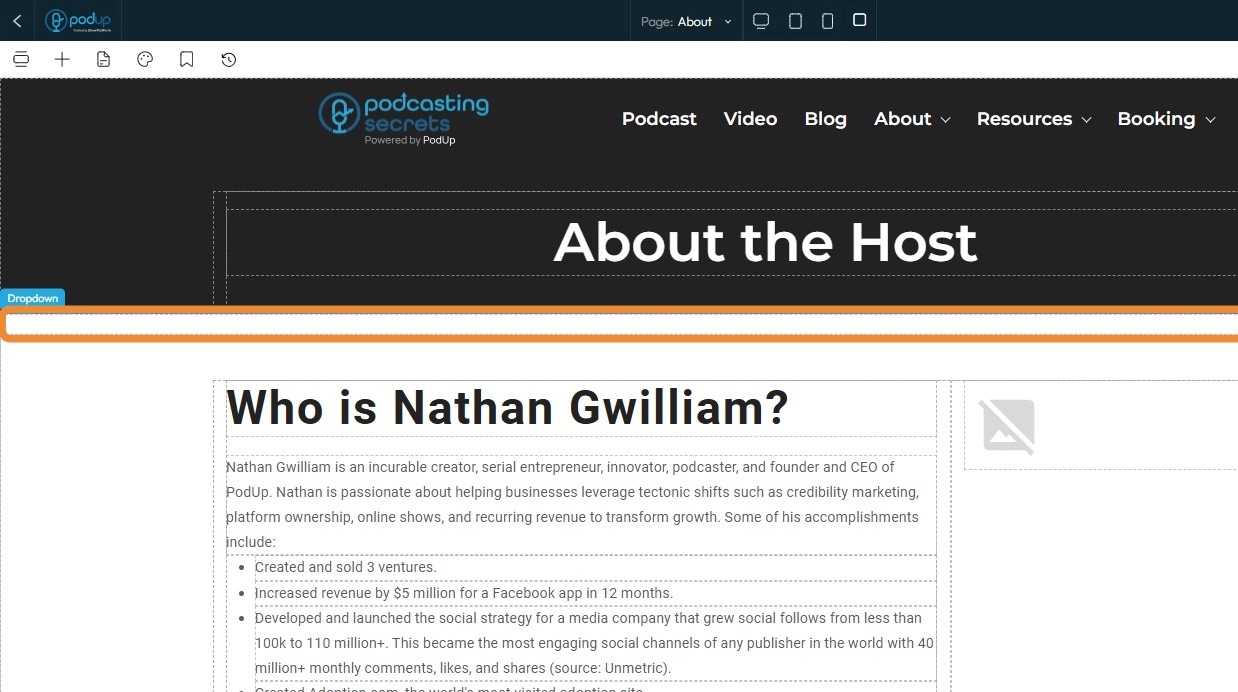
7. The Collapse block will be added to your site
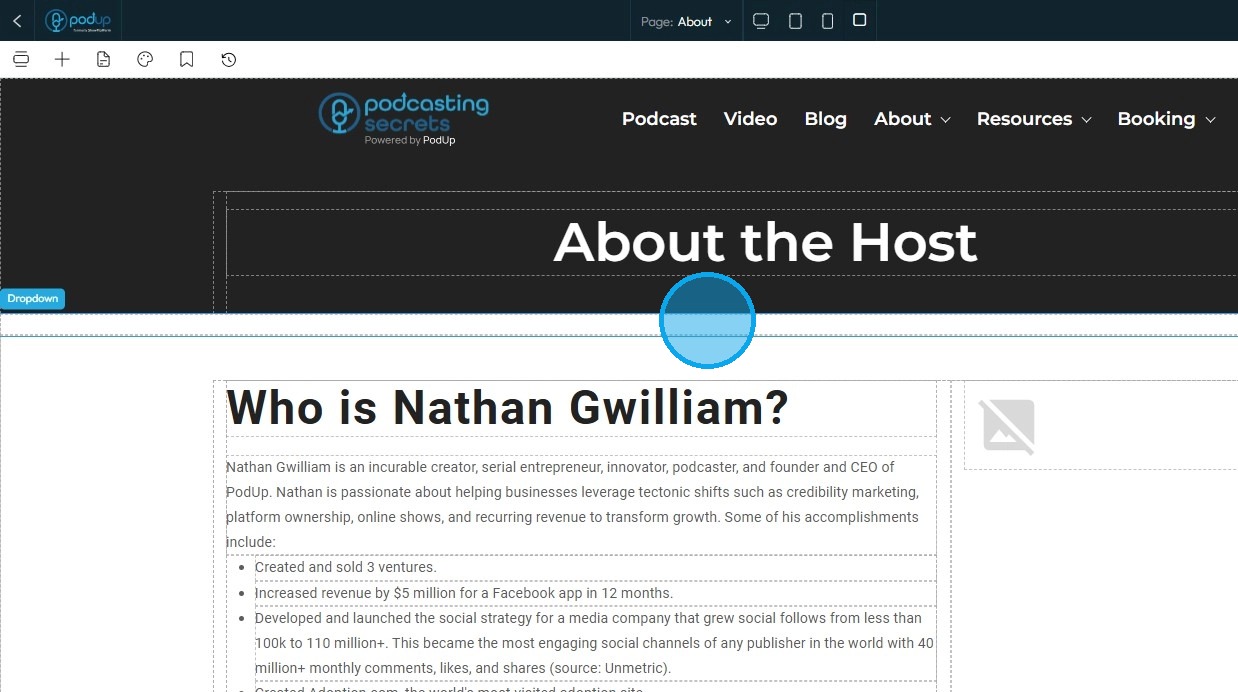
8. To customize it further, click on the block to select it
9. Click the Settings icon
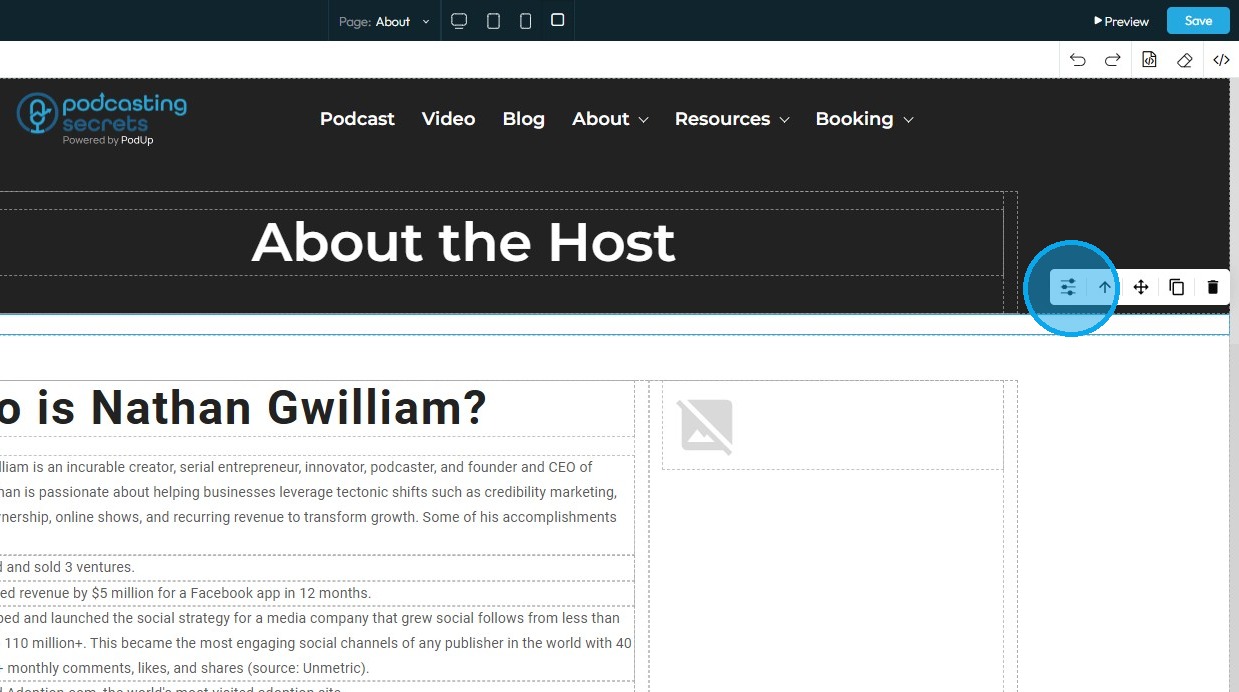
10. Refer to "How to Format a Design Element" for the Design section, as it applies consistently to all elements
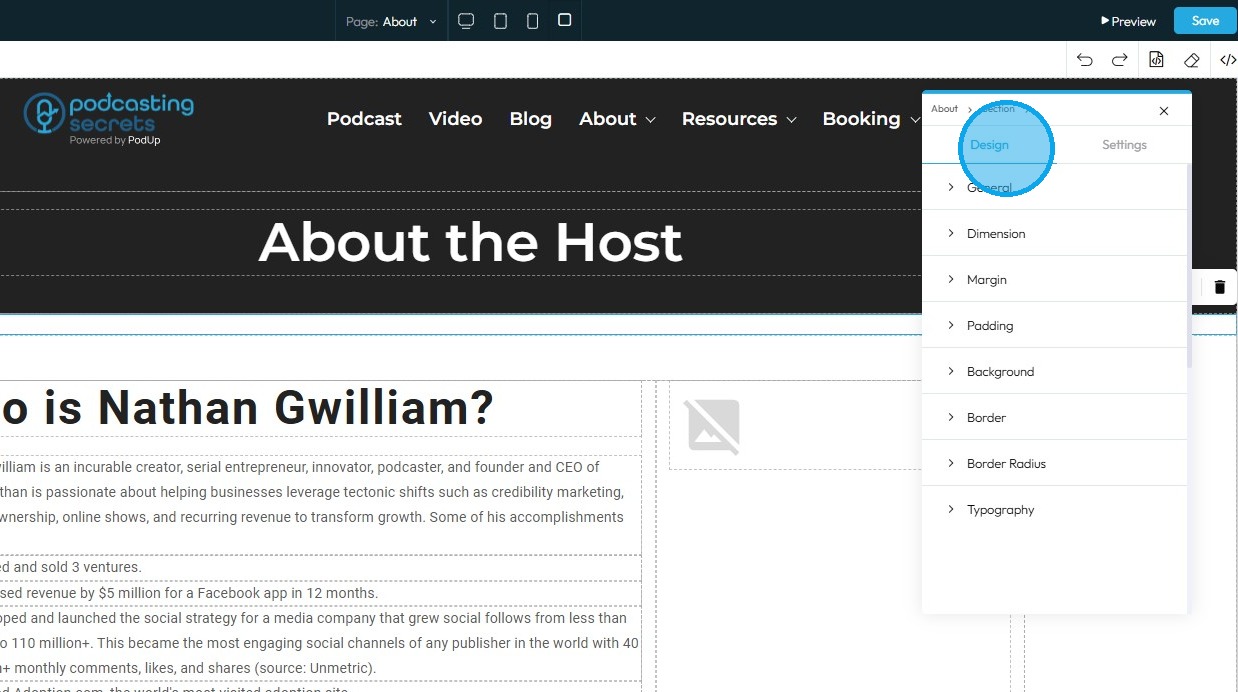
11. Click Settings to view the configuration options for this specific element
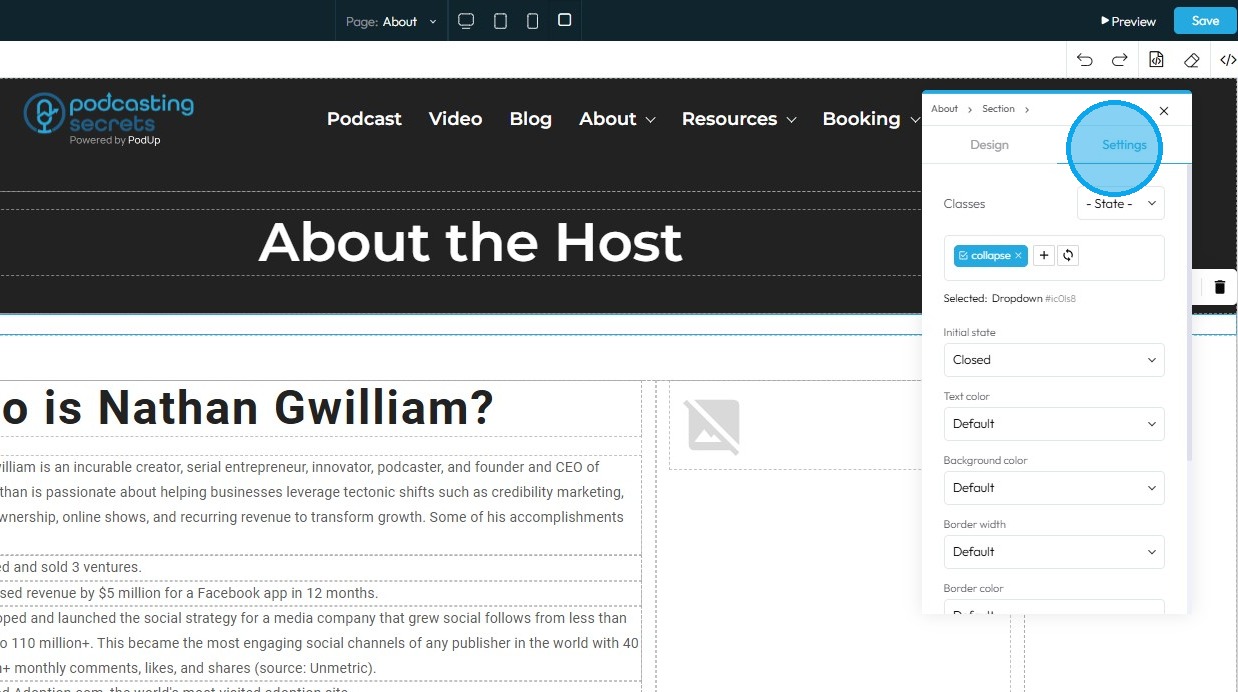
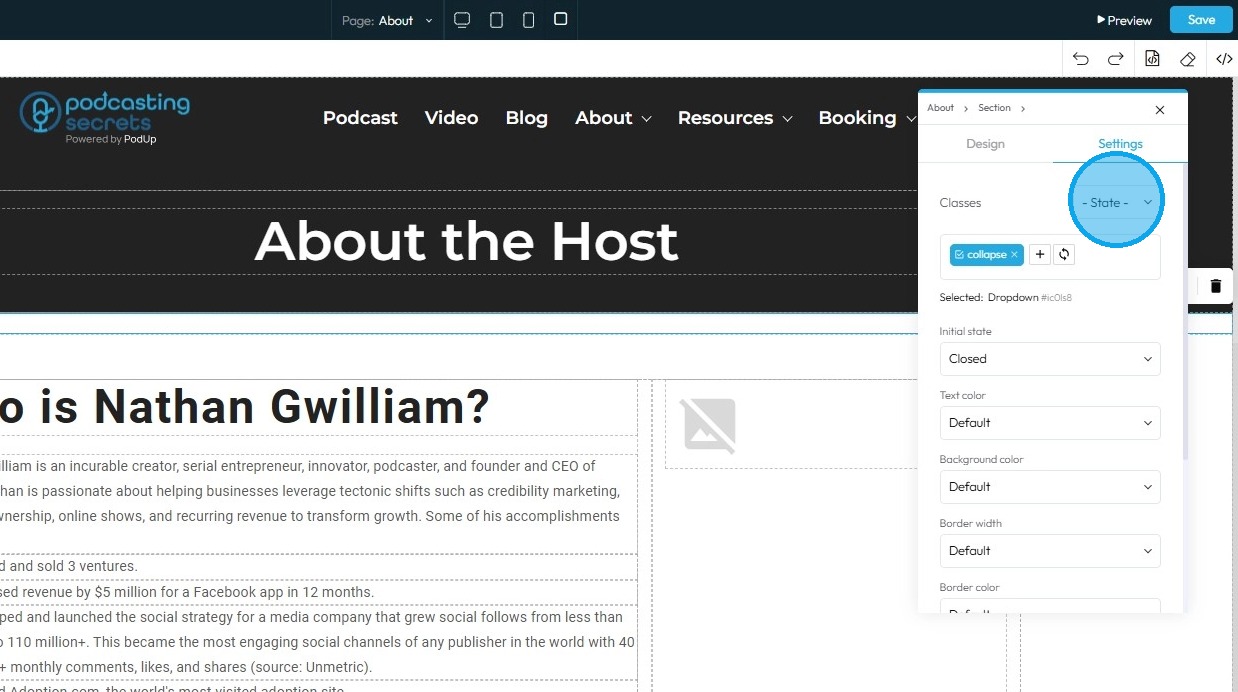
12. State: The different ways an element looks or acts depending on how someone interacts with it
- Hover: This allows you to define a special set of styles that apply only when a user's mouse cursor is hovering over an element that has this class. It adds interactivity and visual feedback
- Click: This allows you to define a special set of styles that apply when an element is being actively clicked or pressed down by the user. It provides immediate visual feedback that the user's action is being registered
- Even/Odd: This allows you to apply different styles to elements based on their position in a sequence (even or odd number) within a common parent. This is incredibly useful for creating visual patterns, like "zebra striping" in lists or tables
13. Classes: A reusable set of styles that you can apply to multiple elements across your website. You can add specific elements that you have already programmed or they will be automatically added when you edit the menu
- Tip: If this is your first website, leave this blank and let the software fill this in unless you have experience website building
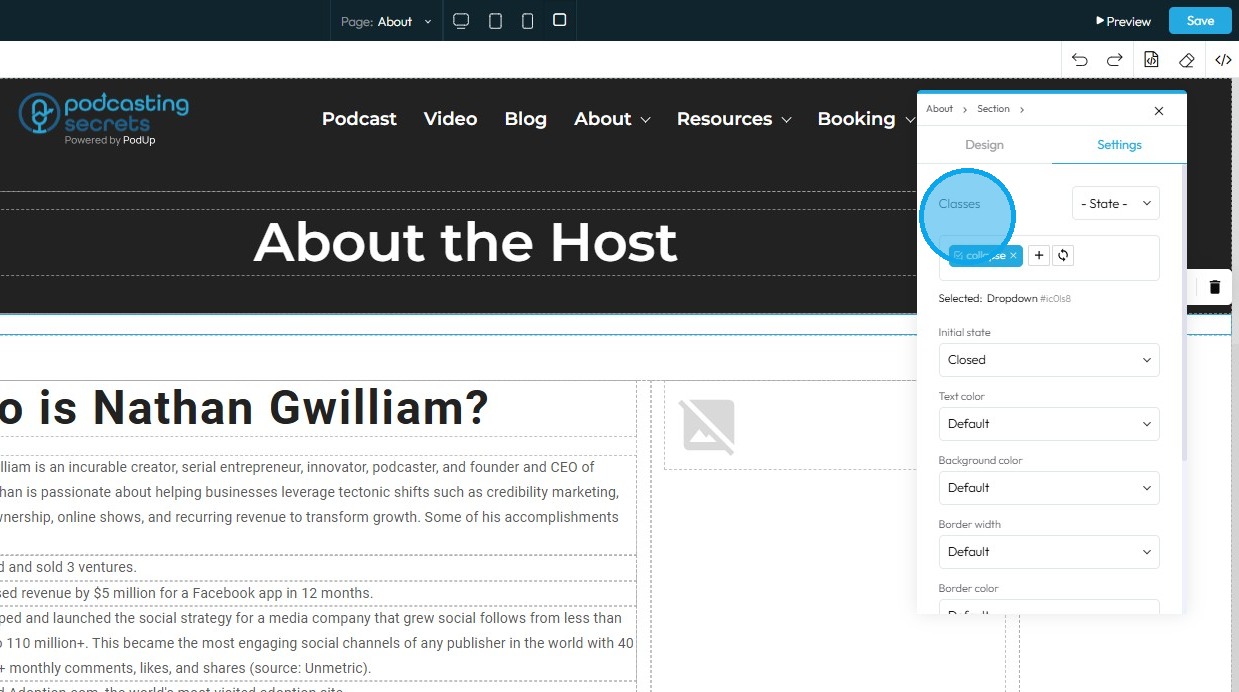
14. Click Initial State: Closed/Open
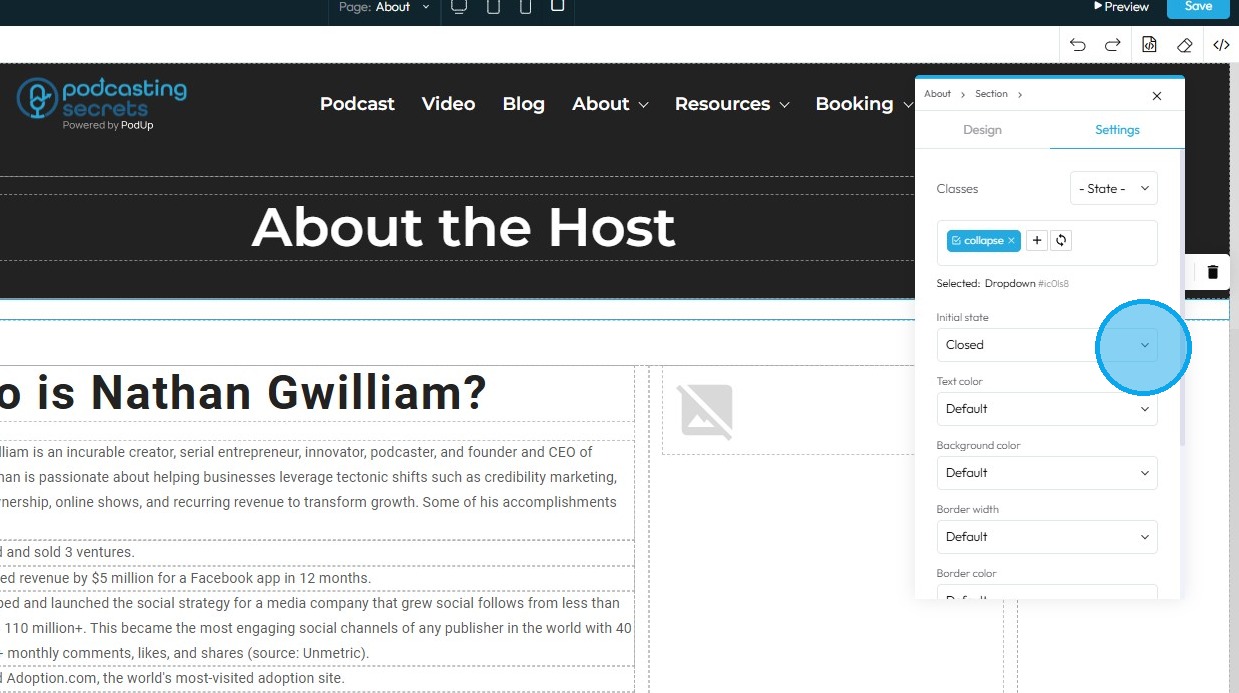
15. Click "Text color"
- Text Color: This property directly changes the color of the text characters within an element
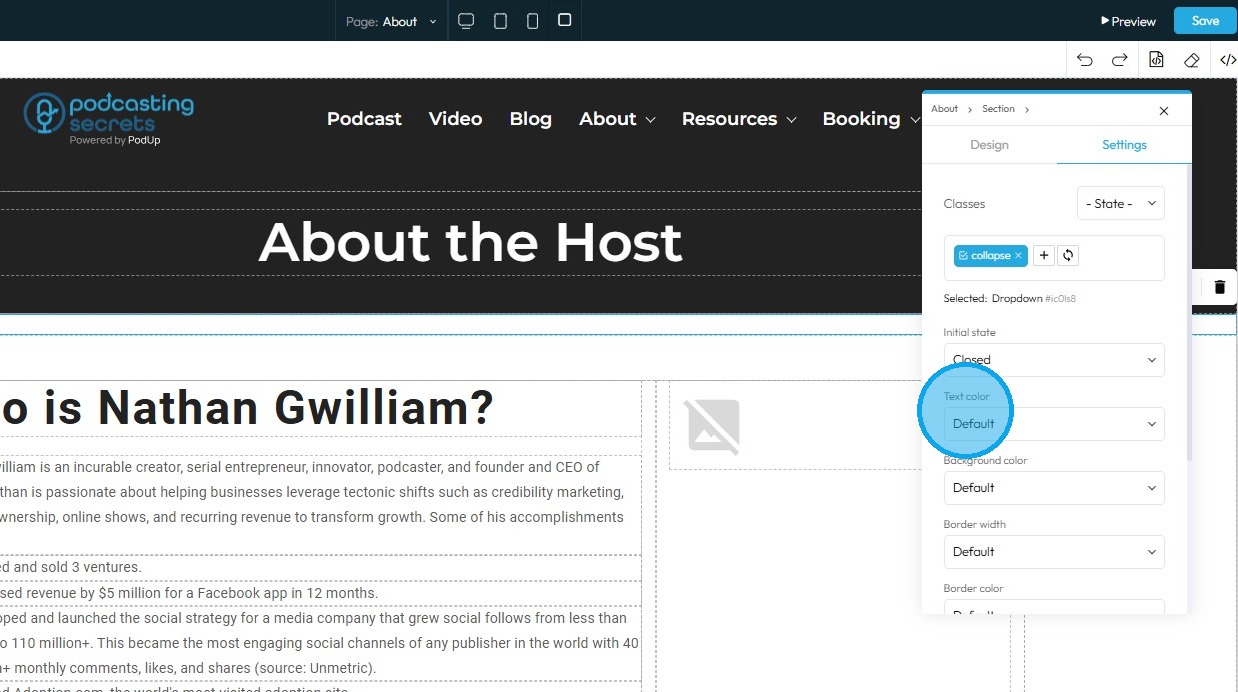
16. Click "Background color"
- Background Color: Sets a solid color that fills the background area of an element. This color sits behind the element's content and its padding, but inside its border
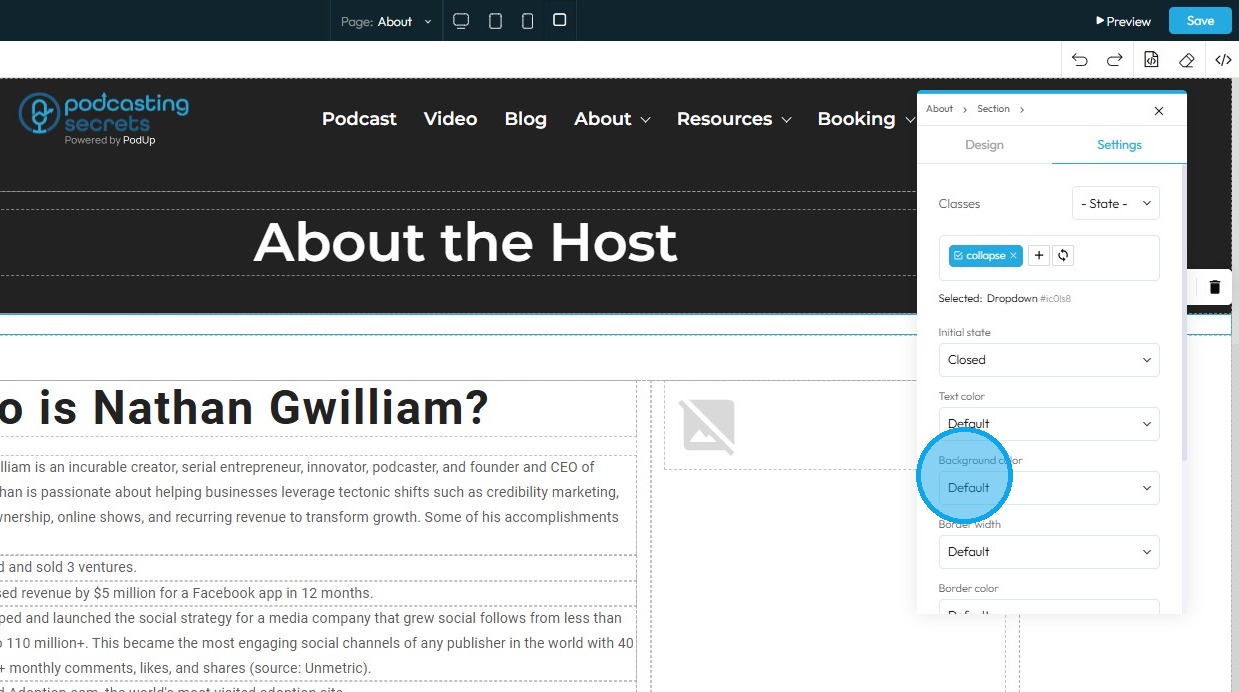
17. Click "Border Width"
- Border Width: Controls the thickness of the line that forms the border around an element
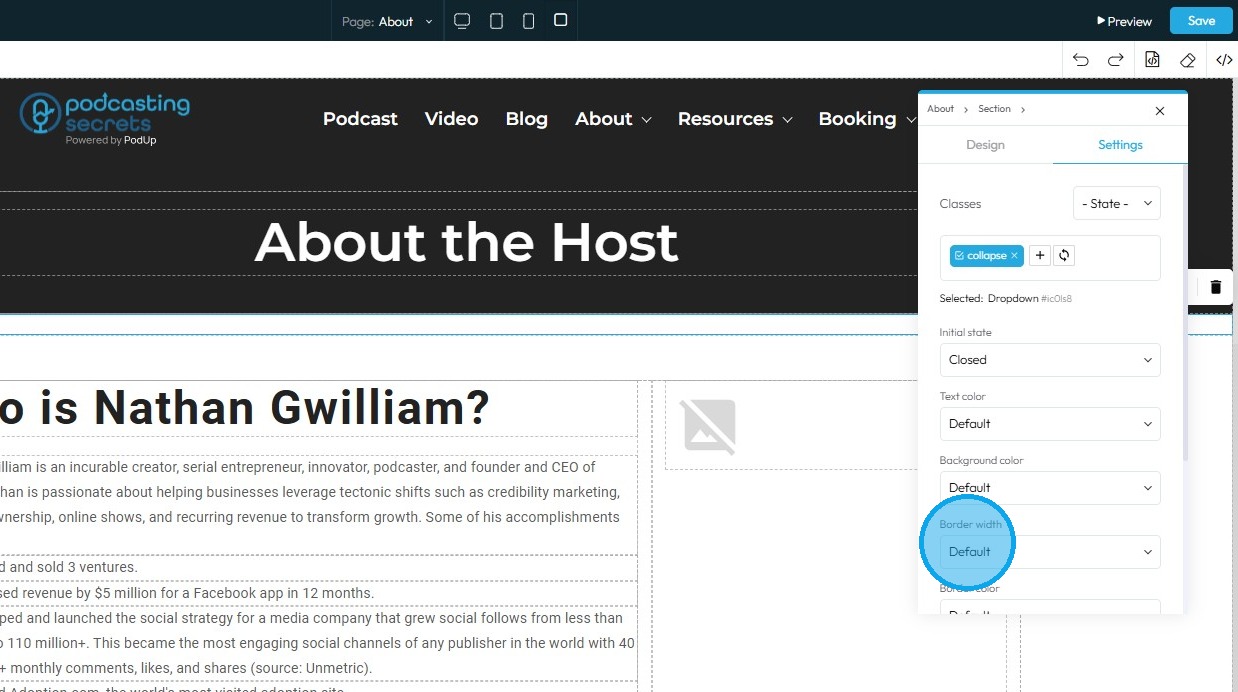
18. Click " Border Color"
- Border Color: Defines the color of the border line
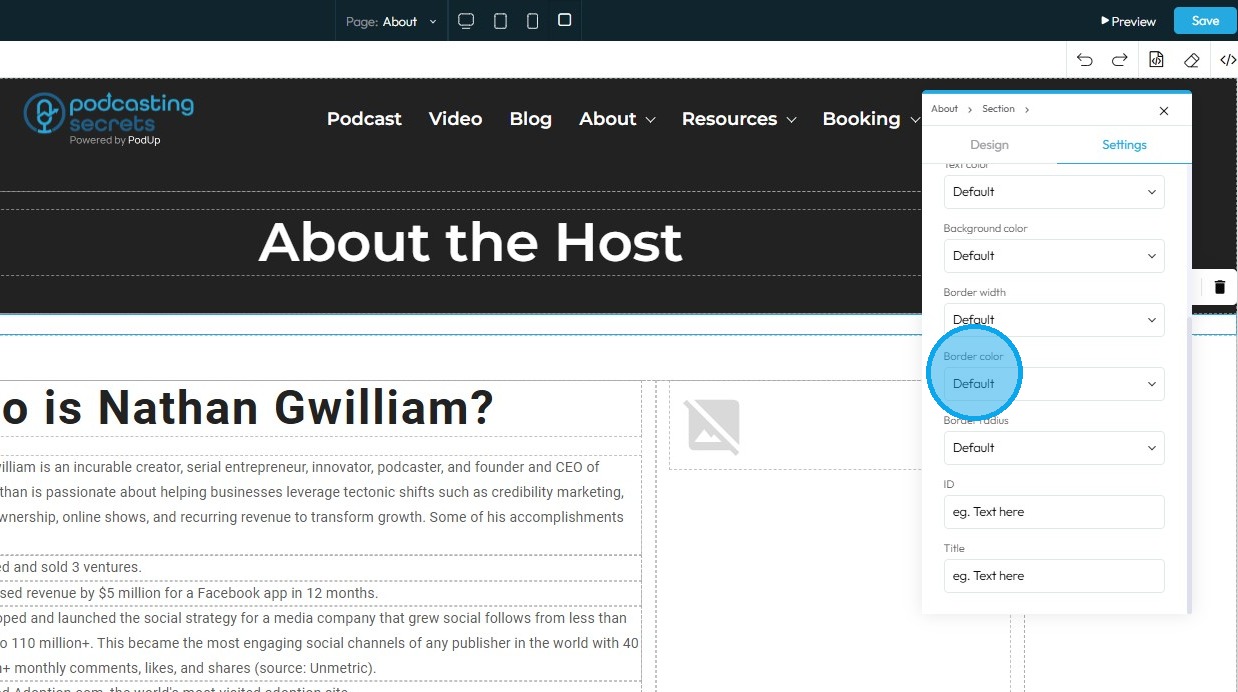
19. Click "Border Radius"
- Border Radius: This property rounds the corners of an element's border (and its background and content area). Instead of sharp 90-degree corners, you get smooth, curved ones
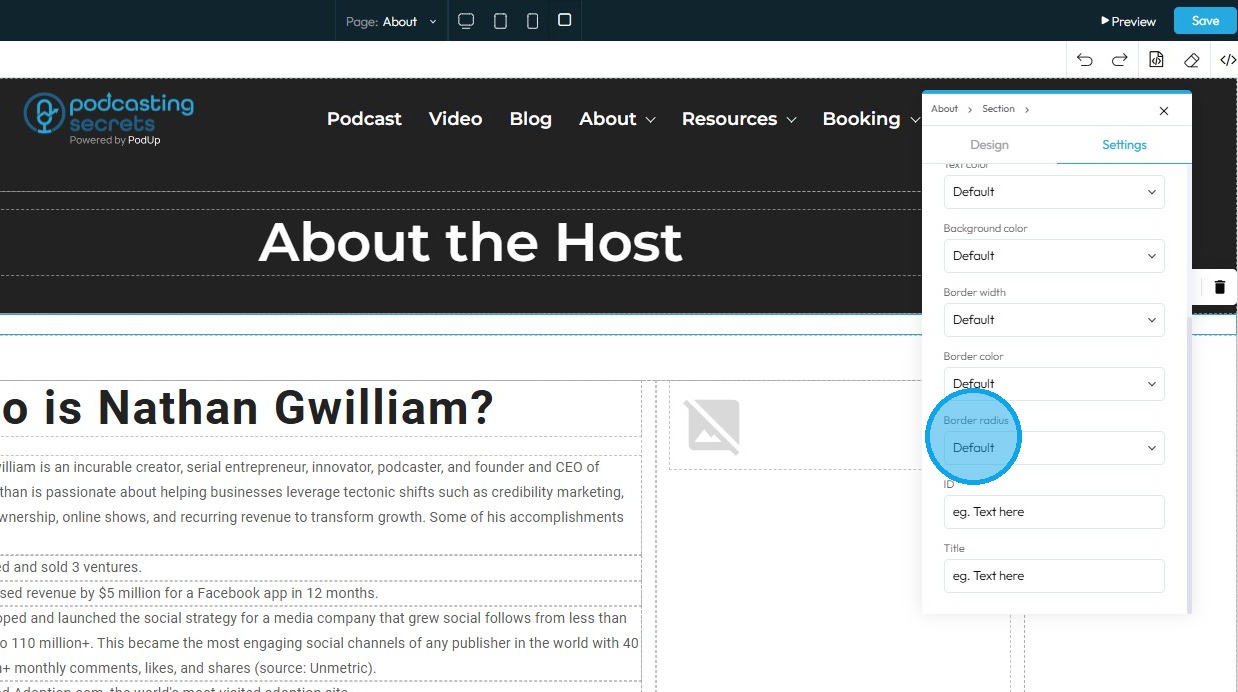
20. Click ID.
- ID: A unique identifier assigned to the element, allowing you to style it, link to it, or control it independently from other elements on the page
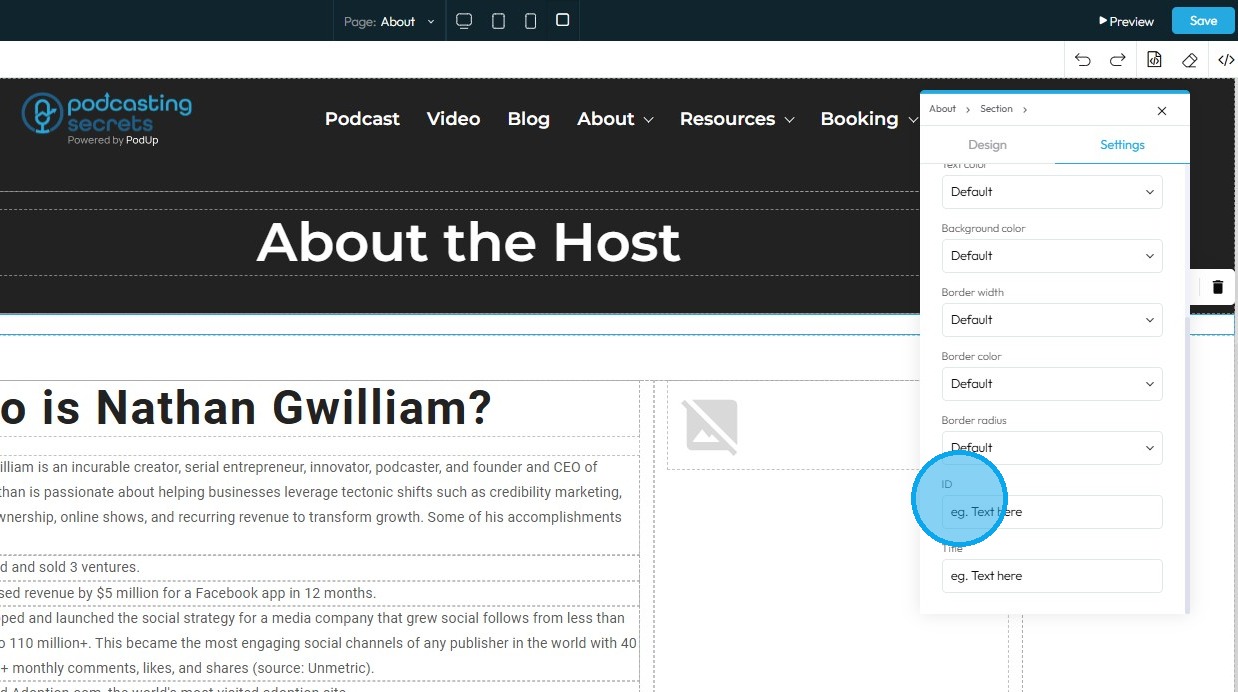
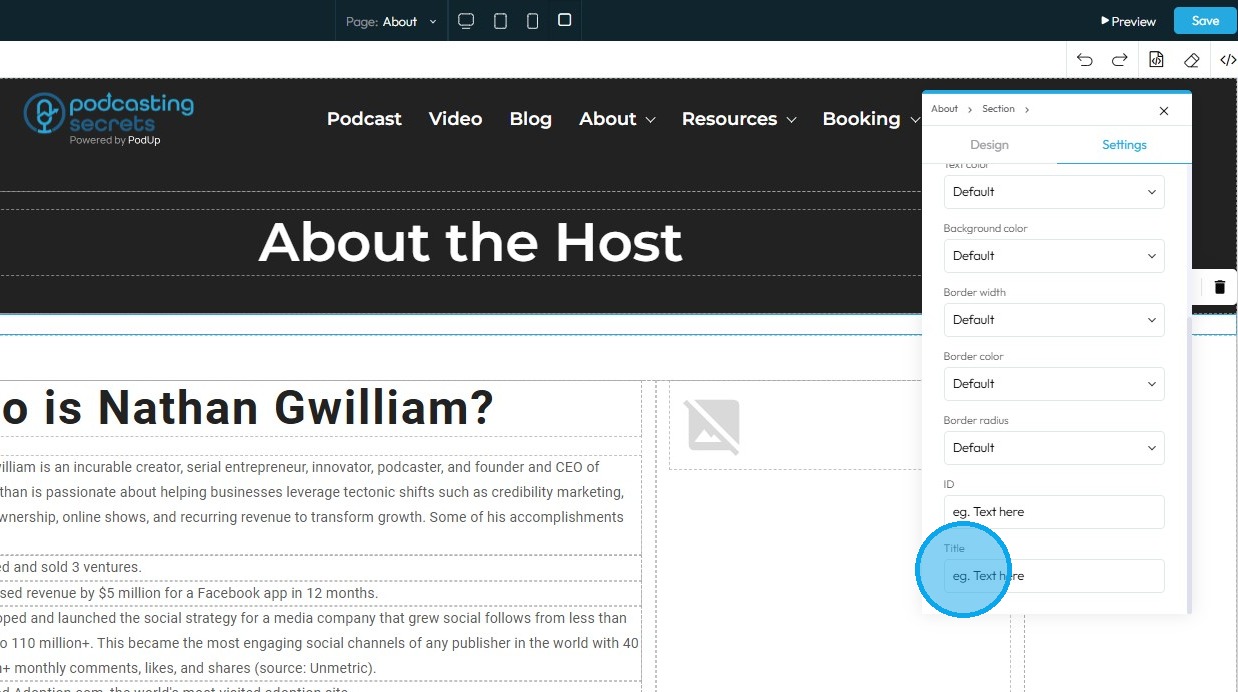
21. Click Title.
- Title: Provides optional supplementary information or a brief description about the element
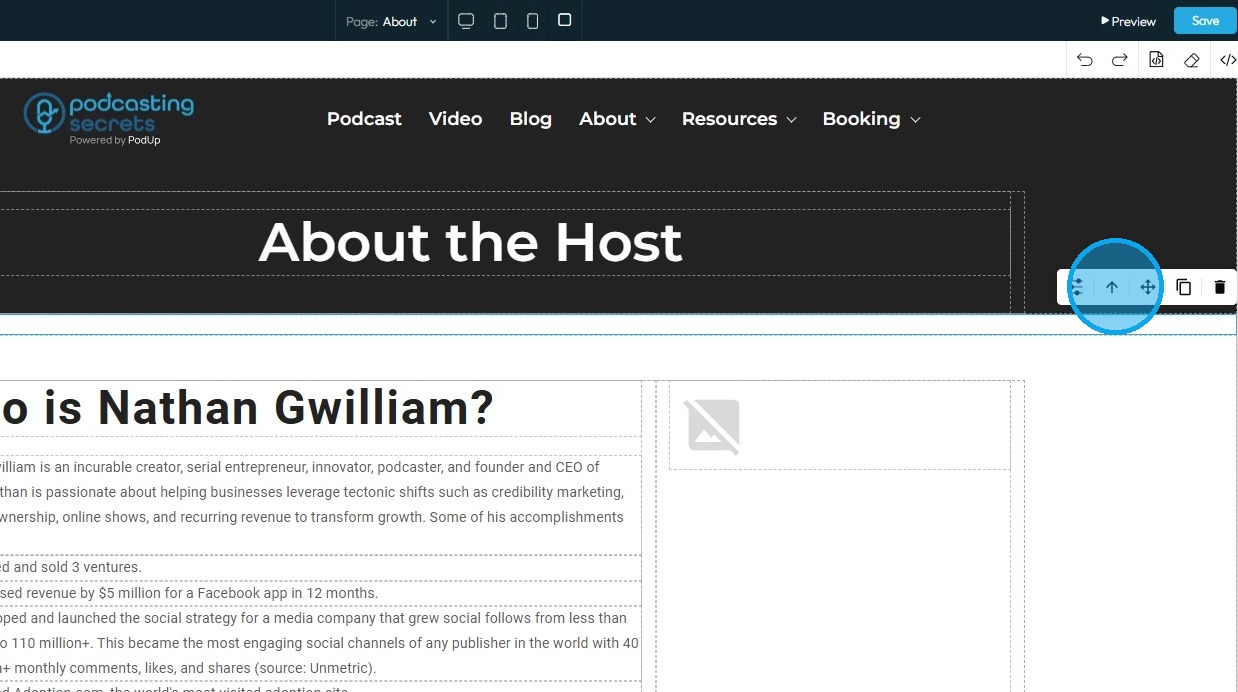
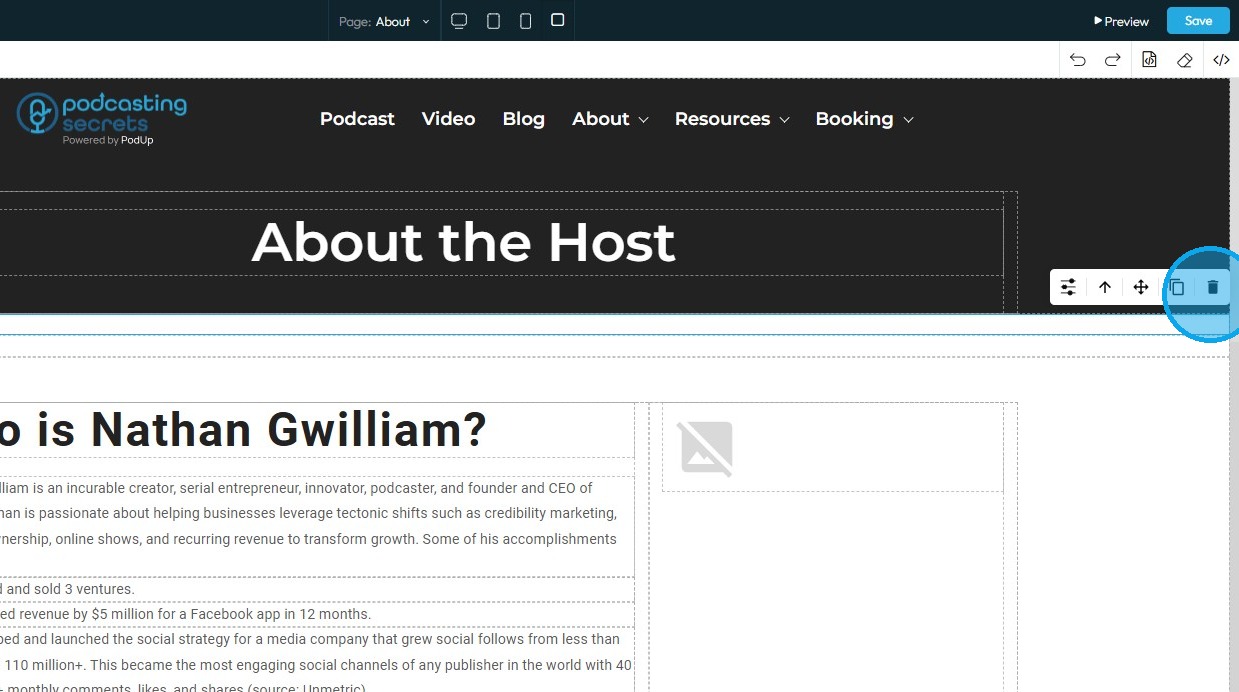
22. Clicking the arrow icon moves the element into the next larger container, shifting it from a smaller section or block into the broader layout to help you position it more accurately on the page
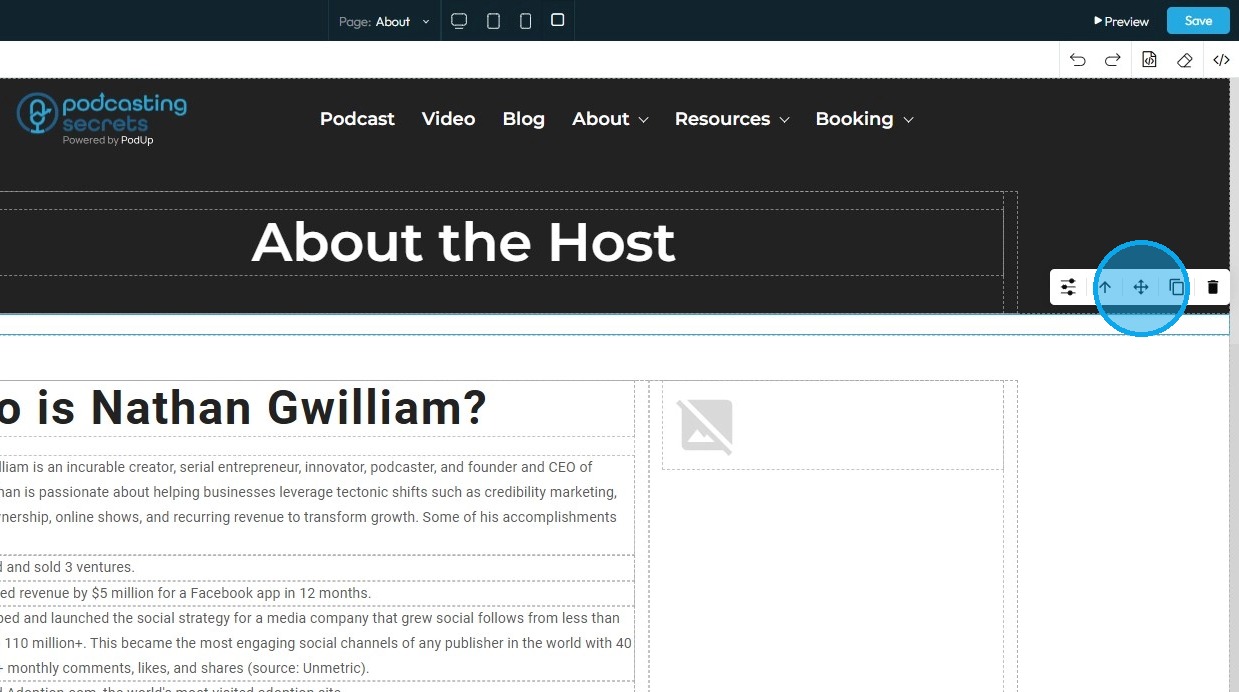
23. Move: Reposition the section to where you want. Click and hold this icon while you drag it to the desired location. A green line will indicate where it is being placed
24. Copy: Create a copy of the section
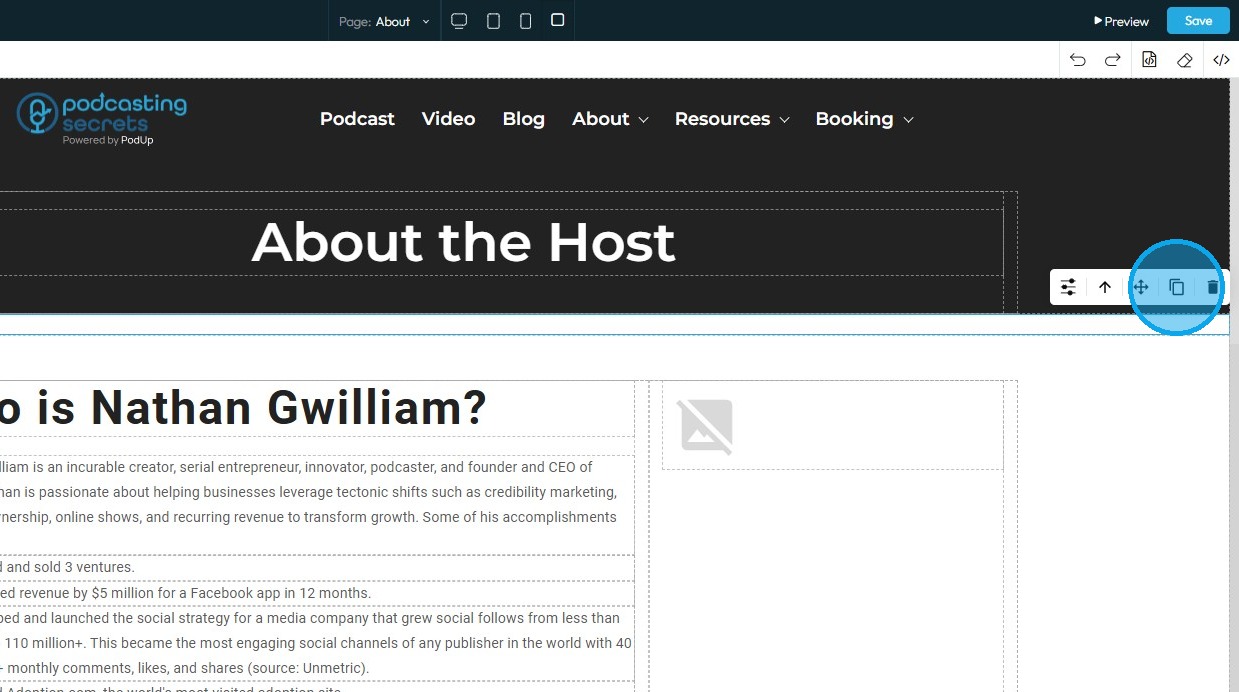
25. Delete: Remove the section entirely
- Note: If you have a duplicate, it will only delete one of the two
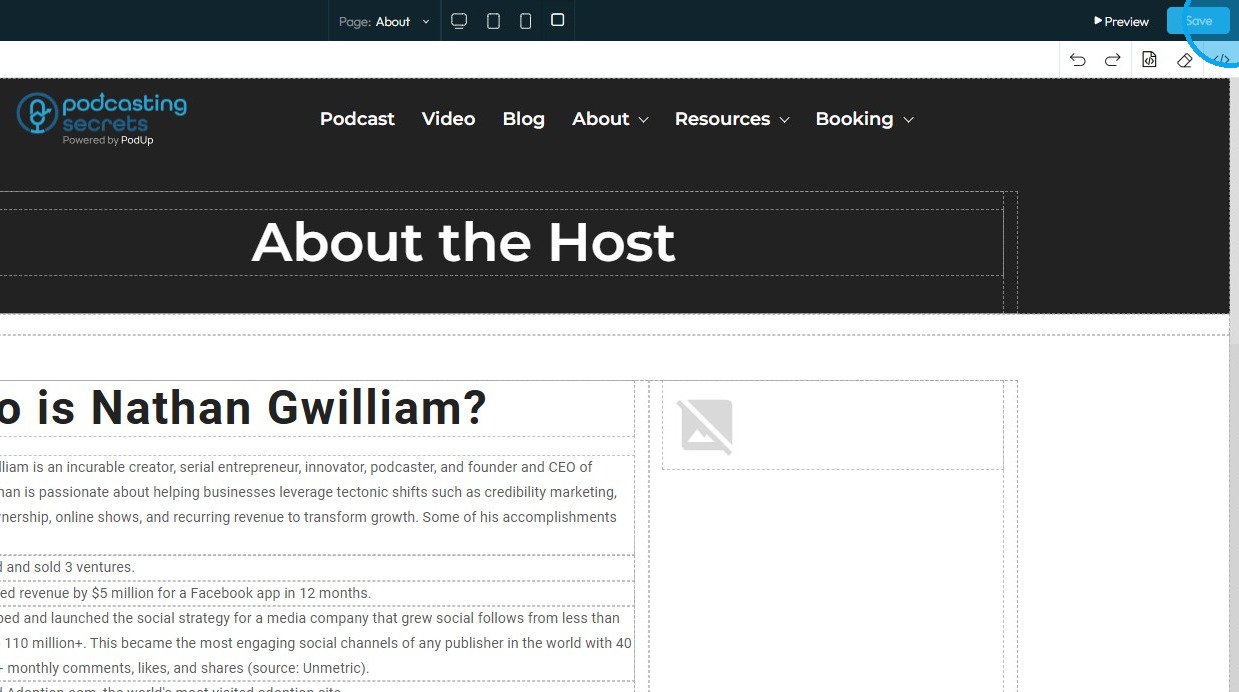
26. Click Save in the top right corner once all edits are complete
Related Articles
How do I customize Web builder Quick Add (Detailed) - Tabs
By following this guide, you can easily customize the Quick Add Tabs feature in PodUp Web Builder to enhance your website’s functionality and design. 1. Navigate to https://app.podup.com/home 2. Click "Page Builder". 3. Click the "Build" button for ...How to Navigate Page Builder (Detailed)
This guide provides a straightforward method for creating and customizing website pages using PodUp's Page Builder, making it ideal for users of all skill levels. It outlines each step in the process, from accessing the page builder to editing ...How do I Customize Web builder Quick Add (Detailed) - Paragraph
By following this guide, you will learn how to customize the Quick Add feature in the PodUp Web Builder from adding a paragraph block to adjusting text, background, and border settings so you can create polished, visually appealing elements with ...How do I customize Web builder Quick Add (Detailed) - Label
By following this guide, you can easily customize the Quick Add Label feature in the PodUp Web Builder to create visually appealing and interactive elements that enhance your website’s design and user experience. 1. Navigate to ...How do I customize Web builder Quick Add (Detailed) - Card
By following this guide, you can easily customize the Quick Add Card feature in PodUp Web Builder to enhance your website’s design and visual appeal. 1. Navigate to https://app.podup.com/home 2. Click "Page Builder". 3. Click the "Build" button for ...