How do I add B-roll to my video?
This guide offers a straightforward method for incorporating B-Roll into your videos using the PodUp app, enhancing your storytelling and visual appeal. By following the steps outlined, you'll learn how to effectively manage your A-Roll and B-Roll footage in the editing timeline. Viewing this guide will streamline your editing process, allowing you to create more engaging and professional-looking videos with ease. Don't miss the opportunity to elevate your video content!
1. Navigate to https://app.podup.com/home
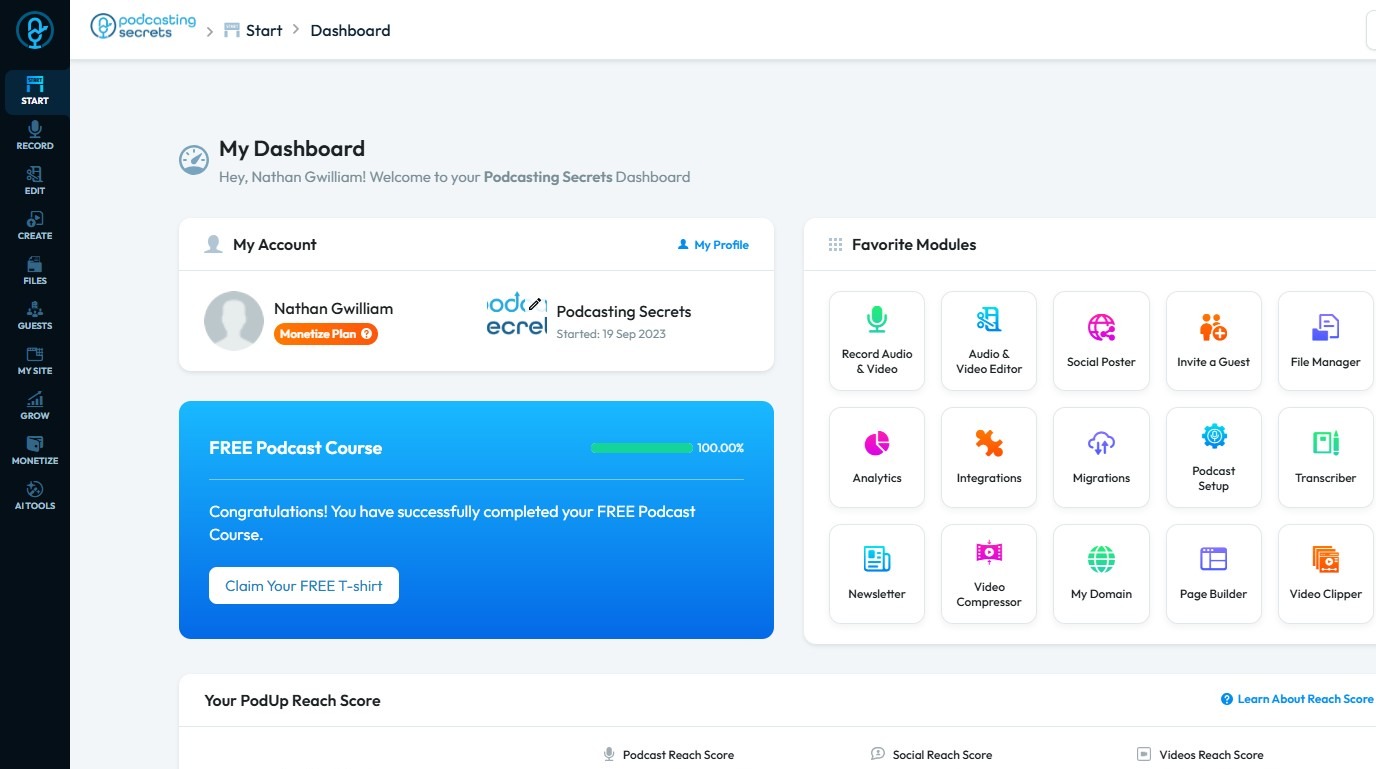
2. Click Audio & Video Editor.
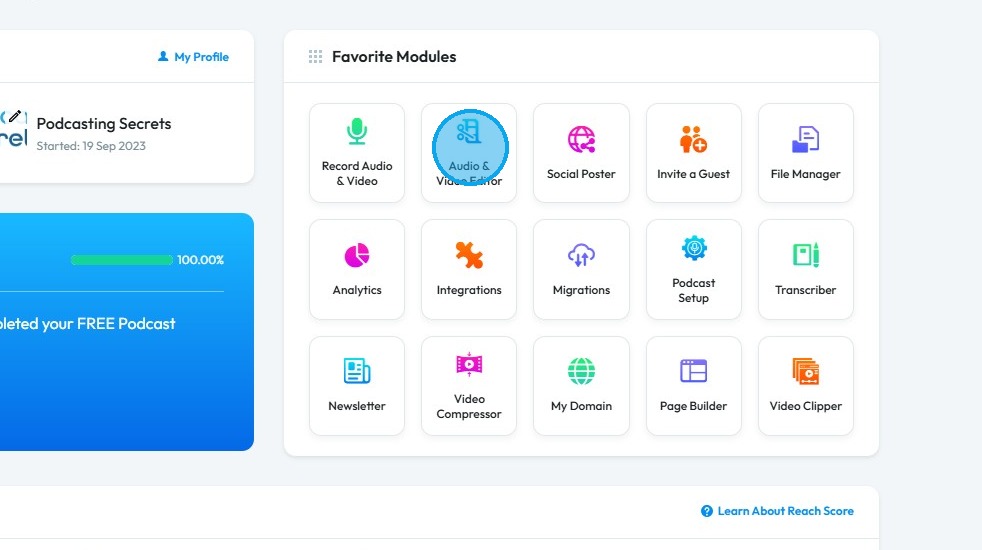
3. Click "My Files"
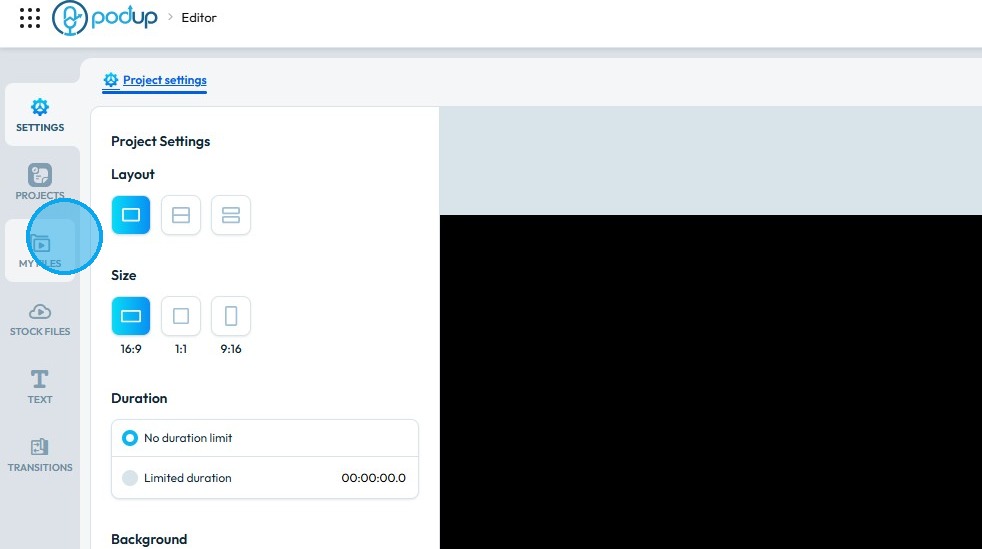
4. Click "Upload Video"
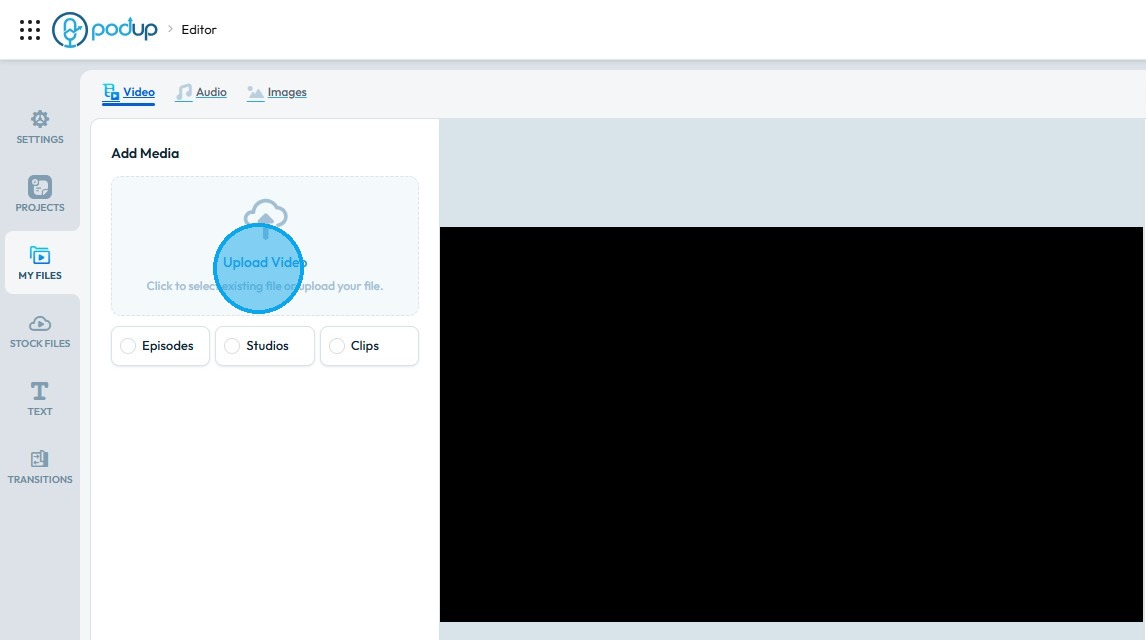
5. Click a video you want to use as A-Roll (Main Video).
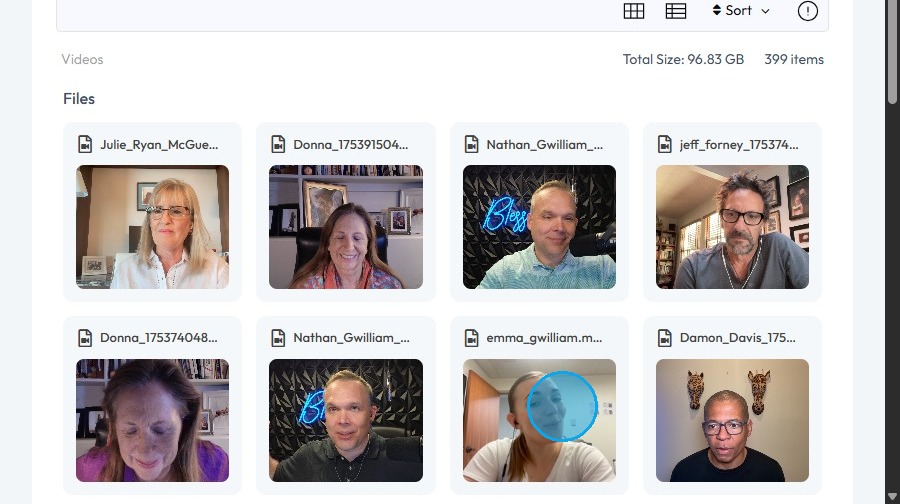
6. Click "Select"
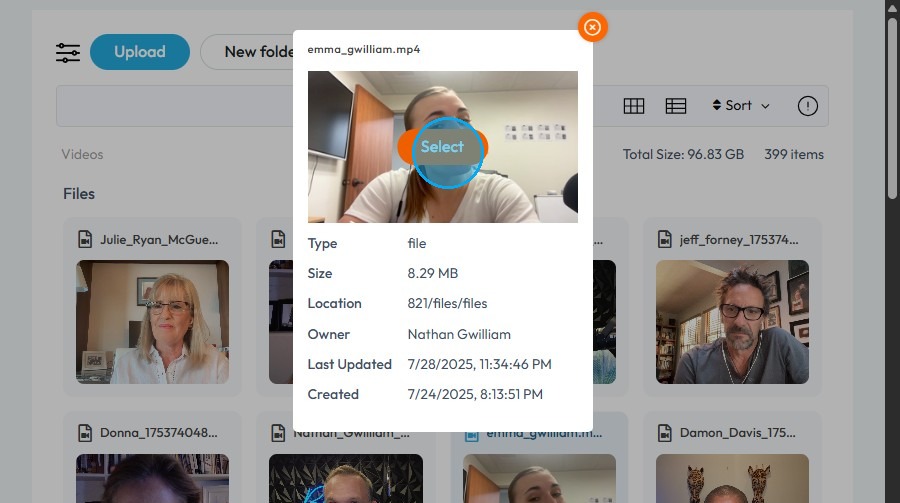
7. The video will be imported the "Editor".
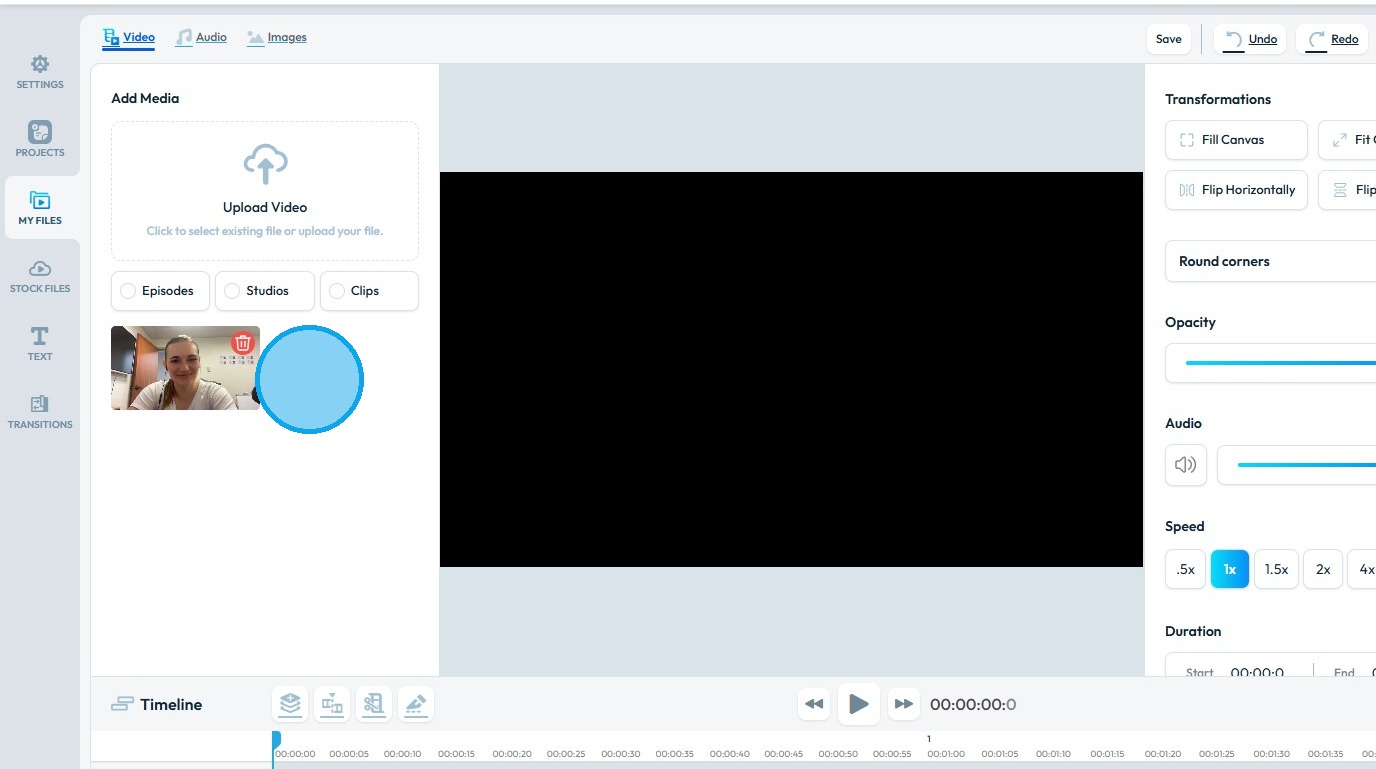
8. Click "Upload Video" again to load another video.
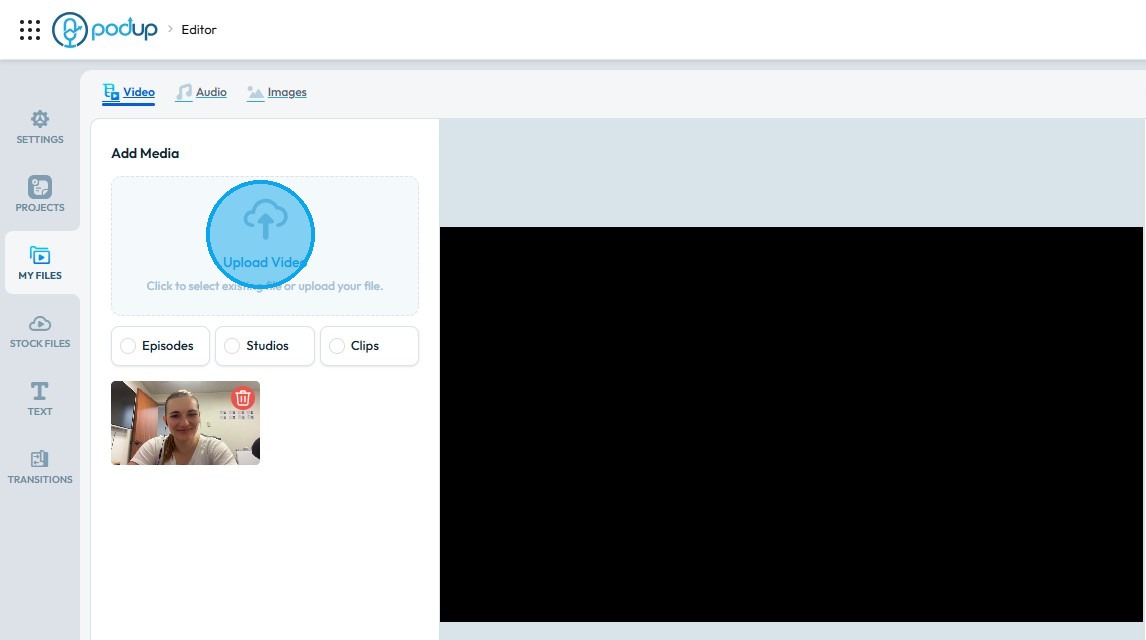
9. Click on a video you want to use as B-Roll (Secondary Video).
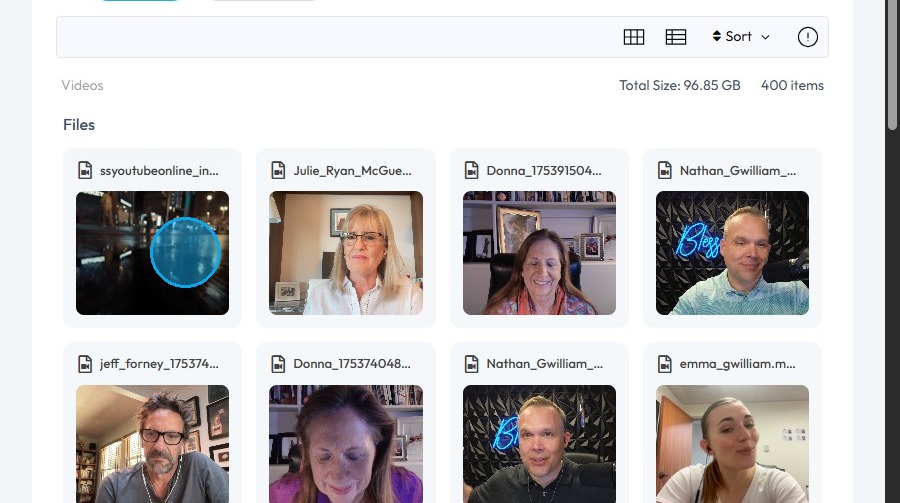
10. Click "Select"
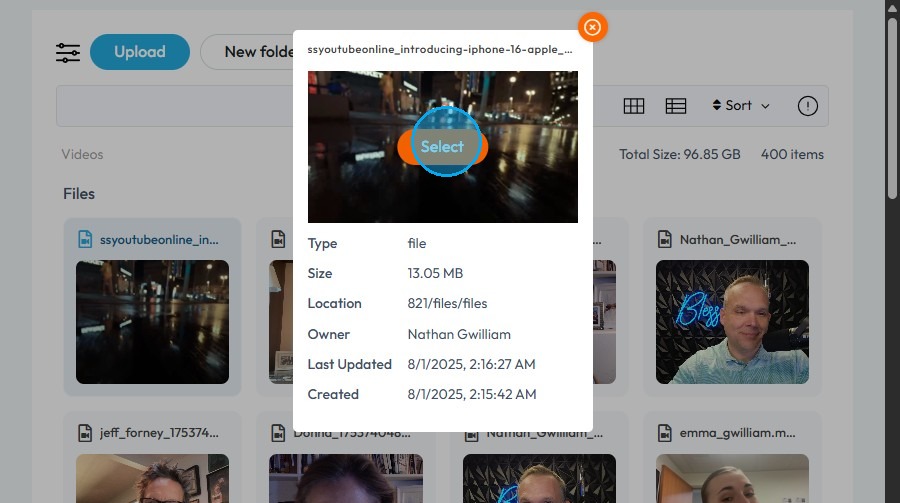
11. Both the "Video Files" will be imported into the "Editor".
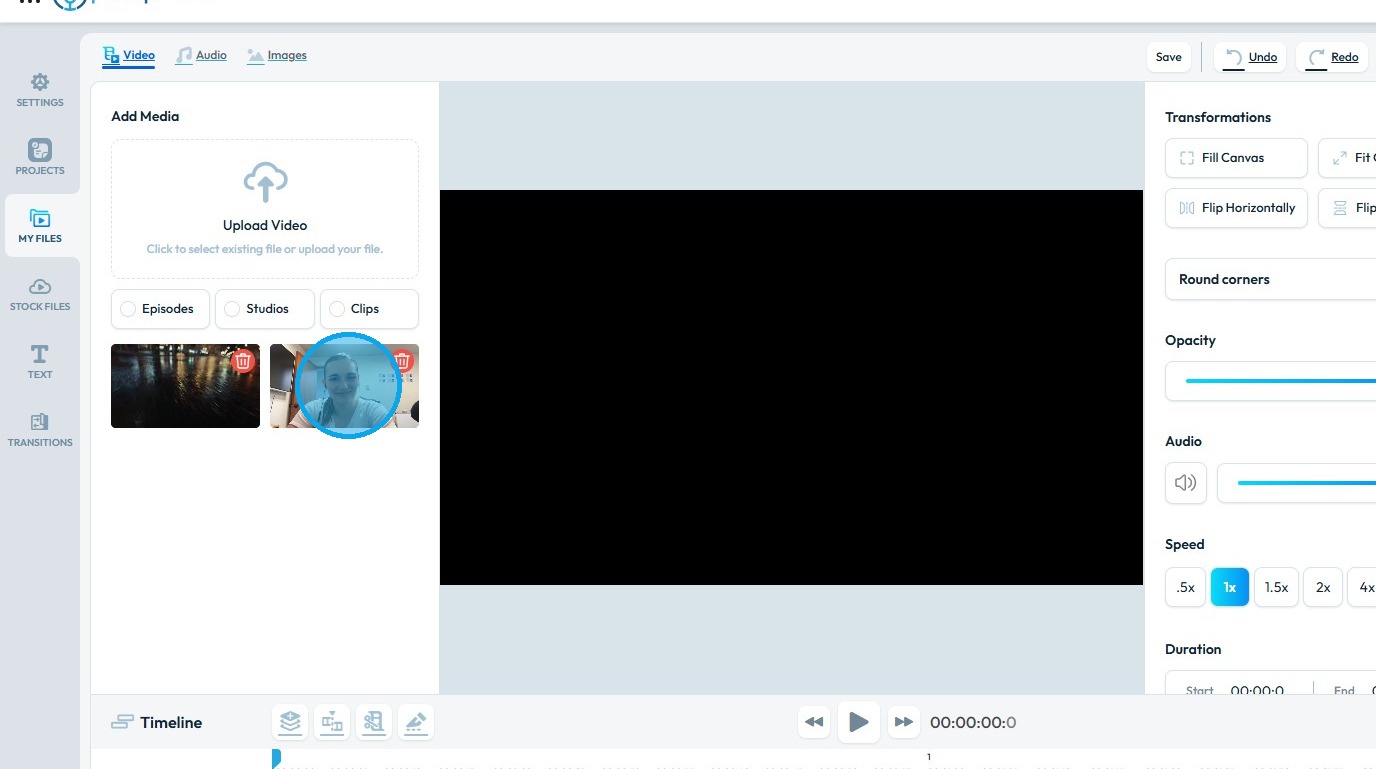
12. Drag and Drop the Main video in the Timeline.
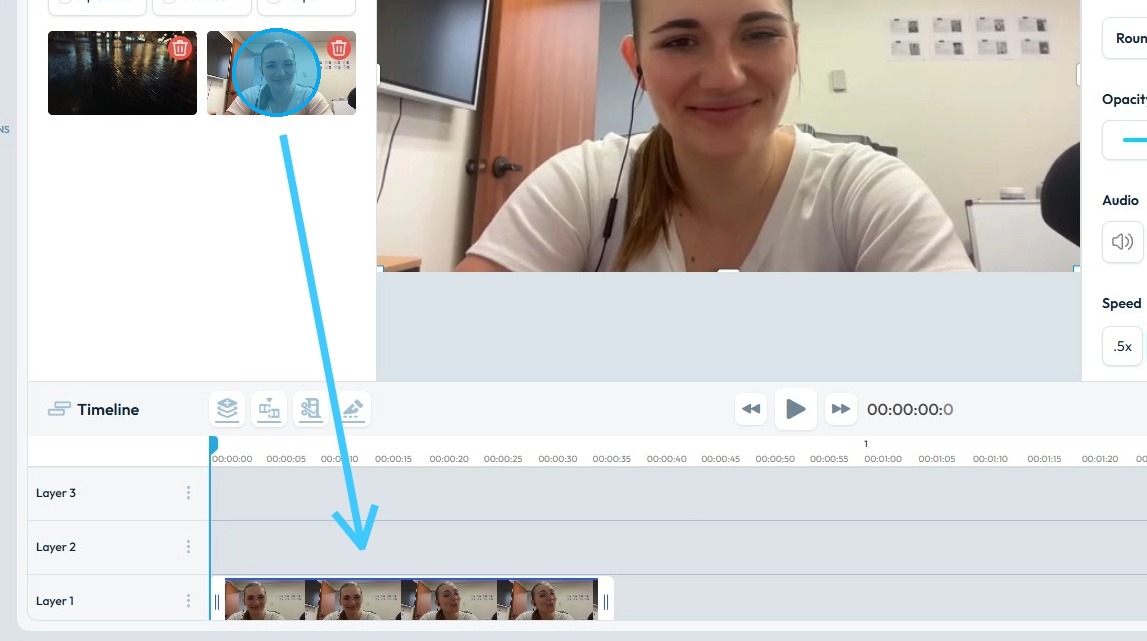
13. Drag and Drop the Secondary Video in the timeline, make sure you put it above the Main Footage.
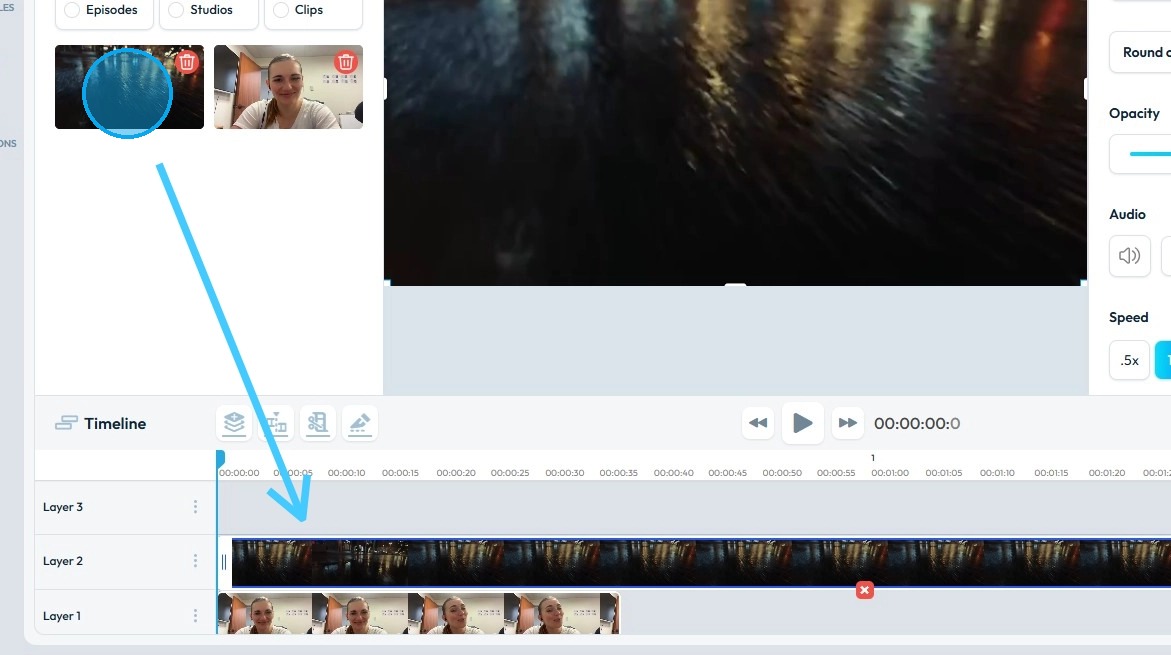
14. Click the video clip to select it. You will see "Handles" at starting point of the video as well as on the end point.
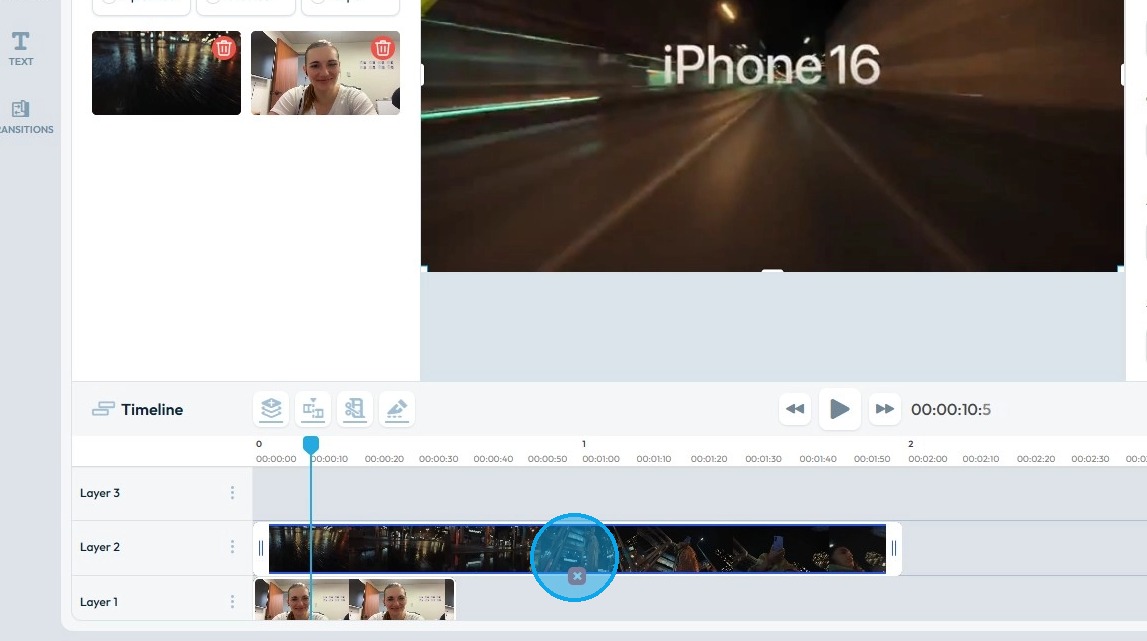

15. Adjust the end point by dragging the handle.
Related Articles
How To Add Video Transitions to My Video in PodUp
This guide shows you how to easily add video transitions in PodUp to improve your video flow. Perfect for beginners or those looking to sharpen their editing, it helps you create smoother, more polished videos. 1. Navigate to ...How Do I Add Text to My Video?
This guide shows how to add text to videos in PodUp, with simple steps for uploading, editing, and customizing text. Great for making your message clear and videos more engaging. 1. Navigate to https://app.podup.com/home 2. Click on "Audio & Video ...How Can I Add An Image to My Video?
Learn how to add images to your videos using PodUp's Editor. This quick guide covers two ways to access the Editor and simple steps to upload and place images—helping you create more engaging, polished videos. 1. Navigate to ...How Can I Add Music to My Video?
Learn how to add music to your videos with PodUp’s Editor. This easy guide walks you through importing and adjusting audio to create more dynamic, polished content. 1. Navigate to https://app.podup.com/home 2. Click on "Audio & Video Editor" in ...How to add an image to my video
Use this guide to add and save images in your videos with PodUp’s editor. 1. Navigate to https://editor.podup.com/ and load a video into the Timeline 2. Click "Stock Files" 3. Select "Stock Images" 4. Drag and drop the image in the timeline 5. The ...