How can I Compress Favicon Files?
By following this guide, you can efficiently compress and optimize favicon files in PodUp to improve website performance.
1. Navigate to https://app.podup.com/home
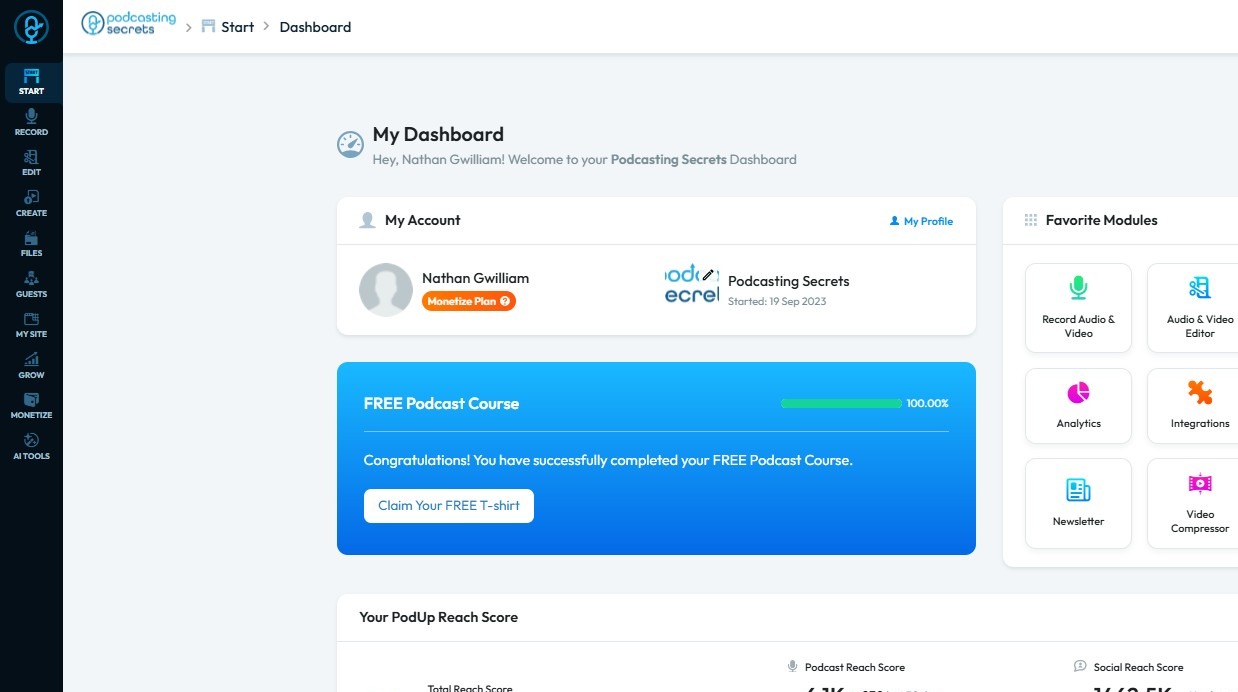
2. Click "File Manager"
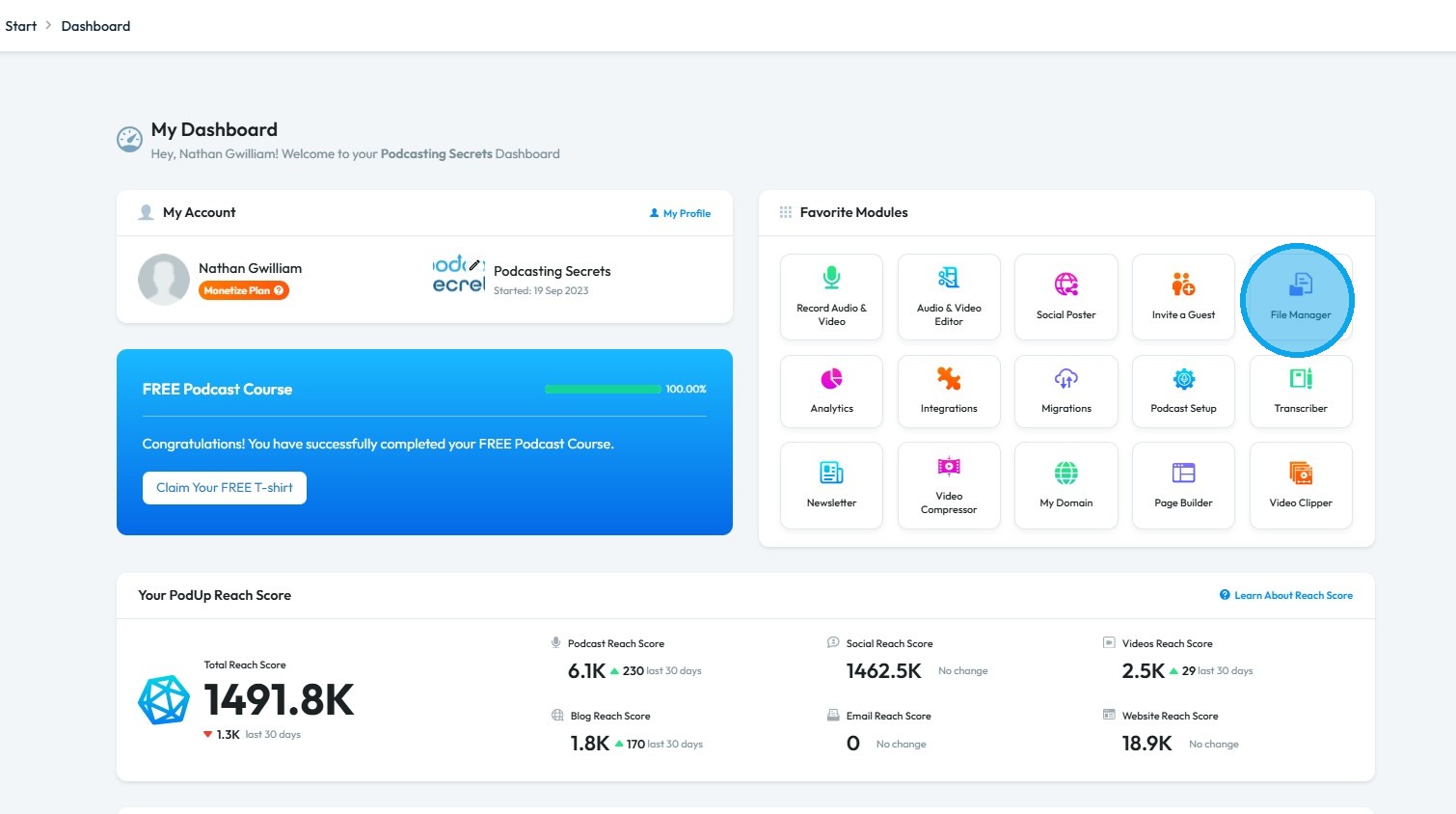
3. The File Manager will open
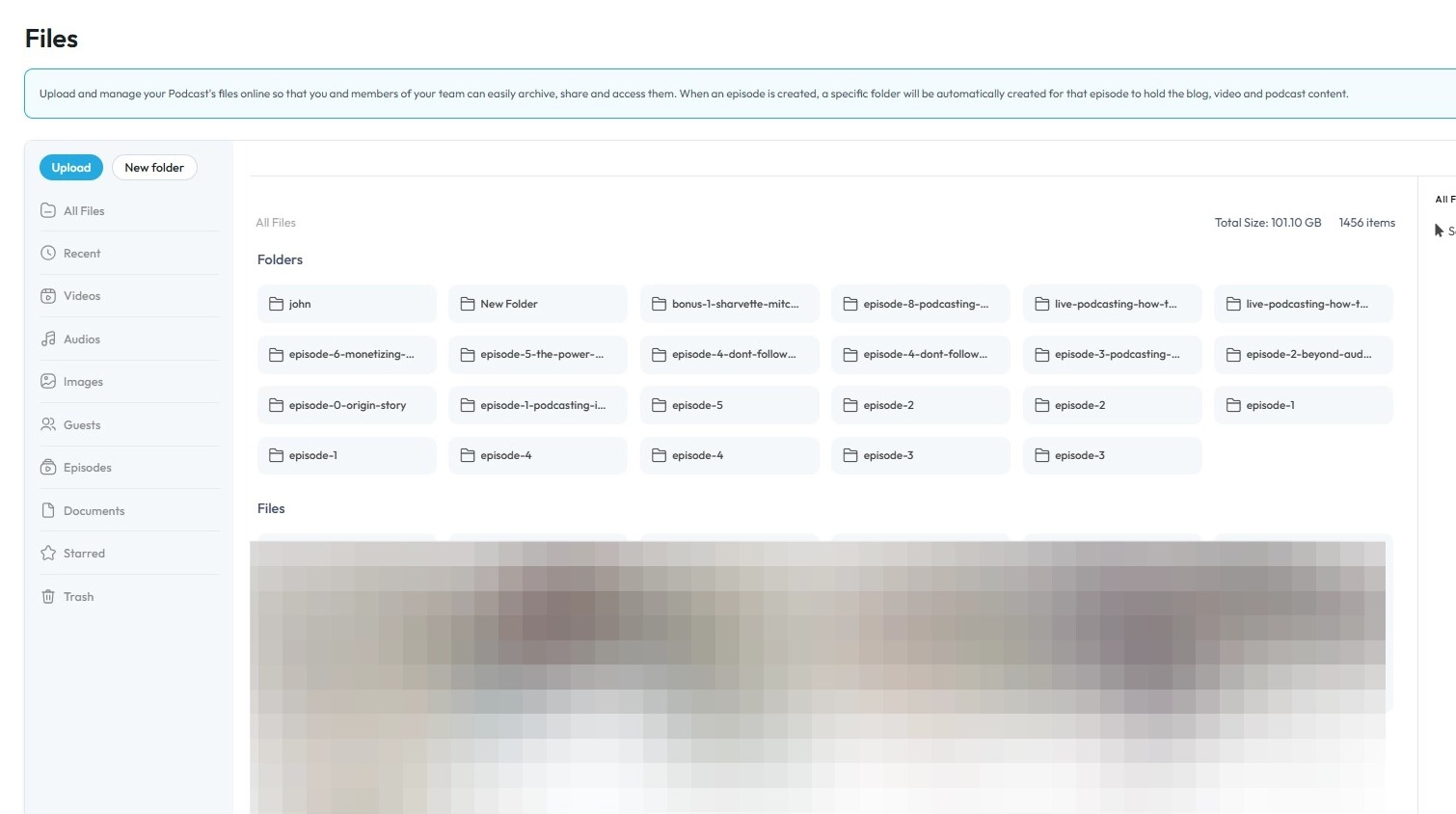
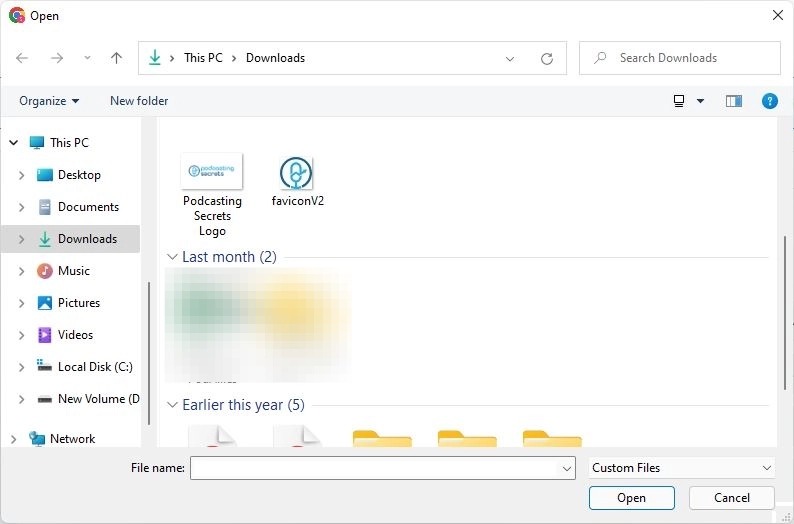
4. Select "Upload"
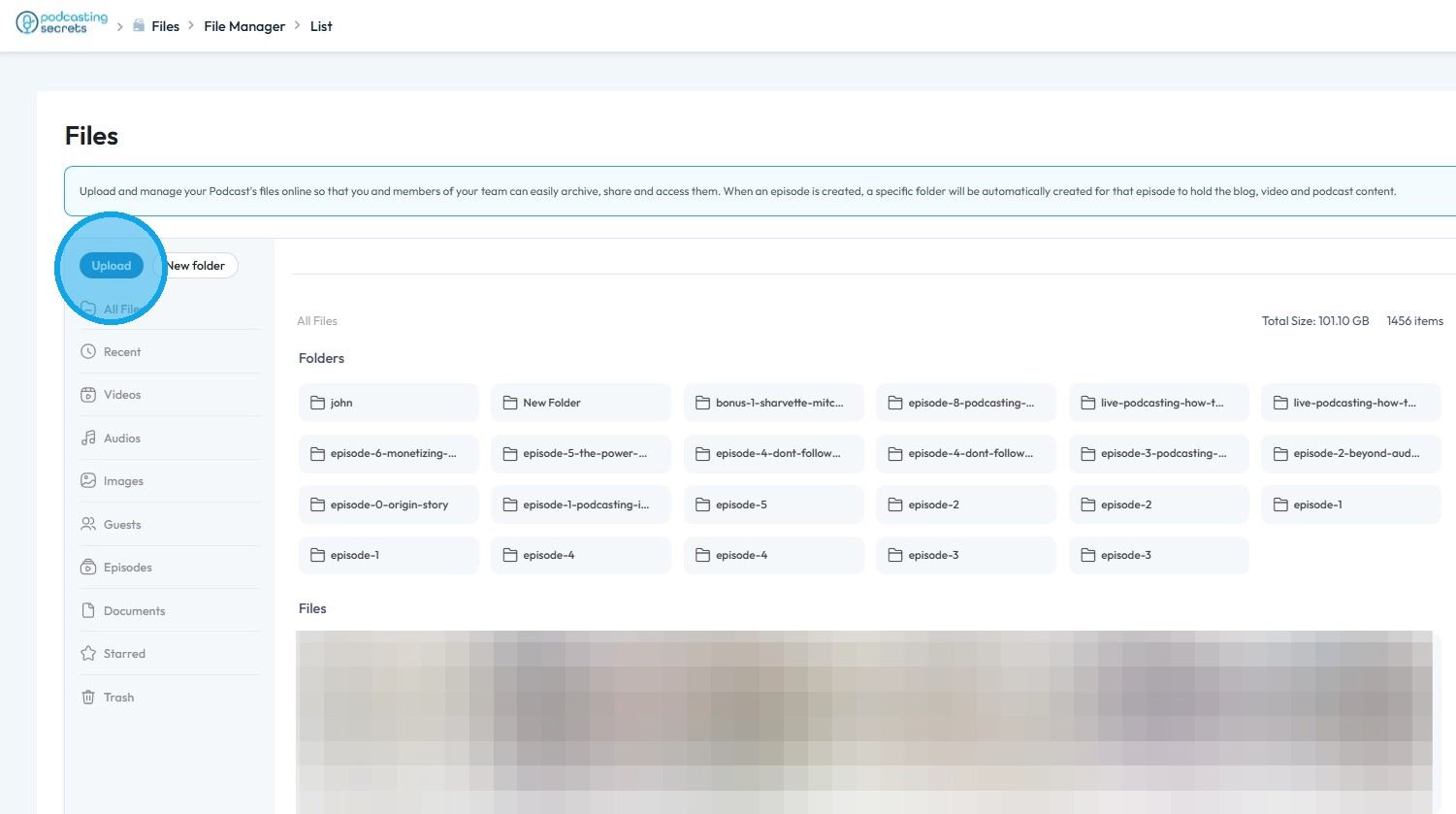
5. Select the file you wish to compress and click "Open".
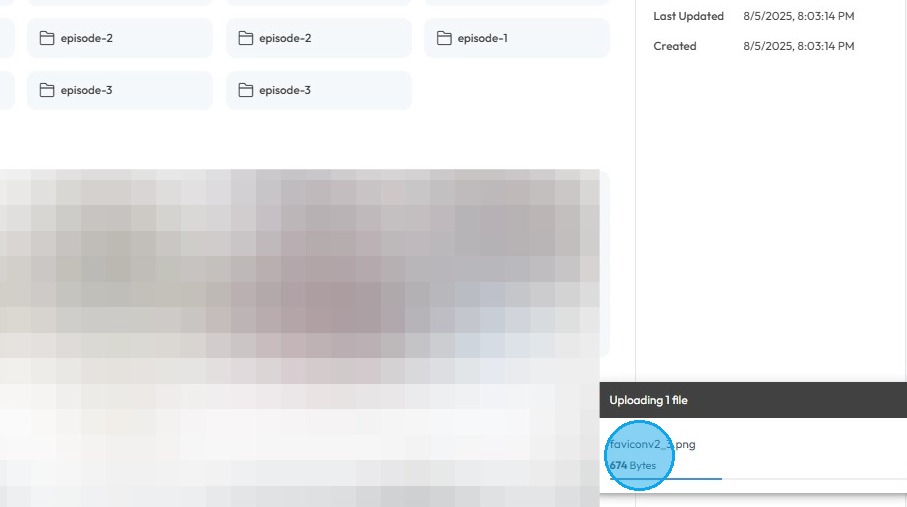
6. The upload status can be viewed in the bottom-right corner
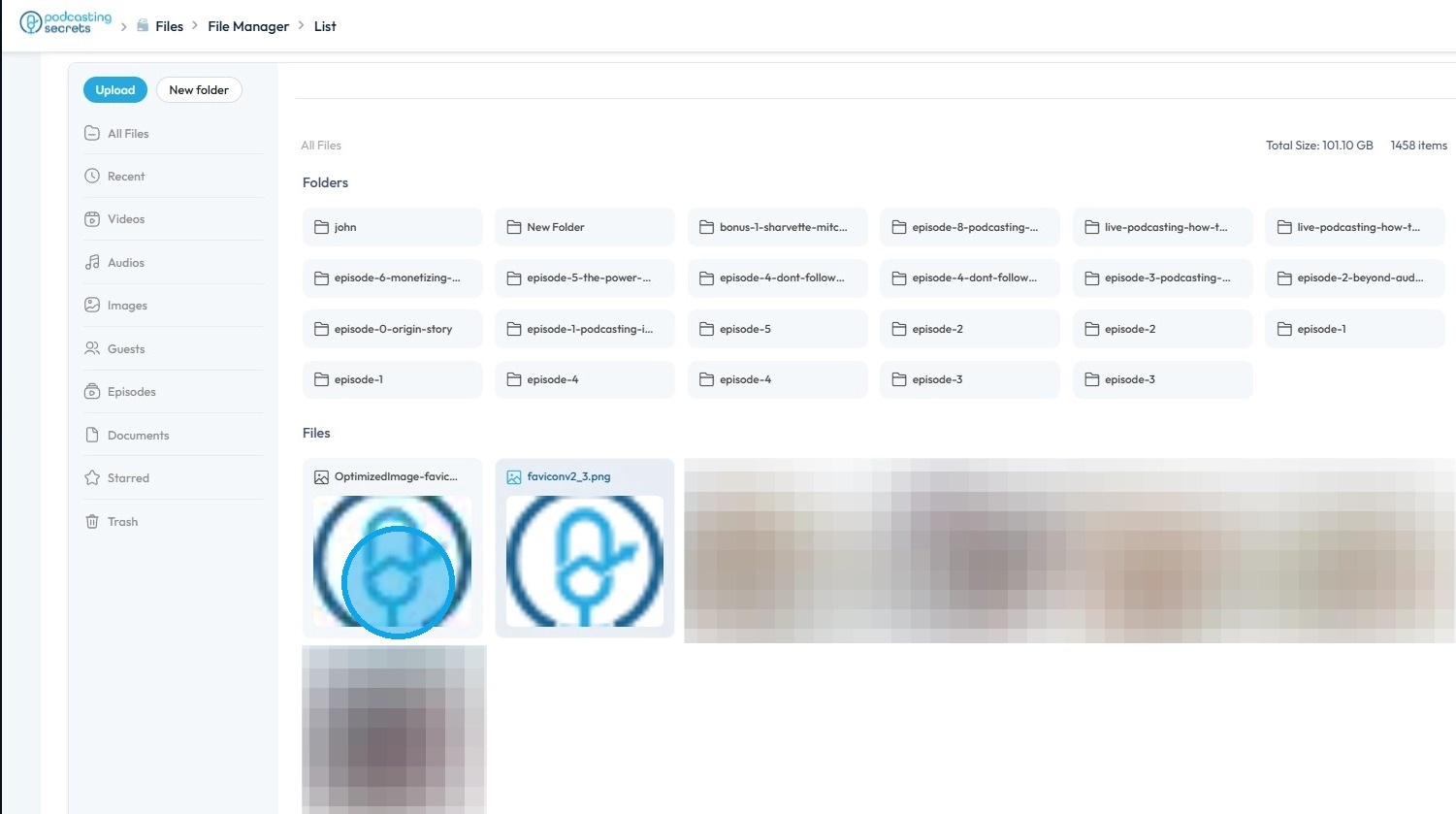
7. You will see two files displayed for the same favicon image
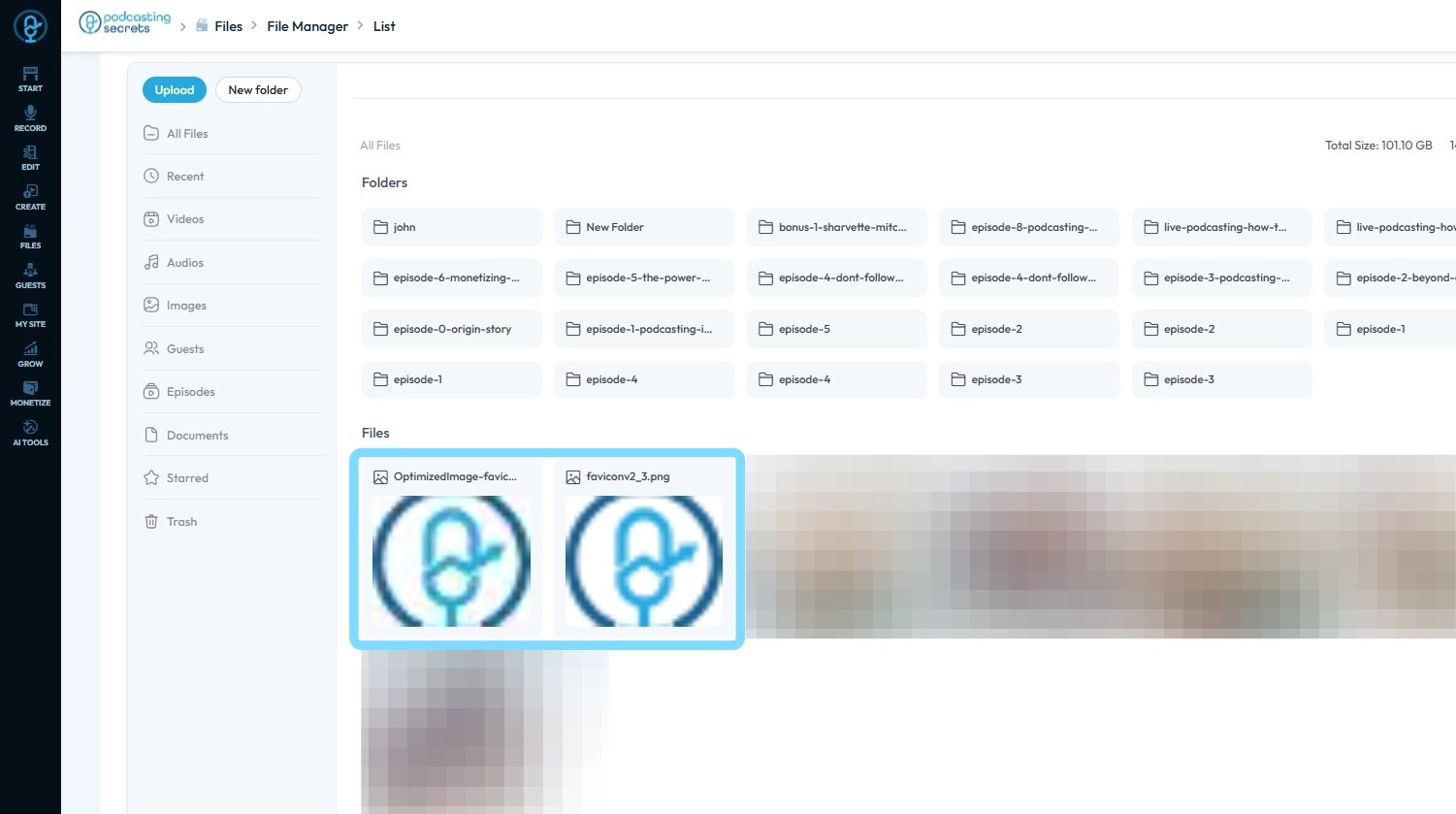
8. Uploading to PodUp's File Manager automatically generates an optimized, compressed version of the file.
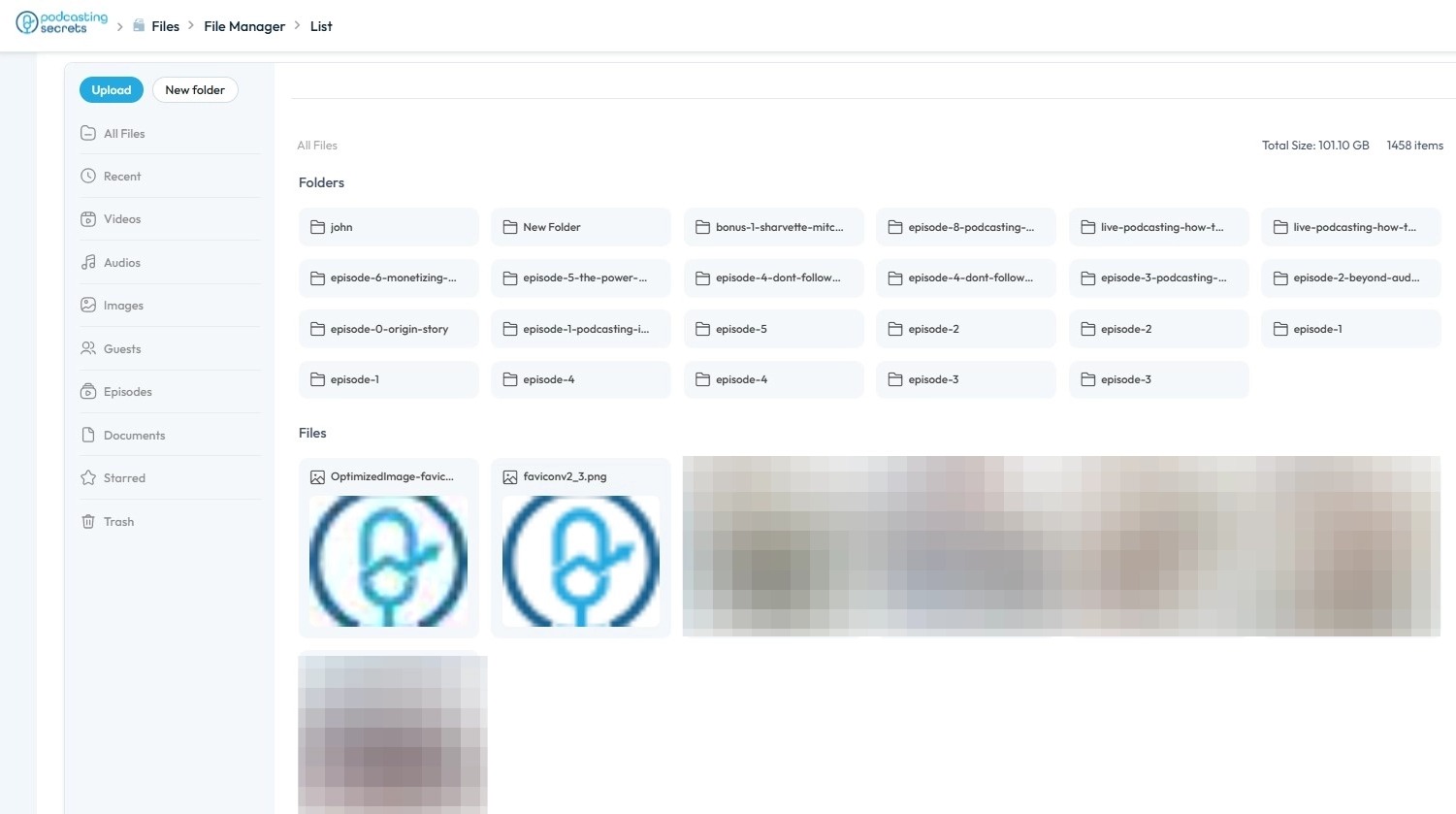
9. You can now use the compressed favicon wherever needed
Related Articles
How can I compress favicon files?
By following this guide, you can compress and optimize your website’s favicon using PodUp to improve loading times and enhance overall site performance. 1. Navigate to https://app.podup.com/home 2. Click "File Manager" 3. Click "Upload" 4. The file ...What is A Favicon?
This how-to article explains what a favicon is, why it matters, where it shows up on your site, and the size limits you need to follow. Tip! Favicon: The small icon that appears in a browser tab next to the page title. It's also used in bookmarks and ...How To Rename Files
By following this guide, you can quickly rename files in the PodUp app to improve organization and accessibility. 1. Navigate to https://app.podup.com/home 2. Click "File Manager" on Dashboard. 3. Right-click on the file you wish to rename 4. Select ...How do I delete files
By following this guide, you can efficiently delete files in PodUp to manage your storage and keep your workspace organized. 1. Navigate to https://app.podup.com/home 2. Click "File Manager" 3. Right-click on the file you wish to delete 4. Click ...How Do I Find My Audio Files?
This guide shows the easy way to find your audio files on PodUp. 1. Navigate to https://app.podup.com/home 2. Click "Files". 3. Click "Audios" 4. You will see all your "Audio Files".